


Best Android Phone For Long Battery Life
- Best overall
- Best for sleekness
- Best on for less
- Best for hard workers
Best overall
Huawei Mate 9

See at Amazon
With a massive 5.9-inch display, you’d think that the Huawei Mate 9 wouldn’t be able to last a whole day — but you’d be dead wrong. That screen is helped along by a 4,000mAh battery — one of the biggest in its class — pushing the Mate 9 to a staggering 2-day average uptime. Huawei’s flagship device also has some Machine Learning chops that learn what apps you use most and least, in order to optimize them for battery usage.
Bottom line: A huge 4,000mAh cell plus software optimizations make the Huawei Mate 9 the best phone for battery life.
One more thing: Sometimes the Mate 9 can push battery optimizations a bit too far, so be sure to tweak your app settings when appropriate.
Why the Mate 9 is the best
An underrated performer in the U.S. because it doesn’t have carrier support, but the Huawei Mate 9 is a serious worker.
Huawei has come a long way since its days of questionable software and China-only releases. The Mate 9 is now officially available in the U.S., and you get a lot with its $599 price tag, including a 4,000mAh battery that has to be one of the best out there. The company’s homegrown Kirin 960 chip is not only fast, but its 16nm manufacturing process makes it extremely efficient.
Combined with the power-sipping 1080p LCD panel, the Mate 9 seemingly lasts forever; there wasn’t a single day that reviewer Alex Dobie worried about it dying by the afternoon:
The phone never failed to get us through a full day of mixed use on LTE and Wi-Fi, often with more than 50% in the tank by the evening. Even pushing the phone really hard with lots of photography and a little wireless tethering, we never came close to experiencing battery anxiety.
Other than battery life, the Mate 9 is just an all-around great phone, and Huawei has committed to updating it with Alexa support in the coming months.
Best for sleekness
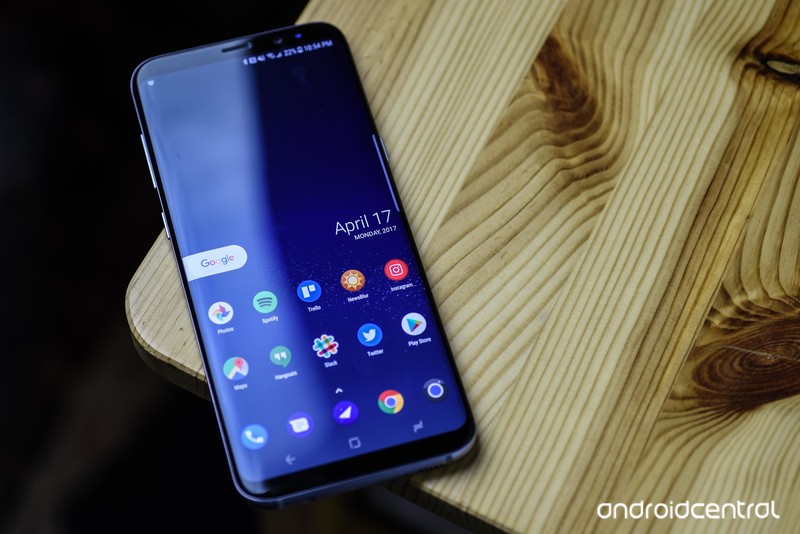
Samsung Galaxy S8+
See at AT&T
See at Sprint
See at T-Mobile
See at Verizon
See at Samsung
The Galaxy S8+ is the spiritual battery successor to the Galaxy S7 edge, and despite having a slightly smaller battery does an amazing job keeping the phone alive for as long as possible. That’s partly due to the amazing efficiency of the Snapdragon 835 chip, which we’re starting to see in more devices this year, but the GS8+ manages to outlast them all.
Bottom line: The Galaxy S8+ is a sleek, sophisticated and powerful Android phone — probably the best available overall — with amazing battery life.
One More thing: This highly-rated device is available at all four major carriers in the U.S., but if you’d rather live dangerously and contract-free, Samsung offers an unlocked model that also works overseas.
Best for less
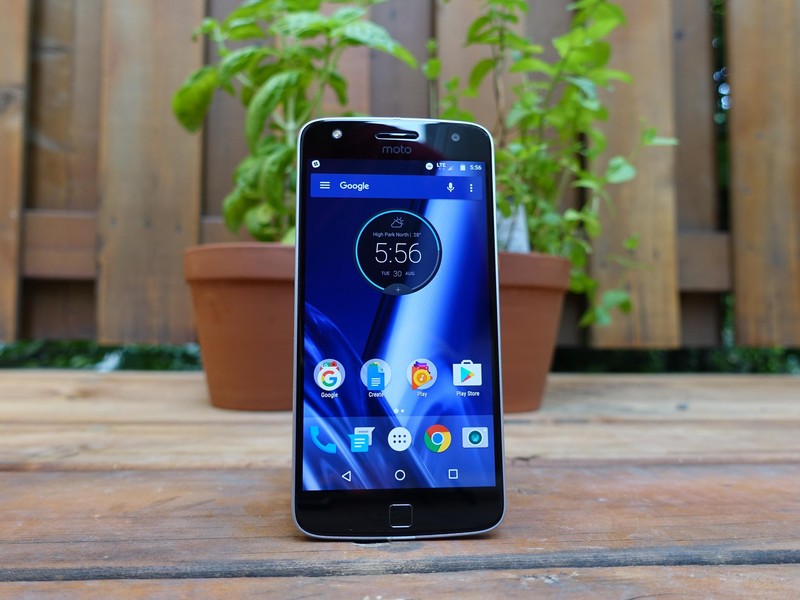
Moto Z Play
See at Motorola
The Moto Z Play starts quickly and keeps going. It’s actually quite amazing to witness. Thanks in part to the super-efficient Snapdragon 625 processor, which is built on a 14nm process, the phone rarely gets hot, and with eight cores, works smarter, not harder.
With a 3,510mAh battery inside, along with software that feels as light as a feather, the Moto Z Play is the longest-lasting $400 phone we’ve used. It’s also a pretty great smartphone, featuring a bright 5.5-inch display, a great 16MP camera, and support for Moto Mods.
Bottom-line: The Moto Z Play doesn’t sacrifice much from its more expensive, much thinner Moto Z sibling. If you can deal with the added girth, and a slight hit to processing abilities, you get one of the best, longest-lasting Android phones around.
One more thing: Pair the Moto Z Play with Incipio’s 2,220mAh OffGrid battery pack, and you have a whopping 5,730mAh combination that should last two full days, or longer!
Best for hard workers
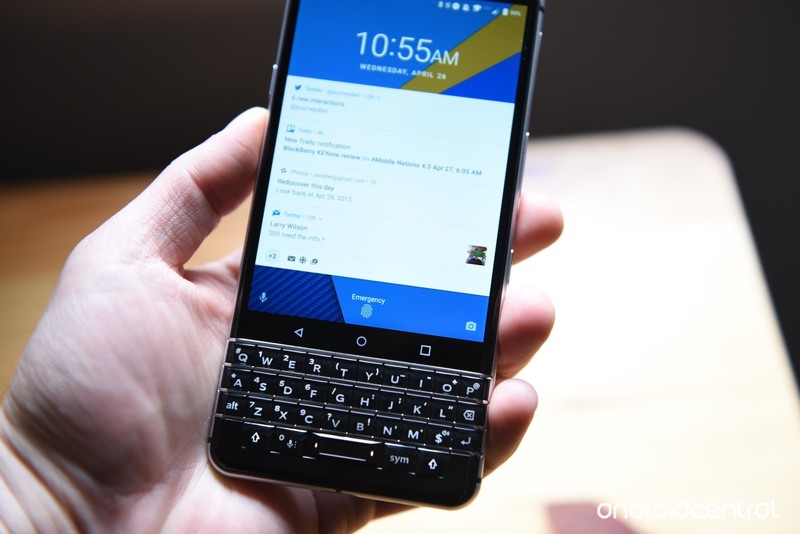
BlackBerry KEYone
See at Amazon
See at Best Buy
The BlackBerry KEYone is, unsurprisingly, a workhorse. There’s a lot going on beneath those classic BlackBerry keys, but the one thing you need to know is, like the Moto Z Play, it pairs a massive battery with an energy-sipping Snapdragon 625 processor. If you’re longing for the good ‘ol days of not having to charge your BlackBerry everyday, the KEYone fits the bill nicely.
Bottom-line: The KEYone is an exceptional phone with a near-perfect hardware keyboard and multi-day battery life.
One more thing: There are two separate variants of the KEYone, one for AT&T and T-Mobile and another for Verizon. Choose wisely.
Conclusion
Most phones claim to have “all-day battery life,” but few actually make it to bedtime. The Huawei Mate 9 actually backs up its claims, and does so while excelling in almost every other area.
Best overall
Huawei Mate 9
See at Amazon
With a massive 5.9-inch display, you’d think that the Huawei Mate 9 wouldn’t be able to last a whole day — but you’d be dead wrong. That screen is helped along by a 4,000mAh battery, one of the biggest in its class, pushing the Mate 9 to a staggering 2-day average uptime. Huawei’s flagship device also has some Machine Learning chops that learn what apps you use most and least, in order to optimize them for battery usage.
Bottom line: A huge 4,000mAh cell plus software optimizations make the Huawei Mate 9 the best phone for battery life.
One more thing: Sometimes the Mate 9 can push battery optimizations a bit too far, so be sure to tweak your app settings when appropriate.
Update June 2017: The Mate 9 stays on top of the list with its huge battery, but the Galaxy S8+ takes over from the GS7 edge and the Honor 8 gets bumped for the BlackBerry KEYone.
Google Wifi comes to France at €139, or €249 for a two-pack
Another country gets clean home Wi-Fi management from Google.
Google Wifi is extending its sales network to a new country, landing in France today. The mesh router system is going on sale at a variety of retailers, including the Google Store, Cdiscount, Boulanger and more.

A single Google Wifi point will set you back €139, which is a touch higher than the $129 here in the U.S. Interestingly, there’s no three-pack discount option in France, only a two-pack discount — you can get two access points to extend your network for €249.
As we’re now several months removed from the launch of Google Wifi, it’s good to see the router system still expanding to new areas — it can be easy to forget about “old” products and not bring them to new markets.
Google Hardware

- Google Wifi review
- Google Home review
- Everything you need to know about the Chromecast Ultra
- Chromecast vs Chromecast Ultra: Which should you buy?
Google Wifi:
Google
Amazon
Google Home:
Google
Best Buy
Chromecast Ultra:
Google
Best Buy
AT&T is rapidly expanding its rural wireless internet service
AT&T wasn’t kidding when it said it would expand its rural wireless internet service in short order. The carrier has launched its fixed-in-place cellular access in eight more southeastern states, providing broadband to over 70,000 locations that would otherwise have poor or non-existent internet coverage. That still doesn’t sound like much, but it’s much larger than the Georgia-only service AT&T started with in April. It also gets the provider much closer to its goal of serving over 400,000 locations by the end of 2017.
As before, subscribers will shell out $60 per month for an LTE connection with 160GB of data ($10 for every 50GB beyond that, up to $200). They’ll have download speeds of “at least” 10Mbps, which doesn’t meet FCC broadband definitions but is miles better than dial-up or basic DSL.
The rollout helps meet AT&T’s pledge to the FCC’s Connect America Fund, which aims to bring high-speed internet to the countryside and other areas that ISPs frequently don’t serve (often due to the high cost relative to the number of customers they’ll get). However, it also dovetails with a Trump administration infrastructure proposal that promises more resources for rural broadband access. Don’t be surprised if AT&T gets more of a helping hand going forward.
Source: AT&T
Amazon Echo Show Reviews: Privacy Concerns, Sound Improvements, and Video Calling as Killer App
Ahead of the launch of the Echo Show this Wednesday, June 28, Amazon has given review units to a few sites so that they can test out the new Echo and see how its 7-inch touch screen adds to the traditional Amazon Echo experience. Amazon revealed the $230 Echo Show earlier in May and bills it as having all of the features of the traditional Echo, with the addition of a display to enhance user interactivity.
According to The Verge, one of the best aspects of Echo Show is that, “you basically never need to tap the screen for anything, unless you really want to.” Instead of adding an array of touchscreen-required actions that overcomplicate the interface, the company focused on adapting the abilities of the previous Echo models to work with a touchscreen.
While there were some moments when the touchscreen’s “secondary importance” caused UI annoyances, the site largely admired Amazon’s decision to keep the voice control focus of the Echo line with Echo Show.
Are there things I don’t love about the Echo Show? Of course. I think it’s pretty homely and I think that the sound quality could be better for the price. But the improvements over the original Echo are big enough that it’s my favorite smart speaker right now.
From nearly any other company, adding a screen would have resulted in feature-itis of the worst kind. By holding back, the Echo Show feels like it does more. Its strength is in its simplicity.
In its review, TechCrunch described Echo Show’s video calling feature as the “killer app” for many users, allowing calls between two Echo Show devices, or between an Echo Show and the Alexa smartphone app. After entering a phone number, the Echo Show displays a list of other Echo owners from your own personal contact list, and from there you can directly call their Echo.
 Image via The Verge
The site noted that the screen is far too small for long movie sessions (currently only supporting video from Amazon Prime), and described its resolution as “middling,” but in video calls the Echo Show’s 7-inch touchscreen makes the most sense. Still, both TechCrunch and The Verge did find Echo Show’s “Drop In” feature slightly intrusive, as it lets selected friends and family pop into your Echo Show and see your home whenever they feel like it, but it’s not activated by default.
It’s a lot easier to use than Skype (though, to be fair, most things in this life are), but it’s currently limited to Show users, which means Amazon is going to sell a lot of these to family members looking for a simple way to keep in touch. There’s also an odd Drop-In option, which takes the whole picking-up-the-phone bit out of the equation, so select friends and family can communicate directly with little warning. I suppose there’s some value for users looking to periodically check in on loved ones, but the whole thing is too intrusive for my tastes.
Wired also referenced worry about Echo Show’s always-watching camera, but ultimately sees potential in the device’s future, particularly once Amazon begins adding in more “skills” for the Echo Show. The site continued an opinion shared in multiple reviews posted today, which is that the Echo Show’s speaker is better than that of the original Echo’s, but “it’s no Sonos.”
Still, I find the Show’s potential fascinating. The Alexa ecosystem has grown big enough that I suspect Netflix and Hulu will soon make video skills, most smart-home manufacturers will support the new device, and games and apps will pop up all over the place. Alexa’s voice recognition works well enough to make all of this work, and developers can access the camera, the screen, the microphone, and the speaker. The Echo Show is basically an always-on, plugged-in smartphone, which could become hugely powerful.
Amazon’s Echo Show is the latest in the company’s line of smart speaker systems, following the Echo, Echo Dot, and Echo Look. Apple is gearing up to finally enter the same market, with an announcement at WWDC this year for the “HomePod.” Apple said that its speaker is more focused on high-quality music playback than its smart speaker rivals, while also offering Siri-based AI features.
Check out more Echo Show reviews from the following sites:
– Business Insider
– Buzzfeed
– CNET
– Engadget
– TIME
– Bloomberg
– Gizmodo
– USA Today
– SlashGear
– The New York Times
Tags: Amazon, Amazon Echo, Alexa
Discuss this article in our forums
Apple CarPlay explored: Taking iOS on the road
Apple CarPlay has been around for a few years now but things have moved on significantly in those years, with more and more manufacturers offering compatibility and not just in premium models either.
We’ve been using it in the 2017 Kia Sportage to give you a run down of everything Apple CarPlay can do and how it works if you’re someone who already has a CarPlay-compatible car, or if you don’t, why it’s a technology you’ll want your next car to have if you’re an Apple user.
What is Apple CarPlay?
Apple CarPlay is the tech giant’s foray into in-car technology. It puts certain features of your iPhone onto a CarPlay-equipped car’s built-in display, allowing drivers to do what they want on their phone while driving.
You can get turn-by-turn directions, make calls, send and receive messages and listen to music without having to touch your iPhone at all. Each app, which includes Phone, Messages, Music, Maps, Podcasts and Audiobooks, as well as a couple of third party ones, have all been redesigned for the car so they can be used while your eyes and hands stay where they should be.
At the heart of CarPlay is Apple’s personal assistant Siri, enabling you to do tasks such as make a call, dictate and send a message or have a received message dictated to you all through voice control. CarPlay can also be controlled with the knobs, dials and buttons in your car though, as well as the touchscreen.
Naturally, CarPlay only supports Apple iPhones and is compatible with models from the iPhone 5 and newer running iOS 7 and above. If you have an Android device, such as a Samsung Galaxy S7 or S8, you’ll need to read our feature on Android Auto explored instead.
- Android Auto explored: Taking Google on the road
Apple CarPlay: How to set it up
Apple CarPlay set up is very simple. Unless you have the new BMW 5 Series, you’ll need a Lightning cable, which you’ll need to plug into a USB socket in the front of the car and then into your iPhone. The Apple CarPlay icon should then appear on your car’s built in display and from here you’ll be able to get to the CarPlay interface with a simple tap. Wireless functionality has been available for CarPlay since iOS 9 but the BMW 5 Series is currently the only model to offer it.
If you’re having issues, head into the Settings icon on your iPhone > General > CarPlay. From here, there is a My Cars section where you should see your CarPlay-compatible car appear. You can also press and hold the voice control button on your car’s steering wheel to start setup.
Tapping on your car in the list on your iPhone will then offer more settings options. You can choose whether to allow CarPlay to work when your iPhone is locked, as well as move around the order of how the CarPlay apps appear on your car’s display.
As you would on your iPhone, pressing and holding the icon you want to move will allow you to put it in the order you want it. This will then be replicated on your car’s touchscreen.
Apple CarPlay: User interface and controls
Apple CarPlay essentially turns your car’s built-in display into a giant iPhone. It’s also as intuitive as your iPhone and works in a very familiar way, though not identical to your iPhone. The biggest difference is that only a few of the apps on your iPhone will appear on your car’s display through CarPlay.
Sadly, there isn’t much compatibility for third party apps at the moment, except a very select few, which include Spotify, At Bat, Stitcher, Overcast, Audiobooks.com, Audible, Vox, NPR One, Clammr and Downcast. The only icons you’ll see on your car’s touchscreen will therefore be Phone, Messages, Apple Music, Apple Maps, Podcasts, Audiobooks and any of the third party apps listed.
You will also see an icon for the car manufacturer of your car. Tapping this will take you away from CarPlay and back to your car’s main infotainment system, offering access to its navigation option or settings for example.
Pocket-lint
When in one of the CarPlay apps, you’ll see a small icon of the app you’re using in the top left corner, with two of the most recent apps you’ve been using below it. You’ll also see the time, signal strength of your iPhone and a home button for returning to the main CarPlay dash.
This home button looks similar to how the original home button looked on iPhones before Touch ID appeared with a small square in the middle so it’s easily recognisable. In terms of control, you can either use touch, voice if you push the steering wheel button, or your car’s knobs and buttons, as we mentioned previously.
Apple CarPlay: Notifications
Certain notifications will appear from your iPhone when connected to CarPlay, such as event alert reminders, new message alerts and of course incoming calls.
Pocket-lint
We dive into a little bit more detail on the Messages front a little further down, but a pop-up banner will appear at the top of any CarPlay app screen if you get a new message or event alert through Apple Calendar.
The banner will disappear after a few seconds, as it does on your iPhone, but if you tap it, Siri will ask if you would like it to read the new message or open Maps to launch directions for an upcoming event.
Apple CarPlay: Calling
Being able to make phone calls in the car is nothing new. It’s been possible for years thanks to Bluetooth so the Phone section of Apple’s CarPlay is perhaps the least exciting. That said, you couldn’t possibly have something like CarPlay without the ability to make and receive calls so it’s a fundamental part of the system too.
There are several ways to make a phone call using CarPlay, the first of which is to press the voice control button on your steering wheel, after which the Siri screen will appear. You can then tell Siri to call the name of the person you wish to contact.
Pocket-lint
Alternatively, you can tap the Phone icon in the CarPlay menu. The Siri screen will then appear again, only this time it will specifically ask who you want to call, or whom you would like to speak with. Again, you say the name of the contact and Siri replies with “Calling [contact name]”.
You can also opt to find the contact yourself, or type in the number on the keypad yourself. In order to do this, you’ll need to tap the Phone icon and head to the “Show Contacts” in the top right of the Siri screen. From here, five tabs will appear at the top of the car’s touchscreen: Favourites, Recents, Contacts, Keypad, Voicemail.
Pocket-lint
The tabs replicate what you would see within the same five tabs at the bottom of the Phone app on your iPhone. Therefore, whoever your favourites are on your iPhone will be the same ones that appear on the CarPlay screen. Arrows on the right of the CarPlay screen allow you to scroll and there is also an A-Z button within the Contacts tab that when pressed will pull up each letter of the alphabet on your car’s display, allowing for easier searching.
During a call, your car’s display will look very similar to how your iPhone screen does during a call, though a few of the options are lacking, such as FaceTime. The name of the person you are talking to appears in the centre of your car’s display, with the red circular end call icon and three circular options beneath comprising mute, keypad and add call.
Apple CarPlay: Messages
Sending and receiving messages is one of the features of CarPlay that is a little more exciting than being able to make and receive calls. Like calling though, there are a couple of ways in which you can compose a new message to someone in your contacts.
The first is the same as calling in that you can use the voice control button on the steering wheel and tell Siri you want to send a message to the name of the contact you wish to text or iMessage.
Pocket-lint
Another option is to press the Messages icon on the CarPlay main menu and Siri will instantly greet you with: “To whom shall I send your message?” or similar. As you would expect, you then say the contact’s name and Siri will ask what you want to say.
Dictate your message to Siri as prompted and when you finish talking, Siri will read back your message and ask if it should send it. You then have the option to send the message as it is, cancel it, or change it in case Siri has misunderstood you, or you have changed your mind about what you want to say.
As with the Phone icon, you can click on “Show Messages” in the top right of the Siri screen when you open the Messages icon to see a list of the contacts you have recently sent or received messages from. Again, it looks like your iPhone Messages screen does but the message itself won’t be shown beneath the name of the contact and you won’t be able to read the last message by clicking on the contacts name either.
Pocket-lint
Instead, tapping on the contact will result in Siri asking you what you want to say in a message to that particular contact, giving you another way of composing a new message. There is also a pen and paper icon in the top right hand corner of this screen that will also pull up the Siri screen asking you who you want to compose a new message to, followed by asking you what you want to say.
When it comes to receiving messages, a banner alert will appear at the top of your car’s touchscreen if a new message comes through, no matter what CarPlay app you are in, whether Apple Maps or Spotify. The banner alert will show the name of the contact the message is from and a number in a red circle will appear on the main Messages icon too, as it would on your iPhone.
Pocket-lint
You can either directly tap the banner alert as it comes through, or tap the Messages icon. If you tap on the banner alert, Siri will then say you have a new message from the respective contact and ask if you would like it read to you. If you tap the Messages icon, Siri will ask if you would like your new messages read or if you would like to compose a new message.
You’ll be able to ask Siri to read the message again, as long as you do it straight away, and you’ll also be asked if you would like to reply, after which you can dictate your reply. Three option icons will also appear on the car’s touchscreen, comprising call, read again and reply.
Apple CarPlay: Apple Maps Navigation
Apple CarPlay offers navigation through Apple Maps, just as Android Auto offers navigation through Google Maps. Apple Maps through CarPlay works in a similar way to Apple Maps on your iPhone in that it pulls in information from where it can, such as events in your Apple calendar, emails, contacts and messages.
Upcoming events will appear in the bottom left of your car’s display when in the Maps app, and tapping on them will allow you to select guidance or to clear them. This is also where directions to Home will appear, again allowing you to tap on the small black box and request turn-by-turn guidance from where you are to get you home should you need it.
Pocket-lint
In the top right of the Maps icon is the option to show Destinations. From here, you’ll see a list of anywhere you have recently searched for on your iPhone or an Apple Mac computer linked to your iCloud account, as well as suggestions based on information pulled in from various places, such as emails or messages.
Arrows on the right allow you to scroll through, and if you can’t find where you want to go, you can press the Siri voice icon in the top right hand corner and Siri will ask where you want to go. You can then say the name of a place or a postcode. You can also access your favourites from the heart icon in the top right corner.
At the top of the list of recent destinations there are also icons for finding local amenities, such as Petrol, Parking, Food and Drink, Coffee Shops and Supermarkets, similar again to what you would find if you launched Apple Maps on your iPhone.
Pocket-lint
Apple Maps through CarPlay is good but it isn’t quite as advanced as TomTom, Google Maps or apps such as Waze when it comes to knowledge of traffic or problems. It does work better than some car navigation systems though and if you’re an Apple Maps user on your iPhone, you’ll find the CarPlay version very familiar, easy to use and easy to follow.
Apple CarPlay: Music
Apple CarPlay supports both Apple Music and Spotify, with both icons on the main CarPlay dash. Spotify appears on the second page by default, but you can change this if you follow the setup instructions we mention at the beginning of this feature.
Pocket-lint
Under Apple Music, there are three tabs at the top of the main screen after you click in the Music icon: Library, Playlists and Radio. Within the Library tab, you’ll find everything from recently added songs to individual menus for artists, albums, genres, songs and downloaded music. The Playlist tab shows a list of your playlists, while Radio allows you to choose various radio stations, providing you have mobile data turned on for Radio.
Spotify follows a similar structure, again with three tabs at the top of the screen when you tap on the Spotify icon: Your Library, Browse and Radio. The Your Library tab then has four separate menu options, comprising Playlists, Songs, Albums and Artists, allowing you to browse through your songs as you would in the Spotify app.
Pocket-lint
The Browse tab within the Spotify icon lets you see new releases, as well as flick through various recommendations, while the Radio tab shows recently played stations, whilst also allowing you to see recommended stations and specific stations in genre.
With either Apple Music or Spotify, you’ll be able to tap a song, artist, album or playlist and it will play away through your car’s sound system. Music will stop during calls, navigation instructions, or when you’re dictating or having a message read to you, as you would expect, but otherwise it’s a very seamless experience.
Apple CarPlay: Podcasts and Audiobooks
If you’re an audiobook or podcast fan, CarPlay supports these too, which is great because what better time to listen to a new book or podcast than on a long car journey.
In terms of Podcasts, tapping on the Podcast icon will present three tabs at the top: Unplayed, My Podcasts and Top Charts. From these tabs, you’ll be able to find any podcasts you’ve downloaded, as well as search for new ones you might like to listen to through the Top Charts tab.
Pocket-lint
Once you’ve selected what you fancy, the name of the podcast will appear on your car’s display, along with rewind, fast forward and play/pause buttons underneath, much the same as when you play a track on Spotify or Apple Music through CarPlay. A Now Playing tab will also appear in the top right of your car’s display as it does when playing music.
In terms of Audiobooks, you’ll need to download some before they appear in the Audiobooks app but any that you have already will appear as soon as you open the app. As with Podcasts, tap on the one you want to listen to and the story of Harry Potter could come blasting out of your car’s sound system in no time.
Apple CarPlay: Which cars is it compatible with?
Apple CarPlay is compatible with more than 200 car models from manufacturers including: Abarth, Audi, Bentley, BMW, Citroen, Ferrari, Fiat, Ford, Honda, Hyundai, Jeep, Kia, Mercedes-Benz, MG, Mitsubishi, Nissan, Peugeot, Porsche, Renault, Seat, Skoda, Subaru, Suzuki, Vauxhall, Volkswagen, Volvo and more.
You can find the full list of compatible models from each manufacturer on Apple’s website here.
Apple CarPlay: Final thoughts
Apple CarPlay is a great bit of technology that brings your iPhone to life when in the car. The interface is lovely, navigation is super simple and the whole experience is seamless, making various tasks in the car much, much easier.
Is CarPlay the best it can be? Not quite yet in our opinion, but it’s still fantastic. We’d love to see support for a few more third party apps, such as navigation apps like Waze and messaging apps like WhatsApp seeing as Siri is capable of reading your latest WhatsApp messages already on iPhone.
We’d expect things to develop over the coming years though and even as things stands currently, if you have an iPhone, CarPlay is something your new car shouldn’t be without.
Nintendo SNES Classic Mini confirmed: Release date, price, games and more
After the incredible success of its miniature, remade NES console, Nintendo has announced a follow-up; this time based on the much-loved Super Nintendo Entertainment System, or SNES for short.
A Nintendo Classic Mini: SNES will be available later this year and we’ll be queuing for one, that’s for sure.
- See it on Amazon US – See it on Amazon UK
Here’s everything we know about the machine and a list of the confirmed games that will come pre-installed. We’ll also update you when pre-orders go live.
SNES Classic Mini: The background
Nintendo released a miniature version of its first household games console in November last year and it sold out almost immediately. The Nintendo Classic Mini: Nintendo Entertainment System (Famicom in Japan) was priced at £50 in the UK and came with 30 Nintendo games pre-installed. An included controller, shaped like the one that came with the 80s original, was included in the box and an optional second could be added for two-player games.
Apart from its size, the NES Classic Mini also included an HDMI port to connect it to a TV and clever picture upscaling technologies to ensure the 8-bit games looked good, even when expanded to fit a 55-inch or more.
Unfortunately, because it was extremely popular, gamers who didn’t manage to pre-order one prior to release were unlikely to get one for the original price. They still fetch anywhere up to £250 each on reseller sites such as eBay – five times the original retail price. Nintendo has also confirmed that it has no plans to manufacture new units in any territory.
That was more than likely because it is concentrating on a sequel instead. Like the NES was followed by the SNES in the early 90s, so too will the Classic Mini version.
The Nintendo Classic Mini: Super Nintendo Entertainment System, or SNES Classic Mini for short, will be a smaller, self-contained version of one of the greatest games consoles of all time. It’ll come with 21 games pre-installed including, for the first time, the previously un-released Star Fox 2.
The European version looks like the EU SNES released in the 80s, while the US and Japanese versions will also ape their regional variants.
- Can’t buy a NES Classic Mini? How to build your own retro console for just £50
Nintendo
SNES Classic Mini: Release date
Although it was expected that we’d hear about the SNES Classic Mini at E3 2017, Nintendo waited a couple of weeks after the show finished to officially announce the new machine.
The SNES Classic Mini will be available in UK and US from 29 September 2017.
SNES Classic Mini: Pre-order details
We’re still waiting for pre-orders to go live but will update as soon as they are available. The NES Classic Mini pre-orders went live on 21 July last year, so expect around the same date.
It’s worth bookmarking the official UK website here, for when it updates. The US website is here.
SNES Classic Mini: Price
We’re still also waiting for the confirmed UK price of the SNES Classic Mini, but it is priced at $79.99 in the States – a little more expensive than the NES Mini last year. As that translates to around £64, we’d expect it to be between £60 and £65.
The extra cost is due to two controllers being bundled with the system this time around. You had to buy a second separately for the NES Classic Mini.
SNES Classic Mini: Games list
The NES Classic Mini featured 30 games (although you could add more by hacking the machine), all accessible through a smart, easy-to-use scrollable menu system. You could also pause a game, return to the menu and pick it up again later.
The SNES Classic Mini will feature 21 games. As previously stated, Star Fox 2 has never been released before.
Here is a complete list including extra details on some of our favourites:
- Contra III: The Alien Wars
- Donkey Kong Country
- EarthBound
- Final Fantasy III
- F-ZERO
- Kirby Super Star
- Kirby’s Dream Course
- The Legend of Zelda: A Link to the Past
- Mega Man X
- Secret of Mana
- Star Fox
- Star Fox 2
- Street Fighter II Turbo: Hyper Fighting
- Super Castlevania IV
- Super Ghouls ’n Ghosts
- Super Mario Kart
- Super Mario RPG: Legend of the Seven Stars
- Super Mario World
- Super Metroid
- Super Punch-Out!!
- Yoshi’s Island
The games highlights…
Super Mario World
Nintendo
The crown jewel in the Super Nintendo era, Super Mario World was the 2D platformer that set a very high bar few others managed to match. For many, it was the game that convinced them to buy a SNES over the rival Sega Mega Drive.
Super Mario Kart
Nintendo
Changed co-operative racing forever. The original Super Mario Kart still holds its own today as a party game guaranteed to cause a giggle or two.
The Legend of Zelda: A Link to the Past
Nintendo
As top-down RPGs go, A Link to the Past is one of the very best. It might ot have the fancy graphics of the Switch masterpiece of today, but it retains the spirit and scope.
Super Metroid
Nintendo
A sideways-scrolling shooter/platformer of the highest quality. It’s often been included in lists of the greatest games of all-time.
Donkey Kong Country
Nintendo
Rare’s attempt at a 2D platformer feels very different to the Mario games. It uses more chunky, clay-like characters and some clever gameplay tropes to deliver something fresh and fiendishly difficult.
Yoshi’s island
Nintendo
Sometimes called Super Mario World 2 but isn’t really – it’s actually a prequel to the SNES Mario classic. It also features a baby Mario riding on the back of his dinosaur chum Yoshi.
F-Zero
Nintendo
To be honest, we never really liked F-Zero that much but as a forerunner to WipEout and games like it, this needs to be included.
Star Fox
Nintendo
Graphically impressive and complex for its time, this 3D space shooter is still our favourite Star Fox game ever.
Nintendo Switch vs PS4 vs Xbox One: Which should you choose?
With the Nintendo Switch doing remarkably well and Microsoft to release the Xbox One X on the build up to Christmas, you could be forgiven for being stumped when it comes to your next console choice. The PS4 Pro is even winking at you from another corner of your local game store.
And then there is the Xbox One S and standard PS4, for those on a tighter budget. It’s enough to make your head spin faster than the waltzer at a travelling fairground.
That’s why we look at the three major games consoles and their variants to see which would best suit you.
- Nintendo Switch review: Return of the king?
- Nintendo Switch vs Wii U: What’s the difference?
Nintendo Switch vs PS4 vs Xbox One: Hardware
The Nintendo Switch is markedly different from its rivals in hardware terms. Without going too deep into the specifications, it has a mobile processing architecture from Nvidia that is a heavily modified Tegra X1 chipset, while the PS4 and Xbox One consoles all opt for more conventional computing power.
What this means in real terms and how most games will run will be established more over time.
Our initial experiences are that games such as The Legend of Zelda: Breath of the Wild run in 900p 30fps on the Switch in TV mode and 720p in 30 frames per second in handheld mode. Other games, such as Mario Kart 8 Deluxe have the potential of running in 1080p/720p 60fps. Most Xbox One S and standard PS4 games run at 1080p these days, with some achieving 60fps.
The PS4 Pro and Xbox One X are capable of stretching that up to 4K resolutions.
Both the Xbox One consoles and PS4s are capable of high dynamic response (HDR) graphics too. The Switch is not.
Where the Switch has a distinct advantage over its direct rivals is in portability. It doubles as both a home console and handheld games machine so is the only one you can take on your travels with you, to play the exact same games on its built-in 6.2-inch screen.
Nintendo Switch vs PS4 vs Xbox One: Disc drives and storage
The Xbox One S, Xbox One X, PS4 Pro and PS4 have physical disc drives, with the Xbox One consoles even able to play 4K Ultra HD Blu-rays. Weirdly, Sony, even as a founding member of the Blu-ray Disc Association, decided against adding a 4K deck to its latest consoles. They are still able to play conventional 1080p Blu-rays, however.
The Nintendo Switch can do neither. The Japanese firm has opted to dispense with discs altogether, with games coming on cartridge instead, much like the 3DS and Nintendo consoles of yore.
Games are also be available via download stores, but considering how stingy Nintendo has been with on-board storage, you’ll have to invest in a microSD card to store more than a couple at a time.
- Nintendo Switch storage full? The best microSD card offers to buy and avoid download disappointment
The Xbox One S can be spec’ed from 500GB to 2TB, although the 1TB version is the max you’ll really find in stores. The Xbox One X will also come with a 1TB drive on release in October.
The latest PS4 and PS4 Pro can be spec’ed up to 1TB. All Xbox and PlayStation machines have the ability to increase the storage through third-party hard drives – via external USB 3.0 HDDs. The PS4s can also be expanded through swapping the internal 3.5-inch internal drives.
The Switch, on the other hand, comes with 32GB of built-in storage. 32GB. The new Zelda takes up around half of that if you buy it from the Nintendo eShop.
Nintendo Switch vs PS4 vs Xbox One: Games
When it comes to quantity of games, the Xbox One and PS4 consoles clearly win hands down thanks to being around for more than three years apiece. The Nintendo Switch is only just starting its life cycle.
But the Switch’s line-up is expanding at a rapid pace, and the confirmed games list for the rest of 2017 is actually looking healthy. More than 100 games are coming before the end of 2017.
- All the Nintendo Switch games: Launch titles and every game for 2017 revealed
Quality is more subjective. Nintendo has some bone fide triple-A titles out now or coming up that you won’t find on any other platform, such as The Legend of Zelda: Breath of the Wild, Super Mario Kart 8 Deluxe and Super Mario Odyssey. The former is on Wii U too, but won’t appear on any non-Nintendo machine.
Of course, both Xbox and PlayStation have their own exclusives, with Forza Motorsport 7 and Sea of Thieves coming soon for the Xbox One and Uncharted: The Lost Legacy coming for PS4. The PlayStation also has the superb Horizon Zero Dawn, which is available now.
The area where Nintendo Switch needs to improve upon, over the Wii U anyway, is in having some of the same big, multi-platform games as the others. FIFA 18 is coming, for example, but there’s no sign of a Red Dead Redemption 2 or the like.
One area that Switch does trump its rivals is in motion gaming. While the other two have largely shunned the format, the Switch embraces its Wii heritage with its clip-on Joy-Con controllers also doubling as motion remotes. This could bring families back to Nintendo in their droves.
Nintendo Switch vs PS4 vs Xbox One: Media
All Xbox One and PS4 consoles are great media streamers as well as games machines. They each have Netflix and Amazon Video apps, with the Xbox One S offering both in 4K HDR (as will the One X). The PS4 Pro offers Netflix in 4K HDR too.
BBC iPlayer and other terrestrial TV catch-up services can be found on the consoles too.
The Nintendo Switch doesn’t have any of the services available, at least not at present. Nintendo said that it is concentrating on games primarily and could introduce media streaming somewhere down the line.
Nintendo Switch vs PS4 vs Xbox One: Price
As both the PS4 and Xbox One have been around for a while, prices have dropped dramatically since their original launches in 2013.
You can buy an Xbox One S at an RRP of £250, although it can be bought for as little as £200 if you shop around. A standard PS4 costs around £250. What’s more, they both come with at least one game.
The Nintendo Switch is £280. And it doesn’t come with a game.
The PS4 Pro will set you back around £350 with a game.
Microsoft’s Xbox One X – dubbed the “most powerful console ever” – will be priced at a staggering £450 on launch.
Game prices for all consoles range between £40 and £60. But if you shop around you can make some significant savings, even for brand new Switch games. Check out Amazon.co.uk, for example, it has many of the big titles for as much as £15 off.
Nintendo Switch vs PS4 vs Xbox One: Availability
Both the Xbox One S and PS4, in both its new and PS4 Pro guises, are readily available.
The Nintendo Switch is also widely available now.
The Xbox One X will be released on 7 November 2017.
- Xbox One X: Release date, price, specs and everything you need to know
- Xbox One X pre-order: How, where and when to pre-order
Nintendo Switch vs PS4 vs Xbox One: Conclusion
It is clear to see that the Nintendo Switch is a very different games console to the other machines. In many ways, it could be seen as an ideal second machine for hardcore gamers.
If anything, from what we’ve seen so far, it could be a Nintendo 3DS or PS Vita replacement as much as a home console alternative.
The motion gaming aspects could be a big draw too, especially if plenty of family-oriented games are made available. This is an area where Nintendo excelled with the Wii and it therefore offered something different to the Xbox 360 and PS3 of the time. The same could be true again.
The biggest barrier is price, with the Switch considerably more expensive than the standard Xbox One and PS4 thanks to being the new kid on the block. It might be worth waiting until Christmas, therefore, when Super Mario Odyssey is due to join the fray.
But then, Microsoft’s Xbox One X will be looming large around the same time, albeit at an even chunkier price point.
Microscope advances could prevent multiple breast cancer surgeries
A new type of microscope could drastically reduce the number of women having multiple breast cancer surgeries, researchers at the University of Washington claim.
Until now, there’s been no reliable way to determine whether surgeons have completely removed all cancerous tissue during surgery, meaning between 20 and 40 percent of women have to undergo second, third or even fourth procedures.
Current pathology techniques are complicated and laborious, often taking days to produce a result, but the new light-sheet microscope rapidly and non-destructively images the margins of removed tissue with the same level of detail as traditional pathology in as little as 30 minutes.
“The tools we use in pathology have changed little over the past century,” said co-author Dr. Nicholas Reder, chief resident and clinical research fellow in UW Medicine’s Department of Pathology. “This light-sheet microscope represents a major advance for pathology and cancer patients, allowing us to examine tissue in minutes rather than days and to view it in three dimensions instead of two — which will ultimately lead to improved clinical care.”
The microscope is also able to stitch together thousands of high resolution images per second to create a 3D image of a surgical or biopsy specimen, allowing pathologists to more accurately and consistently diagnose and grade tumours.
“Pathologists are currently very limited in how much they can look at on a glass slide,” said research co-author Adam Glaser, a postdoctoral fellow in the UW Molecular Biophotonics Laboratory. “If we can give them three-dimensional data, we can give them more information to help improve the accuracy of a patient’s diagnosis.”
Source: Nature Biomedical Engineering
Anki’s cute Cozmo robot can teach kids how to code
In addition to being an adorable robot companion, Anki’s Cozmo is now getting a programming platform of its very own. Starting today, Cozmo owners will have access to “Code Lab,” a visual programming platform based on MIT’s popular Scratch Blocks. Basically, it breaks down all of Cozmo’s functionality — moving, speaking and even recognizing and reacting to things around it — into blocks that kids can easily rearrange. As usual with Scratch, the idea is to get newcomers familiar with programming concepts, but it could eventually be used to build more complicated routines.

Code Lab will help kids hone their programming skills by giving them a set of challenges that can only be solved by making Cozmo act in specific ways. But of course, they’ll also be able to dive into all of the platform’s functionality to experiment. While coding tools for kids aren’t exactly new, Code Lab is a smart move by Anki, since it turns the robot into something much more than an expensive toy.
Source: Anki
Nintendo bolsters ‘Arms’ eSports appeal with LAN play
Nintendo’s Arms, the rollicking cross between Punch Out and Wii Sports Boxing (with beefed-up motion controls), is receiving another in a long line of promised updates. The most notable addition in version 1.1.0 is LAN play, allowing players to hookup multiple Switch consoles using a wired LAN adapter (that can be purchased separately) for extra stability during multiplayer battles.
Seeing as multiplayer is integral to the Arms gameplay experience — with Nintendo flaunting it as an eSports contender during E3 — the introduction of a LAN connection should help with competitive gaming down the line, particularly during major tournaments where stability and reaction times are critical.
The other update is slightly less exciting. “Arena Mode” basically lets up to four players join a lobby, allowing the players that aren’t trying to beat down one another to watch as spectators. You’ll be able to pick from four viewpoints whilst inactive, including a roving camera that follows the multiplayer battles. Nintendo’s take is like a very small-scale version of Twitch with an audience of just… two.
Nintendo has a lot riding on the success of Arms. Aside from the competitive gaming aspirations, it also has to sustain interest in the Switch, which launched with just a handful of titles, including the much celebrated Legend of Zelda: Breath of the Wild. Thus far, it’s met with success in its native Japan, where Arms is estimated to have debuted atop the sales charts, but has failed to match that feat in the UK, instead reportedly settling for second place behind Horizon: Zero Dawn upon its release.
Source: Nintendo
 AIVAnet