


Here’s how to use the Edge panel on the Galaxy S8

What’s that little tab that lives on your Samsung smartphone’s home screen? We’ll show you how to use it, customize it, and remove it altogether.
Sometimes, Samsung’s smartphones are equipped with features that may leave you wondering whether they’re actually worth using. Well, if you’re the fast-moving type, or you’re addicted to keeping your home screen as light on the icons as possible, you may want to consider diving into the utility of the edge panels on the Galaxy S8.
Now that both of Samsung’s latest flagship models are equipped with cascading edge screens, you can take advantage of the Edge Panels that were previously limited to the edge variant of the Galaxy S8’s predecessors. The Edge Panels can be extremely useful if you’re looking to save space on the interface, add quick access links to your favorite contacts, or you like the idea of having a “shelf” for oft-used tasks. Here’s how I use the Edge Panels on the Galaxy S8+ and how you can set up yours to fit your needs.
Quick access to making GIFs and editing photos
The Galaxy S8+ is my “social media” phone — it’s quick to launch Snapchat, takes incredible pictures with its 12-megapixel rear-facing camera, and offers a ton of storage space due in part to its microSD expansion slot. As a result, I’ve set up the Edge Panels with the Apps Edge so that only the apps I use for editing photos are readily available.

The Edge Panel on my Galaxy S8+.
I have 10 of my favorite apps at the ready for filtering photos, recording vintage-looking video, or adding neon colors to RAW images snapped with the Galaxy S8’s manual mode. The shortcuts make it so that all I have to do is swipe my thumb a little from the edge to reveal the apps, and then tap to launch one right away. I can easily swap out apps as I download new ones, too, by tapping the Settings icon at the bottom of the screen. I still have the camera icon and Galaxy S8’s quick launch capabilities set up, however, so that snapping the photo and then transforming it into social media art is a mere two step process.

For those who need plenty of cropping options, there’s Smart Select.
The other Edge Panel I’m finding to be particularly useful is Smart Select, which offers a multitude of cropping options while you’re using the Galaxy S8. These are carryover features that were originally introduced on the Galaxy Note 5, but they’ve been since been iterated on so that they’re easier to use. Smart Select gives you the option the crop out a rectangle or oval part of the screen, though you can also use it to make an animated GIF of a non-DRM video that’s playing on screen. Additionally, there’s a “pin it” feature that lets you crop out a part of the screen and then pin it to the top of the phone’s interface — this is especially useful if, say, you need login credentials and the multi-window feature is too much to set up.
What you can do with the Edge Panel
It’s convenient to have the most oft-used shortcuts readily available with the swipe of a finger. If you’re sold on the idea of the Edge Panels, here is how to set them up.
Launch Settings from the notification shade.
Tap Phone.
Tap Edge screen.
Tap the switch next to Edge panels to enable them.
Tap on Edge panels to customize the shelf.

Note: The above steps may be different depending on your location, since Samsung likes to make things different for different parts of the world. You may find Edge screen under Display in your settings instead.
Out of the box, there are 13 pre-packaged Edge panels to choose from, including the Clipboard edge, which stores and showcases the latest text you’ve copied to the clipboard, or Quick tools, which offers up shortcuts to a virtual compass and ruler. If you desire more options, you can download additional Edge panels, including a Spotify one, which offers easy access to your playlists, as well as one that integrates your Google Keep. Some of the panels are either free, or they’ll cost a couple of dollars. Regardless, you’ll have to sign in with your Samsung account to get more. Also note that you can only set up nine Edge panels at a time, so don’t go too crazy.

The tab overlay for the Edge panel on the Galaxy S8 is entirely customizable.
When you’re finished setting up what works for you, tap on the overflow menu button in the top right corner to reveal the Handle settings option. This will allow you to customize the virtual tab overlay that lives on the Home screen. You can set its placement, decrease its size, or set it to be transparent. You can also select whether there is haptic feedback when you touch the Edge panel tab.
What’s in your Edge panel?
Are you using the Edge Panel feature on your Galaxy S8 or S8+? We’re curious to hear how you’ve customized your Samsung device.
The Galaxy S8+ can clearly change an owner’s view of their iPhone 7 Plus

Owners of both the Galaxy S8+ and iPhone 7 sound off on their differences.
We’ve all been there before: you think the phone you have right now is The Best Thing Ever™, only to use something else and start to question why you’re still using your current device. Apparently that’s happening for a number of iPhone 7 Plus owners, like forum user jjinal, who has picked up a Galaxy S8+ and found it tough to go back to that big slab of iPhone.
jjinal
06-03-2017 10:53 AM“
I put my sim back in my iPhone yesterday but I don’t think I’ll make it very long. The 7+ is a fantastic device. It does everything well but after 6 weeks with my S8+ it’s just not the same as b4 the S8+.
Reply
After giving it a try for a bit while being skeptical, apparently that indeed did not last very long:
06-03-2017 07:00 PM“
Just switched back to the S8+ after about 24 hours. The iPhone just doesn’t cut it anymore. That’s a shame actually. It’s a great device.
Reply
It seems to be repeatable time after time. Actually using a Galaxy S8+, even when you’re used to a big phone, changes your perspective.
Lefty724
06-03-2017 10:08 PM“
I’ve been using a S8+ since launch, then tried to switch back to my iPhone 7 Plus and that lasted about 2 hours lol. Just can’t do Apple anymore.
I let a buddy use my S8+ while I worked on a S7 Edge and BlackBerry Keyone and he has since bought one and put his iPhone 7 Plus in the drawer for good lol.
Reply
As we all know, the Galaxy S8+ offers more screen real estate in a smaller package that’s easier to handle. And even though your hand may adjust a bit to handle the iPhone 7 Plus over time, there’s no denying that it’s a really big phone. Using something more manageable without sacrificing screen could change your perspective.
Have you made a swap between a big phone like an iPhone 7 Plus and made the move to a Galaxy S8+ instead?
Join the discussion in the forums!
OnePlus 5 teaser gives us first official look at the upcoming flagship
OnePlus starts teasing the OnePlus 5 ahead of its official unveil.
Ahead of its official unveil on June 20, OnePlus is slowly releasing information regarding the OnePlus 5. The latest teaser shows off a dual camera setup at the back, with the two sensors aligned horizontally next to each other. The positioning of the cameras and the overall design at the back looks similar to that of the iPhone 7 Plus, but a closer look suggests OnePlus turned to its sister company OPPO for inspiration.
A continuous hard edge, refined over 3 years. https://t.co/KVXBWmhBt8 pic.twitter.com/KBNppQ0R0U
— OnePlus (@oneplus) June 8, 2017
OnePlus, OPPO, and Vivo all share the same parent company — BBK Electronics — effectively controlling over 15% of the global smartphone market. Although all three companies compete with each other, key breakthroughs are shared internally — for instance, Dash Charge relies on OPPO’s VOOC fast charging tech. With the OnePlus 5, it looks like BBK’s two sub-brands are sharing design elements. This is the OPPO R11, which was unveiled earlier this week in China:

The R11 has a 5.5-inch AMOLED Full HD display, and is powered by a Snapdragon 660 SoC. There’s also 4GB of RAM, 64GB storage, and a 20MP primary camera augmented by a 16MP secondary lens that offers 2x optical zoom.
While it looks like the OnePlus 5 will share a similar design aesthetic, the phone will have beefier internals in the form of a Snapdragon 835 and 8GB of RAM, if Amazon India’s listing is any indication.
Now that we have a clear look at the design of the OnePlus 5 from an official source, what are your thoughts on the device?
OnePlus 5
- Latest OnePlus 5 rumors
- OnePlus 5 confirmed to have Snapdragon 835
- OnePlus 3T discontinued to make room for OnePlus 5
OnePlus
What you need to watch live TV on NVIDIA Shield with Plex
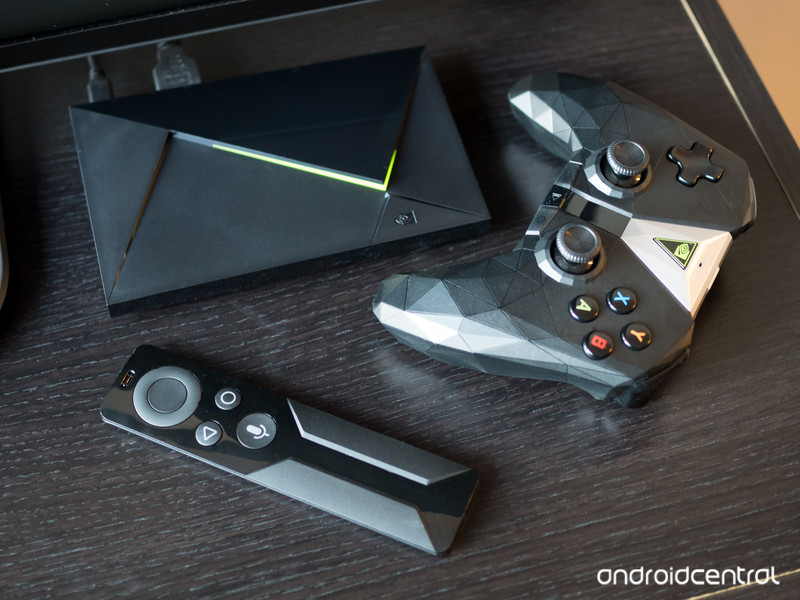
The NVIDIA Shield TV and Plex are a match made in heaven. Here’s how to get the most from your TV experience with them.
Plex’s big recent announcement was that finally you can use it to watch live TV as well as record it. Throw in all your own media collection and you have a pretty complete package.
The NVIDIA Shield TV is one of the finest boxes out there for running Plex. It’s capable of being both a server and a front end client, among all the other great things you can do on a Shield.
If you’re looking to get properly set up for using your Plex-powered Shield for TV, here’s what you need.
Hardware
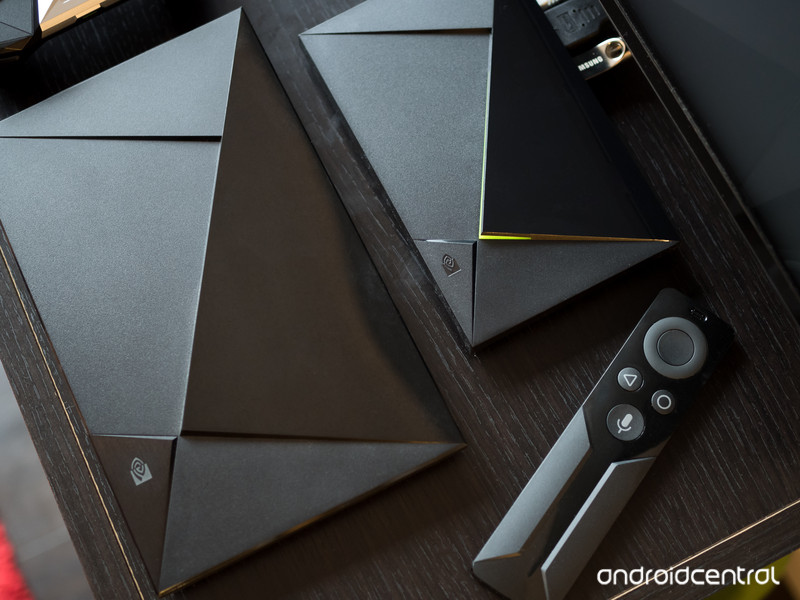
The first thing you need, of course, is a Shield TV. If you’re running your Plex Media Server on a separate PC or NAS box, then the regular 16GB model will be just fine.
If you’re using it also as a server, then you might find more benefit from having the 500GB Shield TV Pro, since that additional built-in storage might be beneficial to you.
You’ll also really want the Shield TV remote if you’re using the older model that didn’t come with it in the box. The controller is OK, but it’s not exactly the ideal TV input implement!
See at Amazon
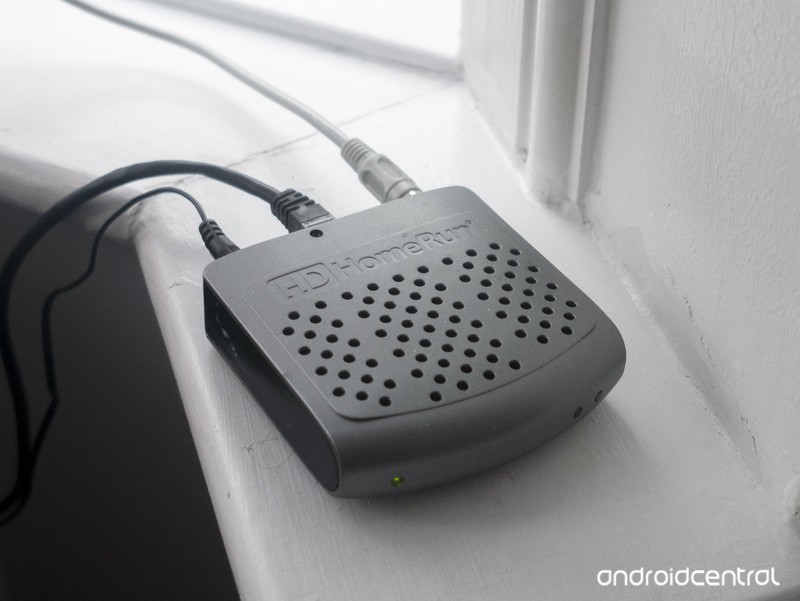
The second bit of hardware you need is a tuner to gather the TV signal and feed it into Plex. Initially, you’ll need an HDHomeRun from SiliconDust. These are readily available in different corners of the world and aren’t particularly expensive.
The HDHomeRun is basically a box that connects to your TV antenna and your local network via Ethernet. It takes the TV signals and then redistributes it over your home network to be used with a variety of apps and services like Plex. For folks in the U.S., there’s also the HDHomeRun Prime which supports Cablecard, if you’re just shaving the cord rather than cutting it.
See at Amazon
Plex has plans to support more tuners in the future, including some that will attach to the Shield directly through USB.
Software
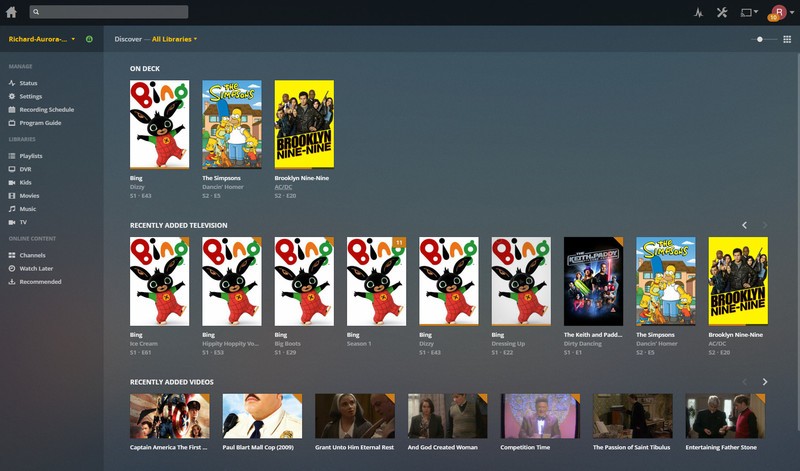
Before you get going with anything, you need to have a Plex Media Server set up. Whether you’re doing it on an NVIDIA Shield or a separate PC, NAS, or even Wi-Fi router elsewhere, the process is very straightforward.
The guides linked below will get you up and running.
How to set up Plex Media Server on the NVIDIA Shield TV
The beginner’s guide to Plex
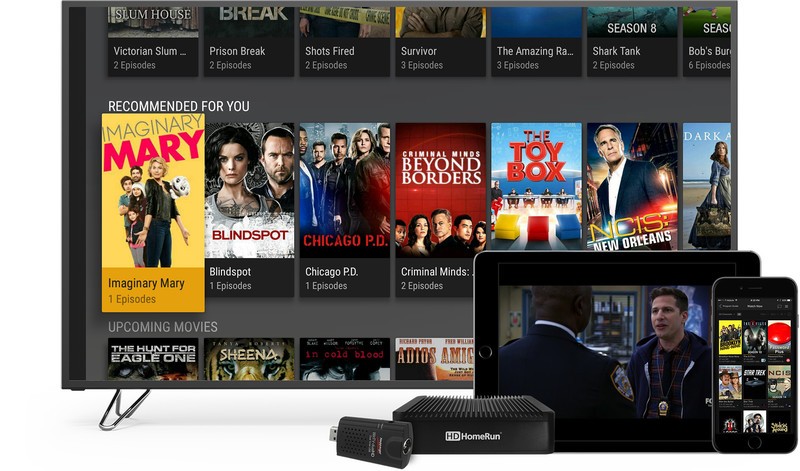
To watch Live TV, you also need the Plex app for Android TV and a Plex Pass subscription. If you’re using Plex at all, the Plex Pass is a no-brainer. It gives you access to the best features, as well as giving you newer ones at no extra charge.
Eventually you’ll be able to use the Plex app for Android phones and tablets to watch TV, but the initial support is limited to Android TV. Chromecast will also be supported in the future, allowing you to cast live broadcasts to your television set without the need for an Android TV box.
Sign up for Plex Pass
Download Plex for Android TV from the Google Play Store
Setting up DVR
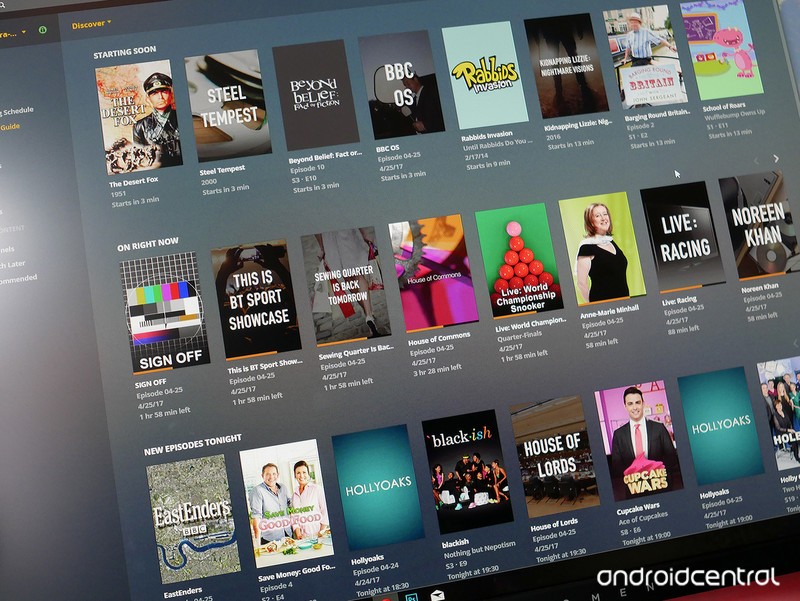
DVR is another part of the Plex Pass and it’s the secondary part to completing your live TV experience on Plex. It also became available before you could actually watch TV, for whatever reason.
There’s now a front end to it, so when you’re watching TV in Plex on your Shield, you’ll also have the options available to record a show or an entire season, as well as watch them back alongside any of your other Plex content.
Set it up once on your Plex Media Server and you’ll not need to look at it there again. Not unless you want to!
How to set up Plex DVR
That’s what you need to get started with Plex and live tv channels, now go forth and watch to your heart’s content!
Questions?
Let us know in the comments below.
NVIDIA Shield Android TV
- Read our Shield Android TV review
- The latest Shield Android TV news
- Shield vs. Shield Pro: Which should I buy?
- Join the forum discussion
- Complete Shield Android TV specs
Amazon
YouView piloting Alexa support for TV boxes, change channels using voice-control
YouView is planning Alexa support for viewers using any of the connected TV set-top-boxes available through TalkTalk, BT and other manufacturers.
It is piloting voice-controlled features that will enable viewers to interact with their boxes and YouView services through speech.
A viewer will require an Amazon Echo, Echo Dot or other Alexa-enabled device, which will understand his or her commands, and a YouView Skill will give options to perform many of the current functions that usually require a remote control.
YouView is working with the Alexa Video Skill API – one of the first developers to do so. It should give viewers the ability to navigate around the user interface, play content and search for shows and movies.
- YouView unveils new faster, cleaner, TV user interface
Just barking “Alexa, change the channel to BT Sport 1” will find the station you want. Even commands as simple as “Alexa, play Eastenders” should work.
“We constantly challenge ourselves to identify key technology that will improve our TV service, and allow our customers to easily access the huge range of content available on the platform,” said Aleks Habdank, managing director of TV at YouView partner TalkTalk.
“Amazon Alexa is a prime example of the kind of innovation that we look to invest in and are incredibly excited to see the results of this partnership.”
There is currently no timescale as to when a full rollout of Alexa-compatibility for YouView will occur. We’ll update you as we find out more.
NASA’s Mars 2020 concept is perfect for Space Batman
NASA has shown off a futuristic-looking concept of the Mars 2020 rover with a shiny black body and intimidating wheels at the Kennedy Space Center. If you’re thinking that it looks like it popped right out of a superhero movie or a shiny video game than an actual vehicle meant to explore the red planet, then you’re right. The agency isn’t quite done conjuring up a final design for the vehicle: this 28-foot-long machine was actually created as a showpiece for its “Summer of Mars” program. NASA says it might take a couple of elements from this concept, though, perhaps to add a dash of panache to the actual rover.
Even though the actual Mars 2020 will not look exactly like this, its creators didn’t build it blindly: They conjured up the concept with the help of NASA’s subject matter experts. They came up with the design knowing that the front area will be equipped with radio and GPS and that the detachable back will serve as a mobile laboratory. Mars 2020 will drill into the planet’s surface to look for signs of past life and will determine whether future human settlers can take advantage of Martian resources like water and oxygen.
NASA Kennedy’s PR assistant manager Rebecca Shireman described “Summer of Mars” as an “all-encompassing effort to review the history of our efforts to explore Mars and look ahead to what is being planned.” She said it’s meant to “encourage young people to want to learn more about being a part of the effort to go to Mars.” That’s why the concept will tour the East Coast from July to August — keep an eye out for the locations where you’ll be able to see it for yourself. It will make its way back to the Kennedy Space Center after its tour, though, since it’s slated to be part of an Astronaut Training Experience attraction launching this fall.
Source: NASA
Strong winds and clear skies help set UK renewable energy record
This week saw more milestones for renewable energy after the National Grid confirmed that power from green sources supplied more than half of UK energy for the first time. On Wednesday lunchtime, power from solar, wind, hydro and biomass accounted for 50.7 percent of energy production. In another UK first, nuclear, wind and solar each generated more electricity than coal and gas combined.
In a tweet, The National Grid confirmed: “For the first time ever this lunchtime wind, nuclear and solar were all generating more than both gas and coal combined.” Favourable weather played its part, thanks to clear skies and very strong winds. Solar panels produced around 7.6GW of electricity, while wind farms contributed 9.5GW of power. If nuclear sources were added, 72.1 percent of Britain’s electricity came from a low carbon source.
In comparison, the UK government confirmed at the end of last year that 50 percent of the UK’s electricity was generated from renewables and other low carbon sources. At the time, wind, solar and hydro energy contributed a quarter of the total energy, while the other 25 percent was sourced from nuclear reactors.
Coal production was stopped completely yesterday in order to account for the surge in renewable energy. The government has already begun lowering coal production and intends to abandon it completely by 2025.
Britain has a new #renewables peak power record of 19.3 GW!
☀️ 7.6 GW
🌲 2 GW
💨 9.5 GW
💦 0.2 GWhttps://t.co/byndEshRoe pic.twitter.com/Ndya242eGI— Drax (@Draxnews) June 7, 2017
Via: BBC News
Source: National Grid
Epic’s long-awaited ‘Fortnite’ hits consoles and Steam July 25th
We’ve been waiting on Epic Games’ fort-building monster defense game Fortnite for a long, long time. First announced in 2011, the developer’s initial Unreal Engine 4 title was slated to be a PC exclusive. A trailer released in 2014 gave interested fans a bit of hope, and we even saw the gameplay at E3 in 2015. Now that we’ve hit 2017, though, Fortnite is poised to actually release on July 25th to PlayStation 4, Xbox One, PC and Mac, along with “paid early access” to the game via pre-order.
For the uninitiated, Fortnite teams you up with other players to build huge fortifications to keep out increasingly difficult waves of monsters. You’ll want to loot and craft ever-better defensive structures to stay safe from the aggressive hordes. Epic also dropped a new trailer to show off these systems, including combat and exploration mechanics.
Early Access on Steam involves games that are playable, but not quite finished. Players can purchase these games knowing the titles are still in development, which also gives the creators an infusion of cash to help polish the title. We Happy Few and Ark Survival Evolved are two current examples of early access games on console. The release of Fortnite will be similar to Epic’s Paragon, which released as a free-to-play title after an initial early access run. If you want to get into Fortnite early, though, you can buy a Founders Pack to play the game on July 21st, four days before the official launch. This purchase nets you extra Heroes, loot, weapons and in-game boosts as well as an exclusive weapon pack. If you’re looking for a traditional boxed game experience, Gearbox Publishing has your back with a retail version for both PS4 and Xbox One.
Source: Epic Games
You can replace RAM and processors in new iMacs, but there’s a catch
Earlier this week, Apple revealed a fleet of new iMacs — and as usual, the “teardown” experts at iFixit have started taking them apart. The first to go under the knife is the new 4K, 21.5-inch iMac (which we’ve already taken out for a brief test run), and the iFixit team found a few surprises. The most notable is that the iMac’s RAM isn’t soldered directly to the motherboard. That means it is technically replaceable down the line, something that hasn’t been the case in a 21.5-inch iMac since 2013.
Additionally, the new iMac actually has a “socketed” CPU that can also be replaced. It’s been even longer since that’s been the case in a 21.5-inch iMac — 2012, to be exact. Of course, we need to be clear that these are not easy-to-access parts. You’ll need to pry the case apart and remove the screen entirely. That’s not what I’d call “user-serviceable,” and Apple agrees. If you start tinkering with these parts, you’ll almost certainly void your warranty. That said, it’s good to know that if you pick up one of these iMacs and it starts to get sluggish a few years down the line, you’ll have options — assuming you’re brave enough to pull the iMac’s screen off.
Via: 9to5Mac
Source: iFixit
Amazon drops its unlimited cloud storage plan
For a couple of years now, Amazon has had one of the more desirable cloud storage plans out there, offering infinity terabytes for just $60 per year. If you were taking advantage of that to store your 8K RAW video, however, you now need to pay more: Amazon has officially killed the plan. Instead, you get a not-as-generous 1TB for the same price, and up to 30TB for an addition $60 per terabyte — an eye watering $1,800 per year.
In what is probably not a coincidence, Amazon is now charging exactly the same, per terabyte, as Apple does for its iCloud plan. Just two days ago, Apple unveiled a 2TB plan, giving users double the storage of its previous plan for the same $120 per year price tag.
All of this price-jigging gives consumers a lot to think about. If you need between one and two terabytes of storage Apple, of all companies, is now your go-to, along with Amazon. Up to 1TB, and beyond 2TB, Amazon is still cheapest — Google, for one, charges $3,600 per year for 30TB of storage.
On the lower end of the scale, if you’re looking for the cool price of “free,” Google Drive gives you 15GB, the most space of any mainstream plan. Google may yet adjust its pricing, since both Apple and Amazon are now both cheaper for 1TB to 2TB plans.
While Amazon’s new Drive plans are still competitive, many folks wedded to either Apple or Google ecosystems might find it easier to go with those firms, all else being equal. Unfortunately, Prime members don’t get any cloud benefits, other than unlimited photo storage à la Google’s Photos (which is odd, considering everything else Amazon throws in with it).
The new storage pricing goes into effect today, but if you signed up for an unlimited plan earlier, you get to keep it for the full year. If you’re storing less than 1TB, you’ll be auto-renewed to the new plan, since the price is the same. If you have more than that or turned auto-renew off, however, you’ll need to opt into a new plan on Amazon’s “manage storage” page.
Via: The Verge
Source: Amazon
 AIVAnet