


How to deal with YouTube VR crashing
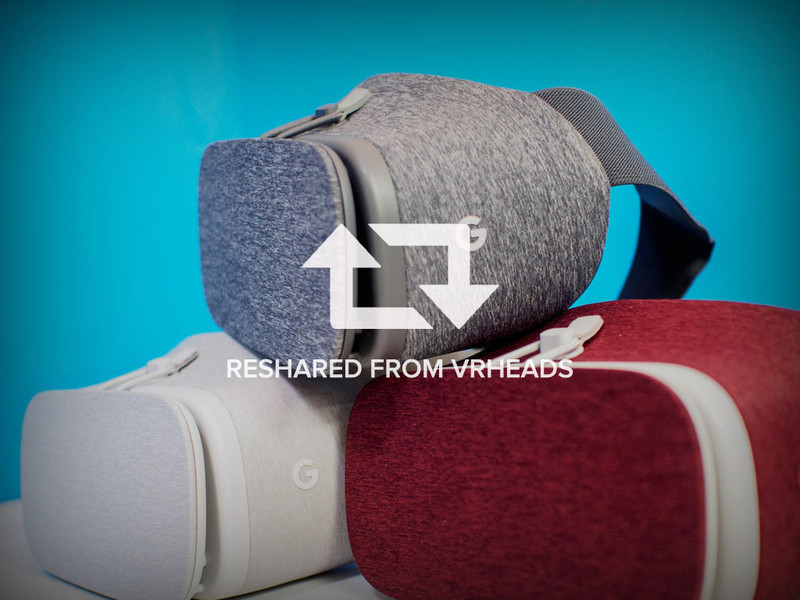
Dealing with a crashing app can be irritating, but there are a few things that can help.
YouTube VR is still fairly new when it comes to delivering great content to those using VR headsets. YouTube has long been a giant when it comes to video on the internet, but this new foray allows them to deliver even more great content from all over the world. While just about everyone knows how easy it is to lose a few hours on the website, this can be particularly difficult in VR. Especially since lately, for some users, the YouTube VR app has been unexpectedly crashing. There are a few things you can do to stop this happening though, and we’ve got the details for you here.
Read more at VRHeads.com
There’s a whole new privacy policy in the Nextbit Robin Nougat update
The transition to Razer as the parent company is complete.
There’s some language in the Nougat update for the Nextbit Robin, which rapidly moved from final beta to public release in the last 24 hours, explaining a small change in the privacy policy due thanks to the new parent company. Now that Razer owns Nextbit, all of the legal details surrounding how a phone is used falls to Razer. The privacy policy itself isn’t wildly different from the Nextbit policy you probably didn’t read when you first got the phone, but it’s an important detail to note.

It’s not clear how much control Razer is going to give Nextbit when it comes to future hardware or software decisions. Razer has trouble expanding its color palette beyond matte black and lime green without the help of 1,000 LEDs, and Nextbit’s design language is wildly different. One of the biggest things to watch as these two groups influence one another is how that design language will change on both ends. As cool as it would be to see Nextbit’s use of brighter colors and softer edges rub off on Razer, a rugged-looking dystopian future super soldier communicator isn’t impossible.
Nextbit Robin review
Either way, the Nougat update is available now if you head to Settings>About Phone>Software Update and hit Check For Updates. It’s a big download, and is going to take about 20 minutes to fully install, but Nextbit has put a lot of love into making Nougat great for this phone so grab it quick as you can.
Nextbit Robin
- Nextbit Robin review
- Nextbit Robin unboxing
- Nextbit Robin specs
- Join the Nextbit Robin forums
See at Amazon
Rock Band VR review: A series reimagined for Rift

One. More. Song.
In the wee hours leading up to Rock Band VR’s release, I felt inside like I was actually set to go on stage. Since the very first musician-emulation game all those years ago, there’s been a plastic guitar following me around from Rock Band to Guitar Hero and back again. Now, with the upcoming VR union, there’s an undeniable excitement in the air. I can almost hear the crowd, the feedback, the countdown…
Read more at VR Heads!
T-Mobile is moving to identify and block all scam calls
You may start receiving fewer scam and spam calls starting April 5 if you’re a T-Mobile customer.
T-Mobile is making it harder for spammers, scammers and other malevolents from getting customers to raise their phones to their ears.

The company is rolling out a behind-the-scenes update called Scam ID that will automatically block calls it deems to be malicious, based on “an advanced global database of tens of thousands of known scammer numbers.”
The database is kept up-to-date in near real-time by analyzing every call that comes into the network with behavioral heuristics and intelligent scam pattern detection. When a match is found, the T-Mobile network tags the incoming call and warns the customer that it’s likely from a scammer. Because of the way T-Mobile’s network manages voice traffic, the Un-carrier is capable of analyzing every call to identify and block scammers.
The service will be rolling out to all T-Mobile One customers on an ongoing basis starting April 5, and will automatically be enabled for new customers the same day.
Another service, Scam Block, doesn’t even let those calls through. It blocks them at the network level, so customers don’t even have to see them in the first place.
T-Mobile postpaid customers can also enable Scam ID for themselves beginning April 5 by dialing #ONI# (#664#) and pressing the call button in their phone’s dialer. To turn on Scam Block, customers can dial #ONB# (#662#) or, to turn it off, dial #OFB# (#632#). To check whether Scam Block is on or off, customers can dial #STS# (#787#).
We don’t know how this will impact the ability for Google’s own spam identifier to do its job on an OS level — presumably it will act as a second line of defense — and it may make irrelevant companies like Truecaller that maintain their own databases and offer similar services at the app level. Customers can easily opt out of Scam ID, but many customers may not know it exists in the first place, and will have to rely on T-Mobile to determine the identity of an incoming caller.
Phone scams come in all shapes and sizes, from the IRS scam to Medicare cons to “free” travel to credit card scams and countless others. These phone scams are run by fraudsters who are often armed with robocalling technology enabling them to target vast numbers of people and make tens of thousands of calls a minute with the sole purpose of cheating people and separating them from their money.
You can learn more about T-Mobile Scam ID, and let us know what you think in the comments below!

How to install RetroPie on Raspberry Pi

Making your own arcade is a lot easier than you think.
The Raspberry Pi is an amazing little computer. Ultra cheap and well supported, it’s perfect for all sorts of projects like running Kodi or Playing games.
It’s also a killer little emulation station that you can play a ton of throwback console ROMs on, and there’s a custom operating system that makes doing it a lot easier than you think.
Let’s get RetroPie installed on your Raspberry Pi!
What you’ll need to get set up

You’ll need a Raspberry Pi (natch) and everything required to connect it to a monitor and running any operating system. Here’s the list:
- A power supply
- SD card
- An enclosure
- HDMI cable
You can easily source these parts online or from a well-stocked hobby shop or even Radio Shack, but the easy way to make sure you have everything you need we recommend you buy a kit with all this stuff in it.
We think the CanaKit Starter Kit is your best bet based on price, completeness, and quality of parts.
See CanaKit at Amazon
You are also gonna need a controller. RetroPie works just fine with a PS3 controller, PS4 controller or Xbox 360 controller through a USB cable. But it also works with most USB controllers designed for a PC, including old school Nintendo copies. That’s awesome because NES ROM files are small and NES emulators for the Raspberry Pi work really well. That means the controller is perfect for the game and the buttons are right where you remember them. That’s pretty important and you realize it as soon as you start to play a game with the “wrong” controller.
Anyhoo, NES knockoff controllers with a USB connection are cheap at Amazon. Including one built specifically for what we’re about to do!
See RetroLink controller at Amazon
Now all you need is a screen to play your games on and some ROM files. You can use any screen with an HDMI input and it just works. We’ll let you source the ROM files yourself, but remember that some older games are still copyrighted and you can’t just grab one from a website without paying or you are violating that copyright.
The software

Make sure you pick the right file for your Raspberry Pi. If you bought the CanaKit, you have a Raspberry Pi 3.
You need two things from the Internet: the RetroPie operating system, and a utility to create a bootable file system on the SD card you’ll be using. You’ll also need a computer running Windows, Mac OS, or Linux to flash the operating system to the card. This sounds complicated, but it’s not. You don’t need to be any sort of tech guru for this.
Fire up the computer and browse to the RetroPie website. On the Downloads page, you’ll find a button to download RetroPie for the Raspberry Pi 0 or 1, and a download button for the Raspberry Pi 2 or 3. Make sure you pick the right file for your Raspberry Pi. If you bought the CanaKit, you have a Raspberry Pi 3. If you bought a different one, you’ll find the version printed in white ink right on the top of the circuit board.
Download RetroPie
Now you need a program to flash RetroPie to the SD card. You need to do this the right way so your Raspberry Pi can read it from the card and boot up. The best and easiest way is to download Etcher. It’s available for Windows, Mac or Linux and it’s dead simple to use. Unless you already have a program you use to flash Raspberry Pi images, trust us. Just download Etcher and install it.
Download Etcher
Plug your SD card into your computer and start flashing.
The setup

Open the file explorer on your computer and triple check what drive the SD card you’re going to flash is. If you tell Etcher to use the wrong drive, it can erase the stuff on your computer. Write it down if you have to, because we’ll need it here in a sec.
- Unzip the RetroPie image you downloaded and put it somewhere on your computer.
- Open the Etcher program and click the first button that says Select Image.
- Pick the RetroPie image you downloaded and press OK.
- Pick your SD card with the middle button (if it’s not showing the right one, double check it then triple check it).
- Click the button that says Flash! and let it do its thing.
It’s going to take a few minutes — the bigger the SD card the longer it takes. Figure about three to five minutes for a typical PC. Don’t interrupt it because it will tell you when it’s finished. When it’s done, stick the SD card in the slot on your Raspberry Pi.
Grab your controller and plug it in. If you’re using an Ethernet cable with your Pi you don’t need a keyboard, but if you’re going to use Wi-Fi you need one to enter your Wi-Fi password. Any USB keyboard will work even a wireless one with a little dongle like this cool one from Logitech. You can just grab the one from the computer you used to copy the OS and you’re good to go. Next plug the HDMI cable in, then plug the cord in.
While it’s booting you see a bunch of text on a black screen and that’s normal. Don’t worry, it automatically boots up to an easy graphical interface when it’s done. The first boot might take a couple minutes because it’s setting a few things up. When it’s done you’ll see the screen to set up your controller. That’s why we needed it plugged in right away.

This is easy. Press any button and hold it until you see a configuration menu. Then follow the prompts and push the button it tells you to push as it goes through the list. If you come to a button your controller doesn’t have, just press any button and hold it to skip it. Once you’ve told it which buttons are which, it boots to the RetroPie desktop and you can use your controller to navigate and the action button (A on the NES controller) to “click” things.
At this point, you’re done. RetroPie is installed and you can run ROM files through the various emulators available, which is pretty much all of them (here’s a list). But one more thing makes using it so much easier.
One more thing

- On the RetroPie Desktop, press the Start button if you don’t see a list of things you can do.
- Choose Wi-Fi from the list and enter your Wi-Fi network info when it asks you (use the Tab key on your keyboard to get your cursor in the box).
- Go back to the options page and choose RetroPie Setup from the list.
- Go back one screen by choosing Exit.
- Choose Manage Packages from the next list.
- Choose Manage Experimental Packages from the next list.
You’ll come to a list of applications you can install. They’re called Packages because RetroPie is a front-end for Debian Linux and it uses a package manager to add or remove programs. The package we’re looking for is called RetroPie-Manager and it’s near the very end of the list. When you see it, go ahead and choose it, then choose to Install from source and let it do its thing. This will only take a minute (seriously, just a minute or so).
When it’s done installing, you’ll see configuration / options on the list now. Choose it, then pick Enable RetroPie-Manager on boot so that it starts up every time you boot up the Raspberry Pi. Go ahead and reboot now by pressing the Start button to open a control window.
- When it’s done, go back the Desktop list and choose Show IP to find out your RetroPie’s IP address (that’s the number that identifies it on your Wi-Fi network). It’s the very first thing you see in the information box that opens. Go ahead and write those numbers down. There will be four sets of numbers, something like 192.168.8.26.
- Go back to the computer you used to flash the operating system and open the web browser. Don’t forget your keyboard!
- In the browser, enter the four sets of numbers followed by a colon and the number 8000. It will look like this: 192.168.8.26:8000. Press enter and be ready for something really cool.

RetroPie Manager is running on your Raspberry Pi but is controlled from a web browser on any computer on your Wi-Fi network. It can show you things like how much free space you have or what the clock speeds of the CPUs in your Raspberry Pi are or even the temperature. Go ahead and check out all the options. What we’re interested in are the Manage BIOS and Manage ROM settings. You can use them to install a ROM or new emulator directly to your Raspberry Pi through the web browser!
Click the Manage ROM files button and choose what type of file you’re going to install. Then drag the ROM file right into the window and it does the rest by itself. There is no need to pull out the SD card and copy files to the right folder or type a bunch of text at the command line to download them using RetroPie’s interface. Go ahead and drag a ROM over to try it.

When it’s done, just close the browser window. Back at your Raspberry Pi, you need to reboot if it was on during installation, Do it through the control window just like you did a few steps back. That’s always how you shut things down safely. When it boots back up you’ll see the Emulation Station program running and the emulator you uploaded a ROM for is now the beginning of a list. You know what to do, choose it and click.

Pick the ROM you just uploaded and click on it, then have a bunch of old school fun!
If you’re buying Rogue One, make sure to connect Disney Movies Anywhere

Most digital copies are a letdown. Disney’s are not.
We’ve all seen it: buy the movie before it’s out on Blu-ray, and you don’t get any special features, and your copy is stuck in one store forever. It sucks, right? WRONG! Disney has a digital system that makes buying the movie early an actually tempting thing to do, and it all has to do with connecting digital stores and awesome app implementation.
Before you go download Rogue One: A Star Wars Story, please take our advice and download Disney Movies Anywhere.


Disney Movies Anywhere is a venture that Disney has undertaken in cooperation with Google Play, iTunes, Amazon, Vudu, and other stores to offer their digital copies on all your digital platforms. If you buy a Disney movie on Google Play, Disney Movies Anywhere can see the purchase if it’s connected to your account and then give you that same film on iTunes so you can load it on the iPad before a family trip. Here’s what we do:

Download Disney Movies Anywhere.
Open Disney Movies Anywhere.
Log into (or create) your Disney account. This is the same Disney account you’d use on Disney.com, the Disney Store, or a Walt Disney World vacation.
Connect your account to Google Play.
If desired, connect your account to Amazon.
If you want to connect your account to Apple iTunes, log into the Disney Movies Anywhere website on your desktop computer or Disney Movies Anywhere app on your Apple device.
Now, buy a movie. Any Disney movie you buy will show up on every digital store you’ve connected to your account, and with the copy of your digital film in Disney Movies Anywhere, you’ll also be able to access any shorts and special features associated with the film. For big blockbuster movies like Moana, there will be a lot of special features. For smaller movies, like The Parent Trap, you’ll only get the movie, but you’ll get that movie anywhere that Disney has an agreement.
What if I want to buy the Blu-ray?
Great news! Remember those digital codes that come in a lot of Blu-ray combo packs? For Disney movies, those codes go right into Disney Movies Anywhere. This means that you can spend $20 buying Rogue One on digital and get all the special features on Disney Movies Anywhere, or you can wait a couple weeks, buy a shiny Blu-ray for $25, pop that digital code into DMA, and get that magical digital copy with all the special features PLUS a physical copy for when you want to use that Blu-ray player gathering dust in your entertainment center.
I am a huge Disney fan. I wait for the Blu-ray because it is the only Blu-ray I can buy with a decent digital copy. If you can’t wait another few weeks for Rogue One, though, buy your copy content that you’re not missing anything from the disc, and that your copy will be with you anywhere.
Android O hidden features: The big and small changes for regular users

There’s more to Android O than the big new developer features Google’s talking about publicly.
Any new Android release is a big deal. And new developer preview build, as landed recently for Android O, inevitably has fans scrambling to find new features lurking just below the surface. In addition to big sweeping changes affecting the people who make Android apps, there are dozens of smaller updates and additions waiting to be discovered.
We’ve rounded up some of the more interesting additions to Android O that may be coming to your device when the update lands. Let’s take a look!
First, a recap of the big new developer features
Jerry has a great roundup of all the major Android O additions you need to know about — from notification channels to background app restrictions and font changes — so go take a look!
More: What’s new in Android O
With that out of the way…
New Settings app

Android’s Settings app has been completely overhauled in the O preview. In addition to a fresh white coat of paint, the slide-out navigation area from Nougat is gone, and a number of settings options have been completely relocated.
Notably, the “Support” section, which lived in its own tab on Pixel and Nexus devices before, has been offloaded into its own top-level settings area. And settings toggles like NFC, Cast and Android Beam are more discoverable, living in the new “Connected Devices” area.

The Battery settings page has been significantly redesigned as well, with a top-level estimate of your remaining time left, and screen-on time surfaced right on this page, below app power usage. The Advanced Battery Usage page shows less detail than before, though. Wake/sleep information is omitted, with the line graph only showing your past and estimated future battery consumption.
Home screen icon badges

Another setting supported on a per-app basis by some phone makers, numbered badges are supported natively in Android O, and can be toggled on a per-app basis in the notification settings.
Since no apps out in the wild are currently targeting O, this one’s hard to show off. Expect a little numbered circle next to the app icon when apps start to roll out support.
Ambient Display becomes less complicated

Android’s Ambient Display feature has been largely unchanged for the past couple of releases, but it’s getting a big overhaul in O. By default, only app icons are shown alongside the system time, like Samsung’s Always-On Display feature.
Android O’s Ambient Display changes are sure to be divisive.
When a new notification arrives, it pulses the lock screen in an enlarged form — which doesn’t mirror Android’s lock screen layout directly, but is more glanceable than the old setup when it pulses on screen.
The new system may be less complex, but the icon-centric approach shows you less of your current notifications, and right now you’ll only see detailed notification info when it first pulses the screen. After that, you’ll just see an icon representing each app with notifications waiting.
The new approach also makes it less easy to mess up your notifications on the Google Pixel just by taking the phone out of your pocket. Even with raise-to-wake enabled, you’ll need to double-tap the screen or use the fingerprint scanner to get to past the Ambient Display.
Notification changes

The biggest change to notifications in Android O is notification channels, allowing you greater control over the types of notifications you receive from each app — for instance, you could filter by alerts by topic for a news app, or change how you’re alerted to social updates from specific groups.
Android O also adds the ability to snooze notifications — the current options are 15, 30 and 60 minutes — which is a convenient option for dismissing alerts for the moment without the risk of forgetting about them later.
And apps with persistent notifications can now be minimized down to a super-slim notification card, freeing up space in the notification shade.
SystemUI Tuner
The SystemUI Tuner — enabled by long-pressing on the cog icon in the notification shade — has grown a bunch of wacky new features in Android O. One popular feature from N and M has been eliminated in the O preview: there’s no longer an option to add a tiny percentage readout to your battery icon. But fear not, you can enable a separate battery readout in the status bar customization area.

On the lock screen, SystemUI Tuner lets you customize the two shortcut icons on the left and right sides of the screen (camera and voice search, by default). Options appear to include any activity in an installed app that has its own app shortcut. (That’s the feature introduced in Android 7.1 that lets you jump straight to specific areas of an app by long-pressing its icon on the home screen.)
Android’s navigation bar can now be tweaked through the SystemUI Tuner too. The back, home and recents keys can be bunched up in the middle (compact) or aligned to the left or right — useful for larger devices. And there’s the option to add additional keys on the left and right edges as well, with options including clipboard controls and a keyboard switcher.

You can also assign any unicode character to the shortcut key, and change the icon that appears over it.
You’ll find all this stuff under System > SystemUI Tuner once you enable it. As is the case with all features in this article — but especially the SystemUI Tuner — Google may well change or remove these features in future developer previews, so enjoy them while they’re here.
‘External sources’ is now an app-level permission

In earlier Android versions, you’d allow third-party APK files to be installed via one master switch under security settings. In Android O, that’s handled as an app-specific permission, and you’ll see a prompt telling you an app doesn’t have this permission the first time you try to install an APK via, for example, Gmail or the built-in Files app.
To allow an app to install other apps, go to Settings > Apps & notifications > Special access > Install other apps, then toggle the app you want to use to install.
Themes, kinda

The technical underpinnings of theme support have been a part of Android for years, and most big-name phone makers now offer some form of device theming. Now it appears we could see the feature enabled in Google’s Pixel devices
Under Settings > Display > Advanced, there’s a “Device theme” option, with the current options being “Pixel” and “Inverted.” Changing themes requires a device restart right now, and the “Inverted” theme just seems to change the color of the notification shade at present.
It’s still early days, and Google has played around with a “dark mode” back in the Marshmallow dev. preview days before dropping the feature, so there’s no guarantee this will make the cut.
Work in progress
All of this stuff is subject to change as Google finalizes Android O over the course of the next few months. We’re still dealing with an early developer preview here, so none of the features you see on this list are set in stone. And Google itself says more features will be added over the course of the next three developer previews.
We’ll be watching with interest to see what makes the cut in future Android O builds. Stay tuned to find out!
Android O
- Everything new in Android O
- Should you put Android O on your phone?
- How to install the Android O Developer Preview
- Android O isn’t in the Android Beta Program yet
- Join the Discussion
Samsung Galaxy Note 7 phones still out in the wild will stop charging after update
You would be forgiven for thinking that the Note 7 is a long gone handset, something that Samsung and customers would rather forget. However, it seems there are still some in circulation and, despite the recalls, incentives for return and, of course, the fire risks, some owners are still using theirs.
It is reported that there are a fair few Galaxy Note 7 users in South Korea that don’t mind running the risk and never replaced their phones.
Well, Samsung is about to put a stop to that. It is to push a final software update in the region that will block Note 7 handsets from recharging. So when the battery life has been used, the phone will effectively become a brick.
Similar measures were already undertaken in the US and UK last year. T-Mobile and Samsung itself pushed updates that had the same effect on US phones. UK versions were also prevented from charging from 19 December 2016.
- RIP Samsung Galaxy Note 7: A eulogy for a great but flawed friend
This final wave puts the final nail in the coffin of one of the best and worst phones in recent history, just in time for Samsung to wipe the slate clean with its Galaxy S8 and S8 Plus handsets.
You can find out how to watch the Samsung Unpacked event on 29 March, where it will announce the new devices, here on Pocket-lint: Samsung Galaxy S8 launch: When is Galaxy Unpacked 2017 and can you watch it online?
The Engadget Podcast Ep 33: Losing My Edge
Managing editor Dana Wollman and host Terrence O’Brien are joined by a new face on this week’s episode: social media manager Evan Rodgers. They’ll talk about Engadget’s Adult Week — a collection of articles about growing up in the digital age. Sure, we all know that what you say on social media can really come back to bite you in the ass (and possibly cost you a job). But, the internet is both an obstacle that needs to be navigated and a powerful tool that can teach you to be an independent and self sufficient adult. Without it Terrence and Evan would have never learned how to properly invoice companies during their freelancing days. And Dana has turned to the web to learn how to cook. They grow up so fast… sniff.
Relevant links:
- How to turn your armchair activism into online good
- The life-changing magic of tidying up (your computer)
- I don’t know how to drive and I may never have to learn
- I love my child too much to put her on the internet
- Finding inner peace (with help from your smartphone)
- What the internet taught me about dressing like an adult
- The panic and pleasure of online dating as a woman in her 40s
The Wind Down:
- Baseball: A Film by Ken Burns
- Frank Ocean: Slide
- Jurassic Park
You can check out every episode on The Engadget Podcast page in audio, video and text form for the hearing impaired.
Watch on YouTube
Watch on Facebook
Subscribe on Google Play Music
Subscribe on iTunes
Subscribe on Stitcher
Subscribe on Pocket Casts
T-Mobile fights phone scams with new tools for customers
This week, the FCC revealed its plan to battle robocalls. Part of that initiative includes allowing phone companies to target and block calls from fake or suspect phone numbers. Those rules are still being finalized, but T-Mobile isn’t wasting any time on the matter. Today, the Uncarrier began rolling out two tools to its customers to help with phone scams: Scam ID and Scam Block.
Like the image above illustrates, Scam ID will alert customers via a caller ID-like message when the incoming call is most likely a scam. In terms of Scam Block, that feature will block those calls from even reaching a customer when it’s enabled. T-Mobile is giving users both tools free of charge and says that the patent-pending tech that drives the two is built directly into its network. This means that it’s available on any phone that’s on that network.
When someone calls a T-Mobile number, the scam fighting system analyses the call and checks it against a database of known scammer numbers. The carrier says is a process that takes milliseconds to complete. That database is updated in real time, analyzing every call that hits T-Mobile’s network and flagging known and potential scams as necessary.
Scam ID and Scam Block will be available to T-Mobile One customers “on a rolling basis” first. If you’re a new One subscriber, the company says you’ll be privy to the tools starting April 5th. Postpaid T-Mobile customers can also enable to the two scam-fighting features on that date.
Source: T-Mobile
 AIVAnet