


Big phones weighing you down? Get the compact Apple iPhone SE for just $300
Flagship smartphones seem to keep getting bigger, but the continued demand for more compact and pocket-friendly tech has kept devices like Apple’s highly-rated iPhone SE on the market. This handy phone normally costs around $400, but is now available from Best Buy for as low as $300. Just select which network you want the phone to be on — Verizon, Sprint, or AT&T — and enjoy long-term savings with a small monthly payment.
The Apple iPhone SE earned high praise from our review team who concluded that it is quite simply the best four-inch phone on the market. Don’t let the diminutive size fool you, however; the SE sports the exact same internal hardware as its larger sibling, the iPhone S6. The 64-bit A9 processor and 2GB of RAM let this small Apple punch well above its weight when it comes to speed and performance.
More: Save big with these 12 limited-time Apple Macbook Air and iPad Pro deals
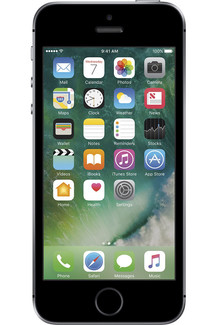 The phone itself measures in at 4.87 inches long and 2.31 inches wide. The vibrant four-inch Retina display features a resolution of 1,136 x 640 for a crisp picture, while the built-in cameras let you snap 12MP photos and record 4K video at 30 frames per second. The iPhone SE is LTE-compatible and ships with iOS 10.
You can get the 16GB Apple iPhone SE at a discount from Best Buy when you select one of these monthly plans: $10 per month for 30 months from AT&T or $12.50 per month for 24 months from Verizon or Sprint. This brings the total price of this compact phone down to $300 for a tidy savings of around $100. If you prefer more internal storage, you can choose the 64GB iPhone SE — normally a $100 upgrade — for a couple dollars more each month, which brings the total price to $350.
Note that these prices do not include a data plan for these carriers and that the carrier selection only reflects which network the phone will be locked to.
Eero WiFi System review

Research Center:
Eero WiFi System
One of the biggest recent movements in the networking industry is the introduction of mesh technology. This tech made its debut in 2016, promising a blanket of wireless connectivity that fills every inch of a home or office. These systems are typically sold in kits of two or more identical devices that can be spread out vertically and horizontally to create a connected web of coverage.
We’ve taken a close look at several solutions over the last several months, and now we have the Eero system in-house. This system hit the market in February of 2016, selling as a three-pack for $400, a two-pack for $300, and as a single unit for $200. That may seem rather expensive, but feature-packed, high-performance routers can cost up to $300 and broadcast from only a single point in the home or office.
Eero’s initial setup focuses on simplicity
The Eero kit we received was the three-pack shipped in a rectangular box. After opening the lid, the unit on the left sported a pull-off tab printed with the word “Start.” We lifted the unit out of the box to see a cardboard insert with instructions to download the Eero app from Google Play or Apple’s App Store. The unit’s power adapter was found sitting under this cardboard insert.
More: Luma Surround WiFi review
Once the app was installed on an Android device, we created a free account, positioned the first Eero unit next to the ISP’s modem, plugged the provided Ethernet cable into one of the two ports on the Eero, connected it to the modem, and fired it up. The app then proceeded to connect to the Eero unit through Bluetooth, which honestly caused us a few headaches later. However, with the initial unit, we didn’t have any problems creating the network name, password, and device location description.
 Kevin Parrish/Digital Trends
 Kevin Parrish/Digital Trends
The second unit is what caused the headaches. This was planted in the same location we used for other mesh network setups, but for some reason the Eero app said we were getting a poor connection to the first unit. To make matters worse, the app wouldn’t let us proceed with installing the second unit despite the connectivity issue, forcing us to relocate the unit. However, no matter where we planted the second unit, we received a poor connection message, even when it was seated next to the first Eero unit and modem.
Awesome customer support saved the day
After yanking out buckets of hair, we broke down and called technical support. A technician had us connect the second unit to the first unit via an Ethernet connection so that the two could communicate and verify they were connected. After that, we disconnected the second unit, placed it back into its original location in the next room, and balance returned to the Force. The third Eero unit gave us no problems whatsoever.
Eero is a good system for mainstream customers, but enthusiasts may want to look elsewhere.
So, what happened? The technician said it was a bad Bluetooth session. Based on his comments, this wasn’t the first case of bad Bluetooth connectivity, and drives home the point of relying solely on a Bluetooth connection to establish a network is not without problems. Customers should have access to a web-based interface via a wired connection just in case the setup process hits a roadblock. However, several of the mesh-based networking setups sold on the market seemingly ignore this type of user control.
When all was said and done, we had the first unit connected to the modem in the Dining Room, which is in the center of the house. We moved the second unit into Bedroom #3, and the third unit was placed in Bedroom #4. Thus, we created a straight line throughout the house instead of a C-shaped layout as we used for the Luma system.
While there is a lot of wireless activity in the Living Room, we wanted to make sure the blanket covered every aspect of the house, including Bedroom #4 that’s — one of two rooms converted from a garage. Since we don’t have a second floor, we wanted to create a large horizontal blanket.
Eero’s mobile app offers easy management
With everything set up, we headed back into the mobile app. The home screen shows the current internet speed, the active Eero units, and all the connected devices. Tap on an Eero icon and users will see details like broadcast strength (in bars), IP address, firmware version, model number, serial number, and more. Tap on a connected device icon to see its current activity, connection strength, which Eero it’s connected to, its IP address, MAC address, and so on. There’s a menu button on the home screen for accessing network settings.
As previously indicated, the Eero system isn’t exactly feature-rich when it comes to network customization. There’s no web-based interface here to dig into the gritty details, but rather a simple app for switching on/off a guest network, adding additional Eero units, getting help, and adjusting basic network settings. The app can be used to establish profiles, which can be used as makeshift parental controls.
For instance, parents can create a profile assigning a child to a specific connected device. The profile is locked to the device’s MAC address so that Eero can associate the child with the device no matter what IP address it uses. Thus, the parent can pause the child’s internet access or set a scheduled pause, blocking access at night, or during homework time.
As for the actual customizable network settings, these are rather slim. Users can use a custom DNS rather than the ones provided by the router, customize the DHCP server, assign a static IP address to a device, create port forwarding rules, and switch on/off Universal Plug and Play. Users have no control over switching channels, establishing channel widths, and so on.
More: Securifi Almond 3 Smart Home Wi-Fi system review
And that’s a shame, as users should have complete control over their network. But this isn’t the first mesh-based network we’ve seen with semi-closed settings. The whole point of systems like Eero and Luma is that customers plug-and-go without having to think about the ideal channel for 2.4GHz or which security protocol to use. For the novice user, the “advanced” settings may be more than they can chew, but experienced network tweakers will find very little meat to nibble.
Eero WiFi System Compared To

Netgear Orbi

Synology RT2600AC

Linksys Velop

Linksys WRT3200ACM

Starry Station

D-Link DIR-869 EXO AC1750

Portal Wi-Fi router

Ubiquiti Amplifi HD

HooToo TripMate Titan

TP-Link AC3150

Linksys EA9500 Max-Stream AC5400

Zyxel NBG6815 AC2200

Netgear Nighthawk X4S

Netgear Nighthawk X8

Google & TP-Link OnHub
Eero’s simplicity extends out to its appearance
Each Eero device is identical, sporting two gigabit Ethernet ports, a USB 2.0 port, and a power connector. They measure just 4.75  x 4.75 (D) x 1.34 (H) inches, making them capable of fitting in just about anywhere in the home or office. The upper casing is a shiny white with rounded edges, while the bottom half and built-in curved “feet” feel somewhat rubbery. The USB 2.0 port, according to tech support, can’t be used at the time of this publication, but will eventually serve a purpose in the future.
The whole point of systems like Eero is that customers plug-and-go without having to think about channels or security.
Inside the Eero you’ll find a dual-core processor clocked at 1.0GHz, 512MB of system memory, and 4GB of internal storage used solely by the operating system. They also each have a Bluetooth Smart Ready component, and two internal incoming and outgoing antennas providing 2.4GHz and 5GHz bands. Each unit is capable of up to 300 megabits per second on the 2.4GHz band and up to 867Mbps on the 5GHz band.
Based on the company’s FAQ, Eero seems to believe that coverage is more important than offering the fastest wireless speeds, and that makes sense. Until the mass population has a gigabit connection to the internet, crazy fast wireless speeds are unnecessary. As Eero points out, streaming Ultra HD content to a single device requires a connection at 25Mbps.
Note that the connection issues we had with setting up the second unit had nothing to do with its ability to broadcast a network signal. Instead, the problem was with the unit trying to register itself to the account through the smartphone’s Bluetooth connection.
More: Starry Station review
There’s a few other things we need to point out before we get into performance numbers. Eero supports a very basic Quality of Service capability, which may be expanded in the future to provide configurations that match specific needs for gaming, video streaming, and so on. The system does not support Point-to-Point Protocol over Ethernet (PPPoE), which is used for DSL connections. The system currently isn’t supported outside the United States either, as Eero is certified to only work on 120V power outlets.
So how does the Eero network perform?
We used four devices to check their connection speeds: one smartphone, two tablets, and a notebook. Here is what we found:
Samsung Galaxy
S7 Edge
Samsung Galaxy Tab E
Microsoft Surface 3
Lenovo Ideapad Laptop
Internal
Lenovo Ideapad Laptop
External
Eero Max 5GHz Speed:
867Mbps
867Mbps
867Mbps
867Mbps
867Mbps
Device Max 5GHz Speed:
867Mbps
450Mbps
867Mbps
Not
Measured
433Mbps
5GHz Tested Speeds:
650Mbps
150Mbps
790Mbps
Not
Measured
433Mbps
Eero Max 2.4GHz speed:
300Mbps
300Mbps
300Mbps
300Mbps
300Mbps
Device Max 2.4GHz Speed:
400Mbps
300Mbps
400Mbps
150Mbps
150Mbps
2.4 GHz Speeds:
Not
Measured
150Mbps
Not
Measured
72.2Mbps
Not
Measured
The tested speeds are based on numbers provided by Android and Windows 10. As shown above, the Samsung Galaxy S7 Edge smartphone doesn’t hit the theoretical 867Mbps Wireless AC speed, but it didn’t reach that ceiling on similar mesh-based network setups either. Meanwhile, the Samsung Galaxy Tab E tablet is bottlenecked by having only two internal antennas (1x output, 1x input). If anything, the device with the best performance was Microsoft’s Surface 3 tablet.
As for the Lenovo laptop, the 72.2Mbps speed on the 2.4Ghz band isn’t anything new. That’s because the internal Wireless N component has one antenna for output and one for input, so the width of the wireless connection is important. Eero is likely broadcasting a footpath-sized narrow connection, and we know the laptop doubles to 150Mbps when it’s connected to a wide, freeway-like connection (we saw this with Netgear’s Orbi system). The external, dual-band Wireless N adapter we connected to the Lenovo in our test was Trendnet’s AC600 Mini Wireless USB Adapter that’s capable of up to 433Mbps on 5GHz, and up to 150Mbps on 2.4GHz.
Of course, the Lenovo laptop originally hit the market in 2013. It’s not that old, but in terms of how fast technology advances, it’s way out of date. But not every customer will have a sparkly new laptop connecting to a sparkly new mesh-based wireless network. The bottleneck suffered by the Lenovo laptop is a good example of why customers need access to the roots of the network to squeeze every drop of speed out of their wireless connection.
Mesh-based networks tend to limit customization
Unfortunately, the trend to lock down most of the settings in mesh-based networking setups appears to be a common factor save for Netgear’s Orbi system. Thus, systems like Eero and Luma may not be ideal for gamers who need full control over where data packets travel across their network. And without a real QoS service to dictate what device has priority over others, even mainstream customers may experience issues streaming content on multiple devices.
Now here are the speeds and signal strengths picked up by the Samsung Galaxy S7 Edge smartphone at various locations throughout the house:
Location
Speed
Strength
Signal
Dining Room
650Mbps
100 percent
-34 dBm
Living Room
351Mbps
62 percent
-73 dBm
Front Porch
585Mbps
91 percent
-57 dBm
Bathroom Shower
468Mbps
100 percent
-46 dBm
Laundry Room
585Mbps
82 percent
-63 dBm
The dining room is ground zero, as that’s where the first unit is connected to the modem. However, the living room took the biggest performance hit because of two walls that blocked the connection. The front door is made of glass, thus the connection to the front porch stemmed from the living room unit and the unit in bedroom #3. The laundry room had a good connection due to a somewhat direct line of sight to the unit in bedroom #4.
Eero isn’t feature-rich when it comes to customizing.
As a reference, we saw different numbers with Netgear’s two-unit Orbi setup. Using the same Android device to test the connection speeds and strengths, we saw 780Mbps in the dining room, 650Mbps in the living room, 97Mbps on the front porch, and 260Mbps standing in the bathroom shower. That said, the numbers may have everything to do with the positioning of the satellite systems, as the Orbi satellite was previously placed in the living room whereas we chose to move the second Eero unit out of the living room and into bedroom #3.
For better coverage, we presume that an additional Eero unit placed in the far corner of the living room might provide connectivity in that area, and perhaps even an additional unit located in the far corner of bedroom #1 as well. The drawback to purchasing additional units is that they cost a hefty $200 each, which isn’t cheap.
Our Take
Eero appears to be a great system for customers who want a plug-and-go solution. There’s no back-end web-based interface or detailed settings to deal with, just a mobile app to manage some of the generalized details. However, PC gamers and enthusiasts who want to control every aspect of their network may want to look elsewhere, such as Netgear’s Orbi system, which provides better detailed manageability.
Is there a better alternative?
The DT Accessory Pack
Netgear Orbi Satellite
$213.49
Netgear Orbi 5-port gigabit switch
$27
Netgear USB adapter
$48.43
Honestly, we’ve tested quite a few of the new mesh-based setups and they appear to be similar in nature save for the Netgear Orbi system. We liked the Orbi specifically due to its robust customization capabilities. However, our current top pick in this arena is the Securifi Almond 3 router, which can be used as a mesh networking device even though it doesn’t ship as a kit. The Almond 3 also as a nifty built-in touchscreen and solid smart home support.
How long will it last?
Mesh-based networking appears to be here to stay. It may eventually replace the router due to the coverage capabilities of multiple units creating a web of connectivity as a single access point. It’s also better than adding a wireless extender to a network for filling dead spots because the signal has already degraded to a point when it’s picked up by the extender. Mesh networking promises full coverage no matter where users move throughout the home or office.
Should you buy it?
Only if budget is not a factor. The Eero three-pack kit is rather costly, and extending its coverage means shelling out $200 per additional unit. That’s a huge investment given that the mass availability of faster Wireless AD devices and networks will be in full swing by the end of 2017. Still, for now, the Eero is a good system for mainstream customers.
Microsoft makes the Mac-to-Surface data migration easier with its free new tool
Why it matters to you
For Mac owners eyeing a Surface from Microsoft, the company now provides an easy way to move their data and settings over to the new device.
Mac owners wanting to purchase one of Microsoft’s Surface devices now have a tool to make the data migration quick and painless. Called the Mac to Surface Assistant (DMG file), it’s freely available for moving everything over to a Surface device spanning pictures to applications to locally stored files synced with Creative Cloud, Google Drive, and Dropbox.
The latest Surface-branded devices from Microsoft are the Surface Book “with Performance Base” ($1,300 starting), the Surface Pro 4 ($700 starting), and the Surface Studio all-in-one PC ($3,000 starting). Prior to offering the new migration tool, Microsoft provided lengthy, step-by-step instructions on how to move photos, files, and mail from a Mac to its family of Surface-branded products.
More: With Windows 10 Creators Update around the corner, Microsoft keeps fixing bugs
Microsoft’s new tool is the company’s latest move to lure customers away from Apple. In addition to targeting designers and architects with the new Surface Studio all-in-one PC in October, the company also dished out a $650 trade-in discount to Mac owners to apply toward a new Surface device. Microsoft even provides a dedicated website for Apple customers who are considering a move to the Surface family.
According to Microsoft, its Surface products work great with Apple’s devices and services. The site provides a FAQ to answer questions such as syncing an iPhone to a new Surface device, where to find the migrated applications, how to use keyboard shortcuts, where to find the system settings, and more. Microsoft even talks about all the concern regarding Windows-based machines catching a nasty virus.
“Your Surface comes with Windows Defender and Windows Firewall to help protect you from malware, so you don’t need to purchase antivirus software,” the company states. “Windows Defender uses real-time protection to scan everything you download or run on your PC.”
The website introduces Windows 10 to long-time Mac users as well. The tour starts with creating a Microsoft Account, checking out the desktop and Start Menu, and learning how to get around Microsoft’s latest operating system. There are quick instructions on how to use the Surface Pen, too, followed by a detailed manual right here.
However, getting customers to jump the Apple ship may be an impossible feat. The malware-based issue surrounding Windows-based PCs is just one example, but Apple’s MacOS has also served as the main platform for Adobe’s Illustrator and Photoshop programs since the late 1980s and early 1990s. While these are currently offered for Windows along with other utilities in Adobe’s Creative Suite portfolio, Mac devices seemingly serve as “home base” for many designers and architects.
Regardless of the Windows versus MacOS debate, there are customers who may be considering a Surface device, and the new tool should make the migration process an easy move. The tool scans the Mac device and provides a simple checklist for transferring select data and settings. It requires an external drive that is larger in capacity than the storage unit used for the Mac.
Instagram now lets you save your live video broadcast to your phone
Why it matters to you
While Twitter and Facebook have long allowed you to save your live-streams, Instagram has lagged behind. That all changes today.
If it was good enough to share with the world, it’s probably good enough to save, right? That, at least, seems to be what Instagram thinks of your live video, as it now gives you the option of saving your broadcast to your phone when you’re done streaming. This is likely a welcome feature to users who also tend to share stories via, say, Twitter’s Periscope or Facebook Live. But while these two social media platforms have long allowed users to save their content when they’re done, this will be the first time Instagram introduces such a feature.
“Starting today, you’ll have the option to save your live video to your phone at the end of a broadcast,” Instagram announced via a blog post. Don’t worry — your home movies will still appear just as ephemeral to everyone else, as the live content will still disappear from the app itself when you’re finished. But you’ll have the option of holding onto your video and playing it back (for posterity) later. After all, what if, as Instagram suggests, “something exciting happens during your broadcast that you want to remember or share?”
More: Save Me: Five Ways To Save Photos From Instagram
In order to access this new feature, you’ll just have to tap the new Save option that will appear in the upper right corner of the Instagram app after you’re done broadcasting live to your followers. Then, just tap “Done,” and your video will be saved to your camera roll. Keep in mind though that you’ll only be able to save the video itself — not the comments, likes, number of viewers, or any live interactions.
“We are excited by how our community is using live video to connect with their friends and followers in the moment,” Instagram concluded. “This is just the first of many improvements we’ll be making to live stories this year.”
The Save feature has been made available today as part of Instagram version 10.12, and can be downloaded for both iOS and Android.
Meet Samantha: a smart sex robot that you need to seduce before you get busy
Why it matters to you
Engineer Sergi Santos has built a sex robot that responds differently according to how you treat it. And that’s just the start of his ambitions.
Do you ever stop and ponder what it would be like if Siri or Alexa possessed the same ability to answer everyday questions, but had a propensity for orgasms, was shaped (more or less) like a human woman, and was way more difficult to explain to your houseguests?
If so, you may be interested in Barcelona-based engineer Sergi Santos’ new robotic dolls. Called Samantha, the life-size dolls are designed to replicate, erm, sexual acts — but with artificial intelligence that means she’ll respond to different touches by showing supposed emotional reactions.
In essence, it’s a chatbot, but one with the added “bonus” of having a body to go alongside the voice. Touch Samantha’s hands and she’ll say things like “I love this,” while kissing her or touching her mouth will yield a different response. Other body parts also behave accordingly.
Oh, and occasionally she’ll request songs on Pandora to improve the mood!
More: RealDoll is building a fleet of AI-powered sex robots with customizable personalities
Whether a robot that you have to seduce is a step toward a consent-oriented approach to sex dolls or a weirdly reductive, gamified version of a human relationship remains to be seen (could it have hints of both?), but Samantha is certainly a unique way of spending that $5,374 paycheck that’s hanging around your bank account.

“Tools like [Amazon’s] Alexa are interesting, but the ultimate goal of everybody is to build something with a body and a brain, right?” Santos told Digital Trends. “I wanted to do something that would make my mother say ‘wow’ when she sees it. My mother never said that about any of the other things that I showed her. She’d always say they were funny and then go off and do something else. This project was different.”
Without getting into what Freud would make of that rationale, Santos insists there’s more to Samantha than simply cybercoitus. “I’ve got a Samantha in the family home that can give philosophy quotes or health information,” he continued.
Over time, he thinks the robot will evolve to be a more fleshed-out (no pun intended) companion, with the ability to link different touch sensitive body parts to verbal or communicative cues yielding all types of fun interactions. No, we don’t think we’ll be buying a Samantha robot to chat with our grandmas, but it’s hard to deny that he’s thinking big with his plans.
And with ambitions to make the software open source, who knows what will come out of the project long-term?
Battle of the bulge: Engineers eliminate camera bump with slide-out module
Why it matters to you
If you’re bugged by that bump on the back of your phone, the pull-out camera module eliminates it.
Does the camera bump on your sleek new smartphone have you down? Researchers have developed a concept camera that is 3.5mm thin, eliminating that bump at the back of the phone but with an odd compromise.
As smartphones slim down, cameras haven’t quite caught up — the glass optics required to snap those photos is tricky to thin out, so manufacturers compromised with a small bump at the back of the smartphone. Engineers at the Fraunhofer Institute in Germany, however, have developed a solution: A modular camera unit that actually pulls out from the side of the smartphone, then retracts back into the phone when not in use.
More: The speedy stacked sensor of the Sony RX100 IV could be coming to smartphones
The camera is actually four sensors and mirrors to enable both front- and back-facing views. The team started with a single sensor, but the camera didn’t perform well with closeups. A second sensor was added and while that cleared up the closeup issue, there were stitching errors between the two views. With a set of four sensors, the team was able to eliminate the closeup issue and allows software to detect and remove the stitching errors.
The result is a camera that is half the height of a traditional smartphone camera, but with similar quality and a 20- megapixel resolution.
This smartphone concept does away with the camera bump. https://t.co/7DqJXHoBkJ pic.twitter.com/P1rUCumT4k
— PCWorld (@pcworld) March 13, 2017
The question the group faces now is if manufacturers — and consumers — are willing to forgo the usual for such a radically different smartphone camera than the universal built-in camera. While the concept is a bit odd, as PC World points out, the pop-out camera has the added benefit of security, since if someone does hack into your camera while it’s not in use, it’s tucked away inside the phone and can’t see anything anyways.
The pull-out smartphone camera joins the Fraunhofer Institute’s earlier imaging concepts, including a smartphone camera inspired by bug eyes and an app that uses only a smartphone camera to conduct spectral analysis of everyday objects.
Redmi 4A selling for $90 in India with 5-inch 720p display and impressive specs
Why it matters to you
While budget smartphones often seem to often have budget features, Xiaomi is proving that doesn’t have to be the case with its latest offering, the Redmi 4A.
Indian customers are getting yet another super affordable smartphone, this time from Xiaomi. Following the success of the Redmi Note 4 and Redmi Note 3, the Chinese smartphone maker is unveiling the latest piece of hardware to come out of the Redmi family — the 4A. You’ll only be able to buy it on Amazon India, and it’ll set customers back just $90. That means that it’s the cheapest mobile device Xiaomi has released to date in India.
But just because you’re not paying a lot doesn’t mean you’re not getting a lot, at least when it comes to the Redmi Note 4A’s specs. The phone boasts a 5-inch 720p display, Snapdragon 425 SoC with four 1.4GHz Cortex A53 cores, along with an Adreno 308 GPU, 2GB of RAM, 16GB storage, 13MP camera, 5MP front shooter, and a 3,120mAh battery. For those who need a bit more memory, there will also be an option for 32GB of storage. And as for its software, the new smartphone features the newest version of MIUI 8 (8.1.4.0) and runs Android 6.0.1 Marshmallow (which includes the security patch issued in December).
More: Xiaomi Mi 6 news and rumors
In keeping with tradition, the Redmi 4A is being made in India. Xiaomi has noted that more than 95 percent of its smartphones sold in the country are, in fact, manufactured there as well in an effort to keep things local. And to boost capacity, Xiaomi is planning on opening up a second factory in India, which will boost its productivity to an impressive one phone per second.
You’ll be able to start buying the Redmi 4A (if you’re in India) beginning March 23 on Amazon India, and will have three colors options: dark grey, gold, and rose gold. It certainly seems like a good option for both your wallet and your needs, and could be promising for Xiaomi’s future in India and beyond.
HexH2O drone isn’t just waterproof — it can record below the surface, too
Why it matters to you
The HexH2O isn’t a DJI — but most of it’s parts are and it boasts weather-sealing and the ability to land on water.
Drones tend to be fair-weather friends, but one United Kingdom-based company begs to differ. The HexH2O Pro V2 is a quadcopter that can not only fly in the rain, but land, maneuver and even record on the water. The drone is the latest flagship from the all-weather drone company, QuadH2O.
While the drone comes from a less well-known company, the latest flagship uses a number of parts supplied by the drone giant, DJI, including the 4K X3 camera and gimbal. QuadH2O also borrows from DJI’s Lightbridge II that allows over a two-mile (3.5 kilometer) video download range and control is through the DJI Go app. The HexH2O also uses the N3 flight controller, with safety features like return home fail-safes intact as well. Even the copter’s propulsion system are DJI’s E800 motors.
More: Fathom One is a modular underwater drone that lets you explore the deep
While the HexH2O borrows from DJI, the drone is capable of flying through rain and snow. A buoy system means the drone can also safety land in the water. While the drone isn’t a submarine, it can record underwater while the upper portion of the drone floats, with the buoyancy aids keeping the camera just below the water’s surface.
While a crash-landing in water isn’t as disastrous, the HexH20 uses a fairly rigid set of tech specs for the air too, using six rotors and a 30-minute flight time in windless conditions but the ability to fly in as much as 25 mph winds. The drone’s arms also fold for more compact storage.
The DJI-developed camera offers 4K footage and 12 megapixel stills and also uses DJI’s gimbal for steadier footage.
Releasing on March 31, the HexH2O, is the company’s most advanced drone yet, building on a handful of consumer and search and rescue based water-friendly drones. As the company’s new flagship, the drone will launch with a hefty $6,449 price tag.
Environment-friendly startup is turning old fishing nets into 3D-printer fibers
Why it matters to you
The startup is diverting old trash from landfills to become something you can use in your 3D printer.
Whether you’re looking to save the planet or just cool new 3D printing materials, a U.K. startup called Fishy Filaments has something to offer. Started by materials scientist and geologist Ian Falconer, the project’s goal is to save discarded fishing nets from clogging up landfill sites by, instead, turning them into tomorrow’s 3D-printer filaments.
“In simple terms, I’m trying to set up a local plastics recycling company that transforms used fishing nets into a high-value, high-quality product for use in relatively low-cost fused filament 3D printers,” Falconer told Digital Trends.
There are multiple benefits to the quest, Falconer explained. As mentioned, taking used fishing nets and providing a clean, self-financing on-shore waste disposal system makes a lot of sense. It also potentially provides a local source of usable plastics that aren’t directly dependent on volatile oil prices or hazardous locations.
More: 3D-printing pen lets you print using plastic recycled from your own home
In 2016, Fishy Filaments demonstrated that its recycled fishing nets could be used by a commercially available, low-cost 3D printer. Now Falconer has launched a crowdfunding campaign with the aim of raising 5,000 pounds ($6,178) to take the project to the next level. While only a modest amount, the money raised will go toward a commercial feasibility study, requiring a new extruder for melting the netting strands together, along with a reel for collecting them.
So will we all be printing with Fishy Filaments a few years from now?

“The local-scale business model will limit its scalability to the amount of plastics available locally,” Falconer, who lives in Cornwall, on the southern coast of England, continued. “The potential, especially in the fisheries sector, is more for a regional or franchise-like model. Each fishery has a distinctive culture and set of target species defined by natural fish distribution. The practice in that fishery extends to net types and gear usage. That means different polymers used differently and in different volumes. From a recycling perspective, it means that technical processes and products developed to work in Cornwall might not work in, for example, Peterhead. Logically then Fishy Filaments Cornwall might spawn Fishy Filaments Peterhead, but their product lines would probably be different, which is no bad thing for a commercial concern.”
In other words, you’re probably not looking at the next unified mass-market filament, but it’s definitely a demonstration of how local thinking — combined with the latest in emerging technology — can produce some nifty results. Given that every area produces its own recyclable waste, all you need is some smart thinking (and a few 3D printers) to put it to good use.
If you’re interested, you can contribute to the crowdfunding campaign here. You may even get a spool or two of recycled fishing net filament out of it!
Outlook 2016 for Mac now works with the Touch Bar and all of those cool add-ins
Why it matters to you
Users of Outlook 2016 for Mac are no longer on the outside looking in after it gained support for add-ins and the MacBook Pro Touch Bar.
Microsoft has been working hard to bring its Office 2016 productivity suite up to date on Apple’s MacOS machines. As part of the effort, the company added MacBook Pro Touch Bar support for a number of Office apps in a recent update.
Now, Microsoft is making a couple of significant improvements to Outlook 2016 for Mac. Specifically, it’s adding Outlook to the list of MacOS applications with Touch Bar support, and it’s making add-in support available to production builds after the feature spent some time in Office Insider builds.
More: MacBook Pro Touch Bar support added to Office 2016 for all users
Touch Bar support in Outlook means that Apple’s OLED touchscreen will now respond to a variety of email- and calendar-based tasks. For example, when users compose emails or meeting requests, the Touch Bar will show off common formatting options. In addition, the Touch Bar can be used to switch between calendar views, as well as to join online meetings with a single tap when viewing the reminders window. Touch Bar support is available to Office 365 subscribers, as well as all Office 2016 for Mac customers.
Next up is support for Outlook add-ins, which are basically extensions to Outlook that add more functionality and tie to a variety of external systems. Add-ins are another Outlook feature that is making its way from the Office Insider program, and they work for all Office 2016 for Mac customers connecting to Exchange 2013 Service Pack 1 or higher, or to Office 365 or Outlook.com mailboxes.

Here are some of the add-ins that are now available to Outlook for Mac users:
- The Nimble add-in provides real-time insights about Outlook contacts.
- The Dynamics 365 add-in provides business intelligence and email-tracking functionality.
- Some supported external systems including Evernote, Trello, Microsoft Translator, Smartsheet, and Citrix ShareFile.
- The Boomerang add-in lets users add email reminders and schedule emails.
- Users can grant gifts via the Starbucks for Outlook add-in.
- The GIPHY add-in can help make emails more fun and expressive.
Using add-ins is easy enough. Once you’ve updated to the latest version of Outlook 2016 for Mac, just click on the “Store” icon in the Office ribbon. Next, search for the add-in you want to check out, and then toggle it on. You’ll see the add-in command show up in your inbox, and if you install an add-in on any Outlook for web, Windows, Mac, or iOS client, they’ll be available on any others.
 AIVAnet