


How to use indoor maps in Google Maps

Easily navigate malls and department stores with indoor maps.
One of the more useful additions to Google Maps is the ability to navigate within malls, museums, libraries, or sports venues. The feature is accessible in 25 countries, and Google maintains a list of prominent locations for which indoor navigation is available.
If you’re looking to find the shortest route to a particular store within a mall or navigating a gargantuan museum and are in need of a layout guide, the indoor maps feature comes in handy.
How to use indoor maps in Google Maps
Open Google Maps from your app drawer or home screen.
Enter the name of the location via the Search here textbox. You should see a pin on your selected location.
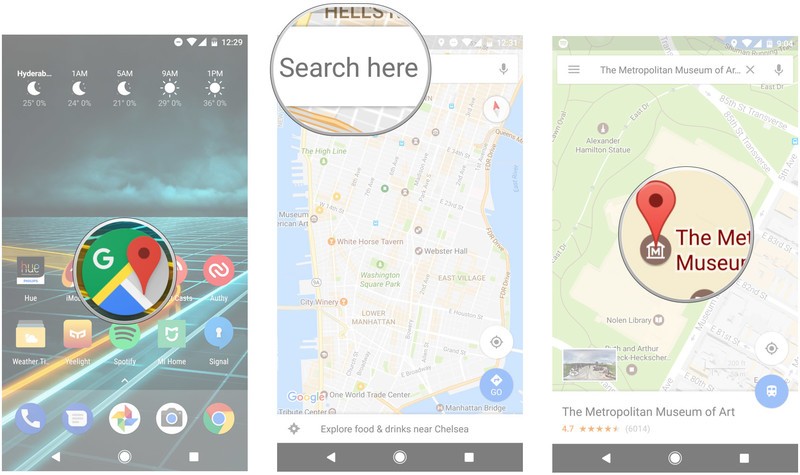
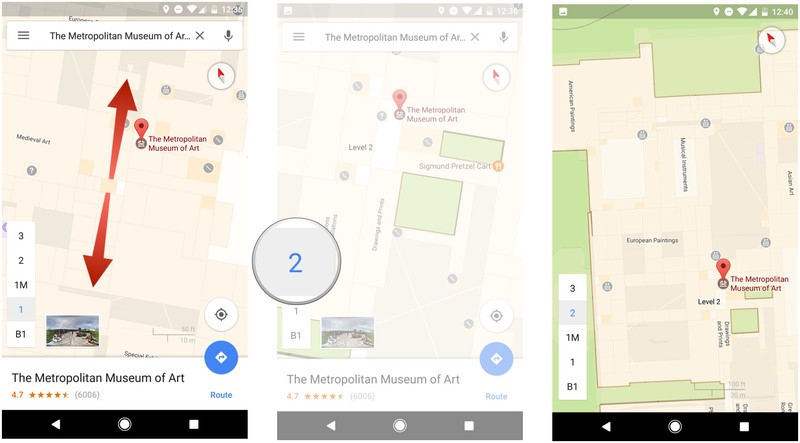
Pinch out to zoom in on the map a few times until you see the floor layout.
You can navigate the internal layout by selecting the floor markers on the bottom left of the screen.
Zoom in or out to view specific sections of the indoor map.
Do you use indoor navigation often? Let us know what you think of the feature in the comments.
Galaxy S8 screen resolution confirmed in latest leak
But will the GS8 default to lower than its native res?
More Samsung Galaxy S8 details continue to trickle out onto the web, and today’s late-breaking info — via Chinese leaker Ice Universe — appears to confirm the phone’s rumored “18.5:9” aspect ratio, with a native screen resolution of 2960×1440 pixels. Like the Galaxy S7 on Nougat, there’s a resolution slider, letting you scale down to “HD+” or “FHD+” — think 1080p or 720p, with a few extra pixels stacked on the vertical.

That’s led to speculation that, like the Galaxy S7 on its latest firmware, the GS8 will default to 1080p (or thereabouts) instead of the highest possible resolution. And that wouldn’t be too surprising to see, particularly in the smaller GS8. Although it’s said to have a “5.8-inch” display, we know diagonal measurements can be misleading on taller phones. So you’re still unlikely to be able to tell the difference between QHD+ and FHD+ on such a small panel. Thus, Samsung can save some power by downscaling by default, and leaving the option there for those who want to max out the resolution.
Besides that, the Galaxy S8 is reported to be using a denser RGB subpixel matrix, compared to the diamond PenTile arrangement of its predecessors. That means there are three subpixels per pixel, compared to two on last year’s model, which may well compensate for any lack of sharpness elsewhere.
As phone displays eventually reach towards 4K, we can expect downscaling to become the norm. Ultra HD phone screens are useful for some things, like VR, but the fact is the vast majority of apps don’t need such enormous pixel density.
Samsung Galaxy S8 and S8 Plus
- Latest Galaxy S8 rumors!
- Galaxy S8 announcement coming March 29 in NYC
- Galaxy S8 release date set for April 28
- Join our Galaxy S8 forums
Amazon UK is discounting the Echo by £15 for Mother’s Day
The Amazon Echo is down to £134.99 in the UK.
As part of its Mother’s Day deals, Amazon UK is discounting the Echo by £15, bringing the price of the voice-connected speaker down to £134.99. The deal is valid on both the black and white color variants of the speaker.

Amazon is offering a £20 discount on the Kindle Paperwhite as well, with the promotion applicable on both the Wi-Fi only and the cellular models. The 7-inch Fire Tablet is also getting a £15 price cut, with the tablet now selling for £34.99.
Head down to Amazon from the link below to grab the Echo for £134.99.
See at Amazon UK
There’s so much more to Android O than we know right now

You may not be impressed by the first Android O Dev Preview, but don’t lose hope.
We’ve said it time and time again, but it requires reiteration when a new Android Developer Preview is announced: don’t judge an entire upcoming Android platform update by its first Developer Preview release. Android O just launched officially in the form of a Developer Preview that can be downloaded and flashed to Pixel or late-model Nexus, and in typical Google fashion what we’re seeing here isn’t even close to finished yet.
Just like the Android N Developer Preview that kicked off this time last year, the Android O Developer Preview is, in terms of the interface and features you can actually see, basically the same as the Android 7.1.2 Nougat software that Android Beta Program testers just updated to. Even the behind-the-scenes changes in the Developer Preview that really matter to developers are “small,” at least by the scale we usually see in Android updates.

We don’t see everything new in Android O right from the start for two main reasons. First, Google starts this Developer Preview process so early that there’s no need to bombard developers all at once. Take a look at the timeline above: there will be three more iterations of the Developer Preview, the first of which coming a full two months after the initial release. Google has lots of time to fine tune the APIs its working on — last year it took four months to get final Android N APIs.
More: How to install Android O on your Pixel or Nexus
Second, Google actually does put some weight behind having a “big reveal” or two snuck up its sleeve for the full launch of Android O. Through a likely combination of a Google I/O 2017 keynote and the expected Google Pixel 2 launch in Q3, Google has two huge stages to talk about the big new features of the latest version of Android. What it’s showing off right now are the underpinnings important for developers — the rest of the stuff that consumers care about will be properly revealed at a later date. Yes, including its actual name.

One of the biggest things to remember about these platform updates is that the operating system itself is only part of the story. Saying “I have Android O!” is awesome, but what makes it all complete are the developers who make apps that actually take advantage of the new features introduced. One of the biggest developers of course is Google itself, which has a massive undertaking of updating all of its flagship apps and services to put Android O on display. If you update to Android O today you’re only going to see a sliver of what’s possible, as you’ll still be using apps designed for Nougat.
The moral of this story is to be patient. The Developer Preview is something we can all rightfully get excited about, but it has to be for the correct reasons: we should be happy that developers can get access to APIs early so when Android O arrives on your phone late in 2017 or early 2018 the apps will be ready to go. These early releases aren’t designed to woo everyone into getting excited for the core features of the operating system just yet. Google will have so much more to show us about Android O, starting in mid-May at Google I/O 2017 and continuing through the second half of the year.
Android O
- Everything new in Android O
- Should you put Android O on your phone?
- How to install the Android O Developer Preview
- Android O isn’t in the Android Beta Program yet
- Join the Discussion
Samsung Galaxy Tab S3 review: The next great Android tablet

The Android world has been patiently waiting for the Next Great Android Tablet. Samsung’s third-gen Galaxy Tab S3 may very well be it.
The quick take
The Galaxy Tab S3 is a solid Android tablet with a high definition 9.7-inch display, a stylish metal-and-glass body, and a robust pressure-sensitive stylus that proves — yet again — what a fantastic piece of technology the S Pen really is. If only its battery life were a bit better for those of you planning to multitask the heck out of life with this tablet device in tow.
The Good
- A bevy of multitasking software features
- The S Pen is everything
- Stylish hardware
- Available with an optional, comfortable keyboard
The Bad
- Battery life is fine when the screen isn’t on
- No water resistance
- It’s not a replacement for a laptop
See at Best Buy

Tablets are making a comeback
Galaxy Tab S3 Full review
Android tablets aren’t really a thing anymore, and though some manufacturers have produced devices worth owning over the years, there hasn’t been a particular Android-powered tablet that’s managed to move the needle in the industry. Frankly, this is why the Galaxy Tab S3 stands out in the first place. Despite the fact that it looks so much like its predecessor, it’s equipped with enough added oomph, more than we’ve seen from any Android tablet in a long time, that makes it just as worthy of fanfare as its competition — namely the Microsoft Surface and Apple iPad Pro.
The Galaxy Tab S3 is a fantastic package. It’s equipped with a capable processor, a vivid Super AMOLED display, and a few other subtle hardware features that add to the Tab S3’s premium tablet experience. The best part of the tablet is its included accessory, however: the patented S Pen. This pressure sensitive stylus proves again why it was a major selling point for the Galaxy Note series. If you’ve always wanted the Note functionality on a larger screen, now is your chance, as long as you’re willing to drop $600 for the Galaxy Tab S3.
About this review
I (Florence Ion) am writing this review after four days using the Samsung Galaxy Tab S3. The tablet arrived with Android 7.0 and was not updated during the course of review. The Tab S3 was provided by Samsung for review by Android Central.

Come at me pro
All the specs
| Operating System | Android 7.0 Nougat |
| Display | 9.7-inch Super AMOLED, 2048×1536 |
| Processor | Snapdragon 820Quad Core 2.15GHz + 1.6GHz |
| Storage | 32GB (U.S.) |
| Expandable | microSD card |
| RAM | 4GB |
| Rear Camera | 13MP, Auto-focus, Flash |
| Front Camera | 5MP |
| Connectivity | Wi-Fi 802.11ac dual-band, Wi-Fi Direct, USB Type-C 3.1, GPSLTE (optional) |
| Charging | USB-C |
| Battery | 6000mAhFast charging |
| Water resistance | No |
| Input | S Pen4096-level pressure sensitivity |
| Security | One-touch fingerprint sensor |
| Dimensions | 237.3 x 169 x 6 mm |
| Weight | 429g (Wi-Fi)434g (LTE) |
| Colors | Silver, black |
Metal and glass
Galaxy Tab S3 Hardware
It’s a though Samsung took the Galaxy S7 and flattened it out with a mallet.
The Galaxy Tab S3 is ostensibly the premium evolution of its predecessor, the Galaxy Tab S2, which debuted nearly two-years-ago and was covered in plastic. Like the rest of Samsung’s device family, the Tab S3 follows along with the company’s overall design paradigm. So much so, that it’s as if Samsung took the Galaxy S7 and flattened it out with a mallet. And while the Tab S3’s metal-and-class chassis exudes a poshness of its own, it’s a fingerprint magnet — one you’ll find yourself constant cleaning.
The Tab S3 sports a power button and volume rocker on its right side; a fingerprint sensor slash home button on the front; and it charges by USB Type-C. I’ve been able to charge my Pixel, my Chromebook, and the Tab S3 all with the same power adapter and really appreciate the convenience. The tablet also has four self-orienting stereo speakers placed around the chassis. They adjust as you rotate the tablet, and while the sound output is decidedly boomier with the Tab S3 in landscape mode, you’ll hardly notice any difference unless the volume is turned all the way up.
I’ve always thought that Samsung’s pressure-sensitive S Pen would be better suited for a tablet.
The 9.7-inch Galaxy Tab S3 is HDR-ready, which means its Snapdragon 820 processor and 4:3 aspect ratio Quad HD Super AMOLED display have been souped up to display compatible content, though there aren’t too many HDR titles to brag about just yet. The Tab S3’s display is certainly TV-like — the blacks are black, the whites are bright, and the blues and red are depicted deeper than they were on the Tab S2 — but that Quad HD display takes quite a bit of energy to power up. Though the Tab S3 is carrying a 6000 mAh battery, it’s not enough to make it through an entire day of full usage without requiring a charge. At the very least, it employs Quick Charge 3.0, so you won’t have to wait too long by the outlet.

The best part
Galaxy Tab S3 S Pen
As much as I’ve lauded the Galaxy Note phone series and its companion S Pen, and often as I’ve implied its usefulness to other people, I’ve always thought that Samsung’s pressure-sensitive stylus would be better suited for a tablet device — especially considering that we’re at the age where a stylus is often the only reason to buy a tablet.
The Galaxy Tab S3’s S Pen is certainly reason enough. Like the Galaxy Note 7 (RIP), the S Pen is equipped with an easy-to-press shortcut button that brings up the Air Command menu. From here, you can choose from several oft-used actions, whatever those might mean for you. There’s even a feature that lets you easily make animated GIFs from any video on the screen—a remnant of the Galaxy Note 7.
Using the S Pen is a pleasant experience. It’s like an extension of your finger, if it had a 0.7mm tip and 4,096 points of pressure sensitivity. The stylus is compatible with a variety of apps, too, including Samsung’s own S Note app, and Microsoft OneNote. And though I’m not much of an artist, I am a fervent note taker, and S Pen felt just as natural to use as a BIC ballpoint pen to a piece of paper. Perhaps the S Pen’s only flaw in this particular case is that it doesn’t physically attach to the Galaxy Tab S3. You will need a pencil pouch to keep tabs on the stylus, or you’ll need to get into the habit of clipping it onto your shirt. Like the old days.

Much improved
Galaxy Tab S3 Software
If you aren’t a fan of Samsung’s take on Android, then I’ve got some bad news for you: the Galaxy Tab S3 is all about it. The good news is that this isn’t the Samsung interface you’re used to. It’s cleaner, brighter, and easier to navigate. It’s packed with features you’ll actually find helpful, including multi-window capabilities and a blue light filter that’s accessible from the notification shade.
This isn’t the (bad) Samsung interface you’re used to. It’s cleaner, brighter, and easier to navigate.
There’s also Samsung Flow, which enables ease of access between the Tab S3 and your Samsung smartphone, as well as the debut of Samsung’s Game Tools on a tablet, which enable you to record gameplay or amp up the processing on the device’s Qualcomm Snapdragon 820. In the Android world, a third-party version of Android typically fares better on the tablet, anyway, since stock Android isn’t exactly the poster child for tablet interfaces.

Tippy-tap
Galaxy Tab S3 Keyboard
I’m normally dubious when companies claim its tablet’s companion keyboard is as accurate as a full-size laptop, but if you don’t mind the extra bulk that keyboard folio adds to the Tab S3 (or the extra $130 it costs) and your aim is to be productive, Samsung’s keyboard folio case is a worthy buy. It doesn’t require batteries, the keys are backlit, and there is enough space between them that your fingers feel free to roam rampantly.
Though I often had to backspace to fix punctuation, I was still able to get into a decent writing flow. I even wrote some of this review with the Tab S3 and a Bluetooth-connected mouse. The only bummer is that you can’t use this keyboard with other devices.

The best costs a bit
Galaxy Tab S3 Bottom line
Samsung’s been chipping away at its tablet game for some time now and as a result, it’s had time to refine its interpretation of what works and what doesn’t for the tablet market. The Galaxy Tab S3 is an outstanding device for getting some work done. I did quite a bit of writing with the tablet in my few days with it and found that I could be just a productive as sitting at my desk in front of a docked MacBook Pro. For the most part, what you get out of a tablet is what you set it up for.
The Galaxy Tab S3 is malleable enough that you could utilize it for working, gaming, reading, binge-watching, and almost everything else your little laptop can do. The only issue you might have is that Android itself is still figuring out multitasking, and even with the Tab S3’s native multi-window functionality, I’d much rather have the freedom of a desktop to spread out my work than be confined to a finicky task switcher.
The Galaxy Tab S3 isn’t much more prohibitive in price than its competition, either, and if you’re truly committed to staying within the Google Play ecosystem, the Galaxy Tab S3 is a worthy consideration. But if you’re looking for something more casual, or perhaps a tablet you wouldn’t feel bad about tossing around, the discounted Galaxy Tab S2 will remain available for a while longer.
See at Best Buy
The Huawei Mate 9 now has Alexa built in
There’s a new feature on the Huawei Mate 9, and it may just push some people over the edge.
Huawei’s excellent Mate 9 is now capable of talking to Amazon’s Alexa assistant through an app that will be loaded after the phone receives an over-the-air update.

Hitting devices starting at noon ET on March 22, this will be the first (but likely not the last) Android phone in the U.S. to have direct access to Alexa through an app. But that’s just it — Alexa is not available throughout the entire OS, from anywhere, like Google’s Assistant. Instead, Huawei and Amazon worked on a custom app that’s unsurprisingly called Huawei Alexa, which offers, simply, a single button to press to access the cloud service.
“At CES we shared that Amazon Alexa would come to the Mate 9,” said Zhendong Zhu, president of Huawei Device USA, in a press release. “With the new Huawei Alexa app, we add intelligent voice control to the rich features already available on Mate 9. We look forward to collaborating with Amazon to further develop more voice-activated mobile experiences.”
Presumably, whatever is available to users of the incredibly popular Amazon Echo is available through the app, though the lack of always-on listening lessens the usefulness somewhat. At the same time, its availability speaks to the lengths that Huawei is willing, and able, to go to differentiate its nascent product line in the U.S.
See at Jet.com
Press release:
AMAZON ALEXA NOW AVAILABLE ON HUAWEI MATE 9
Mate 9 with Amazon Alexa gives consumers access to Alexa Voice Service on-the-go
PLANO, TX – March 22, 2017 – Today, the highly-acclaimed Huawei Mate 9 includes Amazon Alexa. Delivering on a promise made at CES in January, over-the-air (OTA) updates will commence today, pushing the Huawei Alexa app to Mate 9 customers in the United States.
“At CES we shared that Amazon Alexa would come to the Mate 9,” said Zhendong Zhu, president, Huawei Device USA. “With the new Huawei Alexa app, we add intelligent voice control to the rich features already available on Mate 9. We look forward to collaborating with Amazon to further develop more voice-activated mobile experiences.”
“We’re excited to bring Amazon Alexa to the Huawei Mate 9, helping customers easily perform everyday tasks while on the go – using just their voice,” said Steve Rabuchin, vice president of Amazon Alexa. “From controlling their smart home and checking the news to shopping and listening to Audible content, we think customers are going to love interacting with Alexa while on the go. We can’t wait for customers to try this out.”
Huawei Mate 9 with Amazon Alexa
Using the Huawei Alexa app on Mate 9, consumers can bring Amazon Alexa with them, taking advantage of its natural user interface. Since Alexa was designed based on the assumption that users are not looking at a screen, it is a primarily voice-driven experience, ideal for people on the go.
The Huawei Alexa app offers mobile access to features and scenarios consumers expect from Amazon Alexa including:
-
Home Automation: Mate 9 with Amazon Alexa makes it possible to manage your smart home even when you’re on-the-go by controlling lights, thermostats, locks, fans, sprinklers and more.
-
Games/Trivia: Mate 9 with Amazon Alexa can make every trip more entertaining with games like Jeopardy, Magic Door and Twenty Questions.
-
Shopping: Mate 9 with Amazon Alexa makes it easy to get more done using just your voice — Quickly create lists, order items to be sent to your home, get food delivered or have your favorite coffee ready with Amazon voice shopping, Starbucks, Pizza Hut, Dominos, Amazon Prime restaurants, and more.
-
Fitness/Health: Mate 9 with Amazon Alexa helps travelers stay fit with access to skills like 7-Minute Workout, FitBit and Stop, Breathe & Think.
-
News: Mate 9 with Amazon Alexa is a convenient way to stay informed with access to news anytime via Flash Briefings from NPR, CNBC, Reuters, Fox News, The Skimm, WSJ, AP, BBC, CNN, and many more.
-
Entertainment: Mate 9 with Amazon Alexa puts entertainment in reach with access to a wide array of podcasts and Audible content.
To use Alexa voice commands on Mate 9, users must first initiate the Huawei Alexa app. Once the app is launched, users can ask Alexa various things, including:
-
Get information by asking about famous people, dates, and places
-
Find a restaurant, movie or local business
-
Order from Amazon Prime
-
Control connected smart home features such as lights, temperature and appliances
-
Hear weather or traffic updates
-
Check your calendar
-
Hear the news through personalized Flash Briefings
Alexa has more than 10,000 skills, and new Alexa skills are added all the time, delivering even more capabilities. However, not all capabilities will be applicable at this time, including Timer/Alarms, Music and Tunein (in flash briefing), but these abilities will come later this year.
About Huawei Mate 9
Huawei Mate 9 features a dynamic interplay of industry-leading hardware and advanced software including the new Kirin 960 chipset and an intelligent Machine Learning Algorithm that ensures Mate 9 stays fast, even after 18 months. Featuring a second-generation Leica dual-lens camera, the intuitive EMUI 5.0 user interface, and now with Alexa Voice Service, Mate 9 is a step ahead of what consumers expect in a smartphone.
Huawei Mate 9 is available in more than 600 Best Buy stores and on BestBuy.com, as well as on e- retailers Amazon, Newegg, B&H, and Jet.com.
Casio Pro Trek WSD-F20S takes Android Wear 2.0 to an even tougher level
It’s Baselworld this week, the world’s biggest watch trade show being held in Switzerland, so we expect to be inundated with smartwatch launches.
Casio, for example, has announced a more rugged, luxury version of its WSD-F20 we saw at CES in January.
The Casio Pro Trek WSD-F20S is powered by Android Wear 2.0 and is extremely limited edition – only 500 models are being made.
Its main differences over the standard version are a sapphire crystal face and ion plating.
The smartwatch itself comes with a 1.32-inch TFT LCD display, with a resolution of 320 x 300. It has Bluetooth 4.1 and Wi-Fi connectivity, plus its own GPS chip on board.
- Tech meets fashion: 6 of the most stylish smartwatches
- Best upcoming smartwatches: Future wristwear to look forward to in 2017
- Best smartwatches 2017: The best smart wristwear available to buy today
It is water resistant down to five metres. The battery is claimed to last more than one day through “normal use” and takes approximately two hours to charge fully.
The limited edition version comes in black and blue, with a special case. It is compatible with both Android and iOS, thanks to the new Android Wear software.
Price and availability is yet to be revealed, but Pocket-lint will be at Baselworld this week to check it out in the flesh. We’ll also be looking at all the Android Wear 2.0 smartwatches on display, so check back often.
Pocket-lint Gadget Awards 2017 nominations open: We want to hear from you
Towards the end of each year, we host our awards ceremony to reveal the best gadgets from the previous 12 months.
The Pocket-lint Gadget Awards is now in its 13th year and we’re doing things a little different to before in order to ensure the very best products rise to the top.
As always, the awards ceremony will be held later in the year – on 14 November 2017 at Church House Westminster in London – but we’re opening the nominations process now. If you have already seen a game, gadget, car or service you particularly think is worthy of acclaim, you can use our nominations form to give us the heads up.
You can continue to do so until mid-September as the longlist of eligible products will not be drawn until 19 September 2017. After that time you’ll then get a chance to vote, when we open for public voting once the shortlist is announced on 3 October.
We’ve also extended the amount of Pocket-lint Gadgets Awards categories this year. There are now 19 categories in total, with 18 of them nominated and voted for by yourself and tech industry luminaries combined.
Here are the categories, including the overall product of the year which is gleaned from the winners of each of the individual categories. It’s the one with the most amount of votes overall:
- Best game
- Best interchangeable lens camera
- Best compact camera
- Best smartphone
- Best tablet / 2-in-1
- Best laptop
- Best on-ear headphones
- Best in-ear headphones
- Best TV
- Best home entertainment device
- Best streaming service
- Best smarthome device
- Best wireless speaker
- Best games device
- Best VR device (including 360 cameras)
- Best fitness gadget
- Best smartwatch
- Best car
- Product of the year
To see last year’s winners for an idea of what to vote for, you can head here: The Pocket-lint Gadget Awards winners.
You can also head to our dedicated Pocket-lint Gadget Awards 2017 hub to find our more about this year’s event.
Jeep Cherokee Overland review: Off-road heritage with on-road comfort
The mid-size SUV market isn’t short of options: Germany is represented by the Audi Q5 and BMW X3, Japan has the excellent Nissan Qashqai, Seat has just released the Ateca to fight Spain’s corner, and America has the Jeep Cherokee.
The Cherokee has been around since 1974, although its current form of crossover SUV was only introduced in 2014, but the thing that’s remained constant is Jeep’s heritage for proper off-road performance.
Can a go-anywhere, tackle any terrain attitude help the Cherokee stand out amongst its peers to deserve a spot on your driveway? We spent a week with one to find out.
Jeep Cherokee review: Design
Being a review model, we were loaned a Cherokee with all the bells and whistles attached in the Overland version, which sits at the top-end of the series, just below the fully rugged Trailhawk edition. It gets a wealth of kit as standard, including full Nappa leather interior, dual-pane panoramic sunroof, Jeep’s Active Drive 1 4WD system (more on that later) and an 8.4-inch touchscreen display with pretty much every conceivable connection you could wish for.
Pocket-lint
The Overland edition is essentially a more luxurious version of the Cherokee, to help it better rival cars such as the Q5 and X3. It’s Jeep adjusting to the market’s demands. While it looks similar to the other models in the series, it gets a few aesthetic changes, namely in the form of body coloured bumpers and a new set of 18-inch wheels.
It’s an imposing looking car, coming in at just under two tonnes on the scales, 4.6m (4,624mm) in length and 1.8m (1,859mm) in width. But in spite of that, it’s surprisingly simple to manoeuvre around town and park, thanks to good visibility all round, plus a rear reversing camera which displays on that 8.4-inch screen.
We’re pretty happy with the Cherokee’s looks overall – but that face is clearly going to split the pack. It’s a big, statement car. Our personal niggle is with the front grille and how it bends over the front of the bonnet – it lacks the boldness of its Grand Cherokee sibling.
Jeep Cherokee review: Interior
Those leather seats offer heat and ventilation capabilities as standard – meaning cool air can be pushed out the perforations in the leather – complete with Overland logo stitched into them, and carpet floor mats (which on occasion we had to run our feet through as they’re incredibly deep and soft), and a leather-covered dashboard (at first we thought the dashboard was plastic, but some stitching along the top shows there’s more to it than first meets the eye).
Pocket-lint
The chunky steering wheel, which has a plethora of buttons, has a small segment of wood at the top, which, while nice to hold onto as you’re cruising along, feels slightly out of place considering there’s no wood anywhere else inside.
To some, the number of buttons on the steering wheel could be a bit intimidating. There’s certainly a lot to get your head around. Volume and track skip buttons are on the other side of the wheel, where you fingers rest if you hold your hands in the “10 and 2” position. We’re used to them being on the front side in other cars. Instead, the front hosts buttons to navigate the 7-inch multifunction display, adaptive cruise control, phone calls and voice commands.
Flanking that centre 8.4-inch touchscreen is a full colour 7-inch driver’s instrument cluster display. It’s not going to rival Audi’s full Virtual Cockpit, but it’s certainly a step up over the 3.5-inch monochrome display on lower-specced models.
We always felt relaxed and comfortable when driving the Cherokee. The seats – which coupled with the armrest almost emulate an armchair – can be electronically adjusted to virtually any position you wish. Finding a comfortable driving position shouldn’t be too difficult, although we would like the steering wheel to feature reach adjustment, instead of just height.
Jeep Cherokee review: Interface and connections
The 8.4-inch display dominates the front of the cabin and runs on Uconnect, an operating system used across the FCA (Fiat Chrysler Automobiles) group.
Pocket-lint
This means the Jeep Cherokee doesn’t have Apple CarPlay or Android Auto – however, it does have Siri eyes-free, which means you can press a voice command button on the steering wheel to activate, then voice commands such as sending messages or navigating to a destination (provided you have an iPhone connected, of course).
Uconnects is still a simple-to-use system and you’re not left short of ways to connect to it. There are two USB inputs (one by the gearstick and one in the armrest), an SD card slot, CD player (retro, but there you go), AUX input and Bluetooth.
There are seven quick-access icons along the bottom of the screen, which can be switched out for others depending on the ones you think you’ll use most. We left ours with the default settings of radio, media, controls, apps, climate, nav and phone.
Pocket-lint
The system is quick to respond to commands and flicking between menus is a breeze. Everything is clearly laid out and we like how all the information we need is given a place, no matter which sub screen you’re on.
However, sun streaming through the passenger window can make the screen hard to see. We tried turning up the brightness up as far as it could go to get around this, but it’s more down to the angles at play – it would be great if the screen could be angled slightly towards the driver.
The 7-inch multifunction display is a little more irksome, though. It’s quite slow to scroll through the 10 different screens and we felt that only a few of them were genuinely useful. The media screen only shows you what input you’re using, but no song or radio station information, so you can’t use it to select different tracks, for example. We left ours on the fuel economy screen most of the time, but we would’ve liked to be able to rearrange it so the average MPG was more prominent.
Pocket-lint
When using the built-in satellite navigation – the Overland comes with it as standard – it prompts a pop-up on the 7-inch display so you only have to glance down. These are clear and detailed, too. We did find the sat nav didn’t always take us on the best route though. We spent some time in Devon with our test vehicle, and rather than take a main route to a small town, it took car-width back roads instead. Perhaps the car just wants to show off its all-terrain abilities.
Jeep Cherokee review: Performance
Our Overland was fitted with a 2.2-litre MultiJet II engine (200bhp), mated to a nine-speed automatic gearbox and Active Drive 1 system. There’s only one other option for the Overland edition: the same engine, but with Jeep’s Active Drive 2, which includes a low-range mode for the gearbox if you’re really going to put its off-road credentials to the test.
Pocket-lint
It’s certainly punchy, put your foot to the floor and all 200 horses will gallop to 60mph in just over eight seconds, which isn’t bad considering the car’s weight. If you do put your foot straight down then the automatic box is a little slow to respond though; it has to think about your request before coming up with the goods.
As is common with big, burly off-roaders, fuel economy isn’t the greatest. We managed to average around 42mpg on a five hour drive to Devon, but it still used a full tank of diesel. We’ve seen worse from some others, though, so it’s not a major sticking point.
The standard acoustic front windows and windscreen help keep wind and road noise to a minimum when behind the wheel. We had our music turned up for most of our driving time – hard not to, as the Overland edition comes with a nine speaker Alpine sound system that can go loud and low, thanks to an included subwoofer – so didn’t hear much anyway. But we muted the tunes when on the motorway and could only hear a whisper of wind (it was actually the air vents on our review model providing a more annoying whistling sound when pushing out cold air, so we quickly turned them off).
There is a bit of body roll in the bends, so the Cherokee doesn’t always feel completely planted to the road, but steering is nicely weighted and pretty precise. Driving around twisty Devonshire roads put this Jeep to the test, and we found ourselves smiling at the performance a lot more than we expected to.
Jeep Cherokee review: Active Drive
The Active Drive 1 system fitted to our model is represented by a dial next to the gear stick that lets you choose from four settings: Auto, Snow, Sport and Sand/Mud. Auto intelligently assess the road conditions and whether you’re going up an incline to adjust the power being sent to all the wheels.
Sport disengages traction control – though you can turn it back on – and makes the Cherokee that little bit more fierce, by making gear changes a little quicker and sending 60 per cent of the engine’s power to the rear wheels.
Pocket-lint
The other two modes don’t make much difference on normal road conditions, but they work by sending power to different wheels as and when required.
If you’re someone who loves or needs greater off-road abilities and will be buying a Cherokee for that very reason, you’ll want to check out the Active Drive 2 system which has the low ratio mode – ideal for ascending and descending hills with much better skill (but that we didn’t test in this review vehicle).
Verdict
As an everyday SUV the Cherokee offers unconventional looks without neglecting its off-road hook. Visually it’s not going to be for everyone, but that’s a matter of taste.
Our Overland model came with the wealth of kit as standard, plus the technology pack, all totalling just under £45,000. An equivalent Audi Q5 or BMW X5 would cost nearer to the £50,000 mark or more. But for that extra £5k the German brands offer a slightly more luxurious interior and complete package when it comes to tech controls.
As a multi-purpose vehicle the Jeep only really has competition in the Land Rover Discovery, as both these companies have true expertise when it comes to off-roading. Again, the new Discovery gets little to nothing wrong, which makes the Jeep a trickier proposition. We would’ve liked the Cherokee to feel more planted to the road, again putting it slightly behind its rivals.
If you know you’re going to find yourself stuck in the mud on a regular basis, or want to go green-laning as a hobby, the Jeep Cherokee earns a place on your considerations list. It’s just less likely than the more obvious competition to come out on top as first choice.
The Samsung DeX will turn the Galaxy S8 into a PC
Real-life photos of the Desktop Experience Station for the Samsung Galaxy S8 have leaked online via Winfuture.de, less than a week until the company’s latest flagship officially launches.
- Samsung Galaxy S8: Release date, rumours and everything you need to know
- Samsung Galaxy S8 Plus: Release date, rumours and everything you need to know
The Desktop Experience Station, or DeX for short, is a dock that you put the Galaxy S8 or S8 Plus into, and for them to then act like a proper PC.
The dock doesn’t have wireless charging built-in unfortunately, but it does has a static USB Type-C port for you to insert into the phone. You’re then given two USB 2.0 ports, a 100 Mbps Ethernet port and an HDMI output that can power 4K monitors at up to 30 GPs.
As regular PCs have cooling fans, so too does the DeX dock, to make sure the Galaxy S8 doesn’t overheat. Samsung certainly doesn’t want a repeat of the Galaxy Note 7 debacle.
Winfuture.de has only obtained pictures of the dock itself, and not of it working with Galaxy S8 smartphone attached, so it’s still unclear exactly how the two will function together and how they will rival a traditional PC or laptop.
Considering the DeX station will cost €149.99, it could certainly prove to be a worthwhile accessory for the inbound flagship.
We’d expect Samsung to provide more details at the phone’s official launch next Wednesday the 29 March.
 AIVAnet