


I love my child too much to put her on the internet
If I’ve done my job right, by the time my daughter leaves for college she’ll have a digital footprint measured in millimeters. That’s not because I want to erase her from public life, but because nothing good comes from being online. Having lived the majority of my life wired into the internet, I’ve realized that you should keep as much of your information away from it as possible.
My decision to shield her from the internet took place the day she was born after I’d spent hours holding her in my hands, staring down with eyes stinging from tears. I’d intended to broadcast the news of her birth to all who cared to see, so elated was I at her arrival. Thankfully, this is the modern age, so I didn’t have to go knocking on every door in the land to announce my joy: I had a 5.5-inch megaphone in my left pocket.
Does the baby have access to my ribs? It feels like they’re bars and she’s an old timey prisoner with a tin mug
— christine teigen (@chrissyteigen) February 19, 2016
In the run-up to her birth, I’d imagined myself as one of those Cool Parents on Twitter(™) who are publicly deprecating about their kids. The Ryan Reynoldses and Chrissy Teigens of this world who demonstrate that, despite having kids, they remain arch, hip and cool. I’d even planned (remember Vine?) to mark the occasion and demonstrate how hi-larious I am. While cradling my baby girl in my arms — this tiny, blind, fragile creature taking her first lungfuls of breath — I would stage-whisper “I fucked your mom*” into her ear.
My daughter’s only 6 months old and already drawing. I’d hang it on the fridge but honestly, it’s absolute garbage.
— Ryan Reynolds (@VancityReynolds) June 19, 2015
Hey, don’t judge me — mixing solemnity with arch-juvenalia is funny, as are “your mom” jokes. I wound up shooting the clip, by the way, but at the last minute decided that I wouldn’t share it with the internet. I’m glad I didn’t, because the way that things are going, exposing any aspect of ourselves online should come with a health warning.
Not only is there an issue of respecting the privacy of minors, but how those images will affect their lives when they’re all grown up. Not long after my daughter was born, I interviewed a woman who learned first-hand the cost of being “out there” in the digital sphere. As a student, she’d fallen asleep at a party, and her mischief-making friends had balanced objects on her in a game of human Buckaroo. That in itself was fine, but when her employees found her Facebook profile years later, it wound up damaging her career.
Then there’s the story of the 18-year-old Austrian who took her parents to court to get them to redact unflattering photos of her on Facebook. She felt as if her privacy had been violated by their constant “sharenting” of images as a child.
You hear a lot of talk about “culture wars,” but the internet seems more suited to a series of pointless guerrilla skirmishes. Any personal information can and will be weaponized if you find yourself becoming a target. Canadian video-games journalist Veerender Jubbal, a Sikh, took a selfie in the bathroom that wound up being photoshopped to show him wearing an explosive device. The image was then circulated around the web, suggesting that he was behind the Paris terror attacks.
These days, it is so easy to take something, strip it of its original context and broadcast it with whatever attribution you see fit. People don’t stop to think before sharing, and pernicious, false ideas so easily take hold, like so many memes. By limiting the amount of information and data available, you guard against such future harm in countless ways.

This is the only evidence that my daughter exists that is online, and that’s the way I want to keep it.
Then there’s the fact that it’s now so easy to find everyone’s dirty laundry just by Googling them, which can also be weaponized. I’m reminded of the post-facto social-media autopsies carried out on Trevor Noah and Jon Rudnitsky when they scored high-profile jobs. That’s not to defend their prior actions — but simply to say that people grow up, and the shit you do as a kid shouldn’t be held against you as an adult.
By the time my rugrat is able to get online, it’s likely that every single opinion of hers — from the quality of vegetables through to Minecraft — will be recordable. Then, imagine what’ll be like two decades later, when she’s trying to navigate a world in which our youthful indiscretions and mistakes are available with just a few taps of a keyboard? The smart and sensible thing to do is to simply keep all of that stuff away from prying eyes, so nobody can use it against you in the future.
The rules that we use are pretty common sense, but it requires you to have a short chat with your family members and close friends. First up, don’t post any images of your kid to social media, and request that others do not as well. Second, make sure that nobody asks after them by name, or references life events, such as their birthday, online. Third, any sharing must be done behind a private messenger client, and while Telegram would be my preference, WhatsApp is still the de facto standard with the family.
Unfortunately, at parties, you will become one of those tedious middle-class bores that patronizingly asks strangers not to share pictures of your kid. But given what the alternative is, it’s a small price to pay to avoid making their life a misery two decades in the future.
* I’m English, so I would have said mum rather than mom in the video.
iPhone Named World’s Most Popular Smartphone Last Year
iPhone was the world’s most popular smartphone last year, in terms of global shipments, according to research firm IHS Markit.
iPhone 6s took the top spot as the most-shipped smartphone in the world in 2016, trailed by the iPhone 7, iPhone 7 Plus, and iPhone 6s Plus, based on research from IHS Markit’s Smartphone Shipment Database, which tracks quarterly shipment data for more than 350 smartphone models.
Samsung’s Galaxy S7 edge took the fifth spot, followed by the low-cost Galaxy J3 and several other Samsung smartphones, including the Galaxy S7. Notably absent was the Galaxy Note7, which was recalled last year due to safety concerns after some units were found to have defective batteries.
Apple’s lead over Samsung is impressive given that the Galaxy S7 and Galaxy S7 edge were launched in March 2016, around six months prior to the iPhone 7 and iPhone 7 Plus in September. The mid-range Galaxy J3, Galaxy J5, and Galaxy J7 also preceded the latest iPhone models when they launched in April 2016.

The above chart makes it hard to determine exactly how many shipments each smartphone model had, but it looks like the iPhone 6s was around 60 million, while the Galaxy S7 edge and most other Samsung smartphones are around the 25 million mark. IHS declined our request for specific shipment figures.
An earlier version of the chart had the iPhone 6s Plus labeled twice. IHS Markit has corrected this mistake and sent us the new chart shown above.
Oppo’s A53, a popular smartphone in markets such as China and India, was the only smartphone not manufactured by Apple or Samsung to make the list. Huawei, the world’s third largest smartphone maker after Samsung and Apple, did not have any of the top ten smartphones shipped last year, IHS said.
Apple’s iPhone 6s was similarly declared the world’s most-shipped smartphone in the second quarter of 2016 by research firm Strategy Analytics, ahead of the iPhone 7, and if IHS Markit’s data is accurate, then Apple’s last-generation smartphone remained most popular through to the end of last year.
It is important to acknowledge that these are estimated figures, and that shipments do not necessarily reflect sales. Apple does not break out iPhone sales on a model-by-model basis in its quarterly earnings results.
Related Roundups: iPhone 6s, iPhone 7
Tag: IHS
Buyer’s Guide: iPhone (Neutral)
Discuss this article in our forums
Watch IBM’s Watson Beat AI make original music with Brooklyn R&B band Phony PPL
When you look at the artists behind your favorite songs, you never see “Chance the Rapper featuring Macbook Pro.” That’s because the computer’s role in making music is purely utilitarian, not collaborative. IBM is looking to change that by adding artificial intelligence into the mix with Watson Beat, an AI application that aims to turn your sounds and moods into beautiful music.
To get the process started, you insert a MIDI instrument into the application which turns the notes you play into digital information. You then play for 10 seconds, and Watson Beat will begin analyzing your melody. The program then presents you with six moods to choose from: amped, dark, romantic, angst, spooky, and worldly. Unlike song recommendation algorithms from Spotify and Pandora, Beat understands music theory and emotional responses to music, and also has the ability to break down the minute details of a song thanks to advanced IBM programming. So instead of recommending a song like a music streaming service, Watson Beat actually creates a new one.
More: IBM plans to build the first commercially available universal quantum computer
To see Beat in action, Digital Trends traveled to The Spacement studios in Brooklyn, NY where multi-talented R&B group Phony PPL worked with the new app. The group was fresh off an eight-show residency at Blue Note jazz club, where legends like Ray Charles and Dizzy Gillespie once graced the stage on a regular basis. The group was almost immediately wowed by the program, amazed at how quickly it responded to their basic musical input to help spark creativity in the studio.
The prospect of a computer program making music with minimal instructions got Phony PPL lead singer Elbee Thrie wondering if Watson Beat might one day help musicians better define the ineffable when it comes to emotional musical responses. “I think it would be cool if Watson had the ability to have the algorithm for modes not defined by human emotions,” Thrie said. “You can sit with [the audio] and be like: ‘how am I feeling? I’m not sad, this is another range of emotions we don’t have words for in the dictionary.’” Thrie is hoping one day Watson can help flesh out those emotions, possibly even as custom presets.
As you can see in the video above, Watson Beat is far from a novelty, and is actually indicative of a growing trend of AI-created art. “This will be the first year in which AI-generated art will achieve commercial success. An artist will use an AI-created element, like a song melody, in a piece of work that achieves mainstream recognition,” Nvidia’s Bryan Catanzaro, Vice President, Applied Deep Learning Research, told Digital Trends at this year’s Consumer Electronics Show (CES).
Watson Beat is currently only available to certain developers and artists. But IBM tells Digital Trends the app will be available to anyone by the end of the year. Before you know it, your favorite artist may be collaborating with Watson instead of Rihanna.
Check out the video of our time with Phony Ppl and IBM’s Watson Beat above.
Watch IBM’s Watson Beat AI make original music with Brooklyn R&B band Phony PPL
When you look at the artists behind your favorite songs, you never see “Chance the Rapper featuring Macbook Pro.” That’s because the computer’s role in making music is purely utilitarian, not collaborative. IBM is looking to change that by adding artificial intelligence into the mix with Watson Beat, an AI application that aims to turn your sounds and moods into beautiful music.
To get the process started, you insert a MIDI instrument into the application which turns the notes you play into digital information. You then play for 10 seconds, and Watson Beat will begin analyzing your melody. The program then presents you with six moods to choose from: amped, dark, romantic, angst, spooky, and worldly. Unlike song recommendation algorithms from Spotify and Pandora, Beat understands music theory and emotional responses to music, and also has the ability to break down the minute details of a song thanks to advanced IBM programming. So instead of recommending a song like a music streaming service, Watson Beat actually creates a new one.
More: IBM plans to build the first commercially available universal quantum computer
To see Beat in action, Digital Trends traveled to The Spacement studios in Brooklyn, NY where multi-talented R&B group Phony PPL worked with the new app. The group was fresh off an eight-show residency at Blue Note jazz club, where legends like Ray Charles and Dizzy Gillespie once graced the stage on a regular basis. The group was almost immediately wowed by the program, amazed at how quickly it responded to their basic musical input to help spark creativity in the studio.
The prospect of a computer program making music with minimal instructions got Phony PPL lead singer Elbee Thrie wondering if Watson Beat might one day help musicians better define the ineffable when it comes to emotional musical responses. “I think it would be cool if Watson had the ability to have the algorithm for modes not defined by human emotions,” Thrie said. “You can sit with [the audio] and be like: ‘how am I feeling? I’m not sad, this is another range of emotions we don’t have words for in the dictionary.’” Thrie is hoping one day Watson can help flesh out those emotions, possibly even as custom presets.
As you can see in the video above, Watson Beat is far from a novelty, and is actually indicative of a growing trend of AI-created art. “This will be the first year in which AI-generated art will achieve commercial success. An artist will use an AI-created element, like a song melody, in a piece of work that achieves mainstream recognition,” Nvidia’s Bryan Catanzaro, Vice President, Applied Deep Learning Research, told Digital Trends at this year’s Consumer Electronics Show (CES).
Watson Beat is currently only available to certain developers and artists. But IBM tells Digital Trends the app will be available to anyone by the end of the year. Before you know it, your favorite artist may be collaborating with Watson instead of Rihanna.
Check out the video of our time with Phony Ppl and IBM’s Watson Beat above.
The best Apple Watch straps you can buy right now
Apple made it very easy to change the strap on your Apple Watch Series 1 and Series 2, but it made the official straps it sells very, very expensive. Beautiful though they are, there’s no need to be limited to Apple’s range of replacement bands, regardless of how much you have to spend.
More: 10 annoying Apple Watch problems, and how to fix them
Like putting your phone inside a case, changing the strap on your watch is the quickest way to give it an entirely new look, and it’s easy to build up a collection that goes with different outfits, or for when you’re doing certain activities. The choice is huge, so we’ve gathered together a list of our favorite straps and bands for the Apple Watch here.
Official Apple straps
Apple Woven Nylon Straps ($50)
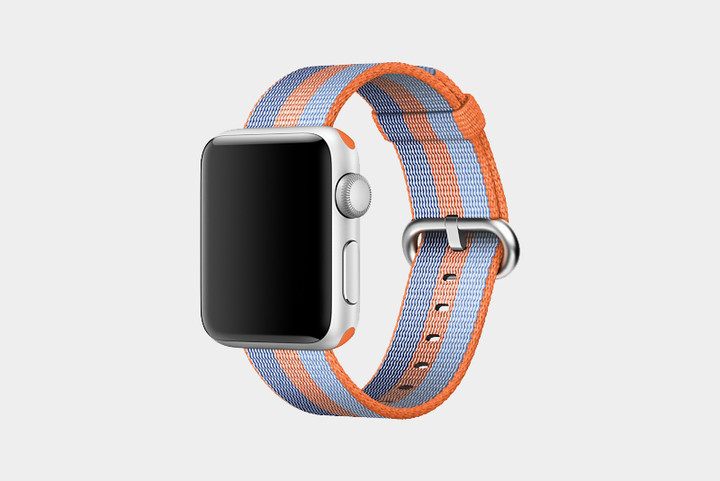
Apple’s nylon straps are some of the most colorful — and breathable — around. They’re made from more than 500 threads woven together in a pattern, and they’re bound by monofilaments that adhere four layers together to create a fabric-like material that’s comfortable both indoors and out. Moreover, Apple’s nylon bands come in an enormous (and growing) array of colors, including berry, Tahoe blue, orange, red, pollen, midnight blue, pearl, black, and scores of other color combinations.
Buy one now from:
Apple
Apple Sport Straps ($50)
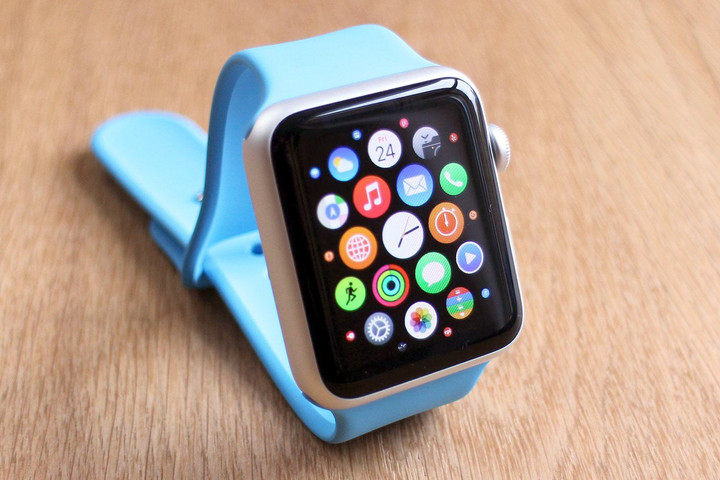
If you need something sturdier than nylon to get you through a hectic day, Apple offers the Sport Band. It’s made from a stretchy, high-performance “fluroelastomer” that’s both strong and soft to the touch. A nifty “pin-and-tuck” closure also ensures that it fits snugly around your wrist, and a smooth finish prevents unwanted pinches and rashes. The Sport Band is currently available in camellia red, pebble, azure, white, pink sand, midnight blue, black, and a host of alternative color combinations.
Buy one now from:
Apple
Apple Classic Buckle ($150)
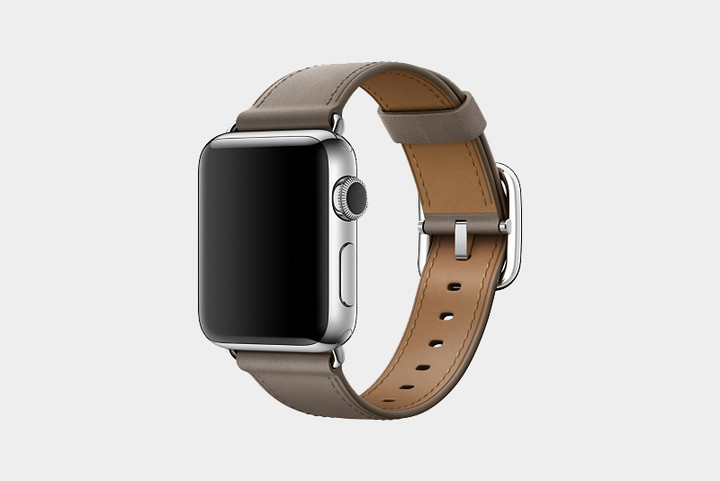
There’s arguably no material more quintessential than leather when it comes to watch straps, and Apple offers a great selection. The Cupertino-based company’s bands are made from calf leather that ages naturally over time to acquire a “patina,” which basically amounts to a gorgeous sheen. Each strap features a contrasting interior lining, color-matched stitching, and a spring-loaded buckle that makes it easier to affix the band. Apple’s leather straps come in berry, red, taupe, sapphire, saddle brown, midnight blue, and black.
If you’re the lucky owner of an Apple Watch Hermès, you get the option of fauve, fauve barenia, blue zéphyr, colvert swift, and eight other distinct colors. Double buckles currently come in blue agate Epsom, rose jaipur Epsom, etoupe Epsom, and fauve barenia.
Buy one now from:
Apple
Apple Stainless Steel ($150+)
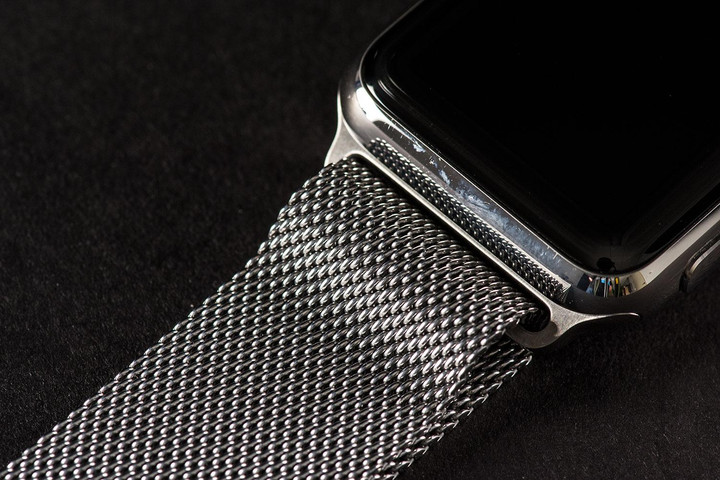
If metal is more your style, Apple has you covered. The company’s stunning Milanese loop, a modern interpretation of a design developed in Milan at the end of the 19th century, touts a stainless-steel design, wraps around your wrist, and adjusts with the help of magnets. Apple’s Link Braclet, meanwhile, features butterfly closure folds within the bracelet, allowing for a clean look. The onboard release button also makes it easy to add or remove links without special tools.
Buy one now from:
Apple
Samsung Galaxy Tab S3 review

Research Center:
Samsung Galaxy Tab S3
Android tablets do not offer a different experience from Android smartphones. It’s part of the reason why the iPad is the most popular tablet, because it provides “tablet-optimized apps” that make use of the screen’s real estate. Google made an attempt to go in this direction with Android 3.0 Honeycomb, but the company has largely backed off since. As such, app developers have found little encouragement to make a tablet version of their app on the OS.
Samsung’s trying to bring interest back with the Galaxy Tab S3. It’s a successor to the Galaxy Tab S2, which in 2015, we gave a score of 4.5 out of 5 because it was the only Android tablet that could go toe-to-toe with Apple’s iPad.
But now the climate has changed. Windows 2-in-1 tablet/laptops are rising in popularity, and so are Chromebooks, which are more ergonomic and typically affordable. Smartphones are also bigger than ever, so there’s not much of a reason to buy a tablet that offers the same experience.
While the Galaxy Tab S3 may be the best Android tablet you can buy, it fails to recognize the market it’s in. It’s expensive, doesn’t come with a keyboard, and it’s not going to replace your iPad Pro — the device Samsung is clearly going after. We wrote this review on the Tab S3, so let’s take a look at how it fares as a potential laptop replacement, a tablet, and drawing slate.
Brilliant display, dull design
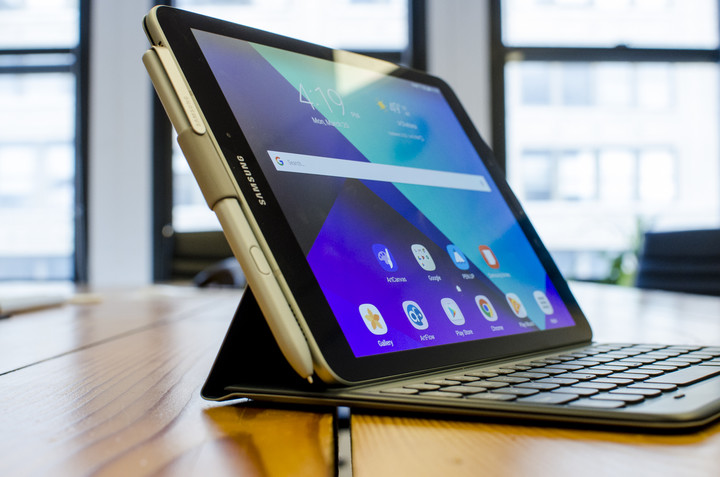
Let’s get the good stuff out of the way — the Galaxy Tab S3 has the best screen we’ve ever seen on a tablet. The brilliant, 9.7-inch Super AMOLED screen is a tad over-saturated, but it’s HDR-ready. That means it offers much-improved brightness and contrast, as well as a wider range of colors.
Sadly, it does mean you need to have HDR content to get the full experience. Netflix said it will support the format, and YouTube already does. You’ll still be more than satisfied with how it performs for non-HDR content, too. The AMOLED panel offers deep blacks and vivid colors, and the screen’s 2,048 x 1,536-pixel resolution ensures every minute detail is visible.
 Julian Chokkattu/Digital Trends
 Julian Chokkattu/Digital Trends
 Julian Chokkattu/Digital Trends
 Julian Chokkattu/Digital Trends
Unfortunately, the best screen has been paired with a boring design. Hardly much has changed from the 2015 Galaxy Tab S2, and we’re not quite sure why Samsung repeatedly goes for a look akin to an enlarged Galaxy S5. While Samsung is doing as much as it can to strip away bezels from its smartphones, it doesn’t seem to care for its tablets.
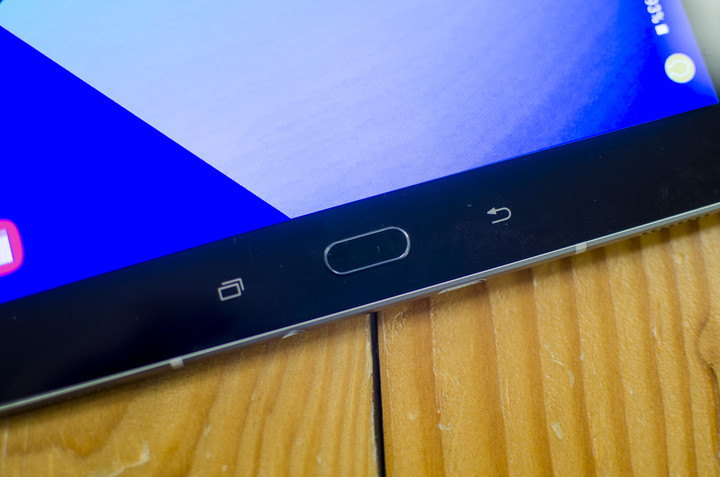
Most people predominantly use a tablet of this size in landscape mode — it’s likely why Samsung sent us the keyboard case as well. It’s baffling as to why there’s a vertical, smartphone-like design, with navigation buttons straight from the company’s smartphone lineup on the bottom bezel. While we do use keyboard shortcuts, like Alt-Tab, to navigate the Android interface, not everyone will learn to use them, and the buttons are still key in how we interact with the tablet. Their placement and orientation is unnatural.
The Galaxy Tab S3 has the best screen we’ve ever seen on a tablet.
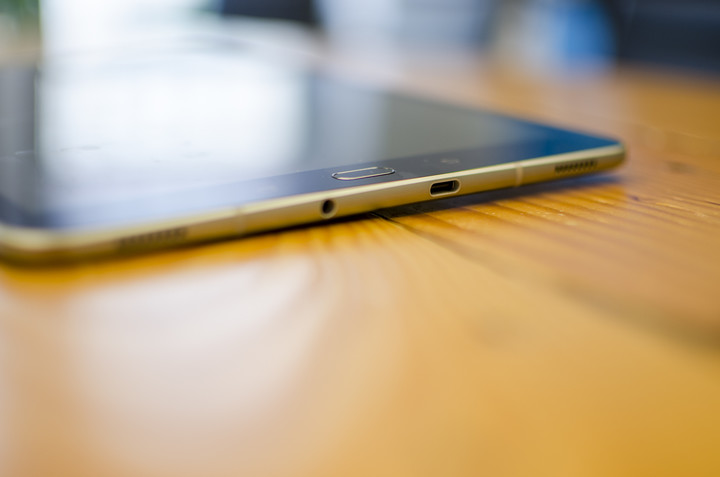
Similar to smartphones, there’s an accessible power button next to the volume rocker, but at least this placement is more intuitive. You’ll also find two top- and bottom-firing speakers on both sides of the Tab S3, similar to the iPad Pro, along with a USB Type-C port and headphone jack on the bottom.
The home button acts as a fingerprint sensor — which we’ll get to later — and the glossy, glass back design is sleek, but a serious misstep. It opens the device to an unnecessarily higher risk of damage. Do not hand this tablet to your kids, because it will shatter.
Smooth performance, and quad speakers
The Galaxy Tab S3 is powered by Qualcomm’s Snapdragon 820 — the 2016 processor of choice for many flagship smartphones like the Galaxy S7 Edge and the LG G5. It’s dated now that the Snapdragon 835 is the flagship chip, but it does the job fine, thanks to the 4GB of RAM.
We’ve seen the occasional stutter now and then, particularly when moving to the Flipboard “briefing” screen on the left of the main home screen. You can turn this off, though.
The tablet comes with 32GB of internal storage, and a MicroSD card slot lets you upgrade that up to 256GB (there’s a free 64GB MicroSD card thrown in if you pre-order the Tab S3). The MicroSD card will certainly help, because 32GB isn’t a ton of space if you’re downloading movies, games, books, or music.

Julian Chokkattu/Digital Trends
A 5-megapixel front camera offers decent quality for video calls and selfies, but the 13-megapixel rear camera allows for 4K video capture at 30 frames-per-second. Generally, we don’t recommend using your tablet to take photos or videos, and the keyboard case also counterintuitively covers the rear camera anyway. We’d prefer if Samsung made the front-facing camera better than the rear on tablets, as it’s likely used more often.
Samsung is also touting the capabilities of the quad speakers on the Tab S3, which were tuned by audio systems manufacturer AKG Acoustics. Each corner of the tablet has a speaker, and it’s far better than most speaker configurations on smartphones or other tablets.
More: What’s in a Name? Meet Bixby – the smart sidekick who’ll help you use your digital gear
While the audio can get pretty loud, it does tend to sound like a smartphone placed in a drinking glass. The bass is a little muddled and hard to make out, but generally the speakers are pretty good for a tablet. It’s not as nice as the speakers on the iPad Pro, which sound more well-rounded and balanced, though perhaps a tad quieter.
Multitasking improvements in Android
The Tab S3 runs Android 7.0 Nougat, and in classic Samsung fashion, it’s mixed in with the company’s TouchWiz user interface. TouchWiz looks surprisingly slick on Nougat, and overall we’ve had a positive experience interacting with the device.
There are many small details Samsung has added to make the Nougat interface even richer. Take multitasking as an example. Users can simply tap the multitasking icons in the Recents menu to jump right into split-screen mode. When you start a split-screen session, you can slide the divider to make one app larger than the other — that’s a standard Nougat feature. Tap the divider on the Tab S3 though, and you can either swap the placement of both apps, close the multi-tasking session, or open one of the apps as a separate window, aka a floating app.
Don’t expect a bloatware-free experience when you first set up the Tab S3.
You can move the floating app wherever you want, while still being able to interact with the other app. It’s a great way to have a video playing from YouTube, for example, while writing in Google Docs.
Be wary about the fingerprint sensor on the Tab S3. We’ve had some issues, and it’s because of how it’s placed. We set up the same fingerprint twice horizontally and vertically to ensure it worked in both orientations, but the tablet would always need two to three tries to unlock. It simply wouldn’t register the fingerprint most of the time.
Don’t expect a bloatware-free experience when you first set up the Tab S3 — there are a decent number of pre-installed apps, including ones from Microsoft, that you can’t delete. Overall, though, the interface is responsive, sleek, and smooth. In our experience, TouchWiz does bog things down and get a little slower over time, so we’ll have to see how the Tab S3 performs in the long run.
Sketching with the S Pen
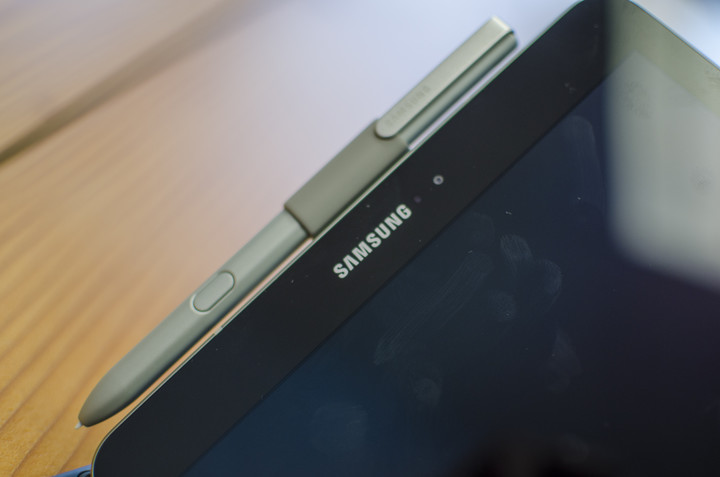
The Tab S3 comes with Samsung’s famed S Pen, which doesn’t look as nice as the one that debuted alongside the Galaxy Note 7. That’s because it’s a lot thicker, but it’s comfortable to hold as it’s similar in size and weight to a dumb pen.
It still has all the same features as the stylus from the Note 7, though you won’t be able to store it anywhere in the actual device. Samsung offers an adhesive S Pen holder you can attach to the keyboard cover. If you don’t like that method, you’ll have to carry it separately, so make sure you don’t lose it — it costs $80 separately, and that’s not cheap.
Samsung Galaxy Tab S3 Compared To

Chuwi Hi12 Windows 10 2-in-1
Lenovo Tab 2 A8

Dell Venue 8 7000

Nvidia Shield Tablet
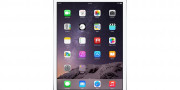
Apple iPad Air 2

Lenovo ThinkPad 10
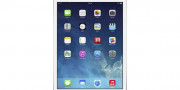
Apple iPad Mini 2

Microsoft Surface 2
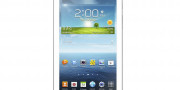
Samsung Galaxy Tab 3 (8-inch)
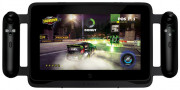
Razer Edge Pro

Barnes & Noble Nook HD+
Dell Latitude 10
Dell XPS 10

Acer Iconia Tab W700
Acer Iconia Tab A700
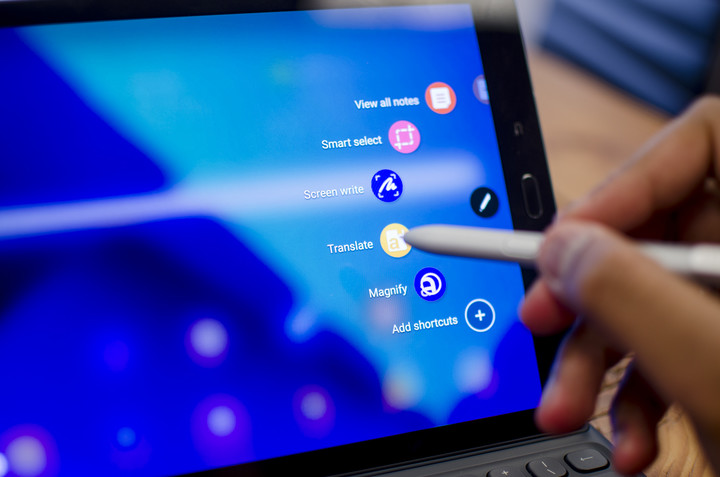
Tapping the button on the stylus opens a menu of S Pen shortcuts, such as “Create note,” “View all notes,” “Smart Select,” “Translate,” and more. Translate, for example, lets you hover the S Pen over text in apps to translate words to one of the supported languages via Google Translate. Smart Select lets you crop a part of the screen to mark or extract text from, which you can then copy to your clipboard.
You can also write notes on the screen when it’s turned off with the stylus, and when you’re done it’s immediately saved in Samsung Notes. All of these are unique and fairly useful features, and most importantly, they consistently work without issues.
There are a few ways you can draw on the tablet right off the bat, such as with Samsung Notes, though you may want to go for more robust drawing apps available on the Google Play Store, like ArtCanvas. Samsung has improved the S Pen to add a 0.7mm tip and more than 4,000 levels of pressure sensitivity, and sketching is actually quite enjoyable on the Tab S3, except for one major flaw: palm rejection.
 Julian Chokkattu/Digital Trends
 Julian Chokkattu/Digital Trends
The Tab S3 is supposed to have palm rejection technology, but in the various apps we have tried, the tablet registers all palm movement on the canvas. It’s frustrating if you’re trying to draw and have to constantly erase marks made your palm. By contrast, Apple’s iPad Pro was flawless and its palm rejection technology works like a charm.
Samsung’s poor job here is a part of the reason why we feel as though the Tab S3 should not be a choice for professionals looking to create art digitally. There are also quite a number of high-quality drawing apps on iOS, and seeing as the iPad Pro starts at the same price as the Tab S3, there’s no reason why you shouldn’t go for gold with Apple.
Good battery life
Battery life has been solid on the Tab S3. Moderate to high-use, for example, gets us 10 hours with 20 percent left. All of that’s due to the 6,000mAh battery inside, but what we’ve seen on the Tab S3 is more or less standard with most tablets.
More: Samsung Galaxy S8 rumors and news leaks
Standby time is nearly akin to the iPad Pro, as we’ve left the device on for more than 12 hours only to see it drop four percent or less. All of this largely depends on how you use the tablet — if you’re watching videos or have the screen’s brightness to high, for example, you’ll see shorter battery life.
Cramped but clicky keyboard
The keyboard is a separate accessory that will set you back $130, which is ridiculously expensive as it would bring the total price of the tablet to more than $700.
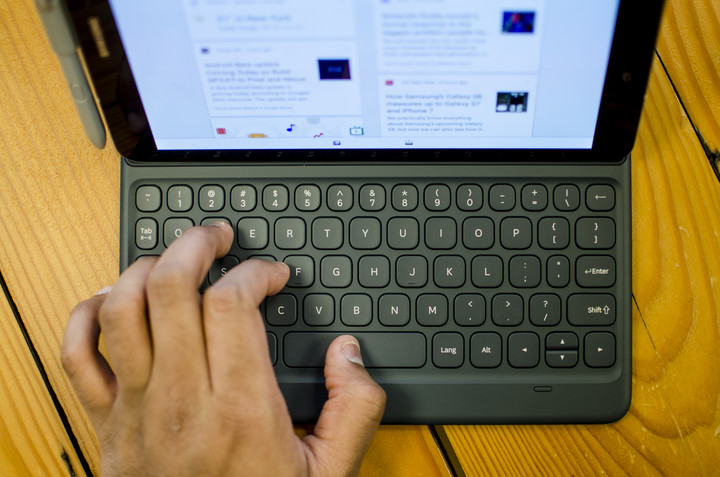
If you have large hands like me, the keyboard is going to be cramped. It’s simply too small in width and length, and typing is going to get tiring after a small period of time. I had to take breaks every so often writing this review because my fingers got more tired than usual.
Julian Chokkattu/Digital Trends
Thankfully, the keys are responsive and clicky. The keyboard itself is built well, and best of all it doesn’t need to be charged as the tablet attaches to it via pogo pins. Sadly, there seems to be only one way to keep the tablet raised with this keyboard. Our advice? Buy Samsung’s Chromebook Pro or Plus instead if you want a laptop that doubles as an Android tablet.
Warranty information and security updates
Samsung offers a standard one-year warranty from the date of purchase, and this covers any manufacturing defects in the device — but not accidental drops or water damage. The tablet’s current security update is from February, which is reasonably timely. Samsung is promising to follow through with monthly security updates for its smartphones, but we’ll have to see if that extends to its tablets as well.
Our Take
The Galaxy Tab S3 is an excellent Android tablet that offers solid performance, good audio capabilities, Android 7.0 Nougat, and good battery life, all with an excellent display to boot.
At $600, though, it’s among the priciest Android tablets you can buy, and problems arise when you look at the competition and the demographic for this tablet.
Is there a better alternative?
The DT Accessory Pack
Micro USB & USB-C Combo Cable
$20
S Pen
$80
Galaxy Tab S3 9.7″ Book Cover
$60
Galaxy Tab S3 9.7″ Keyboard Cover
$130
Yes, and no – it depends on what you want to use it for. If you’re looking for the best Android tablet you can buy, you won’t be disappointed with the Tab S3. If you’re looking for a laptop replacement — you’ll find the Samsung Chromebook Pro or Plus to be better options, as they are more ergonomic, cheaper, have built-in keyboards and styli, and can run Android apps.
If you’re an artist looking for a tablet to sketch on, you should go for the best — the iPad Pro, which starts at the same price as the Tab S3. Palm rejection technology is important, and Apple does it best.
How long will it last?
Samsung usually supports its devices with software updates for two years after release, but the Tab S3 will likely keep on chugging for some more time, perhaps another year or two before you may need to start looking at replacements.
Should you buy it?
Yes, if you are committed to Android and aren’t interested in alternatives operating systems. This is currently the best Android tablet around. Chromebooks will be better productivity tools if that’s what you’re looking for, the iPad is still the tablet of choice for artists, and Windows 2-in-1s promise laptop functionality. But if it’s Android you want, the Samsung Tab S3 is the way to go.
10 annoying iPhone SE problems and how to fix them
The iPhone SE takes the power of the iPhone 6S and places it into a smaller, more compact body that’s reminiscent of the iPhone 5. Despite merging an older design with newer hardware, the SE is a competent smartphone, and a great entry point for those new — or returning — to Apple’s iOS. However, not everyone has had a frustration-free experience with their device. Here are some common problems SE users have reported having, and the various workarounds and fixes for them.
More: 15 bite-sized iPhone SE tips and tricks
Problem: Won’t connect to iTunes
Some iPhone SE owners have reported being unable to connect to iTunes with the smartphone, or that iTunes doesn’t recognize it. Users are getting the message, “The iPhone cannot be used because it requires a newer version of iTunes. Go to http://www.itunes.com to download the latest version of iTunes.” This was first reported on last April, and has persisted until now.
Potential solutions:
- Make sure you’re using the latest version of iTunes: 12.5.5 at the time of writing. Apple added sync support for the iPhone SE and iPad Pro starting with iTunes version 12.5.4. Windows users need to have Windows 7 or later to use the latest version of iTunes, while Mac users need to have OS X version 10.8.5 or later.
- If the problem persists after updating iTunes, Apple has a helpful guide explaining what to do in the event that iTunes doesn’t recognize your iOS device.
- If neither of the above options resolve the issue, you may have to reset your iPhone SE to its factory settings, meaning you’ll have to re-sync the device and all of your data. Make sure you back up everything on your iPhone first, then go to Settings > General > Reset > Erase All Content and Settings and see if that helps.
- Your final option is to contact Apple directly to see if they have any other solutions.
Issue: Battery drain
Many iPhone SE owners have found that their batteries are draining quicker than expected, or they’re simply disappointed by how long the battery lasts.
Potential solutions:
- Look at your Battery Usage to see which apps are draining your power the most in Settings > Battery. Change your settings for apps that are the biggest culprits, such as apps working in the background. Tapping on Battery Usage will reveal how long apps have been used and how long they’ve been active in the background.
- Consider enabling Low Power Mode in Settings > Battery. It turns off certain features like mail fetch, background app refresh, and automatic downloads. Tap Settings > General > Background App Refresh if you only want to adjust the app refresh settings.
- Location Services uses GPS and Bluetooth to determine your approximate location. If you don’t need this, toggle it off by going to Settings > Privacy.
- Back up precious files and reset your iPhone SE to its factory settings, then set it up like a new phone without restoring via a backup. If battery life is better, restore using your backup. If the problem comes back, you may need to forgo using that backup or delete third-party apps.
- Take a look at these additional tips for saving/extending battery life.
- If none of the aforementioned suggestions resolve the issue, contact Apple Support, go to an Apple Store, or visit an Apple Authorized Service Provider to seek a replacement phone or repair.
Issue: Yellow screen
Some users noticed that their iPhone SE displays are slightly yellower than other iPhone models, instead of the usual white. In other cases, the yellow tint is only around the edges of the display.
Potential solutions:
- Check your Night Shift settings in Settings > Display & Brightness > Night Shift, to see if the feature has been enabled. The recently implemented feature changes the color of the display to give it a warmer hue once the sun goes down. Messing with the color temperature slider at the bottom may do away with the yellowing, or could be the cause.
- Older iPhone models such as the iPhone 5 had a similar problem that people reported running into. In most cases, it was a matter of the adhesive used for the digitizer during the phone’s production, and while it was drying, it would produce the yellow tint. If the iPhone SE problem is anything like the iPhone 5 problem, then the glue should dry within a week, thereby doing away with the yellow color.
- If the yellowing persists after following the potential solutions outlined above, contact Apple or your carrier, or schedule an appointment with an Apple Authorized Service Provider to either get the phone repaired or replaced.
Problem: Voice Control activates on its own
Some iPhone SE owners on the Apple Discussion forums are saying voice control activates on its own, and at seemingly random times, prompting some to want to disable it. The problem occurs the most while listening to music or internet radio. Note: Voice control is not the same thing as Siri. In fact, if you’re using Siri, you can’t use voice control.
Potential solutions:
- You can turn off voice control. You first need to set a passcode. Following that, go to Settings > Touch ID & Passcode > Voice Dial and toggle Voice Dial off.
- Consider switching to Siri. Go to Settings > General > Siri and tap the Siri toggle to turn the assistant on. While on this screen, you can also turn on “Hey Siri” if you haven’t already, which will allow you to use Siri without pressing the Home button.
- If you’re set on using voice control, a factory reset may be your final solution, aside from taking it to an Apple Store or affiliate retailer to get a replacement. First, back up everything on your iPhone SE, and then restore it to its factory settings.
Problem: Clicking noise coming from Home button
This is not the sound the Home button usually makes when being pressed, but rather a more audible sound that can be heard when the button rises after being pushed down. For some, the sounds vary, and may even sound like rattling.
Potential solutions:
- Clean the area around the Home button. It’s possible a sticky substance or a smaller object found its way into the iPhone and is causing the noise.
- It’s far more likely that this is a hardware issue that may require the device to be opened up and inspected. In that case, reach out to Apple Support, make a trip to an Apple Store, or seek out an Apple Authorized Service Provider to repair or replace your iPhone.
Annoyance: iPhone SE won’t stop vibrating
A small number of iPhone SE owners have reported that their phone vibrates constantly, regardless of setting preferences. Turning off Vibration (Settings > General > Accessibility > Vibration) and performing a forced restart has not fixed the issue.
Potential solutions:
- An app running in the background could be causing the issue. Bring up the app switcher — double-click the Home button — and swipe up to close any apps that are still running.
- If you’re not using iOS 10.2.1, or any recent version of iOS 10, try updating your software to see if it fixes the problem.
- You can try restoring your phone from a backup made before the vibration issue started. If the problem doesn’t occur after you restore the backup, an app or update could’ve been behind the issue.
- Perform a factory reset and restore your phone, or set it up like a new device.
- Reach out to Apple Support. You phone may need repairs, or a replacement headset.
Problem: iTunes won’t sync photos with iPhone SE
A few iPhone SE owners have recently run into an issue in which iTunes fails to sync photos with their iPhone. The desktop app informs users that it “cannot sync photos to the ‘iPhone SE’ because your Photos Library is not yet available. Please try again later.”
Temporary solutions:
- Uninstalling and reinstalling iTunes has been said to work for a while. Sadly, the problem can come right back. Be sure to make a backup of your library before uninstalling the program.
Workarounds:
- It’s not ideal, but you can always manually add photos to your phone, just as you would music or videos.
Potential solutions:
- Restart both your phone and your computer, then try syncing again.
- Make sure you’re using the latest versions of iOS and iTunes.
- This Apple Support page has a list of steps that may help.
- While your iPhone is connected to iTunes, go to Photos > General and ensure your Photo Library is set to be your system photo library. If it isn’t, click Use as system photo library. This Apple Support page may be of some use, too, if you’re a Mac user.
Glitch: Missing contact images
Another recently reported problem is that some iPhone SE owners no longer have contact photos. These usually appear at the top of the page when you’re looking at a conversation with a contact. For many, the loss of images occurred after updating to iOS 10.2.1.
Potential solutions:
- Restart your phone.
- Make sure none of the images used for your contacts have been deleted by accident.
- Try removing the contact image and re-adding it.
- Go to Settings > Messages and toggle on Show Contact Photos.
- If you’re using Display Zoom, the feature will automatically remove any contact images. Switch back to standard view by going to Settings > Display & Brightness. Then, scroll down to Display Zoom > View > Standard.
- You can always try performing a factory reset, then restoring your phone from a backup.
Issue: Wi-Fi turns off when phone is locked
This is different from the typical Wi-Fi issue most people run into, in which their phone suffers from poor or nonexistent connectivity. Instead, a few people have experienced a problem that causes Wi-Fi to turn off when the SE is locked or put to sleep.
Potential solutions:
- Restart your phone and router.
- Go to Settings > General > Reset > Reset Network Settings. Afterward, re-connect to your Wi-Fi network.
- One user on the iMore forums noticed they were having a similar problem when they got a new router that was using the same network password and login code to connect to their new modem. They suggested that a similar scenario could be confusing the SE. To fix the issue, they changed their aforementioned passwords and codes.
- Try performing a factory reset.
Annoyance: Camera doesn’t preserve camera app settings
The iPhone’s camera app is capable of saving the last camera mode you used, but some users have noticed that this continues to happen, even if you’ve set the app to reset to the default camera mode (Photo) when you launch the app.
Official solution:
- The camera app will revert to the default camera mode after about a minute. If you continue to adjust the app’s Preserve Settings during that time (Settings > Photos & Camera > Preserve Settings), it will not automatically reset.
This article was originally published on December 25, 2016, and updated on March 16 by Kyree Leary to include problems related to iTunes, the camera app, contact images, and Wi-Fi.
Amazon’s Alexa comes to Huawei Mate 9 smartphones in U.S. via update
Why it matters to you
Alexa is one of the most popular smart voice assistants, and the AI has not been attached to a smartphone in this way before. Huawei’s update gives you more control in your smart home.
Huawei is following through with its CES promise of bringing Amazon’s Alexa to its flagship Mate 9 smartphone. An over-the-air update will roll out today to U.S. models of the device, making the Mate 9 the first smartphone to come with Alexa installed.
Alexa is the smart voice assistant in Amazon’s popular Echo and Echo Dot devices. Users can call out to the assistant with the trigger “Alexa,” and can then follow up with a request to control smart home products like connected lightbulbs and thermostats. Alexa can also answer basic questions like when the next showtimes are for an upcoming film.
More: Huawei Mate 9 review

With Alexa now on the Mate 9, you can expect similar functionality. Most importantly, you can control your compatible smart home devices with the Chinese company’s smartphone. You first need to open and configure the Huawei Alexa app, which will be available after installing the OTA update. Unfortunately, voice activation does not work yet so you’ll have to rely on your finger to trigger the assistant. The company said it is working with Amazon to get this feature up and running as soon as possible.
Here are all the functions you’ll be able to perform just with your voice thanks to Alexa on the Huawei Mate 9:
- Home automation.
- Play games like Jeopardy, Twenty Questions, and Magic Door.
- Place orders from vendors like Starbucks, Pizza Hut, Domino’s, and more. You can also place orders and have products ship to your home via Amazon Prime.
- The 7-minute Alexa workout skill helps keep you fit and on your toes.
- Alexa can play news briefings from media organizations like NPR, Reuters, Fox News, WSJ, AP, BBC, CNN, and others.
- Accessing podcasts and Audible content.
- Ask for weather and traffic updates.
- Check your calendar.
- Ask general queries about people, places, and more.
More: Huawei Watch 2 Sport review
While the update only adds Alexa to U.S. Mate 9 devices, the company said the Alexa app will roll out to other Mate 9 variants in other Amazon-supported markets at a later date. If you have the assistant already, keep in mind that not all of Alexa ‘s 10,000 skills will work. Two that most definitely won’t for a long time are Timer/Alarms, as well as Music and Tunein. The company is continuing to work with Amazon to add support for all its skills.
The company doesn’t have any plans to bring Alexa to another Huawei device at the moment. We’ll update this article with more information on how to set up and use Alexa when the OTA begins to roll out.
Zoom around town in style on Mercane Wheels’ foldable, electric Transboard
Why it matters to you
With its foldable design, the updated, three-wheel Transboard from Mercane Wheels is one of the most portable transportation options available.
In this day and age, there exist more ways to get around the city than ever. Each year brings more alternatives to automobiles and now, Mercane Wheels has made sure its latest scooter easily fits into any kind of lifestyle. Dubbed the Transboard, Mercane designed this three-wheeled electric scooter to handle daily commutes in dense cities and sprawling countrysides. It combines speed, stability, and comfort to make any commute an enjoyable one.
To keep it light and sturdy, Transboard features an aluminum alloy frame with a polycarbonate cover. Built into the frame is a one-gesture folding system for compact transport into an office or subway. Furthermore, the foldable design supports riders up to 220 pounds.
Powering the three-wheeled scooter is a 500-watt BLDC Hub motor and a 48-volt battery. With a full charge, riders have the ability to commute for up to 25 miles at a top speed of 22 miles per hour. Though comfort issues pop up when traveling longer distances, the Transboard features a double wishbone suspension to keep the rides smooth. After the battery drains, a new charge takes roughly six hours. If needed, the battery case detaches to allow riders to charge it wherever they go.
“The vast majority of scooters on the market today are outfitted with just two wheels in order to keep them compact and ensure versatility,” said Mercane Wheels CEO Mark Min in a press release. “Transboard has three wheels and a more balanced design so riders won’t have to constantly find their balance — this means a more safe, more comfortable ride for extended periods of time.”
Additional features include a LED display with a function button. With this, riders have the option to check their speed or adjust various settings including power, cruise mode, headlights, and horn. The LED head and tail lights keep the Transboard well lit during evening commutes.
More: Hyundai’s electric scooter concept is so compact that it fits in a car’s door
Mercane Wheels’ updated Transboard begins its Indigogo campaign on March 22 in order to fund its final development. For the final stage, Mercane Wheels set a fundraising goal of at least $30,000. Early backers have an opportunity to snag the Transboard for just $500 — which represents a 60 percent discount off the final retail price. The colors available are gloss black and white.
Google’s #MyAndroid Taste Test gives bad results. Here’s how to make them better

Had a taste of Android theming with the #myAndroid Taste Test?
Android has always been a bastion of customization, but it hasn’t exactly been well-advertised, by Google or by the various manufacturers that ship it on their devices. Google is now looking to highlight that flexibility and creativity with its new #myAndroid campaign, looking to showcase how diverse and delightful our home screens can be when we add our own uniqueness to them.
Google has even devised a simple — dare I say cute — Taste Test to help you find some customizations you might like. But how do you use what the quiz spits out?
Launchers

Yeah, I know that launchers are technically the third thing that the quiz spit out, but Google’s wrong to do that and I’ll tell you why. Yeah, you can change wallpapers on any launcher, but to apply icon packs, you need a launcher that supports third-party icon packs, and that means you’re not gonna be using the one that came with your phone.
Moreover, the launcher is the foundation of your home screen and the foundation of your theme. It doesn’t make a whole lot of sense to start with anything else since the launcher is what you’ll be plugging the rest of this theme into.
For the most part, #myAndroid suggests relatively easy-to-use launchers like Smart Launcher 3 and our favorite theming launcher Nova Launcher, but if you’re looking for another launcher, may we suggest something off our Best Launchers list?
Here’s how to switch to a new launcher:
Download your new launcher.
Tap the home button.
Select your new launcher.
Tap Always. (This may not be there/necessary depending on your device.
Note: In some phones, this procedure may not always work. You may have to delve into the settings to find “default home” or “default launcher” and set it in there.
Once your new launcher launches, it’ll have a setup process for you to follow. These processes can be as simple as picking a wallpaper and introducing you to its features or as complex as setting up particular design styles and importing your previous home screen layout from your old launcher.
Wallpapers

Wallpapers are often the basis of a user’s theme; in fact for most users that is the entirety of their theme. Wallpapers are important, and while the three #myAndroid offers in their Taste Test are usually not too bad, it’s not like it’s hard to find another wallpaper somewhere else:
- Wallpapers is Google’s wallpaper gallery app and is indeed one of the wallpaper sources the have you download wallpapers from in the Taste Test. It has hundreds of wallpapers to pick from.
- Zedge is another source of Taste Test wallpapers and a gallery with tens of thousands of wallpapers to choose from, with everything you could ever think of waiting to be found in its many styles.
- DeviantArt is one of the largest artist gallery sites on the internet and the source of many of our own Wallpaper Weekly walls. While you do need to be careful what you search on DeviantArt, the only thing more diverse than the content is the diversity of the talent.
Once you’ve downloaded a wallpaper, here’s how to apply it on most launchers:
Long-press the wallpaper on your home screen until a series of options appear.
Tap Wallpapers.
Tap Pick image.

Select your downloaded wallpaper.
Center and zoom the wallpaper as desired
Tap Set wallpaper.

Icon Packs

There are so, so, so, so many icon packs out there, it’ll make your head spin. You could use a different icon pack every day of the year and it would still take decades to get through every icon pack on Google Play. This means that we have to separate the good, the bad, and the ugly. If the icon packs that your Taste Test offers aren’t to your liking, you might try some of our favorites.
Once you find an icon pack that you like, and have a launcher that supports them, switching to that icon pack is fairly simple, but varies from launcher to launcher. In your launcher’s settings, it can be hiding a few different places, but here are where the most common launchers hide it:
- Nova Launcher: Nova Settings > Look & feel > Icon theme
- Action Launcher: Action Settings > Display > Icon Pack
- Smart Launcher 3: Long-press home screen > Theme > Icon Packs
- BlackBerry Launcher: Long-press home screen > Icon Packs
- Arrow Launcher: Arrow Settings > Set Icon Pack
- Aviate Launcher: Long-press home screen > Settings > Set Icon Pack
Widgets

The widgets given in the Taste Test are not great. I’m just gonna go ahead and say that now: they aren’t great. The widget given for music lovers can’t even be called good, seeing as Sound Search for Google Play hasn’t been updated since 2013, is outdated in both visuals and function (it doesn’t work on Nougat), has been both a widget and a part of the main Google app for years.
I understand that widgets are a woefully misunderstood and underserved segment of the customization and overall Android market as a whole, but Google can do better for that. And seeing as they haven’t, we’ve taken it upon ourselves to offer some widgets you could use that actually work and even look good doing it.
Music

First and foremost, check the music app that you use for your tunes. Chances are it has at least one widget to put playback controls on your home screen. Google Play Music’s widgets (bottom below) are nice, if a bit bright. If the widget from your service is lacking, here are some third-party widgets to try:
- Jack’s Music Widget (center) is a simple, customizable music widget that can control playback for dozens of music players, and video players, too, like YouTube and Netflix when you’re Casting to a bigger screen.
- Material Music Komponent for KWGT (top) is a bit more advanced, but also offers better looking and completely color-customizable widgets so that no matter your wallpaper or theme, your music widget will match.
Weather

Again, most weather apps have at least one widget to put glanceable conditions or forecast on your home screen, but if you’re in the market for some top-notch weather widgets, here are our recommendations:
- 1Weather (top and bottom) has some of the most themable and versatile weather widgets we’ve seen, and there’s a reason that we use them in just about every theme posted on Android Central: they’re damn good.
- Yahoo Weather (center) has Flickr backgrounds that can showcase wonderful photos from your town. If you live in the sticks, that’s not going to help much, but if you live in a large city or a tourist destination like Walt Disney World, these weather widgets will give you a porthole to the beauty outside your door.
News

Widgets for news are somewhat limited by what sources you want your news from, but here are a couple of news widgets that should keep all sides happy:
- AP Mobile has a simple widget and is one of the most widely-trusted and widely used news sources in the world. The widget shows the latest headline in one of three feeds, along with the story’s top image.
- Google Newsstand can pull from tons of different sources, and even better, Google Newsstand will let you tap through several headlines on the widget itself. Google Newsstand isn’t widely used, but its widget might make you consider giving the main app a go.
Keyboards

Yeah, you can theme some keyboards, but I’m willing to bet that’s not why the bottom of your Taste Test results is an ad for GBoard. Most of the apps and launchers being promoted in the #MyAndroid Taste Test come from third parties, like Zedge or Lines or Nova Launcher. The soon-retiring Google Now Launcher doesn’t support icon packs, and while widgets like can be useful… kinda… I guess… there isn’t a whole lot of customization material that Google makes itself besides its Wallpapers app.
This isn’t a cheap promotion, and it makes sense that Google would have at least one category they can own and push people to a Google app with.
Your turn
So, what were your Taste Test results? Was there anything in there that fascinated you? Disappointed you? Anything more you were looking for? Tell us in the comments below!
 AIVAnet