


Microsoft’s Paint 3D shows promise, but it’s more toy than tool
Most people think of Windows Paint as the plucky image editor responsible for most stick figures drawn on a PC, or that app you paste your screenshots into. Microsoft would like to make it a lot more than that, and starts by extending its capabilities out into three dimensions. Rather than trying to shoe-horn a Z-axis into the existing paint structure, the company has a new standalone program called Paint 3D. It’s been available from the Windows Store for Insiders for the last few weeks, and it’s a major piece of the Creators Update rollout.
More: Preview build of the new Microsoft Paint leaks to the internet
Along with that, Microsoft promises to let you bring those creations into the real world, either using Windows Mixed Reality, or by 3D printing them. We don’t have a HoloLens at the office, but we do have some 3D printers, so we set about assessing these claims the best way we know how — by testing them.
We used to draw
While Paint 3D may have made a turn towards more complex modeling applications, it shares a lot of its UI and menu structure with its older sibling. You have a canvas, at least by default, that acts as a stage for your art, and the tools you would expect from an image editor – pen, eraser, paint bucket, pre-made shapes, and so on. When you select the cone button and draw a triangle, Paint 3D automatically gives it depth, and places it in front of the canvas.
There’s one odd design decision that will stand out, particularly to users already familiar with more advanced 3D modeling systems. In Paint 3D, you only ever edit your project from one direction. By changing to the perspective mode, you can swirl around the object, zoom in and out, and raise or lower the camera level. The moment you click the edit button, however, the perspective will snap back to a front-on view.
That’s not really an issue for single 3D objects, as you can rotate the object in place to re-shape or paint it. As the object count grows, you’ll find you must pull each object out in front of the rest, do any work on it, and then rotate and slide it back into place. Without a rich set of camera controls, tool changing shortcuts, or many hotkeys to speak of, this process quickly becomes tedious.
Oddly shaped
Perspective is far from the only issue with Paint 3D. In general, the drawing and painting tools are quick to make changes permanent. You can draw custom shapes, but the moment you finish they harden into arbitrarily extruded versions of your carefully placed points. With no way of welding multiple objects together, the workflow becomes a tedious loop of exporting and re-saving files. It goes something like this.
After creating a shape at the front of your build, you paint or apply stickers, which have their own problems. Like real stickers, the 3D Paint version can’t be move once applied. Once you’ve slapped it in place, you either must use undo to remove it, or paint over it. Paint isn’t perfect either, but its main issue comes from the perspective problem — If you want to paint anything but the front side of an object, you must rotate the object itself, paint it, then spin it back around.
In Paint 3D, you only ever edit your project from one direction
There’s no way within Paint 3D, at least that we could identify, to weld or join objects together into more complex shapes. After you put a few simple pieces together, you can export them as a single file, then reload them back into Paint 3D as a single model, which you can now only scale or paint as one big chunk.
Scale and precision are also major issues in Paint 3D. It’s tough to create models without any sort of idea of size or ratio to other objects in the build, and Paint 3D offers no help at all. That’s of concern when it comes to 3D printing. There are a lot of fundamental rules that govern successful fused filament fabrication, and Microsoft doesn’t offer any of the tools you need to work within them.
Piles of plastic
Most, if not all, home 3D printers use a process called fused filament fabrication. It works by melting down plastic filament, then carefully laying down layer after layer of the melted goo. For that to work, you need a flat surface to print on, and you need each layer of your printed object to be smaller than the one before it, or at least, there needs to be no dramatic overhangs, as the filament would simply drop onto the print bed in a plastic mess.


The process for 3D printing an object isn’t terribly complicated to begin with. You take a 3D object from your favorite software and export it as a .obj or .stl file, both of which are simple file types that include only the basic information about the object’s shape. You load those into a slicing program, typically Cura or Makerbot Desktop, and feed it info about your printer. The slicing program takes the object and turns it into gcode, which is essentially a text file telling the extruder on the printer where to move and where to plant material.
Exporting a 3D object to a file from Paint 3D doesn’t save it as the two most common formats, .obj or .stl, because those file types don’t have any room for color data, which is part of Paint 3D. Instead, it saves a .3mf file, which contains not just shape data, but color data for every piece of the model. When you open it in Paint 3D again, it looks exactly as it did when you exported it, which is a big advantage if you stay within the Paint 3D ecosystem.
Paint 3D feels like a messy-fingered headache, as you wildly swing quick-set concrete toys around inside a cardboard box
Home users typically reach for a slicing program to turn a 3D model into a printable file, and Cura, our favorite application, handles the .3mf file format, at least on paper. It doesn’t know how to place multiple objects together, however, or deal with colors, so you’ll have to do some work once you’ve imported it to whip it into shape for printing. With more complex models, it’s likely you’ll reach for SketchUp, which is easy to use, to prepare any models for final treatment — although you may need an extension to open .3mf files there as well.
The file format choice is more than just Microsoft wanting to make sure your stickers survive. It’s also a signal that Paint 3D models are bound for more expensive commercial machines that can print in any number of colors at once. Instead of printing the item at home, it’s more likely Windows is looking towards a business model where you upload a file to Remix3D or another service, and pay to have it printed out and shipped to you.
A sloppy paint job
When Microsoft first showed off Paint 3D, it came off as more of a diorama maker than a purpose-built 3D modeling application. That’s a fine space to fill, allowing kids to put their favorite shapes and images into little clusters of objects, but Paint 3D doesn’t follow through on that promise either. The best course Microsoft could have taken was making Paint 3D as close to handling clay and posterboard as possible. Right now, it feels like a messy-fingered headache, as you wildly swing quick-set concrete toys around inside a cardboard box.
It doesn’t help that 3D printing requires a massive amount of precision, structural work, and attention to detail — not to mention patience — to work in any form. If Paint 3D let you doodle for a bit and spit out something like what you drew in thermoplastic, it would be enough to call it a success. Instead, Sketchup is still an easier application for that, with easily read specifications, tool icons that demonstrate what they do, and a camera that stays in place while you’re editing. Without the versatile, if basic, set of tools that the original Paint offered, Paint 3D feels like a step into the wrong direction.
Microsoft’s Paint 3D shows promise, but it’s more toy than tool
Most people think of Windows Paint as the plucky image editor responsible for most stick figures drawn on a PC, or that app you paste your screenshots into. Microsoft would like to make it a lot more than that, and starts by extending its capabilities out into three dimensions. Rather than trying to shoe-horn a Z-axis into the existing paint structure, the company has a new standalone program called Paint 3D. It’s been available from the Windows Store for Insiders for the last few weeks, and it’s a major piece of the Creators Update rollout.
More: Preview build of the new Microsoft Paint leaks to the internet
Along with that, Microsoft promises to let you bring those creations into the real world, either using Windows Mixed Reality, or by 3D printing them. We don’t have a HoloLens at the office, but we do have some 3D printers, so we set about assessing these claims the best way we know how — by testing them.
We used to draw
While Paint 3D may have made a turn towards more complex modeling applications, it shares a lot of its UI and menu structure with its older sibling. You have a canvas, at least by default, that acts as a stage for your art, and the tools you would expect from an image editor – pen, eraser, paint bucket, pre-made shapes, and so on. When you select the cone button and draw a triangle, Paint 3D automatically gives it depth, and places it in front of the canvas.
There’s one odd design decision that will stand out, particularly to users already familiar with more advanced 3D modeling systems. In Paint 3D, you only ever edit your project from one direction. By changing to the perspective mode, you can swirl around the object, zoom in and out, and raise or lower the camera level. The moment you click the edit button, however, the perspective will snap back to a front-on view.
That’s not really an issue for single 3D objects, as you can rotate the object in place to re-shape or paint it. As the object count grows, you’ll find you must pull each object out in front of the rest, do any work on it, and then rotate and slide it back into place. Without a rich set of camera controls, tool changing shortcuts, or many hotkeys to speak of, this process quickly becomes tedious.
Oddly shaped
Perspective is far from the only issue with Paint 3D. In general, the drawing and painting tools are quick to make changes permanent. You can draw custom shapes, but the moment you finish they harden into arbitrarily extruded versions of your carefully placed points. With no way of welding multiple objects together, the workflow becomes a tedious loop of exporting and re-saving files. It goes something like this.
After creating a shape at the front of your build, you paint or apply stickers, which have their own problems. Like real stickers, the 3D Paint version can’t be move once applied. Once you’ve slapped it in place, you either must use undo to remove it, or paint over it. Paint isn’t perfect either, but its main issue comes from the perspective problem — If you want to paint anything but the front side of an object, you must rotate the object itself, paint it, then spin it back around.
In Paint 3D, you only ever edit your project from one direction
There’s no way within Paint 3D, at least that we could identify, to weld or join objects together into more complex shapes. After you put a few simple pieces together, you can export them as a single file, then reload them back into Paint 3D as a single model, which you can now only scale or paint as one big chunk.
Scale and precision are also major issues in Paint 3D. It’s tough to create models without any sort of idea of size or ratio to other objects in the build, and Paint 3D offers no help at all. That’s of concern when it comes to 3D printing. There are a lot of fundamental rules that govern successful fused filament fabrication, and Microsoft doesn’t offer any of the tools you need to work within them.
Piles of plastic
Most, if not all, home 3D printers use a process called fused filament fabrication. It works by melting down plastic filament, then carefully laying down layer after layer of the melted goo. For that to work, you need a flat surface to print on, and you need each layer of your printed object to be smaller than the one before it, or at least, there needs to be no dramatic overhangs, as the filament would simply drop onto the print bed in a plastic mess.


The process for 3D printing an object isn’t terribly complicated to begin with. You take a 3D object from your favorite software and export it as a .obj or .stl file, both of which are simple file types that include only the basic information about the object’s shape. You load those into a slicing program, typically Cura or Makerbot Desktop, and feed it info about your printer. The slicing program takes the object and turns it into gcode, which is essentially a text file telling the extruder on the printer where to move and where to plant material.
Exporting a 3D object to a file from Paint 3D doesn’t save it as the two most common formats, .obj or .stl, because those file types don’t have any room for color data, which is part of Paint 3D. Instead, it saves a .3mf file, which contains not just shape data, but color data for every piece of the model. When you open it in Paint 3D again, it looks exactly as it did when you exported it, which is a big advantage if you stay within the Paint 3D ecosystem.
Paint 3D feels like a messy-fingered headache, as you wildly swing quick-set concrete toys around inside a cardboard box
Home users typically reach for a slicing program to turn a 3D model into a printable file, and Cura, our favorite application, handles the .3mf file format, at least on paper. It doesn’t know how to place multiple objects together, however, or deal with colors, so you’ll have to do some work once you’ve imported it to whip it into shape for printing. With more complex models, it’s likely you’ll reach for SketchUp, which is easy to use, to prepare any models for final treatment — although you may need an extension to open .3mf files there as well.
The file format choice is more than just Microsoft wanting to make sure your stickers survive. It’s also a signal that Paint 3D models are bound for more expensive commercial machines that can print in any number of colors at once. Instead of printing the item at home, it’s more likely Windows is looking towards a business model where you upload a file to Remix3D or another service, and pay to have it printed out and shipped to you.
A sloppy paint job
When Microsoft first showed off Paint 3D, it came off as more of a diorama maker than a purpose-built 3D modeling application. That’s a fine space to fill, allowing kids to put their favorite shapes and images into little clusters of objects, but Paint 3D doesn’t follow through on that promise either. The best course Microsoft could have taken was making Paint 3D as close to handling clay and posterboard as possible. Right now, it feels like a messy-fingered headache, as you wildly swing quick-set concrete toys around inside a cardboard box.
It doesn’t help that 3D printing requires a massive amount of precision, structural work, and attention to detail — not to mention patience — to work in any form. If Paint 3D let you doodle for a bit and spit out something like what you drew in thermoplastic, it would be enough to call it a success. Instead, Sketchup is still an easier application for that, with easily read specifications, tool icons that demonstrate what they do, and a camera that stays in place while you’re editing. Without the versatile, if basic, set of tools that the original Paint offered, Paint 3D feels like a step into the wrong direction.
Here’s the 5 best new features in Windows 10’s Creators Update
If you’ve read our full write-up on the Windows 10 Creators Update, you may have noticed that the landmark features weren’t what stood out to us. Gaming mode didn’t provide much of a performance boost at all, Paint 3D is still a mess, and the holographic and mixed reality support is conspicuously absent, as far as we can tell.
Instead, it was the minor changes that impressed us. Small updates to interface, functionality, and existing infrastructure can have a huge positive impact on a system’s everyday usability.
Windows Goodnight
Lately people have become more aware of the fact that blue light before bed can cause sleep issues. It’s harder on your eyes, and your brain. Programs like f.lux naturally filter out blue light and change the white balance of your screen in coordination with the sun rising and setting, helping you keep a more regular sleep schedule.
More: Windows 10 upgrade tool confirms final build number for Creators Update
In response to this growing trend, Microsoft went ahead and built the functionality into the Creators Update. It’s called Night Light, and you can turn it on or off in the Display settings. Dig a little further in, and you’ll also find settings for how much tint you want applied, with an option to set the time yourself, or lock it to sunrise and sunset, assuming you have location services enabled.
It works well enough, although it lacks the grace of f.lux, which allows you to set and manage a curve across the whole day, rather than just flipping a switch at sunset. There’s also no quick way to turn off Night Light without going into the settings, where other applications let you suspend or manage your tint from the taskbar. Still, it’s a nice option that may encourage more people to seek other blue light-limiting options.
A sharpened Edge
Progress continues apace on Microsoft’s new Edge browser, and it’s starting to take shape into a modern competitor. The Creators Update packed in some useful features, including a session management mode that lets you set aside a browsing session and pick it up on another machine or Windows Phone.

Support for other features is still in its fledgling stages, but extensions are making their way into the browser, which is good news for users potentially looking to lose Chrome or Firefox. Not that we think people will be rushing to abandon their favorite browser in favor of Edge, but it’s a closer fight than ever before, and with continued updates and support, Edge could easily become a viable option as a daily driver.
Beaming
Streaming gameplay to live services like Twitch.tv and YouTube Gaming is quickly becoming more popular, but the most common applications aren’t exactly easy to use. OBS is free, but has a steep learning curve, and you must learn about encoding settings and proper bitrate to achieve decent quality output. Microsoft has stepped in with a swath of new gaming features for the Creators Update, but easy game streaming is our favorite.
It couldn’t be easier. Simply launch your favorite game, open the Game Bar, and hit Broadcast
It couldn’t be easier. Simply launch your favorite game, open the Game Bar, and hit Broadcast. There’s a catch, of course, in that the built-in streaming solution will only broadcast to Beam, a relatively unknown service owned by Microsoft. If you don’t have an account already, and you’re signed into a linked Microsoft account, a Beam account will be automatically created for you.
The issue isn’t with the streaming aspect itself, which couldn’t be easier to setup and get rolling. Instead, the issue is with Beam, which doesn’t have nearly the user base of the more common game streaming services. It’s a solid option for showing a few friends what you’re playing, but it’s not a platform you could build a career on, at least not yet.
Paint your Windows
In addition to the Night Light, Microsoft has rolled several interface improvements into the Creators Update. You can now alter the color scheme of the edges of your windows and highlight colors, set custom colors, toggle transparency effects, and even apply themes that package together all your personalization settings into modes you can switch between.

Okay, so it might not be the groundbreaking feature you were looking for, but it’s a nice touch that continues to improve Windows 10’s everyday usability and aesthetic appeal. It is, after all, the Creators Update, so there had to be some artistic qualities to it, right?
Keep it secret, keep it safe
Windows 10’s initial launch was plagued by concerns of overreaching telemetry and reporting that was happening under the hood. Microsoft tried to assuage concerns by reminding people they had to opt in as they installed the OS, but the sentiment has carried on unabated. The Creators Update adds new features and descriptions to the privacy settings, allowing users to take more acute control of their data while keeping track of what Microsoft is seeing.
It still might not be specific or detailed enough to appease power users, but at least casual Windows fans will be able to easily see what’s being shared with Redmond, and what’s being kept on their system. The settings page includes easy links out to Microsoft pages that also let you make decisions about the files in your OneDrive, and the security settings you use in browsers that aren’t Edge.
This gizmo can automatically tune any guitar in a matter of seconds
Why it matters to you
Hate having an out-of-tune guitar? Hate the time it takes to tune one properly? This innovative Kickstarter project offers the high-tech solution you’re looking for.
A few years ago, Kickstarter was home to a campaign for the Roadie Tuner, a smartphone-connected automatic guitar tuner three times more accurate than the human ear.
“It grew out of a personal need,” co-creator Hassane Slaibi told Digital Trends. “My cofounder and myself were at university, where we met in the music club. He was studying mechanical engineering and I was doing computer engineering. He was playing a 12-string instrument, which was very hard to tune, and one day we started talking about whether there could be a handheld machine that could tune instruments for musicians.”
Roadie Tuner was the result — and went on to achieve success not just on Kickstarter, but also scooping up prizes such as the TechCrunch Disrupt 2014 Audience Choice Award and first prize on the Stars of Science reality TV show.
More: Smart guitar accessory Fret Zeppelin uses LEDs to unleash your inner rock god
Now Slaibi and cofounder Bassam Jalgha are back with their Roadie 2 upgrade, which improves on the original in virtually every way. The problem it’s solving remains a common one: automatically tuning guitars so as to avoid taking away valuable playing time from human guitarists.
Roadie 2 is compatible with any string instrument that features a guitar machine head, so whether you’re a 6-string guitar player or a mandolin-plucking hipster you’ll be well taken care of.
“What’s new about Roadie 2 is that it’s both vibration-based, which makes it work in even noisy environments, and also standalone, so you don’t need to use your phone to use it,” Slaibi said. “In this sense, it’s more convenient than the first Roadie Tuner.”
While you don’t have to use your phone, though, users who do won’t be disappointed — since the companion app provides feedback on important metrics like the health of your guitar strings, so you’ll know when to change them.
As to why the team decided to go back to Kickstarter after successfully building a brand, Slaibi had this to say: “It’s a good question. We had a lot of discussions about it. What it came down to was that we first [had] a sense of community on Kickstarter. We really connected with the community there, and they’ve been a great source of feedback to us. We’re incredibly grateful to the people who supported us there with our original product. Without them it would never have been possible. We wanted to come back to the same community, and offer them an early bird discount.”
Given that Roadie 2 hit its funding target of $50,000 in just three hours, and has already doubled it, it seems Slaibi and Jalgha certainly made the right decision.
If you want to pre-order a Roadie 2 or Roadie Bass you can do so now on Kickstarter, where prices start at $79. You’ll never have an excuse for an out-of-tune guitar again!
Scientists demonstrate that it’s possible to send lemonade over the internet
Why it matters to you
Drinks simulated using electrodes and water could help cut down on teeth-decaying sugars.
What could be better than having a cool glass of lemonade on a hot day? How about having a cool glass of lemonade on a hot day — that’s served over the internet?
That’s exactly what scientists at the National University of Singapore have been working on, with an experiment designed to simulate the taste and appearance of lemonade in a regular glass of tap water using a system of electrodes and sensors.
“The system consists of three main components: the lemonade sensor, communication protocol, and a customized tumbler, acting as the lemonade simulator,” researcher Nimesha Ranasinghe told Digital Trends. “Initially, the sensor captures the color and the pH value of the lemonade, and encodes this information based on an established communication protocol for wireless transmission. On receiving the information from the sensor, the lemonade simulator overlays the color of the drink on plain water using an RGB Light Emitting Diode (LED). and simulates sour taste sensations on the user’s tongue via electrical stimulation [by] applying controlled electrical pulses on the tip of tongue.”
More: Everything can taste sweet the Taste Buddy gadget
According to Ranasinghe, there are a few possibilities that the work opens up. “We believe similar technologies will be helpful for sharing beverage or real flavor experiences with remote people digitally,” he said. “This will also helpful to cut down the calorie intake for patients on restricted diets. More interestingly, this technology will allow digital controllability or customization of the flavors in a beverage — for example using a mobile app.”

There’s still work to be done, though. Without a scent element, which is far more responsible for how we taste things than many people realize, the taste spectrum that can be transmitted is fairly narrow. The team is now trying to integrate this sensory aspect, and is also working out how to transmit a sense of fizziness.
Over time, the plan is to be able to simulate any drink available. If that could help cut down on teeth-decaying sugars, or even allow a person to sip an “alcoholic” tasting drink without getting drunk, this may well turn out to be important research.
We’ll keep checking our in boxes, just in case. You never know when someone’s going to email us a beer!
Waze integration now lets you order ahead at Dunkin’ Donuts
Why it matters to you
This new functionality points the way toward a more efficient integration of transportation and delivery services.
Waze may help you get where you need to go, but it hasn’t stopped you from being hungry when you get there – until now. The updated application now has an “Order Ahead,” function, which with its first partnership in place, can now let users make sure there’s an order from Dunkin’ Donuts waiting for them when they arrive.
Combining satellite navigation with traffic avoidance algorithms, ridesharing and now food ordering, Waze is looking to change the way people travel. To use the new Order Ahead feature, users pick specific items from the Dunkin’ Donuts menu within the Waze application, which then seeks out the nearest Dunkin’ Donuts and places an order there which can be picked up shortly afterward.
The plan, according to Waze parent company Google, is to add more companies and restaurants in the future, so that there will be a wide variety of food available — not just donuts and coffee.
More: Spotify and Waze partner to bring music to your ride
The companies most likely to come on board with this scheme in the near future are McDonald’s, Taco Bell, and Starbucks because, as The Verge points out, all of them already have app-based ordering systems. It probably wouldn’t take much to integrate them with Waze.
For full functionality though, we’d like to see these applications built into Waze itself, rather than sitting alongside it. Otherwise you could be required to install a new app every time you want to try a new place, and that could end up requiring a lot of companion apps.
Waze’s Order Ahead function is something that users are cautioned to do before they leave on a journey — Google doesn’t want lawsuits from people being injured while using the app during a drive. However, another Verge suggestion is that ordering ahead could easily become a common task to perform when a car is driving itself.
As autonomous vehicles become more commonplace, we’ll likely see more people ordering food, doing work, or watching movies as they “drive.”
Samsung DeX dock: Our first take

Samsung’s Galaxy S8 packs the best specs into a glamorous, nearly bezel-less design. But as large as a 6.2-inch screen may be, it’s still far from being the perfect multitasking workstation to replace your desktop. That’s where DeX comes in.
DeX (docking experience) is a circular, thick puck with cutouts on its rear for USB and HDMI ports. Connect it to an external monitor, keyboard, and mouse, then push the surface down to have it slide out as a kickstand for the S8. Plug the S8 into a Type-C port, and your monitor will come to life with an Android desktop UI. The S8 will be charged at the same time.
An Android Desktop
Manufacturers have tried to make Android tablets potential laptop or desktop replacements for a while. Sadly, coupling a tablet with a keyboard accessory wasn’t enough because, for quite some time Android, didn’t support many multitasking features. That largely changed with Android 7.0 Nougat last year, thanks to the native multitasking mode that allows for a split-screen view of two apps. Nougat also enabled a freeform window mode that isn’t active on most of our smartphones.
More: Samsung Galaxy S8 and S8 Plus: Our First Take
Samsung took this latter feature and optimized it for several apps, so when the S8 projects the OS on a monitor, you get a desktop mode that looks like a combination of Chrome OS and Windows 10. Supported apps can be resized, and even have right-click functionality — they generally offer a familiar, desktop user experience. Most of the supported apps right now are Samsung apps, as well as Microsoft’s Office suite and some Adobe apps. The company will have a program to help get developers to implement support with third-party apps.
Non-supported Android apps do work, they just look like mobile apps and have sometimes less-than-intuitive interfaces that don’t play well with a mouse and keyboard. For example, Chrome will work, but it will only load mobile webpages (unless you force it not to). It’s similar to how Android apps look on Chromebooks.
 Julian Chokkattu/Digital Trends
 Julian Chokkattu/Digital Trends
 Julian Chokkattu/Digital Trends
 Julian Chokkattu/Digital Trends
Interestingly, Samsung is working with companies like VMware and Citrix that provide virtual Windows 10 machines. A Citrix app enabled a virtual version of Windows 10 to run on the desktop Android OS, and Android apps were still easily accessible. This is clearly a machine targeting the enterprise market.
It all worked seamlessly in our demo, save for a few seconds of delay waiting for the desktop UI to pop up. We experienced hardly any performance hiccups, but we imagine things may start to slow down if you run a lot of tasks simultaneously. Surprisingly, if you undock the S8 and plug it back in, your windows are still open, just minimized.
More: Behind the scenes: How Samsung designed and built the Galaxy S8 and S8+
We’ll have to see how DeX works in prolonged uses, but it’s unlikely it will replace your desktop. It’s more suitable as a workstation at the office employees can use to quickly churn out some work. For example, if you’re visiting your company’s office in another state or country for a day or two, this could be an alternative to carrying a laptop with you.
Samsung has not announced pricing or availability yet, but it’s likely the DeX will be available alongside the Galaxy S8’s launch in April.
Highs
- Android desktop powered by phone
- Snappy performance
- Easy-to-use dock, interface
Lows
- Needs more app support
- Only works with Galaxy S8
Samsung DeX dock: Our first take

Samsung’s Galaxy S8 packs the best specs into a glamorous, nearly bezel-less design. But as large as a 6.2-inch screen may be, it’s still far from being the perfect multitasking workstation to replace your desktop. That’s where DeX comes in.
DeX (docking experience) is a circular, thick puck with cutouts on its rear for USB and HDMI ports. Connect it to an external monitor, keyboard, and mouse, then push the surface down to have it slide out as a kickstand for the S8. Plug the S8 into a Type-C port, and your monitor will come to life with an Android desktop UI. The S8 will be charged at the same time.
An Android Desktop
Manufacturers have tried to make Android tablets potential laptop or desktop replacements for a while. Sadly, coupling a tablet with a keyboard accessory wasn’t enough because, for quite some time Android, didn’t support many multitasking features. That largely changed with Android 7.0 Nougat last year, thanks to the native multitasking mode that allows for a split-screen view of two apps. Nougat also enabled a freeform window mode that isn’t active on most of our smartphones.
More: Samsung Galaxy S8 and S8 Plus: Our First Take
Samsung took this latter feature and optimized it for several apps, so when the S8 projects the OS on a monitor, you get a desktop mode that looks like a combination of Chrome OS and Windows 10. Supported apps can be resized, and even have right-click functionality — they generally offer a familiar, desktop user experience. Most of the supported apps right now are Samsung apps, as well as Microsoft’s Office suite and some Adobe apps. The company will have a program to help get developers to implement support with third-party apps.
Non-supported Android apps do work, they just look like mobile apps and have sometimes less-than-intuitive interfaces that don’t play well with a mouse and keyboard. For example, Chrome will work, but it will only load mobile webpages (unless you force it not to). It’s similar to how Android apps look on Chromebooks.
 Julian Chokkattu/Digital Trends
 Julian Chokkattu/Digital Trends
 Julian Chokkattu/Digital Trends
 Julian Chokkattu/Digital Trends
Interestingly, Samsung is working with companies like VMware and Citrix that provide virtual Windows 10 machines. A Citrix app enabled a virtual version of Windows 10 to run on the desktop Android OS, and Android apps were still easily accessible. This is clearly a machine targeting the enterprise market.
It all worked seamlessly in our demo, save for a few seconds of delay waiting for the desktop UI to pop up. We experienced hardly any performance hiccups, but we imagine things may start to slow down if you run a lot of tasks simultaneously. Surprisingly, if you undock the S8 and plug it back in, your windows are still open, just minimized.
More: Behind the scenes: How Samsung designed and built the Galaxy S8 and S8+
We’ll have to see how DeX works in prolonged uses, but it’s unlikely it will replace your desktop. It’s more suitable as a workstation at the office employees can use to quickly churn out some work. For example, if you’re visiting your company’s office in another state or country for a day or two, this could be an alternative to carrying a laptop with you.
Samsung has not announced pricing or availability yet, but it’s likely the DeX will be available alongside the Galaxy S8’s launch in April.
Highs
- Android desktop powered by phone
- Snappy performance
- Easy-to-use dock, interface
Lows
- Needs more app support
- Only works with Galaxy S8
The safety dance: An inside look at how Samsung tests its batteries

In a small room in Gumi, South Korea, an entire football team is balanced on a battery. The battery does not survive.
The room is one of dozens in Building 6 of Samsung’s complex in the manufacturing city of Gumi, a 45-minute helicopter flight south of Seoul. The complex consists of enormous buildings dropped like LEGO bricks onto the ground, each big enough to hold tens of thousands of people – and each sitting directly adjacent to LG’s enormous complex of buildings. The biggest buildings in each group bear signs with company names spelled out in letters as big as those in the Hollywood hills, shooting daggers silently at each other in perpetuity.
More: Will the Galaxy S8 be safe? This is Samsung’s new 8-point battery safety check
The football team is simulated, of course – it’s a battery compression test, a steel chamber where a window lets us watch as a vise applies hundreds of pounds of pressure to a smartphone battery, to ensure it can survive. The test is measured in kilonewtons; one is equivalent to about 225 pounds of pressure, or a high-school linebacker standing on one heel on a battery. Batteries in Samsung’s new Galaxy S8 and S8 Plus smartphone are meant to withstand 13 kilonewtons – picture the 11 players of a high-school football team standing on each other’s shoulders on that battery, plus maybe the coach and defensive coordinator thrown in for good measure.
And the battery itself? Before my eyes a few weeks ago, one of the batteries for Samsung’s new S8 in that steel chamber began smoking, then sparking, and ultimately burst into flames. Was this really happening? Did that battery just fail that test? Was it a dud – or did an entire batch of batteries just go kerflop?
After a few minutes of back and forth, and conversations as heated as the test chamber itself, we learned the truth: Samsung’s test team had dialed the pressure way up to 20 kilonewtons (about 4,500 pounds of pressure), to show us what an explosion would look like.
It’s impressive, and clearly not something you want in your backpocket. And Samsung is doing everything it can to ensure that won’t ever happen again.
New Test Protocols
I came first to Seoul, then on to Gumi in early March to talk with Samsung about its batteries, after the disastrous recall of Galaxy Note 7 batteries that left the company with a billion-dollar blot on its balance sheet and the butt of countless jokes. The Galaxy S8 – unveiled today at a splashy event in New York City’s Lincoln Center – is the company’s flagship, and it needs to be flawless. The key question: How would the company ensure that there wouldn’t be a repeat?

Samsung, special to Digital Trends
“The Galaxy S8 was in the planning stages for several years … and gone through our toughest safety testing ever, the 8-point battery safety check,” explained Bookeun Oh, VP of Mobile R&D and the man in charge of battery technology development for Mobile division. “Even though the S8 battery has a slightly smaller capacity compared to the S7, the battery life is extended longer than that of S7 thanks to adding energy management software and incorporating energy efficient component.”
The company has learned from its mistakes, in other words, and improved on the technology in the batteries themselves to address problems uncovered in a lengthy post mortem.
Wearing antistatic gloves, they test phones at a furious pace like a pianist working through a concerto, prestissimo
“Furthermore, we focused on maintaining the durability of the battery over the long term, over hundreds of charging cycles. For example, after approximately 6 months of normal usage, the battery in the S8 will outperform previous batteries. While most batteries hold about 80 percent of their charge after 2 years in usual cases, this battery should be capable of 95 percent of its original capacity,” Oh told Digital Trends.
There’s theory and then there’s practice, of course. In theory, the Note 7 batteries were safe too. In Gumi, inside enormous Building 6, I witnessed first-hand how exactly Samsung was implementing a new eight-point safety check.
The Gumi complex is one of nine Samsung plants spanning six countries; the company has made nearly 3 billion phones since 1988, and currently churns out about a million per month.
On the Floor
Inside Building 6, we cover our shoes in protective cloth booties and step onto the factory floor, where conveyor belts and machines were already assembling the first batch of Galaxy S8 phones, destined for America and AT&T and more locally for Korea Telecom.
Manufacturing in Gumi is more robotic than assembly by hand: It takes just 13 minutes for 14 giant machines to join a circuit board and battery, slip it behind a display, and seal it all into a glass and metal housing. It takes 30 minutes total to make the phone, adding in the time required to install the operating system. In that time, only two or three people actually handle any given phone. Instead, robot arms grab components, and robot noses sniff for signs of organic compounds, traces that batteries might be failing. We see a robot cart hauling parts down a corridor, following a path made of silver reflective tape. It plays a tune, and pauses when we step in front of it.

Samsung, special to Digital Trends
This assembly line has become more automated for this new phone, Samsung tells us, but that doesn’t mean everything is. Much of the battery testing involves humans, and Samsung has clearly rethought the system: There are eight new tests that these phones will go through, in addition to the battery (sorry) of existing tests — life cycle tests, abuse tests, mechanical tests, abnormal charging tests, impact tests, and thermal shock tests.
The new 8-point test plan details new tests, spanning durability, repeated charge/discharge cycles, X-rays, the hunt for something called TVOC, or total volatile organic compounds, and so on. We climb a set of stairs from the assembly line to a different floor, where Samsung unveils one of the new tests: accelerated usage.
After the Note 7 issues, Samsung realized real people use phones in ways that ordinary tests may not accurately simulate. So for first time ever, the company began simulating real world usage to gauge performance. Researchers analyzed consumer usage to uncover patterns: The average consumers browses the web for 31 mins a day, spends 12 minutes texting, talks for about 29 minutes, and so on.
And so, across a five-day test, Samsung’s technicians attempt to duplicate that.
It takes just 13 minutes for 14 giant machines to join a circuit board and battery, slip it behind a display, and seal it all into a glass and metal housing
We see stacks of phones charging and rapid charge and then discharging and repeating the cycle, over and over for entire days. Human testers run through the 44 most common functions on the phone, while an automated system runs through multimedia tests. They dunk the phone in water, and leave it there for 24 hours. We saw technicians running through tests for browsing and texting and emails and calls, with 5, or 7, or even 9 phones at a time. Wearing antistatic gloves, they bring up the same screen on each, select a function on each, moving through each at a furious pace like a pianist working through a concerto, prestissimo.
And on and on, in what seemed to be to be a needlessly confusing loop of tests. Samsung said 50,000 units would go through this test before the phone even hits store shelves – I’m sure they’ll hone the test procedure further in the months ahead.
In another area of the facility, Samsung conducts large scale battery testing. Shelving units sit side-by-side, each with four shelves holding dozens of batteries per shelf, charging and discharging over and over. There are 6,000 devices running when we pass through, Samsung says, although the room can hold 60,000. Cooling fans whir like those in desktop PCs, creating a sound like millions of bees humming away. Note 7 devices are mounted to the top of each shelf, silently watching and recording the test. There are maybe a thousand; Samsung recalled several million.
Learning from past mistakes
The tests roll on and on. There’s a thermal shock test, in which a battery is heated to 70 degrees Celsius (about 160 Fahrenheit) for 7 hours. We see a drop test, where batteries are dropped onto a steel plate 24 times from a variety of angles, from 1.5 meters up (about chest height). A cabinet nearby holds blocks of stone and concrete.
More: What’s in a Name? Meet Bixby – the smart sidekick who’ll help you use your digital gear
We see the famous butt test, where a simulated tushy in jeans sits on a phone over and over. And the water ingress test — essentially a firehouse aimed at a phone. And the water immersion test: will it survive when you drop it in the toilet?
And twist tests.
And camera tests.
And tests for tests.
DJ Koh is president of Samsung’s mobile division. He took office on Dec. 1, 2015, almost a year before the Note 7 fiasco. It was a dream job, he said, but it turned into a nightmare. The tests are his way of ensuring nothing like this will ever happen again.
“Heaven to hell,” he told me. “I do not want to stay in hell. It’s [been] too long.”
Behind the scenes: How Samsung designed and built the Galaxy S8 and S8+
In a gargantuan room a humming fills the air, like a hundred thousand bees flitting through the air. Cabinets fill the space, eight deep, row after row of them. Each shelf holds dozens of phone batteries — 6,000 in total.

The buzzing is cooling fans like those found inside desktop PCs; the batteries are destined for the Samsung Galaxy S8, a make-or-break phone for the consumer electronics giant after “manufacturing issues” led to an unprecedented recall of the entire Note 7 fleet.
And watching over each rack, recording a test that will span whole days, is the cause of and solution to the problem: the very Note 7 devices that were recalled from the market.
Someone at Samsung has a sense of irony.
Digital Trends flew to Seoul, South Korea, in early March and crisscrossed the country to learn how Samsung designed the new phone, how it planned to continue pushing the envelope — and how it would ensure that nothing like the Note 7 fiasco ever happened again.
Here’s what we learned.
What’s in a Name: The Dream of the screen
It may seem like smartphone makers churn out a new model every couple of weeks, but an incredible amount of planning goes into each one. The Galaxy S8 phone – codenamed “Dream” — has been under development for years, explained Gaeyoun Robert Kim, vice president on the product strategy team (check) for the new phone.
“We dreamed up Project Dream over three years ago. The basic concept of the S8 is from 2014,” Kim told us. “When we finalized the S6 product planning, we dreamed of Dream. It took for us 3 years to realize that concept. And It’s not 100 percent — it’s 90 percent of what we were aiming for.”
“We have a dream, to overcome Apple.”
There’s something else that’s been on Kim’s mind, as well, however: “We have a dream, to overcome Apple,” he said, with a grin.
The original dream – a flexible, touch-enabled screen that does away with bezels and buttons, literally pushing the edge of manufacturing as it removes edges and seams from the screen – came not from Kim but his boss (or maybe his boss’s boss?): DJ Koh, president of Samsung Mobile. And while Koh watches competitors like Apple, he’s less concerned with beating them and more interested in making the best products possible.
“The other four manufacturers I don’t want to say is competition, I’d say I’m monitoring and learning. Even I’m learning from the Cupertino company. If I can deliver more meaningful innovation that’s the right way,” Koh told us.
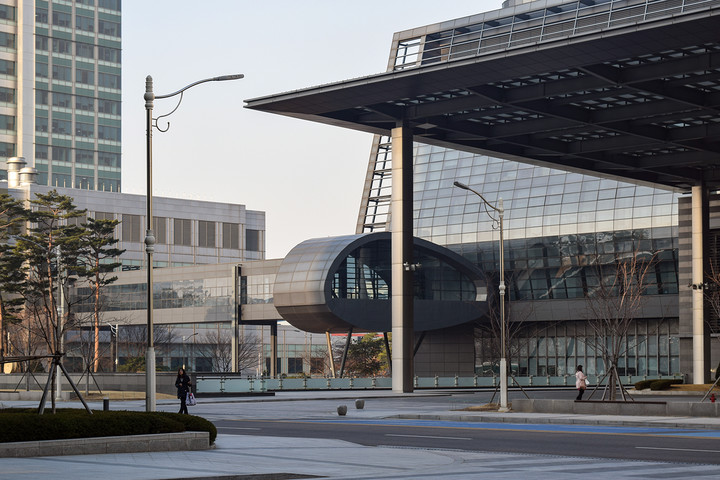
We were in a conference room in Digital City, one of the consumer electronics giant’s office complexes in Suwon, South Korea, about half an hour south of Seoul. Digital City is about two miles wide, spanning multiple office towers and residential buildings. It’s as big as a prep school, and structured like one. There’s broad boulevards, an open-air plaza called Central Park (with piped-in bird sounds!), and a giant underground shopping and living complex that holds two fitness centers, relaxation zones, a Samsung store, drugstores and retail chains — even a Dunkin’ Donuts.
 Jeremy Kaplan/Digital Trends
 Jeremy Kaplan/Digital Trends
 Jeremy Kaplan/Digital Trends

The flight from New York to Seoul takes about 15 hours and carries you around the world. We were here to talk about the Galaxy S8, of course, as well as the dream that led to its creation. Seeing the phone (and that screen!) for the first time is arresting. Samsung calls the display an “infinity screen,” and it’s simply stunning, with deep, rich blacks, and crisp colors that stretch across nearly the entire front face of the phone. It feels like the culmination of years of design and engineering, what every other smartphone has been trying to do – and that’s because it is.
“When we planned the S6, we pushed forward the glass/metal design and flexible OLED tech. Leveraging that technology, we dreamed of the dream concept,” Kim explained. The market was growing stale, and consumers were showing signs of fatigue. The basics design of modern smartphones was established, and breaking out of the mold required literally a new mold.
More: Amid scandals and setbacks, Samsung completes its biggest acquisition ever
To that end, Samsung extended the display to the edge of the screen, and curved it to come up with something perfectly symmetrical, more a piece of modern art than something to call Grandma on. One of the biggest challenges of a top-to-bottom display is the home button, which has graced Samsung Galaxy phones since the get go. The company simply buried it beneath the screen; there’s a pressure sensitive layer at the bottom of the phone, tucked away beneath the display and the protective Gorilla Glass. Just press on it for home key functionality.
Designing the new UI
Design goes beyond the physical. It’s the look and feel, it’s emotion. And it has to have meaning behind it for the customer, explained Koh.
“For the S8 and S8+ design, we were thinking how to break down the boundaries — not just changing design but push it back and break down the boundaries of the existing smartphone. Changing concepts. … That was the intention of the Galaxy S8. ”
And a change was needed. After all, modern smartphones are woefully similar — black slabs with screens and buttons dotting them. Samsung has changed that with the physical design of the Galaxy S8, which breaks with years of design for the company by eliminating bezels and buttons, leaving simply a sleek sheet of user interface. But it needed the UI team to think through the same things: How do you translate the old UI when there’s no home button, for example?
“How can we give a visual language so users feel that there’s a lot more space for them to see information and experience the entire device?” asked Hyun Lee. She leads Group One at Samsung and headed up language and visual design for the Galaxy S8.

Julian Chokkattu/Digital Trends
One way to do that is with a fresh polish to the unlocking experience, which creates a seamless, continuous transition from the lock screen to the sign on screen to the desktop.
For designers, it’s the little things that count. Moving from the S7 to the S8, the design team added a splash of color to the lockscreen, a tint that matches the desktop wallpaper, which itself matches the color of the phone. You’d likely never notice it – but then again, you’re not a designer, are you?
In redesigning the visual language, Lee and her team created a new typeface and an entire galaxy (see what I did there?) of icons, “squircles” or square circles rounder than those on the S7. The typeface is minimalized and condensed, and stretches across the icons, which are stripped bare – just lines, with a light shining over them, creating a faint hint of brightness. Look closely. It’s there.
More: What’s in a Name? Meet Bixby – the smart sidekick who’ll help you use your digital gear
“In terms of the visual language, our target is millennials, and we really did extensive research on the color palette, as well as the shapes,” she explained.
But overall, the focus was on keeping a clean interface. There’s only five icons in the “hot seat,” for example: phone messages, a web browser, the Play store, and the camera.
“We wanted to give a very clean mobile layout,” Lee said.
Bixby is Here
When Samsung launches the Galaxy S8 and S8+ smartphones on March 29, the team of virtual assistants aiming to scour your inbox and tidy up your digital life will get just a little bit more crowded. Alexa, Siri, Cortana: meet Bixby.
That’s right, there’s a new name in artificial assistants, but Samsung argues that this one won’t tell you dumb jokes or a weather forecast, nor will it look up facts for you online. This bright assistant is meant to improve your interactions with your digital life — not just your smartphone but your washing machine, your thermostat, your vacuum cleaner, everything. It’s nothing less than a rethink of how we use our stuff.
Sure, those are bold words, but Injong Rhee believes them.

Jeremy Kaplan/Digital Trends
“Philosophically, what we’re looking at is revolutionizing the interface,” he said. Rhee is head of Research and Development for Samsung’s Mobile Communications Business group, and yes, the rumors are true: the next Galaxy smartphone will indeed come with a new assistant called Bixby, and yes, there will indeed be a dedicated Bixby button.
Samsung’s vision is for the Bixby brand to extend to all sorts of devices beyond the Galaxy phone line. But a lot of that is still in flux as Rhee’s team writes the software – with a little help from the Viv folks, of course. For now, it’s still a work in progress.
Battery safety
The Note 7 fiasco was a low point for Samsung, and for Koh, who was promoted to president of Samsung Mobile on Dec. 1, 2015. It was a dream job, he said, but it turned into a nightmare.
“It was like heaven to hell. I do not want to stay in hell. It’s [been] too long.”
The manufacturing city of Gumi is a 45-minute helicopter flight south of Seoul, but due to increasingly congested traffic, it’s about 3 hours to drive to. We opted for the chopper instead, flying over the river and over the woods to Samsung’s manufacturing complex — which sits directly adjacent to LG’s enormous complex of buildings. The biggest buildings in each have signs with letters as big as those in the Hollywood hills, shooting daggers silently at each other in perpetuity.
Inside Building 6, we cover our shoes in booties and step onto the factory floor, where conveyor belts and machines are already assembling the first batch of Galaxy 8 phones, destined for America and AT&T and more locally for Korea Telecom. The Gumi plant is just one of 9 for Samsung spanning 6 countries; the company has made nearly 3 billion phones since 1988, and currently churns out about a million per month.
 Samsung, special to Digital Trends
 Samsung, special to Digital Trends
 Samsung, special to Digital Trends
 Samsung, special to Digital Trends
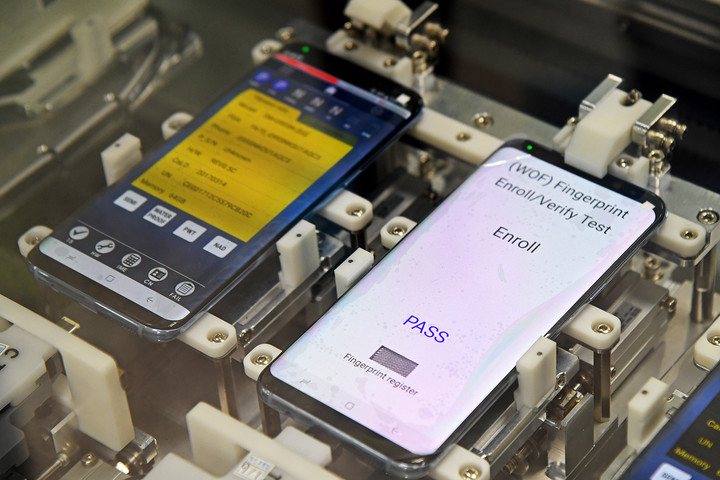
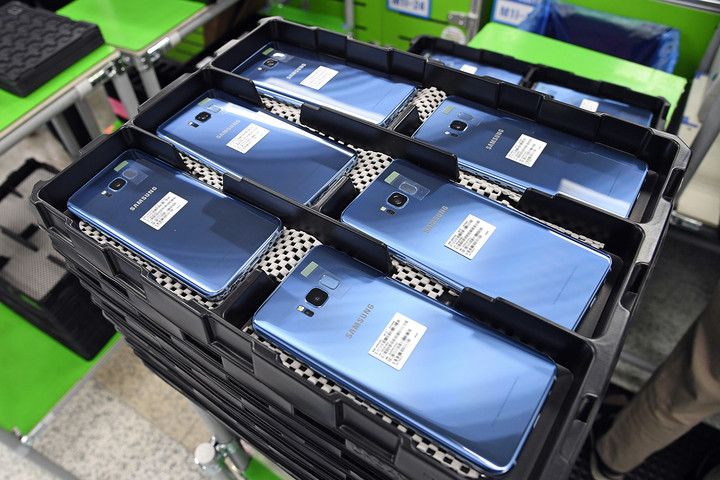
Manufacturing in Gumi is more robotic than assembly by hand: It takes just 13 minutes for 14 giant machines to join a circuit board and battery, slip it behind a display, and seal it all into a glass and metal housing. It takes 30 minutes total to make the phone, counting the time required to install the operating system. In that time, only two or three people actually handle any given phone. Instead, it’s robot arms that grab components, robot noses that sniff for signs of organic compounds, traces that batteries might be failing. We see a robot cart hauling parts down a corridor, following a path made of silver reflective tape. It plays a tune, and pauses when we get in front of it.
This assembly line has become more automated for this new phone, but that doesn’t mean everything is. Much of the battery testing involves humans, and Samsung has clearly rethought the system: There are eight new tests that these phones will go through, in addition to the battery (sorry) of existing tests. Life cycle tests, abuse tests, mechanical tests, abnormal charging tests, impact tests, thermal shock tests.
Robot arms grab components, robot noses sniff for signs of organic compounds…
We enter a battery safety test lab to witness a test run, a compression test in which 13 kilonewtons of pressure are applied to a battery. 1 kilonewton of pressure is about 225 pounds of weight; imagine a fairly good sized baseball player standing on one foot, directly on a battery. Now put his entire team on his shoulders. The battery should survive – but before our very eyes, it doesn’t, first smoking, then bursting into fire.
Is this really happening? Is this … is that … did that just happen? The phone should survive the test. That’s the whole point of the test, isn’t it?
Eventually we learn that, to give us a better sense of what they are dealing with, Samsung has dialed up the test to insane levels: The battery only burst into flames at 20 kilonewtons of pressure. Picture an entire football team, each member standing on another’s shoulders, all standing on tiptoe on one tiny battery.
More: Will the Galaxy S8 be safe? This is Samsung’s new 8-point battery safety check
We are impressed. And suitably reassured.
In the end, battery tech has progressed substantially thanks to the Note 7 situation, as well as Samsung’s ability to vet the components. Because when you’re on the phone, you should be thinking about your conversation – and not worry about what’s in your hand. The Galaxy S8 may be the most beautiful phone on the market. And thanks to the energy Samsung invested after what analysts describe as a $17 billion incident, it may be the safest as well.
 AIVAnet