


The Galaxy S8+ vs. the competition: Big sibling battle
Samsung knows you like big phones. However, the Galaxy Note’s gone MIA this year for understandable reasons, leaving the new Galaxy S8+ to step up with its 6.2-inch screen and curved edges. But the Galaxy S8 line isn’t the only big-and-bigger handset duo out there right now, with Apple and Google already staking their claims with similar pairings. The screen of the S8+ certainly dwarfs those on the Pixel XL and the 7 Plus, but is that enough of an advantage? Check out the specs of these three larger flagships to get a better idea of the new phone’s capabilities, and stay tuned for our full review of the S8+ in the coming weeks!
Galaxy S8+
Google Pixel XL
iPhone 7 Plus
Pricing
Not available; varies by carrier
$769, $869 (off-contract)
$769, $869, $969 (off-contract)
Known dimensions
159.5 x 73.4 x 8.1mm (6.28 x 2.89 x 0.32 inches)
154.72 x 75.74 x 7.31mm (6.09 x 2.98 x 0.29 inches)
158.2 x 77.9 x 7.3mm (6.23 x 3.07 x 0.29 inches)
Weight
173g (6.1 ounces)
168g (5.92 ounces)
188g (6.63 ounces)
Screen size
6.2 inches (158.1mm)
5.5 inches (139.7mm)
139.7mm (5.5 inches)
Screen resolution
2,960 x 1,440 (529 ppi)
2,560 x 1,440 (534 ppi)
1,920 x 1,080 (401 ppi)
Screen type
Quad HD+ AMOLED
Quad HD AMOLED
Retina HD
Battery
3,500mAh
3,450mAh
2,900mAh
Internal storage
64GB
32/128GB
32/128/256GB
External storage
microSD
None
None
Rear camera
12MP, f/1.7
12.3MP, f/2.0, 1.55µm pixel size
Dual cameras, 12MP, f/1.8 and f/2.8
Front-facing camera
8MP
8MP, f/2.4, 1.4µm pixel size
7MP, f/2.2
Video capture
4K
4K at 30fps
4K at 30fps
NFC
Yes
Yes
Yes
Bluetooth
v5.0
v4.2
v4.2
SoC
Qualcomm Snapdragon 835
Qualcomm Snapdragon 821
Apple A10 Fusion
CPU
2.3GHz octa-core
2.15GHz quad-core
2.34GHz quad-core
GPU
Adreno 540
Adreno 530
PowerVR Series 7XT GT7600 Plus
RAM
4GB
4GB
3GB
WiFi
Dual band, 802.11ac
Dual band, 802.11ac
Dual band, 802.11ac
Operating system
Android 7.0
Android 7.1
iOS 10
Notable features
Fingerprint sensor, USB Type-C
Fingerprint sensor, USB Type-C
Touch ID, IP67 certified, Lightning connector
Click here to catch all the latest news from Samsung’s Galaxy S8 launch event!
Apple Mail Engineering Manager Terry Blanchard Joins Readdle to Work on Popular Email Client ‘Spark’
Readdle has hired former Apple Mail engineering manager Terry Blanchard in a position that will focus on creating the “future of email” for Readdle’s popular email client “Spark,” working with an entirely new team of his choosing in Silicon Valley. Blanchard’s new role, per his LinkedIn page, is vice president of engineering for Readdle.
Spark is modernizing email as we know it. We share a fundamental vision of what the future of email should be. I’ve always admired Readdle for their beautiful and innovative products, which makes them the ideal company to turn that vision into a reality.
At Apple Blanchard worked on the Mail team for six years, where he led a team of developers which created and continually fostered updates for the UX design and development of Apple’s first party email client, simply called Mail on iOS and macOS. Besides his new title and location in Silicon Valley, Blanchard’s role at Readdle hasn’t been given many specifics but it’s expected that the engineer will take his expertise in the email client design space and apply it to Readdle’s popular stock of iOS and macOS applications.
Last November Readdle launched Spark on Mac, bringing the app’s Smart Inbox feature to Apple’s desktop and laptop computers for the first time. Smart Inbox intelligently organizes email into different categories (Personal, Notification, and Newsletters), making sure important messages are always highlighted first. Spark continuously learns which emails are most important for you to make inbox management as easy as possible, and on Mac also includes Quick Replies, Touch Bar support, snooze capabilities, and cross-device syncing.
Regarding its new hire, Readdle said that “Terry is a valuable addition to our team and brings years of experience from one of the best companies in the world.”
Readdle’s range of productivity apps for Apple devices includes PDF Expert, Spark, Scanner Pro, Calendar 5, PDF Office, Printer Pro, PDF Converter, and Documents.
Tags: Readdle, Spark
Discuss this article in our forums
Samsung Unveils Galaxy S8 and S8+ With Iris and Facial Recognition, No Home Button
Samsung officially announced its much-anticipated Galaxy S8 and S8+ smartphones today at simultaneous launch events held in New York’s Lincoln Center and London’s Olympic Park.
The company’s post-Note7 comeback device and de facto “iPhone 8” rival has already been the subject of several leaks in recent weeks, but today we finally got the full picture of what Samsung’s new flagship models are offering consumers who are in the market for a new smartphone this year.
As expected, the S8 comes in two sizes with a curved edge-to-edge 5.8-inch or 6.2-inch QHD AMOLED display. The always-on screen has a 2960×1440 resolution within a minimal bezel design that pushes the home button with fingerprint recognition to the rear of the device, alongside the camera.
The rear camera features a 12 megapixel f/1.7 lens, while an 8 megapixel f/1.7 camera with autofocus sits above the screen on the front. Samsung has also integrated iris scanning and facial recognition into the front camera to make unlocking the phone and signing into websites easier.
On the right side of the handset is the power button, while the left side houses volume controls and a separate button to activate Bixby, Samsung’s new virtual assistant, developed by the original creators of Siri. Harman Kardon stereo speakers are visible on the bottom of the device, along with a USB-C port and a headphone jack.
Inside, the S8 features a Snapdragon 835 processor, a 10 nanometer chip made in partnership by Qualcomm and Samsung. Paired with the chip is 4GB of RAM and 64GB or 128GB of storage with microSD support for up to 256GB. The standard model has a 3,000mAh battery, while the Plus device gets 3,500mAh. Both models support fast wireless charging.
On the software side, the S8 runs Android 7.0 and has a Bluetooth dual audio feature that lets users stream audio to two separate headsets or speakers at the same time. There’s also a multi-window feature that enables two apps to run on the screen simultaneously. Another feature Samsung is debuting with the S8 is Samsung DeX, which allows users to connect the phone to an external display, keyboard, and mouse, to use the operating system like a computer.
The 5.8-inch Galaxy S8 price starts at $750, while the 6.2-inch 8+ device starts at $850. Prices may vary. Both handsets are waterproof to IP68 standard and come in Midnight Black, Orchid Gray, and Arctic Silver colorways. Pre-orders begin on March 30. Both handsets will go on sale online and in stores in the U.S., Canada, and across Europe on April 21.
The pieces are finally starting to come together for what should be a remarkable battle of the smartphones this year. Apple’s widely rumored high-end redesigned iPhone with a 5.8-inch edge-to-edge OLED display will likely launch in September, although the majority of stock may not be available until later in the fourth quarter, according to recent rumors.
Apple is widely expected to use Samsung-made AMOLED display technology in at least one of three possible iPhones to be released this year, so the S8 arguably offers the best preview yet of the screen quality of possible future Apple devices. Rumors suggest Touch ID could be embedded in the equivalent Apple display, while iris scanning, facial recognition, and some form of wireless charging have also been floated as possible features of a “10th anniversary” edition iPhone.
Related Roundup: iPhone 8 (2017)
Tags: Samsung, Galaxy S8
Discuss this article in our forums
Apple Seeds First Beta of iOS 10.3.2 to Public Beta Testers
Apple today provided its public beta testing group with iOS 10.3.2, an upcoming update that was first released to developers on March 28. iOS 10.3.2 comes shortly after the release of iOS 10.3, a major update that brought features like a new Find My AirPods feature and Apple File System.
Beta testers who have signed up for Apple’s beta testing program will receive the iOS 10.3.2 beta update over-the-air after installing the proper certificate on their iOS device.
Those who want to be a part of Apple’s beta testing program can sign up to participate through the beta testing website, which gives users access to both iOS and macOS Sierra betas. Betas are not stable and include many bugs, so they should be installed on a secondary device.
Apple has said that the update fixes SiriKit car commands, which should now be working as expected. Beyond that, we don’t yet know what features or improvements are coming in iOS 10.3.2, as Apple doesn’t offer detailed release notes and nothing notable has been discovered in the betas we’ve received so far.
As a minor 10.x.x update, iOS 10.3.2 likely focuses on bug fixes, performance improvements, and security enhancements rather than outward-facing features.
Related Roundup: iOS 10
Discuss this article in our forums
Pocket your favorite videos with our guide to downloading from YouTube
So you want to download YouTube videos? It’s not surprising; after all, in our increasingly mobile world, you might want to watch a new music video or viral sensation, only to find yourself thwarted by a lack of Wi-Fi or a restrictive data plan. Thankfully, if you want to store your favorite videos, there’s no shortage of web-based and desktop software specially designed for downloading videos from YouTube.
More: Play any video on any device with the best free video converters
Here’s everything you need to know to download YouTube videos. But first, a quick disclaimer: It is generally legal to share and embed YouTube videos on the internet, but downloading them for your own offline use isn’t always permitted. Downloading videos is a violation of the YouTube Terms of Service, unless YouTube has explicitly given permission to download the video in question. While we’ve tested the methods below, some may also have ads that link to shady websites or even download adware. As with any website, be cautious when clicking links and installing new software.
VLC (Windows, MacOS, Linux)
If you have VLC installed on your computer, you already have a great tool for downloading videos from YouTube. It’s not as straightforward as other methods, but it still allows you to bypass ad-riddled websites and other third-party software that you might otherwise seek out. And if you don’t have it, you can download it here. The method differs slightly between operating systems, but it’s not terribly confusing.
Keep in mind that there are downsides to using VLC, however. You can’t convert the video to another format, for instance, or choose which resolution you prefer. But the software still gives you access to your videos faster than other tools, mostly because it downloads directly from Google’s servers. Best of all, this method doesn’t require a website or any third-party tools, well, other than the open-source VLC player.
Step 1: Navigate to the YouTube video you’d like to download in your browser, and copy the URL. Then, launch VLC as you would normally, and click Open Network Stream. If you’re on a Mac, you’ll want to click File, then Open Network. Once done, paste your YouTube URL in the box housed within the Network tab, and click Open. Your video will automatically start playing in VLC.

Step 2: If you’re using Windows, select Tools in the toolbar at the top and select Codec Information from the resulting drop-down menu. If you’re on a Mac, select Window and click Media Information in the drop-down menu.

This will bring up a screen with various information about the video, but we’re only interested in the “Location” bar at the bottom. This will showcase the exact URL for your video, directly from Google’s servers. Go ahead and copy the link and paste it in the address bar of your browser.

Step 3: The video will then play within your browser. Right-click the video, click Save As — or Save Video As…, if using a Mac — and wait for the download to complete. That’s it! The video is now on your hard drive.

Samsung Galaxy S8 and S8 Plus hands-on: Welcome to a new era
After an unwanted interlude caused by the incendiary Note 7, Samsung returns to the flagship game with the latest in their Galaxy S line, bringing a familiar but further refined body that is edgier than ever.
In-depth: Galaxy S8 specs, features, and first price and availability details!
With the new Galaxy S8 and Galaxy S8 Plus, unveiled this morning in New York, Samsung is saying good-bye to staples like the home button and the flat screen – how passé – and is looking forward to a new AI system and other exciting features like smartphone desktop integration. Will users love these changes? Or will they revolt like they did when Samsung tried to take the microSD card slot away?
The stakes for Samsung here couldn’t be higher: the Galaxy S8 and S8 Plus are under close scrutiny, at a time of turmoil for the biggest phone maker in the world. Find out what Samsung’s latest and greatest have to offer, in this first hands-on look at the Samsung Galaxy S8 and Galaxy S8 Plus.
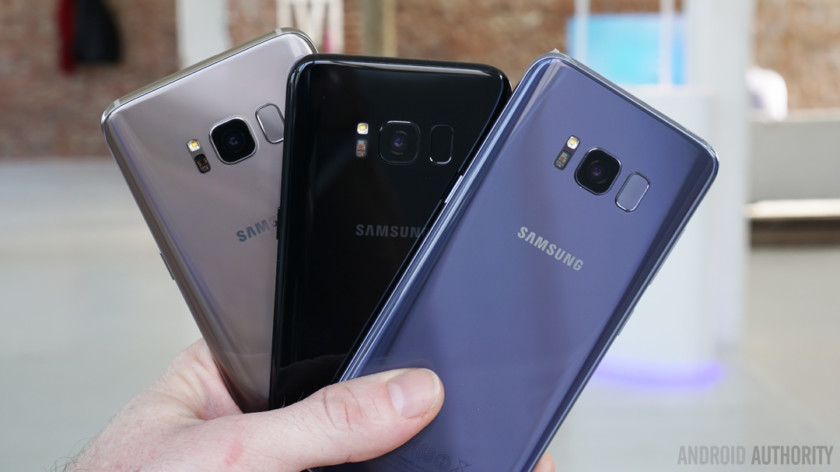
Indeed, there are two versions of the newest Samsung device and the names no longer utilize the “Edge” moniker, making it clearer than ever that the curved display is the Galaxy calling card moving forward.
These large displays are surprisingly easy to handle.
The screen edges come with the usual tropes – Edge UX and light up features, for example – but it is the curved display that helps these phones defy expectations, as these large displays are surprisingly easy to handle.

The smaller Galaxy S8 crams a 5.8-inch screen onto a body that feels much smaller thanks to the way the curves slide down to meet the hand. Of course, this is hardly new for the Galaxy line; however, consider that the Galaxy S8 Plus does the same thing with a whopping 6.2-inch screen.
Some things had to change in order to make this display a reality – namely, a resolution and aspect ratio shift to 18.5:9 totaling 2,960 x 1,440 pixels, which makes for very wide screens (when held in landscape mode).
A resolution and aspect ratio shift to 18.5:9 totaling 2,960 x 1,440 pixels makes for very wide screens in landscape mode.
For the S8 Plus, the phone gets a bit taller than it does wider to accommodate the resolution and that helps keep it from feeling way too unwieldy. The result is a phone that is actually somewhat manageable – while the S8 Plus is still a bit too big for comfortable one-handed usage, any other phone with a flat panel would be immensely tougher to handle.

Altogether, the S8 Plus requires a bit of work to handle, but the original S8 simply feels sublime. All hand sizes are different though, so your mileage may vary.
Another change comes in the removal of the physical button – yes, this is actually happening.
Another change comes in the removal of the physical button – yes, this is actually happening – and a shift in the position of the fingerprint reader. Hardly anything is found above and below the screen now, including a logo, which will feel very different for longtime Samsung fans.

While this means more screen real estate, which is always welcome, this also means the fingerprint reader had to be moved to the back, right next to the camera lens, and maybe that’s a little… less welcome. The positioning isn’t too bad for the Galaxy S8, but it already proved to be a nuisance to reach on the Galaxy S8 Plus. Plus, putting the fingerprint scanner off-center is strange and will require different ranges of motion for left- and right-handed people.

The change toward larger displays also means soft-keys, which themselves have a bit of Samsung flair to them. The navigation bar is customizable, even down to the background color and the order of the function keys (stock Android fans, you can finally put the back button in its proper place).
The S8 introduces customizable soft-keys, so stock Android fans can finally put them in their proper order.
The home button can appear on the lock screen where it can be held down to unlock the phone, in case you can’t or won’t use some of the more advanced security measures, like the fingerprint sensor or iris scanner.

Bixby is like Samsung’s version of Google Now, triggered by a dedicated button.
Speaking of software, the latest addition to the Galaxy suite of apps is a whole new layer of assistance called Bixby. Bixby is a little bit like Samsung’s version of Google Now and Voice Search, and it can be triggered with yet another hardware change – an extra button below the volume rocker. Simply press the dedicated button and speak your request: no hot word required.
Our time with Bixby only really showed the splash screen, which can be accessed with a swipe to the right on the home screen. The Bixby home screen shows contextual slides including calendar entries, previously shot photos, and news stories. However, further functions can be unlocked via voice input – which we saw in action during a demo – including changing the screen brightness and taking a selfie.

There is also a layer of Bixby built into the camera, where Samsung’s own software can scan and translate through dozens of languages or pull up product information for just about any item.
Samsung bills Bixby as a multi-modal assistant, that you can interact with using voice, touch and the camera. The goal is to eventually have a panoply of apps that are compatible with Bixby and, when that happens, you will be able to complete almost every task you would need just by interacting with Bixby.
- Samsung Galaxy S8 vs the competition
When it announced Bixby last week, Samsung made it clear that the current version of Bixby is just a first step on the long road to truly capable AI. As such, the digital assistant won’t even be available at launch in most countries – we know South Korea will get it first, followed closely by the US, while Europe should expect it in the latter part of the year.
We will spend a lot of time with Bixby to see what it offers, and if it is truly a welcome new layer to the Galaxy experience or a redundancy to the also included Google Assistant.

The Galaxy S8 and S8 Plus feature a water- and dust-resistant construction that we were almost aggressively invited to dunk into the water tanks in the demo area. That body protects a bevy of hardware bits that users have come to expect from the company’s flagship line.
Those include a 10 nm octa-core processor that is likely to be a choice of the latest Snapdragon or the latest Exynos, 4 GB of RAM, expandable storage, a headphone jack (thank goodness), every sensor and connection type possible including Samsung Pay, and a 3,000 mAh battery for the S8 and a 3,500 mAh battery for the S8 Plus.

Aside from the Bixby layer, the camera is also quite familiar and sticks to the tried and true setup of previous years. 12 MP for the rear camera at f/1.7 aperture gets some post-processing enhancements that seams together multiple versions of the same frame for better detail.
Aside from the Bixby layer, the camera is quite familiar and sticks to the tried and true setup of previous years.
The front facing camera is 8 MP at the same aperture, with some smart autofocus capabilities now built-in. We don’t have any samples to show in this hands on, but we will of course put the Galaxy S8 camera through its paces in our full review.

There are more capabilities that can be unlocked using various tools of the Samsung ecosystem, like the Gear 360 and the Samsung DeX docking station, which blows up the already large home screen to literally desktop size. These will be covered in other pieces here at Android Authority so we encourage you to check them out.


With the Galaxy S8 family, Samsung strived to make changes in just the right places, even if some bring a pretty major shift in familiarity. Gone are the Samsung logos on the front, the tactile home button, and flat panels. In are Bixby and its new button, a relocated fingerprint reader, and screens that simply don’t quit. These changes mark a new chapter for Samsung, its flagships, and its most loyal users.
Read next: Galaxy S8 color comparison!
Our first look at the Samsung Galaxy S8 makes us excited to get our hands on the review units sooner rather than later, but the release information currently puts pre-orders at March 30, with the phone making it into your hands by April 21. Keep an eye out for our full review and our final thoughts on the Galaxy S8 and S8 Plus in the coming weeks.
Let us know what you think!
Asus introduces a new thin-bezel 27-inch Zen AiO Pro
Why it matters to you
You can now pack a larger Windows 10 all-in-one PC into a smaller space, while still enjoying seventh-generation Intel Core processors and dedicated Nvidia graphics.
The Windows all-in-one (AIO) PC has undergone something of a revival lately, with a host of new options that turn the once underpowered and underwhelming machines into great looking and performing options. The most dramatic example is Microsoft’s incredibly expensive and innovative Surface Studio, but there are plenty of other nice options popping up as well.
Asus has its own line, the Zen AiO Pro, that has offered a nice alternative to Apple’s own AIO, the iMac, and we rated an earlier model highly. Now, Asus has released its latest model in the line and has improved the value considerably with a larger thin-bezel display.
More: Asus Zen AiO Pro Z240IC Review
The newest Zen AiO Pro ZN270IE retains the good-looking, solid unibody chassis of its smaller sibling the Z240IE with a new Quartz Grey finish and the typical Zen spun-metal styling. The new model utilizes a thinner bezel and packs in a 27-inch Full HD (1,920 x 1,080) display with a 75-percent screen-to-body ratio. The display also offers 10-point multi-touch technology for added convenience.
Up-to-date components include a choice between seventh-generation Intel Core i5-7400T and i7-7700T processors. The Zen AiO Pro ZN270IE comes with 4GB of RAM upgradeable to 16GB, and storage can be upgraded to a 512GB SSD. Finally, the machine utilizes Nvidia GeForce GTX 940MX graphics with 2GB VRAM to assist with video and image editing along with light gaming.
Connectivity is robust, with 801.11ac Wi-Fi and Bluetooth 4.1 support. Hardware connectivity is a real strength, with a host of ports including:
- 2 x USB 2.0
- 4 x USB 3.1 Gen 1
- 1 x HDMI-In
- 1 x HDMI-Out
- 1 x RJ45 LAN
- 1 x Headphone (Speaker Out)
- 1 x Microphone
- 1 x Kensington Lock
- 1 x DC-in
Four speakers rated at a total of 12 watts use Harmon Kardon technology to drive movie and gaming audio. A 1M pixel webcam sits on top of the monitor, and an optional infrared camera provides Windows 10 Hello support via facial recognition. The machine includes a wireless keyboard and mouse to round out its configuration.
Asus hasn’t yet provided pricing or availability information for the Zen AiO Pro ZN270IE.
The latest Windows 10 update hones Edge, but doesn’t deliver for creators
Microsoft’s Developer Evangelist, Jerry Nixon, said in May of 2015 that “Windows 10 is the last version of Windows.” He didn’t mean Microsoft was moving on from the Windows OS, he was signaling a change in the way the Redmond giant handles its platform moving forward. Windows would move to a modern update schedule like Android and iOS, where significant updates come on at least a yearly basis.
One of those updates, the Anniversary Update, hit systems in the late summer of 2016. Now, less than a year later, the second big update is almost ready. This one is called the Creator’s Update, and it’s just one of two big releases planned for this year. The second, currently without an official name, will likely show up in fall.
More: Yes, Microsoft is releasing the Windows 10 Redstone 3 update in 2017
This schedule, if followed, will make Windows 10 more agile than MacOS, Android, iOS, and arguably even Chrome OS (the last does nightly builds, but major features trickle out). Yet the frequency of updates only matters if the updates themselves are significant. The Anniversary Update was relatively thin on new features – Windows Ink, a set of new stylus features, was the only headliner. The Creator’s Update, which takes a three-pronged approach, looks meaty on paper. But is this update a savory burst of Windows goodness? Or has Microsoft’s divided attention resulted in a trio of appetizers?
Sharpening Edge
Microsoft seemed head-over-heels with its own web browser in the build-up to Windows 10, yet when it came time to ship, Edge went out the door with not even the bare necessities. Sure, you could mark up web pages using a stylus, but extension support wasn’t available for months after the operating system’s release.
The browser hasn’t been abandoned, however. Development continues, and over the last year Edge has gained most of the features people expect from a modern browser. Extensions are supported, sharing has improved, and bookmarks now sync between devices — if you’re logged into Windows 10 with a Microsoft account.
Windows finally has a browser that looks, feels, and works like a modern browser should.
In addition to general polish, Edge has some new tab organization tricks in the Creators Update. One is a preview pane, accessible from a drop-down tab in the menu bar. This view provides a thumbnail of all open tabs, providing yet another way to see what you’ve opened. It includes a scroll bar, so it can handle even the most tab-heavy users.
The second, more useful feature manages browser sessions. At any time, you can click a new icon to the left of your open tabs to “set aside” all of them, effectively saving it for access later. This is a great for when you’re in the middle of working on a particular task and need to shift to something else, and don’t want those now unnecessary tabs cluttering up your space.
These tab management features aren’t going to convince most people to switch from Chrome, Firefox, or Opera. That’s understandable. It’s hard to switch browsers once you’re comfortable. Even so, Edge has come a long way from the release of Windows 10, and it’s reached a point where it’s totally fine to use as a primary web browser. It’s fast, as evidenced by its performance in benchmarks, where it rivals Chrome. It has most of the features an average user will expect. And, in our use, it proved stable, handling complex web apps like Trello and Slack without issue – or, at least, no more than is normal for Chrome.
This ascent to relevance makes Edge’s unique features more relevant. As mentioned earlier, the browser has always included a slick reading view and potentially useful mark-up mode, but such features didn’t matter when the fundamentals were missing. Now that Edge is an acceptable everyday driver, the extras are great to have. We don’t think diehard fans of other browsers will drop their favorites for Microsoft’s default experience, but it’s good to see that Windows finally, after years of botched attempts, has a browser that looks, feels, and works like a modern browser should.
Windows 10 Game Mode and Streaming
Creators Update suggests a focus on productivity and work. Yet the update also focuses heavily on introducing two new features for games, which are controlled through the Windows 10 Game Bar.
Game Mode, a feature which attempts to improve game performance by prioritizing allocation of CPU and GPU resources in games, feels at once familiar and exotic. Game optimization tools have existed for decades and, for the most part, have proven to be snake oil. But if anyone’s able to make game optimization work, it’s Microsoft, which not only develops Windows 10 but also controls the graphics API, DirectX, most commonly used by games running on the operating system.
Windows 10’s built-in game streaming isn’t going to make you internet famous
Microsoft has spoken highly of its new feature, saying it should provide “more consistent gameplay,” while conspicuously avoiding hard numbers. Our tests show there’s good reason for that. Game Mode didn’t move the needle by a meaningful amount in our testing. It seemed to improve the minimum framerate in some situations, but we’re talking very slim figures – a few extra frames. Game Mode also only works with games compatible with the Windows 10 Game Bar, and even then, only after specifically turned on. Even gamers who know about the feature may forget about it.
So, the Creators Update can’t transform a rig that can’t game into one that can. It can help share your favorite moments, though, thanks to integrated game streaming, which is hooked up to — and only to – the Beam livestreaming site. If you haven’t heard of Beam, you’re not alone. A Twitch competitor, it boasts proudly of the low lag time of its streams. That hasn’t helped it gain users. Even the site’s most popular streamers struggle to exceed 1,000 viewers.
Windows 10’s built-in game streaming isn’t going to make you internet famous, but it does work as advertised. Streaming is as simple as bringing up the game bar and hitting broadcast. If you don’t have a Beam account, but you’re logged to Windows 10 with a Microsoft account, a Beam profile will be created for your automatically. It couldn’t be any easier.

It even performs well. We tried it out using an Asus Strix GL553VD, an entry-level gaming laptop, and tested performance using the Deus Ex: Mankind Divided’s benchmark. The game performed identically with streaming on or off.
These technical achievements won’t matter to series streamers, as no one’s getting famous from Beam. Aside from its limited audience, it completely lacks the advanced features streamers want, like overlay support, or even precise control over resolution and encoding settings. If you just want to share gameplay with friends, though, it works fine. And the Game DVR feature hasn’t gone anywhere, so you can record clips to your hard drive if that’s more your style.
Paint 3D
And now we come to the star to the show or, at least, what seemed like it would be the star when Microsoft originally announced Paint 3D at its initial Creators Update reveal. Microsoft pitched Paint3D as a forward-thinking take on modeling software that can even be used to quickly create objects for 3D printing. Microsoft even highlighted how it might be used with Windows Holographic to view preview models in augmented or virtual reality.
In practice, though, Paint 3D has some serious problems. Even basic functionality is lackluster. For example, while it’s easy to add 3D models and make them larger or smaller, there’s not a simple way to join them together, place them in groups, or layer them. In practice, we found the best tactic was to put together some models, save them as one, and then re-import them. A hassle, to say the least. There’s also a lack of measurement tools, which makes it hard to imagine how the model will look if you do choose to 3D print it.
Paint 3D is difficult to use for the task of making a model with the intent of printing it
These problems are severe enough to make Paint 3D difficult to use for the task of making a model with the intent of printing it. The capability is there, in the sense that Paint 3D can make models and can export them, but users must deal with rough edges and small issues that make the tool a very poor choice even for basic prototyping.
Even its file export format (.3mf) is a problem, because it doesn’t work that well with hobbyist printing applications. On a technical level, the .3mf format includes more data than other options like .stl and .obj – but those file formats are easily recognized mesh files that most people will find easier to work with, and most printers will find easier to turn into a finished product.
We wish this was the end to the bad news, but it isn’t. 3D printing is only half the point to Paint 3D. The other half is virtual and augmented reality accessed through Windows Mixed Reality, a part of Windows 10 that’s supposed to let users easily connect headsets and use them to view a variety of content, no extra software required.
Even if Paint 3D were a useful way to create content for that environment — which, given its limitations, it almost certainly isn’t — it wouldn’t matter, because the Windows Mixed Reality platform itself isn’t ready. In this sense, Microsoft hasn’t delivered what it hinted at during Creators Update reveal. Mixed Reality headsets have shipped to developers, but it’s unclear when they’ll be ready for the public, as Microsoft hasn’t set a firm timeline.


How strange, and yet predictable. Strange, in that you could be forgiven for thinking the Creators Update might be of use to creators – which, really, it’s not. Yet predictable, in that Microsoft has always suffered a desire to make complicated tasks easier that outpaces its ability to execute. Just look at Windows Live Movie Maker, Open Live Writer, and even the now long-neglected WordPad. In each case, Microsoft saw a need and tried to fix it but, because resources aren’t infinite and it’s hard to justify giving out great software for free, the company stopped halfway towards its goal.
Paint 3D is no different. It’s poor implementation of a good idea, and we’d be surprised if Microsoft puts in the effort to make it competitive, never mind exceptional.
You can read even more about Paint 3D, and including a full run-down on how it handles 3D printable files, here.
Interface tweaks
Every update needs its headline features, but there’s more to it than Edge features or an updated version of Paint. A complex operating system like Windows, or MacOS, always receives a hoard of small tweaks. Windows 10 is no exception, and many changes will be immediately noticeable to everyday users.
This starts in the Settings app, where there are two new options – Apps, and Gaming. The former splits off the settings that control installed apps, default apps, and website apps, among a few other items. Previously, these were buried, and could be hard to find. The story is almost the same with Gaming, which brings to the fore some settings previously buried in the Xbox app (which still exists, to be clear). There are also new settings that control Game Mode and Broadcasting, which we already discussed.
Another noticeable change is the introduction of a new share menu, which appears in the middle of the screen when summoned. Sharing was previously handled in different ways depending on the app. That will remain true for many applications, because the share menu only shows up in apps that are programmed to summon it. Still, this new menu will be familiar to anyone who has used a smartphone and, unlike prior share menus, it should work as well with touch as it does with a mouse.


Those who care to change the look of Windows will be happy to know Microsoft has made improvements there. Users can finally choose theme colors from a wide color palette, rather than from a small handful of pre-selected options. There’s also a new Night Light option, perfect for anyone who uses a computer after hours. It automatically adjusts screen temperature to a more relaxing tone at night, much like the third party application f.lux.
Users who care about how their data is used may also appreciate the new “privacy dashboard.” Microsoft is using this as a central location for all the controls that impact how your data is collected and stored. It’s nice to have it in one place, though we doubt it’ll change the minds of anyone who opposes Microsoft on this issue.
And these, of course, are just a sampling of the small tweaks and changes. Others include a revised Windows Defender interface, some changes to Action Center appearance and icons, and revisions to applications like Photos, Maps, and Groove. These are all for the better, but also minor enough we suspect most people will pass right by them.
In sum, the changes are appreciated, and reinforce Windows 10’s status as the best desktop operating system. By comparison, MacOS is starting to feel archaic, and it’s arguable that it’s no longer more intuitive, thanks to Windows’ improvements in the Settings app, Search, and Explorer. Windows 10 isn’t perfect, but it’s as close as any desktop OS has come yet.
Conclusion
Updating an operating system frequently is tough, and not just for the developers. It’s also an issue for marketing. How does a company re-package the sell the same OS time and time again? The label matters — and Microsoft picked the wrong label for this update. The so-called Creators Update offers almost nothing of note for creators. Paint 3D is fun to mess around in, but it doesn’t even begin to approach the needs of amateur makers. Windows Mixed Reality, meanwhile, is MIA.
It’s shame, because the update’s other features are important. The Windows Ink workspace in the Anniversary Update was far more substantial, but most people don’t own a touchscreen device with a stylus. The Creators Update brings interface tweaks, Edge updates, and gaming features that have more impact on how most people, who own either a laptop or desktop without a touchscreen, use Windows.
More: Windows 10 review
Yet even there, some features are of questionable use. It’s not clear, for example, where the game streaming feature fits into the world of gaming overall. Will people use it because it’s convenient? Or is it too stripped down?
The lack of any single, significant feature in the Windows 10 Creator Update is partially excused by the cadence of its update. The Windows 10 Anniversary Update came out in August of 2016, eight months ago, and Microsoft’s has another update on its roadmap for 2017. That pace, which beats Apple’s MacOS with ease, makes mundane updates more likely.
Still, the Windows 10 Creators Update feels disappointing, though not because the update damages the operating system. We still prefer Windows 10 over MacOS or Chrome OS. The problem is simple messaging. Microsoft oversold what this update would do. It felt like an embrace of 3D printing and virtual reality; instead, it’s a series of useful tweaks and small features that patch up weak spots in the OS. That’s fine, but it’s not the grand vision we were sold.
Highs:
- Edge finally feels mature
- Game streaming is easy, with minimal performance hit
- Numerous small, but useful, interface tweaks
- New privacy dashboard
Lows:
- Paint 3D isn’t much use
- Impact of Game Mode is minimal
- Game streaming is connected to Beam, which no one uses
Adobe’s experimental 3D editor gets more Photoshop-ish with Project Felix update
Why it matters to you
While both programs are still in public beta testing, the latest list of additions to Adobe XD and Project Felix are inspired by user feedback, the company says.
Adobe’s beta 3D design software is beginning to look a lot like Photoshop, thanks to an onslaught of new updates based on early feedback. Project Felix 0.2 released today, March 29, still in beta, continues developing the 3D software launched late last year with a few features that will be familiar to current Adobe users. Today’s announcements also comes with an update to Adobe’s app and website design tool (also still in beta), Experience Design, or XD, for Windows.

A project created by Vladimir Petkovic, a senior digital artist on the Project Felix team
Adobe
Project Felix is a 3D design program made for graphic designers, not 3D experts, and so the latest list of new features appears to cater to those designers by adding features that are similar to what’s inside Photoshop, as well as a number of unique additions. The eyedropper tool that allows Photoshoppers to replicate colors and even text styles now allows 3D designers to replace any material in the design just by coping from another object. The option is located in the “object properties.” Materials can also now be imported from Adobe Stock.
More: Adobe engineers show off 11 projects they’re building behind the scenes
Grouping objects and duplicating items is also a Photoshop-ish addition to the program, with a Control/Command+G offering a grouping shortcut and a Control/Command+D to duplicate. Want the duplicated items to remain the same, or see new changes separately? Duplicated items can also now be linked or unlinked, so users can choose whether or not they want any subsequent changes to affect both versions or not.
While a number of new features take from Photoshop’s long history, the 3D design platform has a list of other new additions as well. Since working with 3D files is slower than working on a flat photograph, Project Felix now uses a progress bar that shows how much time is left to finish rendering the file. Adobe also added reference points and a height indicator in the latest update, along with placing new objects wherever the cursor is on the screen. Updates also include changes to the camera tools that keep the user oriented in the 3D scene.

This 3D project was created by Vladimir Petkovic with Adobe’s Project Felix.
Adobe
The updates are based on user feedback of the first beta version of the program, Adobe says, taken from groups with different levels of 3D experience as well as one on one usability testing with selected designers.
“This is not a 3D tool as much as it’s a tool graphic designers use to design in a 3D space,” Kerensa Hogan, the senior marketing manager for Project Felix, said. “Think of it as being able to move around inside of a scene, not just layering on top of it.”
Five out of 10 of the most suggested features were already on the product’s road map, Adobe says, but user feedback moved them up in the priority list.
One year after the beta launch, Adobe XD is also getting a list of new features. XD, Adobe says, is a cross-platform design program designed to move websites and apps from concept to publication faster with team collaboration. The update is designed to bring the Windows version closer to the Mac capabilities, though still keeps the program in beta.
The latest updates improve the workflow, as well as correcting a few bugs. Comments on projects can now be marked as resolved, eliminating the long line of feedback to include only the notes that are still relevant to the project. Resolved comments aren’t deleted forever, however, and can be accessed and even moved back into the current conversation, Adobe says.
That cross platform idea also expands with the ability to copy and paste vector shapes from Photoshop and Adobe Illustrator. Scaling an object is also simpler with the ability to lock the aspect ratio. Adobe also added a new zoom tool, as well as the ability to align everything to the pixel grid, which maximizes quality by aligning screen and document pixels together.
With both programs still in early testing phases, Adobe continues to seek feedback from the programs to develop additional features and correct any existing issues.
How to leave the Xbox in the living room and play games anywhere in the house
Between game streaming in Windows 10 and the Xbox Play Anywhere program, relishing in competitions with friends over the highest Gamerscore no longer requires you to have an Xbox One console within reach. Instead, the Xbox brand is steadily on its way to becoming an expansive platform rather than a single, dedicated gaming device. A small, but significant part of this transformation lies in the ability to stream games remotely from an Xbox One to just about any device that sports Windows 10.
More: Gaming meets cinema sound as Dolby Atmos heads to Xbox One and Windows 10
Xbox One and PC in hand, this nifty guide has been designed to show you how to properly configure both pieces of hardware with the intent of streaming games in less stationary locations. Keep in mind, however, that Microsoft only recommends streaming to a device with a 1.5GHz CPU or better, and a minimum of 2GB of RAM over a home network connection.
Also, note that Xbox One streaming does not work like Sony’s Remote Play service for the PlayStation 4. Streaming from an Xbox One console to a Windows 10 device only works if both units are connected to the same network. By contrast, Sony’s Remote Play enables PlayStation 4 owners to stream their games to any Windows-based device in and outside the home network via free Remote Play software. The drawback to Sony’s solution is that if the company’s network is down, Remote Play will be offline as well, even if owners are trying to stream games in-house.
Streaming on a Windows 10 PC
First, make sure your Xbox One and the Windows 10 PC you’re streaming to are up to date. To do this in Windows 10, click the Start button in the lower-left corner of your screen and search “Check for updates” in the text field. This can also be accomplished by clicking the Start button, clicking the gear icon in the left-hand strip, and clicking Update & security.
Xbox One updates, on the other hand, install automatically. Just make sure you’re connected to the internet and that the OS version in Settings > System > Console info matches Microsoft’s most recent edition.

Enabling game streaming
After installing the updates, the first thing you’ll want to do is turn on your Xbox One and navigate to the Settings app, either by locating it in My games & apps or by pressing Menu on the controller — this is the same button we used to call Start, directly to the left of the “X.” Afterward, select Settings.
In the Settings app, choose Preferences, and make sure there’s a check mark beside Allow game streaming to other devices under the System & App column. This option was enabled by default on our Xbox, so you might not have to do anything at all. Still, it doesn’t hurt to check.

Connecting to your Xbox One
On your PC or tablet, locate the Xbox app by clicking the Start button to access the tile-based Start Menu, which is generally where Microsoft places the app in Windows 10. If it’s not there, type “Xbox” into the same Cortana-based search bar you used to find and update your settings. The app will then sign into Xbox Live using the Microsoft Account credentials you used on your Windows 10 device.
Pro tip: If you’re having trouble logging into the app, try configuring your PC or tablet’s date and time to adjust automatically. You can find Date and time settings in Control Panel, by searching for them using Cortana, or by clicking the date and time menu located on the right side of the taskbar.
Afterward, make sure the Gamertag in the Xbox app matches that of your Xbox One console, and select Connection toward the bottom of the left-hand panel. You should see an icon that depicts an Xbox One with waves protruding from it. A new screen will then open, prompting you to Add a device. If it lists your Xbox One console, select Connect. Otherwise, you’ll have to manually enter the IP address in the corresponding location.

In the event that this is necessary, your console’s IP address can be found in Settings > Network > Advanced Settings.
Connecting a controller
With your PC or tablet connected to your console, you should see several new options, including Stream and Test streaming. Though it may be tempting to dive head first into the streaming abyss, you’ll want to make sure that you have a controller connected to your PC or tablet.
You can grab one of your Xbox One controllers and connect it to the Windows 10 PC using a Micro USB to USB Type-A cable. If you want a wireless option, that same Xbox One controller can be used with Microsoft’s Xbox Wireless Adapter for Windows, which sells for roughly $20 on Amazon. There’s also a few rare systems, like Microsoft’s Surface Studio, which ship with a built-in Xbox Wireless Adapter.
Keep in mind that you aren’t required to specifically use an Xbox One controller — Xbox 360 controllers work just fine with streaming in Windows 10. What’s more, you can head down to Walmart and purchase a wired Xbox 360 or Xbox One controller for a lower price. PDP Rock Candy, PDP Afterglow, Thrustmaster, and PowerA all produce third-party offerings, which cost less than Microsoft’s proprietary gamepads.
Finally, you can take the financial plunge and purchase the new, updated Xbox One controller that arrived alongside the Xbox One S last year. This model can be purchased on Amazon for around $45, though we’re fond of the more expensive Ocean Shadow Special Edition ($60) and the Dawn Shadow Special Edition ($54).
If you do purchase a new Xbox One controller, however, it can connect to your Windows 10 PC using a Micro USB to USB Type-A cable, Microsoft’s Xbox Wireless Adapter for Windows, or by way of Bluetooth. If your Windows 10 PC doesn’t have Bluetooth, you can get a small adapter that plugs directly into a USB 2.0 port for relatively cheap, such as this Asus model ($13).

At this point, if you haven’t already, it’s time to connect your Xbox One controller to your Windows 10 PC and start the streaming process.
 AIVAnet