


WikiLeaks Continues ‘Vault 7’ With New Documents Detailing Mac-Related CIA Exploits
WikiLeaks today continued its “Vault 7” series by leaking details concerning CIA-related programs that were built with the intent to infest iMac and MacBook devices. Today’s “Dark Matter” installation of Vault 7 follows a few weeks after WikiLeaks debuted “Year Zero,” which focused on exploits that the CIA created for iOS devices. In a response the same day that Year Zero came out, Apple said that many of the vulnerabilities in the leak were already patched.
Now, WikiLeaks is shedding light on Mac-related vulnerabilities and infestation programs, which the leakers claim “persists even if the operating system is re-installed.” The project in question, created and spearheaded by the CIA’s Embedded Development Branch, is called the “Sonic Screwdriver” and represents a mechanism that can deploy code from a peripheral device — a USB stick, or the “screwdriver” — while a Mac is booting up.
According to WikiLeaks, this allows an attacker “to boot its attack software” even if the Mac has a password enabled on sign-up. In the report, it’s said that the CIA’s own Sonic Screwdriver has been stored safely on a modified firmware version of an Apple Thunderbolt-to-Ethernet adapter. Besides the Doctor Who-referencing exploit, Dark Matter points towards yet another bounty of CIA programs aimed at gathering information, infesting, or somehow crippling a Mac device.
“DarkSeaSkies” is “an implant that persists in the EFI firmware of an Apple MacBook Air computer” and consists of “DarkMatter”, “SeaPea” and “NightSkies”, respectively EFI, kernel-space and user-space implants.
Documents on the “Triton” MacOSX malware, its infector “Dark Mallet” and its EFI-persistent version “DerStake” are also included in this release. While the DerStake1.4 manual released today dates to 2013, other Vault 7 documents show that as of 2016 the CIA continues to rely on and update these systems and is working on the production of DerStarke2.0.
Dark Matter isn’t exclusively Mac focused, however, and includes a few new iPhone exploits in the round-up as well. One is called “NightSkies 1.2” and is described as a “beacon/loader/implant tool” for the iPhone that is designed to be physically installed on an iPhone directly within its manufacturing facility. This conspiracy-leaning exploit is said to date back to 2008 — one year after the first iPhone debuted — and suggests, according to WikiLeaks, that “the CIA has been infecting the iPhone supply chain of its targets since at least 2008.”
While CIA assets are sometimes used to physically infect systems in the custody of a target it is likely that many CIA physical access attacks have infected the targeted organization’s supply chain including by interdicting mail orders and other shipments (opening, infecting, and resending) leaving the United States or otherwise.
The full list of the new Dark Matter documents can be found on WikiLeaks, and we’re likely to see more Apple-related WikiLeaks as the Vault 7 series continues. As it was with Year Zero, it’ll still take some time for security analysts and experts to determine the full impact of today’s leaks.
Note: Due to the political nature of the discussion regarding this topic, the discussion thread is located in our Politics, Religion, Social Issues forum. All forum members and site visitors are welcome to read and follow the thread, but posting is limited to forum members with at least 100 posts.
Tag: WikiLeaks
Discuss this article in our forums
Misfit’s first smartwatch boasts a touch-sensitive bezel and full waterproofing
Why it matters to you
Smartwatches are on the rebound, but price is still a barrier for a lot of people. At $200, Misfit’s Vapor is one of the more affordable Android Wear smartwatches.
Ever since Misfit took the world by storm with its subtle Shine fitness tracker back in 2011, it’s been making unique products. Now that it’s part of the fashion company Fossil Group’s portfolio of brands, Misfit has released activity trackers at a breakneck pace, partnering with brands like Speedo and Swarovski for prime placement. It’s perhaps best known by the Shine 2 and Ray, screen-free fitness trackers with notification lights, vibration motors, and activity-tracking features. But at CES 2017, Misfit broke tradition by debuting the Vapor, its first touchscreen smartwatch.
Initially, the Vapor did not run Android Wear but the company’s proprietary operating system. Now, Misfit says the Vapor will run Google’s Android Wear 2.0 smartwatch OS. It’s unclear what specifically caused the change, but it’s likely Misfit couldn’t replicate the sheer amount of app support found on popular smartwatch operating systems like Android Wear and Apple’s WatchOS.
More: Misfit Ray and Shine 2 owners can now buy tracking as an in-app purchase
“Our partnership means hundreds of your favorite apps will be available at launch, opening up a multitude of possibilities for Android and iPhone users alike,” the company said in a news release.
The Vapor boasts a 44mm satin-finished stainless steel upper casing and hand-polished case back. The body is swim proof and water resistant up to 50 meters. The interchangeable straps feature stainless steel hardware in matching tones.
The Vapor’s 1.39-inch OLED screen packs 326 pixels per inch, Qualcomm’s Snapdragon Wear 2100 processor, and 4GB of internal storage. You use a touch-sensitive bezel to navigate through the Vapor’s menu of watch faces, applications, and notifications. Sensors including a “dual-injected polycarbonate” heart-rate sensor, accelerometer, altimeter, gyroscope, optical heart rate sensor, GPS, and microphone perform real-time fitness tracking. Since the watch has Bluetooth, it supports offline, phone-free music streaming to paired headphones.
The Vapor lasts an estimated two days on a charge and juices up wirelessly via a magnetic charging cradle. The Misfit Vapor is available for pre-order in two colors, jet black and rose gold. It’ll retail for $200 when it launches on Misfit’s online store late this summer.
More: The Misfit Ray is the wearable you’ll want to wear
With the Vapor, Misfit is entering an overcrowded field. But with an estimated two-day battery life, waterproof capabilities, and a low price point, it may best its other Android Wear competitors such as the $350 Huawei Watch 2, and the $350 LG Watch Sport.
Misfit is at Baselworld 2017, where it’s also debuting a range of other stylistic options for its other wearables, including metal and mesh bangles for the Ray, as well as a halo strap for the Shine 2.
Article originally published in January 2017. Updated on 03-23-2017 by Julian Chokkattu: Updated Misfit Vapor’s operating system to Android Wear 2.0, added news of new stylistic options.
Android Wear goes upscale with watches from Fossil, Tag Heuer, more at Baselworld
Baselworld is here again, showcasing the world’s best and most fashionable watches and jewelry. In recent years, the annual trade show in Switzerland has somewhat turned into a tech event, largely due to the rise of smartwatches and wearable technology. This year, we could see some of the best new smartwatches debut at the show.
More: LG Watch Sport (Android Wear 2.0) review
Some of the companies expected to make waves at Baselworld include the likes of Michael Kors, Tag Heuer, Swatch, and Guess — and many of the devices released will come with Android Wear 2.0, Google’s smartwatch operating system, right out of the box. Here’s everything we expect to see at Baselworld 2017.
Kronaby

Kronaby isn’t expected to dive into Android Wear devices, as the company is better known for its hybrid devices — or watches that look like normal watches, but feature some sensors and trackers under the hood. In fact, Kronaby launched the Connected Movement line last month, which offers connectivity with both Android and iOS devices, as well as filtered notifications, music control, and more.
The range includes four models, including the sportier Apex, the classic-looking Sekel, the Nord, and the Carat. When it comes to pricing, the watches sit between 345 and 545 euros, or $370 to $585 U.S., and they’re currently available for pre-order. We’ll likely hear more about the availability of the watches at Baselworld.
Tag Heuer

Tag Heuer is a growing influence in the smartwatch world, and for good reason. Its latest launch is the Tag Heuer Connected Modular 45 — and it’s built for style. In fact, there are a hefty 500 different style possibilities you can get, thanks to a huge range of interchangeable parts available for the device.
The Connected Modular 45 was officially unveiled a week before Baselworld 2017, but we’re expecting to see the device on show at the event. Under the hood, the watch features Intel’s Atom processor. It connects via Wi-Fi, Bluetooth, GPS, and NFC, and also runs Android Wear 2.0, the latest and greatest version of Google’s wearable OS. Last but not least, it has a 1.39-inch display and is water resistant.
Read more here
Movado

Movado is expected to be a huge player at Baselworld 2017. The company announced a few weeks ago that it would launch a slew of new Android Wear 2.0 watches under the Movado “Connect” line. There are a total of five watches in the lineup, with a starting price of $495 — although some of them will likely cost a lot more than that. The watches will be available in the U.S., Canada, the U.K., and the Caribbean.
Not much else is known about the watches just yet, except that they’ll feature “five unique customizable dials,” each of which will also have three to four customizable “complications” — or widgets that sit on the watch face. Movado also mentioned Android Pay compatibility — so the devices will likely feature an NFC chip.
Read more here
Fossil

Malarie Gokey/Digital Trends
Fossil hasn’t made any official announcements of any devices debuting at Baselworld, but considering the fact that the company aims to launch a massive 300 wearables in 2017 alone, we certainly wouldn’t be surprised to see a Fossil device or two at the show. We also wouldn’t be surprised to see non-Fossil-branded devices from the company thanks to the slew of companies that fall under the Fossil umbrella, including Diesel, Emporio Armani, Misfit, Kate Spade, Michael Kors, and so on.
Guess

Guess jumped the gun and announced its new range of smartwatches, the Guess Connect line, before the show officially kicked. These new watches are the result of a team-up with Google and Qualcomm — and the result is a range of high-spec Android Wear 2.0 devices with Qualcomm’s smarts under the hood.
More: Young, sexy, and adventurous? Guess says its new Android Wear 2.0 smartwatch is for you
There are two main versions of the Connect on offer, including a smaller 41mm version billed as being built for women, and a larger 44mm model. The models aren’t just different in size — they also feature various color and style options. The smaller device is available in silver, gold, or rose gold, and features crystals around the case. The larger watch, comes in both classic and sport styles. Both devices will have access to a range of custom watch faces.
We don’t yet know how much the watches will cost, but we’ll likely hear more about them during Baselworld 2017.
Read more here
Don’t expect to see any new smartwatches from Swarovski, even though the jewelry maker said it would unveil an Android Wear smartwatch “for her” at the show. Swarovski is reportedly indefinitely postponing the launch of the device because it’s “simply not ready yet.”
If you’re interested in keeping up with all the Baselworld 2017 news, follow @DigitalTrends and @DTMobile on Twitter. You can also follow Andy Boxall, our contributing editor, who will be on the ground at the show. Baselworld 2017 ruds from Thursday, March 23, to Thursday, March 30.
How to take a screenshot on an iPad
Here’s the short answer: Press the Home button and Sleep/Wake button at the same time. For a more detailed explanation, keep reading.
The iPad is a mean, sleek, sharing machine. It can share photos, links, and websites in seconds. It can also make easy work of a screenshot. The ability to take screenshots may not be the most glamorous feature on the iPad, but it’s certainly one of the most useful, allowing you to capture enlarged PNG images of your display you can then share with anyone. Why do you need screenshots? For starters, they’re handy when you need to interface with coworkers, family members, and the Genius Bar from afar. They’ll also allow you to create fantastic guides and flaunt your high score in Super Mario Run. After all, photo evidence goes a long way.
More: Fixing a photo is quick and easy with these photo-editing apps
Whatever the reason, all iterations of the iPad can capture and share screenshots in five simple steps, whether using the iPad Pro or the last-gen Mini. Here’s how.
How to take a screenshot on an iPad using the Sleep/Wake buttons
Step 1: Locate the Home and Sleep/Wake buttons. The Home button is located directly below your iPad’s display, and is the only button on the front-side of the iPad. The Sleep/Wake button, on the other hand, is the oval-shaped button atop the iPad in the right-hand corner.

Step 2: Simultaneously press the Home button and Sleep/Wake button when viewing the screen you want to capture. Your iPad screen will then flash momentarily if done correctly, and you’ll hear a faint shutter noise, assuming your device isn’t in silent mode.
Step 3: Once captured, your iPad will automatically save the screenshot directly to your camera roll (aka the Photos app). Tap the Photos app as you would normally — the app icon resembles a multi-colored flower — and swipe to the bottom of the screen to view your recently-captured screenshot.
How to take a screenshot on an iPad using AssistiveTouch
AssistiveTouch lets you perform complex tasks by selecting a few menu items. One of the things the feature allows you to do is take a screenshot without having to press a combination of buttons. If you’re reading this and you are unable to press multiple buttons at the same time for whatever reason, then taking a screenshot with AssistiveTouch is the way to go.
The first thing you have to do is to turn AssistiveTouch on. To do so, follow the steps below.
Step 1: Go to Settings > General > Accessibility > AssistiveTouch.
Step 2: Make sure AssistiveTouch is toggled on at the top of the menu.
Now that AssistiveTouch is active, we can start taking screenshots using the AssistiveTouch menu.
Step 1: Tap the AssistiveTouch menu button.
Step 2: Go to Device > More.
Step 3: Tap Screenshot. Your iPad screen will then flash for a moment, and you’ll hear a faint shutter noise, assuming your device isn’t in silent mode.
Step 4: Once captured, your iPad will automatically save the screenshot directly to your camera roll (aka the Photos app). Tap the Photos app as you would normally and swipe to the bottom of the screen to view your recently-captured screenshot.
How to share a screenshot
There are a multitude of reasons why you might want to share your recently-captured screenshot. Thankfully, sharing with a friend, family member, coworker, or tech support is relatively easy to do, whether you want to do so via social media, AirDrop, or email. Read on to find out how.
Step 1: To share a screenshot from your iPad, tap the photo to enlarge the image and press the share icon ( ) in the lower-left corner.
Step 2: Next, choose the social network you’d like to post to — Facebook, Twitter, Flickr, etc. — or share your screenshot via the corresponding AirDrop or email icons at the bottom. Keep in mind that AirDrop requires iOS 7 or later, and both Wi-Fi and Bluetooth to be active.
Misfit’s $199 smartwatch arrives this summer with Android Wear 2.0
Misfit’s first smartwatch will run Android Wear 2.0, retail for $199.
Misfit showed off the fitness-focused Vapor smartwatch earlier this year, and today the manufacturer is announcing that the watch will debut with Android Wear 2.0 when it hits store shelves later this summer. The watch will retail for $199, and offers a 1.39-inch circular AMOLED display, heart rate sensor, integrated GPS, Snapdragon Wear 2100, and a touch-enabled bezel that you can use for navigating the interface.
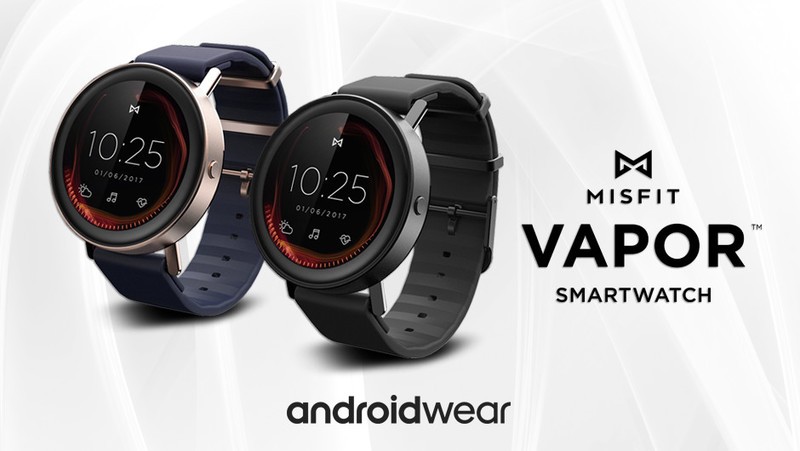
There’s 4GB of storage onboard, and the watch is water resistant up to 50 meters. It’ll be available in two color options for the case — Jet Black or Rose Gold — and you’ll be able to choose between five colors for the bands. Misfit isn’t announcing a specific launch date beyond late summer, and while we’ll likely see a slew of smartwatches make their debut in the interim, the $199 price is in the company’s favor.
What do you guys think of the Misfit Vapor?
Michael Kors returns for Android Wear round 2.0, this time with jewels
Popular fashion brand Michael Kors has announced two new smartwatches at Baselworld 2017.
Back in September, when we reviewed the first in Michael Kors’ line of Android Wear smartwatches, it was clear that the popular medium-high fashion brand was in it for the long haul. And like so many first tries in the wearables space, it was far more miss than hit.
But a year after the announcement, and six months after the release, of the Fossil-owned brand’s entry into wearable tech, Michael Kors is back with two new Access-branded watches, and they are considerably better pieces of hardware.


Grayson and Sofie are the names of the rounded men’s and women’s watches, respectively, and they are clearly demarcated in their designs — for better or worse. Both have AMOLED displays without the dreaded flat tire, an issue with all of last year’s models, and run the slightly newer Snapdragon Wear 2100 chip that appears, along with Android Wear 2.0, to be adorning every smartwatch released in 2017.
Arguably the best-looking announcement of the day isn’t a smartwatch at all.
While Sofie goes full-on jewelry with its “pavé embellished bezel” replete with a full set of cubic zirconia and a single side button, Grayson takes better advantage of AW 2.0’s new feature set with a rotating crown and two additional buttons, similar to the LG Watch Sport.
Grayson will ship in gold, stainless steel, and blue-on-black, with four strap options. Sofie will have eight color-and-bracelet combinations and seven strap choices. Each start at $350 USD.
Arguably the best-looking announcement of the day isn’t a smartwatch at all, but a so-called “hybrid” analog watch that includes fitness and sleep tracking, along with basic notification alerts. The Gage hybrid watch is your basic chronometer, with a stainless steel body and thin leather strap, but to my eyes (and pocket book) it’s the better value at $250.

The company is also giving its My Social app, which as the name suggestions connects the smartwatch to various social networks to automatically update watch faces with personal photos, an overhaul. “By the end of 2017,” the press release says, “the brand will have released 15 new digital watch faces, all with multiple customizable elements.”
Finally, the company says that it is launching its smart wearables in many new countries throughout 2017, including Mainland China and Brazil, which each have enormous potential markets for a popular fashion brand like Michael Kors.
At this point, the company’s retail channels ensure that its smartwatches will be seen by millions more people than the average tech product from LG or Motorola — even likely Samsung — which bodes well for their sales. And even if neither the Grayson nor Sofie model is best-in-class in any particular category, they will sell because they have the trusted, and well-known, Michael Kors brand behind it.
See at Michael Kors
How to fix LG G6 battery life problems

There are several ways to make sure your battery goes the full day, every day.
No matter how good battery life is on a phone, we always want more. The LG G6 manages to do pretty well with its 3300mAh battery, getting most of us through a full day of typical use — but of course, not every day is typical.
Whether it’s turning into a regular occurrence for your phone to hit 50% before lunch, or just a here-and-there situation of needing to be sure that you’ll have enough battery for well into the night, there are a handful of things you can do to make the most of your LG G6’s battery. And now that LG’s leading device no longer offers a replaceable battery, these tips may be even more important to know.
Keep on the lookout for battery-hungry apps

One of the biggest (and easiest to pick up) issues that can destroy your battery life is a power-hungry app or three that start taking up more than their fair share of resources when they’re not actively being used.
Open your Settings, head into Battery & power saving and tap Battery usage to see what’s going on. For most users, individual apps won’t crack the top five spots on the most-used chart. If you see one on there — perhaps a social media or streaming app — that’s high on the list but hasn’t actively been used that day, consider force stopping it with the “Stop” button or rebooting your phone; there’s a chance it may have been a one-off issue.
Keep an eye on it for the next couple of days and make sure the problem doesn’t resume. If it does, you can go through the app’s settings to see if there are any you can tweak so it doesn’t wake up so often — if it persists, you may want to uninstall the app.
Uninstall or disable unused bloatware

Pre-installed and unwanted bloatware is still a scourge on our daily lives, but you do have some control. Depending on where you bought your phone you’ll have varying levels of pre-installed apps, but there’s a good chance you could be looking at two dozens apps you just don’t want. These apps may wake up and use battery throughout the day — while it’s probably not a lot of battery, it’s still wasted charge either way.
Go into your Settings, Apps and scroll through the list. If you don’t want the app, tap on it and you’ll see a large “Uninstall” or more likely “Disable” button at the top. Uninstalling does what you think it does; disabling simply turns off the app but keeps it on your phone to be enabled later if you wish.
One word of warning: if you’re not sure what an app is, it could be an important part of a different app. If you disable an app and find that it’s causing issues with another feature or service on your phone, get ready to go back in and enable that app again to fix it. You can quickly sort for disabled apps by tapping the “All apps” dropdown in the Apps menu and selecting “Disabled.”
Turn off unused radios like Wi-Fi and Bluetooth

If you don’t regularly use Wi-Fi or Bluetooth throughout the day, you can choose to turn them off and save a little battery life. Having the Wi-Fi and Bluetooth toggles in your notification quick settings makes it easy to turn them back on when you need them.
Keep in mind the location accuracy consequences of turning off radios.
Most of us do use Wi-Fi and Bluetooth throughout the day, though, and in those cases it’s best to just keep the radios on for your own benefit. There’s also the added benefit that your phone actually uses both Wi-Fi and Bluetooth to help locate your phone as a combined system along with mobile network triangulation and GPS.
This system uses battery, though — if you want to keep Wi-Fi and Bluetooth turned on for your own uses but not let the system use the radios for location, you can head into Settings, Location, tap the overflow menu in the top-right corner and tap Scanning. Uncheck Wi-Fi scanning and Bluetooth scanning. This will save some battery, but be aware that these settings are turned on by default for a reason, and having them off may impact your phone’s ability to locate itself in the world when you’re using apps that benefit from location information.
Configure the battery saver mode

LG offers a relatively simple one-level battery saver mode, and it can be enabled either immediately using the notification quick settings or set up to turn on automatically at 15% or 5% battery. Most people will want the balance of having it auto-enable at 15% battery, since that gives you a chance to more gracefully finish off your battery over the course of a couple hours, while keeping the phone at its full potential for the first 85%.
No matter when you enable battery saver, you get the same effects to extend the life of the phone: brightness is turned down, vibrations are reduced throughout the system, apps can be restricted when in the background so they don’t drain your battery unless you’re using them. When battery saver is on you’ll get a permanent notification letting you know what’s going on, and you can tap that notification to go into the battery saver settings.
Battery saver will automatically turn off when you plug your phone in or unplug it again after charging above the 5% or 15% threshold if you have auto-enable turned on.
Make a few changes to your Display settings

Smartphone displays continue to get more efficient, but lighting up a big, bright panel is still one of the biggest drains on your LG G6’s battery. Making a few changes to the way it behaves can save you a notable amount of juice throughout the day. Open Settings and find Display to start checking out your options. Here are the big three to look at:
- Brightness: The lower you set your brightness, the less power the screen uses. But if you set it low and find you’re just adjusting it manually all of the time anyway, you may want to just leave auto-brightness on and deal with the slight battery consequences.
- Always-on display: The always-on display provides useful information, but drains more than its fair share of battery. You can turn it off entirely, or perhaps set a “daily timeout” so it starts turning on later in the morning and turns off early in the evening.
- Screen timeout: Again in the self-explanatory realm, if your screen is on longer it’s using more battery. By default the screen stays on for one minute after you’ve last touched it — consider dropping down to 30 seconds.
Update to the latest software

Now of course there’s always the opportunity that new software can also bring some headaches, but in general you’ll always want to keep your phone and apps up to date. On the LG G6, you can check for new firmware from Settings, About phone, Update center. You’ll see an “App Updates” option to update LG’s own apps, but the more important one is “Software Update” which can update your phone’s operating system.
You should keep the apps you installed from Google Play up to date as well. Open the Play Store, swipe in from the left edge and tap My apps & games to check for updates. You can just tap “Update all” at the top if you see updates that are available.
Turn off automatic updates from Google Play

It may seem a little counterintuitive if you take our advice to keep apps up to date, but in terms of maximizing your battery life you won’t want to keep Google Play automatic updates turned on. If you have “auto-update apps” turned on in the Google Play Store settings, the phone can check and download updates regardless of how concerned you are about your current battery life.
If battery life is the main priority, turn off automatic updates off entirely, and make sure to be diligent about manually checking on your own. While you’re in the Play Store settings you can check the box next to “App updates available” under notifications, which will alert you when updates are available but let you decide when to update.
If you don’t want to have to think about updates at all, but want a more battery-friendly setting, tap on Auto-update apps in the Play Store settings and select Auto-update apps over Wi-Fi only. This way the phone won’t download apps over mobile data, which will save you on your data plan but also in overall battery usage.
Check out the ‘battery optimization’ settings

These settings aren’t necessarily about raw battery savings as much as they are about finding a balance between app performance and battery life. Going back into the Battery & power saving settings, tap on Ignore optimizations (oddly named, to be honest) to manage which apps the system can aggressively slow down in the background to save battery.
Most people won’t want to touch these settings.
By default, the system will be willing to optimize and slow down apps when they’re not actively being used. This is great for battery life, and overall most people will prefer this. But on an app-by-app basis, you can choose to whitelist certain apps to perform however they want without the system scaling them back. Good examples of this are perhaps travel apps when you’re on a vacation or perhaps a messaging app that you absolutely cannot miss a notification from.
Again, for the most part, you won’t need to step into these settings unless you notice something odd happening with your apps not working properly. If you choose to ignore optimizations for some apps, be sure to check back in using the methods discussed earlier to make sure the apps aren’t running rampant with your battery in the background.
Take advantage of Quick Charge when you do have to power up

Yes, this isn’t exactly fixing any battery life woes you may have — but sometimes your battery is going to die earlier than you want because you’re simply using the phone more than usual. Battery drain isn’t always going to be tied to something wrong or bad happening on your system, and if you have to charge up during the day you might as well keep it as brief as possible — in comes Quick Charge 3.0.
Quick Charge is an intelligent charging system that focuses on hitting your phone with a very fast initial charge — well over 1% per minute — and then tapering off after the first 30 minutes or so to preserve the battery’s longevity. This means if you put your LG G6 on a Quick Charge 3.0 charger (Quick Charge 2.0 and 1.0 chargers will work too), like the one included in the box, you’ll be able to add a significant amount to your battery in about 15 minutes.
If that’s all the time you have, and you can get your phone plugged into either a wall, car or battery charger, make sure it supports the Quick Charge standard to make the most of the time.
LG G6
- LG G6 review!
- LG G6 specs
- LG G6 vs. Google Pixel: The two best cameras right now
- Everything you need to know about the G6’s cameras
- LG forums
Verizon
Sprint
T-Mobile
AT&T
B&H
Massive emoji update slated for June includes zombies, dinosaurs, vampires, and more
Get ready for a whole lot of new emoji.
The Unicode consortium has released a draft of the Emoji 5.0 update, which includes 69 new emoji that will be released in June 2017. The new additions include a T-Rex, fairies, mages, zombies, vampires, genies, mermaids, a breastfeeding woman, curling stone, and more.

The folks at Emojipedia have a comprehensive list of the new emoji, so head on down there if you’re interested in taking a look at the upcoming additions. The emoji aren’t final yet, so they may undergo revisions before their public release later this year.
What’s your favorite emoji from the list?
Moto G5 Plus vs. Moto G4 Plus: A class apart

Motorola’s latest budget phone has a lot to offer.
The Moto G4 Plus represented a significant change for Motorola, with the company offering a phone with a large 5.5-inch display and a camera that was considerably better when seen against its predecessors. The same holds true for the G5 Plus, which offers a metal chassis, great internal hardware, and a camera that’s one of the best in this segment.
Let’s see how it matches up to one of 2016’s best-selling budget devices.
Design and hardware

The Moto G5 Plus is the first phone in the Moto G series to sport a metal back. The phone certainly stands out next to its predecessor, which looks boring by comparison. The aluminum back adds heft to the G5 Plus, and makes the phone feel much more sturdy. It’s just the back that’s made out of metal, however, as the sides are still plastic with a metal feel to them.
Although the G5 Plus has a smaller 5.2-inch display, the phone doesn’t look any smaller than the G4 Plus on account of the generous bezels at the top and bottom. On the bright side, you get a Moto logo that sits just above the panel, because Motorola decided that the Batwing logo at the back just wasn’t enough for brand recall.
One area where you will notice a difference is the thickness, with the phone now coming in at a much more manageable 7.7mm despite featuring the same 3000mAh battery as the G4 Plus. The width has also reduced from 76.6mm to 74mm, making it more comfortable to use the G5 Plus one-handed.
The power and volume buttons are located to the right of the phone, and their configuration has switched. The G4 Plus had the power button on top, but that’s now taken up by the volume rocker on the G5 Plus.
Thankfully, the power button itself hasn’t changed much from last year, and retains the grooved texture that makes it easy to isolate the button with your fingers. It’s a small addition, but one that makes a lot of difference in day-to-day usage.
The design of the G5 Plus is leagues ahead of its predecessor.
When it comes to the screen resolution, both devices sport Full HD IPS LCD panels. The screen on my G4 Plus has a yellowish tint, but I didn’t notice any issues on the G5 Plus. There’s an option to tweak the color balance of the display from the default vibrant mode — which boosts saturation — to a more realistic setting on both phones.
With the G5 Plus now featuring a non-removable back, there’s now a traditional SIM card slot, which is located at the top of the device. The slot accommodates two SIM cards as well as a microSD slot, much like the G4 Plus.
| Operating System | Android 7.0 Nougat | Android 6.0.1 Marshmallow |
| Display | 5.2-inch 1080p (1920×1080) IPS LCD panel424ppi pixel density | 5.5-inch 1080p (1920×1080) IPS LCD panel401ppi pixel density |
| SoC | Octa-core Qualcomm Snapdragon 625Eight Cortex A53 cores at 2.0GHz14nm | Octa-core Qualcomm Snapdragon 617 Four Cortex A53 cores at 1.5GHz Four Cortex A53 cores at 1.2GHz 28nm |
| GPU | Adreno 506 | Adreno 405 |
| RAM | 2GB/4GB RAM | 2GB/4GB RAM |
| Storage | 32GB/64GB storage microSD slot up to 256GB | 16GB/32GB storage microSD slot up to 256GB |
| Rear camera | 12MP f/1.7 lens dual LED flash PDAF 4K video recording | 16MP f/2.0 lens dual LED flash PDAF |
| Front shooter | 5MP 1080p video recording | 5MP 1080p video recording |
| Connectivity | Wi-Fi 802.11b/g/n, Bluetooth 4.2 (A2DP), GPS,microUSB, 3.5mm audio jack | Wi-Fi 802.11a/b/g/n, Bluetooth 4.1 (A2DP), GPS,microUSB, 3.5mm audio jack |
| Battery | 3000mAh battery | 3000mAh battery |
| Fingerprint | Front fingerprint sensor | Front fingerprint sensor |
| Dimensions | 150.2 x 74 x 7.7mm | 153 x 76.6 x 9.8mm |
| Weight | 155g | 155g |
| Colors | Grey, Gold | Black, White |
Another area of differentiation between the two devices is the fingerprint sensor. The sensor on the G4 Plus feels like an afterthought, a feature Motorola decided to include in the last minute. The squarish sensor felt out of place on the device, and it had limited use until recently. The Nougat update introduced the ability to turn the phone on and off by pressing down on the fingerprint sensor, but before that its sole utility was to authenticate.
That said, Motorola learned from its mistakes, and the rounded sensor on the G5 Plus is much better to use. The increased surface area makes it that much more convenient to use the sensor, and it’s infinitesimally faster at authenticating your fingerprint when compared to the G4 Plus.

Although both the G5 Plus and the G4 Plus have the same battery capacity, the more efficient Snapdragon 625 ensures that the G5 Plus lasts slightly longer. On average, that leads to a few extra hours of battery life on the G5 Plus. Both phones offer Motorola’s TurboPower charging tech, allowing you to quickly top up in the middle of the day.
Rounding off the hardware specs, the lack of NFC on the G5 Plus is a big drawback in an otherwise feature-rich phone. The G4 Plus doesn’t have it either, but in 2017, NFC is a must-have feature for a phone sold in this segment. Furthermore, Motorola’s decision to include NFC for devices sold in Asian markets is a perplexing move.
Lack of NFC on the G5 Plus is going to be a dealbreaker for many.
As for the day-to-day performance, the beefier hardware on the G5 Plus makes a noticeable difference when gaming and browsing. The G4 Plus is no slouch, but the phone suffers from the occasional stutter. No such issues on the G5 Plus, as the Snapdragon 625 is a delight to use.
The G5 Plus wins out when it comes to the storage, as the $229 base variant with 2GB of RAM offers 32GB internal storage. By comparison, the G4 Plus has 16GB internal storage. You’ll also be able to pick up a G5 Plus model with 4GB of RAM and 64GB storage for $299.
Software

The G5 Plus comes with Android 7.0 Nougat out of the box, and has the January security patch. The G4 Plus picked up the Nougat update in India a few months ago, bringing with it the December security patch, but there have been no further security patches following the platform update.
For a manufacturer that prides itself on quick updates, Motorola hasn’t done a great job of delivering up-to-date security patches. The company has also struggled to get the Nougat update rolled out in all regions, with a majority of the G4 Plus units in the U.S. still running Marshmallow.
There are subtle changes in the user interface from the G4 Plus to the G5 Plus. The default clock widget now shows battery life, and the date and weather-related information is more readable. You also get a notification every time you plug in a TurboPower-compatible charger to the device.
Motorola’s commitment to a clean UI is commendable, but it has lagged behind in terms of updates.
Overall, the software experience hasn’t changed much, and that’s a good thing. For nearly three years now, Motorola has championed a clean and uncluttered user interface, and that trend continues with the G5 Plus. There are a few welcome customizations in the form of Moto Actions, and with the G5 Plus Motorola introduced a new one called One Button Nav.
As the name suggests, One Button Nav ditches the on-screen navigation buttons and instead relies on the fingerprint sensor as the default method of interaction.
The feature turns the fingerprint sensor into a gesture-based navigation system. A quick tap on the sensor takes you to the home screen, and you can go back in an app’s interface by swiping your finger right-to-left or access the multitasking menu with a left-to-right swipe.
Camera

To say that Motorola has come a long way in the imaging department would be an understatement. Just two years ago, camera quality was often cited as the major reason for not getting a Motorola device, but the company has managed to turn things around.
We saw that last year with the G4 Plus, and the phone continues to offer one of the best cameras in the budget segment. Motorola has once again made imaging prowess an area of focus with the G5 Plus, and the result is a camera that sets the bar for this category. For a device that costs less than $300, the quality of images you get from the G5 Plus is stunning.


Moto G5 Plus on the left, G4 Plus on the right.


Most of that has to do with the f/1.7 sensor with 1.4-micron pixels. The hardware does an impressive job of taking in detail during daylight conditions, with the G5 Plus producing photos full of color. Both in bright and low-light conditions, the G5 Plus pulls ahead of the G4 Plus.
Which should you buy? Moto G5 Plus

The aluminum chassis gives the G5 Plus a much more upmarket look when compared to the G4 Plus. The Snapdragon 625 is faster and more efficient than the G4 Plus’ Snapdragon 617, and the camera on the G5 Plus has also received an upgrade.
The lack of NFC is going to be a pain point for consumers, but the G5 Plus nails the rest of the details. From the powerful hardware to the clean software and the incredible camera, the G5 Plus is one of the best options for under $300.
Here’s one good reason to wait before buying Nintendo Switch
We’re big fans of the Nintendo Switch here at Pocket-lint. We’ve had great fun with 1-2 Switch and The Legend of Zelda: Breath of the Wild in the last few weeks.
However, we said in our review that as good as it is at playing games right now, it can only get better in future, and it might be worth waiting a while before buying one.
Now it seems we were right, albeit for a different reason.
Our thoughts were that media streaming services and a larger games library would be good reasons to wait, but it now seems as if the hardware itself will be getting better.
- Nintendo Switch: Price, specs and everything you need to know
- All the Nintendo Switch games: Launch titles and every game for 2017 revealed
Nintendo has confirmed that a “manufacturing variation” in its Joy-Con controllers on early units could result in the connectivity issues with the left controller that some have been experiencing. It is not a design fault, but is not a software issue so cannot be corrected in existing Joy-Cons.
It’s a rare issue and doesn’t always cause problems, but sometimes the left Joy-Con can drop its connection – especially when there are interfering signals from other devices in the vicinity.
It won’t be an issue for future Nintendo Switch consoles manufactured though. Nintendo has isolated the “manufacturing variation” and it has now been corrected at “factory level”.
See, was worth waiting after all.
For those affected by the Joy-Con issue with their early units, you are encouraged to return them for a fix or replacement: “Consumers can send their controller directly to Nintendo for the adjustment, free of charge, with an anticipated quick return of less than a week,” Nintendo said.
 AIVAnet