


10 annoying iPhone SE problems and how to fix them
The iPhone SE takes the power of the iPhone 6S and places it into a smaller, more compact body that’s reminiscent of the iPhone 5. Despite merging an older design with newer hardware, the SE is a competent smartphone, and a great entry point for those new — or returning — to Apple’s iOS. However, not everyone has had a frustration-free experience with their device. Here are some common problems SE users have reported having, and the various workarounds and fixes for them.
More: 15 bite-sized iPhone SE tips and tricks
Problem: Won’t connect to iTunes
Some iPhone SE owners have reported being unable to connect to iTunes with the smartphone, or that iTunes doesn’t recognize it. Users are getting the message, “The iPhone cannot be used because it requires a newer version of iTunes. Go to http://www.itunes.com to download the latest version of iTunes.” This was first reported on last April, and has persisted until now.
Potential solutions:
- Make sure you’re using the latest version of iTunes: 12.5.5 at the time of writing. Apple added sync support for the iPhone SE and iPad Pro starting with iTunes version 12.5.4. Windows users need to have Windows 7 or later to use the latest version of iTunes, while Mac users need to have OS X version 10.8.5 or later.
- If the problem persists after updating iTunes, Apple has a helpful guide explaining what to do in the event that iTunes doesn’t recognize your iOS device.
- If neither of the above options resolve the issue, you may have to reset your iPhone SE to its factory settings, meaning you’ll have to re-sync the device and all of your data. Make sure you back up everything on your iPhone first, then go to Settings > General > Reset > Erase All Content and Settings and see if that helps.
- Your final option is to contact Apple directly to see if they have any other solutions.
Issue: Battery drain
Many iPhone SE owners have found that their batteries are draining quicker than expected, or they’re simply disappointed by how long the battery lasts.
Potential solutions:
- Look at your Battery Usage to see which apps are draining your power the most in Settings > Battery. Change your settings for apps that are the biggest culprits, such as apps working in the background. Tapping on Battery Usage will reveal how long apps have been used and how long they’ve been active in the background.
- Consider enabling Low Power Mode in Settings > Battery. It turns off certain features like mail fetch, background app refresh, and automatic downloads. Tap Settings > General > Background App Refresh if you only want to adjust the app refresh settings.
- Location Services uses GPS and Bluetooth to determine your approximate location. If you don’t need this, toggle it off by going to Settings > Privacy.
- Back up precious files and reset your iPhone SE to its factory settings, then set it up like a new phone without restoring via a backup. If battery life is better, restore using your backup. If the problem comes back, you may need to forgo using that backup or delete third-party apps.
- Take a look at these additional tips for saving/extending battery life.
- If none of the aforementioned suggestions resolve the issue, contact Apple Support, go to an Apple Store, or visit an Apple Authorized Service Provider to seek a replacement phone or repair.
Issue: Yellow screen
Some users noticed that their iPhone SE displays are slightly yellower than other iPhone models, instead of the usual white. In other cases, the yellow tint is only around the edges of the display.
Potential solutions:
- Check your Night Shift settings in Settings > Display & Brightness > Night Shift, to see if the feature has been enabled. The recently implemented feature changes the color of the display to give it a warmer hue once the sun goes down. Messing with the color temperature slider at the bottom may do away with the yellowing, or could be the cause.
- Older iPhone models such as the iPhone 5 had a similar problem that people reported running into. In most cases, it was a matter of the adhesive used for the digitizer during the phone’s production, and while it was drying, it would produce the yellow tint. If the iPhone SE problem is anything like the iPhone 5 problem, then the glue should dry within a week, thereby doing away with the yellow color.
- If the yellowing persists after following the potential solutions outlined above, contact Apple or your carrier, or schedule an appointment with an Apple Authorized Service Provider to either get the phone repaired or replaced.
Problem: Voice Control activates on its own
Some iPhone SE owners on the Apple Discussion forums are saying voice control activates on its own, and at seemingly random times, prompting some to want to disable it. The problem occurs the most while listening to music or internet radio. Note: Voice control is not the same thing as Siri. In fact, if you’re using Siri, you can’t use voice control.
Potential solutions:
- You can turn off voice control. You first need to set a passcode. Following that, go to Settings > Touch ID & Passcode > Voice Dial and toggle Voice Dial off.
- Consider switching to Siri. Go to Settings > General > Siri and tap the Siri toggle to turn the assistant on. While on this screen, you can also turn on “Hey Siri” if you haven’t already, which will allow you to use Siri without pressing the Home button.
- If you’re set on using voice control, a factory reset may be your final solution, aside from taking it to an Apple Store or affiliate retailer to get a replacement. First, back up everything on your iPhone SE, and then restore it to its factory settings.
Problem: Clicking noise coming from Home button
This is not the sound the Home button usually makes when being pressed, but rather a more audible sound that can be heard when the button rises after being pushed down. For some, the sounds vary, and may even sound like rattling.
Potential solutions:
- Clean the area around the Home button. It’s possible a sticky substance or a smaller object found its way into the iPhone and is causing the noise.
- It’s far more likely that this is a hardware issue that may require the device to be opened up and inspected. In that case, reach out to Apple Support, make a trip to an Apple Store, or seek out an Apple Authorized Service Provider to repair or replace your iPhone.
Annoyance: iPhone SE won’t stop vibrating
A small number of iPhone SE owners have reported that their phone vibrates constantly, regardless of setting preferences. Turning off Vibration (Settings > General > Accessibility > Vibration) and performing a forced restart has not fixed the issue.
Potential solutions:
- An app running in the background could be causing the issue. Bring up the app switcher — double-click the Home button — and swipe up to close any apps that are still running.
- If you’re not using iOS 10.2.1, or any recent version of iOS 10, try updating your software to see if it fixes the problem.
- You can try restoring your phone from a backup made before the vibration issue started. If the problem doesn’t occur after you restore the backup, an app or update could’ve been behind the issue.
- Perform a factory reset and restore your phone, or set it up like a new device.
- Reach out to Apple Support. You phone may need repairs, or a replacement headset.
Problem: iTunes won’t sync photos with iPhone SE
A few iPhone SE owners have recently run into an issue in which iTunes fails to sync photos with their iPhone. The desktop app informs users that it “cannot sync photos to the ‘iPhone SE’ because your Photos Library is not yet available. Please try again later.”
Temporary solutions:
- Uninstalling and reinstalling iTunes has been said to work for a while. Sadly, the problem can come right back. Be sure to make a backup of your library before uninstalling the program.
Workarounds:
- It’s not ideal, but you can always manually add photos to your phone, just as you would music or videos.
Potential solutions:
- Restart both your phone and your computer, then try syncing again.
- Make sure you’re using the latest versions of iOS and iTunes.
- This Apple Support page has a list of steps that may help.
- While your iPhone is connected to iTunes, go to Photos > General and ensure your Photo Library is set to be your system photo library. If it isn’t, click Use as system photo library. This Apple Support page may be of some use, too, if you’re a Mac user.
Glitch: Missing contact images
Another recently reported problem is that some iPhone SE owners no longer have contact photos. These usually appear at the top of the page when you’re looking at a conversation with a contact. For many, the loss of images occurred after updating to iOS 10.2.1.
Potential solutions:
- Restart your phone.
- Make sure none of the images used for your contacts have been deleted by accident.
- Try removing the contact image and re-adding it.
- Go to Settings > Messages and toggle on Show Contact Photos.
- If you’re using Display Zoom, the feature will automatically remove any contact images. Switch back to standard view by going to Settings > Display & Brightness. Then, scroll down to Display Zoom > View > Standard.
- You can always try performing a factory reset, then restoring your phone from a backup.
Issue: Wi-Fi turns off when phone is locked
This is different from the typical Wi-Fi issue most people run into, in which their phone suffers from poor or nonexistent connectivity. Instead, a few people have experienced a problem that causes Wi-Fi to turn off when the SE is locked or put to sleep.
Potential solutions:
- Restart your phone and router.
- Go to Settings > General > Reset > Reset Network Settings. Afterward, re-connect to your Wi-Fi network.
- One user on the iMore forums noticed they were having a similar problem when they got a new router that was using the same network password and login code to connect to their new modem. They suggested that a similar scenario could be confusing the SE. To fix the issue, they changed their aforementioned passwords and codes.
- Try performing a factory reset.
Annoyance: Camera doesn’t preserve camera app settings
The iPhone’s camera app is capable of saving the last camera mode you used, but some users have noticed that this continues to happen, even if you’ve set the app to reset to the default camera mode (Photo) when you launch the app.
Official solution:
- The camera app will revert to the default camera mode after about a minute. If you continue to adjust the app’s Preserve Settings during that time (Settings > Photos & Camera > Preserve Settings), it will not automatically reset.
This article was originally published on December 25, 2016, and updated on March 16 by Kyree Leary to include problems related to iTunes, the camera app, contact images, and Wi-Fi.
Amazon’s Alexa comes to Huawei Mate 9 smartphones in U.S. via update
Why it matters to you
Alexa is one of the most popular smart voice assistants, and the AI has not been attached to a smartphone in this way before. Huawei’s update gives you more control in your smart home.
Huawei is following through with its CES promise of bringing Amazon’s Alexa to its flagship Mate 9 smartphone. An over-the-air update will roll out today to U.S. models of the device, making the Mate 9 the first smartphone to come with Alexa installed.
Alexa is the smart voice assistant in Amazon’s popular Echo and Echo Dot devices. Users can call out to the assistant with the trigger “Alexa,” and can then follow up with a request to control smart home products like connected lightbulbs and thermostats. Alexa can also answer basic questions like when the next showtimes are for an upcoming film.
More: Huawei Mate 9 review

With Alexa now on the Mate 9, you can expect similar functionality. Most importantly, you can control your compatible smart home devices with the Chinese company’s smartphone. You first need to open and configure the Huawei Alexa app, which will be available after installing the OTA update. Unfortunately, voice activation does not work yet so you’ll have to rely on your finger to trigger the assistant. The company said it is working with Amazon to get this feature up and running as soon as possible.
Here are all the functions you’ll be able to perform just with your voice thanks to Alexa on the Huawei Mate 9:
- Home automation.
- Play games like Jeopardy, Twenty Questions, and Magic Door.
- Place orders from vendors like Starbucks, Pizza Hut, Domino’s, and more. You can also place orders and have products ship to your home via Amazon Prime.
- The 7-minute Alexa workout skill helps keep you fit and on your toes.
- Alexa can play news briefings from media organizations like NPR, Reuters, Fox News, WSJ, AP, BBC, CNN, and others.
- Accessing podcasts and Audible content.
- Ask for weather and traffic updates.
- Check your calendar.
- Ask general queries about people, places, and more.
More: Huawei Watch 2 Sport review
While the update only adds Alexa to U.S. Mate 9 devices, the company said the Alexa app will roll out to other Mate 9 variants in other Amazon-supported markets at a later date. If you have the assistant already, keep in mind that not all of Alexa ‘s 10,000 skills will work. Two that most definitely won’t for a long time are Timer/Alarms, as well as Music and Tunein. The company is continuing to work with Amazon to add support for all its skills.
The company doesn’t have any plans to bring Alexa to another Huawei device at the moment. We’ll update this article with more information on how to set up and use Alexa when the OTA begins to roll out.
Zoom around town in style on Mercane Wheels’ foldable, electric Transboard
Why it matters to you
With its foldable design, the updated, three-wheel Transboard from Mercane Wheels is one of the most portable transportation options available.
In this day and age, there exist more ways to get around the city than ever. Each year brings more alternatives to automobiles and now, Mercane Wheels has made sure its latest scooter easily fits into any kind of lifestyle. Dubbed the Transboard, Mercane designed this three-wheeled electric scooter to handle daily commutes in dense cities and sprawling countrysides. It combines speed, stability, and comfort to make any commute an enjoyable one.
To keep it light and sturdy, Transboard features an aluminum alloy frame with a polycarbonate cover. Built into the frame is a one-gesture folding system for compact transport into an office or subway. Furthermore, the foldable design supports riders up to 220 pounds.
Powering the three-wheeled scooter is a 500-watt BLDC Hub motor and a 48-volt battery. With a full charge, riders have the ability to commute for up to 25 miles at a top speed of 22 miles per hour. Though comfort issues pop up when traveling longer distances, the Transboard features a double wishbone suspension to keep the rides smooth. After the battery drains, a new charge takes roughly six hours. If needed, the battery case detaches to allow riders to charge it wherever they go.
“The vast majority of scooters on the market today are outfitted with just two wheels in order to keep them compact and ensure versatility,” said Mercane Wheels CEO Mark Min in a press release. “Transboard has three wheels and a more balanced design so riders won’t have to constantly find their balance — this means a more safe, more comfortable ride for extended periods of time.”
Additional features include a LED display with a function button. With this, riders have the option to check their speed or adjust various settings including power, cruise mode, headlights, and horn. The LED head and tail lights keep the Transboard well lit during evening commutes.
More: Hyundai’s electric scooter concept is so compact that it fits in a car’s door
Mercane Wheels’ updated Transboard begins its Indigogo campaign on March 22 in order to fund its final development. For the final stage, Mercane Wheels set a fundraising goal of at least $30,000. Early backers have an opportunity to snag the Transboard for just $500 — which represents a 60 percent discount off the final retail price. The colors available are gloss black and white.
Google’s #MyAndroid Taste Test gives bad results. Here’s how to make them better

Had a taste of Android theming with the #myAndroid Taste Test?
Android has always been a bastion of customization, but it hasn’t exactly been well-advertised, by Google or by the various manufacturers that ship it on their devices. Google is now looking to highlight that flexibility and creativity with its new #myAndroid campaign, looking to showcase how diverse and delightful our home screens can be when we add our own uniqueness to them.
Google has even devised a simple — dare I say cute — Taste Test to help you find some customizations you might like. But how do you use what the quiz spits out?
Launchers

Yeah, I know that launchers are technically the third thing that the quiz spit out, but Google’s wrong to do that and I’ll tell you why. Yeah, you can change wallpapers on any launcher, but to apply icon packs, you need a launcher that supports third-party icon packs, and that means you’re not gonna be using the one that came with your phone.
Moreover, the launcher is the foundation of your home screen and the foundation of your theme. It doesn’t make a whole lot of sense to start with anything else since the launcher is what you’ll be plugging the rest of this theme into.
For the most part, #myAndroid suggests relatively easy-to-use launchers like Smart Launcher 3 and our favorite theming launcher Nova Launcher, but if you’re looking for another launcher, may we suggest something off our Best Launchers list?
Here’s how to switch to a new launcher:
Download your new launcher.
Tap the home button.
Select your new launcher.
Tap Always. (This may not be there/necessary depending on your device.
Note: In some phones, this procedure may not always work. You may have to delve into the settings to find “default home” or “default launcher” and set it in there.
Once your new launcher launches, it’ll have a setup process for you to follow. These processes can be as simple as picking a wallpaper and introducing you to its features or as complex as setting up particular design styles and importing your previous home screen layout from your old launcher.
Wallpapers

Wallpapers are often the basis of a user’s theme; in fact for most users that is the entirety of their theme. Wallpapers are important, and while the three #myAndroid offers in their Taste Test are usually not too bad, it’s not like it’s hard to find another wallpaper somewhere else:
- Wallpapers is Google’s wallpaper gallery app and is indeed one of the wallpaper sources the have you download wallpapers from in the Taste Test. It has hundreds of wallpapers to pick from.
- Zedge is another source of Taste Test wallpapers and a gallery with tens of thousands of wallpapers to choose from, with everything you could ever think of waiting to be found in its many styles.
- DeviantArt is one of the largest artist gallery sites on the internet and the source of many of our own Wallpaper Weekly walls. While you do need to be careful what you search on DeviantArt, the only thing more diverse than the content is the diversity of the talent.
Once you’ve downloaded a wallpaper, here’s how to apply it on most launchers:
Long-press the wallpaper on your home screen until a series of options appear.
Tap Wallpapers.
Tap Pick image.

Select your downloaded wallpaper.
Center and zoom the wallpaper as desired
Tap Set wallpaper.

Icon Packs

There are so, so, so, so many icon packs out there, it’ll make your head spin. You could use a different icon pack every day of the year and it would still take decades to get through every icon pack on Google Play. This means that we have to separate the good, the bad, and the ugly. If the icon packs that your Taste Test offers aren’t to your liking, you might try some of our favorites.
Once you find an icon pack that you like, and have a launcher that supports them, switching to that icon pack is fairly simple, but varies from launcher to launcher. In your launcher’s settings, it can be hiding a few different places, but here are where the most common launchers hide it:
- Nova Launcher: Nova Settings > Look & feel > Icon theme
- Action Launcher: Action Settings > Display > Icon Pack
- Smart Launcher 3: Long-press home screen > Theme > Icon Packs
- BlackBerry Launcher: Long-press home screen > Icon Packs
- Arrow Launcher: Arrow Settings > Set Icon Pack
- Aviate Launcher: Long-press home screen > Settings > Set Icon Pack
Widgets

The widgets given in the Taste Test are not great. I’m just gonna go ahead and say that now: they aren’t great. The widget given for music lovers can’t even be called good, seeing as Sound Search for Google Play hasn’t been updated since 2013, is outdated in both visuals and function (it doesn’t work on Nougat), has been both a widget and a part of the main Google app for years.
I understand that widgets are a woefully misunderstood and underserved segment of the customization and overall Android market as a whole, but Google can do better for that. And seeing as they haven’t, we’ve taken it upon ourselves to offer some widgets you could use that actually work and even look good doing it.
Music

First and foremost, check the music app that you use for your tunes. Chances are it has at least one widget to put playback controls on your home screen. Google Play Music’s widgets (bottom below) are nice, if a bit bright. If the widget from your service is lacking, here are some third-party widgets to try:
- Jack’s Music Widget (center) is a simple, customizable music widget that can control playback for dozens of music players, and video players, too, like YouTube and Netflix when you’re Casting to a bigger screen.
- Material Music Komponent for KWGT (top) is a bit more advanced, but also offers better looking and completely color-customizable widgets so that no matter your wallpaper or theme, your music widget will match.
Weather

Again, most weather apps have at least one widget to put glanceable conditions or forecast on your home screen, but if you’re in the market for some top-notch weather widgets, here are our recommendations:
- 1Weather (top and bottom) has some of the most themable and versatile weather widgets we’ve seen, and there’s a reason that we use them in just about every theme posted on Android Central: they’re damn good.
- Yahoo Weather (center) has Flickr backgrounds that can showcase wonderful photos from your town. If you live in the sticks, that’s not going to help much, but if you live in a large city or a tourist destination like Walt Disney World, these weather widgets will give you a porthole to the beauty outside your door.
News

Widgets for news are somewhat limited by what sources you want your news from, but here are a couple of news widgets that should keep all sides happy:
- AP Mobile has a simple widget and is one of the most widely-trusted and widely used news sources in the world. The widget shows the latest headline in one of three feeds, along with the story’s top image.
- Google Newsstand can pull from tons of different sources, and even better, Google Newsstand will let you tap through several headlines on the widget itself. Google Newsstand isn’t widely used, but its widget might make you consider giving the main app a go.
Keyboards

Yeah, you can theme some keyboards, but I’m willing to bet that’s not why the bottom of your Taste Test results is an ad for GBoard. Most of the apps and launchers being promoted in the #MyAndroid Taste Test come from third parties, like Zedge or Lines or Nova Launcher. The soon-retiring Google Now Launcher doesn’t support icon packs, and while widgets like can be useful… kinda… I guess… there isn’t a whole lot of customization material that Google makes itself besides its Wallpapers app.
This isn’t a cheap promotion, and it makes sense that Google would have at least one category they can own and push people to a Google app with.
Your turn
So, what were your Taste Test results? Was there anything in there that fascinated you? Disappointed you? Anything more you were looking for? Tell us in the comments below!
How to use indoor maps in Google Maps

Easily navigate malls and department stores with indoor maps.
One of the more useful additions to Google Maps is the ability to navigate within malls, museums, libraries, or sports venues. The feature is accessible in 25 countries, and Google maintains a list of prominent locations for which indoor navigation is available.
If you’re looking to find the shortest route to a particular store within a mall or navigating a gargantuan museum and are in need of a layout guide, the indoor maps feature comes in handy.
How to use indoor maps in Google Maps
Open Google Maps from your app drawer or home screen.
Enter the name of the location via the Search here textbox. You should see a pin on your selected location.
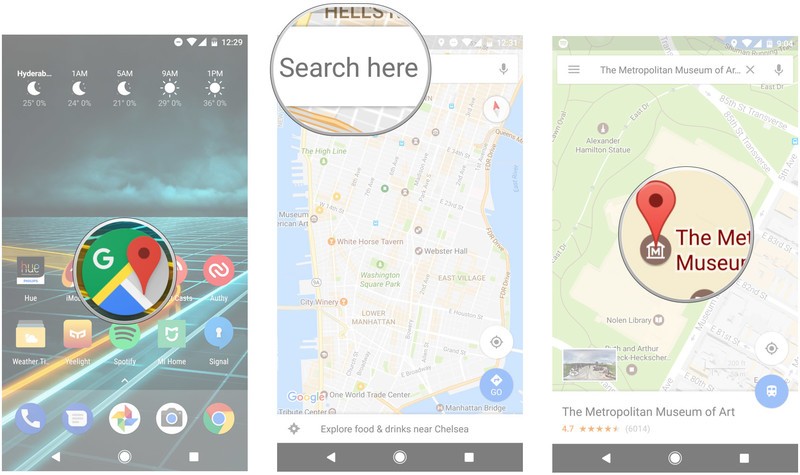
Pinch out to zoom in on the map a few times until you see the floor layout.
You can navigate the internal layout by selecting the floor markers on the bottom left of the screen.
Zoom in or out to view specific sections of the indoor map.
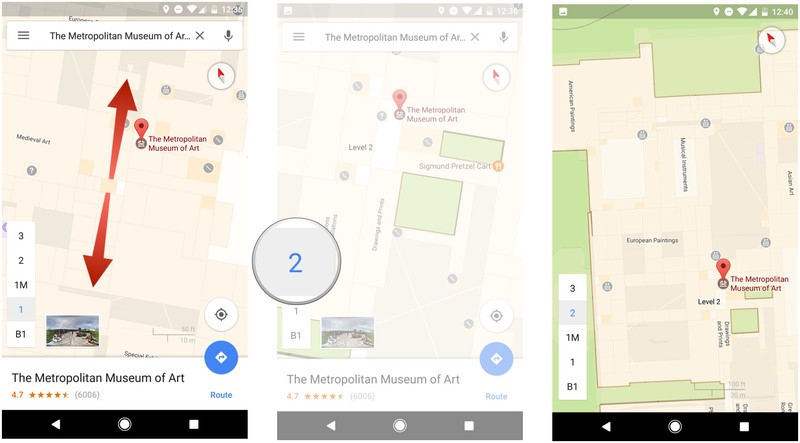
Do you use indoor navigation often? Let us know what you think of the feature in the comments.
Galaxy S8 screen resolution confirmed in latest leak
But will the GS8 default to lower than its native res?
More Samsung Galaxy S8 details continue to trickle out onto the web, and today’s late-breaking info — via Chinese leaker Ice Universe — appears to confirm the phone’s rumored “18.5:9” aspect ratio, with a native screen resolution of 2960×1440 pixels. Like the Galaxy S7 on Nougat, there’s a resolution slider, letting you scale down to “HD+” or “FHD+” — think 1080p or 720p, with a few extra pixels stacked on the vertical.

That’s led to speculation that, like the Galaxy S7 on its latest firmware, the GS8 will default to 1080p (or thereabouts) instead of the highest possible resolution. And that wouldn’t be too surprising to see, particularly in the smaller GS8. Although it’s said to have a “5.8-inch” display, we know diagonal measurements can be misleading on taller phones. So you’re still unlikely to be able to tell the difference between QHD+ and FHD+ on such a small panel. Thus, Samsung can save some power by downscaling by default, and leaving the option there for those who want to max out the resolution.
Besides that, the Galaxy S8 is reported to be using a denser RGB subpixel matrix, compared to the diamond PenTile arrangement of its predecessors. That means there are three subpixels per pixel, compared to two on last year’s model, which may well compensate for any lack of sharpness elsewhere.
As phone displays eventually reach towards 4K, we can expect downscaling to become the norm. Ultra HD phone screens are useful for some things, like VR, but the fact is the vast majority of apps don’t need such enormous pixel density.
Samsung Galaxy S8 and S8 Plus
- Latest Galaxy S8 rumors!
- Galaxy S8 announcement coming March 29 in NYC
- Galaxy S8 release date set for April 28
- Join our Galaxy S8 forums
Amazon UK is discounting the Echo by £15 for Mother’s Day
The Amazon Echo is down to £134.99 in the UK.
As part of its Mother’s Day deals, Amazon UK is discounting the Echo by £15, bringing the price of the voice-connected speaker down to £134.99. The deal is valid on both the black and white color variants of the speaker.

Amazon is offering a £20 discount on the Kindle Paperwhite as well, with the promotion applicable on both the Wi-Fi only and the cellular models. The 7-inch Fire Tablet is also getting a £15 price cut, with the tablet now selling for £34.99.
Head down to Amazon from the link below to grab the Echo for £134.99.
See at Amazon UK
There’s so much more to Android O than we know right now

You may not be impressed by the first Android O Dev Preview, but don’t lose hope.
We’ve said it time and time again, but it requires reiteration when a new Android Developer Preview is announced: don’t judge an entire upcoming Android platform update by its first Developer Preview release. Android O just launched officially in the form of a Developer Preview that can be downloaded and flashed to Pixel or late-model Nexus, and in typical Google fashion what we’re seeing here isn’t even close to finished yet.
Just like the Android N Developer Preview that kicked off this time last year, the Android O Developer Preview is, in terms of the interface and features you can actually see, basically the same as the Android 7.1.2 Nougat software that Android Beta Program testers just updated to. Even the behind-the-scenes changes in the Developer Preview that really matter to developers are “small,” at least by the scale we usually see in Android updates.

We don’t see everything new in Android O right from the start for two main reasons. First, Google starts this Developer Preview process so early that there’s no need to bombard developers all at once. Take a look at the timeline above: there will be three more iterations of the Developer Preview, the first of which coming a full two months after the initial release. Google has lots of time to fine tune the APIs its working on — last year it took four months to get final Android N APIs.
More: How to install Android O on your Pixel or Nexus
Second, Google actually does put some weight behind having a “big reveal” or two snuck up its sleeve for the full launch of Android O. Through a likely combination of a Google I/O 2017 keynote and the expected Google Pixel 2 launch in Q3, Google has two huge stages to talk about the big new features of the latest version of Android. What it’s showing off right now are the underpinnings important for developers — the rest of the stuff that consumers care about will be properly revealed at a later date. Yes, including its actual name.

One of the biggest things to remember about these platform updates is that the operating system itself is only part of the story. Saying “I have Android O!” is awesome, but what makes it all complete are the developers who make apps that actually take advantage of the new features introduced. One of the biggest developers of course is Google itself, which has a massive undertaking of updating all of its flagship apps and services to put Android O on display. If you update to Android O today you’re only going to see a sliver of what’s possible, as you’ll still be using apps designed for Nougat.
The moral of this story is to be patient. The Developer Preview is something we can all rightfully get excited about, but it has to be for the correct reasons: we should be happy that developers can get access to APIs early so when Android O arrives on your phone late in 2017 or early 2018 the apps will be ready to go. These early releases aren’t designed to woo everyone into getting excited for the core features of the operating system just yet. Google will have so much more to show us about Android O, starting in mid-May at Google I/O 2017 and continuing through the second half of the year.
Android O
- Everything new in Android O
- Should you put Android O on your phone?
- How to install the Android O Developer Preview
- Android O isn’t in the Android Beta Program yet
- Join the Discussion
Samsung Galaxy Tab S3 review: The next great Android tablet

The Android world has been patiently waiting for the Next Great Android Tablet. Samsung’s third-gen Galaxy Tab S3 may very well be it.
The quick take
The Galaxy Tab S3 is a solid Android tablet with a high definition 9.7-inch display, a stylish metal-and-glass body, and a robust pressure-sensitive stylus that proves — yet again — what a fantastic piece of technology the S Pen really is. If only its battery life were a bit better for those of you planning to multitask the heck out of life with this tablet device in tow.
The Good
- A bevy of multitasking software features
- The S Pen is everything
- Stylish hardware
- Available with an optional, comfortable keyboard
The Bad
- Battery life is fine when the screen isn’t on
- No water resistance
- It’s not a replacement for a laptop
See at Best Buy

Tablets are making a comeback
Galaxy Tab S3 Full review
Android tablets aren’t really a thing anymore, and though some manufacturers have produced devices worth owning over the years, there hasn’t been a particular Android-powered tablet that’s managed to move the needle in the industry. Frankly, this is why the Galaxy Tab S3 stands out in the first place. Despite the fact that it looks so much like its predecessor, it’s equipped with enough added oomph, more than we’ve seen from any Android tablet in a long time, that makes it just as worthy of fanfare as its competition — namely the Microsoft Surface and Apple iPad Pro.
The Galaxy Tab S3 is a fantastic package. It’s equipped with a capable processor, a vivid Super AMOLED display, and a few other subtle hardware features that add to the Tab S3’s premium tablet experience. The best part of the tablet is its included accessory, however: the patented S Pen. This pressure sensitive stylus proves again why it was a major selling point for the Galaxy Note series. If you’ve always wanted the Note functionality on a larger screen, now is your chance, as long as you’re willing to drop $600 for the Galaxy Tab S3.
About this review
I (Florence Ion) am writing this review after four days using the Samsung Galaxy Tab S3. The tablet arrived with Android 7.0 and was not updated during the course of review. The Tab S3 was provided by Samsung for review by Android Central.

Come at me pro
All the specs
| Operating System | Android 7.0 Nougat |
| Display | 9.7-inch Super AMOLED, 2048×1536 |
| Processor | Snapdragon 820Quad Core 2.15GHz + 1.6GHz |
| Storage | 32GB (U.S.) |
| Expandable | microSD card |
| RAM | 4GB |
| Rear Camera | 13MP, Auto-focus, Flash |
| Front Camera | 5MP |
| Connectivity | Wi-Fi 802.11ac dual-band, Wi-Fi Direct, USB Type-C 3.1, GPSLTE (optional) |
| Charging | USB-C |
| Battery | 6000mAhFast charging |
| Water resistance | No |
| Input | S Pen4096-level pressure sensitivity |
| Security | One-touch fingerprint sensor |
| Dimensions | 237.3 x 169 x 6 mm |
| Weight | 429g (Wi-Fi)434g (LTE) |
| Colors | Silver, black |
Metal and glass
Galaxy Tab S3 Hardware
It’s a though Samsung took the Galaxy S7 and flattened it out with a mallet.
The Galaxy Tab S3 is ostensibly the premium evolution of its predecessor, the Galaxy Tab S2, which debuted nearly two-years-ago and was covered in plastic. Like the rest of Samsung’s device family, the Tab S3 follows along with the company’s overall design paradigm. So much so, that it’s as if Samsung took the Galaxy S7 and flattened it out with a mallet. And while the Tab S3’s metal-and-class chassis exudes a poshness of its own, it’s a fingerprint magnet — one you’ll find yourself constant cleaning.
The Tab S3 sports a power button and volume rocker on its right side; a fingerprint sensor slash home button on the front; and it charges by USB Type-C. I’ve been able to charge my Pixel, my Chromebook, and the Tab S3 all with the same power adapter and really appreciate the convenience. The tablet also has four self-orienting stereo speakers placed around the chassis. They adjust as you rotate the tablet, and while the sound output is decidedly boomier with the Tab S3 in landscape mode, you’ll hardly notice any difference unless the volume is turned all the way up.
I’ve always thought that Samsung’s pressure-sensitive S Pen would be better suited for a tablet.
The 9.7-inch Galaxy Tab S3 is HDR-ready, which means its Snapdragon 820 processor and 4:3 aspect ratio Quad HD Super AMOLED display have been souped up to display compatible content, though there aren’t too many HDR titles to brag about just yet. The Tab S3’s display is certainly TV-like — the blacks are black, the whites are bright, and the blues and red are depicted deeper than they were on the Tab S2 — but that Quad HD display takes quite a bit of energy to power up. Though the Tab S3 is carrying a 6000 mAh battery, it’s not enough to make it through an entire day of full usage without requiring a charge. At the very least, it employs Quick Charge 3.0, so you won’t have to wait too long by the outlet.

The best part
Galaxy Tab S3 S Pen
As much as I’ve lauded the Galaxy Note phone series and its companion S Pen, and often as I’ve implied its usefulness to other people, I’ve always thought that Samsung’s pressure-sensitive stylus would be better suited for a tablet device — especially considering that we’re at the age where a stylus is often the only reason to buy a tablet.
The Galaxy Tab S3’s S Pen is certainly reason enough. Like the Galaxy Note 7 (RIP), the S Pen is equipped with an easy-to-press shortcut button that brings up the Air Command menu. From here, you can choose from several oft-used actions, whatever those might mean for you. There’s even a feature that lets you easily make animated GIFs from any video on the screen—a remnant of the Galaxy Note 7.
Using the S Pen is a pleasant experience. It’s like an extension of your finger, if it had a 0.7mm tip and 4,096 points of pressure sensitivity. The stylus is compatible with a variety of apps, too, including Samsung’s own S Note app, and Microsoft OneNote. And though I’m not much of an artist, I am a fervent note taker, and S Pen felt just as natural to use as a BIC ballpoint pen to a piece of paper. Perhaps the S Pen’s only flaw in this particular case is that it doesn’t physically attach to the Galaxy Tab S3. You will need a pencil pouch to keep tabs on the stylus, or you’ll need to get into the habit of clipping it onto your shirt. Like the old days.

Much improved
Galaxy Tab S3 Software
If you aren’t a fan of Samsung’s take on Android, then I’ve got some bad news for you: the Galaxy Tab S3 is all about it. The good news is that this isn’t the Samsung interface you’re used to. It’s cleaner, brighter, and easier to navigate. It’s packed with features you’ll actually find helpful, including multi-window capabilities and a blue light filter that’s accessible from the notification shade.
This isn’t the (bad) Samsung interface you’re used to. It’s cleaner, brighter, and easier to navigate.
There’s also Samsung Flow, which enables ease of access between the Tab S3 and your Samsung smartphone, as well as the debut of Samsung’s Game Tools on a tablet, which enable you to record gameplay or amp up the processing on the device’s Qualcomm Snapdragon 820. In the Android world, a third-party version of Android typically fares better on the tablet, anyway, since stock Android isn’t exactly the poster child for tablet interfaces.

Tippy-tap
Galaxy Tab S3 Keyboard
I’m normally dubious when companies claim its tablet’s companion keyboard is as accurate as a full-size laptop, but if you don’t mind the extra bulk that keyboard folio adds to the Tab S3 (or the extra $130 it costs) and your aim is to be productive, Samsung’s keyboard folio case is a worthy buy. It doesn’t require batteries, the keys are backlit, and there is enough space between them that your fingers feel free to roam rampantly.
Though I often had to backspace to fix punctuation, I was still able to get into a decent writing flow. I even wrote some of this review with the Tab S3 and a Bluetooth-connected mouse. The only bummer is that you can’t use this keyboard with other devices.

The best costs a bit
Galaxy Tab S3 Bottom line
Samsung’s been chipping away at its tablet game for some time now and as a result, it’s had time to refine its interpretation of what works and what doesn’t for the tablet market. The Galaxy Tab S3 is an outstanding device for getting some work done. I did quite a bit of writing with the tablet in my few days with it and found that I could be just a productive as sitting at my desk in front of a docked MacBook Pro. For the most part, what you get out of a tablet is what you set it up for.
The Galaxy Tab S3 is malleable enough that you could utilize it for working, gaming, reading, binge-watching, and almost everything else your little laptop can do. The only issue you might have is that Android itself is still figuring out multitasking, and even with the Tab S3’s native multi-window functionality, I’d much rather have the freedom of a desktop to spread out my work than be confined to a finicky task switcher.
The Galaxy Tab S3 isn’t much more prohibitive in price than its competition, either, and if you’re truly committed to staying within the Google Play ecosystem, the Galaxy Tab S3 is a worthy consideration. But if you’re looking for something more casual, or perhaps a tablet you wouldn’t feel bad about tossing around, the discounted Galaxy Tab S2 will remain available for a while longer.
See at Best Buy
The Huawei Mate 9 now has Alexa built in
There’s a new feature on the Huawei Mate 9, and it may just push some people over the edge.
Huawei’s excellent Mate 9 is now capable of talking to Amazon’s Alexa assistant through an app that will be loaded after the phone receives an over-the-air update.

Hitting devices starting at noon ET on March 22, this will be the first (but likely not the last) Android phone in the U.S. to have direct access to Alexa through an app. But that’s just it — Alexa is not available throughout the entire OS, from anywhere, like Google’s Assistant. Instead, Huawei and Amazon worked on a custom app that’s unsurprisingly called Huawei Alexa, which offers, simply, a single button to press to access the cloud service.
“At CES we shared that Amazon Alexa would come to the Mate 9,” said Zhendong Zhu, president of Huawei Device USA, in a press release. “With the new Huawei Alexa app, we add intelligent voice control to the rich features already available on Mate 9. We look forward to collaborating with Amazon to further develop more voice-activated mobile experiences.”
Presumably, whatever is available to users of the incredibly popular Amazon Echo is available through the app, though the lack of always-on listening lessens the usefulness somewhat. At the same time, its availability speaks to the lengths that Huawei is willing, and able, to go to differentiate its nascent product line in the U.S.
See at Jet.com
Press release:
AMAZON ALEXA NOW AVAILABLE ON HUAWEI MATE 9
Mate 9 with Amazon Alexa gives consumers access to Alexa Voice Service on-the-go
PLANO, TX – March 22, 2017 – Today, the highly-acclaimed Huawei Mate 9 includes Amazon Alexa. Delivering on a promise made at CES in January, over-the-air (OTA) updates will commence today, pushing the Huawei Alexa app to Mate 9 customers in the United States.
“At CES we shared that Amazon Alexa would come to the Mate 9,” said Zhendong Zhu, president, Huawei Device USA. “With the new Huawei Alexa app, we add intelligent voice control to the rich features already available on Mate 9. We look forward to collaborating with Amazon to further develop more voice-activated mobile experiences.”
“We’re excited to bring Amazon Alexa to the Huawei Mate 9, helping customers easily perform everyday tasks while on the go – using just their voice,” said Steve Rabuchin, vice president of Amazon Alexa. “From controlling their smart home and checking the news to shopping and listening to Audible content, we think customers are going to love interacting with Alexa while on the go. We can’t wait for customers to try this out.”
Huawei Mate 9 with Amazon Alexa
Using the Huawei Alexa app on Mate 9, consumers can bring Amazon Alexa with them, taking advantage of its natural user interface. Since Alexa was designed based on the assumption that users are not looking at a screen, it is a primarily voice-driven experience, ideal for people on the go.
The Huawei Alexa app offers mobile access to features and scenarios consumers expect from Amazon Alexa including:
-
Home Automation: Mate 9 with Amazon Alexa makes it possible to manage your smart home even when you’re on-the-go by controlling lights, thermostats, locks, fans, sprinklers and more.
-
Games/Trivia: Mate 9 with Amazon Alexa can make every trip more entertaining with games like Jeopardy, Magic Door and Twenty Questions.
-
Shopping: Mate 9 with Amazon Alexa makes it easy to get more done using just your voice — Quickly create lists, order items to be sent to your home, get food delivered or have your favorite coffee ready with Amazon voice shopping, Starbucks, Pizza Hut, Dominos, Amazon Prime restaurants, and more.
-
Fitness/Health: Mate 9 with Amazon Alexa helps travelers stay fit with access to skills like 7-Minute Workout, FitBit and Stop, Breathe & Think.
-
News: Mate 9 with Amazon Alexa is a convenient way to stay informed with access to news anytime via Flash Briefings from NPR, CNBC, Reuters, Fox News, The Skimm, WSJ, AP, BBC, CNN, and many more.
-
Entertainment: Mate 9 with Amazon Alexa puts entertainment in reach with access to a wide array of podcasts and Audible content.
To use Alexa voice commands on Mate 9, users must first initiate the Huawei Alexa app. Once the app is launched, users can ask Alexa various things, including:
-
Get information by asking about famous people, dates, and places
-
Find a restaurant, movie or local business
-
Order from Amazon Prime
-
Control connected smart home features such as lights, temperature and appliances
-
Hear weather or traffic updates
-
Check your calendar
-
Hear the news through personalized Flash Briefings
Alexa has more than 10,000 skills, and new Alexa skills are added all the time, delivering even more capabilities. However, not all capabilities will be applicable at this time, including Timer/Alarms, Music and Tunein (in flash briefing), but these abilities will come later this year.
About Huawei Mate 9
Huawei Mate 9 features a dynamic interplay of industry-leading hardware and advanced software including the new Kirin 960 chipset and an intelligent Machine Learning Algorithm that ensures Mate 9 stays fast, even after 18 months. Featuring a second-generation Leica dual-lens camera, the intuitive EMUI 5.0 user interface, and now with Alexa Voice Service, Mate 9 is a step ahead of what consumers expect in a smartphone.
Huawei Mate 9 is available in more than 600 Best Buy stores and on BestBuy.com, as well as on e- retailers Amazon, Newegg, B&H, and Jet.com.
 AIVAnet