


The Halo Sport headphones supercharge your brain to make you better at sports
Halo Neuroscience recently released its brain-training Halo Sport headphones to the consumer market — meaning for just $749, anyone can zap their neurons to improve their athleticism.
These over-the-ear headphones supposedly deliver tiny electrical impulses directly to the motor cortex, the area of your brain that controls body movement, putting those brain cells in a state of hyperplasticity; basically, it’ll make your brain temporarily more receptive to learning physical movement. This may sound like science-fiction, but the technology backing up these claims is grounded in actual research and real-world trials. Halo Neuroscience cites multiple studies and trials asserting that groups training while using the Halo Sport showed measurable improvement in strength, reaction times, and precision of movements versus control groups who trained without.
Clearly, we had to try this out for ourselves to see just how they work.
Depending on the amplitude you choose it can feel very mild or sting quite a bit.
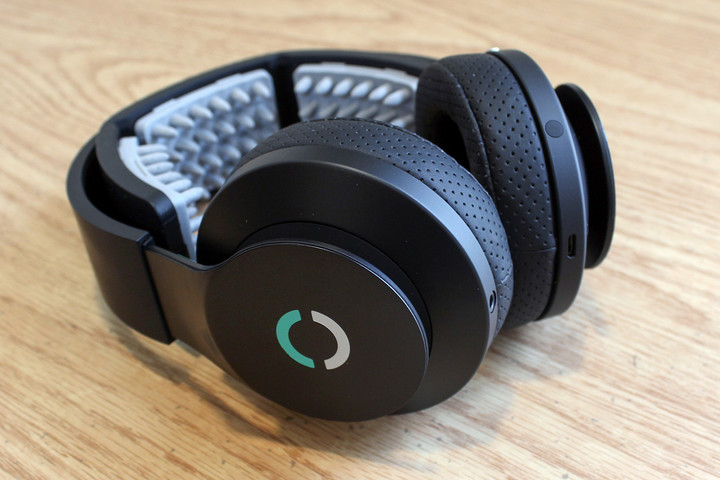
The headphones are built from a combination of flexible metal and plastic that feels heavy-duty yet lightweight. They are pre-installed with 3.5-inch open leatherette ear cups, which provide a soft cushion while still allowing sound to pass-through if you need to pay attention to your surroundings, when biking or jogging for instance. You’ll also receive a pair of closed ear cups that you can swap in for better sound isolation. The headphones charge via microUSB and should last about eight 20-minute neuropriming sessions before needing to be charged.
The headphones do play music too, and you can plug them into any audio device using the included flat audio cable with in-line mic. You won’t be able to listen to music wirelessly, however, since the built-in Bluetooth connection is used exclusively for pairing the neuroprimers to the Halo Sport app on your smartphone or mobile device. As headphones, the audio quality is fair, which you’d hope for given its price. The sound is relatively clear with bright trebles, but mid-ranges are somewhat subdued and the bass isn’t particularly strong. The closed ear cups improve the balance somewhat, but the Halo Sport headphones can still sound a bit muffled.
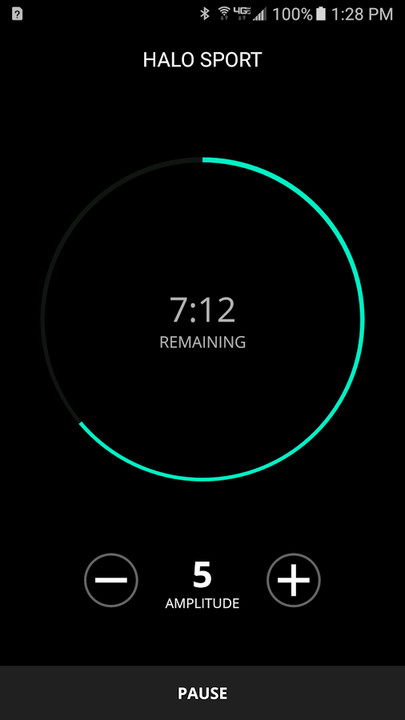
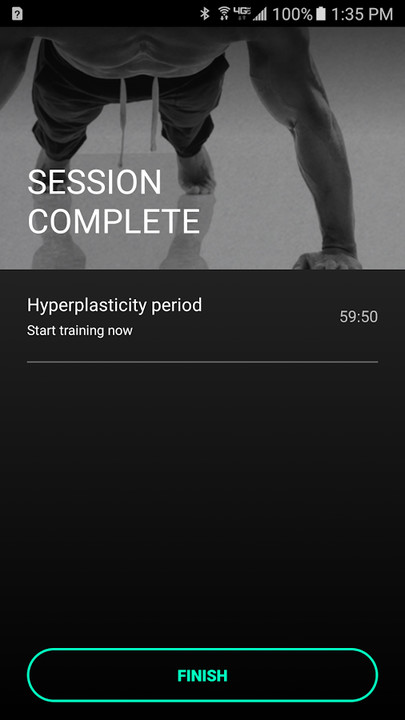


Acoustic performance aside, the real reason you’re considering buying these is for their brain-boosting ability, and you won’t need to listen to music for that benefit. The Halo Sport app that controls the headphones is user-friendly and simple. It guides you through installation of the neuroprimers and lets you know when you have proper skin contact to deliver those brain-zapping electrical impulses. If the app shows poor contact with the primers, you can wiggle the headband until the nibs are touching your scalp or spritz the primers with a little more water. Three priming modes let you focus training on the whole body or hands and fingers for dexterity, with separate modes for left and right.
It’s difficult to determine the exact impact the Halo Sport has on your outcome.
During the 20-minute neuropriming sessions, the electric pulses from the primers feel prickly right where they touch your skin. Depending on the amplitude you choose it can feel very mild or sting quite a bit. It’s not painful per se, but it does take some getting used. The higher you set the amplitude, the more you’ll feel the pinpricks, so start at 1 and work your way up to 10, if you can take it. The priming effect is supposedly the same, no matter which amplitude you choose, begging the question of what amplitude really does. Halo recommends that you do light stretching, warm ups, or the less intense part of your workout during the priming session. Afterward, the neuroplastic effect lasts for about an hour, which is when you do the more intense part of your workout or training.
So does it work? The first thing to know is that you won’t get stronger or faster just by wearing these; you still have to train hard to reach your goals. The second is that it’s difficult to determine the exact impact the Halo Sport has on your outcome, because there are a lot of elements that effect any improvements you see. We conducted our own non-scientific trials using the Halo Sport for weight training and touch-typing practice, and we saw improvement in both cases. We measured upper-body strength gains via maximum pull ups after 4 weeks of training with the Halo Sport which went from 10 to 13 by the end of the trial (don’t judge). For typing skill, one tester was able to improve speed from 40 words per minute to 50 wpm and improve overall accuracy by double digits over the course of 3 weeks.
While the training and practice itself likely caused much of the gains, the speed and degree to which those skills were improved exceeded our initial expectations. During the training sessions, users noticed a better ability to focus and repeat movements more precisely with ease. Placebo effect or not, the experience was persuasive. While these aren’t Bose-quality headphones, their potential for athletic enhancement puts them in another category altogether.
Uber president quits in response to controversies
Uber might be on the hunt for a second-in-command to keep its behavior in line, but that isn’t stopping one key executive from heading out the door. Recode sources claim that company President Jeff Jones is leaving after having been on the job for less than a year. Reportedly, the string of controversies in recent weeks were simply too much. Between defying law enforcement, sexual harassment allegations, dodgy self-driving claims, the uproar over Trump’s economic council and the CEO’s outburst, Uber just wasn’t the ridesharing outfit Jones thought he was joining in 2016.
Uber wouldn’t go into detail about the departure when we reached out, but did confirm it. “We want to thank Jeff for his six months at the company and wish him all the best,” the company says. However, the tipsters claim that the search for a COO had nothing to do with Jones’ exit.
Uber had poached Jones from Target (where he was the marketing chief) in August. At the time, he was a big coup. He was the ticket to helping Uber both scale its business and (ironically) mend its reputation. He just didn’t pan out that way, however, and may have made things worse in an ill-fated driver Q&A where he didn’t appear to take complaints seriously. Jones may have meant well, but he apparently got more than he bargained for.
One thing is for sure: so long as the report is accurate, it doesn’t look good for Uber. While the firm is increasingly serious about improving its corporate culture, an exit like this would give management candidates the impression that there’s a lack of confidence at the top.
Source: Recode
Facebook may show off its hardware efforts in April
When Facebook launched its hardware-focused Building 8, it raised all kinds of questions: just what was it making in there, and when would you see the first fruits of its labor? You might not have to wait long to get the details. Sources speaking to Business Insider claim to have a broad overview of not only what Building 8 is creating, but when you might get to see it. The team is reportedly working on four advanced technology projects, and is poised to play a key role in Facebook’s F8 conference in April. In other words, some of its secretive work would be revealed in a matter of weeks.
Clues to some of it have surfaced in the recent past. There’s already been talk of brain-scanning tech, and recent hires hint at some kind of drone (it’s not clear that this is related to the existing internet drone project). Others, however, are relatively fresh. One would focus on augmented reality, according to the insiders, while another is headed up by a Stanford cardiologist with knowledge of “early-stage medical device development.”
Building 8’s leader, ex-Googler Regina Dugan, may have even given a clue as to the augmented reality project. Not long ago, she wrote two posts decrying the inability to truly connect with people who are far away, and was “optimistic” that “hardware advances” could help solve the problem. An augmented reality system that makes it feel like others are in the room, perhaps?
The company hasn’t confirmed anything, so it’s still a good idea to take this with a grain of salt even if it’s accurate. Development teams can miss schedules or cancel projects entirely, after all. If there’s any truth here, though, Facebook is about to take a big step toward becoming a multi-product hardware company that isn’t just focused on VR.
Source: Business Insider
11 unreal houseboats that will set your imagination adrift
With oceans, lakes, and rivers taking up a major chunk of the Earth’s surface, it was only a matter of time before structures typically reserved for land began to make their way to the water. As far back as the early 1900s — and likely earlier — the concept of creating a house on water began taking shape, popping up in water-friendly cities such as Amsterdam, Netherlands, and Portland, Oregon (DT’s home, sweet home). Over the years, countries like Zimbabwe, India, and Laos have utilized houseboats to entertain tourists, travel from city to city, or simply enjoy some time spent off land.
More: The 30 most amazing shipping container homes
While there still exists a community of these traditional houseboats, the market for lavish floating homes is at an all-time high. This new crop of luxurious, contemporary, and — at times — outrageous floating homes took the real estate world by storm, and we’ve found 11 of our absolute favorites from around the globe. With most of these designs coming from the minds of brilliant architects the world over, the following homes are truly works of incredible art and stunning construction.
The Fennell Residence — Portland, Oregon
At first glance, it’s clear famed architect Robert Harvey Oshatz put his unique design touch on this spectacle of a houseboat. Seated on the scenic Willamette River in Portland, Oregon, the Fennell Residence features clever use of glulam timber beams, giving it a warm, cozy interior. The living and dining rooms directly face the river and feature expansive glass windows that have the ability to perfectly capture a gorgeous sunset.
A lofted master bedroom sits above this residence’s study and also looks out over the living room and into the Willamette River. Oshatz played perfectly with this houseboat’s spatial differentiation, giving it an incredibly stunning curvilinear form, which makes it a wonder, no matter the time of day.
Do you think your ISP is cheating you? These speed test sites help you find out
Internet service providers like to make a lot of claims about upload and download speeds when you sign up, but do you ever wonder how those numbers compare to the speeds you’re actually getting once your connection is set up? These alternative browser-based speed tests will help you determine your upload and download speeds, as well as identify other issues with your network, such as packet loss, latency issues, or physical connection problems. Here are several of our favorite options, each of which is dependent on what kind of data and interface you’re looking for.
More: Think your internet is slow? It probably has something to do with where you live
Speedof.me

Speedof.me is an HTML5-based speed test that’s lightweight and designed to replicate real-world browsing and downloading conditions by requesting a series of files in increasing size and recording the speed at which they’re downloaded. Not only does the site display a graph of speeds achieved in real-time, but also allows you to track your results against previous tests. Rather than selecting a location, the website calculates the quickest and most reliable server from 59 available servers, and all files are downloaded and uploaded in sequence – -rather than simultaneously — to imitate real internet browsing conditions.
Test your bandwidth at:
Speedof.me
TestMy.net

If you’re looking for a test that offers more data than the average speed sight, TestMy.net runs a series of tests and provides a lot of useful comparison data. There are separate options for both download and upload tests, so be sure to try them both.
When it’s done, the results show your speed as rated against other recent users, so you can get a good idea of where you stand. It also displays a graph with your connection over time, so you can see if you had trouble sustaining a good connection the whole time. If these numbers are a little unfamiliar to you, there’s also plenty of documentation and easy-to-understand guides that can help you better identify what the problem is with your internet connection.
Test your connection at:
TestMy.net
Speedtest.net

Ookla’s bandwidth diagnostic software shows up on a number of the other speed test sites listed here, but the most full-featured iteration of the test is on Speedtest.net, which is owned by Ookla. The tech used here is both intelligent and speedy. It picks five nearby servers (out of a list of more than 1,000), runs a full test, and returns upload and download speed, latency, and packet loss.
You can fill out a survey after the test, answering questions about the claimed speed of your ISP and monthly connection costs, which allows Ookla to amass an impressive database of consumer connection information, which can be viewed and broken down by region on their NetIndex site. The site uses a flash-based applet, but it’s lightweight and didn’t seem to have a noticeable impact on testing speeds.
Test your connection at:
Speedtest.net
Bandwidth Place

Another HTML5-based speed test, Bandwidth Place, pushes aside anything that might get in the way of accurate results, and is lightweight enough to run on a large number of devices. The site has been around since 2002, but adopted the new HTML protocol in early 2013 to expand its compatibility and allow easy access from mobile devices.
Server selection is either done by lowest available ping, or using specific locations and servers that allow you to see how distance alters your latency and speeds. In addition to offering internet speed information, Bandwidth Place also provides news about broadband services and offers regarding more comprehensive connectivity options.
Test your connection at:
Bandwidth Place
Fast.com

Fast.com is a simple site run by Netflix — and we mean really, really simple. The site automatically launches a speed test and brings up a giant number to show you just what your MBps look like. Of course, Netflix largely intends this to be used for people who want to test if their current speed can handle Netflix content, especially high-def and 4K content that may benefit more from higher download speeds. That said, you can use the test nearly anywhere, and for anything. If you’re not interested in any of the charts or latency data — just a round speed number — then Fast is made just for you.
Test your connection at:
Fast.com
FCC Speed Test for Android

Have an Android device but still want to see how good your connection is? Check out this simple Android app, which allows you to conduct multiple speed tests using both your mobile data and Wi-Fi network. It measures download speed, upload speed, latency, packet loss, and a host of other metrics. This sort of app is particularly useful for when you need to find a strong Wi-Fi connection within a large area — which, in turn, makes it even more useful when traveling. Although the app is intended Android phones, you can download it for multiple platforms.
Download it now from:
Google Play
ISP Speed Tests

If you want an accurate and somewhat more “personal” speed test instead of the general tests available across the internet, we advise you to check out your internet service provider. Many ISPs offer their own speed tests, typically to their customers but sometimes to everyone (Verizon has the Xfinity speed test, for example). There are dozens of these ISP tests out there, making them a worthwhile alternative for most people. The easiest way to find them is to just visit your ISP’s official website and look for them — or to Google “[insert your ISP] speed test” and see what comes up.
The advantage to using these tests is that ISPs should know exactly how to construct a speed test to get accurate results, especially when their own service is on the line. The disadvantage is that this sometimes doesn’t happen, so quality can vary. However, if you’re looking for a second result, these ISP tests allow you to double check numbers.
This article was originally published on December 12, 2013, and updated on March 15, 2017 by Tyler Lacoma to include Fast.com and FCC Speed Test.
Get the most out of Android 7.1 Nougat with these tips and tricks
Android 7.1 Nougat is here, and that means you must get acquainted with a new version of Android. While not much has changed since the last beta, we’ve put together a list of Nougat tips and tricks to help optimize your experience with Google’s latest flavor of Android.
More: When is your phone getting Android 7.1 Nougat? We asked every manufacturer
Not just anyone can download the new update, however — that honor is reserved for Google’s Nexus devices, specifically the Pixel, Pixel XL, Nexus 5X, Nexus 6, Nexus 6P, Nexus 9, Nexus Player, Pixel C, and Android One’s General Mobile 4G. You can read more about availability, and when your device will receive the update here. Otherwise, read on to learn how to make the most of Google’s latest mobile operating system.
Edit tiles in the notification drawer and enable night mode

One of the most significant changes to Android Nougat involves the Quick Settings and notification shade. Unlike the older, static iteration of Android versions past, the new notification window lets you hide the settings tiles you don’t use all that often. If you don’t use the Hotspot tile, for example, you can remove it by tapping the Edit button on the bottom right of the drawer, pressing and holding the tile, and dragging it until it disappears from view. You can do the same thing to the other tiles to rearrange their position.
Thanks to Nougat’s Quick Settings API, you can install third-party apps that add new shortcuts to the fore. Caffeinate, for example, keeps the display on for a few mintues longer than the default setting. Camera Quick Settings tile lets you instantly shoot a selfie with the front cam or a photo with the rear cam. And ScreenFilter adds a customizable filter that suppresses colors.
More: We noshed on Nougat, and Android 7.0 is Google’s sweetest update yet
Android Nougat’s other big add is an experimental Night Mode that automatically switches the display’s color calibration to remove blue hues. It’s better if you want to get a good night’s sleep — viewing devices emitting blue light at late hours can have serious health effects. And in addition to displaying warmer tones, the Settings app also swaps its typically bright color pallete for a darker alternative so that you’re not blinded when you open it in the dark.
Problem is, enabling Night Mode’s isn’t exactly a walk in the park. If you enrolled in the Android beta program, you likely had a tile for Night Mode in the notification drawer that lets you turn it on and off whenever you want. If you’re coming from an older version of Android, though, you’ll need to download this app — Night Mode Enabler. It adds a Night Mode tile to the Quick Settings drawer on compatible devices, and automatically toggles Night Mode on after sunset and off after sunrise.
Trigger System UI Tuner

Android Nougat is all about more control — like changing how your status bar, for example. It’s the top-most area you of the display that shows incoming notifications and details like battery status, Wi-Fi and data connectivity, the time, and more, and Android 7.1 lets you customize its appearance via the System UI Tuner.
It’s as simple as pulling down the notification drawer and tapping and holding the gear icon in the top-right corner. Once it starts animating, the System UI Tuner will be unlocked, allowing you to access customization options at the bottom of your Settings menu.
When you’re in the Tuner, you’ll see toggles for Auto-rotate screen, Hotspot, and Volume. Tapping each individual setting removes them from your status bar. Don’t want anything but notifications in your status bar? You can do that, too.
There are slightly more granular options for the battery and time indicators. You can choose to show the percentage of battery remaining, the percentage left to charge, or hide both percentages from view. The time icon can be similarly be hidden, or shown in minutes, hours, and seconds, or just in hours and minutes.
Prioritize your notifications

Android Nougat allows you to set a priority level for every notification that appears on your device. To do this, tap and drag an individual notification a little to the right or left. Tap on the gear icon that appears, and you’ll see an Importance tab with a slider of priority levels.
There are six in total:
- Level 0: Blocks all notifications from an app
- Level 1: Prevents full-screen interruption and never vibrates or makes a sound
- Level 5: Always allows full-screen interruption and appears at the top of the notification list; and so on.
For more information about each level, head over to Settings > System UI Tuner > Other > Power notification controls.
You can swipe the bar all the way to the left for Level 0, or all the way to the right for Level 5. Which you choose depends on how highly you’d like to prioritize notifications from it. You can also find the controls for each app by heading to Settings > Notifications.
Save your data


Have a limited data plan? Google wants to help conserve some of the data apps use with a new Data Saver tool baked into Android Nougat. Head over to Settings > Data usage > Data Saver to turn the feature on or off. When you turn it on, it will tell you how many apps are allowed to use unrestricted data when Data Saver is on.
Data Saver essentially limits apps from sending or receiving data when in the background — it doesn’t completely stop them from accessing data, but these apps will do so less frequently. If you’re particularly close to hitting your data limit, this tool could prove useful. You can tap on Unrestricted data access to toggle which apps you don’t want Data Saver to restrict.
Add a new language

Good news for polyglots: While previous version of Android offered the ability to swap the primary system language, Android Nougat lets you to add multiple languages. If you speak Spanish and French in addition to Mandarin, for example, you can add all three to Android’s system menu.
It’s pretty straightforward. Open the Settings menu, tap Language & input, select Languages, and select Add a language. Then, pick a language from the list. To switch the system default to another language, press and hold a language from the list and drag it to the top.
To remove a language, select the menu button from the top-right corner, select Remove, and tap the language you want to remove. Then, select the the “trash” icon in the top-right corner and tap OK to confirm that you want to remove it.
Switch between apps quickly and multi-task in Split-screen mode

Split-screen is one of Nougat’s highlights. Similar multi-tasking features have long been present in smartphones made by third parties like LG and Samsung, but Android Nougat brings a native, slightly more polished experience.
To trigger split-screen mode, simply launch an app and press and hold the Recent apps button (the square-shaped icon in the right-most corner of Android’s navigation bar). The app will shrink to fit the top half of the screen, and in the bottom half, you’ll see a few recently-used apps from which to choose.
Rather than pressing and dragging the Recent apps button, you can also swipe up on an app to launch split-screen mode. But you may need to enable the option Android’s System UI Tuner menu.
You can move the middle bar separating the top and bottom screen to adjust the size of each app, and if you swipe it all the way to the bottom, you’ll exit split-screen mode and the top app will take over. If you drag it the opposite direction, to the top, the bottom app will grow to fill the screen.
Split-screen also lets you split two different Chrome browser tabs. Just open Chrome, trigger split-screen mode, tap the three dots on the top-right corner of the Chrome app, and select Move to other window. The tab you choose will move to the bottom, and the previous tab will replace the topmost app.
You can also quickly cycle through the two most recent apps you were using via Nougat’s Quick Switch feature. So if you just left the Dialer app and are currently using the SMS app, you can double tap the Recents button to quickly switch between the two.
Change the DPI


Smartphones come in all shapes and sizes these days, and Android N lets you change the display size to your liking. Head over to Settings > Display > Display Size to change the size of all the elements on the screen — not just the fonts. You can switch from small to large, larger, or largest.
Nougat lets you enlarge or shrink fonts without changing the size of Android’s other UI elements — head over to Settings > Display > Font Size.
Add your emergency information


These days, you’re more likely to have your smartphone on you than a driver’s license, and Nougat lets you store personal information that could prove useful in the event of an emergency. In the Settings menu, head to User > Emergency Information. You’ll see a form asking for information like your name, your address, your blood type, what allergies you have, and more. And once you fill it out, the data can be accessed by a family member or good Samaritan by tapping Emergency Call in the lock screen, and tapping Emergency Info.
Pin your favorite apps to the top


When you tap the share icon in Android, a menu of apps will appear from the bottom. It can be hard to find the right app, but Nougat makes it easier by letting you pin your favorites to the top. In the share menu, tap and hold on an app to pin it, and in the future, they’ll appear at the top of your list for easier access — just press and hold on an app icon and tap unpin if you want to remove it.
Enable “Do not disturb” mode


“Do not disturb” has been a bit of a confusing mess since it arrived with Android 5.0 Lollipop. Thankfully, Android Nougat makes the feature easier to understand and accessible from more places. When you hit either of the volume buttons, you’ll see a Do not disturb toggle.
Settings > Sound > Do Not Disturb offers more robust controls. Here, you can set up Automatic Rules that allow you to schedule times when your phone will enter “Do not disturb” mode — like weeknights or when you’re asleep. You can tap on one of the preset options, or create a new one. And you can set what days you want “Do not disturb” to activate, the time it starts, the time it ends, and which notifications come through. You can also set Alarms to override the end time.
It takes some fiddling. But once you have “Do not disturb” mode configured properly, your alarm will always bring the device out of the mode and you won’t be disturbed by those pesky middle-of-the-night notifications.
Block those pesky numbers


Nougat bakes call blocking into the system, which means it’ll continue to block numbers even when you switch devices or factory reset your phone. Even better, other apps and service providers can access the call-blocking list to provide more robust features.
To block a number, open the default dialer app, tap on the three dots on the top right, and select Settings. In Settings, go to Call blocking to add a number. You can also press and hold numbers in your call log to block them.
Alternatively, you can block numbers from the messenger app. Within the app, tap the menu button in the top-right corner, tap Blocked contacts, and select Add a Number. Then, enter the phone number you wish to block.
Don’t forget about Screen Search (formerly Now on Tap)


Screen Search (formerly Now on Tap), the AI powered visual assistant introduced with Android 6.0 Marshmallow, hasn’t changed that much in Nougat. In fact, it’s been hidden away from the default menu — now, accessing it requires launching the Google Assistant and scrolling slightly down. (Alternatively, you can wait approximately five seconds for it to appear automatically.
Screen Search, as the name implies, scans whatever’s on your screen and identifies images and text. It can also trigger quick access to other apps — if someone mentions hanging out at Central Park on Saturday, Screen Search will serve a link to the default calendar app and offer to create an event. And a recent update lets you to use Screen Search to identify objects and buildings your phone camera’s pointing at.
Set a separate wallpaper for your lock and home screens

Sometimes, you just don’t want to use the same image for your lock screen and home screen. It’s a feature that’s been available from a number of OEMs, but finally made its debut in Android proper with Nougat. It’s also relatively easy to use — just long-press the home screen to change the wallpaper image. Once you choose the picture you want to use, select whether you want to make set it as your home screen, lock screen, or both.
This article was originally published on August 28, and updated on March 15 by Kyle Wiggers to include directions on how to set the wallpaper in Android Nougat.
Intel’s first hyper-fast 3D drive is meant for servers
At last, Intel is making a stand-alone drive based on its extremely fast 3D storage technology… although you’re probably not about to pick one up yourself. The chip maker has unveiled the Optane SSD DC P4800X, a drive destined for the PCI Express or NVMe slots in servers. It only has 375GB of space, but its extremely low latency (typically under 10µs) and 2GB/s throughput means that it can serve as either a memory cache or storage. If you’re involved in high-performance computing, online shopping or other categories obsessed with gobs of RAM and rapid turnaround times, this is theoretically your dream device.
Intel also promises higher endurance than your typical SSD. The inaugural Optane model can withstand stresses normally associated with RAM, writing about 12.3 petabytes of data in its lifespan.
You can get the drive right now if you’re part of Intel’s early shipping program, and there are promises of larger capacities (750GB and 1.5TB) and U.2 form factors coming later in 2017. Not that you’re going to drop any of them into your gaming rig any time soon. The 375GB version costs a hefty $1,520 — even if you could realistically buy one for home use, you’d get far more value out of a high-capacity conventional SSD. Optane won’t be viable for mainstream PCs (outside of tiny capacities) until prices fall much, much lower.
Source: Intel
Canada’s first spaceport could host launches in 2020
Canada will finally have its own spaceport courtesy of private space corporation Maritime Launch Services. The company plans to start building (PDF) the facility next year in an isolated town on Nova Scotia’s eastern coast. It decided on the site after assessing 14 different candidates. The town’s and surrounding areas’ low population density and the fact that rockets launching from the spaceport will fly over a large body of water make it the perfect location.
The spaceport is a commercial venture between MLS and a Ukrainian firm — there’s no government funding involved at all. MLS wants the first launch to happen as soon as 2020, and it wants to the spaceport to host as many as eight launches per year by 2022. Most of those missions will involve Ukrainian-built Cyclone 4M rockets, and it’s unclear if Canada’s space agency and other private space companies can use it. If the agency can, then it’ll no longer have to ship rockets to Virginia. For now, the company is working on getting federal and provincial approval so it can break ground and start with the spaceport’s construction.
Via: Popular Mechanics
Source: Maritime Launch Services, CTV News
 AIVAnet