


Android creator Andy Rubin is building a high-end smartphone
It turns out the rumors were true: Android creator Andy Rubin is returning to phones with his latest company Essential Products Inc. According to a report from Bloomberg, Essential aims to bring together several mobile and smart home products under one platform and the company will release a flagship smartphone around the middle of this year.
In a filing with California regulators, Essential listed tablets, smartphones and mobile software among its products, but according to Bloomberg’s sources, the company’s first device will be the center of a whole suite of connected products. Essential’s 40-person team was largely poached from both Apple and Google, so the phone will compete directly with the iPhone and Pixel in terms of both specs and price point. Essential’s various prototypes reportedly sport features like a large, bezel-free screen that’s bigger than an iPhone 7 Plus and a ceramic back that requires some finesse to manufacture. The company is also working on a version of Apple’s 3D Touch and developing its own magnetic charging and accessories connector that will allow the device to add aftermarket hardware features. As for the software, Bloomberg says it’s currently “unclear” whether the devices will run on an Android-based operating system.
Essential Products at least partially grew out of Rubin’s Silicon Valley incubator Playground Global, which is focused on quantum computing and artificial intelligence. Foxconn, which is an investor in Playground Global, is reportedly in talks to build the new device.
Source: Bloomberg
FTC vs D-Link: All bark, no bite
Most routers are bad. Bad to their little router bones. But they were made that way. And when you get one of the bad ones in your home, they sit there like little privacy and security time bombs, just waiting to become conduits of evil in your house.
You think I’m joking. But if you look at the state of router security, then you will know this is a big problem. And it’s one that’s nearly impossible for normal people to fix.
It’s been like this for a long time. As you’d expect, hackers at infosec conferences yelling about abysmal router security have been ignored since well before connecting toasters and vibrators to the internet were someone’s reckless IoT fantasy. Some of those presenters have even been harassed because of what they’ve said about how unsafe routers are.
While consumers remained in the dark, things like botnets grew.
That was, until the Mirai botnet took out half the internet last year — through routers. Mirai loves routers. That was when most people found out what happens with internet appliances made by companies that give zero fucks about end-user security. That our routers were the gateway for lots of malicious activity. The big collective “we” learned that Mirai was in our homes, but router security was out of our hands.
That’s why the the US Federal Trade Commission went after Taiwan-based computer networking equipment manufacturer D-Link Corporation and its US subsidiary in a new lawsuit this past week.
You see, D-Link routers have been identified as being among the devices used for Mirai botnet attacks.

They’re also constantly being used as examples in hacking demonstrations. Hackers love D-Link. The company’s products have their own section on popular hardware hacking site Hack A day. In fact, D-Link has been running buggy firmware for so long that it’s a constant source of hacking fun and games. Two recent examples include posts by embedded device hacker collective /dev/ttyS, which wrote Hacking the D-Link DIR-890L and What the Ridiculous Fuck, D-Link?!
In a lawsuit filed in federal California court, the FTC accused D-Link of placing consumers in harm’s way with misrepresentations about its router and IP camera security. And the company’s general lax approach to ensuring its end users were safe in just about every aspect, despite its promises.
The FTC wasn’t nice about it. In its complaint, it stated that D-Link included “well-known and easily preventable software security flaws” in its products, and repeatedly failed to test and repair its software to prevent them from being abused. The complaint also says “security gaps could allow hackers to watch and record people on their D-Link cameras without their knowledge, target them for theft, or record private conversations.”
The agency said D-Link was failing to ensure people had the most basic security safeguards that infosec industry cornerstone OWASP has been warning about since 2007 (ouch). FTC also spanked the company for leaking its own private code-signing key in 2015 and leaving it in the open for months. That meant malicious hackers could make malware look like it was safe software coming straight from D-Link.
The government agency also raked D-Link over the coals for having hard-coded access credentials on its IP cameras. This would let anyone with the login to spy on the camera’s feed, and can’t be changed by the user.
The FTC was indeed making a statement about IoT security. Just one day earlier, the agency had announced its “Internet of Things Home Inspector Challenge” — a bug bounty.

D-Link clapped back. Mere hours later, the company lashed out with a salty Q&A for its customers, a press release and statements sent to journalists. Chief information security officer, William Brown, told the press the company “denies the allegations outlined in the complaint and intends to defend itself.”
D-Link noted that the FTC didn’t point out any specific cases of the company’s products being breached in the US. “The FTC speculates that consumers were placed ‘at risk’ to be hacked,” D-Link said, “but fails to allege, as it must, that actual consumers suffered or are likely to suffer actual substantial injuries.” The company said it “maintains a robust range of procedures to address potential security issues, which exist in all Internet of Things (IOT) devices.”
Considering that D-Link has retained the Cause of Action Institute, an American public interest law firm whose mission is government accountability, this is destined to turn into a power struggle long before consumers see the benefits.
Many believe the FTC’s complaint against D-Link is a warning shot at the IoT industry.
Personally, I’m not getting my hopes up. And it’s not just because the other two major router manufacturers on the planet are just as hackable (like Cisco) and known for committing the same security fails as D-Link (like Huawei).
It’s because the FTC hasn’t shown us the money — when it comes to actually punishing companies for screwing users, that is. I’m specifically referring to the Snapchat FTC settlement.
The FTC went after the app with the same argument it has against D-Link: Not that the app was proven to have harmed anyone, but that it lied to its users about practically everything, most especially security and its ‘disappearing’ photos.
In May 2014, the FTC announced its settlement agreement with Snapchat, formally acknowledging the app lied about privacy and security, and took user data without consent.
The settlement amounted to little more than a warning to stop lying, and submitting privacy reports to the FTC every six months for 20 years. No fines, restrictions or course-changing controls were imposed. Under the settlement, Snapchat would be free to keep doing what it’s good at (bullshitting users about privacy and security).
With that settlement, the FTC certainly sent a message.
One that is easily ignored.
Nintendo will have a Switch app to help with parental controls
Nintendo dropped all the official details on its new Switch console that’s set to arrive in March while most of us were sleeping. Along with a truckload of hardware and software info, the company also has an app for Android and iOS to help parents keep tabs on their child’s gaming habit. The appropriately named Nintendo Switch Parental Controls mobile software will allow you to set time limits for playing sessions and more.
When time is up, the system will show an alert in the top left corner of the screen, even if they’re mid-race in Mario Kart. Those alerts will continue to display how far over the limit a player has gone until the session ends. There is an option to have Switch automatically go into sleep mode when the time limit is reached, should the need arise. You can also set different time limits based on the day of the week, which means you can let your kids play longer on the weekends.
The Parental Controls app provides a monthly report of how long your kids spent playing specific games. Restrictions are available for games based on age rating and you can disable online play and social media features as you see fit. Parental controls on Switch apply to the entire system rather than individual players, so keep that in mind if you’re looking to establish some ground rules in your living room.
Source: Nintendo (YouTube)
MacRumors Giveaway: Win a Case or Sleeve for Your MacBook From WaterField Designs
For this week’s giveaway, we’ve teamed up with WaterField Designs to offer MacBook and MacBook Pro users a chance to win a Syde MacBook Case or a Maxwell Sleeve for their notebooks.
Available for the MacBook, the 2016 13-inch MacBook Pro and the 2016 15-inch MacBook Pro, the Syde MacBook Case is priced at $159 and is a simple, slim bag that can hold a MacBook and a few other accessories. Made from either black ballistic nylon or a brown waxed canvas, the bag has a simple magnetic closure so it’s easy to get a MacBook in and out.
A padded neoprene sleeve keeps the MacBook safe from bumps and scratches and a leather front pocket holds a charger and other odds and ends. A leather handle is included, as is a strap, and there’s also a rear pocket for holding documents.

The Maxwell Sleeve is also available for the 12-inch MacBook and the two new MacBook Pro models, plus there’s an iPad Pro version for Apple’s 12.9-inch tablet.
Priced at $99 to $119, the Maxwell Sleeve is available in a water-repellant Nanotex-coated material, waxed canvas, or ballistic nylon, and it comes in several different colors (kelly, crimson, slate, cobalt, black ballistic, and waxed canvas, a brown shade).
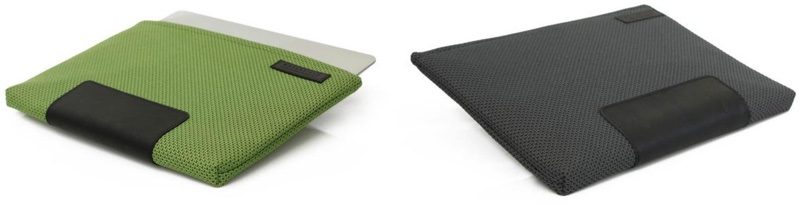
Like the Syde, the Maxwell uses a simple noiseless magnetic closure and offers padded protection for the MacBook, plus it can be ordered in vertical or horizontal orientation. It doesn’t have additional pockets or straps (but you can get one if you want), so it’s ideal for sticking into another bag or backpack.

We’re giving away one Syde and one Maxwell, with winners to choose size and color. To enter to win, use the Rafflecopter widget below and enter an email address. Email addresses will be used solely for contact purposes to reach the winner and send the prize. You can earn additional entries by subscribing to our weekly newsletter, subscribing to our YouTube channel, following us on Twitter, or visiting the MacRumors Facebook page.
Due to the complexities of international laws regarding giveaways, only U.S. residents who are 18 years of age or older are eligible to enter. To offer feedback or get more information on the giveaway restrictions, please refer to our Site Feedback section, as that is where discussion of the rules will be redirected.
a Rafflecopter giveawayThe contest will run from today (January 13) at 11:00 a.m. Pacific Time through 11:00 a.m. Pacific Time on January 20. The winners will be chosen randomly on January 20 and will be contacted by email. The winners will have 48 hours to respond and provide a shipping address before new winners are chosen.
Tags: giveaway, WaterField Designs
Discuss this article in our forums
Commute: Heavy Traffic – When games simulate life, are they still fun? (App Review)

Sometimes fun can find you in the weirdest of places. A boring commute is rarely one of them, but making fun out of the monotony of sitting in traffic is exactly what Commute: Heavy Traffic aims to do. However, can anything really make a constant stop-and-go of city traffic any fun? Let’s take a look.
Developer: Kiary Games
Price: Free/IAP
Download: Google Play, iOS
Controls
This game has a quick and easy control scheme. It lets you pick from its standard controls or a more advanced set. Basic control has your car move forward when you touch and hold the screen and brake when you let go. Advanced settings will cause your car to accelerate when you touch the screen but will only brake when you touch the brake button at the bottom center of the screen. Both modes have you simply swipe to the left or right to switch lanes. I prefer different controls for the different game modes, using the basic for most modes, but switching to advanced when I play a mode that requires more lane switching. Once you take a minute to learn the ropes, it’s off to the game.
The Commute
 Ugh… We’re never gonna get there.
You start off with a full road of traffic in front of you. Once you tap to begin, traffic comes and loads up behind you completely boxing you in. Every few seconds, traffic in front of you will move forward and you need to keep up with it or get rear-ended. There is a sweet spot behind the car in front of you about a car and a half long that you can stop in safely. The cars behind you care little for your safety or their own, so you can’t expect them to stop any further back than your designated safe space.
Similar to driving a real car, the faster you drive the more time to need to stop, so timing is key along with tapping to control your speed. Once you get your rhythm and timing down, you can make it pretty far. There are different mission objectives, but most are nothing more than making it to the next major building. There are also a few different locale to visit, but there isn’t really any change in gameplay. You can unlock multiple cars that have different stats, but for the most part these changes are not very helpful or necessary to your success in the game.
Game modes
 Your red car really stands out in the sea of brown and white vehicles, so you can easily keep track of yourself as you smash carelessly into everyone else around you.
Besides the default game mode, there are two other modes included: Two Way Traffic and Wrong Way. Two Way Traffic adds 3 additional lanes next to your regular lanes that are traveling in the opposite directions, but they have so much less traffic. Is it worth the risk to jump to the other side of the road to get a bit more distance? You have to decide if and when it’s worth the risk because merging back into your proper lanes is very difficult and requires good timing, but the lure of picking up a lot of speed from the nearly empty roadway is super tempting. When the traffic does come down the road, you will not always have a safe space, so be careful.
Wrong Way is just like it sounds. You are going the wrong way down the highway. There is more space between the cars in this mode, so it’s easier to dodge them, but again they don’t care about you or your safety very much. The will occasionally brake for you, but you can’t rely on it because just as many will crash into you head on. Both of these modes are an amazing twist on the core gameplay and are incredibly fun.
Conclusion
Commute: Heavy Traffic tries to take the most boring and unfun part of your day and create something fun out of it, and it succeeds quite well. You have your main game mode that brings a lot of challenge, and the other two modes are incredibly fun. With a slew of vehicles to unlock and several locations to visit, you can play this one for a while.
How to install Kodi on an Amazon Fire TV Stick
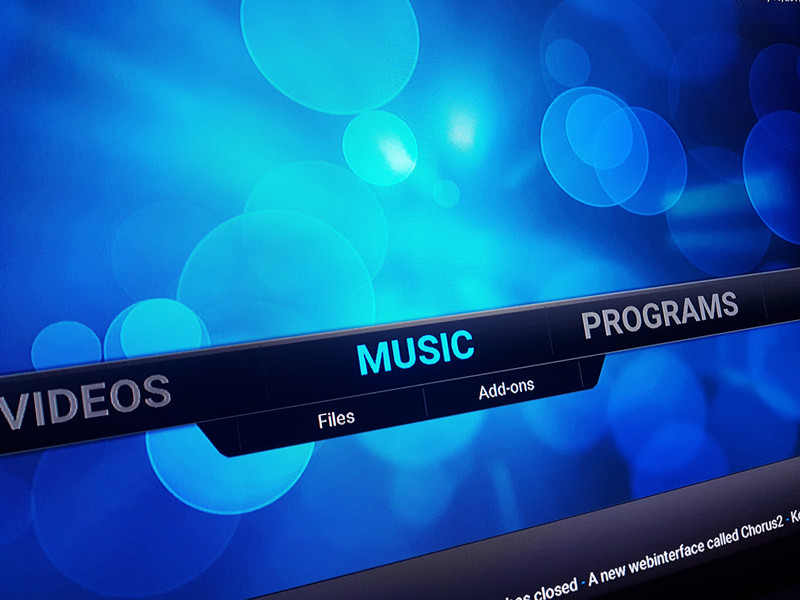
The Fire TV Stick gets even better when you step outside of the Amazon App Store.
Amazon’s Fire TV Stick is really cheap, really easy to use and delivers a ton of content to any TV. That’s why it’s so popular. But it’s also a small computer that can run Android apps, including apps that you get from somewhere besides the Amazon App Store. Like Kodi.
Kodi is a video player. It can play local files or stream files from most any source, including the internet. A lot of people use Kodi because someone else is hosting streams full of pirated content. They’re doing that for the same reason you would want to stream your own content — the Kodi front-end is pretty awesome. It’s easy to understand use, has a simple setup procedure and was designed specifically for a big screen experience. There are plenty of media players, but Kodi is the one people keep coming back to.
It’s also pretty easy to install on your Fire TV Stick if you want to stream media from somewhere other than Amazon’s curated list of apps. Here’s how it’s done.
See at Amazon
How to install Kodi on the Fire TV Stick
The first thing you need to do is set up your Fire TV for accepting applications from outside of the Amazon Appstore:
- On the main screen go down to Settings.
- Then scroll over to System.
- Find Developer Options and then ensure you enable both ADB Debugging and Apps from Unknown Sources.
Then you’re ready to start actually installing Kodi:
- On your Fire TV, head to the Appstore. Search for Downloader (by eSaba) and install it.
-
Open the Downloader app and enter this URL: http://mirrors.kodi.tv/releases/android/arm/kodi-16.1-Jarvis-armeabi-v7a.apk
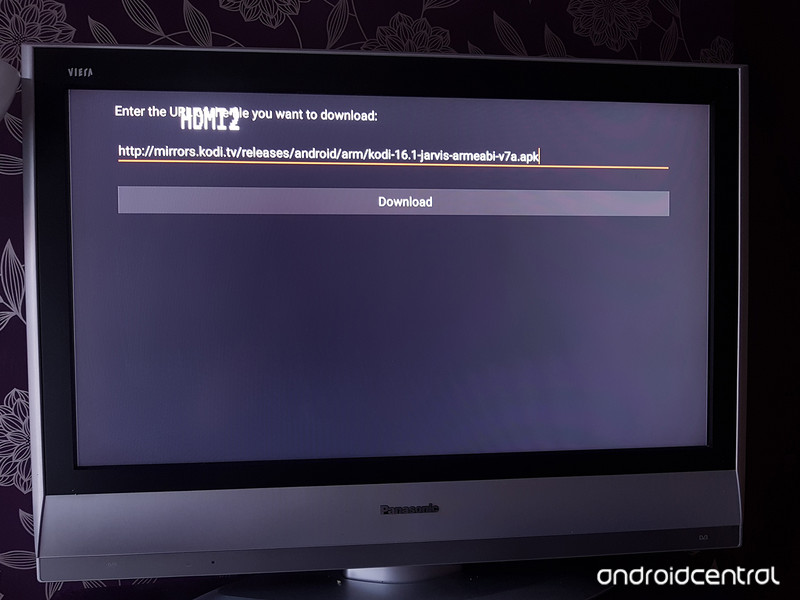
- You could use the remote and on-screen keyboard for this, but a better option is to download the Fire TV Remote app to your Android phone. That way you can type it in using your phone’s keyboard.
-
Once the app has downloaded you’ll be prompted to install or cancel. Click Install.
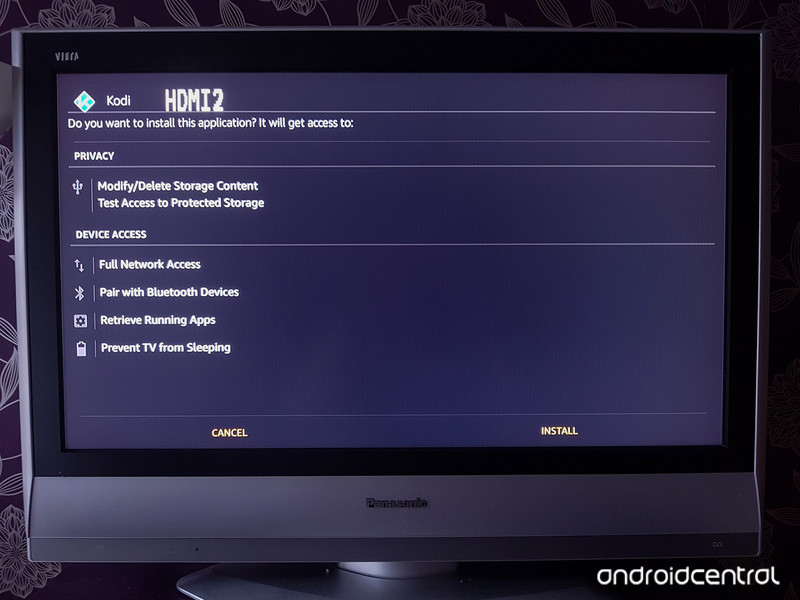
- Once the install has finished you can either open Kodi directly or find it added to your Apps section on the Fire TV.
You’ll go through a simple setup where you tell Kodi what language to use, what time zone you’re in and what its name should be for network shares. Once you have it set up and running you can do a few things to make it work better for you and be able to do more with Kodi.
After you’ve installed Kodi
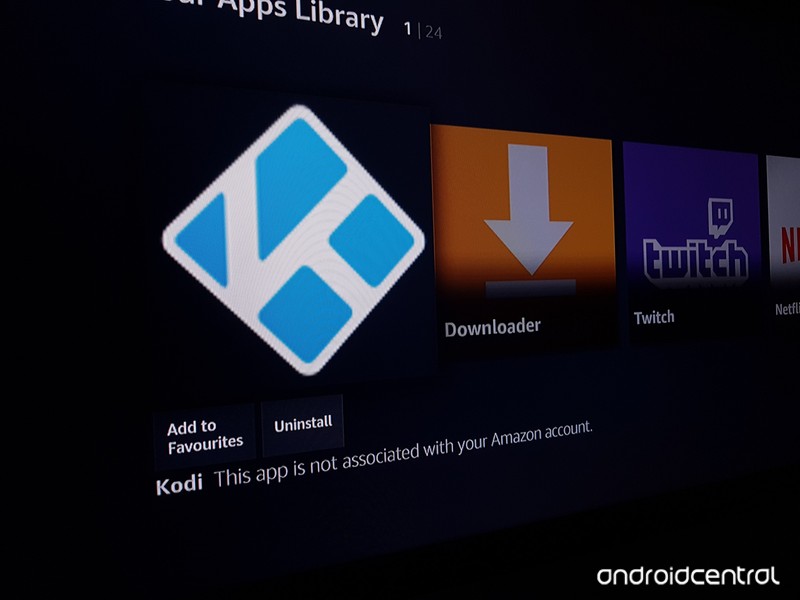
- In the Settings, you’ll find themes with different layouts that might work better for the Fire TV remote. You should definitely take a look at what’s there.
- Install some add-ons that tell Kodi where to stream content from the internet. You’ll find add-ons for YouTube, the Smithsonian Channel, news channels and plenty of cable TV networks.
- Install an Android remote app so you can control Kodi from your phone. Kore is the one I’m using, but a search for “Kodi remote” at Google Play will show you everything that’s available.
And make sure to enjoy it! The Fire TV Stick is great for streaming Amazon media as well as popular networks like HBO or Netflix that have a nice app, Kodi can handle everything else.
Enjoy!
How to clean Daydream View

Your Daydream View is probably easier to clean than you think!
As you play with a headset, and share it with your friends, it’s going to take some minor damage and accumulate dirt. To keep your adventures in VR as awesome as possible, then you’ll need to know how to easily clean your headset. It can be a little bit trickier with Daydream View because it is covered in fabric and not plastic. Thankfully Google has made it easy to keep your headset in tip-top shape, and we’ve got a few tips to help you out.
Read more at VRHeads.com
Struggling LeEco gets $2.4 billion investment lifeline from Chinese real estate company
LeEco has gotten some much-needed cash from a new investor.
LeEco has been struggling financially as of late as it expands globally, but Chinese real estate holding company Sunac China Holdings seems to have faith in the company as it acquired stakes in three LeEco businesses for 16.8 billion yuan, or about $2.4 billion.

Sunac acquired relatively small stakes in LeEco’s video streaming service and film production unit, alongside a 33% stake in LeEco’s television hardware subsidiary. LeEco has had some interesting TVs of late, but the company as a whole has struggled to prove itself in global markets, especially in the U.S., and the company has undergone shake-ups, layoffs and has overextended itself, leaving the future of the company uncertain as it continues to refine and condense its plans going forward.
An investment like this is a considerable vote of confidence, but it still remains to be seen if LeEco can put it to good use. We can only hope.
Using folders on your home screen and how to make the most of them

Folders are kinda like TARDISes.
They’re bigger on the inside, have a lot of cool toys hidden inside, and are easily disguised and overlooked. Folders are by no means a new concept for launchers, but they come with no small amount of stigma, especially when it comes to their looks. Thankfully, there are a few tricks for both using them and theming them that might help you learn to bite the bullet and fill up some folders.
Making folders in Android launchers

Creating a new folder on your home screen is as easy as dragging one app shortcut on top of another in most launchers. Getting rid of a folder is just as simple: you can either drag it to the trash just like a widget, or if you drag all but one app out of the folder, the folder will revert back to a single app shortcut.
While most launchers don’t have a limit to how much to can put in a home screen folder, as a rule of thumb you should keep it between two and nine. Once you get over ten apps in a folder, things can get a little hectic.
Dock folders

While most users stick apps on a page of their home screen, a few years back I took it a step further and never looked back: I put them in my dock. Today, my dock is almost entirely made of folders. Putting a folder in the dock means that rather than having to swipe over to my entertainment apps or my work apps, my folders are there in the dock on all home screen pages. It also frees up space on my home screens for more widgets or a cleaner home screen.
To see if your dock will support your newly-made folder, long-press-and-drag one of the icons already in your dock out in order to make room, then drag a folder down to the newly-opened space. If the folder is placed in your dock, congrats, your launcher supports it. If it doesn’t, take a look at some launchers that do.
If you give your folder a gesture action, that folder in your dock can be doubly useful.
Folder actions

Folders can be more than a simple space to dump apps, they can be gesture shortcuts. Gestures mean that folders can pull double-duty. For instance, in Action Launcher, folders can be converted in Covers. Covers make the first app in the folder both the folder icon and the tap action for the folder, hiding the folder until you swipe on that app icon.
Activating Covers in Action Launcher
Tap a folder on your home screen.
Tap the three-dot menu icon in the bottom right corner of the folder.
Tap Make Cover.

They’re pretty cool, right? Nova Launcher Prime does Covers, too, just without the catchy name and the singular configuration.
In Nova, you’re given a choice of assigning your shortcut to either the tap or swipe on your folder. I say shortcut because Nova lets you set any Nova action, app, or system shortcut instead of just the first app in the folder.
Adding Swipe actions to folders in Nova Launcher
Long-press on a folder.
Tap Edit.
Tap None under Swipe action.

Select the app or shortcut you wish to open with your folder gesture.
(Optional) To switch your Swipe action to a Tap action, tap Swipe to open folder.
Tap Done.

Swipe actions have made folders a convenient place to hide some of my Tasker shortcuts over the years, but you can also use Swipe actions to direct-dial a contact, open a favorite playlist, navigate to a frequent destination, and much more. You can also add a swipe action to any app icon on your home screen, not just folders.
Theming folders
One of the many qualms people can have with folders is that they look ugly, and in a lot of instances on a lot of launchers, they’re not wrong. Background can be garish — or worse, bland — and folder icons can be busy and mismatched. But don’t worry, we can fix that!
Theming folder backgrounds

 Action Launcher’s Quicktheme and Nova Launcher’s Folder background picker
Most theming-oriented launchers allow you to change the color of your folder’s background away from the boring white/grey they start off with. Action Launcher lets you select one of several shades in Quicktheme, but these shades are based on colors it extracts from your wallpaper, so it’s easier to get stuck with shades you don’t want, especially if you’re using a live wallpaper. Thankfully, no matter what, you can fall back on Material Light, Material Dark, and good-old AMOLED-friendly Black.
Nova Launcher gives you the freedom to pick whatever color and transparency under the hex-code sun you wish, and that transparency means that if you get your colors matched up properly, folders can mesh beautifully with your home screen theme without completely covering it up.
Theming folder icons

Folder icons get a bad rap because some older versions were cluttered, clunky, and some were straight-up ugly. But new folder icon styles come every few years, and this year’s Pixel-style ‘porthole’ folder icon has been brought to many theming launchers including Nova and Action. Choosing a folder icon style that suits your theme can do wonder, but at the end of the day, folder icons tend to look smaller and busier than single app icons.
The easiest way to overcome this is to change your folder icon to the icon of a single app within your folder. In fact, in Action Launcher, this is really your only option.
You enable the folder’s Cover, which switches the folder’s icon to the first app in the drawer while setting the shortcuts we mentioned above. While this means that these folders will re-theme as easily as setting a new icon pack, it also means if you want to use a custom dock or folder icon then you’ll have to set that as the first app’s icon rather than setting a separate icon for just the folder.


In Nova Launcher, you can set a folder icon separate of any swipe gestures or apps within, which allows you a little more freedom in not only the theming of your folder, but also the placement of apps within it. Because you can set any icon you want for your folders, you can set your icon as a blank PNG file and make your folder invisible, allowing you to put your sensitive apps at your fingertips while keeping them from prying eyes.

We hope these tips encourage you to give folders a chance. Say no to massive grids of apps. Say no to swiping across your home screen pages to find the app you’re looking for. Say yes to folders. And stay tuned for Android Central for more home screen tips and tricks!
Three Takata executives charged in global airbag scandal
It’s official: The US Department of Justice has indicted three Takata Corporation executives — Shinichi Tanaka, Hideo Nakajima and Tsuneo Chikaraishi — on charges that they knowingly falsified safety reports in an effort to continue selling airbags the company knew were unsafe. The DoJ is also expected to announce that the company will plead guilty to criminal misconduct charges, though that announcement has not yet been formally made.
BREAKING: Airbag maker Takata pleading guilty to criminal wrongdoing as soon as Friday over rupture-prone airbags; expected to pay $1B – DJ
— CNBC Now (@CNBCnow) January 12, 2017
The DoJ contends that as far back as 2000, the three executives fabricated airbag safety test information and concealed known defects from automakers. The trio continued to work for Takata through 2015. The company, until the scandal broke at least, was the world’s second largest airbag manufacturer. Tens of millions of automobiles were installed with Takata airbags over that 15-year period.
Takata’s been in trouble for years regarding the rupture-prone performance of its airbags. But last February, things got real when a US Senate report accused the company of faking crash data in order to limit the fallout and scope of its initial 28.8 million-unit recall. This revelation caused the scandal to explode, immediately expanding to include an additional 35 million airbag systems. By the end of May, that number had swelled by another 12 million units and earned Takata the dubious distinction of having the single largest vehicle component recall in US automotive history. In mid-June, the company was again forced to expand its recall, this time by another 1.4 million units.
As 2016 wound to a close, most figured that the scandal was all but over. Nope. Despite the company already facing unprecedented fines from US regulators as well as criminal misconduct charges, there were more recalls to be had. On Thursday, Honda announced that it would be pulling another 772,000 airbags from its vehicles.
Source: Washington Post
 AIVAnet