


VR treadmill creator cancels pre-orders outside the US
Virtuix’s Omni treadmill is very alluring to virtual reality fans who want freedom to walkwithout the fear of tripping over cables or running into walls. However, it’s also massive and complex… and that’s forcing the company to scale back its ambitions. Virtuix is telling its Kickstarter backers that it’s cancelling all Omni pre-orders outside of the US, as the logistics of shipping the treadmill are just too much. It’s not just the 175-pound, 48- by 43-inch shipping package that’s the problem — it’s honoring regulations and maintaining enough replacement parts to handle a global audience. The initial plans to ship worldwide were “naive and unfeasable,” the startup writes.
The company is at least going the distance to compensate international customers who’ve just had their years-long dreams crushed. In addition to refunding what supporters paid, it’s prorating the refunds to the tune of an extra 3 percent per year, compounded monthly. Virtuix isn’t ruling out international plans entirely, either. Its international presence will be limited to public spaces like arcades in the near term, but it wants to cater to other countries when it can.
This cancellation is something of an edge case in the crowdfunding world. Most of these startups are shipping far smaller or simpler products that won’t face nearly as many headaches. Even so, it’s a reminder that crowdfunded projects are frequently full of lofty promises made by entrepreneurs that don’t know what their finished product will look like, let alone how they’ll get it to customers using limited resources.
Via: Road To VR
Source: Kickstarter (backers only)
Chinese Consumer Group Complains of Spontaneous iPhone 6 Fires, but Apple Blames ‘Physical Damage’
As Apple’s iPhone 6s is facing scrutiny in China over a battery issue that causes unexpected shutdowns, a Chinese consumer group has complained of a separate problem with the iPhone 6 – spontaneous battery fires.
According to the The Wall Street Journal, the Shanghai Consumer Council says it received eight reports from Chinese users claiming their smartphones spontaneously caught on fire, but Apple inspected the devices and says “external physical damage” is to blame.
Apple said it analyzed the affected phones and found that the fires followed “external physical damage.” The company encouraged customers with issues to visit an Apple store or contact company support.
“We appreciate that customers are more concerned than ever about the performance and safety of batteries in their mobile devices,” Apple said in a statement.
Given that the iPhone 6 has been available since 2014 and there have been no notable reports of device fires, Apple’s physical damage explanation rings true. With the Samsung Galaxy Note 7, which had a true faulty part leading to fires, reports from around the world started flooding in just weeks after the device was released.
Complaints from Chinese consumer groups over iPhone 6s battery problems led Apple to introduce a repair program for iPhone 6s devices that unexpectedly shut down, and Apple has gone out of its way in China to explain the issue and assure customers that it is not safety related.
Apple’s repair program will see it providing new batteries to customers with iPhone 6s devices primarily manufactured between September and October of 2015. Just today, Apple expanded the repair program to encompass a small number of customers “outside of the affected range” who are also experiencing shutdowns.
On its Chinese site, Apple explained that the iPhone 6s shutdown issue was caused by exposure to “controlled ambient air” during the manufacturing process, which caused the battery to degrade faster than a normal battery.
Next week, Apple plans to introduce a diagnostic tool that will allow it to gather information and better manage battery performance levels to prevent shutdowns. With iOS 10.2 nearly ready to launch, it’s likely the diagnostic capability will be included in that update.
As Apple’s third largest market after the United States and Europe, China has become increasingly important to Apple over the last several years. Apple has made an effort to introduce a number of retail stores in the country, and it has made a $1 billion investment in Chinese ride-sharing company Didi Chuxing.
Despite its efforts, Apple has struggled in China. In Apple’s third quarter earnings report, revenue in China was down 33 percent year over year, dropping from $13 billion in 3Q 2015 to $8.9 billion in 3Q 2016.
Chinese officials have said Apple is “too deeply established in the country’s core industries,” and along with recent trouble over its iPhones, Apple has also struggled with its iTunes Movie and iBooks Store in China, which were shut down by Chinese administrators in April.
Related Roundup: iPhone 6s
Tag: China
Buyer’s Guide: iPhone (Buy Now)
Discuss this article in our forums
Apple’s Single Sign-On Service Now Live
Apple today officially launched Single Sign-on, the service designed to allow cable subscribers to sign in once with their cable credentials to gain access to all cable-restricted content in iOS and tvOS apps.
Single Sign-on is limited to the United States, and according to a support document, is available for the following providers: CenturyLink Prism, DirecTV, Dish, GVTC, GTA, Hawaiian Telecom, Hotwire, MetroCast, and Sling.
While Single Sign-on was introduced and tested in the tvOS 10.1 and iOS 10.2 betas, the feature was remotely released today to all iOS 10 and tvOS 10 devices. Using Single Sign-on does not require one of the betas, and is instead immediately available to all iPhone and Apple TV users running iOS 10 or tvOS 10.
With Single Sign-on, customers with a supported provider will use the Settings options in iOS or tvOS to sign in with their cable credentials. From then on, when accessing a supported app that requires a cable subscription, the app will ask to use the saved sign-on credentials.
To get to Single Sign-on on iOS devices, open the Settings app and scroll down to “TV Providers.” The process is the same on the Apple TV – open the Settings app and choose the TV Providers option to sign in.
Most cable channels and content providers offer individual apps on the Apple TV and iOS devices, but still require cable authentication before users can access content. Prior to Single Sign-on, customers were required to enter their credentials in each individual app, a frustrating and time-consuming process.
Single Sign-on will play a key part in the upcoming “TV” app that’s set to debut in iOS 10.2 and tvOS 10.1. The TV app serves as sort of an Apple-designed television guide that lets customers find new content and keep track of what they were watching across multiple devices.
At the current time, Single Sign-on is available to a limited number of customers, but its availability will expand as Apple signs the necessary deals with cable providers. Single Sign-on also requires apps to implement support for the feature, and many apps have not yet introduced Single Sign-on support.
Discuss this article in our forums
Apple’s Support Site Now Lets Customers Schedule Repairs at Apple Authorized Providers
Apple recently made a quiet update to its Apple Support site, introducing a new feature that allows customers to find and schedule repairs for iPhones, Macs, and iPads from Apple Authorized Service Providers.
When troubleshooting a product, choosing “Bring in for Repair” after going through Apple’s support prompts now brings up all repair centers near a customer, including Apple’s own retail stores and retail locations where customers can get repairs from Apple Authorized Service Providers.
In addition to including all nearby Apple Authorized Service Providers, the new repair site also lists availability, so customers can find the fastest repairs and get same-day service in many locations. There’s even an option to book a repair right from the site.

Most of the time, getting a repair appointment at an Apple Store’s Genius Bar requires a wait of several days to a week, while Apple Authorized Service Providers have much more open availability.
In the San Francisco Bay Area, for example, local Apple Stores do not have repair appointments until next week, but third-party repair shops like Best Buy, Clickaway, Mobile Kangaroo, and Computercare have appointments today or tomorrow.
Apple Authorized Service Providers have been officially authorized by Apple to perform repairs on Apple devices. Both AppleCare repairs and out-of-warranty repair services are available, but many customers may not be aware of local options outside of an Apple Store.
Apple’s new focus on third-party service providers may provide some much-needed relief for Apple retail stores that are unable to keep up with repair requests and it will ensure customers are able to get faster service.
Discuss this article in our forums
Lifetracker will nudge you to get stuff done, but only when the time is right (review)

There are many to-do, task-keeper, and other list apps available for your Android device. The biggest differentiators between these options is seem to lie in two main areas:
Interface/input: How easy, intuitive, and creative can an app make it for you to want to initially, and (more importantly) continue to manually input new tasks into it.
Intelligence/Reminders: How consistent and persistent can an app be in reminding its user to complete their tasks, without being intrusive and therefore a put-off.
Lifetracker is an app that believes it has found a solution to both of these issues, and in a lot of ways, you could say they’ve attempted this with a common concept. That concept is “context”. More on this in a bit.
Lifetracker doesn’t fancy itself a ‘task list’ per se, but rather a more intelligent app that “helps users manage their free time and achieve meaningful life goals through the unique artificial intelligence prediction algorithms“. It comes to us from the developer PDNA Ltd; it’s an app that’s safe for all ages, though the more routine schedule you have the more useful you will find this app. Again, more on this in a bit.
Setup
 The developer has made getting started a very easy effort. First off you simply download from the Play Store. Upon installation and opening the app for the first time you are asked to pair your Lifetracker profile with an email address of your choosing. Then you are greeted with a few simplified tutorial screens, showing you how to add a task, tweak completion times, and mark it with one or more “contexts”.
These contexts are key, and one of the cores to Lifetracker’s approach to its interface. Let’s finally address just how Lifetracker does what it does.
Concept
To provide the intelligence it is advertising, Lifetracker uses three primary ‘context’ features:
The aforementioned “contexts”. In this reference, think of it as a ‘work context’.
Using [my term here], “best times” for task completion, in lieu of more traditional due dates. In this reference, think of it as a ‘time context’.
Using [again my term], “best place” for task completion. In this reference, think of it as ‘location context’.
First off, what is a “context”? It’s essentially a tag you apply to a task that relates to a  certain part of your life, such as work, rest, hobbies, etc. You have to apply at least one context to a task, but are free to apply more than one if appropriate to you.
Secondly, what is a “best time”? Instead of a due date (I have to get X done by Y day & time), Lifetracker asks you instead for an optimal/best-possible time to complete the task.
Using these two contexts, Lifetracker then takes a novel (though quickly growing in familiarity) approach to its task tracking. It uses its version of artificial intelligence, employing varying and proprietary algorithms.
 Example: As a user, when you are about to commence a certain task on your list that you’ve already created, you press the ‘play’ button on that task. When complete you click on the check mark, clearing it from you view. Lifetracker analyzes the task title & associated tag (‘work context’), and also the day, time, and task duration (‘time context’).
The app then uses this info for following tasks you input; any tasks with similar tags and completion dates/times will be used by the app in deciding when to “nudge” you, by way of notifications, to remind you that now would be a good time to work on that task.
The app learns the places, days, and time frames when you tend to work on tasks tied to a certain context/tag, and uses this knowledge to keep you on task!
What We Liked
The app interface is a very clean take on task input. Text is minimal, and the colors are a good mix of subtle but business-like. Tasks appear almost as Google cards in their look & feel.
The main interface screen has minimal but useful options for sorting your existing tasks (by  date created by optimal completion time, and by tag). There’s also a toggle to hide these sorting options and sticking with the current one, to gain a bit more screen. Nothing is really missing that feels missed.
As far as performance, the app does a good job in notifying the user based on past performance. If you’ve logged completion time for a particular tag or generally work on a task at a regular day or time of day, you will be nudged by Lifetracker to get back at that task when that time comes around again.
What Could Use Improvement
While the app is very good at what it does, I tend to question how useful this app is, as it  (in my opinion) overlaps at least once calendar/task/note-taking app you likely already have on your device.
You already have the capacity to log your to-do’s and view them, and more importantly, view them relative to all your other meetings, appointments, and other life events.
To fully use Lifetracker, you may have to input tasks redundantly, once to show in relative to your overall life schedule (see #1 above), but again so Lifetracker can provide the smarter learning & “nudging” to keep you on track (a calendar item can oh-so-easily be swiped away into oblivion…).
Also, it would seem as though the AI would be useful provided the user’s workflow is rather consistent and his/her life is fairly routine. I’m boring and routine, so it worked great for me. But if you complete tasks on a “swing-shift” basis, I don’t see the notifications being able to keep up with your crazy lifestyle.
Conclusion
Lifetracker is a polished and intuitive app that is best used to complete the want-to-do tasks in life, where time spent completing, finishing, and improving would be better spent that plopping down in front of the TV.
Where I see Lifetracker being best utilized is in one of two ways:
As a supplemental task app, for those “want to do” items, like practicing yoga after the kiddos are in bed, checking in on family members, practicing a musical instrument, or perhaps developing a writing habit. Stuff that doesn’t fit into your already-crammed schedule, where it will almost certainly get lost.
Taking the smarts that Lifetracker leans on, and using that as an integral part of a calendar/task app, to supplement the hard-definition meetings with these softer, want-to-do tasks.
I’m all for smart and useful apps, but I’m even more for installing and managing fewer of them on my devices.
If you’d like to learn more, there is a decent FAQ page on the developer’s website.
Download Lifetracker here.
Samsung Gear S3 gets custom designer watch bands
Samsung is partnering with two designer watch band companies to offer custom bands for the new Gear S3 line.
Strap Studio and SLG Design are now offering leather and canvas bands between $29 and $109 depending on the style, color and material, compatible with both the Gear S3 Classic and Frontier.

Of course, both watches are compatible with any 22mm band, irrespective of material or color, but these bands were designed to fit with the specific lug shape of the oversized smartwatch. In his review, Android Martonik said that the Gear S3 was great at doing a lot, but had the potential of putting off people with smaller wrists:
Samsung is walking the line of alienating a large portion of the population who just want a smaller, simpler smartwatch that gets the basics done, looks nice and fits on those with average-sized wrists. There’s no doubt that Samsung is doing the most out of any company with a single wrist-bound wearable, but is it trying to do too much?
While these designs may not overcome that issue entirely, some of them are certainly fashionable enough to tip certain buyers over the edge.
The bands are available through the companies’ websites in all countries, and through Samsung directly in Korea, Hong Kong, Singapore and Mexico.
Grab two of Aukey’s car chargers for just $12 right now
Right now you can pick up two of Aukey’s dual-port car chargers for just $12 with coupon code AUKCARCC, which is a savings of $5. Each charger has two USB ports to plug in the cable of your choice, and each port offers 5V 2.4A of its own for maximum charging speeds. It also has built-in safeguards to protect your phones and tablets from overheating, overcharging, and receiving excessive current.
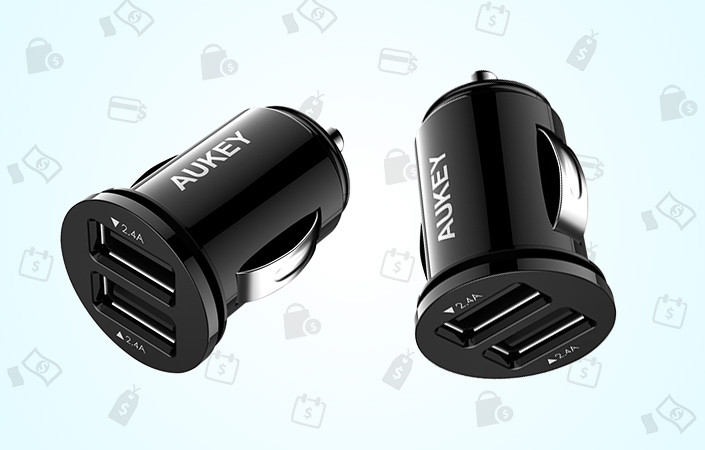
All you have to do is add two of the chargers to your cart and then use coupon code AUKCARCC at checkout for the savings.
See at Amazon
U.S. Supreme Court rules in Samsung’s favor in iPhone patent battle

Samsung and Apple are still fighting it out in the U.S., and the country’s top court has just ruled in the Galaxy maker’s favor.
The U.S. Supreme Court has ruled in Samsung’s favor in its ongoing design patent war with Apple, throwing out an earlier ruling that Samsung would have to pay the iPhone maker $399 million for infringing on its design patents, and giving Samsung a chance to win back some of the damages awarded to its rival. The justices voted 8-0 that Samsung’s patent infringement could only affect a component of an infringed product — i.e. the iPhone’s distinctive appearance — and not the sum total of its parts.
The ruling gives Samsung another chance to win back $399 of the $548 million awarded to Apple. That figure has already been whittled down on appeal from the $930 million originally awarded in 2012. Samsung argued that the infringing parts in certain Galaxy phones played a small role in its products’ success, and thus it shouldn’t have to hand over all of its profits from these devices.
As Reuters reports, the argument centered on the definition of “article of manufacture” in U.S. law, and whether it related to the entire product, or just specific components.
Apple urged the Supreme Court to affirm the appeals court’s ruling because Samsung presented no evidence that the article of manufacture in this case was anything less than its entire smartphone as sold. Samsung, meanwhile, said that it did not have to present such evidence.
Justice Sonia Sotomayor, writing for the unanimous court, said that the patent law is clear. The term “article of manufacture is broad enough to encompass both a product sold to a consumer as well as a component of that product,” she wrote.
The case will now return to a lower court to calculate the (new) portion of profits that Samsung must pay Apple.
Galaxy S7 Nougat update: Top 10 features to know

There’s a lot to see in the Galaxy S7’s biggest update so far.
The Android 7.0 Nougat upgrade for the Samsung Galaxy S7 + S7 edge — currently in testing through the Galaxy beta program — is the most comprehensive update yet for Samsung’s 2016 flagship. In addition to giving the GS7 its first Android platform update, the Nougat beta gives us our first look at Samsung’s next-gen UX, which is loaded with new features.
There’s a lot to see, and because we’re dealing with non-final software, things may change between now and the day the final OTA hits. Nevertheless, we’ve rounded up the features you need to know so far. Check out our top ten:
1. Everything looks different!

Gone are the days when you’d have to buy a new phone to get an updated UI. Nougat on the Galaxy S7 looks radically different to what you may have become used to on Marshmallow. Samsung has completely moved away from circular settings toggles and the blue-green accent colors of previous phones. Instead, it’s all about bright whites, condensed fonts, subtle light blue accents and
App icons themselves have also been tweaked, bringing them in line with what we first saw on the Galaxy Note 7 — what’s sometimes called the “Grace UX” — with a focus on rounded rectangles and more clearly defined shapes.
The result is an interface that seems much more refined than anything we’ve seen before from Samsung. That’s most evident in the redesigned Settings app — the rat’s nest of menu items has been pared back significantly, and shortcut sections at the end of each main settings menu easily allow you to jump to related options.
2. New notification + quick settings

Alongside the well-known notification changes in Android 7.0 — notifications now behave basically as they do in stock Nougat — Samsung’s new interface overhauls the quick settings area.
Your five most prominent quick toggles sit up top at all times, then swiping down reveals a grid of extra options, which can be scrolled through horizontally and rearranged to your liking. Samsung also gives you the option to change the location of the brightness toggle, and customize the grid layout — 3×3, 4×3 and 5×3 are the current options.
Quick Connect has been changed too. Right now this toolbar, which can help you manage paired gadgets, shows up when headphones or speakers are connected. From here, you can choose where audio is routed, and easily disconnect from devices.
The notifications area has seen the most changes throughout the GS7 Nougat beta so far, so it’s possible we may see further tweaks and refinements as the update approaches stable status.
3. Put troublesome apps to sleep

Samsung’s power management options continue to look for less-used apps and stop them from using power in the background. But now you can manually “sleep” certain apps from your home screen. Simply long press on an app and choose “put to sleep.”
From there, it won’t use power in the background, or receive updates when it’s not open.
Manually “sleeping” individual apps isn’t something you should normally have to worry about. But it could help tame more power-hungry apps in some situations.
4. Multi-window has been overhauled

Multi-window — a staple Samsung feature for many years — is supported at the platform level in Android 7.0. And that means you’re able to use split screen and pop-up view in the vast majority of apps, not just a select few.
And the UI for using multi-window has changed a bit too — now it’s a sort of hybrid between the stock Android way and the Samsung way. You can still jump to split-screen mode by tapping the icon next to any supported app in the Recents menu, or dragging it upwards to fill the top portion of the screen. Alternatively, you can long-press the recent apps key. From there, you can control the split between apps just like any other Android 7.0 phone — drag the divider between them — and Samsung also lets you easily close one of the apps, or swap their position.
For pop-up view — Samsung’s windowed mode — you can drag a supported app to the middle of the screen in the Recents menu, or swipe inwards from the top-left corner when the app is full-screen. From there, it’s easy to drag a windowed app around, minimize it down to a floating icon, send it full-screen, or close it entirely.
Scaling in windowed apps has also been improved, so that when an app is in windowed mode it won’t simply be rendered at full size and shrunk down. Instead, you can now rearrange apps into windows of any aspect ratio, with menus, text and other visuals dynamically filling the available space.
5. Blue light filter

A feature of Android 7.1 on the Pixel phones, as well as Apple’s iPhone and many others, blue light filter mode allows you to reduce eye strain at night by giving the display a warmer hue. (In theory, that’s supposed to make it easier to get to sleep when using your phone late at night.)
By default, it’s available in the quick settings menu, and long pressing on it allows you to control just how yellow the screen becomes, or set a daily schedule for the feature. (For example, you might want it to activate automatically at a certain time every evening.
6. Performance Mode

Samsung has taken a much more granular approach to performance and battery options in Nougat. You’ve still got regular battery-saving modes, including a “maximum” power-saving mode that completely disables many of the phone’s higher functions.
The “Performance Mode” takes this a step further, giving you four presets to choose from, and a shortcut to switch in and out of the top “high performance” mode in the quick settings area.
Here’s how things break down:
- Normal: 1080p, video enhancer on, game launcher on, game tools on
- Game mode: 1080p, max brightness, game launcher on, game tools on
- Entertainment mode: 1440p, max brightness, video enhancer on, UHQ upscaler on
- High performance: 1440p, max brightness.
7. Device Maintenance

Battery and storage settings now live in the new “Device Maintenance” section, which encompasses performance modes, RAM and security settings. So to find out how much space you’ve got left, or how view your estimated battery life you’ll need to tap through a few more menus.
The Device Maintenance area, a continuation of the Clean Master integration seen in earlier Samsung phones, gives you a score out of 100 based on all five of these areas — battery, performance, storage, RAM and security — and gives you a big friendly button to press to “fix” issues that might be slowing your phone down. For example, on our device, the it detected around 1.6GB of cached data which it deemed “unnecessary.” It doesn’t go into any great detail on exactly what you’re clearing out though, so you mostly just have to trust that it knows what it’s doing.
The Device Maintenance tool can do the same for RAM, stopping some apps from running in the background. (In our case, it suggested Twitter and Gallery, bizarrely.)
8. A more useful Always On Display

Like on the Galaxy Note 7, Samsung’s Always On Display becomes much more useful on the Galaxy S7 with Nougat. The Always On Display can now show notifications from all apps, in addition to the date, time, battery level and calendar appointments, depending on how it’s configured.
The inclusion of third-party apps here is the most important addition — some of the other features were already included in a separate update for the Galaxy S7 and S7 edge. You may still prefer to turn this feature off to save power. But with its increased functionality in Samsung’s latest software update, there’s a stronger argument for leaving the Always On Display… well… on.
9. Display and resolution scaling

Samsung included a “condensed mode” in the Galaxy S7 on Marshmallow, letting you see more on screen by increasing the display density. With UI scaling being supported at a system level in Nougat, you now get more fine control over this. There are three “screen zoom levels — small, medium and large — and on the Galaxy S7 edge the “small” option gives you a Google Pixel-like zoomed-out view, with more items visible in Gmail and other apps.
In addition, you can also directly control the phone’s screen resolution — running at a resolution lower than the native Quad HD (1440p) can save a small amount of battery power. The default is now Full HD (1080p) if you’re setting things up from scratch, and although the difference isn’t entirely noticeable, you may want to manually set it to Quad HD to make the most of the GS7’s impressive SuperAMOLED panel.
More: Galaxy S7 display scaling options on Nougat
10. Squircles!
Finally, icon borders — squircles (or “square circles”) — are back! By default, the Galaxy S7 on Nougat encloses icons in a rounded rectangular border. This sometimes gives the UI a more cohesive appearance — for instance, many apps like Twitter just use their normal icon inside a rounded rectangular cutout. Other apps, like the Play Store, place a white icon on a white frame, which looks a little weird. (We’ve been here before with Google’s circular icons on the Pixel.)

Love ’em or loath ’em, it’s easy to switch squircles on and off in the Display settings menu. It is interesting, however, that they’re enabled by default this time around.
Galaxy S7 owners, what do you want to see in the Android 7.0 Nougat update? Shout out down in the comments!
Android Nougat
- Android 7.0 Nougat: Everything you need to know
- Will my phone get Android Nougat?
- Google Pixel + Pixel XL review
- All Android Nougat news
- How to manually update your Nexus or Pixel
- Join the Discussion
Samsung Galaxy S7 and S7 edge
- Galaxy S7 review
- Galaxy S7 edge review
- U.S. unlocked Galaxy S7
- Should you upgrade to the Galaxy S7?
- Best SD cards for Galaxy S7
- Join our Galaxy S7 forums
Unlocked
AT&T
Sprint
T-Mobile
Verizon
Get the most out of your Samsung Gear VR with these tips and tricks!
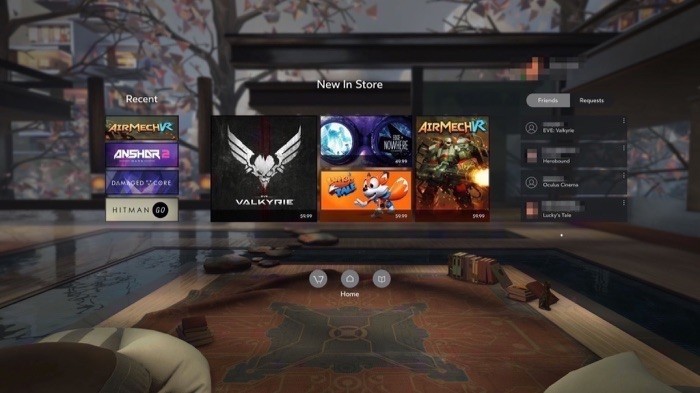
We’ve got the tricks to help you get the most out of your Samsung Gear VR.
If you’ve just gotten your Samsung Gear VR then you might be wondering how to get the most out of your awesome new VR headset. If that’s the case, then have no fear. We’ve got a few tips and tricks to help you optimize your experience it, and enjoy it as much as possible.
Just keep reading for all the details!
Read more at VR Heads!
 AIVAnet