


Best cheap cases for the Galaxy S7

Protect your phone while protecting your wallet.
Now, it’s no secret that buying a really cheap case probably won’t offer you the best degree of protection or the nicest look, but not all cases need to break the bank. So, for all you dollar-wise budget beaters, we’ve rounded up some of the cheapest cases we could find that still have something to offer.
- EasyACC
- Tekcoo Tbaron series
- Spigen Exact-Fit
- Cimo heavy duty shock absorbing hybrid
- ArtMine window view wallet case
EasyAcc

EasyAcc’s clear case is as simple as you can get and, while it’s nothing special to look at, this case is made out of TPU, which is extremely flexible and feels super grippy.
This case is not only completely transparent, allowing you to enjoy the natural beauty of your Galaxy S7, but also totally seamless. The edges of EasyAcc’s case are slightly raised to help prevent damage to the screen if you drop your phone on a flat surface.
Just beware of stretching and yellowing of the plastic. The TPU will absorb light super easily, which is what causes the discoloration.
This case is super cheap, starting around $2.60.
See at Amazon
Tekcoo Tbaron series

The Tbaron series from Tekcoo is surprisingly rugged for only starting around $7.99. It’s a two-layer system that consists of a silicone skin that your phone sits in and a back plastic cover that clips on over the silicone shell. Even with both layers, all the buttons and ports of the Galaxy S7 are easy to access.
The case looks and feels very similar to Otterbox’s Commuter series except with one major difference: that hard plastic back cover feels pretty slippery, which means it will be great for sliding in and out of your pocket. However, slipping out of your hands could happen, so tread carefully with this one.
Coming in a wide variety of vibrant and bright colors is an added bonus of the Tekcoo Tbaron series. If you’re looking for a cheap case that adds some bulk and some flash to your S7, this could be the case for you.
See at Amazon
Spigen Exact-Fit

It’s a simple and unassuming-looking hard polycarbonate shell that easily fits around the Galaxy S7 and will protect your phone from minor scratches to its back and sides. It does have a bit of a lip above the screen; however, it’s not quite enough for us to say laying it down screen-first is 100 percent worry-free.The case does get a little thicker around the camera at the back to protect the lens from getting scratched. Even so, it still manages to feel pretty light.
The sides of the Galaxy S7 are a little more exposed that some of your average cases, especially around the headphone jack and charging port located at the bottom of the phone. So it probably would be wise to use this case if you expect to be bumping the sides of your phone on objects.
All-in-all if you are looking for a pretty simple case that is also highly functional and only around $9.99, look no further than Spigen’s Exact-Fit.
See at Amazon
Cimo heavy duty shock absorbing hybrid

Who says cheap can’t mean fun? Cimo’s heavy-duty shock-absorbent hybrid case is great for anyone looking to make a statement, especially if that statement is “I like pink!” And, although this case may cause your eyes to catch fire with it’s brightness, it actually has some decent features.
It’s a one-piece case that is both a mix of hard polycarbonate and silicone that adds a little bit of bulk, making you feel like the phone is safe in your hand. The back of the phone has a pleasant texture that isn’t slippery at all, and it’s thick enough around the camera to protect the lens from scratches.
Of course, the funky colors and embedded rhinestones aren’t really going to make this case for everyone. However, we should mention that it does also come in non-eye-assaulting colors such as black, so for the low price of around $7.98, it’s worth checking out.
See at Amazon
ArtMine window view wallet case

This wallet case has one card slot so you can always have your bank account at the ready, and the flip cover will protect most of your phone screen. It does have a big square hole in the front cover, which is a good way to always be able to see the time whenever you want. This case is also very thin and won’t make your Galaxy S7 seem bulky at all which is kind of rare for a wallet case.
Now, this case is probably best for people who are looking for a wallet case that won’t break the break. After all, it starts around $8.90 which is pretty good for a case that has some screen protection built-in.
See at Amazon
What do you use?
Have you found a super-cheap case that you think should be added to our list? Sound off in the comments below and let us know why you think it’s the best!
Samsung Galaxy S7 and S7 edge
- Galaxy S7 review
- Galaxy S7 edge review
- Here are all four Galaxy S7 colors
- Should you upgrade to the Galaxy S7?
- Learn about the Galaxy S7’s SD card slot
- Join our Galaxy S7 forums
AT&T
Sprint
T-Mobile
Verizon
Some Ring Doorbell Pro users could temporarily see other people’s houses

Be careful out there, especially with your smart doorbells.
A big part of using any kind of connected security system is trusting the company you’re paying to keep your information private, and a handful of Ring Doorbell Pro owners recently found that trust had been compromised. Notifications started coming from other Ring Doorbell Pro owners, with video feeds attached that were not from the right house.
Seeing someone else’s house in your security app isn’t cool, but knowing that there’s a distinct likelihood someone else is looking through the camera mounted on your door frame is more than a little unsettling. After receiving a tip from a reader who was understandably concerned, we reached out to Ring for a little clarification on this. Brand Manager Yassi Shahmiri offered an explanation.
Security is at the core of our company and this is something Ring takes very seriously. Here’s what happened:
We use random numbers to generate a call ID from Ring products. We did a very robust Beta test of the new Ring Video Doorbell Pro on experimental software, and when we moved it out of Beta for the commercial launch, some customers’ numbers were in two different databases. As a result, those call ID numbers were overwritten. We believe, based on all the data we have analyzed, that this caused less than ten instances – out of more than 4 million calls per day and over 84 million calls in total – where video recordings overlapped for Ring Video Doorbell Pro users only. We are in the process of merging those databases so this will no longer occur. This issue only effected Ring Video Doorbell Pro users, not users of our other products, Ring Video Doorbell and Ring Stick Up Cam.
While it’s nice to see Ring address the issue quickly, and it seems true that this only affected a small group of users, it’s a scary thing to have happen. If you were one of those affected by this Ring Doorbell Pro issue, shout out in the comments below!
Best iOS keyboards: The top third-party ones to try, and how to set them up
When Apple introduced iOS 8 a couple years ago, it also introduced support for third-party keyboards, meaning you get to install and use whatever type of keyboard you prefer, including glide-typing keyboards and GIF-search keyboards and emoji-only keyboards.
People either love or hate Apple’s keyboard. Luckily, for those of you who agree, there are plenty of alternative keyboards available.Pocket-lint has therefore rounded up the top keyboards worth trying. We’ve also detailed how exactly to set most of them up under Settings.
Keyboard apps: Third-party keyboards for iOS
Fleksy (Free)
Described as the fastest keyboard in the world, Fleksy features over 600 emoji, colourful themes, autocorrect, gestures, typing achievements, and a cloud service, among many other things.
Ginger: ($4.99)
This has been available on other platforms for a while and features things like a grammar checker, sentence re-phraser, translator, dictionary, text reader, and personal-typing trainer.
Minuum: ($3.99)
Originally launched for Android, the Minuum team said it actually built the first version of its keyboard for iOS. The app allows for “delightfully fast, sloppy typing”. It’s a one-dimensional keyboard that frees up screen space and comes with a specialised auto-correction algorithm.
Popkey: (Free)
This isn’t a traditional keyboard. It’s just for GIFs, because some things are just better said with GIFs rather than those weird-looking things called words. The keyboard will let you choose from thousands of GIFs or upload your own GIFs, and recently-used ones are just a tap away.
Giphy Keys (Free)
Giphy is just like Popkey. It lets you browse, search, and share GIFs in your text messages – right from your keyboard. It provides access to the Giphy repository, which has a collection of millions of GIFs. It also supports hashtag search terms.
GIF Keyboard (Free)
This app is just like Popkey and Giphy, because ya know, choices. Features: It lets you send the perfect GIF and video responses straight from your keyboard, browse through categories like reactions, music, trending, etc, search millions of GIFs, and create collections of your favuorite GIFs.
Swype: ($0.99)
Swype by Nuance is one of the most popular keyboard apps on other platforms. It lets you trace words with gestures on the keyboard instead of actually typing each letter. Other features include a smart editor, smart reselect, voice/text dictionary, themes, and more.
SwiftKey: (Free)
Like Swype, SwiftKey is hugely popular on Android. And now it is available for iOS devices. It offers gestures for typing as well as an autocomplete feature and an autocorrect feature. There’s even a cloud service for backups and intelligent language detection capabilities.
TouchPal: (Free)
Originally for Windows 8 and Android devices, TouchPal offers sentence gesture and word gesture technology, emojis and smileys, contextual prediction, Walkie Talkie-like input, auto correction, etc.
TextExpander: ($4.99)
This custom keyboard (originally for Mac) allows you to quickly type information by entering shortcuts, sort of like shorthand. You could for instance, type “sig” in an email to quickly enter your complete signature (which might include your full name, title, and contact information).
KuaiBoard: (Free)
Similar to TextExpander, Wolkober’s KuaiBoard (formally called QuickBoard) will give you a quicker way to enter the snippets of text you repeatedly use on iOS devices such as addresses, credit card information, email signatures, and more. You can enter your email on TouchPal’s website to be notified when the keyboard launches for iOS 8 devices.
Microsoft World Flow (Free)
Microsoft ported its Windows Word Flowphone keyboard to iOS. The Windows 10 Mobile keyboard also has a one-handed mode, but the new iOS keyboard is unique in that it serves up a fan-shaped layout instead. The app can smartly predict words too. Microsoft also added another feature that allow users to customise keyboard backgrounds with an image of their choice. Elsewhere in the app, users can track typing speed.
Gboard (Free)
Gboard is Google’s new app for iPhone. It lets you search and send information, GIFs, emojis and more: “With Gboard, you can search and send all kinds of things – restaurant info, flight times, news articles – right from your keyboard. Anything you’d search on Google, you can search with Gboard. Results appear as cards with the key information front and center, such as the phone number, ratings and hours,” explained Google.
How set up keyboards in iOS:
Download any third-party keyboards you want from Apple’s App Store.
Under General in Settings, go to Keyboard and then Keyboards.
While in Keyboards, select Add New Keyboards.
You should now see a list of all third-party keyboards you have installed on your device. Choose whichever keyboard you prefer.
Once you select the keyboard, it will appear in Keyboards as an option. Press Edit to rearrange your keyboards and designate a main keyboard (must hold down on the actual keyboard name and then drag it around – like to the top to make it a main keyboard).
And that’s it. You’re now free to type, type, type (or gesture) away on a keyboard different from Apple’s stock keyboard.
Pay what you want for the A to Z Microsoft Office Training Bundle
Microsoft Office is essential for well-rounded professionals to master. From Excel to PowerPoint, its programs provide you with the necessary tools to tackle the foundational operations of data-mastery spreadsheets, word processing, visual presentations and more.
With the immersive, 10-course A to Z Microsoft Office Training Bundle, you’ll master every aspect of Microsoft Office you can think of. You’ll learn Office essentials at your own pace, with hundreds of lectures and HD video presentations to guide you along the way.
Collectively, this group of courses is priced at £1101.83 ($1,590). But for a limited time on Pocket-lint Deals, you get to pick the price.
With the A to Z Microsoft Office Training Bundle, you’ll receive the following:
Microsoft Excel 2016 Basic Course
Advanced Excel 2016
Basic Microsoft Word 2016
Advanced Microsoft Word 2016
Learn Microsoft Outlook 2016 Course
Basic Microsoft PowerPoint 2016
Advanced Microsoft PowerPoint 2016
Advanced Microsoft Access 2016 Course
Basic Microsoft Access 2016 Training
Learn Microsoft OneNote 2016
Choose your own price and set your own pace with the A to Z Microsoft Office Training Bundle. For any price you choose, you’ll receive the Basic Microsoft Access 2016 Training and the Microsoft OneNote 2016 courses. Beat the average price and unlock all ten courses!
Get started today on Pocket-lint Deals.
Google’s iOS keyboard is the GIF and emoji app of my dreams
I just deleted the Giphy app from my iPhone. This is notable because I adore GIFs. I find a deep, slightly perverse, pleasure in sending texts full of those little moving pictures to my loved ones, and the Giphy app streamlined my image-hunting process tenfold. But now, it’s gone from my home screen, deleted forever because I found something that makes texting with GIFs even easier. I found Gboard.
Let’s not get melodramatic here: Gboard is simply Google’s new iOS keyboard. It’s not an app that will change your life or make your surly traditionalist uncle see the true value of technology, but it’s a welcome addition to my own texting routine. Gboard features Google search right in the keyboard, plus the ability to hunt for emoji by name. There’s also the Glide Typing swipeable keyboard and, of course, GIF search.
The embedded Google search function is ridiculously handy. It brings browser searching straight to the keyboard, eliminating the process of closing the texting app, opening a browser, copying a link, closing the browser and finally pasting the information into a message. Instead, tap the G icon in the upper left corner of the keyboard and search right there for anything on the web, including weather reports, addresses, flight information and nearby cat cafes (hey, we said anything). Search results pop up in a single row of clickable cards; tap one and its headline and URL automatically populate in your message. If you want to add the actual card, just tap the card, tap the message field, hit “Paste” and voila!
Once you’ve searched for something, you’re able to toggle among web, image and GIF results via three icons under the row of cards. To add an image or GIF, tap the card you want and it’s automatically ready to be pasted, either as a boring static picture or a gloriously mobile, extra-short narrative experience. (Have I mentioned how much I love GIFs?)
But, that’s not the only way Gboard can add GIFs to texts. A small smiley face to the left of the spacebar brings up the standard iOS selection of emoji, plus the option to toggle to GIF search. Hit the “GIF” icon under those yellow smiley faces and search for whatever moving picture you’d like, or browse suggested searches such as “high five,” “thumbs up,” “shrug” and “mic drop.”

Even emoji are searchable in Gboard in a pleasantly natural way. Most icons seem to respond to a variety of terms — for example, searching for “Halloween” brings up a jack-o-lantern. The search even works with some misspellings and inaccurate predicted text. Not using the swipeable keyboard, I searched for “Halloweeb” and still received the happy little pumpkin, while “jack” brought up the pumpkin and the Union Jack. Using the swipeable keyboard, I accidentally searched for “punishing” and received a row of fists — and a jack-o-lantern at the very end.
Emoji search is a wonderful addition to my texting life, since I find scrolling through rows of vaguely sorted icons to be time-consuming and frustrating. Plus, Gboard suggests emoji even when you’re composing a text-only message. For example, I started asking my boyfriend if he wanted to get a burrito for lunch and the first suggested “word” under the message was the burrito emoji. We also messaged each other about butts for a while, which is when I realized the peach emoji actually represents a booty, not a vagina. The more you know, indeed.
Overall, the Glide Typing function is suitably responsive (this isn’t the first swipeable keyboard for iOS, after all), though I have to make sure the nail on my thumb doesn’t interfere with my actual swiping.
Gboard makes a lot of sense. I wouldn’t be surprised if it became the standard for keyboards in the near future — it’s a welcome upgrade based on how people actually send text messages. And GIFs. We can’t forget the GIFs.
Scientists held a secret meeting to debate creating synthetic human genes
On Tuesday, about 150 scientists, lawyers and entrepreneurs gathered at Harvard Medical School to discuss a future project to improve techniques to synthesize human DNA from chemicals. But they held the meeting behind closed doors, with explicit instructions not to contact the media, getting the scientific community in a tizzy. At the top of their worry pile is that the project will end up innovating new ways to make synthetic human genes, which could lead to them being used to artificially create humans.
Scientists Drew Endy of Stanford and Laurie Zoloth of Northwestern University criticized the meeting for keeping the debate private. Developing newer, cheaper techniques to synthesize human gene pairs would benefit science, but aspiring to recreate the full genome synthetically may have unintended consequences and scare away public funding, they argue. And if the meeting was about synthetic human genes, there should be a public debate on the morality of creating or editing human genes.
But synthetically creating life is not what they intend, said Harvard Medical School genetics professor George Church, one of the organizers of the secret meeting’s project. Instead, the project aims to improve techniques to synthesize long strands of DNA, Church told the New York Times, which could be applied to various animals, plants and microbes.
If folks were worried, it’s likely because the initial invitation to the Harvard meeting stated that the project’s primary goal was to “synthesize a complete human genome in a cell line within a period of ten years.” But its title was changed to “HGP-Write: Testing Large Synthetic Genomes in Cells,” reflecting the project’s nature as a follow-up to the Human Genome Project, which completely mapped the full human genome by 2003. The originally-stated goal was a bit of aspirational sensationalism, said the organizers — a bit of moonshot hyperbole to boost enthusiasm in the scientific community.
Regardless, synthesizing base pairs of genes has only gotten cheaper, from $4 per pair in 2003 to $.03 today. Synthesizing all three billion pairs in the human genome would still cost $90 million now, but the per-pair cost is expected to continue dropping.
Source: The New York Times
Apple Confirms Music Deletion Glitch, Says Fix Incoming in Future iTunes Update
Apple today confirmed reports of an issue that causes music from personal collections to be deleted, telling The Loop it only affects a small number of users and that a fix is incoming in an iTunes update next week.
“In an extremely small number of cases users have reported that music files saved on their computer were removed without their permission,” Apple said. “We’re taking these reports seriously as we know how important music is to our customers and our teams are focused on identifying the cause. We have not been able to reproduce this issue, however, we’re releasing an update to iTunes early next week which includes additional safeguards. If a user experiences this issue they should contact AppleCare.”
Last week, debate raged over the supposed glitch after Vellum’s Jake Pinkstone wrote a blogpost complaining that Apple Music had deleted 122 GB of his personal music collection without his permission after he joined the service. The deletion occurred after Pinkstone had his music library scanned by Apple to make his collection available across his devices.
Confusion ensued after Pinkstone was told by an Apple Support Representative named Amber that Apple Music’s matching system was “functioning as intended.” When asked whether Apple Music was supposed to delete his personal music without his permission, Amber responded “yes.” Amber’s statement, however, was inaccurate according to Apple’s own support document.
While the causation of the bug is still unknown, as Apple has failed to reproduce the issue, the company’s statement suggests Apple has narrowed down the issue to iTunes rather than the Apple Music service. It’s unclear whether the fix will arrive with a minor or major iTunes update. However, one possibility is iTunes 12.4, which will include a minor redesign and arrive in the next couple of weeks, according to a MacRumors source.
Tags: iTunes, Apple Music
Discuss this article in our forums
TAG Heuer Connected Watch review – CNET
The Good The TAG Heuer Connected has striking, aggressive looks, it’s made from luxury materials and the fashionable name of its maker will appeal to those of you looking for the finer things in life.
The Bad It’s extremely expensive yet functionally offers nothing that you won’t find on Android Wear watches that cost a fraction of the price.
The Bottom Line The TAG Heuer Connected is the most fashionable way of adding smart functions to your wrist. But it’ll cost you a hell of a lot for privilege.
Visit manufacturer site for details.
So you want a smartwatch, but you don’t want a tech brand name like LG or Samsung clashing with your fancy suit? Cast your eyes, then, over the TAG Heuer Connected.
The Connected’s chunky, angular titanium body and thick rubber strap gives the watch a striking look I’m very keen on. It’s certainly more aggressive-looking than the sleek simplicity of the Apple Watch — in fact with a range of great-looking TAG Heuer watch faces to choose from (styled after the company’s analogue watches), you might not think it’s a smartwatch at all. It’s a big guy, though, so those of you with more dainty wrists will want to try before you buy.
 View full gallery
Andrew Hoyle/CNET
Running the same Android Wear software as the LG G Watch or Moto 360, it connects to your phone (either Android or iPhone) and shows incoming notifications, steps taken and a wide variety of other information from. There are about 8,000 apps that work with Android Wear watches now, but they all essentially function as a second screen for your phone.
You swipe through the notifications — shown as “cards” on the screen — using the round 1.5-inch touchscreen. It’s bright and responsive, and the 360×360-pixel resolution is sufficient for reading texts (although close up you can see individual pixels). I’d like to see a higher resolution, given the high price.

View full gallery
Andrew Hoyle/CNET
Which brings me on to my final point: the price. The watch costs a whopping £1,100 in the UK, $1,500 in the US and AU$2,000 in Australia. That’s a lot to pay for a watch that does the same as the Moto 360, which costs only £229 or $300 (it’s not yet available in Australia).
As a sweetener though, TAG Heuer has a scheme that allows you to trade in your Connected watch after two years, pay an extra £1,000, $1,500 or AU$2,000 and swap it for a mechanical watch, exclusively reserved for those of you who bought the Connected model. It’s difficult to say whether this is a good deal or not, but it does at least mean that you’ll have a watch to use long after the technology inside the Connected has become obsolete.
There’s nothing wrong with the Connected watch itself. It’s beautifully designed and those of you who want a fashionable name on your wrist, as well as a fancy new gadget, should at least go and take a look at one in a store. There’s just no escaping that massive price tag though. If you’re more excited about the smart features than the fancy name, save your money and go for any of the cheaper options.
HTC 10 vs Nexus 6P
Buy the Nexus 6P
Buy the HTC 10
In the current smartphone landscape, metal is the way to go for a device to be considered “premium,” and pretty much every flagship incorporates metal into their designs, be it in the form of metal frames and glass or plastic backings, or with full metal constructions. However, as the company would gladly remind you, HTC was the first to this party, starting with the One M7, and with continuing refinements and improvements to the overall package, what we get with their latest high-end offering is the greatest and most complete HTC smartphone yet.
- HTC 10 review
- Nexus 6P review
On the other hand, Google, along with various hardware manufacturers, initially had a difficult time defining what the Nexus program should be. After the budget-friendly Nexus 5, the Nexus 6 was Google’s first attempt at bringing a truly high-end smartphone to the market, but that unfortunately meant that the key factor of affordability went by the wayside. However, 2015 is when Google seems to have got it right, with consumers given two devices to choose from. For those with budgetary concerns, the Nexus 5X is the way to go, and with the metal-clad Nexus 6P, manufactured by Huawei, Google finally has on offer a truly compelling flagship that can stand tall against its competition.
HTC’s newest, and arguably greatest, offering goes up against the best Nexus device yet, as we take an in-depth look at the HTC 10 vs Nexus 6P!
Buy the Nexus 6P
Buy the HTC 10
Design
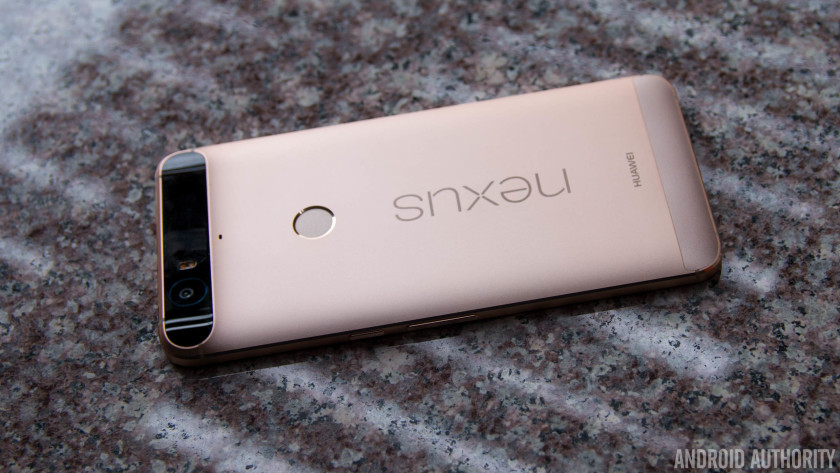
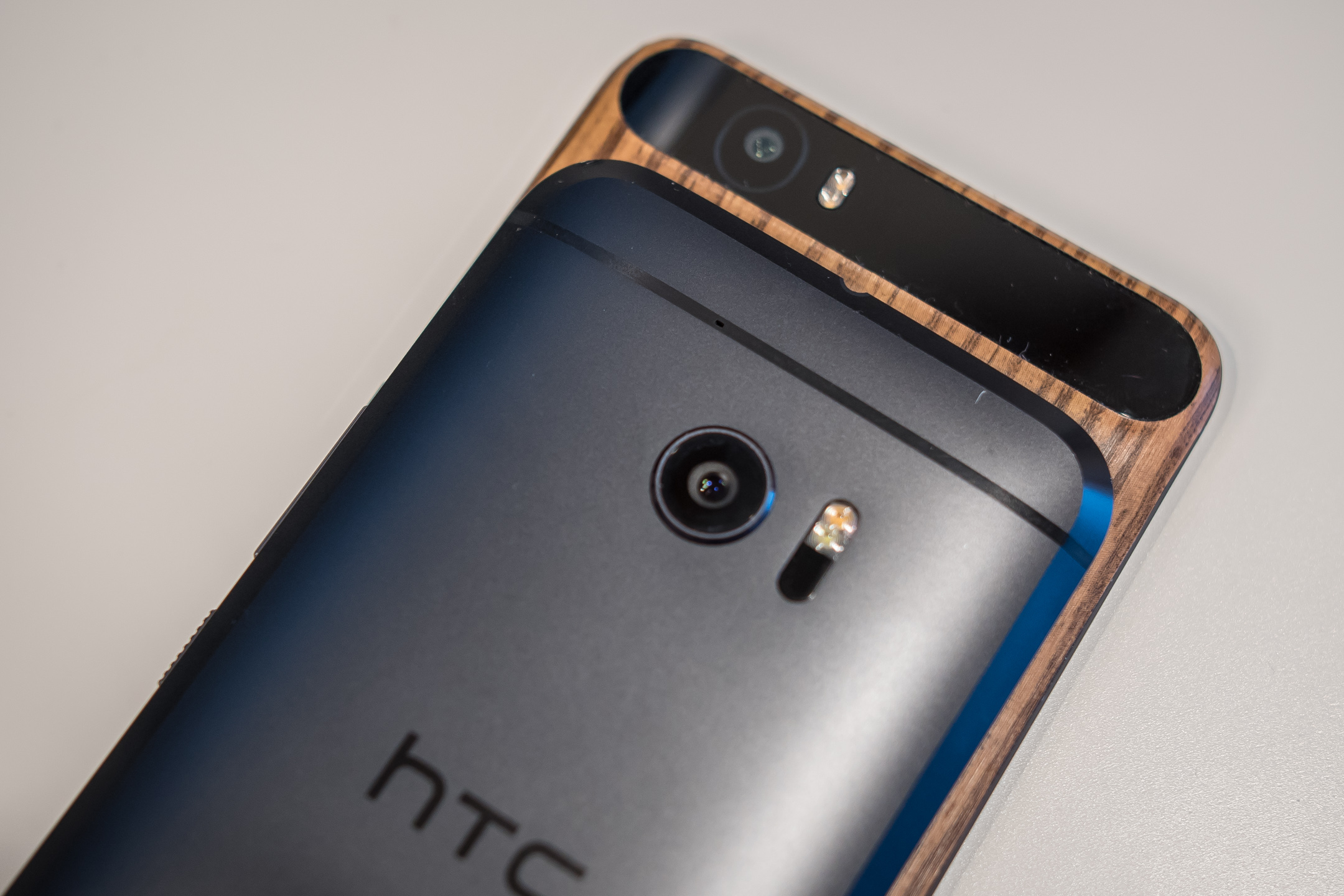
Before getting started, I have to mention that my personal Nexus 6P has been skinned to have a wooden look on the back, but for this comparison, we will take into consideration the device as it is out of the box. Metal is the name of the game with both smartphones, as they take metal to different places in their design.
The Nexus 6P without a skin
The Nexus 6P employs a full metal unibody construction with a glass bump area at the top on the back that houses the camera setup, and this has certainly been a polarizing design element. Some consider it a fashionable choice, others consider it an ugly one. Ultimately, we do think that it looks quite good and is a nice touch that makes it stand out from the competition.
With a 5.7-inch display, the Nexus 6P is understandably taller, wider, and also heavier, than the HTC 10, but Huawei has done a great job with keeping the overall footprint compact enough to allow for manageable one-handed usability. The Nexus 6P is also symmetrical up front, with speakers above and below the display for a dual front-facing speaker setup, something that is unfortunately no longer available with the HTC flagship.
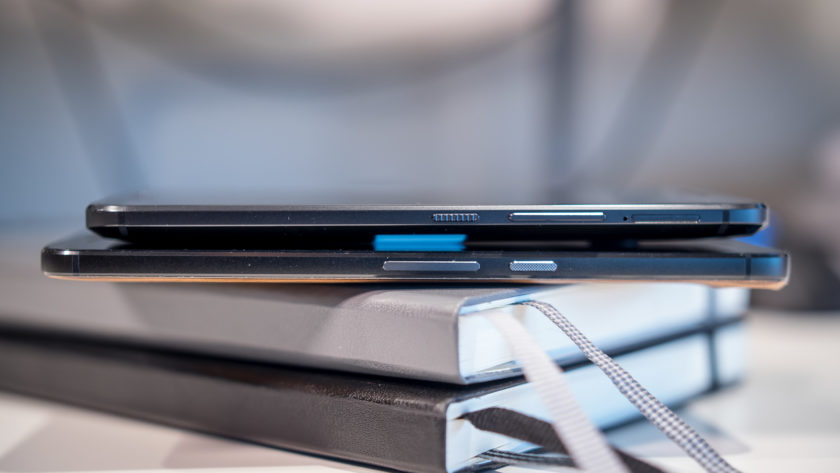
The HTC 10 brings some subtle changes to a design language that we’ve already loved with previous generations. While there is still a certain familiarity when looking at the back of the phone, HTC has added a bit of girth all the way around the edges. The chamfered edges allow for a silhouetted effect that is subtle but looks great, and does enough to differentiate the HTC 10 from its predecessors.
The HTC 10 is a little wider than it should be, but because of its smaller size overall, this device certainly offers the better handling experience when compared to the Nexus 6P. However, in both cases, the metal does make both smartphones quite slippery, which can take some getting used, and you are likely better off using a case that allows for more grip to keep this beautifully designed smartphones in pristine condition.
Display
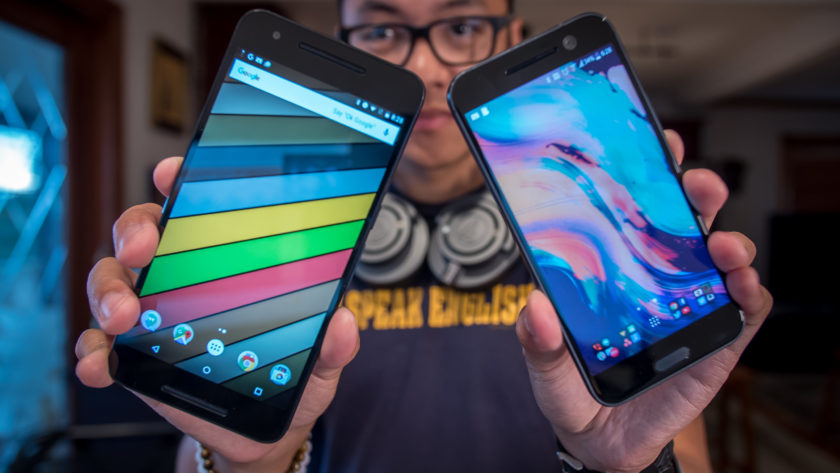
The HTC 10 comes with a 5.2-inch Super LCD 5 display with a Quad HD resolution, resulting in a pixel density of 565 ppi. This display adheres to the HTSC standard, and does so while providing impressive saturation and overall performance. HTC claims that the screen has low latency when it comes to your touch and what happens on the screen, and while this may not be something that is easily noticeable, it’s still a positive with regards to the performance of the phone.
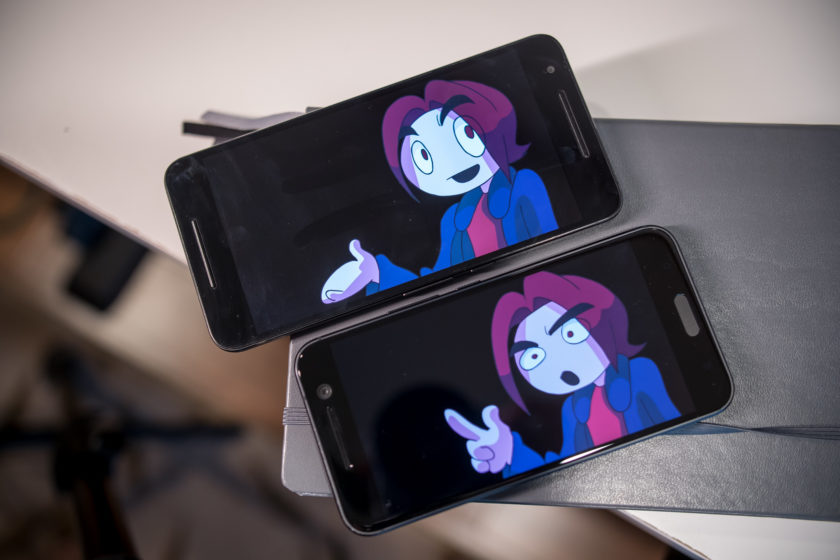
The Nexus 6P is not behind at all when it comes to the display, featuring a 5.7-inch AMOLED screen, also with a Quad HD resolution, resulting in a pixel density of 518 ppi. With an AMOLED display, you are going to get the expected deep, inky blacks and much higher saturation. However, in this comparison, there isn’t as much of a discrepancy between the two. Media consumption and gaming can be more enjoyable on the larger screen that is available with the Nexus 6P, but when it comes to the general viewing experience, both displays do an excellent job.
Performance
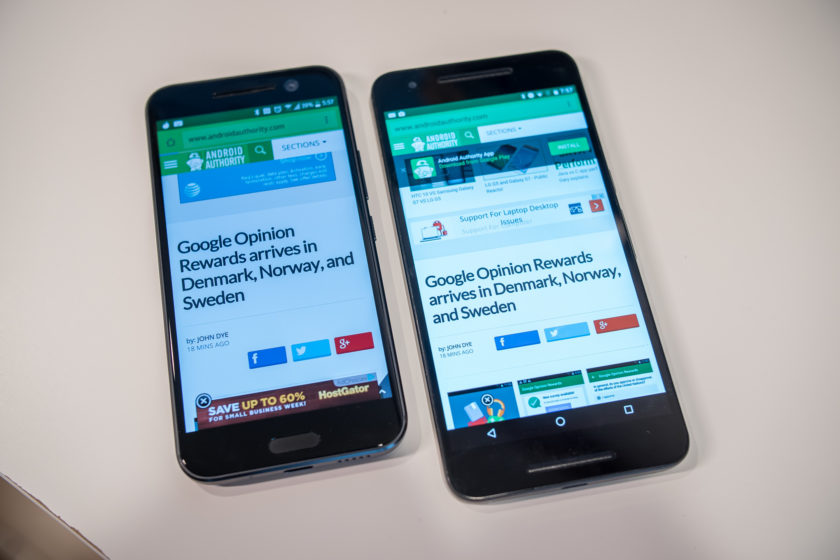
Performance is another area where you will not see a lot of difference between the two smartphones, given that the Nexus 6P was launched in the latter half of 2015, but the HTC 10 does see the benefits of being a newer release. The Nexus 6P comes with an octa-core Qualcomm Snapdragon 810 processor, clocked at 2 GHz, and backed by the Adreno 430 GPU and 3 GB of RAM, while the HTC 10 is powered by the quad-core Qualcomm Snapdragon 820 processor, clocked at 2.15 GHz, and backed by the Adreno 530 GPU and 4 GB of RAM.
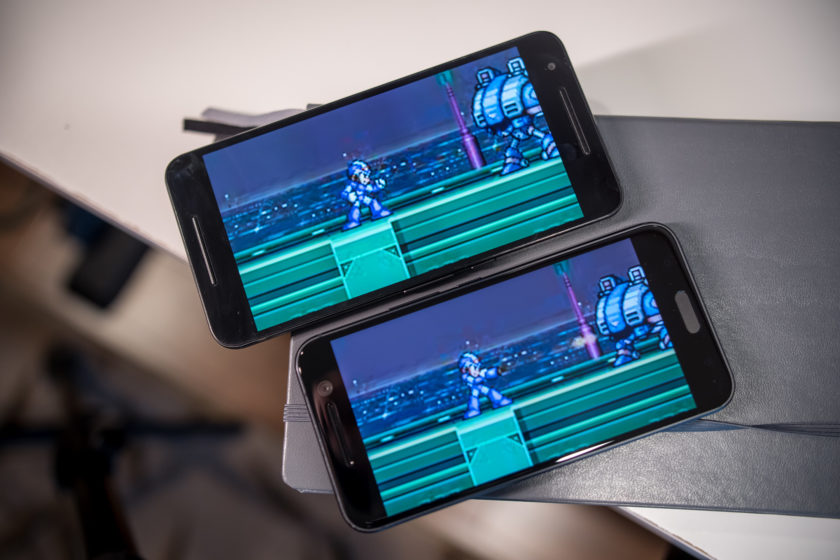
The HTC 10 is obviously going to be faster, but there isn’t that much of a difference when it comes to real world performance, with the additional gig of RAM that the HTC flagship packs being the only real differentiator. That’s not to say that the Nexus 6P will get overwhelmed easily even if you have a number of apps running in the background simultaneously, but for those of you who are spec hungry, 4 GB of RAM is what you will need. The overall performance is fantastic with both smartphones, helped along by the streamlined software experiences that is available with these smartphones, but more so in the case of the Nexus 6P, that is running stock Android.
Hardware
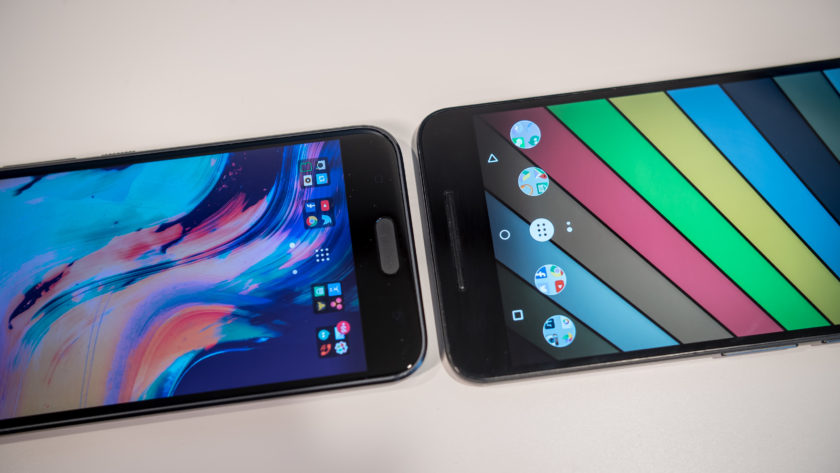
As is the case with any current generation flagship smartphone, both devices come with fingerprint scanners, but with different implementations. In the case of the Nexus 6P, the scanner is found on the back, placed ideally to be within easy reach of an index finger, and can be used to quickly wake and unlock the phone in one go. The fingerprint scanner of the HTC 10 is found up front, embedded into the capacitive home key, and is as fast and accurate as the sensor of the Nexus 6P.
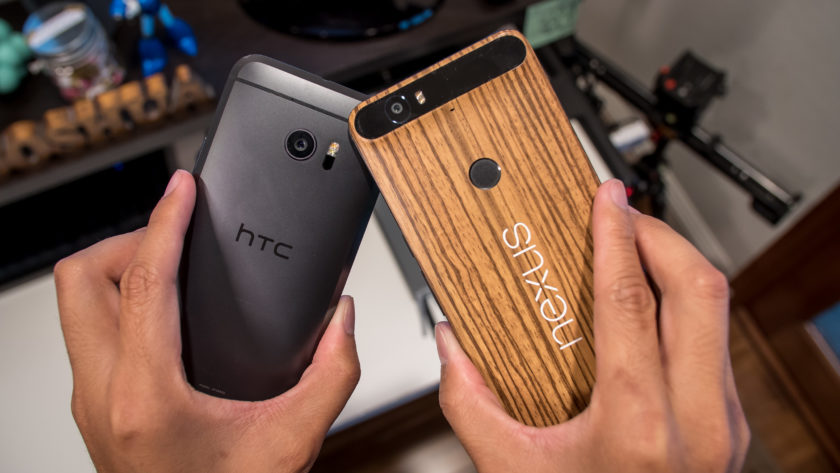
32 GB and 64 GB are the built-in storage options available with the HTC 10, and you do get expandable storage via microSD card for up to an additional 200 GB. On other hand, the Nexus 6P also adds a 128 GB version, but with no expandable storage available, users are dependent on getting one of the larger storage options, and paying the associated premium, to cover their needs. Both devices come with a standard suite of connectivity options, but with the larger focus on audio, the HTC 10 also adds Air Play support.
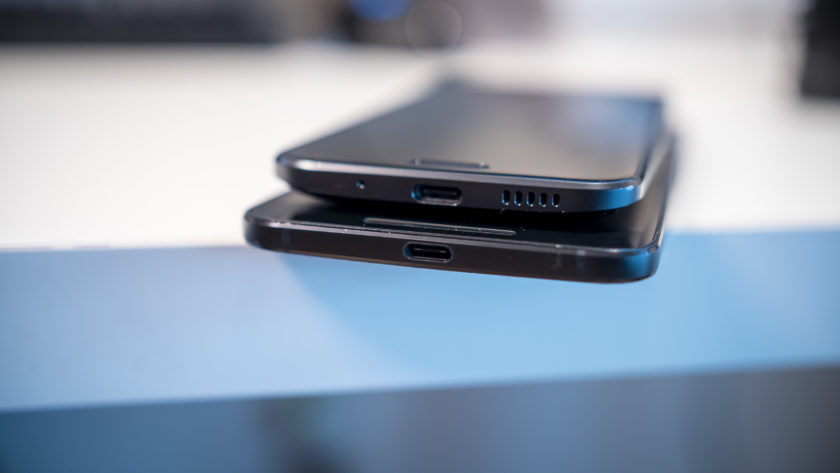
Speaking of audio, the Nexus 6P comes with a feature that was originally one of the biggest selling points of previous HTC flagships, but is no longer available with the HTC 10 – dual front-facing speakers. With the HTC 10, you now get one speaker above the display, that is coupled with a woofer at the bottom. This does mean that the lows and mids are better, but it certainly doesn’t get as loud as the dual front-facing setup of the Nexus 6P.
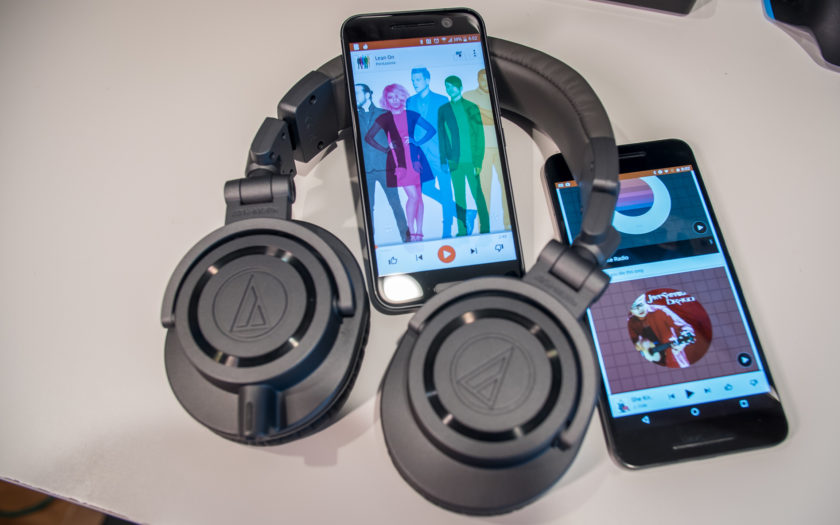
However, it’s when you plug headphones in to the HTC 10 that BoomSound earns its name. BoomSound here is Dolby enhancements, along with audio profiles that can be created by answering a few questions, or by actually going through different frequencies, using more advanced tutorials. Once everything is set up, audio sounds amazing with the HTC 10. A 24-bit DAC provides even clearer audio and a wider sound stage with good headphones, and an amp allows for the loudness that other smartphones can’t really provide, which includes the Nexus 6P.
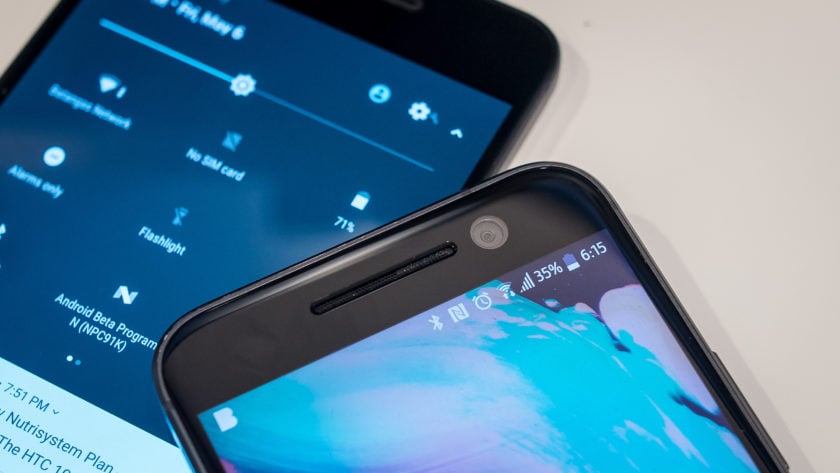
The larger 3,450 mAh battery of the Nexus 6P allows for more longevity when compared to the 3,000 mAh unit of the HTC 10, with the former providing up to two full days of use, especially if you stretch it out using the Doze feature that is built into Android 6.0 Marshmallow. With the HTC 10, the battery life can be pushed to about a day and a half, and getting a full day of use with more than average usage isn’t going to be an issue with either smartphone. Both smartphones come with USB Type-C ports, USB 2.0 in the case of the Nexus 6P, and USB 3.1 with the HTC 10, as well as fast charging capabilities.
Camera
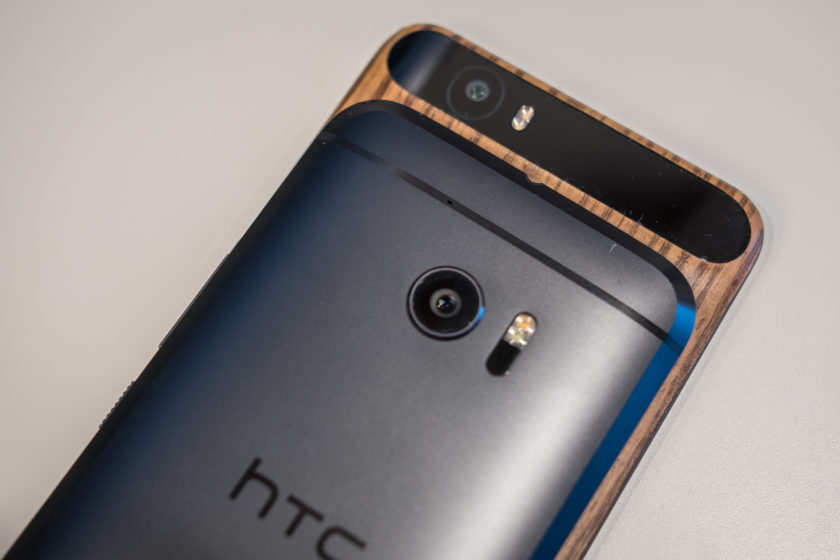
The Nexus 6P comes with a 12 MP rear camera with a 1.55µm pixel size, and a f/2.0 aperture, OIS, and laser auto focus system. The spec sheet of the HTC 10 is mostly identical, save for the f/1.8 aperture.
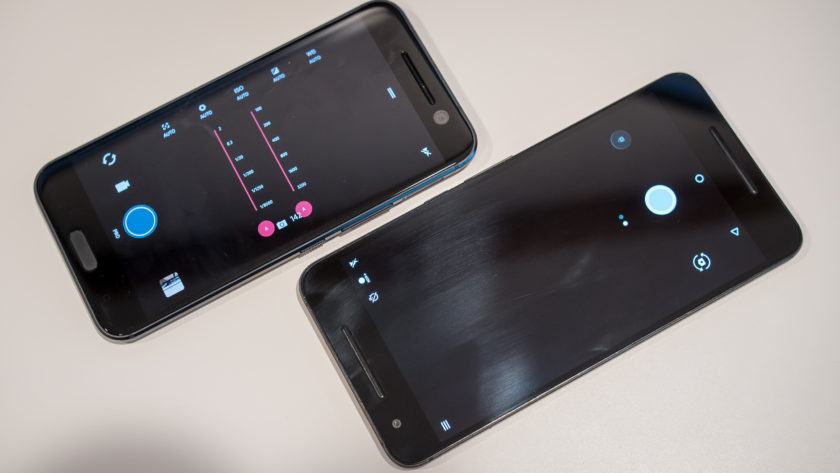
Simplicity is the main focus when it comes to the respective camera applications, with HTC further streamlining the camera app to make it easier to use. Of course, it doesn’t get any simpler than the Google camera app available with the Nexus 6P, which doesn’t come with a lot of modes, but also lacks a Pro mode, which is something that is available with the HTC 10, allowing for granular control over various settings.
HTC 10 camera samples

Optical image stabilization is also available with the front-facing camera of the HTC 10, which is a first for any smartphone. This means that you will get better looking selfies in lower-light conditions, but the availability of OIS also allows for better video capture when using the front-facing camera. It doesn’t make a particularly significant difference, but it is something that is noticeable when comparing video captures side by side, and is a subtle and small change that HTC does deserve recognition for.
Nexus 6P camera samples

The HTC 10 did receive a few software updates to improve the performance of the camera, and we will go in-depth with these changes in an upcoming feature focus. With both of these cameras being quite similar, it is a toss up between them in terms of image quality. You will see a brighter exposure in the shots taken with the Nexus 6P, with the HTC 10 dialing it back with the updates. In low-light conditions is where you will see a noticeable difference, with the HTC 10 opting for a warmer color temperature. However, with both cameras, you do sometimes end of up with grainy and noisy photos in poor lighting conditions.
The HTC 10 also has its advantage when it comes to sound, with the ability to record hi-res audio regardless of whether you are using the front or back camera. However, this does mean that processing the videos requires some tinkering, as we found that the .mkv files that the HTC 10 creates have to be tinkered with before they are recognized by most video editing software.
Software
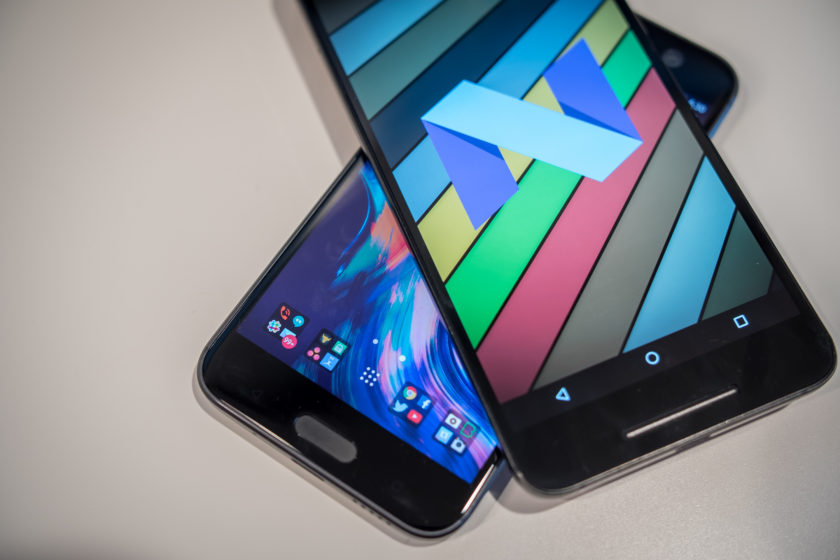
On the software side of things, both smartphones are running Android 6.0 Marshmallow. HTC Sense isn’t drastically different from stock Android, especially when compared to the Samsung and LG smartphones out there. In this case, some differences are seen, since I am using the Android N beta version on the Nexus 6P, which is one of the advantages of the Nexus line.
Any Android purist will know exactly what to expect from stock Android, with the new features including Doze and Google Now on Tap, which allows for easy Google searches regardless of where you are in the phone. A lot of users enjoy stock Android because of how simple it keeps things, with functionality being the priority. HTC Sense doesn’t add a whole lot to the formula either, which is one of the best parts about it.
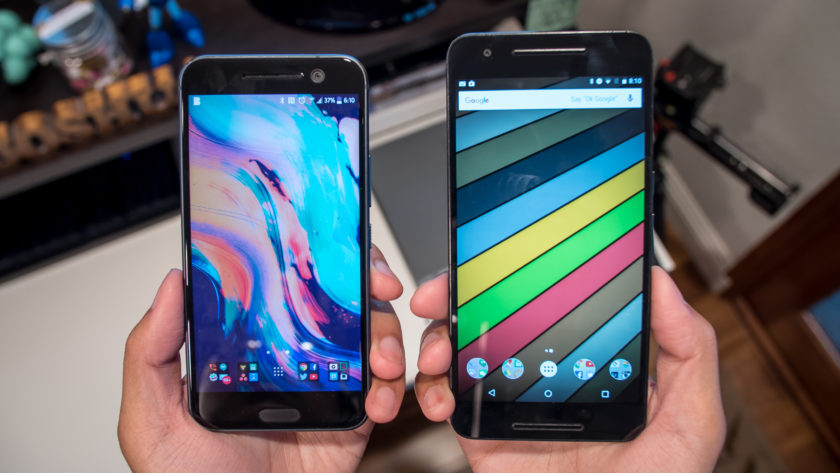
Sense is far more utilitarian when compared to TouchWiz or the LG UX, and aside from BlinkFeed, everything is quite familiar. There aren’t many extra features, and there are no longer any app redundancies either. For example, if you have Google Photos, you don’t get the HTC Gallery, and if you use the HTC Messages app, you are not going to have Google Messenger. HTC Sense uses a dark theme of sorts which is easier on the eyes, but there is a Themes engine available if you are looking to change the look. Overall, function is definitely king no matter which of these versions of Android you use. So, while we do love stock Android, you won’t find yourself looking to replace HTC Sense out of the box with a third-party launcher.
Specs comparison
| Display | 5.2-inch Super LCD5 display Quad HD resolution, 565 ppi |
5.7-inch AMOLED display Quad HD resolution, 518 ppi |
| Processor | 2.15 GHz quad-core Qualcomm Snapdragon 820 Adreno 530 GPU |
2 GHz octa-core Qualcomm Snapdragon 810 Adreno 430 GPU |
| RAM | 4 GB | 3 GB |
| Storage | 32/64 GB expandable via microSD up to 200 GB |
32/64/128 GB not exapndable |
| Camera | 12 MP rear camera, f/1.8 aperture, 1.55µm pixel size, OIS, laser autofocus 5 MP front-facing camera, f/1.8 aperture, OIS |
12 MP rear camera, f/2.0 aperture, 1.55µm pixel size, OIS, laser autofocus 8 MP front-facing camera |
| Connectivity | Wi-Fi 802.11 a/b/g/n/ac Bluetooth 4.2 GPS + GLONASS NFC USB 3.1, Type-C 1.0 connector |
Wi-Fi 802.11 a/b/g/n/ac Bluetooth 4.2 GPS + GLONASS NFC USB 2.0, Type-C 1.0 connector |
| Battery | 3,000 mAh non removable |
3,450 mAh non removable |
| Software | Android 6.0.1 Marshmallow HTC Sense UI |
Android 6.0.1 Marshmallow |
| Dimensions | 145.9 x 71.9 x 9 mm 161 grams |
159.3 x 77.8 x 7.3 mm 178 grams |
Gallery
Pricing and final thoughts
The HTC 10 is available for the premium monthly installment rate with the various network carriers, but can also be picked up unlocked, priced at $699. On the other hand, the Nexus 6P is currently available for the far more affordable $399, which is a great prospect, given that you are able to get a solid high-end flagship for a lower price, while providing a lot of the same features.
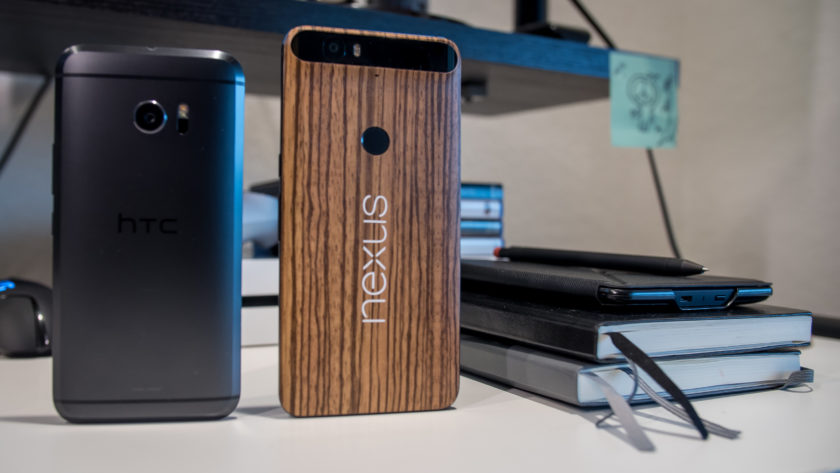
So there you have it for this closer look at the HTC 10 vs Nexus 6P! These two smartphones actually have quite a bit in common, and if you are in the market for a metal clad device, it doesn’t get better than these two. The Nexus 6P is a steal at its current price point however, but the HTC 10 has a couple of compelling features that make it stand out, with the main one being the audio experience it provides. The HTC 10 camera has also seen some improvements following a few software updates, and these changes are something we will explore further in an upcoming feature focus.
Buy the Nexus 6P
Buy the HTC 10
Atari has ‘Missile Command’ and ‘Centipede’ movies in the works
Atari just won’t give up the dream of bringing its iconic gaming properties to the big screen. Back in 2010 we heard the company was shopping a Missile Command movie around Hollywood. It even set up the project with Fox in 2011 — but that appears to have gone nowhere. Now, Deadline is reporting that Atari is partnering with Emmet/Furla/Oasis films for Missile Command and Centipede films. The idea might seem crazy, but let’s not forget that we recently lived through a big budget adaptation of Battleship.
Paradoxically, an existing brand, even one that hasn’t been culturally relevant for decades, is far more tempting to Hollywood studios than something original. Never mind that it’ll be pretty tough to form a coherent narrative out of something like Centipede, a game that involve shooting endless waves of bugs.
I wouldn’t fret too much about these projects, though. Given how much trouble Atari has had with getting Missile Command made, there’s a good chance neither of these adaptations will ever see the light of day.
Source: Deadline Hollywood
 AIVAnet