


Lil Wayne pours some more champagne on the Galaxy S7 in new advert

Lil Wayne is good at pouring champagne on the Galaxy S7, which he does a lot of in the video above. And he also shows off Samsung Pay, which works with traditional registers thanks to MST (Magnetic Secure Transmission).
But it’s mostly about the champagne.
Samsung Galaxy S7 and S7 edge
- Galaxy S7 review
- Galaxy S7 edge review
- Galaxy S7 edge with Exynos: A Canadian perspective
- Here are all four Galaxy S7 colors
- Details on the Galaxy S7’s camera
- The SD card is back on the GS7
- Join our Galaxy S7 forums
AT&T Sprint T-Mobile Verizon

Algae’s enzyme might hold the secret to mass producing biofuel
A common microscopic pond and lake alga named Botryococcus braunii makes big amounts of liquid hydrocarbons that can be used to make biofuel. Problem is, we can’t use the organism itself as a source, because it grows very slowly. A group of scientists from Texas A&M AgriLife Research, however, is looking into what genes are responsible for producing its enzyme that initiates the production of oil. See, the group wants to replicate its ability to make big amounts of oil in other plants more suitable for mass production. And they think the key is to express the enzyme’s associated genes in those other organisms, such as faster-growing algae.
The team’s lead scientist, Dr. Tim Devarenne, said:
“One of the issues with Botryococcus is that it grows very slowly. You just don’t get a lot of biomass and on an economic scale that means it would not work to use this alga. It takes about a week for one Botryococcus cell to double into two cells, whereas a faster growing algae — but one that doesn’t make a lot of oil — can double in about six hours. Maybe if we can transfer the genetic information to make these oils into quicker growing organisms like other algae that grow a lot quicker or a land plant that can produce large amounts of biomass, we can have them produce oil for us.”
Of course, solar and wind energy are much cleaner sources of energy. But if scientists can find a way to activate the genes in other algae that can grow more quickly, then biofuel sources wouldn’t have to take up land that could be used to plant food instead. Devaranne and his team still has to look more closely into the process, though — they’re still “a ways away from making a commercial product” at this point in time.
Via: Popsci
Source: Texas A&M AgriLife Research
Basis Peak gets smarter with music control and activity editing
The Basis Peak fitness tracker just got an update that controls the music playing on an Android or iOS device and lets users manually enter the type and duration of a workout. Good news for music fans that get in shape with activities that might necessarily get tracked like yoga or surfing.
Workout editing is done within the app and can be applied to old activities as well as recent ones. To control your jams, a music app will have to playing on your phone before you can adjust the volume and change tracks. It supports any media app on iOS and Google Play, Amazon and Spotify on Android.

The Peak with its black and white display has been marketed as more of a workout companion than a full on smartwatch like the Apple Watch or Android Wear. But Basis has added smarter features like notifications to appease people that don’t want to take their phone out of their pocket just see who’s texting them.
Today’s update along with last year’s update that let it talk to other fitness apps is more inline with the band’s original workout ethos.
Source: Basis
Platoons of autonomous trucks took a road trip across Europe
Six vehicle manufacturers just proved that self-driving trucks are perfectly capable of driving across a whole continent. These companies, including Volvo and Daimler, participated in the European Truck Platooning challenge organized by the Dutch government. “Truck platooning” is the term used when a fleet of autonomous trucks closely follow one another on the road. Since the rigs behind the first ride in its slipstream, they tend to use less fuel and emit less carbon dioxide.
The self-driving rigs started their journey from different parts of Europe and ended in the Port of Rotterdam in the Netherlands. Quartz notes that if this accomplishment convinces various government in the continent, then a number of corporations like Unilever will begin using autonomous trucks to pick up cargo from the port to distribute across Europe. If you keep an eye out for autonomous vehicle news, you might have already seen the video of Daimler testing its vehicle on public roads. But if you want to see more self-driving trucks on a road trip, you can watch a coverage of challenge below:
Via: Quartz
Source: European Truck Platooning Challenge
How to adjust the Oculus Rift for a perfect fit – CNET
Right out of the box, the Oculus Rift probably won’t fit perfectly. But this one-size-fits-most headset just needs a few tweaks to get the best fit. Here’s everything you need to know about adjusting the headset to your head and eyes.
Fit the outside first
Loosen the straps on the sides of the headset and top to the loosest settings.
Put on the Oculus Rift starting by slipping the back strap around the back of your head and then sliding the front down over your eyes.
Hold the front of the headset with one hand and adjust the side straps a little at a time with the other until the front fits snug against your face, but isn’t too tight.
Adjust the top strap so it’s snug against the top of your head. Tighten it until the top strap and back strap are supporting most of the weight, so that the front display isn’t digging into your cheeks or around your eyes.
You want the Oculus Rift to be just tight enough against your face without smashing into your cheeks or around your eyes — it shouldn’t fit as tightly as ski goggles. If you move or gently shake your head, the headset shouldn’t move too much — a tiny bit is fine. The headset will fit correctly when your feel the weight more on the top and back of your head and less on your face.
 Enlarge Image
Adjust the side and top straps to the loosest settings on the Oculus Rift (left) before you get started.
Sarah Tew/CNET
Calibrate the display
Now you’ll need to make sure the picture you see in the headset is as clear as possible. To do that, you’ll need to adjust the space between the lenses.
From the Oculus Home menu, press the Oculus button on the remote to go to the Universal Menu. Look on the right side for the Change Lens Spacing setting and press the large circle (select) button on the Oculus remote to select it.
When you see the see a green cross, adjust the side straps as needed until the horizontal lines of the cross look crisp and clear.
Find the small slider on the bottom right of the front of headset.
Using your thumb, press in and slide it left or right until the vertical lines of the green cross are crisp. This adjusts the spacing of the lenses so they fit your eyes. When the cross looks as crisp as possible, press the select button on the remote to finish.
Finishing touches
The last step is to put the earphones where you want them. They swing back and forth, slide up and down and rotate to fit your ears. They also pop outward to give you some space to put the headset on.
And voila, you’re done. The headset will now fit perfectly every time you put it on. Just pull on the back strap, slide it over your head and slide the front down over your eyes.
Get the perfect fit for the HTC Vive – CNET
Before you dive into a new reality with the HTC Vive, you’ll want to fine tune the headset’s straps so they’ll fit your head. With a few adjustments, it’ll fit snugly and comfortably so you can wear it for a few hours without it hurting your face. Here are the key steps to getting the perfect fit.
Try it on and adjust
The HTC Vive’s straps are more forgiving than the Oculus’ because they’re stretchy, but you’ll still want to make sure they’re fitting just right for the best experience. Here’s how:
Make sure the cables are slipped into the top and back loops on the straps.
Loosen the side and back straps to the loosest settings.
Put the headset on from back to front, making sure the rear strap sits around the back of your head.
Hold the front of the headset with one hand and adjust the side straps a little at a time until the face cushion fits snug against your face but isn’t digging in.
Tighten the top strap until it rests against your head. You want the weight to be distributed on the top and back straps, not on your face.
Pro tip: If the installed face cushion feels too big, swap in the smaller one that comes with the Vive. Just peel the cushion out and replace it.
 Enlarge Image
You don’t want the Vive to leave an indent in your face when you take it off. Loosen those straps!
Josh Miller/CNET
Adjust the lens depth (optional)
If your eyelashes are hitting the lenses when you’re wearing the Vive, you can adjust the lens depth. This is also useful step if you want to wear the headset with glasses and it doesn’t fit out of the box. These are the three steps:
Gently pull out the lens distance knobs (the gray plastic rings where the straps connect to the headset) until you hear them click.
Twist them both forward at the same time to keep the distance even.
Once the lenses are deep enough, press the knobs back into place.
Calibrate for the clearest view
Now you just need to adjust the interpupillary distance (IPD) of the lenses, which controls how close or far apart they are. Here’s how to calibrate what you see:
After you’ve set up the Vive and can see the Vive’s setup menu or home screen, put on the headset.
Locate the IPD knob on the bottom right of the headset.
Rotate the knob in either direction until what you see in the headset looks crisp and clear.
When you twist the knob, you’ll see the IPD on the screen in millimeters.
Once you’ve determined the correct IPD, you’re all set to start using the HTC Vive. It should fit perfectly every time you put it on and feel comfortable enough to wear for hours of VR fun.
Brother MFC-J885DW review – CNET
The Good The ink cartridges on the Brother MFC-J885DW cost less to refill than other name-brand printers and the output quality is also commendable down to small fonts and faint lines.
The Bad The plastic materials cheapen the overall feel of the printer, the 100-sheet paper input capacity will likely be too small for the average small office, and the output speed is lacking compared to the competition.
The Bottom Line Brother certainly makes a lot of very respectable work-friendly all-in-one printers, but the J885DW isn’t one of them.
These days, $150 — about £100 or AU$200 — buys you an “average” multifunction inkjet printer. You know: the ones that do printing, scanning, copying — and throw in good old-fashioned faxing capability for good measure. You can certainly get cheaper, but at this price, you can usually snag decent extras like an auto-duplexer (for double-sided printing), as well as a dual-paper input tray for both regular sized and photo paper.
Indeed, the Brother MFC-J885DW — part of the company’s Work Smart series for small offices — has all those features at that $150 USD price point (£140 or AU$250). But, unlike so many other great Brother printers, this one just misses the mark in several key areas; its slow print speeds are easily outmoded by the competition, the design suffers at the hands of its cheap plastic materials and the paper input tray capacity is lacking for serious home office professionals. It’s just a flat-out “don’t buy.”
Note that the MFC-J885DW reviewed here is identical to the MFC-J880DW (a model number exclusive to some online and international retailers).
Brother MFC-J885DW (pictures)
See full gallery


1 – 5 of 13
Next
Prev
Design and features
The Brother MFC-J885DW can fit into relatively small spaces thanks to its compact footprint that measures 15.7 inches (39.9cm) wide, 13.4 inches (34cm) deep, and 6.8 inches (17.3cm) tall. You’ll need a little extra space for the paper input tray, though, and that’s where my complaints begin.
The tray is removable, which is useful for loading paper into it, but why would a printer that positions itself as an asset for small offices only have room for 100 sheets of regular letter-sized paper? Brother says it’s able to print up to 2,500 pages per month (also called the “duty cycle”), so get ready to refill the tray a lot if you think you’ll approach that amount of printing volume. By comparison, the majority of printers for small businesses and home offices have a 150-sheet tray, at least.
Brother MFC-J885DW
| $149.99 |
| 15.7 x 13.4 x 6.8 inches (39.9 x 34 x 17.3cm) |
| Print/Copy/Scan/Fax |
| 4-ink tank (Black, Cyan, Magenta, Yellow) |
| Yes |
| Yes, 20 sheets |
| USB, MemoryStick, SD |
| USB 2.0, Wi-Fi, Google Cloud Print, Apple AirPrint, Brother Cloud apps, Brother iPrint&Scan |
| 100 Sheets |
| 2.7″ (6.9cm) color TouchScreen display |
Brother tries to make up for it with a separate input tray on top of the main one that fits an additional 20 sheets of 4-inch-by-6-inch photo paper in there, but the build quality is a real point of issue, too. The plastic the company used is really thin and flimsy, and I kept worrying that parts of the tray would snap off every time I reinserted it back into the machine. Everything from the door of the media card reader to the fold-out auto-document feeder is made of the same plastic, and it gives the printer an overall cheap feel.
 View full gallery
Sarah Tew/CNET
The good news, though, is that there’s no shortage of features that Brother incorporates into the printer, and it’s all stuff that businesses will find useful for workday productivity. As mentioned earlier, you get a 20-sheet auto-document feeder on top for sending multipage documents through, and there’s also a duplexer built into the rear of the device that you can use to save money by printing on both sides of a single sheet of paper.
Since Brother hopes the average consumer will find as much utility in the J885DW as a small business would, there’s also a media card bay just to the left of the center console. Behind it, there’s a port for PictBridge-compatible USB cameras or just a USB key for data transfers, and you also get a dual card reader for Sony MemorySticks and SD cards.

View full gallery
Sarah Tew/CNET
As you’ve probably seen with other modern printers, the control panel is devoid of the buttons in lieu of a 2.7-inch (6.9cm) touch screen LCD. I personally prefer hard buttons for shortcuts and the number dial pad, but that’s a matter of personal preference. The screen does register the touch of a finger with accuracy, though, and I can see it being useful to customize exactly which apps and settings you’d want to use for a particular office setup.
The color scanner is hidden on top underneath the lid, and you can use the scan-to feature to send a document directly to a variety of destinations: email, media card, computer file, flash memory, and more. You can also use the free Brother iPrint&Scan app to send jobs directly to a mobile device.
Connectivity and wireless
You can make a quick connection to any computer running Windows or Mac OS by using a simple USB cord, but if you do that you won’t be able to take advantage of the multitude of extras you get with a wireless connection.
Denon AVR-S920W Release Date, Price and Specs – CNET
Most receiver manufacturers have already shown their hands for their 2016, which just leaves Denon and its sister company Marantz. While we’re told Marantz is coming imminently, Denon is teeing off first with its latest S-series receivers.
Denon has announced that two models, the AVR-S720W ($479) and the AVR-S920W ($579), will be available in the coming weeks.
The units share features which are competitive with others in the market, with Atmos (5.2.2) the first item on the checklist. Meanwhile DTS:X is promised in an August update.Next comes 4K compatibility with both HDCP 2.2 and HDR passthrough which will facilitate the upgrade to 4K Blu-ray. The S920W also adds the extra step of 4K upscaling, but really, you don’t need it.

The AVR-S920W rear panel
Denon
If you are streaming music from a phone, there is both Bluetooth and Wi-Fi capability onboard. However, while competitor Yamaha has incorporated its own proprietary MusicCast system into its 2016 receivers, Denon hasn’t followed suit with the S720W and S920W. You can’t stream using Denon’s HEOS app to the receivers without the use of the separate HEOS Link ($349).
Like other receivers in the ranges preceding them, we really appreciate usability features such as the input shortcut buttons on the front panel and speaker cable labels in the box.
The S720 offers six HDMI inputs and a single output, while the S920 adds two more inputs and an extra out. The S720 offers 75 watts per channel (20-20kHz) while the S920 ups this to 90W and adds “upgraded Denon sound engineering design”.
Pricing and availability for the UK and Australia are yet to be announced.
Synology RT1900ac review – CNET
The Good The Synology RT1900ac delivers excellent Wi-Fi performance, has lots of features and can work as a capable NAS server when hosting an external hard drive. The router is cheaper than most competing devices.
The Bad The router’s range on the 5GHz band is slightly shorter than competing devices, and you need an external drive to enjoy its NAS features.
The Bottom Line The RT1900ac is an excellent router by itself and a stellar one for those wanting to try out the world of network storage.
The RT1900ac is a Wi-Fi router that thinks it’s a network attached storage (NAS) server. The fact that it’s the first router from Synology — a company that’s been known for making NAS devices — probably has something to do with it.
When hosting an external hard drive connected to its USB 3.0 port, the RT1900ac is indeed a formidable storage server in itself. And in testing, as either a Wi-Fi router or a NAS server, the device was excellent, for the most part edging out more expensive competitors, such as the Asus RT-AC68U, or the Netgear R7000. It’s not perfect, however, with a relatively short range on the 5GHz band and achieving only average network storage data rates. But at the current cost of just $150, it’s the least expensive AC1900 router.
That said, if you want a router that both delivers excellent Wi-Fi performance and can also work as a host for Time Machine backup, file sharing, media streaming and pretty much anything else you can do with a typical NAS drive, the RT1900AC is an excellent buy.
For more options on excellent home network routers, check out CNET’s list of best 802.11AC routers.
 View full gallery
The RT1900ac is the first Wi-Fi router from Synology, a company known for NAS servers.
Josh Miller/CNET
Hardware
As the name suggests, the RT1900AC is an AC1900 router. (Read more about Wi-Fi standards here.) It has a top on-paper speed of 1,300Mbps on the 5GHz band and up to 600Mbps on the 2.4GHz band. On the inside, it’s powered by a dual-core 1GHz processor and 256MB of DDR3 memory. The router has more powerful spec than the Asus RT-AC68U (which runs a dual-core 800MHz predecessor) but weaker than the Linksys WRT1900ACs (dual-core 1.3GHz.)
The router has one USB 3.0 port and one SD card slot on its left side. You can use these ports to host an external hard drive and an SD card to take advantage of the router’s storage feature. Using a storage device allows you to add even more features to the router. (More on this below.) And though it’s designed to lie flat, the router can also be mounted on a wall.

View full gallery
The RT1900ac has an USB 3.0 port and an SD card slot.
Josh Miller/CNET
Software
What makes the RT1900ac stand out from other AC1900 routers is its Linux-based operating system (also known as the firmware) called Synology Router Manager (SRM). This firmware is a variation of Synology’s Disk Station Manger (DSM) operating system used for all of its NAS servers. That said, if you’ve used a Synology NAS server before, you’ll find the interface of the RT1900ac extremely familiar.
And even if you’ve never used a Synology product, the SRM is easy to figure out. The router’s interface, accessible via a browser, is very similar to that of a traditional desktop operating system, like Windows or Mac OS. In fact it’s the most comprehensive interface for a router I’ve seen with items tied together and organized in an intuitive way.
Best Android game controllers
While the vast majority of Android games are designed with the touchscreen in mind, the reality is that there are certain times when using a traditional controller just makes more sense. This applies particularly to games that were ported from a console over to Android, as well as to emulators. It also rings true for games where using the touchscreen just isn’t possible, such as VR games where your phone is strapped to your face.
- Best emulators for Android
- Best Android games
There are many different controllers to choose from on the market today, with all different sizes and layouts. For this list, we wanted to focus on the five controllers we think are the very best, regardless of the price or form factor. My goal was to have a healthy mix of different sizes, shapes, and layouts. Upon digging in, however, I found that most of the ‘ultra portable’ Bluetooth controllers just aren’t that great. That means that the vast majority of the controllers here look almost identical in size and shape, with nearly all the best controllers taking on an almost Xbox-esque design.
So without further ado, let’s jump right in.
MadCatz GameSmart C.T.R.L.
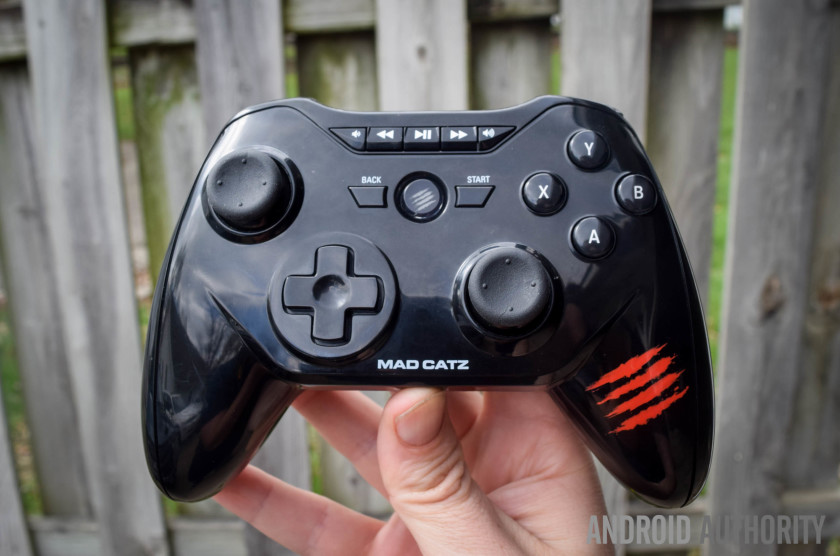
The Mad Catz C.T.R.L. is designed with both Android and PC in mind, and while it works flawlessly with the Android devices I tested it out on (The Shield tablet, Samsung Galaxy S7 Edge, Nexus 6, Nexus 6P, etc), I noticed some issues when pairing it to my Windows PC, such as the rear trigger buttons not registering correctly and other minor quirks.
Design wise, the C.T.R.L. sticks to the traditional Xbox 360 layout that has become so popular among PC and Android game controllers. The controller offers two analog sticks, a d-pad, 4 main action buttons on the face (A,B,X,Y), start, back, a button for syncing, two shoulder triggers, and two smaller shoulder bumpers. Probably one of the best extras is the built-in media buttons found on the controller’s face that allows you to play/pause, fast forward, rewind, and turn the volume up and down. This was particularly handy for use in the Gear VR and for controlling my Shield Tablet from across the room when connected to my TV via HDMI.

The C.T.R.L. also has another unique function up its sleeves, the existence of three different modes that can be toggled from a three-way sliding switch. The mode to the left is GameSmart, which is the basic mode for using this for Android. In the middle, is a mouse-mode that works with both PC and Android devices, giving you a fully functional mouse pointer controlled by your left analog stick. And to the right is the switch for making the controller play nicely with PC games.
In terms of battery power, this controller uses AAs and is rated for about 40 hours of continuous play. I haven’t used it quite that much yet, but so far haven’t run into any issues with the controller lacking juice.

For those looking for a game controller that attaches to your phone, the Mad Catz C.T.R.L. does offer this via a screw mount. When the mount is removed, you have this somewhat awkward bulge and hole at the top, which I don’t have any major love for, but it’s not the end of the world. The mount itself works fairly well thanks to jaws that pull apart with sprint tension and work well enough with all phones I threw at it, including the Nexus 6.
With that out of the way, how do I personally feel about this controller? Out of all the controllers in this list, this is the one I found myself reaching for more often than not, especially when utilizing it with my Gear VR. The C.T.R.L. not only functions great, it also feel pretty good in the hands, with enough weight to make it feel substantial and solid, but not so much that’s overly bulky. Bottom-line, I highly recommend this control if you’re looking for something that not only feels great, but adds several unique extra features like mouse functionality, PC support, and media playback.
Buy on Amazon
Steel Series Stratus XL

While I really love MadCatz controller thanks to its media controls, a decent phone holder, and a reasonably solid feel in the hands — the Stratus XL is without a doubt the most impressive looking and feeling of the Bluetooth gamepads that I reviewed. With a nice black design with orange and gray accent colors, this is a great looking controller, and equally feels great in the hand, with a nice heft to it (without being too heavy) that makes me feel like it should be pretty durable.
Like the MadCatz C.T.R.L., this one looks like an Xbox controller, but with a button layout that is actually a bit more similar to a Playstation controller. That includes two joysticks that are near the bottom and lined up directly across from one another, and a d-pad to the upper left. Otherwise, you get four main action buttons (A,B, X, Y) on the face, alongside three unique buttons in the center, and at the top you’ll find two triggers and two shoulder buttons.

The SteelSeries Stratus XL is compatible with both PC and Android, and while I spent most of my time using it with Android, I can confirm it plays nicely with my PC, as I used it to run through Fallout 4 for a bit without an issue. When using with Android, it’s equally flawless and should work in every game that supports controllers — including your favorite emulators.
Battery wise, I can’t speak for how long it lasts, but with probably close to eight or ten hours of usage, I still haven’t come close to needing to change out the AA batteries. In other words, this shouldn’t be any worse than any other typical AA-powered controller like the Xbox 360 and Xbox One gamepad.

Unfortunately, this Android game controller is really geared more at tablet users, and those that want to also use it on the PC, due to the fact that there is no phone holder option. You can certainly get a phone case with a kickstand to pair with this, but that certainly limits its portability. That said, if you want a beautiful looking controller that feels high-quality as hell, you can’t go wrong with the SteelSeries Stratus XL.
Buy on Amazon
Moga Pro Power

Despite being a few years old now, the Power Pro is still easily one of the best controllers offered not only by Moga, but by anyone out there. Sure, it feels a slight bit cheaper than the first two Android gaming controllers on the list, but the inclusion of a recharge Li-ion battery and built-in phone holder make it a great choice for gamers that want the most portable solution possible.
The Hero Power offers two clickable analog sticks, a D-Pad, four action buttons, start and select buttons, two triggers, and two shoulder buttons. The layout and shape is, once again, very reminiscent of the Xbox 360/One controllers and the design is mostly black with a little bit of orange as an accent.

The molded plastic sides here make this Bluetooth controller for Android easy to grip, and there’s enough heft to make it feel pretty good in the hands. Sure, it’s not as nice looking or feeling as the Stratus XL, but it’s not too far off from that mark.
Battery life should be pretty good here, and if you do run low, simply attach the controller to a microUSB slot and you can charge the gamepad back up without needing to replace the battery. The Moga Pro Power also has the unique ability to charge your phone from its built-in battery, though doing so will obviously cut back the controller’s battery life significantly.

One word of caution, don’t both with the MOGA app. You can use this as a standard Android Bluetooth game controller and bypass the software completely, and really, that’s the best way to do it. For those interested in using your Android Bluetooth gamepad with your PC, keep in mind that the Pro Power isn’t designed with this functionality in mind — so you’ll want to look elsewhere if that’s important to you.
Buy on Amazon
Razer Serval

The Razer Serval is an Android game controller that also happens to work with Windows and Mac computers.
Once again, we have a controller with an Xbox-esque design in place, with 4 face buttons, 2 analog sticks, two shoulder buttons, and two triggers. You’ll also notice at the bottom is a back and home button for use with Android, and there are also three buttons in the middle that can be used for shutting off the controller and for use in certain specific games (they don’t work in all of them).
I have to tell you, compared to the other Bluetooth game controllers above, this is my least favorite in terms of in hand feel. The battery compartment juts out a bit and makes the controller feel a bit awkard in the hand, for one thing. For another, something about the plastic used makes the whole controller feel a tad bit on the cheap side. Design wise, this isn’t an ugly controller, but the snake pattern on it is a little bit tacky.

Battery life on the controller should be comparable to other AA-powered controllers, and I certianly didn’t have any issues there.
The Razer Serval is a bit on the expensive side, considering most of the others on this list are similar or cheaper priced and yet feel and look better. That said, it’s still a really good controller. It wouldn’t be my first pick, but if someone gifted this to me, I’d count myself lucky, as its responsive, has great Android OS integration in the form of back/home buttons, and has a phone holder that clips on easily.

Buy on Ebay
Sminiker gamepad

I know what you are probably thinking: who the hell is Sminiker? Yes, this is an unknown Chinese brand that clearly is a Playstation controller knock-off, but don’t write it off just yet.
When creating this list, I wanted to represent the best, but also provide a solid super affordable option for those that want all the performance of the big dogs, but don’t mind cheaper build materials and other minor concessions in order to get the pricing down. And the Sminiker does this flawlessy. I’m sure there are other great ‘cheap’ controllers out there, but this was very well received on Amazon and piqued my interest enough that I had to buy one. At $20 (at time of this writing), the Sminiker Android gamepad is more than 50% cheaper than the other controllers on this list.

As far layout is concerned, you have a standard playstation design, complete with four action buttons, two analog sticks, a d-pad, start/select buttons, two shoulders, and four shoulder buttons. There’s also a clip on phone holder that works with phones up to 6-inches without a problem. Look and feel? In a word: cheap-ish. It’s super leight, which puts off the balance a tiny bit in the hand and makes it feel like it could handle too many knocks. The buttons are also a bit cheap feeling, though they work pretty well regardless. The plastic design is also made of pretty low grade material.
That might not sound like “best bluetooth game controller” material, but functionality wise, it paired perfectly, worked with Gear VR, tablets, and Android phones without an issue.
As a nice extra you won’t find on many other controllers, this gamepad has a rechargeable lithium-ion battery that didn’t run out during my 3-4 hours of usage, though I really can’t say how good it’s life is — though I’ll try to update this post in a few months once I’ve had more time with the controller.

Bottom-line, the Sminiker feels like any old generic 3rd party Playstation 3 controller, just this one happens to work with Android instead. For those that do a TON of hardcore gaming on their mobile devices might want to pass this one by, but if you’re looking for a cheap controller that works for those instances where touch isn’t enough — This is easily worth $20.
Buy on Amazon
So that’s a look at just five of the best Android game controllers on the market. What do you think of our list? Any others you’d recommend? Let us know your thoughts down in the comments.

