


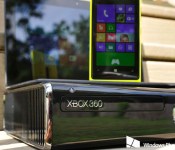
Microsoft announces preview program for Xbox 360

The Xbox One is getting all the attention these days, but that doesn’t mean that Microsoft is neglecting Xbox 360 owners. The Redmond giant has today announced that it is starting a preview program for the console, with selected customers getting access to test new features before they hit general availability.
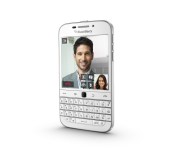
BlackBerry Classic in white arrives this month, blue and bronze in April

A lot of folks have been asking when the white, blue and bronze BlackBerry Classic smartphones would be arriving and today during their Mobile World Congress event, BlackBerry gave us all a timeline.
The white version of the BlackBerry Classic will land at some point in time this month while the blue and bronze versions will see release in April. There was no mention of carriers at this time but they will no doubt be available through ShopBlackBerry as well. For now, BlackBerry says to stay tuned for more info.

Hands-on with the BlackBerry Leap
This is BlackBerry’s newest smartphone: the BlackBerry Leap. Sporting a 5-inch 720×1280 IPS LCD display, an 8MP rear camera, and 16GB of storage, the phone offers quality mid-range specs at an affordable $275 off-contract. We’ve been told the phone’s built by Wistron, the manufacturing arm of Taiwan-based Acer. It has a Foxconn feel to it, but this is more the entry-level design language of BlackBerry than simply what Foxconn made for the Z3 (there are some differences in the layout between this and the Z3).

Lenovo’s Pocket Projector is an affordable way to pump videos to your wall (or ceiling)
Whether it’s in the kids’ play room or the boss’ boardroom, the Lenovo Pocket Projector is a quick, easy and affordable way to up-size videos for group viewing.


It used to be the only folks who carried around those little pocket projectors were those who got paid to do it — road warriors who have to be able to give presentations whenever, wherever. And they were either big and clunky, or smallish and expensive. Lenovo’s got the best of both worlds in its Pocket Projector, making its debut at Mobile World Congress in Barcelona.
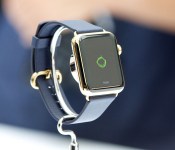
Touch ID, Apple Watch, and the future of projected authentication

With Touch ID and the Apple Watch, Apple is poised to once again revolutionize personal security.
Back in September, before the original Apple Watch introduction, one of the potential features I was most interested in was the ability to project authentication. We got at least one aspect of it with the watch’s implementation of Apple Pay. Hopefully, though, that’s only the beginning.
Trusted Bluetooth devices have been a thing for a while. They’re “something you have.” They can be used instead of “something you know” (password) or “something you are” (fingerprint) for authentication, or they can be used in conjunction with one or both of the others for multi-factor authentication.
To date, however, trusted Bluetooth devices have been too dumb to interest me. What I mean by dumb is that most current devices have no knowledge of their owner. If I take your dongle or smartwatch, I am you, and have access to everything you have access to. That’s a deal-breaker for me.
Neither the iPhone nor the Apple Watch are dumb, though. They’re smart.
It’s part of the contextual awakening:The iPhone has Touch ID, which means that it can require my fingerprint before authenticating anything from unlocking the phone to buying from iTunes to paying with Apple Pay. The Apple Watch has the ability to take Apple Pay authentication from the iPhone and maintain it for as long as skin contact is maintained.
That means both the iPhone and the Apple Watch don’t just know that we have them, but who has them — no fingerprint, no skin contact, no authentication. And that makes them very, very interesting.
Soon, HomeKit will let us unlock our homes with our iPhones. Apple’s CEO, Tim Cook, has already said you might one day be able to unlock your car with your Apple Watch.
Why not your Mac? iPhone-based proximity unlocks have been explored by third-party apps for a while, but Apple could implement a Touch ID-based system that could allow for fingerprint authentication prior to an unlock built in at the system level. If an Apple Watch has been authenticated and has remained in skin contact, it could allow for an even more effortless unlock if and when you’re in extreme proximity.
With an API, why not apps? I use 1Password for password management. Up until last year it was easier to use on my Mac than my iPhone, since typing master passwords was a pain and cutting and pasting them was arduous. Now, with iOS 8, the action extension, and the Touch ID API, it’s nearly effortless. It’s so good, it makes the Mac feel tedious.
With trust projection, however, Touch ID on the iPhone — or better yet, skin-contact with the watch — could make 1Password just as effortless. When I’m within a few feet, it’s open. When I’m not, it’s not.
Bank apps, communication apps, secure photo or document apps, the list goes on and on.
For those who want even more security, Apple or apps could require Touch ID or Apple Watch proximity and a password. Combine Touch ID and an Apple Watch and a password, and you have three-factor nirvana.
Security and convenience have been at war for much of the information age. Apple has done a lot, however, to make security more convenient. Based on where they’re going, it seems like just the beginning.
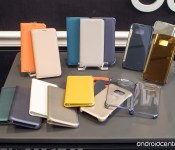
These are Samsung’s first Galaxy S6 and S6 edge accessories

The Galaxy S6 and S6 edge are thin and covered in glass — that may make you want a case.
Samsung’s no stranger to offering a variety of first-party cases for its devices while also partnering with known brands for more “fashionable” choices, and that’s the case here with the Galaxy S6 and S6 edge. Though Samsung hasn’t yet listed all of its accessories for sale considering we’re a month out from the phone’s release, we’ve had a chance to see and use a few of the initial offerings.

Lenovo’s Pocket Projector is an affordable way to pump videos to your wall (or ceiling)
Whether it’s in the kids’ play room or the boss’ boardroom, the Lenovo Pocket Projector is a quick, easy and affordable way to up-size videos for group viewing.

It used to be the only folks who carried around those little pocket projectors were those who got paid to do it — road warriors who have to be able to give presentations whenever, wherever. And they were either big and clunky, or smallish and expensive. Lenovo’s got the best of both worlds in its Pocket Projector, making its debut at Mobile World Congress in Barcelona.

Leaked Spartan browser demoed in new video, shows off Cortana integration
Microsoft’s next web browser, and successor to Internet Explorer, is Project Spartan. The modern browser has been demoed in a video published by WinBeta. They were able to take the leaked app for a spin to see how some of the features worked, including Cortana integration.
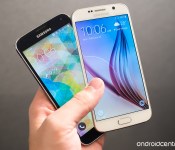
In pictures: Galaxy S6 TouchWiz versus the previous generation

Samsung hasn’t just overhauled its smartphone hardware in the new Galaxy S6. The company’s TouchWiz UI has also received some much-needed attention. It’s much faster than before, with slicker animations and a clear Material Design influence. We’ve already seen some movement in this direction through the Galaxy S5’s Lollipop update, but the differences between the two generations of Samsung UI are pretty striking, even when compared with a fully updated GS5.
We’ve been playing with the Galaxy S5 here at Mobile World Congress, and we’ve had a chance to see all the little changes Samsung’s made to TouchWiz. Some are major, some are minor; you’ll find the more notable ones in our photo essay after the break.
How to install Parallels Desktop and Windows 10 on your Mac

Now that Parallels Desktop supports Windows 10 Technical Preview, you can safely run Microsoft’s new OS on your Mac.
Apple’s Boot Camp software lets Macs runs Windows by restarting in Windows instead of OS X. Boot Camp, however, doesn’t officially support Windows 10 yet. In the interim, there are other ways to get Windows 10 to work on the Mac. One of the best ways is using Parallels Desktop 10. Here’s how!
Apple’s decision to switch Macs to Intel chips in 2006 had a transformative effect on the way software runs on the Mac. Among other things, the architectural similarity to Windows computers makes it possible for the Mac to run Windows software, which is why Apple offers Boot Camp — software that enables Macs to run Windows by restarting and actually operating as a Windows PC.
Boot Camp isn’t the only to do that, however. You can also run Windows inside a “virtual machine” host app like VMware Fusion or Parallels Desktop 10. These apps enable Windows to run at the same time as OS X. So if you’d prefer to use your Mac software to do some things, but you still rely on Windows, you can have both running at the same time.
Windows 10 won’t be out until later this year, but you can download a preview version of it right now from Microsoft’s web site. You simply need to create an account to register as a “Windows Insider” and download an ISO file, a virtual image of a software installer DVD-ROM.
Parallels recently announced an update to Desktop to version 10.1.4, a free update for registered Parallels Desktop 10 users which now supports Windows 10 Technical Preview. Parallels Desktop 10 costs $79.99, but nothing is stopping you from download a two-week trial version from the Parallels web site.
If you don’t want to deal with trial software or shell out the money for Parallels Desktop 10, there are free alternatives, like VirtualBox.
To run Windows 10 Technical Preview with Parallels Desktop
- Download and install Parallels Desktop 10 trial version from the Parallels web site.
- Register to become a Windows Insider and download the ISO file containing Windows 10 Technical Preview. Go for the one labeled “x64.”
- Launch Parallels Desktop. Select New from the File menu. This will start the Parallels Wizard.
- Click on “Install Windows or another OS from a DVD or image file,” then click Continue.
- Parallels should automatically find your downloaded Windows 10 Technical Preview ISO file. If it doesn’t, click the Locate Manually button. Once you’ve selected it, click Continue.
- Copy and paste the Windows Product Key Microsoft lists on the Windows 10 Technical Preview download page.
- Click the icon that describes how you plan to use Windows: For productivity, games, design, or software development (this helps the software configure resources to run optimally depending on your needs). Click Continue.
- Give your virtual machine a descriptive name. Read carefully, and note how much space you need for the installation. Make sure your hard drive has plenty of space, then click Continue.
- Parallels Desktop then goes through the process of installing Windows 10 Technical Preview. This next part may take a while depending on the speed of your Mac.
- Once Windows is installed, Parallels Desktop also installs its own software to integrate Windows better with the Mac. So don’t be surprised to see Parallels Tools install themselves, and watch the virtual Windows environment restart and reset its video settings as it happens.


Have any trouble? Questions? Let me know.

