


Apple Posts Full Video of Today’s ‘Spring Forward’ Event, Plus Product Videos
Now that Apple’s “Spring Forward” media event has wrapped up, the company has posted a full video of the event on its website, which viewers can watch at their leisure.
During the event, Apple shared several product videos, which it has now uploaded to YouTube. There are dedicated videos on the new MacBook, each of the Apple Watch models, the new West Lake, China Apple Store, and more. A full list of videos is below.
– The New MacBook – Design
– The New MacBook – Reveal
– Apple Watch + Christy Turlington Burns
– Apple Watch – The Watch Reimagined
– Apple Watch Sport -Aluminum
– Apple Watch – Steel
– Apple Watch Edition – Gold
– ResearchKit – how iPhone is transforming medical research
– West Lake, China – Apple Store Opening
Along with the videos, you can also check out our full list of media event highlights below, featuring all of MacRumors event coverage.
– Live Coverage of Apple’s March 2015 ‘Spring Forward’ Event
– HBO and Apple Announce ‘HBO Now’ Exclusively for Apple TV, Apple Devices
– Apple Lowers Price of Apple TV to $69
– Apple Announces ‘ResearchKit’ Aimed at Medical Research
– Apple Announces 12-Inch Retina MacBook With Revamped Trackpad, Starting at $1,299
– MacBook Air and 13″ Retina MacBook Pro Updated to Improve Speed and Battery Life
– Apple to Release iOS 8.2 Today With Support for Upcoming Apple Watch
– Apple Watch Sport to cost $349 (38mm) and $399 (42mm)
– Stainless Steel Apple Watch Pricing: $549 to $1049 (38mm), $599 to $1099 (42mm)
– Gold Apple Watch Edition Costs Between $10,000 to $17,000, Available in Limited Quantities
– Apple Watch Launches April 24, Price Ranges From $349 to Over $10,000
– Apple Watch Bands Range in Price from $49 for the Sport Band to $449 for the Link Bracelet
– Apple Watch Battery Life: 18 Hours Mixed Usage, Up to 72 Hours on Power Reserve
– USB-C Digital AV Multiport Adapter for New MacBook Includes HDMI and USB 3.1 Connectors

Report shows that two-thirds of mobile traffic comes from just five apps
 A recent report by Ericsson shows that two-thirds of app data traffic over mobile networks comes from just five apps. Depending on the country, the five apps changed but overall it was clear that video streaming and social networking apps dominated countries around the world.
Facebook took home top ranking as the app that used the most data in each country studied. In the United States during December 2014, Netflix and YouTube rounded out the top three while South Korea had peer-to-peer TV app AfreecaTV and home-grown search portal NAVER.

The report also notes that total mobile video traffic over the next six years will be around 17 times greater than that of last six years. Some of the reasons given for the expected growth were an increased number of video-enabled devices, larger screens, and better picture quality.
Streaming services were also a big winner in this report. As has been reported previously by many, the numbers of people watching broadcast TV is decreasing while streaming services are seeing increased numbers. Ericsson found that 2015 is expected to be the first year in which more people will watch streamed on demand video than broadcast TV over a weekly period for a number of major markets.

Other notable findings include:
- LTE technology achieved the highest quarterly additions with 110 million new mobile subscriptions.
- In 2014, 800 million smartphone subscriptions were added worldwide taking the total number to 2.7 billion, up 40% from a total of 1.9 billion smartphone subscriptions in 2013.
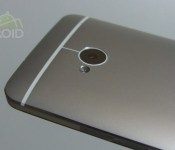
HTC starts rolling out Lollipop OTA for the One (M7) in the US

HTC is now pushing out the long-awaited Lollipop update to all unlocked models of the One (M7) located in the United States. The 729.59MB, upgrade which carries version number 7.18.531.2, transports the latest build of the Android operating system to the handset, in addition to a handful of bug fixes, stability improvements and speed optimizations.
For those in need of a refresh, the Lollipop upgrade brings support for multiple accounts, improved notifications, a smoother multitasking experience, Ambient Display, smarter internet connections and the recently-announced Material Design guidelines.
To start the update, make sure you’re connected to a Wi-Fi network. Then, from the home screen, press the Menu key, followed by Settings. Scroll to the bottom and tap ‘About Device’, followed by ‘Software Update and ‘Update Now’.
Come comment on this article: HTC starts rolling out Lollipop OTA for the One (M7) in the US
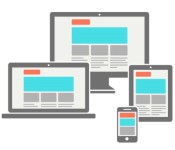
How to sync Chrome tabs across your phone, tablet, and computer

Being able to take an existing tab and reopen it on another device is a beautiful thing that Chrome allows. All that is required is a Google account and devices with Chrome installed. Tabs are then able to be reopened on any phone, tablet, or computer. Chrome Tab Sync is handy in various situations that users will encounter. Whether it is because browsing abruptly stopped or viewing would be ideal on another device, Chrome Tab Sync provides users with a versatile option for moving tabs.
Hit the break for directions.
The first thing to do, regardless of the devices being used, is making sure that you are logged in. On an Android phone or tablet, there is a good chance that you are already logged in; however, just make sure by heading into the settings of Chrome and locating the appropriate account. Computers with Chrome installed all have the same menu button in the top right corner. There, select Settings and the sign-in option is the first item on the list. Users of Chrome OS devices have nothing to do in this area because the system requires a Google account. The most important thing to remember is that the same Google account will be needed on multiple devices.
Using a phone or tablet:

The setup of Chrome Tab Sync for phones and tablets is identical because the Chrome app for both form factors does not differ. So the directions provided here, from a Nexus 9, will match any other Android device that has the latest version of the Chrome app. Head into the settings of Chrome and, along with adjusting everything else, select which account(s) will be synced or not.

The items that can be synced by Chrome include Autofill, Bookmarks, History, Passwords, and Open tabs. If all of those sound appealing, go right ahead and choose Sync everything. The Open tabs option is necessary for Chrome Tab Sync because that is what gives Chrome the capability of identifying a tab from other devices. Also, choosing History can be useful as well because any page ever opened on any device will always be accessible.
Now everything is prepared for Chrome Tab Sync to work.

Launching a new tab in the Chrome app will show the familiar Google page with search, recent visits, Bookmarks, and Recent tabs displayed. Plenty of options are provided but only Recent tabs is valuable (bottom right); however, the only way that it will actually be valuable is if tabs have been opened on other devices. With nothing else opened, there is nothing to see. You can also get to the recent tabs by tapping on the three dot menu at the top right and selecting Recent tabs.

Every tab opened through Chrome on my Acer Chromebook 13 and HTC One (M8) can be seen above. To test the accuracy, just open a tab on another synced device and monitor the page. It should be updated within three seconds; the URL appears first and then refreshes with the link’s title. Select anything listed to see it mirrored just as it was before.
Using a computer:

Getting everything setup on a computer, no matter the operating system, is almost identical to doing so on an phone or tablet. We can thank Google for making a pretty uniform experience between our devices. Underneath the menu button, select Settings and then find Advanced sync settings. Look familiar? That is because the same items were listed in the Chrome app! Yet again, Open tabs is necessary. Make sure that the check box is checked and save the settings.


There are multiple approaches to viewing tabs on a PC, Mac, or Chromebook. The method that will take the most amount of time is opening the History page. That will show everything from open tabs to a full history from every device. The more efficient and sensible way to view these tabs is to find Recent Tabs after selecting the menu button. It keeps everything organized in a tight space rather than covering an entire page.
Simple enough, right? Let me know in the comments if you have any questions.
Click here to view the embedded video.
Come comment on this article: How to sync Chrome tabs across your phone, tablet, and computer
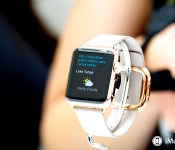
Here’s the first commercial for the Apple Watch


During its Spring Forward event, Apple showed off the first commercial for the Apple Watch, and it’s now available to watch online.
The minute-long commercial shows off a number of apps running on the watch’s face as it switches between a myriad of different design and band combinations.
Apple revealed today that pre-orders for the Apple Watch will start on April 10, with the official shipping date set for April 24. Prices for the watch will start at $349 for the Sport version, and run all the way up to $17,000 for the highest-end configuration of the Watch Edition. Of course, that means there’s plenty of customization options available, so be sure to take a gander our detailed rundown on the cost of each configuration.
<!–*/
.video-frame padding-bottom: 56.25%; height: 0; width: 100%; position: relative; margin-bottom: 25px;
.video-frame video, .article-body .video-frame .video width:100%; height: 100%; position: absolute; top: 0; left: 0; margin: 0
/*–>*/
Source: Apple
<!–*/
<!–*/
<!–*/
.devicebox
background-color: #5CB8DB;
border: 1px solid #E2E9EB;
float: right;
display: block;
margin: 0 0px 10px 10px;
max-width: 350px;
overflow: hidden;
width: 50%;
.devicebox h3
background: #8D98BD;
color: #fff;
font-family: “camptonmedium”,sans-serif;
font-size: 20px;
margin-bottom: 0;
margin-top: 0;
padding: 0;
text-align: center;
.devicebox h3 a
display: block;
line-height: 30px;
padding: 0 10px;
.devicebox h3 a:hover
background: #7e88aa;
text-decoration: none;
.devicebox .video
margin: auto;
border: 0px;
.devicebox p,
.entry-content .devicebox p > img,
.devicebox img
margin: 0px;
padding: 0px;
.devicebox,
.devicebox a,
.devicebox a:active,
.devicebox a:hover,
.devicebox a:link,
.devicebox a:visited,
.devicebox p,
.devicebox ul,
.devicebox ul li,
.devicebox li
color: #fff;
.devicebox a:hover
text-decoration: underline;
.devicebox p,
.devicebox ul,
.devicebox ul li,
.devicebox li
border-width: 0px;
font-family: “camptonlight”,sans-serif;
font-size: 16px;
padding: initial;
.devicebox ul
margin: 0;
padding: 0.5em 1em 1em 30px;
.devicebox ul li
display: list-item;
.devicebox ul,
.devicebox ul li,
.devicebox li
line-height: 24px;
list-style: disc outside none;
.devicebox ul li:before
display: none;
.devicebox ul + p
padding: 0px 15px 15px;
line-height: 1.25;
.field-items p:last-of-type + .devicebox,
.slide p:last-of-type + .devicebox,
.article-body-wrap p:last-of-type + .devicebox
float: none;
margin: 0 auto 30px;
max-width: 700px;
min-height: 225px;
position: relative;
width: 100%;
.field-items p:last-of-type + .devicebox .video,
.slide p:last-of-type + .devicebox .video,
.article-body-wrap p:last-of-type + .devicebox .video
bottom: 0px;
left: 50%;
position: absolute;
right: 0px;
top: 30px;
.field-items p:last-of-type + .devicebox .video_iframe,
.slide p:last-of-type + .devicebox .video_iframe,
.article-body-wrap p:last-of-type + .devicebox .video_iframe
height: 100%;
padding: 0px;
.field-items p:last-of-type + .devicebox ul,
.slide p:last-of-type + .devicebox ul,
.article-body-wrap p:last-of-type + .devicebox ul
width: 43%;
.field-items p:last-of-type + .devicebox h3 + p,
.slide p:last-of-type + .devicebox h3 + p,
.article-body-wrap p:last-of-type + .devicebox h3 + p
bottom: 0;
left: 50%;
position: absolute;
right: 0;
top: 30px;
.field-items p:last-of-type + .devicebox h3 + p img,
.slide p:last-of-type + .devicebox h3 + p img,
.article-body-wrap p:last-of-type + .devicebox h3 + p img
height: auto;
min-height: 100%;
min-width: 100%;
@media all and (max-width: 500px)
.devicebox
float: none;
margin: 0;
max-width: 100%;
width: 100%;
.field-items p:last-of-type + .devicebox .video,
.slide p:last-of-type + .devicebox .video,
.article-body-wrap p:last-of-type + .devicebox .video
left: 0;
position: relative;
top: 0;
.field-items p:last-of-type + .devicebox .video_iframe,
.slide p:last-of-type + .devicebox .video_iframe,
.article-body-wrap p:last-of-type + .devicebox .video_iframe
padding-bottom: 56.25%;
.field-items p:last-of-type + .devicebox h3 + p,
.slide p:last-of-type + .devicebox h3 + p,
.article-body-wrap p:last-of-type + .devicebox h3 + p
left: 0;
position: relative;
top: 0;
.field-items p:last-of-type + .devicebox ul,
.slide p:last-of-type + .devicebox ul,
.article-body-wrap p:last-of-type + .devicebox ul
width: auto;
/*–>*/
/*–>*/
/*–>*/
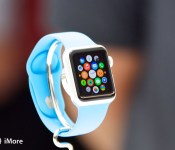
All the Apple Watch apps you’ll want to have!

The Apple Watch is going to ship with a ton of apps, including the ones already announced, and the many more that are being finished right now.
Apple reportedly worked with a hundred or so developers to help make sure some of the best and most popular apps would be ready and polished for the Apple Watch’s launch. They run the gamut from news and information services to sport and leisure activities to education and entertainment to social networking and communication to, well, pretty much every category the App Store offers.
You’ll be able to get them on your Apple Watch by downloading them to your iPhone first. In some cases that’ll mean updates to the existing apps you already have, in others it’ll mean all new apps to love!
It’s still early, and we won’t know for sure how well they work, and which will be the all-stars, until we get them on our wrists, but here are the ones we’re looking forward to the most!
MLB At Bat

The MLB At Bat app allows you to follow all your favorite sports teams and keep up with scores, events, and news. The Apple Watch can show you the scores for your favorite team without even having to unlock your iPhone.

If you tweet regularly, the Twitter app can let you check out your mentions and interact with your Twitter account right on your wrist. While we can’t be sure yet, we can assume that you’ll also be able to respond to tweets right on your wrist with dictation as well!
Fandango

Fandango lets you view upcoming movies, check showtimes, and even buy tickets. The Apple Watch extension will let you interact with your tickets and view info without having to even unlock your iPhone.
Dark Sky

Dark Sky is the app to beat when it comes to up to the minute weather info. Set alerts for your home area and get notified instantly if you need to grab an umbrella or a rain jacket. We’d guess Apple Watch support means those notifications will show up on your wrist too.
Uber

Uber lets you get around cities all over the world by requesting a Uber car or taxi right from your iPhone. Now you can receive Uber notifications and updates right to your Apple Watch.
Shazam

With Shazam you can tag music you hear so you can remember to download it later from iTunes or add it to your favorite streaming service. With the Apple Watch, no longer do you have to fuss with pulling your iPhone out before the song ends, instead just tag a song right on your wrist!
CNN

CNN already provides breaking news right to your iPhone or iPad, with the Apple Watch, you can receive breaking news notifications right on your wrist. You can then expand the article and read it right on your wrist, or save it for later.
American Airlines

The American Airlines app will let you pull up all your boarding passes right in Passbook just like you already can on your iPhone. You can even bring up bar codes and have security scan them instead of having to print out boarding passes, all from your wrist.
SPG

Starwood lets you access room keys and reservations right on your iPhone for their hotel properties. The same kind of functionality will also be available right on your Apple Watch.
More apps!
These are the Apple Watch apps that we think are going to be early favorites, but thousands and thousands of incredibly talented iOS designers and developers have been working with WatchKit for months to fine-tune their looks, glances, and apps. That means there absolutely will be even more amazing Apple Watch apps coming our way — a lot more!
And we’ll keep adding the best ones right here!
<!–*/
<!–*/
<!–*/
.devicebox
background-color: #5CB8DB;
border: 1px solid #E2E9EB;
float: right;
display: block;
margin: 0 0px 10px 10px;
max-width: 350px;
overflow: hidden;
width: 50%;
.devicebox h3
background: #8D98BD;
color: #fff;
font-family: “camptonmedium”,sans-serif;
font-size: 20px;
margin-bottom: 0;
margin-top: 0;
padding: 0;
text-align: center;
.devicebox h3 a
display: block;
line-height: 30px;
padding: 0 10px;
.devicebox h3 a:hover
background: #7e88aa;
text-decoration: none;
.devicebox .video
margin: auto;
border: 0px;
.devicebox p,
.entry-content .devicebox p > img,
.devicebox img
margin: 0px;
padding: 0px;
.devicebox,
.devicebox a,
.devicebox a:active,
.devicebox a:hover,
.devicebox a:link,
.devicebox a:visited,
.devicebox p,
.devicebox ul,
.devicebox ul li,
.devicebox li
color: #fff;
.devicebox a:hover
text-decoration: underline;
.devicebox p,
.devicebox ul,
.devicebox ul li,
.devicebox li
border-width: 0px;
font-family: “camptonlight”,sans-serif;
font-size: 16px;
padding: initial;
.devicebox ul
margin: 0;
padding: 0.5em 1em 1em 30px;
.devicebox ul li
display: list-item;
.devicebox ul,
.devicebox ul li,
.devicebox li
line-height: 24px;
list-style: disc outside none;
.devicebox ul li:before
display: none;
.devicebox ul + p
padding: 0px 15px 15px;
line-height: 1.25;
.field-items p:last-of-type + .devicebox,
.slide p:last-of-type + .devicebox,
.article-body-wrap p:last-of-type + .devicebox
float: none;
margin: 0 auto 30px;
max-width: 700px;
min-height: 225px;
position: relative;
width: 100%;
.field-items p:last-of-type + .devicebox .video,
.slide p:last-of-type + .devicebox .video,
.article-body-wrap p:last-of-type + .devicebox .video
bottom: 0px;
left: 50%;
position: absolute;
right: 0px;
top: 30px;
.field-items p:last-of-type + .devicebox .video_iframe,
.slide p:last-of-type + .devicebox .video_iframe,
.article-body-wrap p:last-of-type + .devicebox .video_iframe
height: 100%;
padding: 0px;
.field-items p:last-of-type + .devicebox ul,
.slide p:last-of-type + .devicebox ul,
.article-body-wrap p:last-of-type + .devicebox ul
width: 43%;
.field-items p:last-of-type + .devicebox h3 + p,
.slide p:last-of-type + .devicebox h3 + p,
.article-body-wrap p:last-of-type + .devicebox h3 + p
bottom: 0;
left: 50%;
position: absolute;
right: 0;
top: 30px;
.field-items p:last-of-type + .devicebox h3 + p img,
.slide p:last-of-type + .devicebox h3 + p img,
.article-body-wrap p:last-of-type + .devicebox h3 + p img
height: auto;
min-height: 100%;
min-width: 100%;
@media all and (max-width: 500px)
.devicebox
float: none;
margin: 0;
max-width: 100%;
width: 100%;
.field-items p:last-of-type + .devicebox .video,
.slide p:last-of-type + .devicebox .video,
.article-body-wrap p:last-of-type + .devicebox .video
left: 0;
position: relative;
top: 0;
.field-items p:last-of-type + .devicebox .video_iframe,
.slide p:last-of-type + .devicebox .video_iframe,
.article-body-wrap p:last-of-type + .devicebox .video_iframe
padding-bottom: 56.25%;
.field-items p:last-of-type + .devicebox h3 + p,
.slide p:last-of-type + .devicebox h3 + p,
.article-body-wrap p:last-of-type + .devicebox h3 + p
left: 0;
position: relative;
top: 0;
.field-items p:last-of-type + .devicebox ul,
.slide p:last-of-type + .devicebox ul,
.article-body-wrap p:last-of-type + .devicebox ul
width: auto;
/*–>*/
/*–>*/
/*–>*/
<!–*/
.imageleft
float: left;
margin: 0 25px 0 0;
.imageright
float: right
margin: 0 0 0 25px;
.screenshot-16×9
height: auto;
width: 88.97%;
.screenshot-16×9.imageleft,
.screenshot-16×9.imageright
width: 50%;
.screenshot-4×3
height: auto;
width: 66.66%;
.screenshot-4×3.imageleft,
.screenshot-4×3.imageright
width: 50%;
/*–>*/
Apple Watch Battery Life: 18 Hours Mixed Usage, Up to 72 Hours on Power Reserve
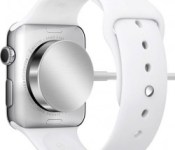
 Apple has outlined specific information about Apple Watch battery life on its website, claiming that the wrist-worn device gets all-day battery life of 18 hours on a single charge based on mixed usage, and up to 72 hours in Power Reserve mode. The battery testing was conducted in March using a preproduction Apple Watch paired with an iPhone running preproduction software.
Apple claims that the Apple Watch has a battery life of up to 3 hours for talk time, 6.5 hours for audio playback over Bluetooth, up to 7 hours during a workout session with the heart rate sensor on and up to 48 hours for timekeeping. Apple Watch charging times are listed as about 1.5 hours from 0% to 80% and 2.5 hours from 0% to 100% using the included MagSafe inductive charger.
Apple’s claim of all-day battery life is based on using the Apple Watch for 90 time checks, 90 notifications, 45 minutes of app use, and a 30-minute workout with music playback via Bluetooth over the course of 18 hours. Apple used a 38mm Apple Watch for testing and claims that the 42mm will generally experience longer battery life. Additional magnetic chargers are available on Apple’s bands and accessories page, costing $29 for a 1-meter cable and $39 for a 2-meter cable.
Want some apps for that Apple Watch? You’ll need iOS 8.2

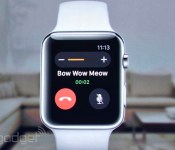
We already got the big Apple Watch reveal last fall. But today, Tim Cook took the stage at the Yerba Buena Center in San Francisco to let us all know what wonders that very Apple smartwatch can perform, like make and receive calls! Oh yes, and there’s also a host of apps to take advantage of Apple Watch, but to get them, first you’ll need to download the new iOS 8.2 software update for your iPhone. Good thing it’s available today.
iOS 8.2 adds the Apple Watch app to your iPhone, so you can pair it to your Watch. A crucial thing you’ll need to unlock the pricey power of the multi-tasking watch on your wrist. It also adds a specific section to the App Store dedicated to the Apple Watch where users will find tailored versions of apps from the likes of Uber, Instagram, MLB and Shazam to name a few. You’ll have to wait until Apple Watch goes on sale in April to see them action. So for now, content yourselves with the demo shots below.

Uber


SPG/W Hotel

Filed under: Cellphones, Tablets, Software, Mobile, Apple
Samsung expands Milk Music streaming service to the web

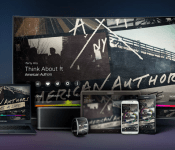
In celebration of Samsung’s Milk Music turning one year old today, the company has just announced it is expanding the streaming service beyond mobile platforms. Starting today, you can stream Milk Music through your computer’s web browser, for free, without the need to own a Samsung device.
If you’ve used the service in the past, you’ll be right at home with the the web interface. The background is still a big photo of the album artwork, and you can easily favorite tracks, change songs, and get new information on the song that’s currently playing. Towards the bottom of the player is a handy station tuner for quick access to switching channels.

The service is still generally the same through and through. It’s powered by Slacker, so you’ll have access to millions of songs, thousands of artists and much more. Just like its mobile counterpart, you’ll need a Samsung account to use the service on the web. Once you set up your account, you can instantly start streaming music and creating as many playlists as you’d like.
What’s more, you won’t even need to pay a dime to use the web service. So if you’re currently paying for Google Play Music, Spotify or any others, switching to this service might be a good way to save a few bucks per month. If you’re interested in trying out the new web interface, head to milk.samsung.com to give it a try.
Now that Milk Music is a free alternative streaming service on the web, are you planning to use it?
New port brings HTC BlinkFeed to all Android 4.4+ devices

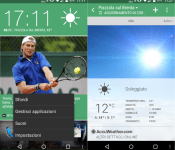
The XDA developer community has been ever active with regards to bringing features from one devices to the rest of the pack. Popular XDA developer, xpirt, has done something similar today by bringing the HTC BlinkFeed app to all Android 4.4 running devices.
It’s as simple as installing apks uploaded by the developer and you’re good to go. BlinkFeed essentially gives you a quick peek of all your social feeds in one glance, rather than having to individually open them. This has been one of the highlights of HTC smartphones over the past couple of years and starting now, non-HTC device owners can get this feature on their devices as well.
There are a series of four apks that need to be installed in order for this to work. You can find them here. After sideloading and installing these apks, you will have to install the necessary plugins for Google+, Facebook, Instagram, Twitter or LinkedIn. You can choose to have some or all of these plugins installed. Find them here.
Make sure you head over to the XDA forums for more details on how to make this feature work on your Android 4.4+ running smartphone.
Source: XDA Forums
Come comment on this article: New port brings HTC BlinkFeed to all Android 4.4+ devices
 AIVAnet

