


Titanfall’s season pass content is currently free on Xbox One and Xbox 360
Today marks the anniversary of the launch of Titanfall. Respawn Entertainment’s wildly successful sci-fi FPS launched to widespread critical acclaim following months of intense hype. To commemorate Titanfall’s first birthday, EA has marked down the price of Titanfall’s season pass and all associated DLC to $0.00.

UNWYND – a stylish puzzle game for Windows Phone

UNWYND is a relatively new Windows Phone game that has you tackling a series of puzzles where you have to include or exclude a series of colored boxes. The interface is simple and only requires a few swipes to solve each puzzle. However, finding the right solution may not be as easy.
UNWYND has over ninety puzzle levels spread across three chapters and while the game takes a few tries to get the hang of, it can be a real head scratcher. Available for low memory Windows Phones, the only real downside to UNWYND is the lack of a trial version.
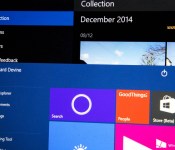
Just one bug is holding back the next Windows 10 preview release

It’s been nearly two months since Microsoft released the current 9926 public preview version of Windows 10 for PCs. Now it appears that one particular bug is making the development team make a choice on whether or not to release the new build soon or wait.

Wear resistant skin case for LG G3 only $14.95 today
 The LG G3 Satin Case from Body Glove brings case innovation alive again with its brushed aluminum texture and trimmed high gloss accents for an all-around reliable solution against damage. Get yours today and save 40%

How Apple’s MacBook stacks up against the Windows competition

Apple claims to have reinvented the Notebook with the new MacBook. But there’s a few Windows 8.1 powered devices out there that might have something to say. Here’s how they stack up.

Grab one of these clear hard cases for iPhone 6 Plus today for only $11.95

The back of this hard case is made of a thin polycarbonate that’s completely transparent, so it’s almost as if you don’t even have a case around your iPhone 6 Plus. The edges are made of a slim rubber, making it easy to install and remove when necessary. Even the side buttons are raised for easy access!
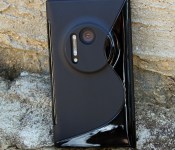
These Nokia Lumia 1020 skin cases are only $4.95 today!

Made of highly durable material that feels great when gripped, this sleek skin case features anti-slip properties that give your Lumia 1020 more grip on all types of surfaces. Get yours in black or white today and save 50% off the list price.
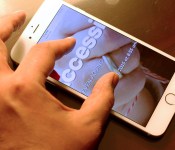
The accessible power of pinch-to-zoom

The onset of the iPhone in 2007 introduced the world to Multi-Touch, which Steve Jobs said “worked like magic”.
It forever changed the way people interacted with smartphones; not only was Multi-Touch an impressive technical achievement, but it was fun and delightful to use. More importantly, Multi-Touch changed people’s expectations for their devices. We’ve gone from seeing hardware buttons everywhere to seeing simple slabs of glass. This is especially true for young children, who expect everything electronic to be tappable; touch is all they know, as they have no prior context of olden ways.
The concept of touch is so ingrained in our collective muscle memory at this point that I think it’s taken for granted to a degree. An example of this is using the pinch-to-zoom gesture in order to zoom in on text and/or photos. I use it so often that it feels like second nature, and I don’t think about what it really does. But it occurred to me the other day that pinch-to-zoom’s impact on my computing life is far more profound.
The reality is that pinch-to-zoom is (and always has been) wonderful for accessibility. With one quick motion, I can zoom in as close on text and/or a photo as I need to see comfortably. I don’t need to use the discrete Zoom feature under Accessibility; all I need to do is use the system-standard Multi-Touch gesture. As a person with low vision, I find pinch-to-zoom to be a godsend in terms of visual accessibility, even if I’m not always consciously aware of it.
I use pinch-to-zoom most often in Safari on my iPhone and iPad, and it works great in most cases. (I do the same with my Magic Mouse and on my MacBook’s trackpad as well.) I find myself reading articles in Safari (or in Tweetbot; long live UIWebView) using pinch-to-zoom to read, and I enjoy it very much.
It’s not all roses, however. Many times, I’ll read something on a “mobile-optimized” website that doesn’t support the pinch-to-zoom gesture, which I find frustrating. In order to combat this, I’ll try requesting the desktop site, which is hit or miss, or I’ll switch to Safari’s Reader View. Still, it’s perplexing to me that many sites don’t work with pinch-to-zoom because they think their optimization is somehow better. Most of the time it isn’t, and I wish that I could just use Multi-Touch like I know Safari obviously supports.
As I wrote when extolling Apple Pay’s accessibility merits, the appeal of pinch-to-zoom — and Multi-Touch in general, really — as an accessibility tool comes down to its inherent design. Like with Apple Pay, the ingenuity of pinch-to-zoom is that enlarging text requires no special modes; it’s just part of how we interact with our iOS devices. Best of all, pinch-to-zoom is yet another example of inclusive design; it’s accessible and useful to everyone, from the visually impaired to the fully-sighted.
It’s worth noting, too, the significance of my assertion that pinch-to-zoom is terrific for accessibility. I fully concede that there is a certain level of minutiae here, but that’s actually a good thing. As a person with disabilities, every day is filled with small victories and struggles. I have to look at everything in my environment with a fine-tooth comb in order to be successful, and using my iOS devices is no different. Using pinch-to-zoom in Mail lets me correspond with my various editors, and using it in Safari allows me to stay abreast of what’s happening in the world. Put another way, using pinch-to-zoom is a small victory for me, and I can’t be the only one who feels this way. It changes the perception from mundane implementation detail to critical facet of my iOS experience.
The moral of this story is that even a that’s-just-the-way-it works feature like pinch-to-zoom has tremendous impact on everyday life if you really think about it. And I think it’s worth pointing out because it ultimately reflects on Apple. They pioneered the technology, and it’s making a sizable dent in the universe.
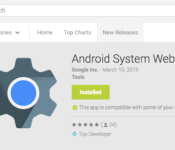
Google’s WebView app now available for all Lollipop devices in the Play Store

Just a few weeks ago, Google released its WebView app to the Play Store, though it was only in beta upon its arrival. But if you own a Lollipop device and visited the Play Store yesterday, you may have noticed that the WebView app is now installed on your device. That’s because Google has removed the beta tag from the app, and sent it to all Lollipop devices.
WebView is a tool developers use to allow their apps to render webpages, without the need to open the content in an external browser. Now with Google adding it directly to the Play Store, much like many of its other apps, Google can send important performance fixes to the app without the need to wait for the next system update to roll out. WebView is only available for devices running Lollipop, so hopefully your device will get the update to 5.0 sooner rather than later.
If you’re interested, you can check out the Play Store link below for more information on the app, but for those folks with Lollipop devices, the app should already be installed on your device.


Fitbit Surge fitness tracker review

The Fitbit Surge tracks steps, calories, sleep, workout sessions, and can even monitor your heart rate. Unfortunately, step count accuracy still appears to be Fitbit’s Achilles Heel
The Surge is Fitbit’s high end fitness tracker for 2015 and features a touch sensitive screen, built-in heart rate sensor, and traditional watch style clasp. It’s the most feature packed fitness band Fitbit has ever shipped. But is it enough to put Fitbit ahead of the rest?
The good
- Touch screen is responsive and offers a lot of options without having to reach for your iPhone
- Workout sessions are easy to use and take only a few seconds to initiate
- Heart rate sensor is accurate and collects meaningful data inside the Fitbit app
- Traditional watch style clasp that’s less likely to get snagged on something
- Sleep tracking is automatic, you don’t have to remember to do anything
- Call and text notifications right on your wrist
The bad
- Step count on the Surge is not accurate, like its predecessors
- Calorie counts also suffer from some inaccuracies
- The Surge is a large device which will make it uncomfortable to sleep in for some
- Battery life doesn’t live up to what Fitbit advertises — I only average 3 to 4 days between charges

Setting up the Fitbit Surge is easy enough and doesn’t require anything but the band and your iPhone. After you’ve created a Fitbit account, the Fitbit app will pair with your band. The app is also how you’ll download and install updates to your band’s firmware — you’ll be notified if and when an update is available.
The Fitbit Surge is an exceptionally large fitness band. The face of the Surge felt like an okay size but the band is a lot thicker than it needs to be. You have to make sure you wear the Surge at least a finger width above your wrist bone for the heart rate sensor to work properly. For me this made the thickness of the band even more noticeable.
I didn’t have an issue wearing the Fitbit Surge while performing every day activities like walking, doing chores around the house, running errands, or going to the gym. There were only two instances in which the band got in my way, while sleeping and while typing on the computer. Sleeping may not be an issue for some but if you have small wrists, which I do, the band gets in the way. Whether or not you’re okay sleeping in the Surge will depend on how you sleep. For me, it always seemed to get in the way. I do however like the fact that the Surge tracks my sleep without me having to push a button or tell it I’m going to sleep. It just pays attention to my movements and my heart rate.
Typing was also a pain point for me. I don’t think it would have been if the band was slightly thinner. I didn’t have as much of an issue on my iMac where the edge of the keyboard is shorter. On my MacBook, I always found the Surge digging into my wrist or scratching on the palm rest.

Turning to the face of the Surge, you’ve got a lot of options available to you. The main screen functions just like a regular wrist watch. Tap the button on the left and you can swipe your way to workout sessions and useful data such as your step count, calorie count, heart rate, and more. If you receive a call or a text message, you will see a notification and feel a vibration on your wrist. You can quickly cycle through all your notifications using the side buttons. The Surge is easy to use and the button layout only took me a few minutes to get used to. You can also control music with your Fitbit Surge by pairing it in classic Bluetooth mode in Settings.
At the gym you can quickly start workout sessions and choose what kind of activity you’re performing. You can then view even more detailed statistics inside the Fitbit app. Unfortunately step count on the Fitbit Surge suffers from the same inaccuracies previous versions of Fitbit products have. I wore the Fitbit Surge for a week alongside the UP24, which I’ve found to be the most accurate step count wise, and the differences were obvious. Most days the Surge claimed I took about 500 to 1,000 more steps than the UP24 registered. That obviously trickles down and effects other data such as calorie count. For anyone relying on accurate calorie and step count for weight loss or gain purposes, that’s no good.

On a positive note, the heart rate monitor in the Fitbit Surge is pretty much spot on. I tested it on several different workout machines and it was always within 5 beats per minute. However, you’ll need to make sure that you’re wearing the Surge far enough above your wrist bone. If you don’t, it’ll result in inaccurate beats per minute.
The Fitbit app itself has added some nice improvements over the past year. Most of these improvements are focused around providing more meaningful data and statistics. Fitbit can also read and write to HealthKit if you choose to let it. For anyone that wants to track their heart rate for health purposes, Fitbit can give you averages as well as detailed graphs of how your heart rate changed throughout each day. The same data is available for step count and workouts as well.
The bottom line

I was really hoping Fitbit would have addressed step count inaccuracies this time around. Unfortunately, that’s obviously something they’re still struggling with. The Fitbit app has a lot of potential and provides a lot of great data points. However, that’s only useful if the hardware it depends on actually filters in accurate data.
That being said, I just can’t recommend the Fitbit Surge over other readily available options such as the Garmin vivosmart or Jawbone UP24 that are not only much cheaper, but far more accurate.
 AIVAnet