


T-Mobile to bring ‘Data Stash’ to Pre-Paid on March 22nd
When T-Mobile announced Data Stash for the post paid customers of the magenta flag it was hit and miss when it came to customer excitement. Regardless if it was good for your life and account, the fact remained that it was a good move for consumers who were keeping to data limits. AT&T deemed it […]
The post T-Mobile to bring ‘Data Stash’ to Pre-Paid on March 22nd appeared first on AndroidSPIN.
Porsche Design Passport concepts might offer a glimpse into the future

While BlackBerry and Porsche Design took the covers off the P’9983 Graphite earlier, there’s still another Porsche Design device slated for this year under the codename ‘Keian’ in honor of Keian Blundell and it’s widely rumored, expected and hoped to be a variation of the BlackBerry Passport.
Apple reportedly readying 25 channel TV service

Apple is reportedly in talks with content producers to launch a 25-channel TV service by September.
The service will reportedly be similar Dish Network’s recently-launched Sling TV, and will run on Apple devices such as the Apple TV, iPhone, and iPad. According to The Wall Street Journal:
The technology giant is in talks with programmers to offer a slimmed-down bundle of TV networks this fall, according to people familiar with the matter. The service would have about 25 channels, anchored by broadcasters such as ABC, CBS and Fox, and would be available on Apple devices such as the Apple TV, they said.
The Wall Street Journal goes on to note that Apple could be targeting a price range of $30 to $40 per month, and is aiming for an announcement in June, with a launch following in September.
Just last week, Apple announced a partnership with HBO to bring its standalone streaming offering, HBO Now, to Apple devices months ahead of the competition. It appears that the deal may have been Apple testing the waters for its own upcoming streaming service:
That deal was designed as a kind of appetizer for the main meal plans to be served later this year, according to a person familiar with the matter.
This information lines up with a previous report from February that Apple has already shown off a demo of such a service to content partners in some capacity.
If true, it will be interesting to see if an offering from Apple will make waves in the relatively young streaming television field. If the proposed September launch date is correct, Apple will be entering the field among fierce competition from the aforementioned Sling TV, which will have had several months to flesh out its service before Apple enters the fray. However, unlike Sling TV, Apple would have control over not just the service, but also the hardware running it, which could give the tech giant a leg up over the competition.
Source: The Wall Street Journal
Apple Planning to Launch Streaming TV Service Featuring ABC, CBS, Fox and More
Apple is in talks with programmers to launch a subscription-based streaming TV service anchored by networks ABC, CBS and Fox, according to The Wall Street Journal. The report, citing sources familiar with the matter, claims that the service would have about 25 channels and be available on Apple TV, iPad and iPhone.
BREAKING: Apple in talks to launch online TV service in the fall with about 25 channels, featuring ABC, CBS and FOX networks – WSJ
— CNBC Now (@CNBCnow) March 17, 2015
Apple’s web-based TV service will reportedly be a lightweight package consisting of popular channels such as ABC, CBS, ESPN and FX, but not smaller stations typically included in a standard cable TV package. The service is rumored to cost between $30 to $40 per month and debut at Apple’s annual Worldwide Developers Conference in June ahead of a September launch in the United States.
The report adds that NBCUniversal content will be notably absent due to a falling-out between Apple and NBC parent company Comcast. The two sides were allegedly in negotiations as recently as last year, although Apple believed that Comcast was too focused on its own X1 set-top box for web-based streaming. The breakdown in discussions may have prevented Apple from launching its online TV service sooner.
WSJ: Apple’s TV service due this fall with about 25 channels

With the thawing of the spring we have a renewal of an old favorite: Apple TV rumors. After Re/code suggested a month ago that Apple might go its own way Sling TV-style instead of working with cable companies, the Wall Street Journal is reporting similar details. According to WSJ, Apple is negotiating to launch a “slim” package of 25 or so channels for streaming this fall for $30 – $40, but there’s a twist: there’s no negotiations so far with Comcast-owned NBCUniversal, because of a falling out between the cable giant and the tech company. The rumors go so far as to claim Apple felt Comcast was intentionally stringing it along while it developed its X1 cable box. So far Sling seems to be doing ok without Syfy and the rest, but we’ll see if that changes after The Expanse launches. With an Apple TV price drop and similar services either launched or on the way, we’ll move the Apple TV rumor alert level up to a still-skeptical (see my reasoning here) chartreuse.
Filed under: Home Entertainment, HD, Apple
Source: Wall Street Journal
WSJ: Apple’s TV service due this fall with about 25 channels
With the thawing of the spring we have a renewal of an old favorite: Apple TV rumors. After Re/code suggested a month ago that Apple might go its own way Sling TV-style instead of working with cable companies, the Wall Street Journal is reporting similar details. According to WSJ, Apple is negotiating to launch a “slim” package of 25 or so channels for streaming this fall for $30 – $40, but there’s a twist: there’s no negotiations so far with Comcast-owned NBCUniversal, because of a falling out between the cable giant and the tech company. The rumors go so far as to claim Apple felt Comcast was intentionally stringing it along while it developed its X1 cable box. So far Sling seems to be doing ok without Syfy and the rest, but we’ll see if that changes after The Expanse launches. With an Apple TV price drop and similar services either launched or on the way, we’ll move the Apple TV rumor alert level up to a still-skeptical (see my reasoning here) chartreuse.
Filed under: Home Entertainment, HD, Apple
Source: Wall Street Journal
Google’s interactive cards head to YouTube videos

Interactive cards are a recurring feature among various apps and services produced by Google. They offer more information at a glance than almost any other alternative. Google Now uses these cards to spread apart content and suggestions. Play Movies & TV displays them for a quick look at information regarding the film/show, actor, director, and other items. Since they are so useful, the interactive cards are being made available to content creators on YouTube.
On YouTube, the interactive cards come in six variations: Merchandise, Fundraising, Video, Playlist, Associated Website, and Fan Funding. Each is rather self-explanatory. They are described as an “evolution of annotations” for viewers to explores additional content and areas. Without question, this new form of a popup looks better than what YouTube had been using for years.
The interactive cards on YouTube will work across web, phone, and tablet platforms.
Source: YouTube Creator Blog
Come comment on this article: Google’s interactive cards head to YouTube videos

Monday Makeover: An extensive look at UCCW
There is a plethora of apps out there that allow you to customize just about every single thing on your android smartphone without even rooting. That is why we have started the weekly series “Monday Makeover.” Each week we will take one of these customization apps and talk about setting it up, discuss the features of it, and show you how you can make your android device truly one of a kind. Last week we talked about Go Launcher EX. This week we are taking a look at UCCW, the Ultimate Custom Widget.
UCCW gives you access to more widgets than you could ever imagine, and there are many ways to get them. UCCW has no setup procedure, so once you install it, you are ready to go. One of the biggest draws to UCCW is the ability for the user to create their own widgets that do exactly what you want them to do. If you are a creative person, this is fantastic and you can create and customize to your heart’s content. However, if you are not a super creative person, UCCW is still just as useful to you. By simply searching “UCCW” in the Google Play Store, you can find countless beautiful widgets created by other people for you to download and use. There are also other websites where creators will put their widgets up for download that you can find. We will take a look at both ways to get widgets in today’s Monday Makeover, starting with creating widgets on your own.
Creating Widgets with UCCW

To start creating your own widget, tap the pink plus sign in the bottom right corner of the app and the tap the smaller plus sign right above it.
This will bring you to the templates page and show you all the built in options you have for widgets. There are several clock widgets, a weather widget, and a battery widget, but we will be taking a look at the blank template to start from scratch. You will be prompted to name you widget, and you can also choose the size of your widget and the size of the grid inside your widget from this screen. Tap the “Done” button to continue. You will be brought to the widget creator and from here you are given every option possible to customize your widget.
Background
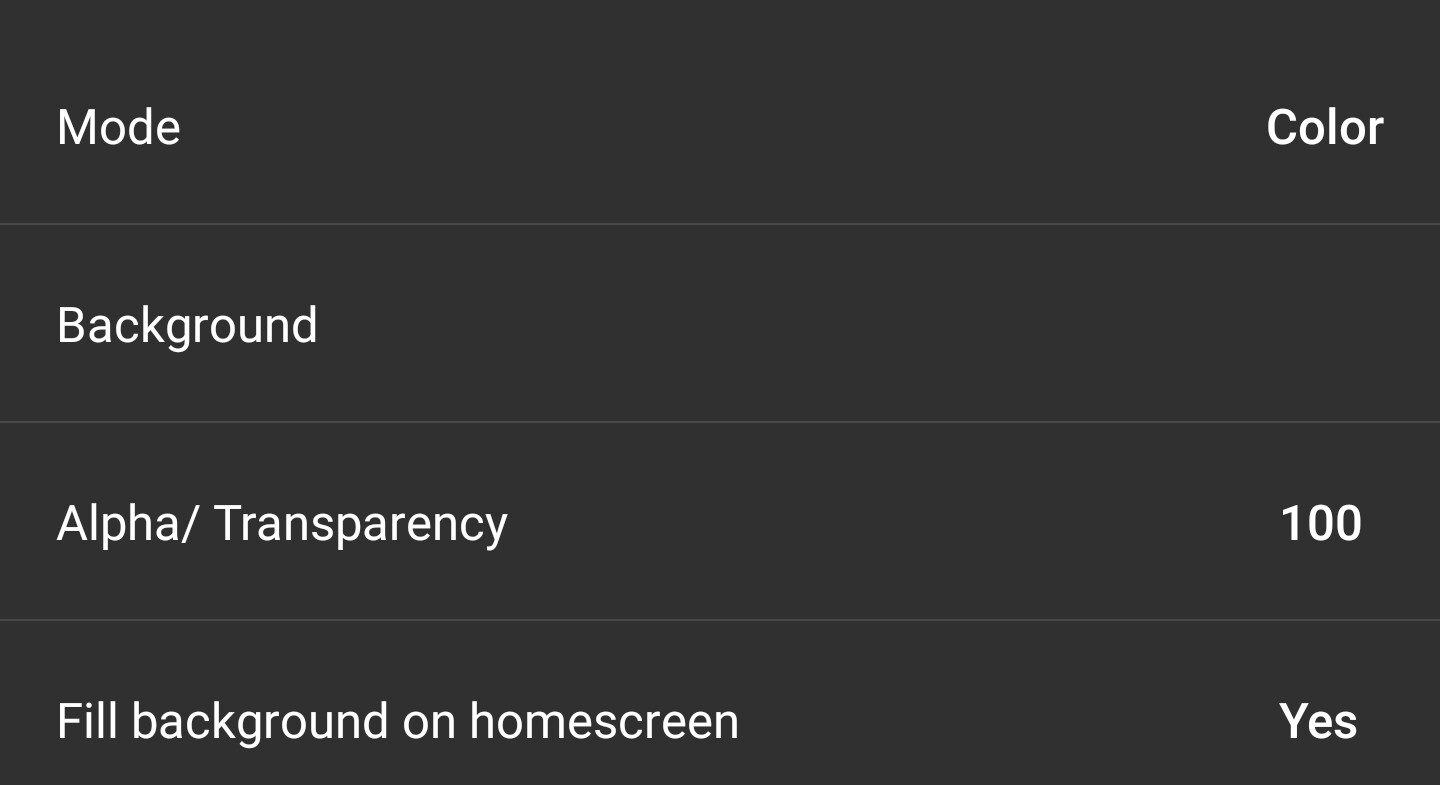
Under the “Background” tab, you will find every option for changing the background of your widget. “Mode” lets you change between having a color or an image as your background. This means you could design a background in another program and use it as a background for you phone. Or, you know, a picture of your dog. If you stay in Color mode, tapping “Background” will bring up the color picker so that you can make the background any color you want. “Alpha/Transparency” changes how transparent your background is from completely opaque to clear. Changing “Fill background on homescreen” to Yes will fill the entire widget space with the background even if the does not take up the entire space. Changing it to No will only place the background behind the widget. Dimensions change the height and width of your background. If you change to Image mode, tapping “Background” will let you choose what image you want to use. “Image scale type” lets you choose how you want to fit the image to your widget. “Alpha/Transparency” changes the transparency of your image. Fill background on homescreen will make your image fill the entire grid you place your widget in, even if the widget does not take up the entire grid.
Object

Under the “Object” tab, you will find all the options you have for adding content to your widget. You can add as many objects as you want by pressing the pink plus sign in the bottom right corner. This will bring up the list of objects to choose from. You can add text, clocks, shapes, graphics, weather, images, and more. We could spend hours on each object, but to spare you time from reading 10,000 words I will just be doing an overview. When you select an object, you are given the option to name it and then it is added to your widget and its name is added to the list below. Tapping on the object will then bring up a set of options for that object in particular. Each object can have dozens of customization options for it so you can see why we are not diving into each one. Once you are in an objects menu, you can move it by dragging your finger around the widget preview at the top of the screen. You are also given more precise movement controls in the options. You can copy and delete objects by tapping the three dots to the right of their name and selecting the desired action.
Hotspots

Under the “Hotspots” tab, you will find the options for adding hotspots that will perform a certain action when tapped. You can add as many hotspots as you want by tapping the pink plus sign in the bottom right corner. This will add a hotspot to the list. Selecting a hotspot from the list will bring up options for that hotspot. You can rename it using “Label” and also change it’s position. “Width” and “Height” change the size of the widget to fit where you want it to. “Hotspot” will bring up three options to choose from. Application will let you choose a specific app to launch when the hotspot is pressed. UCCW brings up specific UCCW settings that will occur when the hotspot is pressed. Shortcut will cause the hotspot to perform a specific action from the long list of shortcuts available. “Shape” changes the shape of the hotspot to fit your needs. You can place hotspots behind objects to make the object complete an action when pressed and hotspots are not visible when the widget is on the homescreen.
Offset objects
The “Offset objects” tab allows you to move all the contents of the widget at one time. This way you can shift the whole widget without having to move each piece individually.
Editor background

Under the “Editor background” tab, you can choose what background is displayed behind the widget preview in the UCCW app. You can either have you wallpaper, a specific color, or just the default white and grey tiles.
Downloading Widgets for UCCW
Going to the Google Play Store and searching for “UCCW” will bring up numerous widgets created by others specifically for UCCW. Many are free although some of the fancier ones may be paid downloads. As an example, I am downloading the “Minimal UCCW” widgets which showed up first in my search. After downloading it, you can open up the UCCW app and see that it has been added to your list of widgets. You can go ahead and add the widget to your homescreen as it is, but you also have the ability to edit downloaded widgets as if they were your own. All the options that were discussed above about creating your own widgets are available to use with downloaded ones, as well. You can customize the widgets you download to make them fit the way you want. If a widget has a hotspot that is meant to open a certain app, I would go into that widget’s hotspot settings and see what app is going to open. Many times, widget creators use different apps from you and the hotspots will not change even if you do not have that app installed. You can also find widgets created by others online by searching something like “UCCW skin.” These can be used and edited just like every other widget in UCCW.
Adding UCCW Widgets to Your Homescreen
Adding widgets created in UCCW to your homescreen is different than normal. Instead of searching for the name of your widget in the widgets list, you need to scroll until you find widgets called “UCCW” with a dimension after. These are blank widgets and you add the widget you want afterwards. Add the correctly sized widget to your homescreen and it will open the UCCW app. From here, you select what widget you would like on your homescreen and it will replace the blank widget with that one.
Another Monday Makeover comes to an end. We have discovered the endless customization possibilities offered by UCCW and how to use each one. This app is fantastic since it gives users access to widgets that would not be available otherwise. UCCW is free and has no paid version so you get all the features for free. I would definitely recommend giving this app a try and seeing all of the amazing possibilities it has to offer. If you are trying out UCCW or have used it in the past, tell us about your experience in the comments. While you are down there, leave a suggestion for an app that you would like to see featured in a future Monday Makeover. Have a great week!
The post Monday Makeover: An extensive look at UCCW appeared first on AndroidGuys.
Deal: Get lifetime access to seven Android game development courses for $49 (93% off)

Many people want to build apps and games for Android, but it’s difficult to know where to start. If you’ve been seeking out a way to start your coding, we may have a deal that’s just right for you. The Android Game Developer Bundle offers seven all-level online courses for building Android apps and games. With these courses, you’ll be able to learn how to reskin apps, develop for Android 5.0 Lollipop and much more.
Here are all of the courses offered in the Android Game Developer Bundle:
- No-Coding-Required Game Building Course – Build Simple & Profitable Android Games with Zero Coding Knowledge ($199 value)
- Beginner Game Reskinning Course – Master Skills to Reskin Apps & Publish Games on iOS + Android ($27 value)
- Android Lollipop Complete Development Course – Hands-On Android 5.0 App Building ($199 value)
- Unity3D 2D-Game Development Course – Learn to Create 2D Games with Unity3D ($39 value)
- All-Level Unity3D C# Game Development Course – Use the C# Programming Language for Game Creation in Unity3D ($149 value)
- Intro to C# Programming & Scripting for Games in Unity – Code Games w/ Basic Script Files & Variables ($49 value)
- All-Level Android App Development Course – Learn Java Essentials for Developing Android Apps ($99 value)
This deal gives you lifetime access to all of the available content shown above, and you can watch it at your convenience on phones, tablets and laptops. All of this can be yours for only $49… that’s 93% off the suggest retail pricing. If you’re interested, head to the Android Authority Deals Store to check it out.
 AIVAnet