


Audi USA will equip all of its 2016 cars with AT&T’s LTE service

Building upon its previous arrangement, Audi and AT&T have reached an agreement to have all of Audi’s 2016 vehicles to come pre-installed with AT&T’s LTE service. This deal offers Audi drivers to add the LTE service for an extra $10 per month. In addition, a new capability of AT&T Drive is added where the car can connect to the company’s Digital Life home security and automation platform. This enables the user to control parts of their home straight from their vehicle.
For a little more info, check out the source link after the break!
source: Fierce Wireless
Come comment on this article: Audi USA will equip all of its 2016 cars with AT&T’s LTE service
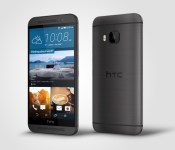
HTC’s One M9 is priced at $599 according to T&C’s of SweepStakes Promotion

The HTC One M9 was only announced a couple of days ago at MWC, so it’s pretty normal not to have pricing details available. But seeing as HTC are currently running a SweepStakes Promotion where you can win one of five One M9 handsets, a monetary value for the prize has to be included in the terms and conditions of the contest, as seen after the break.
FIVE (5) PRIZES: One (1) HTC One (M9) phone. Actual appearance of phone may differ from device depicted. The actual value of Grand Prize is subject to price fluctuations in the consumer marketplace based on, among other things, any gap in time between the date the ARV is estimated for purposes of these Official Rules and the date the prize is awarded or redeemed. Approximate Retail Value (“ARV”): $599. Odds of winning a Prize depend on the number of eligible entries received during the Promotion Period.
Granted, the $599 price tag is in no way official, but it serves as a good ballpark figure for the handset. I would be very surprised if the HTC One M9 ended up being more expensive. If you still haven’t entered the SweepStakes promotion to win a HTC One M9, you can enter right here.
This isn’t the first time we’ve seen potential price tags leak out in the terms and conditions of giveaway contests, as seen here with the Galaxy S6 being given a $699 monetary value in a T-Mobile competition. Time will tell as to whether the figures given are accurate or not.
Source: HTC
Via: PhoneArena
Come comment on this article: HTC’s One M9 is priced at $599 according to T&C’s of SweepStakes Promotion
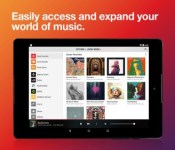
Sonos Controller for Android updated to version 5.3

Upon weeks of beta testing the update, Sonos is officially updated to version 5.3 and is now live on the Google Play Store. The update fixes what was wrong with the previous version and improves upon it. Room control should be a lot easier, moving back and forth between screens is now easier, and the design of tablets has also been updated/improved. Here’s a couple easy tips for you to get used to the update:
- Three taps to party mode. Put the finishing touches on your party prep with a playlist to set the mood throughout the house. Use the new drop-down at the top center of our app to easily group or ungroup rooms in just a few taps.
- Retrace your steps. Change your mind on what you want to play? Swipe down to instantly go from Now Playing to browsing. To go back one step further to the menu, swipe right from the far left to view all of your music sources.
- Distractions welcome. If you want to go back to listen to a part you missed, the track progression bar is now more prominently displayed in your Now Playing screen, just below the album art. Drag it to whatever point in the song you want to play.
QR code and download link below.
Come comment on this article: Sonos Controller for Android updated to version 5.3
UFS 2.0 on the Galaxy S6/Galaxy S6 Edge absolutely demolishes the competition

The Samsung Galaxy S6 and the Galaxy S6 Edge make use of a new Universal Flash Storage 2.0 standard for its storage modules. This promises to offer speeds identical to SSDs, thus making data transfer super quick. A new AndroBench benchmark comparison tells us exactly how fast this new storage standard is.
The HS-G2 variant of UFS 2.0 has speeds of up to 725MB/s while the HS-G3 can output speeds of up to 1.45GB/s. UFS 2.0 also permits simultaneous reading and writing, which makes functionality even smoother than usual. In comparison, the current crop of devices which use the eMMC 5.1 standard can only reach peak read speeds of 250 MB/s and a write speed of 125 MB/s.
This combined by the GDDR4 RAM used on the Galaxy S6 and the Galaxy S6 Edge makes for a very pleasurable experience for the users. Do you plan on getting the Galaxy S6 or the Galaxy S6 Edge?
Via: Phone Arena
Come comment on this article: UFS 2.0 on the Galaxy S6/Galaxy S6 Edge absolutely demolishes the competition

Indian variant of Galaxy Note 3 (N900) is beginning to receive Android 5.0 Lollipop OTA

Samsung’s Galaxy note 3 is in the process of receiving its Android 5.0 Lollipop update around the world, with the T-Mobile version beginning to receive its OTA just a few hours ago. Now we have news of the Indian variant (N900) getting its first taste of Lollipop.
The Lollipop update is available via OTA and Samsung Kies software.This means you can choose to go into Settings/ About Device/ Software updates to manual nudge your handset into searching for the update. Or you can hook your Note 3 up to your PC and update it using the Kies software. You could also choose to update the handset manually, by downloading the update (click the source link) from Sammobile and installing it via the Odin application on your PC. Needless to say, we would rather recommend updating via OTA or Kies just to avoid any mishaps unless you are experienced in using Odin.
Source: Sammobile
Come comment on this article: Indian variant of Galaxy Note 3 (N900) is beginning to receive Android 5.0 Lollipop OTA
Xiaomi anticipates smartphone sales growth of 30 percent this year

Xiaomi has quickly risen to a position of one the world’s largest smartphone manufacturers and is one of the fastest growing technology companies in the world right now. The corporation shows no signs of slowing down this year, as CEO Lei Jun expects global smartphone sales to increase by more than 30 percent in 2015.
Revenue from sales is expected to exceed 100 billion Yuan ($16 billion) this year, up from the 74.3 billion Yuan ($11.6 billion) that Xiaomi reported for 2014. Sales are anticipated to end up somewhere between the 80 and 100 million mark by the end of 2015, an improvement on last year’s figure of 61.1 million.
Already a major success in China, Xiaomi is focusing its expansion efforts in India this year. Other countries, including Brazil and Russia, are also said to be on the company’s expansion list. Xiaomi also plans to introduce its brand globally through its broader product portfolio and accessories, which will be sold through European and US based e-commerce stores.
Although there are no plans to sell Xiaomi smartphones in Western markets any time soon, Lei reiterated his goal of making Xiaomi the world’s biggest smartphone maker in the next decade. A rather ambitious goal, but targeting the fastest growing smartphone markets to secure a longer term global share is probably the best way to go about it.

Europe rules e-books won’t get tax breaks like paper books

Isn’t it ironic that tiny nuances of tax law can often cause colossal results out in the real world? It’s one of those judgments that has rocked Europe after its highest court ruled that e-books aren’t actually goods at all. Currently, paper books sold in the EU are subjected to a smaller amount of sales tax, since having an educated, literate population is generally considered to be a good thing. France and Luxembourg, seeing no difference between books and e-books, have been offering similar discounts on the latter since 2012.
This got the European Commission all hot and bothered, prompting it to sue two of its member states for breaching value-added tax rules. According to the court, since you need another device, like a computer or e-reader, to actually read an electronic book, those titles are actually a service rather than a good. That means, that for readers in those two countries, the tax rates will go up from 5.5 (France) and 3 (Luxembourg) percent to 20 and 17 percent, respectively.
It’s likely that both France and Luxembourg will have to pick up the tab for the now illegal tax break, but the ramifications may not stop with a procedural slap on the wrist. After all, the judgment could now raise questions about the sale of digital movies and music, which are both similarly reliant on devices. Hell, you can’t even enjoy a CD without a player, so expect plenty of future judgments in the digital media space to debate the merits of this case for years to come.
Happy World Book Day, folks.
Filed under: Amazon
Via: Wall Street Journal
Source: Europa (.PDF)
Smart Unlock review: Adds Lollipop’s Smart Lock to older devices
Android 5.0 Lollipop brought some key new features, one of which is called Smart Lock. But with Android 5.0 Lollipop adoption still sitting at just 3.3 percent based on the latest ‘Platform Version’ numbers from Google — the Smart Lock feature is one that many hear about but cannot actually use. The feature is actually pretty simple, not to mention convenient. First things first though, just what is Smart Lock.
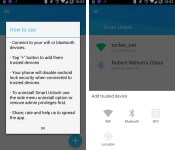
Smart Lock in Lollipop allows you to pair your smartphone with a trusted device and skip the lock screen security. Essentially, Smart Lock will allow you to open your phone directly to your homescreen when you are connected to your trusted device. Well, an app called Smart Unlock adds this functionality to a wide variety of Android devices. Smart Unlock works with devices running Android 4.0 and later.

The app is priced at $1.99, though it does come with a 7-day free trial. I’ve been running the app on a OnePlus One (with Android 4.4.4) for a few months now, and haven’t had any issues. At present the Smart Unlock app allows you to set a Wi-Fi connection or a Bluetooth device as trusted. And for those wondering, you can have more than one trusted device setup using the app. Personally I have mine set with my home Wi-Fi connection and my Google Glass. This means my phone unlocks directly to the homescreen (without any security prompts) when I am at home, or wearing my Google Glass.
Getting up and running is relatively quick and easy. First, you’ll want to visit the settings on your smartphone to make sure you have a lockscreen PIN (or other security method setup). From that point you install the Smart Unlock app from the Play Store, and then set your trusted devices using the “+” icon in the lower right hand corner. Again, the app allows for Wi-Fi and Bluetooth connections to be set as trusted devices. There is also a coming soon mention for NFC and Location, but the developer hasn’t offered any firm timeline as to when those can be expected.

Otherwise, the app has a clean user interface and makes use of a left-hand navigation menu. Aside from setting trusted devices there isn’t a ton of other features or options. But thankfully, the basics such as being able to have the app start on boot, and hiding the status bar icon are available.
What We Liked
- Easy to setup, and easy to use.
- Does not require root, and works with a wide variety of Android devices (4.0 and later).
- Having a secure device, without having to constantly enter a PIN.
Room For Improvement
- App has issues with “most” Samsung devices (according to developer).
- Hoping to see the update with NFC support sooner rather than later.
The Smart Unlock app currently has a 4.0 rating in the Play Store, and there are some complaining comments. But in regards to those comments — I will reiterate that I’ve been using the app for a few months and haven’t had any issues. Not to mention there is the 7-day free trial which should be more than enough to let you see how well the app will run with your particular device/trusted device setup.
Bottom line here — if you aren’t in that 3.3% of Lollipop users and want a secure phone without having to always enter your PIN code you should check out the Smart Unlock app.
The post Smart Unlock review: Adds Lollipop’s Smart Lock to older devices appeared first on AndroidGuys.
ZTE lets you unlock the Grand S3′s lock-screen with eye-recognition

There’s a variety of ways to unlock your smartphone or tablets these days. You can simply swipe away the lock screen, tap in a passcode, trace a pattern or biometric methods such as fingerprint and facial recognition. As if that isn’t enough choices, ZTE has another option for you. Eye-recognition. The function is called Eyeprint, and we have more details after the break.
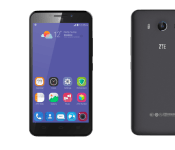
ZTE has partnered with EyeVerify to bring Eyeprint to the ZTE Grand S3 smartphone, offering a password-free smartphone experience. Eyeprint works by using the Grand S3′s front camera to trace the unique vein patterns in the human eye. This means that the Grand S3 could be one of the most secure smartphones in the world when it comes to trying to unlock the lock-screen. It also means you will never forget your passcode.
Eyeprint works by creating a map of the veins in your eyes, creating a secure ID. Then, when your device is locked, you press the power button and swipe down from the top of the display. You then look at the screen, from a distance of around 15cm, and after around half a second, the Eyeprint function identifies you, allowing access to the inner workings of your smartphone. Depending on your perspective, the fact that Eyeprint can only be set-up to identify one person at a time could be a good or a bad thing.
In what seems to be a natural progression, ZTE is also planning on integrating the Eyeprint function with mobile payments. The ZTE Grand S3 with Eyeprint launched in China back in January with a RMB 2,999 ($478) price tag.
Come comment on this article: ZTE lets you unlock the Grand S3′s lock-screen with eye-recognition

How to create text shortcuts in OS X Yosemite

Save some mileage on your fingers — and your keyboard — with this quick trick.
If you frequently type the same things over and over again, the Mac can save you the time and trouble of having to type it out in full each time. It involves something called text shortcuts and once you learn how to use them, you’ll never want to be without them.
How to create keyboard shortcuts on the Mac
- Hold down the command key and press the space bar to invoke Spotlight.
- Type “keyboard” (without the quotes). Locate and select the Keyboard system preference (either by pressing the cursor keys and return or using the mouse).
- Click on the Text tab.
- Click on the “+” button to create a new shortcut. Type in an easy to remember shortcut, then tab to enter its longer version.
- Once you’re done, close the Keyboard system preference to save your changes.


Whenever you want to use the shortcut, just type it in. That’s all there is to it!
Bonus tip: If you find Yosemite’s autocorrection feature particularly troublesome, this is where you can deactivate it. Just uncheck the “Correct spelling automatically” box.
 AIVAnet