



Jelly catches up with the rest of the internet by adding comments

Jelly tries to get answers to the questions that keep you awake at night. A question we’ve had since its launch, however, was why it lacked any kind of comment or thread system. Fortunately, that’s Jelly’s new feature. Once you’ve got an answer, but you’d really like to hear some more detail, you (or whoever answered) can continue the dialogue below. These replies are also public, so they could help everyone. Biz Stone’s new project just got a lot more viable — provided you can find someone to answer your question in the first place.
Filed under: Internet, Software, Mobile
Source: Jelly, iTunes, Google Play
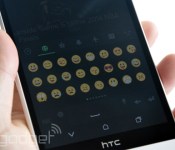
New emojis let you throw shade with a single symbol
 http://www.engadget.com/2014/06/17/250-new-emoji/
Someone once said that a picture is worth a thousand words, so a smiling, yellow face is probably worth at least 160 characters. If you ever found the current run of emoji a little too stifling, some 250 new ones could be en route to help recreate the rest of your favorite album covers. But don’t check your Android or iOS device for shiny turds and other icons just yet, because, as The Verge points out, it’s up to those platforms to implement the Unicode Consortium’s new symbols on their own. Given Apple’s push for more diversity in emoji, that could happen sooner than you think. Just what new glyphs are there, though? Alongside some slightly more aggressive icons, a printer, trackball and “old personal computer” are among the lengthy list over on Emojipedia. You know, technology that teenagers know all about. Once you start seeing the likes of those (and the Vulcan split-finger greeting) popping up in Snapchat and elsewhere on your phone, you’ll know who to thank.
Filed under: Cellphones, Mobile
Via: The Verge
Source: Unicode, Emojipedia
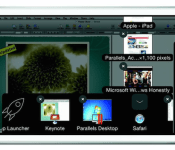
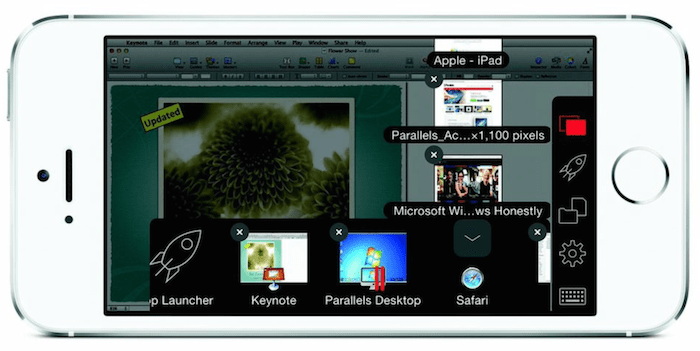
‘Parallels Access’ Gets Updated with iPhone Support, New File Browser [iOS Blog]
Parallels has updated its Parallels Access app, which allows iPad users access their Mac or Windows desktops on their tablets, with iPhone support, allowing iPhone users to also access their desktops on the go.
“Parallels Access received a tremendously positive reception from iPad users, and now we are extending our solution to millions of Android and iPhone users. While traditional remote desktop products are trying to show a large desktop on a small mobile device, we worked hard to make remote access from mobile devices a truly simple and effective experience,” said Jack Zubarev, president of Parallels.
The update also includes the ability to use an iPhone or iPad’s microphone remotely for desktop apps that may require them, the ability to change the screen resolution, the ability to wake a sleeping remote computer, Facebook login integration and a new file browser. The browser allows users to browse and open files on their iPad or iPhone.
Users must download the free Parallels Access app on both their desktop of choice and iPad or iPhone. They can then launch their desktop apps in “full-screen mode” via a SpringBoard-like App Launcher. While the apps are free, users must subscribe to the service, which costs $19.99 a year for up to five remote desktops. Parallels also offers a two-week free trial.
Parallels Access is a universal app that’s available for free in the App Store. [Direct Link]
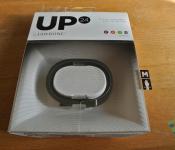
Jawbone UP24 Review on Android: Does it strike the right balance between style and Functionality?
 The fitness wearable space is on fire at the moment with new options being released with each passing week with slightly different features and slightly different focuses. One of the more popular wearables come from Jawbone, who are also well known for their audio products. Their original, wired Jawbone UP was an interesting prospect and definitely good looking, however Jawbone have made the right changes to make it even more attractive, cutting all the physical connections to give us the wireless Jawbone UP24. The real question is whether it’s more than just a pretty face, particularly when the asking price is $149 USD.
What’s in the box

There aren’t too many parts to the Jawbone UP24; apart from the fitness band itself and its associated charging cable, the only other notable part of the UP24 system is the app that can be downloaded from the Google Play store. While the “UP” app is free to download, it’s essentially useless without either a wired Jawbone Up, or the wireless UP24 to pair with. More on the app later.
 The UP24 looks essentially the same as the UP did except for a slight change in the pattern adorning the band. It’s a very sleek, simple device with only one button, found at the end of the band, with the other end of the band featuring the 2.5mm jack that allows the band to charge. Typically, you can expect the UP24 to last about 6-7 days which is pretty impressive seeing how thin the device is and that it is syncing essentially every 20 minutes or so. That is probably helped by the fact that the device doesn’t actually have a graphical interface to speak of, with only 2 LEDs in the band to help you differentiate which mode your band is currently in (awake or sleep).
 The UP24 is constructed from plastic, however it remains very pliable, making it extremely easy to remove and replace when required. Before I had the UP24 in my hands to try, I was under the impression that the ends of the band were held together with magnets, however the reality is that it’s just a plastic ring with a predefined shape.
How does it perform
I’ve been very impressed with the Jawbone UP24. On the technical side of counting steps, it appeared to be accurate (with the usual missteps like shaking and what not) and although I’ve yet to be sold on the ability of fitness bands to truly map trends in sleeping, it was definitely a decent indicator of how good a sleep you got the night before.
 Seeing as the device does not really have an interface to give you meaningful feedback, you will be mainly dealing with the UP app to see how your daily activities are going. The app has a simple enough interface, with the main page being a news feed-type affair, letting you know how your current and past activities have gone, as well as the activities of any friends you have added through the UP app.
 The graphs that the UP app outputs are great to navigate, and while it’s not terrible impressive to simply create column graphs and put them next to each other, the UP app does a great job of presenting the data in a concise and elegant manner. It’s very easy to scroll through previous data and see if any trends have started to develop. While its primary function is to log your steps and sleep, there are also added features in the app that allow you to also log your meals and other physical activities (i.e. swimming or sports). While these don’t add to your steps or sleep per se, for those who are big on health and nutrition logging, these features are a nice plus (although it can get slightly frustrating to use).
 Syncing the UP24 is pretty simple, with prompts to correct your syncing process if you aren’t quite doing it right along with troubleshooting tips. Sometimes it can take more than one try to get it synced out, but it’s nothing more than a minor nuisance. Once connected, the band wireless syncs with your smartphone in the background, or at the very least, every time you open the UP app.
What I like about the Jawbone UP24
 I’m a big fan of the design. While many reviews of the UP24 have decried it for lacking a graphical interface, I actually think this works in the band’s favour. The best thing about this to me is the fact that the UP24 is so unassuming; it’s so light that I can go an entire day without realizing that it’s on my arm and come home to see exactly how active I’ve been. Likewise, while I’m sleeping, it’s not really all that noticeable which let’s you sleep without really knowing it is there. Sure, there are fitness buffs who will want a graphical display to show them how far they’ve run, or how many calories they’ve burned at regular intervals, but for what the UP24 offers, it does it very inconspicuously.
 I also really like the logging in the UP app. While it’s a relatively simple affair, it’s nice that the data is so easily scrollable, which gives you a really easy way of checking out on a hourly, daily or weekly basis how active you really are.
What I don’t like about the Jawbone UP24
 While the logging part of the Up app I really like, there are parts of the app I am not a fan of. Chief among these is the nutrition and additional exercise menus, and while I can understand that this isn’t the primary function of the app, it feels like these features aren’t quite as functional as they could be. While they are polished in the presentation sense, the menus are hard to navigate and difficult to use, with multiple windows needed to just input one part of a meal. I was personally so turned off by these features that I neglected to use them for most of the time I spent reviewing the UP24.
 I generally don’t like making price a sticking point, but it’s very difficult not to with the UP24. With a price tag of $149 USD or $179.99 AUD, you’d expect some pretty nifty gizmos for your money, but the reality is that you’re really only getting a very basic fitness band and its free companion app. While I did mention that the design of the band is by far one of its best features, it’s difficult to recommend the band just based on that for the price point, however you may be swayed if you’re looking for something particularly stylish and unassuming that doesn’t need to have killer fitness features.
Final Thoughts
 The Jawbone UP24 is definitely a fitness wearable for the fashionable, casual exerciser. It’s a great mix of design, style and basic features, which makes it perfect for people who want something to help supplement their fitness life with something that doesn’t look too bulky or unwieldy. It’s a bit pricey, and the lack of features probably won’t appeal to the fitness-literate who want more from their fitness bands, however the UP24 is great in its own respect and if you’re in the market for something a bit like that, you won’t be disappointed.
The Jawbone UP24 is now available globally, and if you want to take a closer look at the product, be sure to visit the product page here on Jawbone’s website.
Gallery of Photos


//<![CDATA[
ord = window.ord || Math.floor(Math.random()*1E16);
document.write('’);
//]]>
Nest Protect smoke alarm returns with a lower price following safety recall

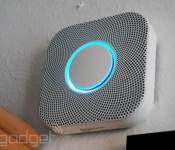
Earlier this year, Nest recalled the Protect smoke detector after it realized the product’s standout feature (the ability to silence it with a hand gesture) made it potentially unsafe to use. In response, Nest halted sales, and disabled “Wave” control on existing devices using the product’s built-in WiFi connection. Now Protect is back: The company resumed sales tonight, with the Wave feature still disabled. And hey, the price is lower too — $99, down from $129. For now, you’ll have to silence the device the old-fashioned way — by pushing a button. That said, a Nest spokesperson told us the company is working on an easier way to silence the alarm, even if hand gestures aren’t the way to go (people might silence the device when they didn’t mean to). If you wanna buy it now, be our guest; just remember that you’re no longer paying for gesture control, but other features, like a built-in nightlight, sleek design, spoken warnings and the ability to control the device remotely using an app. Still a good feature set if you ask us, though it was probably wise of Nest to cut the price.
Filed under: Household
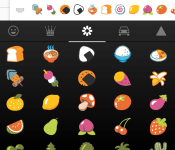
250 New Emoji Coming Our Way in Unicode 7.0

Feel like you don’t have enough emoji in your device? Well in comes Unicode 7.0, that will bring in 250 more emoji for you to spam your with. That isn’t all that Unicode 7.0 will be bringing to the tech world; over 2,800 characters have been added that Google, Apple, and Microsoft, will be able to utilize in their keyboards and fonts.
One highly requested emoji that they have added to the update, is the explicit middle finger. I feel a lot of you out there will be using that more often than you think you will, and it will be funny kind of a day once that is integrated into our keyboards. Let us know your thoughts about the tons of new emoji you’ll be getting, and how excited you are about that middle finger.
//<![CDATA[
ord = window.ord || Math.floor(Math.random()*1E16);
document.write('’);
//]]>

One year in, and Google’s crazy internet-by-balloon project is doing just fine

Even we laughed a little when Google X announced Project Loon — an ambitious experiment built to give rural areas balloon-powered Internet access — but one year later, the company may have proven its point: this could work. Since the project was announced last June, the company has made huge strides in balloon flight time and connectivity. Wired reports that Google’s latest floating hotspots have been given LTE capabilities, freeing them from the range limitations the original WiFi-based designed burdened them with. These new radios offer better transfer speeds, too — as high as 22 MB/s to an antenna or 5 MB/s to a phone. More importantly, the balloons are staying aloft for much longer: earlier this year, one test circled the globe three times before dropping to the ground, and another has been floating for over 100 days – and it’s still up there.
Google explained to Wired a few of the methods it employed to improve balloon performance, some of which were deceptively simple. Many of the balloons, for instance, are manufactured at -40 degree Celsius, matching the conditions they would eventually face at 60,000 feet. The team also found ways to handle the airbags more carefully, ensuring there were less pinhole leaks to sabotage the balloon’s eventual flight. Of course, these more durable and longer flying craft gave the group more problems to solve — the balloons navigate by riding favorable wind currents, but when the airships started to stay aloft for weeks at a time, Google could no longer use standard wind forecasts to plan flights. In the end, the company had to devise its own system of prediction using historical databases of weather data.
Early tests in Brazil have shown huge promise, and the team plans to spend the next year delivering on that promise. Over the next twelve months, Google hopes to run multiple flights that last for more than 100 days, eventually launching a ring of 300 to 400 balloons that can circle the clone and provide continued service to specific areas. That’s an incredibly ambitious goal, but Google X’s Astro Teller is confident his team can pull it off. “On Loon’s two-year birthday, I would hope, instead of running experiments, we’ll have a more or less permanent set of balloons,” he told Wired. “Yes, Loon will be offering service.” Read up on Project Loon’s full story at the source link below.
Filed under: Misc, Internet, Google
Source: Wired
Parallels’ new remote desktop apps let you control your PC like a phone

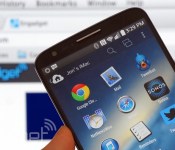
Remote desktop apps have an easier time working on tablets, where you have a lot of display area to work with, but they’re frequently awkward on smartphones. Wouldn’t it be nice if you could control a PC at home like it was just another phone app? Parallels is tackling that challenge head-on with smartphone-friendly versions of its Access app for both Android and the iPhone. Much like the earlier iPad release, the new titles give you a remote view of your Mac or Windows PC that’s optimized for your mobile platform of choice. You can launch programs, select text and type almost as if the computer’s software were built for a small screen. On the Android client (which also handles tablets), Parallels will even let you create shortcuts to jump directly into favorite desktop apps.
The wider support comes alongside a bundle of fairly hefty upgrades. It’s now possible to wake up your computer in some circumstances, so you won’t have to always leave it running for Access to work. You can also choose from extra screen resolutions if you need to see more of your desktop at a glance, and apps can borrow your device microphone for speech recognition or a quick voice chat. Those on iOS have the added perk of a file browser that makes it easier to track down that all-important presentation.
For some, the biggest change may be the cost of entry. Parallels has cut its personal subscription price from $80 to $20 for one year, and $35 for two years ($30 if you sign up by the end of June). That’s obviously a much better value, particularly if you only occasionally need to reach your PC. There’s also a new business tier that lets companies hook up five people for $50 per year. All the new apps are free to try for a couple of weeks, so it won’t hurt to give them a shakedown. Who knows — they might save your bacon the next time you leave your laptop at home.
Filed under: Cellphones, Tablets, Software, Mobile
Source: Parallels
Martian Notifier Brings a Classic Time Piece with Smarts to the Smartwatch Game for $129 [Review]
The smartwatch game is becoming quite competitive and fierce. They aren’t new by any means, they have been a round for a number of years. However, the last 6 months to a year they have started popping up quite a bit more. While many companies have followed in the mind-set that your watch should act like your phone on a small-scale, there have been others out there that have taken a completely different approach. Martian is one of those that takes the smartwatch and focuses more on the watch aspect and adds smart features in their latest creation, the Martian Notifier.
 We saw the Martian Notifier back in January at CES and were quite pleased with what we saw. It won’t be what everyone out there wants or desires, but it has a place on your wrist all the same. I don’t think of this a smartwatch, more so a smart extension of my device. With a much more prevalent appeal for a classic watch look.
Whats in the box:
- Martian Notifier watch
- Proprietary USB cable
- Instructions manual

Physical size
- Height: 1.70 inches /43.2mm
- Width: 1.70 inches / 43.2mm
- Thickness: 0.5 inches / 12.7mm
- Weight: 1.83 oz / 52 grams
Specifications:
- Analog quartz watch with Japanese movement
- 96 x 16 pixel graphic OLED display
- Bluetooth 4.0 (classic 3.0 and BLE)
- RGB LED light
- “Light Touch” vibrating motor
- Anti-scratch acrylic crystal
Overview
At first glance you might not even notice the smart aspect of the watch. It is clearly a watch first that runs on its own independent watch battery. Martian claims 2 years of battery life for the actual time keeping aspect of the product. While I certainly can’t wait two years to find out, I don’t doubt that it will last that long.
On the right hand side of the watch you have your more traditional pull and turn knob for setting the time. Just above that you will find a small cover that you can open up to access the charging port.
 On the left hand side you have two buttons that will trigger various actions. I’ll get to those in just a minute.
 The rear is a metal plate that is screwed on to protect the inner components.
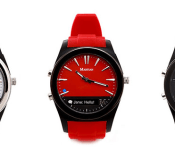
 The front is of course where you find the actual time and smart aspect of the watch. Under the glass you have a small LED light that is just to the left above the 40 minute line. Placed at the bottom, and taking up the 25 – 40 minute markers is a small 96 x 16 graphic OLED display. (interestingly enough, the missing time markers are only found on the black version) This is where all the smart aspects of the watch come into play.
 The screen is where you get all your notifications in a sort of ticker style fashion.


The companion app
The companion app is what drives the notifications to the OLED. Martian has an App for Android and for iOS, making this a pretty good cross-platform watch. There are a number of little settings and tweaks you can make to what is displayed, how it is displayed and how the vibrations work out. I could list all the apps that it can display, but that would be pointless because any app that can trigger a notification in your drop down can be activated to display on the OLED of the watch. Yes, that means, Hangouts, G+ notifications, emails, games, and everything else under the sun.


 In the apps settings you can also set up the scroll delay, your month/day format, time format, vibration strength, character limit and others. If you enable the leash then when you phone is out of Bluetooth range your wrist will vibrate and alert you that the connection has been lost. Very helpful for those that leave their phones sitting around often. There are a number of other settings you can toggle and use, like setting up alarms and repeaters to give you notifications for certain things. While nice, I use my calendar for a lot of that so I get the alert to my wrist if I have something I am supposed to be doing.
On the watch
On the watch you also have a number of things you can use. The bottom button on the watch acts as your quick display button/menu button. Press it once and it will cycle through a digital clock, the battery life and if your are connected, the day of the week/month/date, followed by the weather (if you have it enabled). If you press it twice you get alternative options. Such as a light, activate DND (Do Not Disturb) mode, Camera Mode, Find Phone and Setup.

 The light function activates the LED on the front of the watch. It isn’t blinding, but offers a little light if you are trying to find the keyhole on your front door late at night. Granted most of us would just turn our devices screen on for that. DND mode is pretty self-explanatory, it simply stops the watch from giving you notifications. Camera Mode lets you trigger your phone’s camera remotely from the button on the watch. One the more useful features, in my eyes, is the Find Phone feature. When activated your phone will start emitting an alarm to help you find it. You do need to be connected to the phone to trigger it though. Helpful if you know it is in the house some where and you walk around watching for the Notifier to connect. That will at least let you know you are in the right area.
If you happen to miss the scrolling read out of a notification, you can simply tap on the glass and it will recall and display the message again. So long as it was less than 5 minutes ago. If you need to go back further without grabbing your phone, you press both buttons and you can cycle through the last 20 notifications.
One additional check box that I have to mention is the “Enable Google Now” box. If you have the box checked, then you can press the top button on the watch to activate Google Now and speak. Downside, the watch doesn’t have a mic, so your phone needs to be within talking distance to talk to it. Still a nice feature though.
Battery Life
One of the most important things to me in a wearable device is the battery life. My days usually start around 6 a.m. and don’t end until sometime after midnight seven days a week. If I can only make it to 2 or 3 p.m. with a gadget, then it won’t work out well for my life. Martian rates the battery life of the Notifier for 6 days. That will be lower depending on number of notifications you have active, how intense you set the vibration function and how many notifications it has to push (ie: 1000 text messages a day or only 100). My last few weeks with the watch has honed my usage of it. It typically lasted 3 to 4 days before the internal battery died. The nice thing though, I still had a functioning watch and not a black screened slab on my wrist.
Interchangable Bands
 Martian was also clever enough to see the importance of changing the wrist bands. They do offer a variety of colored silicon bands that you can you can purchase to match any occasion. However, if you want something more classic, like leather or even steel, then you can provide that on your own. The Martian Notifier can use any standard 22mm watch band. I did not personally switch one out, but I did pop the quick-change strap pin and was able to easily re-attach the strap without any tools. How that might work with a different watch band isn’t something I have the available option to try out.
What I like about the Martian Notifier
There are a lot of things I like about the Notifier. First and foremost I love that it is a watch first. I won’t be stuck with a black glass slab on my wrist if the battery dies halfway through a day. It fits well and looks good doing it. While the casing might be hardened resin, the metal accents make it look more expensive than it is. I even got a compliment on it from a huge Pebble watch fan that I had a mid afternoon meeting with last week.
I don’t feel like the smart aspect is over kill. I personally don’t need to do a million things on my wrist. I need to see if something important is happening and not have to dig out my phone to do it.
It fits my style, needs and at a price point that won’t break the bank, $129.
I can change out the watch straps to give it a different look and feel without having to sacrifice the watch itself, plus, I can do it myself without any special tools.
The battery life gets me through 3 to 4 days before it needs to be charged. Giving me peace of mind that when I put it on, I don’t have to wonder if it will last past lunch.
I also like having access to seeing who is calling before I have to dig for my phone. If it is an unknown number or someone i don’t want to talk to, I just hit the button on the watch and they go away. This is also particularly handy while driving or in places where having your phone out isn’t the most opportune. For instance, in a business meeting. Simply glance at the text and see if it is important without sneaking your phone out under a table. Finally, loud environments. Think bars, clubs and concerts. I would much rather not pull my phone out every 15 minutes checking for a call or text.
What I don’t like about the Martian Notifier
I hate that it isn’t a touch screen. Just kidding. There are a few things that I wasn’t happy about. The charging port on the watch is embedded extremely deep inside. This makes the use of their proprietary USB charger almost you only options. While it is still just a micro USB tip, it has been extended to reach all the way inside. I’m sure shaving the edges off another charger would give the same effect, but seems silly to modify a cable if you misplace the original.
The Martian Notifier is only splash resistant and not water-resistant. That keeps it just annoying enough that you don’t want to shower with it on or take it swimming. With it being summer time, being able to freely leave your phone pool side and still get notifications would have pushed this to a new level. Now I have to leave both sitting on a towel.
To learn a bit more, or get an order placed for the Black one I showed you or the White one, head over to Martianwatches.com.


//<![CDATA[
ord = window.ord || Math.floor(Math.random()*1E16);
document.write('’);
//]]>

New York law lets Tesla continue direct car sales

Tesla has just dodged another bullet — well, sort of. Just days after New Jersey overturned a ban on direct car sales, New York has enacted a law that lets Tesla continue selling cars through its stores in the states. As with similar laws in other regions, though, there are strings attached. In keeping with an agreement forged back in March, the EV maker can only pursue direct sales through its existing five stores; beyond that, it has to go through dealerships.
New York’s government argues that the arrangement strikes a balance where “both sides will thrive.” However, it’s not quite that rosy. History suggests that Tesla risked losing direct retail sales entirely if it didn’t forge some kind of pact — this was more about saving the automaker’s skin than creating equal opportunities. Unless there’s a change of heart (or the FTC steps in), conventional dealers still have the upper hand.
[Image credit: AP Photo/Al Behrman]
Filed under: Transportation
Source: Governor Andrew Cuomo
 AIVAnet