


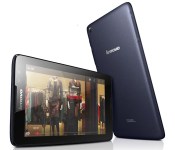
Lenovo’s latest budget Android tablets focus on high-quality audio

If Samsung’s new Galaxy Tabs aren’t your cup of tea, Lenovo may have the budget tablets you’re looking for. It just unveiled four entry-level Android slates that expand on the sound quality focus we saw in last year’s models. The Tab A7-30, A7-50, A8 and A10 all have Dolby audio that should improve your small-screen movie experience. They also have “responsive” (if unnamed) quad-core processors, too. You’re mostly choosing devices based on screen sizes. The A7-30 has a basic 7-inch display and optional cellular support, while the A7-50 jumps to HD and throws in a 2-megapixel front camera; move to the A8 and you’ll get an 8-inch panel, while the A10 includes (you guessed it) a 10-inch display. Lenovo plans to ship the new Tab A-series worldwide in the second quarter of the year, with UK prices ranging from a frugal £100 ($166) for an A7-30 to a still quite affordable £170 ($283) for an A10. There’s no mention of a US launch for the new A-series so far, but we’ve reached out for more details. We’ll let you know if these starter tablets reach American shores.
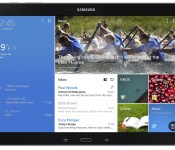
Verizon Samsung Galaxy Note Pro LTE review

Samsung has really outdone themselves in sticking to their Galaxy line’s mantra “The Next Big Thing”
With a gorgeous 12.2 inch display this device will confuse most lay-people who witness you using it in public because, ”I didn’t know they made iPads that big!”
Using the device at first is complete joy, I found myself grinning from ear to ear just in awe of the size of the thing. Aside from its weight, web browsing and reading are great. I really like the soft-touch, leather textured rubber of the back panel. On a device so big and unprecedented in the Android world, I didn’t find the TouchWiz UI to be overbearing or annoying at all, but mostly because when dealing with a totally new form-factor, it’s easy to keep an open mind.
My only real complaint about Samsung’s design choices here are the fixed capacitive buttons and home key. Although it’s nice to have the extra screen real-estate from the lack of navigation bar, the fixed buttons get in the way when holding the device in portrait mode. It feels a bit like being treated like an iOS user “You’re going to use this the way we want you to use it, and any other way is wrong.” They could redeem themselves in the next model if they added invisible navigation buttons to all four sides of the bezel and only allowing which ever side of the bezel is currently at that the bottom light up or respond to touch.
After a week or so of use, the device had lost most it’s grandeur. I all but stopped using it for pleasure and only picked it up when I had to work the go. It is the best Android-powered solution for mobile work productivity. It seems that a screen this size is the first place multi-window and split screen apps have really found a home. I am able to have Gmail and Hangouts open sharing half of the screen and Chrome working on the other half, with the small movable Swype keyboard, working was a dream, and each app had plenty of real-estate to be able appreciate all of it’s features and see all text.
I didn’t find myself reaching for the S-Pen often because Swyping is much faster for input, and for some reason the links in Chrome would tend to get confused when the S-Pen was out and stop responding to finger touches, so I was never able to get a proper taste for it.
Overall the Note Pro is great for productivity, but that’s about all. It’s fun to see apps on the bigger screen, but since displays this size aren’t common, developers haven’t yet started catering to this size. Most of the time, you’re just going to be looking at a magnified version of what you’re used to seeing on your 10.1 inch tablet.
Hardware
If you’re familiar with the 2014 Note 10.1, the hardware looks exactly the same, but larger. The top center, directly above the Samsung logo you’ll find the IR blaster, to the left are the volume rocker and power key. On the right hand side of the device the S-Pen can be removed from the top corner above the the right speaker. Then the USB 3.0 slot in the center, above a MicroSD slot and SIM slot. The bottom side is smooth and clean. The left holds only the 3.5 mm headphone jack directly opposite the S-Pen above the left speaker.
The front of the device is a black slate with the capacitive multi-tasking button to the left of the hard home key and balanced by the capacitive back button. Even thought they’re backwards, at least Samsung has taken a step in the right direction replacing the menu button with the multi-tasking key.
Software
As I said, TouchWiz doesn’t feel overbearing on this device, but mostly because you can’t be sure what to expect from such a device, so Samsung had free reign to set the bar wherever they wanted. Their stock keyboard feels great, and with the screen-size, you’ll feel like you’re actually typing on a full-sized keyboard for the first time on an Android tablet.
They didn’t try hard enough to jack up the resolution, so a icons, apps, fonts and settings all tend to feel large and toy-like. the worst offender is the notification shade in portrait mode, it takes up the entire screen like a phone.
Verizon LTE
If you read my review of the Verizon LG G Pad 8.3 LTE, you’ll recognize this, but as they are both Verizon devices, I can’t rightly publish the review without touching on the data connection!
Let’s talk about having 4G LTE on your tablet. I admit, up until I reviewed this unit, I was one of those people who preached against tablets with dedicated data lines. “Just use your phone as a hotspot!” I would say. But I have to say, having that data connection all the time has won me over. How best to do this? Numbered list!
Reasons to have a dedicated Verizon data line on your tablet
- No hotspot set-up
- Lower drain on your phone’s data plan (might even be able to save money by switching plans)
- Lower drain on your phone’s battery
- If you don’t have a Verizon phone, your tablet will get data when your phone might not.
- Verizon’s LTE speeds have improved a lot (33 Mbps down 3 Mbps up)
Basically, if you’re a tablet user, and you constantly find yourself switching on your phones hotspot, but don’t use the hotspot for much else, this could be a great alternative for you.
The Note Pro is huge, but so is the price. At $750 with a 2-year activation and $850 outright, I can’t say I would recommend this device to anyone who didn’t know for a FACT it was worth the money for them, or have a very good reason why this is the tablet they need.
The post Verizon Samsung Galaxy Note Pro LTE review appeared first on AndroidGuys.
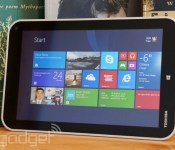
Toshiba Encore review: an 8-inch Windows tablet that struggles to stand out

Toshiba is no stranger to Windows tablets, but what we’ve seen to date has typically been targeted at businesses or has otherwise been… limited. In that sense, the Encore is something special. It’s not just the company’s first 8-inch Windows tablet — it’s the first aimed at a truly broad audience. That said, it faces stiff odds. Acer, Dell, Lenovo and others have comparable slates on the market, in many cases with similar features. Toshiba would have to do something truly out of the ordinary to stand out. And frankly, it doesn’t. While the Encore is a worthy device, you’ll have to be particularly enamored with its design to ignore its rivals. Read on to see what we mean.
Hardware
With certain exceptions, the design language of Toshiba’s mobile devices has typically been plain — a textbook example of form chasing function. That’s undoubtedly true for the Encore. Its “sunray silver” plastic back is reminiscent of the company’s lower-end Satellite laptops, and it neither feels nor looks premium — even Acer’s Iconia W4 seems upscale by comparison. The Encore makes up for this in sheer practicality. It’s comfortable to hold, and the textured back adds just enough grip that you won’t get nervous using it one-handed. The surface does a good job hiding fingerprint smudges, too. The Encore is also one of the heavier 8-inch Windows tablets we’ve seen at 0.97 pounds, although it’s not much thicker than Dell’s Venue 8 Pro, at 0.42 inches. Indeed, we had no objections to the added weight during prolonged browsing or gaming sessions.
The rest of the Encore’s design mostly checks the right boxes, delivering extras that you don’t always see on its peers. At the top, you’ll see micro-HDMI video output (not present on Lenovo’s Miix 2 or the Venue 8 Pro) alongside the usual headphone jack, a micro-USB port and one of two microphones. Meanwhile, there’s a microSD card slot on the left for extra storage, stereo speakers on the bottom, a 2-megapixel camera in the front-right corner and a sharper-than-average 8-megapixel shooter at the back. You’ll get either 32GB or 64GB of flash storage inside, much like other tablets in this class.

Toshiba could stand to improve the hardware keys. The power button and volume rocker at the upper right are easy to reach in most orientations, and they’re particularly well-suited to a portrait view. However, they’re almost flush with the body; it’s difficult to identify them purely by feel. There were a few times where we accidentally cranked the volume instead of putting the tablet to sleep. And the capacitive Start button can be frustrating — it occasionally ignores input, forcing you to either poke the key multiple times or use the on-screen task switcher. The button isn’t a dealbreaker, but we’d rather have the more conventional (and more reliable) buttons from Acer and Dell.
Display and sound

Stop us if you’ve heard this one before: The Encore has an IPS-based, 1,280 x 800 LCD screen that offers rich colors at virtually any viewing angle. Yes, Toshiba is closely following the template for screens in 8-inch Windows 8.1 tablets. And that’s mostly a good thing. It’s a delight to browse photos and videos on this device. There are a few differences that separate the Encore’s visuals from the rest of the pack, however, and they’re not all for the better. This is one of the brighter displays we’ve seen in the category, and it’s easily visible in most lighting conditions. There isn’t support for active styluses like on the Venue or ASUS’ VivoTab Note 8, though, and Acer’s optically bonded display is better at cutting out unwanted glare.
We also can’t help but wish Toshiba had sprung for a higher-resolution panel, if only because we’ve seen the difference it makes elsewhere. The 1080p screen in Lenovo’s ThinkPad 8 is noticeably sharper, let alone the greater-than-HD displays in mobile OS tablets like Apple’s iPad mini with Retina display or Samsung’s Galaxy Tab Pro 8.4. It’s not terribly likely that you’ll consider these $400-plus models if you’re looking at the much cheaper Encore, but it would be nice to see that higher-end technology filter down to lower-cost equipment.
You probably won’t be yearning for better audio quality, though. The speakers can’t replace a good set of headphones, but they’re loud enough to be heard clearly in a moderately noisy environment. Still, they’re unmistakably louder than Acer’s reedy-sounding equivalents. We didn’t detect much strain at full volume, either. We haven’t had the chance to directly compare the Encore’s output with that from the Venue 8 Pro, but having two speakers versus Dell’s one can only help with audio clarity.
Software

We’ve said it before, but it bears repeating: Windows 8.1 is virtually tailor-made for small tablets like the Encore. It lets you shrink Live Tiles to save you from scrolling, provides more thumb-friendly keyboard shortcuts and gives you quick access to the camera from the lock screen. While we can’t say that everyone will like Windows’ heavily gesture-driven interface, we felt at home before long. This is certainly the platform of choice if you want to run two apps at once, such as a chat client and a browser. You can do that with a few Android tablets, but it’s a bit more elegant here — many Windows 8 apps are designed to run side by side with others.
You’ll also have a solid (albeit not outstanding) selection of programs to choose from. Many media apps come in touch-native Windows versions, including those from the big TV networks and music-streaming services like Pandora. Some of the most tablet-savvy apps have only shown up relatively recently, such as Flipboard’s curated reading app and Nokia’s Here Maps. You won’t find some mobile titles (notably Instagram and Vine), and developers like Apple, Mozilla and Valve aren’t porting existing software to the modern Windows environment. Still, we haven’t been hurting for app choices in a while.
Having Windows 8.1 also grants access to the classic Windows desktop, which is useful if you absolutely, positively have to run a legacy app on your tablet. It’s not a panacea, mind you. As we’ve stressed before, the older interface just isn’t intended for an 8-inch screen. Many buttons and scroll bars are too tiny, and you can’t assume that your favorite release has been optimized for touch. We’d rather have the option than make do without it (as with Windows RT), but it’s best reserved for those moments when you have both a keyboard and mouse close at hand.

Toshiba has largely resisted the urge to load the Encore with extra software. There are just a handful of modern Windows apps beyond what Microsoft normally supplies, most of which are big-name titles. Amazon’s Kindle and shopping apps are here, as are BookPlace, eBay, iHeartRadio, Netflix, Symantec’s Norton security suite, Toshiba Central (for support), Toshiba TruCapture (for recording whiteboard notes), Xbox 360 SmartGlass and Zinio. The highlight on the traditional desktop is clearly the full copy of Microsoft Office Home & Student, although you will have to activate it. Besides that, you’ll only get a smattering of Toshiba support apps. It’s a very reasonable mix, although we quickly grew tired of the Norton bundle’s out-of-the-box tendency to nag about protection.
Performance and battery life
| Tablet | PCMark7 | 3DMark06 | 3DMark11 | ATTO (top disk speeds) |
|---|---|---|---|---|
| Toshiba Encore (1.33GHz Intel Atom Z3740, Intel HD graphics) | 2,479 | 2,068 | E339 / P210 | 177 MB/s (reads); 74 MB/s (writes) |
| Acer Iconia W4 (1.33GHz Intel Atom Z3740, Intel HD graphics) | 2,538 | 2,089 | E340 / P211 | 174 MB/s (reads); 70 MB/s (writes) |
| ASUS Transformer Book T100 (1.33GHz Intel Atom Z3740, Intel HD graphics) | 2,461 | 2,113 |
E338 / P209 |
123 MB/s (reads); 58 MB/s (writes) |
| Dell Venue 8 Pro (1.33GHz Intel Atom Z3740D, Intel HD graphics) | 2,343 | 1,986 |
E299 / P164 |
86 MB/s (reads); 45 MB/s (writes) |
The Encore doesn’t deviate from the script when it comes to hardware. Much like other budget Windows tablets, you’ll find both a quad-core, 1.33GHz Atom Z3740 processor and 2GB of RAM under the hood. That doesn’t sound like much, but don’t let the modest numbers fool you — the Atom chip’s Bay Trail architecture gives Toshiba’s slab plenty of power for the interface and lightweight apps. There isn’t any noticeable dip in performance when running two apps at once, for that matter.
Intensive tasks like desktop-oriented 3D games are generally off-limits. We could play Half-Life 2 well at low-to-medium detail, but BioShock Infinite just wasn’t an option. The Encore is far more adept with mobile-oriented titles like Halo: Spartan Assault, which are silky-smooth. Whatever you’re doing, you won’t scorch your lap; the Encore got warm when we pushed it hard, but nothing more.

Not surprisingly, there’s no clear performance edge over other recent entry-level Windows tablets. The Encore was largely neck and neck with its competitors in processor-focused tests, including the 416ms score we saw in the SunSpider browsing benchmark. The flash-based storage is about as speedy as it is on the Iconia W4, but we did observe a slightly pokier nine-second boot time. We won’t grouse too much about the similarity in results, since you’re still getting a pleasantly hitch-free tablet experience.
The middle-of-the-road battery life may be a tougher sell. We got eight hours and 45 minutes of runtime from the Encore while looping a video at half brightness (lower than on Acer’s tablet, to get comparable illumination), with WiFi retrieving email and social network updates. That’s better than the Miix 2 and Venue 8 Pro, but a full hour behind what Acer can manage. It’s also well below Toshiba’s official 14-hour estimate, which is based on a mixture of browsing, video and standby time. The company’s figure is realistic; we managed two days of real-world use before having to recharge. Even so, it’s proof that you need to read the fine print for official claims like these. The Encore’s battery is good, not great, under a heavy load.
| Tablet | Battery Life |
|---|---|
| Toshiba Encore | 8:45 |
| Microsoft Surface 2 | 14:22 |
| Apple iPad Air (LTE) | 13:45 |
| Nokia Lumia 2520 | 13:28 (tablet only) / 16:19 (with dock) |
| Apple iPad mini | 12:43 (WiFi) |
| Apple iPad mini with Retina display | 11:55 (LTE) |
| Apple iPad (late 2012) | 11:08 (WiFi) |
| ASUS Transformer Book T100 | 10:40 |
| Apple iPad 2 | 10:26 |
| Samsung Galaxy Note Pro 12.2 | 10:04 |
| Apple iPad (2012) | 9:52 (HSPA) / 9:37 (LTE) |
| Acer Iconia W4 | 9:50 |
| Nexus 7 (2012) | 9:49 |
| Microsoft Surface RT | 9:36 |
| Apple iPad | 9:33 |
| ASUS Transformer Prime Infinity TF700 | 9:25 |
| Acer Iconia W3 | 9:21 |
| Samsung Galaxy Tab 2 10.1 | 8:56 |
| Sony Xperia Tablet Z | 8:40 |
| Toshiba Excite Write | 8:13 |
| Galaxy Tab 2 7.0 | 7:38 |
| HP Slate 7 | 7:36 |
| Nexus 10 | 7:26 |
| Dell Venue 8 Pro | 7:19 |
| Samsung Galaxy Note 8.0 | 7:18 |
| Nexus 7 (2013) | 7:15 |
| Samsung Galaxy Tab Pro 8.4 | 7:13 |
| Samsung Galaxy Tab 3 10.1 | 6:55 |
| HP SlateBook x2 | 6:34 (tablet only) / 8:49 (keyboard dock) |
We’d add that the 8-megapixel rear camera isn’t the upgrade it appears to be over the 5MP units in the Iconia W4 and Venue 8 Pro. If anything, it’s a step backward. The Encore’s sensor produces more noise in low light than Acer’s, and blown-out scene highlights (such as bright windows) are more conspicuous. The rear camera probably won’t be a make-or-break factor in your purchase unless you’re one of the precious few people who buys a tablet with photography in mind. Even so, we’d prefer that Toshiba had focused on image quality over resolution.
Configuration options

As of this writing, you only have two choices among Encore tablets. A 32GB model will set you back $300 if you buy from Toshiba, while its 64GB sibling costs $350. If you’re a savvy shopper, you can pick up the 32GB variant for less; it currently goes for about $280 at Amazon. At any rate, we’d strongly suggest that you get the 64GB edition if you can –we were down to less than 4GB of space (out of 23GB available) on our 32GB test unit within a matter of days, and that’s without a significant media collection.
Moreover, there aren’t any major first-party accessories to speak of; we could only track down a basic snap-on case. Unlike Acer, Dell or Lenovo, there are no docks or keyboard cases to turn the Encore into a miniature workhorse. Third-party peripherals thankfully exist to pick up some of the slack, but this does mean you’ll have to search around if you’re bent on getting a keyboard or protector.
The competition

If you look at specifications alone, Toshiba’s slate does little to distinguish itself. It has the same processor, the same storage and the same underlying technology as much of its competition. It even starts at a similar official price these days (Toshiba originally charged $330).
Look closer and it gets more complicated. The Encore fares best against the Miix 2 and Venue 8 Pro, with the healthy battery life and micro-HDMI video that its rivals lack. Dell and Lenovo mostly rely on sales pricing to lure you away; it’s common to find either of their tablets selling for less than $250, making them great bargains when every dollar counts. The Venue and VivoTab Note 8 both have pen support in their favor, although ASUS’ $330 asking price hurts the VivoTab’s chances.
As you may have gathered by now, it’s Acer that gives Toshiba the real thrashing. The Iconia W4 has tangibly longer battery life, and it’s easier to find at low prices (it’s $250 at Amazon as we write this). While the Encore does have a brighter display and an easier-to-hold design, the Iconia counters these with reduced glare, better mechanical controls and a higher-quality rear camera. If the tablet industry narrowed down to just these two devices, Acer would emerge as the winner more often than not.
Don’t be quick to balk at paying $400 for a ThinkPad 8, either. It’s one of the few Windows tablets this size with a 1080p screen, and it has options for both 4G and 128GB of storage. That said, it doesn’t claim a decisive victory over the Encore. We’re in the midst of reviewing Lenovo’s tablet, and we’ve found that it has both a mediocre six-hour battery life and a scratch-prone chassis. All told, you may prefer Toshiba’s machine simply because it can take some abuse.
Wrap-up

You might think we’re down on the Encore based on the complaints littered throughout the review, but that’s not true. We genuinely enjoyed our time with it, and it’s safe to recommend if you can snag one at bargain-basement pricing. The battery life and performance are up to snuff, and there are no cavernous holes in the feature set — so long as you weren’t expecting an imaging powerhouse, anyway.
For us, the real problem is that there are few reasons to pick the Encore over something else. It’s not the best at anything, unless you’re in love with its silvery shell. If you want extended battery life, you should turn to Acer; if cost matters the most, go with Dell or Lenovo; if you like to jot down handwritten notes, choose ASUS or Dell. Toshiba has done a fine job with its first foray into 8-inch Windows tablets, but not the exceptional job it needed to rise above a sea of competitors.
Daniel Orren and Edgar Alvarez contributed to this review.
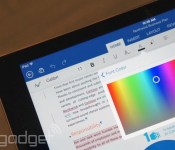
Future Office for iPad update will let you print your documents

Although the Office for iPad suite is relatively full-featured, it won’t print hard copies. That’s a glaring omission even in this increasingly paperless era, we’d say. Not to worry, though: Microsoft tells PCWorld that printing support is coming as part of future app updates. The company hasn’t said just when those upgrades are due, but Office general manager Julia White promises to “iterate very fast” on the fledgling productivity software. In the meantime, don’t toss out your conventional PC — you may need it to print out that next contract or term paper.
Filed under: Tablets, Software, Microsoft
Source: PCWorld
Study shows which Android and iOS versions are most likely to crash apps

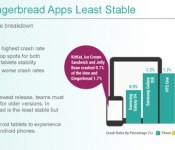
If you’ve ever argued that your new smartphone is more reliable than what you’re replacing, you now have some evidence to back up your claims. Crittercism has posted a study showing that apps running in newer versions of Android and iOS (such as KitKat and iOS 7.1) are considerably less likely to crash; you’re practically inviting headaches if you stick with a phone running Gingerbread or iOS 6. The research also suggests that the Galaxy S 4 and iPhone 5 are the most trustworthy devices, while tablets of all kinds are relatively crash-happy. The findings aren’t shocking when both Apple and Google have both spent years fixing bugs, and it’s notable that the study only covers crashes with third-party apps — they don’t address first-party software glitches. Still, this data is as good an excuse as any to upgrade an aging handset stuck on an old platform.

Filed under: Cellphones, Tablets, Mobile, Apple, Google
Via: GigaOM
Source: Crittercism (DocumentCloud)

Millennials are watching video on tablets and computers more than TVs

Apparently kids these days prefer to watch shows and movies on things other than a TV. According to a new study by Deloitte, 56 percent of “training millennials” (people ages 14-24) are tuning in to their favorite shows on computers, smartphones, tablets and gaming devices rather than a television. The majority, 32 percent, are watching on their computers, while just 7 percent are keeping up with the Kardashians on their tablets. That’s a huge contrast from grandma’s “mature” 67+ age group where a whopping 92 percent of viewers are still watching the tube the traditional way, and even a noticeable difference from millennials ages 25-30 where 53 percent of viewers are still cuddling up in their Snuggies in front of a traditional set. If the trend continues, all those 4K TV makers might need to look at focusing their efforts on something a little smaller instead.

Image source: Flickr/Daily Invention
Filed under: Cellphones, Home Entertainment, Tablets, Wireless
Via: Recode
Acer Iconia W4 review: a big upgrade to a small Windows tablet

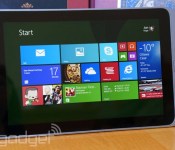
Acer’s Iconia W3 wasn’t quite the best introduction to 8-inch Windows tablets; we liked it, but its subpar display and modest performance kept it from being stellar. Give credit to the company for quickly learning from its mistakes, though. Less than a year later, the company has released the Iconia W4, and it fixes those earlier gripes even as the price has dropped below $300 as of this writing. In theory, it’s a home run. However, Acer is no longer the only game in town — the W4 has to compete against a crowd of small Windows slates that promise similar bang for your buck. We think the W4 still fares well in this pack, although it won’t always be a dream machine. Read on and you’ll understand why.
Hardware
If you only gave the Iconia W4 a cursory glance, you would almost think that you’d picked up the W3 by accident. Outside of the repositioned logos and metal-colored plastic (“smokey gray,” in Acer-speak), the newer device is a dead ringer for its 2013-era ancestor. That’s not necessarily a bad thing, although it could stand to be better: While the curvy design is comfortable to hold and generally well-built, it’s not exceptionally grippy. We’d prefer the rubbery back of Dell’s Venue 8 Pro for one-handed tablet use. The W4′s front-facing Windows key is much more convenient than the Venue’s side button, mind you. For many, the real affronts may be the giant, tacky Intel Inside and Windows 8 stickers slapped on the back. Couldn’t you have chosen some subtler decals, Acer?
The newer Iconia is undoubtedly more portable than the W3. Despite its upgraded internals, the tablet weighs 0.92 pound — much lighter than its 1.1-pound predecessor. It’s ever so slightly thinner, too, at 0.42 inch thick. The W4 is still noticeably chunkier than 8-inch tablets like Apple’s iPad mini with Retina display or Samsung’s Galaxy Tab Pro 8.4, but the difference is small enough that I didn’t notice it while reading or watching videos. Even so, the Iconia is heavy compared to most 8-inch Windows hardware; the Venue 8 Pro, ASUS’ VivoTab Note 8 and Lenovo’s Miix 2 are a tad lighter. At least it’s not the heaviest: The Toshiba Encore manages to top them all.

Not much has changed in the way of external features. You’ll find the familiar micro-USB port, stereo speakers and headphone jack on the bottom. Switch to the right-hand side and you’ll see a microSD card slot, a micro-HDMI video port (notably missing on Dell’s tablet), a volume rocker and one of two microphones. The only conspicuous functional change on the outside is the backside camera: While we’ve seen the 2-megapixel front camera before, Acer has replaced the W3′s paltry 2MP rear shooter with a 5MP unit. That’s a lower res than the 8-megapixel sensor in the Encore, but it at least means you’ll get reasonably sharp photos. Inside, there’s still 32GB or 64GB of storage.
Unsurprisingly, you won’t get any accessories in the box with such a low-cost device. Serious typists can plunk down $80 for the official Bluetooth keyboard dock, which remains unchanged from last year. We didn’t test the peripheral this time around, but it’s almost mandatory if you expect to write often. It’s safe to say that you’ll finish that big essay much sooner with full-size hardware keys instead of typing on an 8-inch glass pane.
Display and sound

Let’s not beat around the bush: The Iconia W4′s 8.1-inch screen is a quantum leap over the W3′s. Where the older tablet’s TN-based panel would wash out when you weren’t looking at it head-on — in other words, most of the time — the IPS LCD in the W4 is color-rich from virtually any angle. It’s easier to read in less-than-ideal lighting conditions, too, thanks to a gapless design that eliminates a lot of glare (though certainly not all of it). Acer has at least caught up with its Windows rivals on the quality front, and those who’d avoided the W3 due to its screen may want to take a second look.
With that said, this isn’t the best display we’ve seen at this size. Although the W4′s 1,280 x 800 resolution is sharp enough for most media tasks, it’s hard not to wish for the crisper visuals of either similarly priced mobile OS tablets like the Galaxy Tab Pro 8.4 (2,560 x 1,600) or a higher-end Windows tablet like Lenovo’s ThinkPad 8 (1,920 x 1,200). Those mobile OS devices probably aren’t on your radar if you’re shopping for a Windows tablet, but it would be nice to have their beauty alongside the W4′s brawn. You also won’t get a digitizer like that on the ASUS or Dell tablets, so you’ll have to make do with a relatively crude third-party stylus if you want to draw.
Acer could certainly stand to borrow some audio hardware from its competitors. The speakers on the Iconia are just as weak as on the W3 — even at full volume, they’re only loud enough for a quiet room. You wouldn’t want to watch movies with the W4 in a busy house.
Software

The Iconia W3 was one of the earliest showcases for Windows 8.1, so the experience of using that OS on the W4 will seem uncannily similar. Not that you’ll mind if you like Microsoft’s modern interface. Some of Windows 8.1′s features were built with diminutive tablets in mind, including smaller Live Tile sizes (to fit more on screen at once), access to the camera from the lock screen and more keyboard shortcuts. The platform’s multi-window snap mode isn’t as useful here as it would be on larger-screened hardware, but it’s still appealing to have a chat client open while you browse the web, or to check email while you catch up on TV shows. Most mobile platforms can’t juggle multiple active apps very well (see Samsung’s TouchWiz) or at all, so you’ll be happy with Windows if you prefer to run more than one app at a time.
The modern Windows app ecosystem is also reasonably healthy. Although you won’t find some of the bigger mobile games and apps (think Threes or Instagram), the odds are high that there’s touch-native software available to do what you want. Hulu, Netflix and the major TV networks have Windows 8.1 titles; you’ll also find reading apps like Amazon Kindle and Flipboard, while Nokia’s Here Maps provides a solid navigation option when you’re on WiFi. Heck, you can even fire up VLC to play less common media formats. Just be aware that major developers like Apple, Mozilla and Valve may never support the interface; you likely won’t get a finger-friendly version of iTunes or Steam, for instance.
These absences won’t matter as much when you have full access to the traditional Windows desktop, although having this fallback isn’t as ideal as it sounds. Simply put, the older interface doesn’t elegantly shrink down to an 8-inch display. You’ll often find yourself pressing the wrong button or obscuring a text input box with the virtual keyboard. If you expect to spend a lot of time in the classic interface on the W4, we’d strongly suggest using a mouse and keyboard — you’ll get around considerably faster.

No matter which front end you prefer, there will be an abundance of apps from Acer, Microsoft and a wide range of third-party developers. Acer offers 10 titles of its own for app shopping, backups, media playback and sync, while Microsoft Office is here if you need to get work done. Venture into the third-party collection and there’s even more: You’ll get Amazon shopping, ChaCha, Didlr, Evernote, eBay, Hulu Plus, Kindle, Music Maker Jam, a Nero backup suite, Netflix, NewsXpresso, Next Issue, Norton Online Backup, Skitch, Spotify, StumbleUpon, WildTangent and Zinio. Frankly, the selection is overkill. How is a newcomer going to recognize many of these apps, let alone find uses for more than a few of them? We’re all for giving tablet buyers a head start, but we’d prefer a more focused, easily understood software lineup.
Performance and battery life
| Device | PCMark7 | 3DMark06 | 3DMark11 | ATTO (top disk speeds) |
|---|---|---|---|---|
| Acer Iconia W4 (1.33GHz Intel Atom Z3740, Intel HD graphics) | 2,538 | 2,089 | E340 / P211 | 174 MB/s (reads); 70 MB/s (writes) |
| Acer Iconia W3 (1.8GHz Intel Atom Z2760, Intel HD graphics) | 1,447 | N/A | N/A | 84 MB/s (reads); 35 MB/s (writes) |
| ASUS Transformer Book T100 (1.33GHz Intel Atom Z3740, Intel HD graphics) | 2,461 | 2,113 |
E338 / P209 |
123 MB/s (reads); 58 MB/s (writes) |
| Dell Venue 8 Pro (1.33GHz Intel Atom Z3740D, Intel HD graphics) | 2,343 | 1,986 |
E299 / P164 |
86 MB/s (reads); 45 MB/s (writes) |
Thanks to timing, last year’s Iconia W3 ended up with a relatively creaky dual-core, 1.8GHz Atom Z2760 processor at its heart. That was certainly enough for common tasks, but it left the W3 lagging as tablets arrived in the fall sporting Intel’s much-improved Bay Trail architecture. Kudos to Acer for getting up to speed in short order, though: The W4 is running the same quad-core, 1.33GHz Atom Z3740 as the latest budget Windows slabs. The 2GB of RAM hasn’t changed, although that’s both par for the course and enough to handle the lightweight apps you’re likely to be running.
You may not notice a major difference in typical 2D programs, but that’s largely because Windows 8.1 is forgiving with low-end devices. The W3 was already zippy when navigating the OS and playing media, so throwing more cores at these basic duties doesn’t make a difference. However, it doesn’t take much digging to see some tangible performance gains. The newer Iconia completes the SunSpider web browsing test in a brisk 402ms, versus more than 720ms for an Atom Z2760-based slate; the W4′s PCMark7 score is a whopping 75 percent higher. We wouldn’t upgrade from a W3 just for this newfound speed, but it’s a large enough boost that we’d rather buy a new W4 than a refurbished W3.

Some of that added get-up-and-go likely comes from a massive improvement to the solid-state storage. The Samsung flash memory inside the W4 is the fastest we’ve seen in a low-cost Windows tablet, and almost twice as quick as what the W3 used. You won’t wait long for most apps to start, and the boot time has been cut from a so-so 15 seconds to less than eight. The Iconia may not have an edge in processing power over its competition, but the reduced loading times will make it feel a little more powerful.
Don’t buy one as an ultraportable gaming rig, though. We could play an older release like Half-Life 2 at a smooth frame rate using low-to-medium settings, as we could on the Dell Venue 8 Pro, but the quad-core Atom chip and its Intel HD graphics won’t cut it for visually intensive games like BioShock Infinite. You’re best off with 2D games or ports of mobile 3D content. At least the Iconia W4 is fairly cool to the touch; even when running HL2, the tablet only got mildly warm.
| Tablet | Battery Life |
|---|---|
| Acer Iconia W4 | 9:50 |
| Microsoft Surface 2 | 14:22 |
| Apple iPad Air (LTE) | 13:45 |
| Nokia Lumia 2520 | 13:28 (tablet only) / 16:19 (with dock) |
| Apple iPad mini | 12:43 (WiFi) |
| Apple iPad mini with Retina display | 11:55 (LTE) |
| Apple iPad (late 2012) | 11:08 (WiFi) |
| ASUS Transformer Book T100 | 10:40 |
| Apple iPad 2 | 10:26 |
| Samsung Galaxy Note Pro 12.2 | 10:04 |
| Apple iPad (2012) | 9:52 (HSPA) / 9:37 (LTE) |
| Nexus 7 (2012) | 9:49 |
| Microsoft Surface RT | 9:36 |
| Apple iPad | 9:33 |
| ASUS Transformer Prime Infinity TF700 | 9:25 |
| Acer Iconia W3 | 9:21 |
| Samsung Galaxy Tab 2 10.1 | 8:56 |
| Sony Xperia Tablet Z | 8:40 |
| Toshiba Excite Write | 8:13 |
| Galaxy Tab 2 7.0 | 7:38 |
| HP Slate 7 | 7:36 |
| Nexus 10 | 7:26 |
| Dell Venue 8 Pro | 7:19 |
| Samsung Galaxy Note 8.0 | 7:18 |
| Nexus 7 (2013) | 7:15 |
| Samsung Galaxy Tab Pro 8.4 | 7:13 |
| Samsung Galaxy Tab 3 10.1 | 6:55 |
| HP SlateBook x2 | 6:34 (tablet only) / 8:49 (keyboard dock) |
Thankfully, the higher-powered processor doesn’t hurt battery life. Acer estimates eight hours of non-stop video on the W4, as it did for the W3, but we managed nine hours and 50 minutes in our own looping video test before the tablet conked out — half an hour more than we got from last year’s model. That’s with the screen locked at 65 percent brightness, and WiFi periodically fetching both email as well as social network updates. In real-world terms, we could go for about three days of moderate browsing, email, music streaming and socializing. Standby mode doesn’t drain much power, either, so you won’t always have to plug in if you have a few hours’ charge left over at the end of the day. Although the Iconia won’t outlast the Transformer Book, newer Windows RT slates and the latest iPads, it’s in another class compared to the Miix 2 and Venue 8 Pro. Just watch out for the Encore; it may humble the W4 if it lives up to Toshiba’s claim of 14 hours of battery life.
A couple of notes are due regarding that 5-megapixel camera. Its picture quality isn’t anything to write home about, as with many tablet cameras — it’s too noisy in low light, doesn’t produce vibrant colors in daylight and has no major options outside of a panorama mode. However, it does have a party trick. Like some recent smartphones, pressing the shutter button will take a burst of photos (60 per second) and let you pick one ideal shot to save for posterity. You won’t want to go on photo safaris with the Iconia, but that best-photo option is handy if your subjects won’t stay put.
Configuration options

Acer offers just two choices of Iconia W4 models, but we won’t complain too loudly given the appealing prices. You can snag a 32GB model for under $300, or at least $80 less than an equivalent W3 cost when new. Your other option, the 64GB variant, is still less expensive than the 32GB original at $350. There are even better deals available if you hunt around; we’ve seen the 32GB W4 discounted to $250 at Amazon. Of the two W4 variants, you’ll want to splurge on the 64GB device so long as you’re not strapped for cash. It didn’t take long for us to chew up half of the 52GB of free space, and that was after installing a handful of benchmark tools, games and productivity apps. The 32GB Iconia W4 is best for those who tend to keep only small files (think Office documents) and get most of their content from the cloud.
As we mentioned, the only real official W4 accessory is the $80 Bluetooth keyboard. There’s a chance that cases and other W3-oriented add-ons will work, but we’d recommend trying these older accessories before you buy to avoid any rude surprises.
The competition

When the Iconia W3 arrived, it was an easy choice; there weren’t any other small Windows tablets on store shelves. Flash forward to early 2014, though, and the Iconia W4 is facing a glut of competition. There isn’t even much to separate the W4 from the pack at first blush. As a general rule, you can expect each of these devices to carry a 1,280 x 800 screen, a 1.33GHz Atom processor, 2GB of RAM, at least 32GB of storage and an official $300 price point. They even go on sale at similar prices (you can pick up either the W4 or Venue 8 Pro for $250, as an example). Does Acer have a chance of standing out?
Yes, actually. The W4′s most obvious competitor is the Dell Venue 8 Pro, but it’s not as strong a contender as you might think. Acer typically comes out ahead with a longer-lasting battery, micro-HDMI video and a higher-resolution front camera. Dell’s main weapon is its pen support; if you like to take handwritten notes, the Venue will make more sense. We could also see some customers preferring Dell’s more grippable chassis, although it’s not so important that we’d ignore other factors.
Other compact Windows tablets don’t usually fare much better. At its official $329 price, ASUS’ VivoTab Note 8 isn’t easy to justify unless you crave Wacom pen input. Lenovo’s Miix 2 is lighter at 0.77 pound, but its seven-hour claimed battery life and lack of video output may take it off your list; it no longer has a meaningful price advantage. The one competitor that catches our eye is the Toshiba Encore. With an 8-megapixel rear camera, micro-HDMI and that extra-long runtime, it’s potentially an ideal tablet if you can find a good bargain (it’s $270 at Newegg as we write this). We’ll be testing the Encore soon, so keep your eyes peeled.
If money isn’t an object, there’s the Lenovo ThinkPad 8. It costs at least $100 more than the Iconia W4, but you also get more — a faster processor, a higher-resolution screen, premium build quality and a sharper camera. There are options for 4G data and up to 128GB of storage, too. While we’ve yet to test the ThinkPad beyond a hands-on, you’ll want to at least consider it if you’re looking for the best possible 8-inch Windows device.
Wrap-up

Going into this review, we were skeptical that Acer could fend off its challengers. And yet, for the most part, it has. The Iconia W4 has the screen we were looking for the first time around, better battery life than some of its peers and the performance to handle most apps with grace. As long as you’re a fan of Windows 8.1 to start with, the big knocks against the W4 are limited to its relative heft, poor speakers and lack of native stylus support.
Having said this, the Iconia W4 doesn’t break any molds. The battery and display are good, but not spectacular; you’ll want to look to the Toshiba Encore for a longevity champion. The cameras won’t have you ditching your smartphone, and mobile OS tablets at this size still tend to have both higher-resolution screens and wider native app selections. Even so, the W4 represents a lot of tablet for the money. If you’re intrigued by running desktop-grade software on a miniature tablet, it’s worth checking out.
Daniel Orren and Edgar Alvarez contributed to this review.
Sony’s Xperia Z2 Tablet approved for the US of AT&T

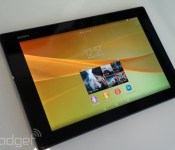
The mighty approver of gadgets, the FCC, likes engaging documentation about as much as we like digging through it for clues. Thankfully, a heap from Sony published today provided a very clear indicator as to what’s been green lit for US consumption: the model number SGP521, better known as the new Xperia Z2 Tablet. Sony’s thin, light and powerful slate will be available in WiFi-only and LTE flavors, with this specific model sporting a cellular radio capable of riding on basically any frequency you might encounter. The FCC docs agree with Sony on this, so it’s curious then, that tests were carried out solely on LTE Band 17. That’s AT&T’s domain, suggesting this Z2 Tablet variant will be the locked kind you buy bundled with a data plan. There’s no doubt other networks will have their own versions, of course, to complement device-only purchasing options. The FCC approval comes as no real surprise, given Sony said it expected to ship the tablet worldwide in March. The US price remains a mystery, however, but with Sony’s online UK store asking for £499 (around $824 converted) to preorder the 16GB LTE model, we’d gamble on a roughly similar dollar figure.
Filed under: Tablets, Sony, AT&T
Source: FCC (1), (2), Sony Xperia Z2 Tablet white paper (PDF)

Imagination’s new graphics tech brings realistic lighting to mobile games

Even the prettiest mobile games tend to look a bit ugly, with simple lighting effects that remind you that you’re not using a more powerful console or PC. If Imagination Technologies has its way, though, those pocket-sized games will be truer to life. Its newly unveiled Wizard architecture brings ray tracing, a technique that calculates the path of every light beam in a 3D scene, to the company’s PowerVR mobile graphics cores. You can see the resulting visual boost in the picture above: every light casts a shadow, glass is more realistic and reflections accurately portray the surrounding world. The first core to use Wizard is the high-end GR6500, which companies can license for their mobile processors. Imagination hasn’t named customers, but we’d note that Apple and Intel are among two of its clients — don’t be surprised if your next iPhone or Windows tablet is a graphics powerhouse.

Filed under: Cellphones, Gaming, Tablets, Mobile, Apple, Intel
Source: Imagination Technologies

Xiaomi launches MIUI for tablets, new Nexus 7 gets first dibs

While Xiaomi has yet to launch its very own tablet (the Eden Tab doesn’t count), you can now get a first taste of its tablet-friendly MIUI Android ROM, which is available as an open beta for the 2013 edition Nexus 7. According to the company, this isn’t merely a scaled up version of MIUI V5, as it has a “brand new architecture” with content — including native apps, system menus and new screen animations — optimized for both screen orientations. Interestingly, CEO Lei Jun added that tablet vendors can get in touch if they want to ship their devices with MIUI preloaded, which would be a first for non-Xiaomi hardware. Of course, this doesn’t necessarily mean Lei’s not making his own tablets in the near future; but as of now, there are no reliable rumors of such plan.
If you have a new Nexus 7 lying around and don’t mind giving MIUI a go, then head over to MIUI’s website to grab the 278MB download.
Via: Lei Jun (Sina Weibo) (1), (2)
Source: MIUI
 AIVAnet