


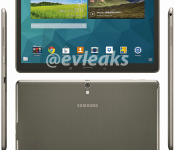
Galaxy Tab S 10.5 leaks on images ahead of launch

June 12 is the date when Samsung is expected to announce their Galaxy Tab S lineup. First the Galaxy Tab S 10.5 leaked and not long after that the 8.4 version did the same.
This new set of leaked images, courtesy of @evleaks, look pretty convincing and quite frankly official. One (if not both) of these tablets are expected to sport a 2560×1600 AMOLED screen, after Samsung had a brief fling with LCD panels in their Galaxy TabPRO and NotePRO tablets. Other than the screen an 8MP camera is expected as well as Magazine UX UI and Android 4.4 KitKat.
We should know more on June 12. Although there’s a June 19 date mentioned on one of the renders, could this be the date of the launch or is it just a coincidence? We’ll find out soon. Do you plan to get either of these devices?


SOURCE: @evleaks
VIA: TechnoBuffalo
The post Galaxy Tab S 10.5 leaks on images ahead of launch appeared first on AndroidGuys.
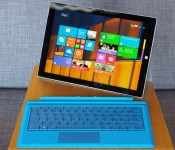
Ditching the MacBook Air for Microsoft’s Surface Pro 3

I, like many others, participated in what could be called the unofficial Surface Pro 3 challenge: trading in my regular laptop for the company’s new device for a week, with the intent of doing all my work on the new notebook-tablet hybrid. Well, here I am, six days in, back writing on my MacBook Air. I didn’t want to give up or cheat, but there are deadlines to meet, and I simply don’t have enough hours in a day to pound out posts on the Pro 3′s flimsy Type Cover keyboard.
Those may sound like fighting words, placing me firmly in the “not a fan” camp when it comes to Microsoft’s latest, productivity-focused product. But I actually think this is a great device for everything except typing. For someone who writes for a living, the Pro 3 is — for lack of a better description — a great laptop that’s just missing its keyboard.

I have the $999 model, with a Core i5 processor and 128GB of storage, and the Type Cover that will retail for an additional $130. That’s not cheap, but this is supposed to be your laptop and your tablet, and Redmond has refined the design a ton compared to the previous generation. Though the keyboard itself is mushy, with barely any travel, the trackpad is actually quite solid this time around. Microsoft made it bigger than the version on the Surface Pro 2, for one thing, and gestures such as swiping and pinch-to-zoom work well. The only glitch came on the day when two-finger scrolling stopped working, and the problem couldn’t be solved with anything short of a full system update. Harmless enough, I suppose, but I did spend about an hour trying to fix the issue by tinkering with settings in the control panel to no avail.
It’s a great laptop that’s just missing its keyboard.
I encountered one other strange bug while using the Surface Pro 3 on a flight: The WiFi driver appeared to be missing until I rebooted the machine. After that, I was able to connect to Gogo, but the problem itself was pretty confusing. It’s a lot easier to forgive such hitches in a tablet, rather than a laptop, too. If Microsoft has its way, this is the only gadget you’ll be traveling with, and it would be a pretty big problem if critical functions weren’t working reliably.
Speaking of using the Pro 3 on a plane, the kickstand design was a bit difficult to handle with a tiny tray table; it would only fit if I propped it up at a very steep angle or titled it to the right or left. Luckily, though, the machine’s made to be comfortable in your lap — remember that whole “lapability” spiel at the Microsoft event last week? — with a magnet system that allows the Touch Cover to be used at an angle.
Finally, that 12-inch, 2,160 x 1,440-pixel display is gorgeous, and I especially enjoyed it when watching HD video. Watching something in standard resolution, on the other hand, wasn’t as great; an episode of the original House of Cards streamed on Netflix looked soft and pixelated. It’s the same problem you’ll encounter with any high-res screen like Apple’s Retina panel, though, and I’m certainly not complaining that Microsoft made this one so bright and crisp.

Over the course of six days, I wrote countless emails, sent several tweets and wrote one Engadget post on the Surface Pro 3. The fact that I could do that much says a lot about how much progress Microsoft has made in its quest to reduce our dependency on two separate gadgets: one for work and one for play. That said, I still had to cheat when I needed to get work done quickly. If I had copious amounts of time and patience, I could probably train myself to be a great typist on the Surface Pro 3′s keyboard cover. I have neither, though, so that’s why I won’t be packing the device when I leave for a work trip tomorrow.
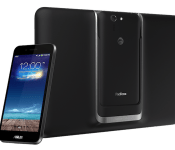
ASUS’ modular PadFone X is finally coming to AT&T for $199

AT&T promised back in January that it would launch ASUS’ PadFone X hybrid, but the device has been stuck in limbo ever since — the carrier hasn’t given out much more than specs for the phone-and-tablet combo. Today, though, there’s finally a date to mark on your calendar. The PadFone X should be available on June 6th for $199 on a two-year contract, or $23 per month if you buy it on an 18-month Next payment plan.
The hardware hasn’t changed in the space of half a year, although it’s still reasonably current. The core phone is a 5-inch Android device with a speedy Snapdragon 800 processor, 16GB of expandable storage and a 13-megapixel rear camera; the 9-inch tablet shell provides a bigger screen for the docked phone as well as an extra battery and wireless charging. You can’t exactly call this a timely launch, but it’s still big news for Americans who’ve previously had to import ASUS’ two-in-one device concept.
Filed under: Cellphones, Tablets, Mobile, ASUS, AT&T
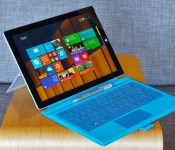
Surface Pro 3 review: Has Microsoft finally made a tablet to replace your laptop?

It didn’t last long, but there was a moment earlier this week when I was sure Microsoft would unveil its own laptop. At a press event, Surface chief Panos Panay took the stage to remind the reporters in attendance how they once said tablets would make laptops obsolete. A quick scan around the room revealed rows of journalists, all typing on Ultrabooks — including the MacBook Air, no less. For a moment, it seemed like Panay was conceding defeat.
Indeed, Microsoft has had multiple chances to prove it can bridge the divide between slates and laptops: Both the first- and second-gen Surface tablets were intended as do-it-all devices. And both times, the company fell short of its mission. The Surface Pro in particular was powerful enough to rival Ultrabooks, but suffered from several usability flaws: It was awkward to use in the lap, and also unwieldy as a tablet. For most people, a touchscreen laptop was still the better choice.
Even so, that wasn’t Panay conceding defeat up there on stage — that was him being persistent. When he finally did get to the point, he unveiled not a laptop, but a tablet, the Surface Pro 3. Most notably, this third-gen device steps up to a larger, 12-inch screen, bringing it in line with contemporary Ultrabooks. The keyboard has been born again too, this time with a larger, more responsive touchpad and the ability to prop it up at a more comfortable angle. As a tablet, meanwhile, the Surface Pro 3 is thinner and lighter than the Surface Pro 2, despite having a bigger display. Just as important, the device will start at $799 when it goes on sale next month — that’s a hundred dollars less than last year’s model. All told, the Surface Pro 3 is Microsoft’s biggest, fastest, thinnest, lightest, best tablet yet. Panay even went so far as to say, “Today we take the conflict away.” Did they, though?
Hardware
Physically speaking, the Surface Pro 3 has more in common with the Surface 2, which runs Windows RT, than with previous Surface Pros. This year, Microsoft ditched the old carbon-black color in favor of a more playful silver, though the chassis itself is still made of sturdy magnesium alloy, with chamfered edges making it easy to wrap your fingers around. It’s not just the color, though, that makes me think of the Surface 2: The Surface Pro 3 measures just 0.36 inch thick, making it only a tad fatter than the Windows RT model; that guy comes in at 0.35 inch wide. This is stunning when you remember the Surface 2 is a traditional tablet, comparable to the iPad, whereas the Surface Pro is basically an Ultrabook without a built-in keyboard. In fact, Microsoft says this is the thinnest machine with an Intel Core i7 processor. It may also be the lightest too, at 1.76 pounds. And even if it’s not, it’s still a meaningful improvement — both the first- and second-generation Surface Pros weighed two pounds.
The Surface Pro’s thinness seems even more impressive when you compare it to its peers: full-fledged Ultrabooks. Most 13-inch Ultras come in at around three pounds and half an inch thick (if they’re lucky). Even the 11-inch MacBook Air, which benefits from a smaller footprint, tips the scales at 2.38 pounds. Next to those systems, the Surface Pro 3 is impossibly compact. In fact, I was loath to go back to my 13-inch MacBook Air after my review was over; the new Surface is just so much lighter. Truly, why can’t all Ultrabooks be this easy to carry?
As a tablet, of course, the Surface Pro still doesn’t feel particularly light; you don’t just forget what it feels like to use a lighter device like the iPad Air. That said, it’s definitely lighter than a 12-inch tablet has any right to be. Also, there’s this: Despite that bigger screen — or maybe because of it — the Surface Pro 3 handles better than its predecessors. For one thing, blowing up the screen size actually allowed Microsoft to slim down the proportions. Think about it: With more internal space to work with, the engineers were able to rearrange the components, laying some items side by side instead of stacking them on top of each other. The result is a substantially thinner device that might not have been possible had Microsoft stuck with a 10.6-inch screen size.
Additionally, the new Surface Pro has a different aspect ratio: 3:2, instead of the usual 16:9. During his keynote, Panay said the company was actively trying to mimic the dimensions of a legal pad, the sort of object humans are already used to holding, and working with. It was a smart move, I think: With this new shape, the tablet feels less top-heavy in portrait mode, and it’s easier to reach things with your thumbs in landscape. Goes to show that weight reduction isn’t everything (though it definitely helps).

There’s one more design change I haven’t yet talked about, and that’s the kickstand. As it is, the Surface 2 and Surface Pro 2 have dual-stage kickstands that can be arranged in one of two positions. The Surface Pro 3 goes a step further — literally — with an option to pull out the kickstand at a near-flat 150-degree angle. This is useful if you’re playing a board game or using a drawing app, and an upright angle won’t do. All in all, too, the kickstand feels well-built, if a little rigid. Granted, I wouldn’t want the hinge to move so easily that it verges on snapping off. But the kickstand here is so tightly wound that I actually feel a bit naughty every time I push it back into that 150-degree position; there’s so much friction that when I push the stand back, I feel like I’m doing something I’m not supposed to. It’s also still a bit awkward to pull the kickstand out, since there’s only a notch on one side of the tablet. Again, though, it feels durable, and still makes that soft “click” sound every time you snap it shut.
Despite the bigger size, the port selection is the same as ever. That means: a power button on the top landscape edge; a Mini DisplayPort and USB 3.0 connection on the right; and a volume rocker and headphone jack on the left. The bottom, of course, is home to the magnetic guides that allow it to click into the optional Type Cover keyboard (more on that in a moment). There’s also a microSD slot tucked under the kickstand, supporting cards as large as 128GB. Microsoft also upgraded the cameras so that both go up to 5-megapixel resolution. Meanwhile, there’s a proprietary charging port on the right side, just below the USB socket. Though the charger stays put, it’s still awkward to insert — a minor annoyance you’ll surely get used to, should you choose to buy this. As for the front-facing speakers, said to be 45 percent louder than last year’s model, they pass my “Dolly Parton rundown test” with flying colors. (They make other kinds of music sound good, too.)
Finally, there’s one thing you won’t find on this device: a place to stow the pen. Rather, you’re supposed to slip it inside a loop that attaches to either the Surface or the optional Type Cover keyboard. Unfortunately, the thing fell off after just a few days of use, which means you’re probably on your own when it comes to making sure you don’t lose your writing implement.
Display and pen input

The Surface tablets have always had lovely displays, and the third-gen Pro is no exception. What we have here is a 12-inch, 2,160 x 1,440 IPS panel, with text so sharp you’d have to put your nose up against the screen to see any pixels. Colors are punchy, but balanced, and the viewing angles are good too, though even a low-glare screen like this isn’t immune to reflections from overhead light. In general, I had little trouble reading the screen, but using the Surface in my lap was sometimes challenging; the most stable kickstand position doesn’t necessarily mean the best viewing angles.
Under the hood, Microsoft used some different pen technology this time around: an active digitizer made by N-trig, as opposed to Wacom. While it might sound like I’m harping on specs there, hear me out: You’ll be making some trade-offs. On the one hand, Wacom’s digitizer offered more nuanced pressure sensitivity: 1,024 degrees, versus 256 from N-trig. On the other hand, N-trig’s setup allows for a thinner glass display and thus, a slimmer overall design. Additionally, N-trig’s pen was designed to feel more like a proper, ink-based pen, and is therefore more natural to hold. Likewise, the screen has just enough friction that drawing on it feels more like dragging a pen across paper — or as close as you can get, anyway. Personally, I’d choose a thinner, lighter device over more precise pressure sensitivity, but hey, don’t let me set your priorities for you.
As you’re using the pen, you’ll notice it does some old tricks, along with some new ones too. It supports hovering, for instance, and you can use the top button as an eraser in select apps. On a more surprising note, you can press that top button to wake the tablet from sleep, at which point OneNote will open above the lock screen. Kind of like how you can already use the camera app from the Windows 8.1 lock screen. Also, OneNote now sends your scribbles to the cloud as you’re writing them — not unlike how you’d expect Google Drive to immediately save your work.
Typing experience

Just so you know, I’m typing this sentence from a Surface Pro 3. The thing is sitting in my lap, even. And you know what? I’m doing alright. This isn’t my favorite laptop keyboard — not by a long shot — but I’m doing OK. And I think you will too. But before I get ahead of myself, let me explain what you’re getting here. The first thing you should know, perhaps, is that there’s just one keyboard option: a backlit Type Cover keyboard built specifically for the Surface Pro 3′s bigger frame. For now, at least, the flat Touch Cover keyboard is not an option. Frankly, I always preferred the physical buttons anyway, just because the learning curve is so much smaller. The only thing you’ll miss, maybe, is the Touch Cover’s lighter-weight design. But given the choice, I’ll take a more natural typing experience over a lighter keyboard any day. And hey, the tablet’s already pretty light; you can deal with a few extra ounces.
What I like best about this new keyboard is that I don’t have to type on a completely flat surface if I don’t want to. Unlike previous Type Covers, this one has a magnetic strip on the top, allowing you to fold up the upper piece of the keyboard so that it attaches firmly to the tablet’s lower bezel. The end result is sort of a wedge profile, similar to what you’d find on a proper laptop. And it goes a long way in making the thing more comfortable to use. Mind you, nobody’s forcing you to pick the propped-up option; you can go flat if you want to. I just don’t understand why anyone would.

The problem is that the keyboard is flimsy, and it’s nowhere as sturdy or comfortable as “real” keyboards. As I type this, I can see the keyboard cover giving a bit under the weight of my fingers; it’s enough to make me not want to use it in my lap (though I do it anyway, out of necessity). With every keystroke, I make a loud “clack,” letting anyone around me know I’m getting stuff done. The keys are also bunched close together — the opposite of your standard chiclet layout. That means it’s a little too easy to hit the wrong key. Luckily for me, I have a copy editor, so you can’t tell how many typos I actually made while writing this review. Suffice to say, it was enough that I eventually started to type more gingerly, in the hopes I wouldn’t make quite as many mistakes.
The Surface Pro 3′s Type Cover also brings an improved touchpad. And that’s good timing, because the latest Windows 8.1 update made the OS much more mouse-and-keyboard friendly. In brief, the trackpad here is bigger, with a built-in touch button you can press down on. It’s also said to be more responsive, but I’ll be the judge of that, not Microsoft. Even if the trackpad is more precise than it used to be, it’s still many steps behind the sort of glass touchpad you’d find on the MacBook Air or many Windows Ultrabooks. It sometimes takes multiple tries to get two-finger scrolling to work. Ditto for clicking and dragging windows and other objects around the screen. Other times, I accidentally navigated backward out of a web page when I was really trying to do some other sort of gesture. If you’re serious about having a mouse, especially in desktop mode, you might be better off using a Bluetooth one, especially if you intend the Surface Pro to be your daily driver.
Performance and battery life
| PCMark7 | 3DMark06 | 3DMark11 | ATTO (top disk speeds) | |
|---|---|---|---|---|
| Microsoft Surface Pro 3 (1.9GHz Core i5-4300U, Intel HD 4400) | 5,010 | 5,053 |
E1,313 / P743 |
555 MB/s (reads); 252 MB/s (writes) |
| Microsoft Surface Pro 2 (1.6GHz Core i5-4200U, Intel HD 4400) | 4,922 | 6,236 |
E1,906 / P997 / X303 |
534 MB/s (reads); 167 MB/s (writes) |
| Lenovo ThinkPad X1 Carbon (2014, 1.6GHz Core i5-4200U, Intel HD 4400) | 4,773 | 5,881 |
E1,727 / P930 / X284 |
555 MB/s (reads); 137 MB/s (writes) |
| HP Spectre 13 Ultrabook (1.6GHz Core i5-4200U, Intel HD 4400) | 4,786 | 6,005 |
E1,837 / P962 / X293 |
527 MB/s (reads); 327 MB/s (writes) |
| Lenovo IdeaPad Yoga 2 Pro (1.6GHz Core i5-4200U, Intel HD 4400) | 4,676 | 5,688 |
E1,713 / P914 / X281 |
546 MB/s (reads); 139 MB/s (writes) |
| Samsung ATIV Book 9 Lite (1.4GHz “quad-core” processor, AMD Radeon HD 8250) | 2,060 | 2,814 |
E749 / P530 |
550 MB/s (reads); 139 MB/s (writes) |
| Samsung ATIV Book 9 Plus (1.6GHz Core i5-4200U, Intel HD 4400) | 4,973 | 5,611 |
E1,675 / P867 / X277 |
547 MB/s (reads); 508 MB/s (writes) |
| Acer Aspire S7-392 (1.6GHz Intel Core i5-4200U, Intel HD 4400) | 5,108 | 5,158 |
E1,724 / P952 / X298 |
975 MB/s (reads); 1.1 GB/s (writes) |
| Sony VAIO Pro 13 (1.6GHz Intel Core i5-4200U, Intel HD 4400) | 4,502 | 4,413 |
E1,177 / P636 / X203 |
1.04 GB/s (reads); 479 MB/s (writes) |
| Sony VAIO Pro 11 (1.8GHz Core i7-4500U, Intel HD 4400) | 4,634 | N/A |
E1,067 / P600 / X183 |
558 MB/s (reads); 255 MB/s (writes) |
Make no mistake: When it comes to performance, the Surface Pro has always been able to go head to head with traditional laptops. Still, it’s nice to know that as other Ultrabooks have experienced modest performance gains, Microsoft has kept pace. Armed with a Haswell processor (a 1.9GHz Core i5-4300U chip), 8GB of RAM, a Samsung-made solid-state drive and the usual Intel HD 4400 graphics, the Surface Pro 3 holds its own in synthetic benchmark tests, with scores that fall in line with the competition. It also boots quickly, taking just 10 seconds to get to the lock screen and then one more to load the Start Screen. My WiFi connection was consistently fast too, thanks to the 802.11ac radio inside (there’s also Bluetooth 4.0, if you need it).
Accordingly, the Surface Pro 3 can do everything an Ultrabook can do. One of my favorite things about working on a Windows machine is the Snap feature, so I routinely have two programs laid out side by side — usually Chrome and HipChat. In particular, I often have a dozen tabs open at once, including Gmail, my calendar, Engadget, Facebook, Twitter and the publishing software we use to write stories, not to mention the odd Wikipedia page and music-streaming service. In addition to the usual multitasking, you could also edit photos if you wanted, or maybe even cut together some video.
Throughout, the metal surfaces stayed relatively cool, and I didn’t hear much noise coming out of the thin vent that surrounds the perimeter of the device. As with every other Ultrabook, though, the new Surface wheezes a bit during gameplay. Load up a game and the thing gets quite warm — almost hot — to the touch. Hot and noisy, too. At one point, the fans started exhaling so loudly that I heard them even in a loft space with various coworkers milling around nearby. If I can hear it over all that ambient noise, well, that’s not good. Fortunately, it takes a lot to make the system pipe up like that. And if you do, it could be that you’re doing something Ultrabooks weren’t actually designed for.
|
Battery life |
|
|---|---|
| Microsoft Surface Pro 3 | 7:08 |
| MacBook Air (13-inch, 2013) | 12:51 |
| MacBook Pro with Retina display (13-inch, 2013) | 11:18 |
| Sony VAIO Duo 13 | 9:40 |
| Samsung ATIV Book 9 Plus | 8:44 |
| HP Spectre 13 | 8:30 |
| Sony VAIO Pro 13 | 8:24 |
| Lenovo IdeaPad U430 Touch | 7:53 |
| Acer Aspire S7-392 | 7:33 |
| Acer Iconia W700 | 7:13 |
| Sony VAIO Pro 11 | 6:41 |
| Lenovo IdeaPad Yoga 2 Pro | 6:32 |
| Microsoft Surface Pro 2 | 6:27 |
| Lenovo ThinkPad X1 Carbon (2014) | 6:18 |
| Lenovo IdeaPad Yoga 13 | 5:32 |
| Lenovo ThinkPad X1 Carbon (2013) | 5:07 |
| Lenovo ThinkPad X1 Carbon Touch (2013) | 5:00 |
| Samsung ATIV Book 9 Lite | 4:33 |
Microsoft describes the Surface Pro 3′s battery life in two ways: You can get up to nine hours of web surfing (WiFi on, auto-brightness turned off), or you can simply expect a 15 to 20 percent increase over previous models. Translation: Your mileage will vary, but battery life will be improved either way. And improved it is. In our video-looping test (also with WiFi on and auto-brightness disabled), the tablet managed seven hours and eight minutes. Compare that with the Surface Pro 2, which couldn’t crack six and a half hours.
Now, let’s put that seven-hour battery life in context. In short, it’s not great, but it’s not bad, either. Other ultraportables that are either small in size or super lightweight have tended to last a similar amount of time (see: the Acer Aspire S7-392 or the Sony VAIO Pro 11). Even some larger Ultrabooks, like Lenovo’s Yoga 2 Pro and ThinkPad X1 Carbon, deliver less runtime despite having room for bigger batteries. The thing is, of course, there are many Ultrabooks that last much, much longer on a charge. The HP Spectre 13, Sony VAIO Pro 13, Sony Duo 13 and Samsung ATIV Book 9 Plus all last around eight and half hours, if not closer to 10. (The MacBook Air can go even longer, though I’ve never tested the 11-inch model.)
Though the Surface Pro 3 is lacking in battery life compared to larger Ultrabooks, it at least charges quickly. After pushing the battery to its limits, I got back up to 72 percent in around 90 minutes. So, even if you only have a short time to recharge, you should still recover enough juice to last you through a couple hours of work. And by the time that runs out, you probably will have found another outlet.
Configuration options and the competition

The Surface Pro 3 can be either sorta expensive or really expensive, depending on the specs you choose. At the low end, there’s a Core i3 model with 64GB of storage, priced at $799. The next step up is a Core i5 configuration with 128GB of storage; that’ll sell for $999. To get that same Core i5 unit with 256GB of storage instead, you’ll pay $1,299. Rounding out the list are two Core i7 models: one with 256GB of storage and the other with 512GB. Those will cost you $1,549 and $1,949, respectively. As of this writing, the two Core i5 models were slated to ship on June 20th. The Core i3 and Core i7 configurations, meanwhile, aren’t shipping until August 31st, according to Microsoft’s online store. Either way, you can pre-order any of them now, if you like.
Unfortunately, whichever you pick, the $130 Type Cover keyboard is sold separately, which means the Surface Pro 3 immediately suffers in comparisons with proper Ultrabooks, like the Yoga 2 Pro ($1,199), Dell XPS 12 ($1,000), Acer Aspire S7-392 ($1,300) and the Samsung ATIV Book 9 Plus ($1,400). For instance, if you wanted the Surface Pro 3 with a Core i5 processor, 8GB of RAM and a 256GB SSD, you’d pay $1,299 for the laptop and $130 for the keyboard, for a total of about $1,430. The Yoga 2 Pro with comparable specs is currently going for $1,399, with an online price of $1,199.
And there’s the rub: With a subpar keyboard, how can the Surface Pro truly be a laptop killer? And if the idea is for the Surface Pro to go head to head with Ultrabooks, the keyboard should also be included gratis. But it’s especially bad if that $130 keyboard isn’t even that comfortable to type on. So what do you end up with, then? A device that’s slightly more expensive than comparable laptops, with an inferior typing experience. When you put it that way, it’s tough to give this a glowing recommendation.
Wrap-up

With each generation of Surface devices, Microsoft gets closer to building a device that can replace both your tablet and laptop. Unfortunately, though, the company’s progress has been gradual, and even after three attempts, it still hasn’t addressed some serious usability flaws. This time around, the biggest problem is the keyboard. It’s tough to say who should buy the Surface Pro 3 as a laptop alternative when the very thing that makes it a notebook replacement — its optional keyboard — offers a subpar typing experience and a frustrating trackpad. Adding insult to injury, it’s not even included in the box; it’s an optional $130 accessory that helps drive up the cost compared to similar PCs.
The good news is that despite its larger screen size, the Surface Pro is easier than ever to use as a tablet, thanks to a thinner, lighter design and more sensible aspect ratio. If Microsoft could just figure out the keyboard thing (and start throwing it in for free), I’d be more inclined to recommend this as a laptop replacement. For now, unless you want a tablet and laptop in equal measure, and sincerely enjoy using Windows Store apps, a touchscreen Ultrabook is still your best bet.
Edgar Alvarez and Zach Honig contributed to this review.
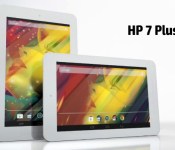
HP’s 7 Plus is a $100 Jelly Bean tablet

Cheap Android tablets are a dime a dozen these days, but HP’s targeting the budget market with its own $100 slate. The 7 Plus, a low-end 7-inch tablet, isn’t going to blow you away with performance, but it should be perfectly sufficient for email, web browsing and basic apps. There’s a quad-core ARM Cortex-A7 processor, 1GB of RAM, 8 gigs of internal storage and expandability via a microSD slot. You also get a 1024 x 600 IPS display, low-res front and rear-facing cameras, WiFi and 25 gigs of lifetime cloud storage, courtesy of Box. It’s available in the US now for $99.99, with free shipping to boot.
Source: HP

WSJ: Google will give developers tablets that can see in 3D

Remember Google’s Project Tango, a smartphone with depth-sensing cameras capable of capturing precise 3D images of both objects and people? According to the WSJ’s homies people familiar with the matter, the company is about to produce a limited run of 4,000 tablets carrying the same technology. Given Facebook’s newly-discovered enthusiasm for 3D, it appears as if Google is stepping up its efforts to keep pace with its rival. The WSJ’s sources believe the devices will be handed out to developers who can find a purpose for the tech, and we’re hoping that at least one falls into the hands of an Engadget reader who doesn’t mind giving us a go.
Filed under: Tablets, Mobile, Google
Source: WSJ

KitKat rolling out to Sony Xperia Z, ZL, ZR and Tablet Z

Earlier today we’ve reported that HTC One (M7) is getting updated in Europe and now we have another major manufacturer doing the updating as announced earlier this year.
Sony is rolling out Android 4.4 KitKat to Sony Xperia Z, ZL, ZR and Tablet Z devices. Sony pointed out that the rollout will vary depending on the market, which is expected of course. When done with the listed devices this Japan based giant plans on giving the KItKat treatment to its midrange offerings such as Xperia E1, Xperia T2 Ultra and Xperia M2. Sony is usually extremely late when updating its devices so this is a good sign.
Full update changelog:
- Google’s Android 4.4; KitKat as standard – bringing improved performance & user interface (UI) optimisation…
- If you’ve got a Sony PlayStation 4, you might recognize our new user interface – we’ve added the same sleek launch animation and live wallpaper across the lock and home screens. You’ll also spot a revamped Status Bar and Quick Settings… now more intuitive and customisable (also with a fresh new look)… cleaned up to ensure you only get the notifications you really need
- As you might expect, we’re also uplifting Sony’s entire native app portfolio to the latest versions bringing tweaked / improved / current experiences for one and all… some of our favourites look like:
- Messaging – a few UI adjustments here & there, including a slicker “send” animation, and deeper Emoji support for some expressive fun… also worth noting, you’ll find smileys wherever there’s an app with a keyboard
- Email – you’ll be able to both load and see more mails… but don’t fret, navigation of said load is easier with a more responsive viewing pane – split screen modes divide info for easy digest… especially useful / works a treat on Xperia Tablet Z
- Smart Social Camera – our social imaging experience makes its debut on our first Z Series devices; a selection of Xperia Camera apps directly accessible from your viewfinder… including personal favourite “Creative Effect”, and more for download to boot!
- Battery STAMINA Mode – level-upping our unique power management feature, bringing smarter data management & more for prolonging your juice
- Sony’s Media apps: WALKMAN, Album and Movies, with Sony Entertainment Network cloud service integration* – a more converged and full Sony entertainment experience – Sony Entertainment Network & PlayMemories integration with a more intuitive UI, better download speeds, and more…
- And proving pretty popular, now totaling over 2 million downloads (!) – our unique custom interface experience: “Xperia Themes”, with downloadable UI packs from Sony Select – skin up to 280 assets across your Xperia smartphone with a variety of styles…
- Compatibility with our SmartWear Experience; SmartBand SWR10 and Lifelog app– enabling you to record social, physical and entertainment activities and have them all visualised in a beautiful interface… reminisce at that past, make the best of the present and plan for the future
SOURCE: Sony
The post KitKat rolling out to Sony Xperia Z, ZL, ZR and Tablet Z appeared first on AndroidGuys.
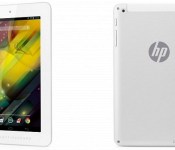
HP 7 Plus gets an official launch, bezels overload

Earlier this month we’ve seen a leak of a tablet with too much bezel on it, that tablet didn’t have a name, up until now that is. HP launched that bezel-heavy tablet under the “HP 7 Plus” name. This is now the most affordable tablet in the HP line, going for just $99, we have to admit it looks cheap and quite frankly rather ugly, but the price is low so we can’t complain much.
Regarding the hardware we’re looking at a quad-core tablet featuring Allwinner Technology A31 chip with four Cortex A7 cores clocked at 1 GHz, alongside it we have a Power VR SGX544MP2 GPU. Allwinner chips are mainly used for budget devices in China. HP 7 Plus has a 7″ (as the name states) display 1024×600 in resolution. The device has 1GB of RAM, 8GB storage expandable via microSD card (up to 32GB), 2MP back and 0.3MP front cameras and it is powered by 2800mAh battery. As far as software goes, Android 4.2.2 is powering the tablet and it is a near stock version of it, which is a good thing.
You can’t expect much from a tablet priced at $99, now can you. You get what you pay for and for that price we can’t complain much, it’s not the fastest tablet in the world, far from it actually but you’re not going to spend much either. If you’re interested you can buy it directly from HP via link below.
SOURCE: HP
The post HP 7 Plus gets an official launch, bezels overload appeared first on AndroidGuys.

Microsoft’s Surface Pro 3 now available to pre-order

Microsoft’s intimate Surface event didn’t reveal the smaller tablet many expected, instead it went much bigger. In an attempt to capitalize on early buzz for its new super-thin 12-inch slate, the company today opened pre-orders for the Surface Pro 3, Surface Pro Type Cover and Surface Pen in 22 countries worldwide. The Core i7 Surface Pro 3 is now available on the Microsoft Store in both 256GB and 512GB variants, starting at $1,549/£1,339 with an estimated August 31st ship date. The $799/£639 64GB Core i3 model is expected to ship around the same time, although the Core i5 versions of the Surface Pro 3, Surface Pro Type Cover, Surface Pen and Pen Loop will make their way to you a little earlier, shipping by June 20th. Customers in China, Japan, Korea, Malaysia, Thailand and Taiwan will have to wait until August to get their hands on the biggest, highest-resolution Surface yet.
Filed under: Tablets, Microsoft
Via: Surface Blog
Source: Microsoft Store (US), (UK)
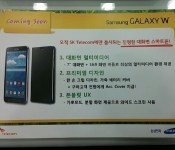
Samsung Galaxy W to sport a 7″ screen?

We all know that Samsung like to throw everything the come up with out there for people to try, what sells they stick with and continue selling what doesn’t they simply discontinue. One good example of that is the Galaxy Note line, which was a huge revelation back when the first Galaxy Note device was launched, people grew to like in a short period of time. They’ve been trying to do the same thing ever since.
I believe you all remember Galaxy Mega, a midrange phablet device that Samsung introduced about a year ago. Well, this recent leak reminds us of that devices. If recent leak from SamMobile is to be believed, Samsung is going to release a Galaxy W phablet that looks like every other Galaxy device and is going to sport a 7″ screen. I’m going to give you a moment to read that last sentence one more time, and no, we didn’t make a mistake when we wrote 7″ screen. Apparently Samsung is trying to sell us a 7″ device and call it a phablet instead of a tablet, considering 7″ is small tablet category. This device should sport a 720p screen, a 1.2GHz quad-core processor, 1.5GB of RAM, 8GB of storage expandable via microSD card and an 8MP camera. It should run Android 4.3 and not the latest iteration of Android 4.4 KitKat. A part of that Android 4.3 offering should be “Phoneblet UX” which will let you run 2 apps at once on your homescreen, although that just sounds like “Multi-Window” feature Samsung has been baking into their devices for a while now.
Maybe this device is a successor to Galaxy Mega and Galaxy W is just a codename, who knows. All we know is that this is going to be (if it ever sees the light of day) way too big for a smartphone or a phablet. The device should launch in South Korea as an SK Telecom exclusive, no word of it coming to Europe, U.S. or any other part of the world for that matter.
SOURCE: SamMobile
The post Samsung Galaxy W to sport a 7″ screen? appeared first on AndroidGuys.
 AIVAnet