



PlayStation 4 indie devs are already using Project Morpheus

Becoming an independent PlayStation 4 developer is easy, Sony’s Adam Boyes tells us: “You just have to sign up.” The PlayStation VP of publisher and developer relations was explaining what the company has done to woo indie devs. Half the job was just making developer programs more accessible. “Before GDC last year we didn’t even have a website where you could go and find out about it, but now we have a very well thought out process.” Boyes says that anyone who qualifies as an independent developer can get a free (loaner) developer kit, too — a similar deal applies to Project Morpheus, too.
“It’s a very similar process,” he told us. “if we’re working with you closely, then the [VR] dev kits are going to come through a loan program.” Even so, PlayStation has to dole out the headsets carefully. There just aren’t that many to go around. “The only real concern is supply,” he explained. “We have to do what makes sense, as far as when we send it to different developers.”
Short supply hasn’t stopped Project Morpheus from getting attention in the indie world. “A lot of them are trying it out and seeing how it works. Getting to know how it runs,” Boyes told us. When asked about the fruits of their labors, he backpedaled, reminding us that Morpheus is just “sort of a tech project” that PlayStation is working on. It’s not a product yet. Lest you forget, Morpheus is still in the prototype phase, and the only release window for a final version is, “not this year.” We expect Sony will stay reserved when it comes to Morpheus claims for some time, until the hardware is in better shape.
Still, Boyes is focused on giving independent developers the tools they need to build new and interesting gaming experiences — VR or otherwise. “Being able to facilitate those great ideas that are kind of… crazy and nuts, that’s what gamers want, right?” Boyes said. “We need to be agile, and allow them to get on the platform so those crazy ideas can come bear.”
Boyes demonstrated that agility in the announcement last evening of another gaggle of indie games headed to PlayStation platforms, many embodying those “crazy ideas” he spoke of during our interview. Joystiq‘s got a rundown of all those titles, including indie hits like Nidhogg and Escape Goat 2, right here.
Filed under: Gaming, Peripherals, Wearables, Software, HD, Sony
Remembering BASIC on its 50th birthday

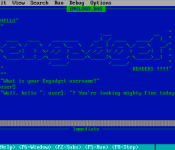
Nowadays, “basic” has a very different and derogatory Urban Dictionary-style meaning. Fifty years ago on this very day, however, it was the name given to a new computer-programming language born in a Dartmouth College basement. Devised initially by a group of the school’s undergraduates and professors, BASIC’s initial academic purpose was simple: to enable time-sharing on Dartmouth computers with an easy-to-learn, English-based language. Programming itself has greatly evolved since, but our early memories of coding in BASIC are no less fond.
Jose Andrade
 I was about 10 years old when my aunt decided she didn’t know what to do with her Commodore 64 and gave it to me. I was thrilled. I’d played games on an Atari 2600 before, but this was different. This was a real computer.
After playing more advanced games on the C64 for a few months, I realized I could do something called “programming.” Somewhere, I found a manual for BASIC and tried out my first commands:
10 PRINT “JOSE”
20 GOTO 10
Suddenly, my name was scrolling on the screen. The computer was calling me! This may sound simple and probably even dumb today, but it changed my life. I’d made something. I’d made a computer execute a program, and it had my name all over it.
BASIC on a Commodore 64 was very limited; well, it was extremely “basic,” of course. I never did much with it, though I did create a few question-and-answer games that I played with my cousin. No matter what, looking back, I appreciate that BASIC opened the doors to something bigger. It made me realize that I could actually create things thanks to technology. It made me fall in love with technology and programming.
When I was a teenager, I thought I’d grow up to become an attorney or diplomat and use technology in my spare time. In fact, I went to law school for a couple of years as an undergrad in Ecuador, but then dropped out. I didn’t want to spend my life surrounded by suits and bureaucrats. So I went back to college, but this time to pursue a computer science degree.
While I couldn’t say that BASIC alone was the reason why I now live and breathe technology, that first GOTO statement certainly helped me become the person I am now.
Dave Schumaker
 During the summer of 1994, I vaguely remember my parents strongly hinting that I should go outside more. Being a really nerdy kid, I had an aversion to things like sunlight, sports and socializing with others. But my parents kept insisting that I needed to do something to “get out of the house.” One of their ideas was that I look into some “fun” summer classes run by my middle school. “I’ll show them,” I thought, and immediately looked for anything that’d give off a comforting glow from a cathode-ray tube. I found two options:
1. An introduction to HyperCard
2. Learning to program with BASIC
Since I was about 12 years old at the time, I remember thinking, “Who would use HyperCard? And who would use a Mac?” (We were a die-hard PC house at the time.) I don’t think I had a strong preference toward either, but I remember ultimately choosing the BASIC course because of that QBASIC Gorillas game. I always wanted to make my own games, and thought that maybe taking this BASIC course would help me understand the source code of that game.
Summer came and went and about the only things I mastered were GOTO commands and how to display someone’s name when they typed it in. “Hello, David!” ended up being an output screen that I saw fairly often and basically represented the extent of my coding abilities at the time.
The next semester, we were given an assignment to “invent the future.” It required teams of students to come up with some idea from the future that would change our lives and demo it in front of the class. Then we’d discuss the pros and cons of each invention. A lot of groups made cardboard or papier-mâché models of things like toasters and food processors that would predict what we wanted for breakfast and make it. I partnered up with a fellow nerdy friend and we created the World Wide Web in BASIC!
Or at least a very simple, text-based version of it that we modeled on CompuServe and Prodigy welcome screens. It was a ridiculously simple program that had four options and made copious use of GOTO commands:
1. Check email
2. Chat with friends
3. Check weather
4. Visit a website
Thanks to that summer of learning BASIC, I continued to tinker with various programming languages as I got older. It’s never developed into anything more than a serious hobby, but it’s been fun and even useful to be able to make some simple programs that help automate various tasks. That said, 20 years later, I’m still trying to create a game that does more than say, “Hello, David!”

Frank Spinillo
 Reading the word “BASIC” instantly transports me back to my senior year of high school, when I’d gotten my first real exposure to programming. I’d done some dabbling in MS-DOS, but this course was going to be my real intro to programming. I assumed we were going to start off learning Visual Basic or go right into C++. But no, instead, we had to start from square one with BASIC. Or rather, QuickBASIC, which was Microsoft’s IDE and compiler for BASIC. What the 17-year-old me didn’t realize then was QuickBASIC would set up a nice foundation for understanding programming syntax.
The programs we made at the time were simple; nothing more than basic (no pun intended) programs to get comfortable with the language. I recall a lot of simple counting programs that scrolled from zero to 50, or only printed numbers if they met specific criteria, like being a multiple of five. I wrote a few programs that relied heavily on conditional if/then/else statements and loops.
One day, I figured out how to create sounds inside of a program with the simple syntax of SOUND. The wiseass in me thought it’d be funny to create programs that did nothing more than produce nonsensical sounds. So I did just that and filled the classroom with beeps and boops. My teacher decided it was best I keep my musical aspirations to band class and out of the computer. Still, for as simple as QuickBASIC was, I still had those moments of frustration when my program would error out. This lead to my first “a-ha!” moment; a moment many programmers experience while debugging. And that is something I will always be thankful to BASIC for.
Terrence O’Brien
 When it comes to coding, my list of accomplishments is quite short: I’ve made the light blink on my Arduino and created a crude text adventure game on an old Psion Organiser II. My crowning achievement, however, was a virus hoax I built in BASIC.
It started one afternoon as a practical joke I played on a friend’s father. The program was a rather primitive reproduction of a DOS prompt that just ignored everything he typed and, instead, pretended to execute its own commands — namely, formatting the hard drive. He’d press “w” and it would display “f”; instead of “i,” it would display “o.” This would continue until “format c:” was completed. To call the program crude would have been generous. It couldn’t even fool my Luddite target, largely thanks to the fact that I hadn’t quite figured out how to dispose of the question mark BASIC inserted at the end of every line when waiting for an input.
Over the following months, I fine-tuned it and eventually built something that convincingly recreated MS-DOS. It still basically just ignored anything a user typed, but at least now it spit out convincing error codes rather than jumping straight to the “format c:” gag. Plus, I’d finally managed to banish that pesky question mark for good while also adding in devious new features. If, for example, someone tried to run a few commands, the program would begin to taunt whoever was using it before ultimately trapping them into agreeing to run “format c:” — /Proceed with format (Y/Y)?/
When it was finally perfected, I deployed my virus hoax on its ultimate mission: My father’s place of work. (Now would be a good time to clarify that my father worked at a major international bank.) I walked around his office with a loaded floppy disk and set it running on a handful of computers. Although everyone quickly figured out it was a joke, there were a few moments of panic as people tried, in vain, to get their PCs to respond to their commands.

Experimental UI equips you with a virtual tape measure and other skeuomorphs

While companies like Apple are moving away wholesale from faux real-world objects, one designer wants to take the concept to its extreme. Chris Harrison from CMU’s Future Interfaces Group thinks modern, “flat” software doesn’t profit from our dexterity with real-world tools like cameras, markers or erasers. To prove it, he created TouchTools, which lets you manipulate tools on the screen just as you would in real life. By touching the display with a grabbing motion, for example, a realistic-looking tape measure appears, and if you grab the “tape,” you can unsheathe it like the real McCoy. He claims that provides “fast and fluid mode switching” and doesn’t force designers to shoehorn awkward toolbars. So far, it’s only experimental, but the idea is to eventually make software more natural to use — 2D interfaces be damned.
Filed under: Science, Software
Source: Chris Harrison

Oral-B’s app-connected toothbrush now rescuing British teeth for £230

Oral-B’s electric toothbrushes spin, vibrate and get into places your standard scrubber can only imagine, but none are more extravagant than the new “Smart Series” launched today. The Bluetooth-endowed brushes — yes, they’re a thing now — pair with iOS devices (an Android app’s due in August) and tell you how terrible your oral hygiene is, with the hope of improving it. Basically, the app allows you to choose different brushing routines, with your iPhone showing a timer (as well as news and weather reports to distract you from the dull task at hand), telling you when to move on to different areas of your chops, and notifying you when you’re putting too much pressure on your teeth. Oral-B’s actually had toothbrushes with similar functionality for many years, but they’ve all required additional hardware that’s replaced by your phone in this new Smart Series. Kind of like a fitness tracker for brushing, the app will also store session data so you can build up a record of successful scrubs.

The idea is that you’ll take better care of your teeth when you’re more aware of your habits, and that dentists can recommend the right routine for you after reviewing the data stored on your phone, and looking at your teeth, of course. “Limited quantities” of the new range are available on Boots’ website from today, with Amazon receiving stock in June and other retailers in July. At £230 for the “Pro 6000″ model or £250 for the “Limited Edition Pro 6500,” you’ve gotta be pretty obsessed with your gnashers, or silly gadgetry, to actually consider buying one. You should probably also factor in the cost of phone insurance, too, if you’re going to start taking it on regular visits to the sink area.
Filed under: Cellphones, Household, Peripherals, Software
Source: Oral-B

Snapchat now does video chat and IM, with self-destruct still included

Snapchat, the photo messaging app beloved of cheeky monkeys everywhere, has just undergone a major transformation. Self-destructing messages are still at the core of what it does, but the iOS and Android app is today being updated to also handle instant messaging and live video chats — just swipe to the right from the main camera screen and you’ll see a list of your friends, allowing you to chat with them using these more traditional methods.
Texts are wiped by default when you back out of the chat screen, except for any that you deliberately tap to make the app remember them. Video chats, meanwhile, are ephemeral by their very nature: A throbbing blue icon pops up to tell you when a friend is paying attention to your chat (as opposed to the general “online” status used by other messaging apps), and you press and hold this to open up a one-way video stream of your beautiful nakedness self. If your friend wants to, they can do the same in order to make it a two-way thing, and both sides can use gestures to quickly flip between their back- and front-facing cameras. Overall, these changes constitute a big expansion to what Snapchat can do, but they cleverly avoid changing what Snapchat is. The upgrade could well take the app to new heights, in which case Zuckerberg might just have to up his alleged offer to buy it out.
Filed under: Cellphones, Internet, Software, Mobile
Source: Snapchat

Sky Go and Now TV both coming to British PS4s this summer

Quietly mentioned inside Sky’s financial report for this quarter, the broadcaster has revealed that two of its streaming services will arrive on the PlayStation 4 in just a few months. Details are scant (it just says what we’ve written above), but both Sky Go (for existing Sky subscribers) and the more free-and-loose Now TV will both debut on the Sony console. They’ll have a fight on their hands: they’ll be up against the likes of Netflix and Amazon Instant Video. Sky also announced that it’s renewed its movie deal with Paramount, giving it exclusive broadcast rights to the likes of Anchorman 2 and Noah. So, not even a mention of the Xbox One — but at least that console’s doing its own thing.
Update: Sky has issued a fuller press release which also mentions that Sky Go will find its way to PS3 owners (who’ve so far only had access to Now TV on their consoles).
Filed under: Gaming, Internet, Software, HD, Sony
Source: Sky

Google Play Games updates with updated Slide-Out navigation bar and other Tweaks [Download]
Happy Google update Wednesday folks. Looks like Google is updating a couple apps today and Google Play Games is one of them. The new update moves the app to version 1.6.o7 and brings in a little redesign. The redesign should look a bit more familiar to many as it looks like the Play Store slide-out navigation bar. Complete with profile pic. (Old menu in the image to the left.)


 You will also start receiving notifications for gifts and requests from your friends. Finally, so you don’t get all lost and confused, they have changed the label “Matches” to “Inbox”. Google also finishes the update off with stating ‘stability, improvements and bug fixes.’
As always, the update is rolling out everyone via the Play Store. However, if you don’t happen to see the update yet and can’t contain yourself, you can always pick up the apk at Gappsearly.com.

//<![CDATA[
ord = window.ord || Math.floor(Math.random()*1E16);
document.write('’);
//]]>

Windows will let you search your computer using everyday language

If you’ve ever searched a computer’s apps or settings, you know how frustrating it can be to guess the keywords you’ll need to get a result — why can’t you just say what you want and let the PC figure it out? Microsoft must have asked itself that same question, as it’s rolling out an update to Windows 8.1 that introduces natural language searches for common tasks. You only have to phrase your statement in a way that a human could understand to get useful links. Gripe that “my screen is too bright,” for example, and you’ll get a shortcut to the display settings. The new search feature won’t help you find everything you’d want, but it could save you precious time when it reaches Windows systems this week.
Filed under: Internet, Software, Microsoft
Source: Bing Search Blog
Minecraft creator’s latest game trades blocks for existential angst

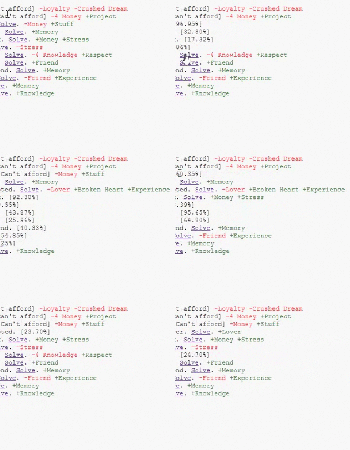
While the game’s intro tells us, “There is nothing,” there is a lot more to the little word game beneath the surface. Drowning in Problems is in fact Minecraft creator Markus Persson’s entry in Ludum Dare. The contest is an accelerated game-development event where programmers create a game in a weekend based on a theme chosen by the community. The theme for this event, Ludum 29, was: beneath the surface. The game is set up with awards and costs: You start with nothing and by clicking Solve, you’ll become not nothing. Clicking again gives you hope; hope gives way to a body; and you are born. The game continues this way, gradually growing in complexity as you give up things you’ve solved to advance in life, get a job, meet a lover and grow. From start to finish, it takes about 10 minutes to complete if you button smash, much longer if you take the time to follow the — decidedly glum — narrative. Hit up the link below to play it through, or, if you’d rather follow on to Ludum Dare to get the source code and learn more. And with that you’ll have to excuse us as we take a bit of time to kill off some Creepers and Zombies to cheer ourselves up.
Source: Drowning in Problems

Lightroom mobile review: Adobe brings (most of) its digital darkroom to the iPad

Talk about timing. Almost as soon as I convinced myself I could use an iPad Air in my life, Microsoft and Adobe made my day with mobile versions of two of my most-used PC/Mac programs — Office and Lightroom. Not long after Microsoft revealed an iPad version of Office, Adobe followed up with a tablet-friendly version of its popular Lightroom photo editor. Like Office for iPad, Lightroom mobile (its official name) is more workflow companion than PC replacement, letting photographers experiment with images from anywhere there’s an internet connection before finalizing projects back at home base.
With a number of solid photo editors already available for the iPad, though, the free-to-download Lightroom mobile needs to offer some unique advantages if Adobe hopes to lure folks into its subscription-based Creative Cloud service. Is the new app up to the task? I added it to my regular photo-editing workflow to find out.
Getting started

Adobe’s emphasis on Lightroom mobile as a companion rather than a standalone app is evident from the get-go. Before I could do anything else, the app asked me to update my desktop edition of Lightroom to version 5.4 and sync a collection. The 5.4 update adds a new checkbox option in the Collections menu, allowing users to choose which photos to sync with Lightroom mobile.
One of the biggest obstacles when it comes to serious photo editing on a tablet is the lack of storage space — especially on non-expandable slates like the iPad. The RAW image format preferred by many photographers produces files that are generally many times larger than a compressed JPEG version of the same image, and those larger files add up quickly. My Fujifilm X-E2, for example, churns out RAW images that average around 31MB each. A single photo shoot resulting in 100 shots would take up about three gigs of space — a significant bit of real estate on, say, a 16GB iPad.
Thankfully, Adobe leverages its cloud services to provide a workaround it calls Smart Previews — stand-ins for the original RAW images that are much smaller in size, but still allow for the non-destructive tinkering that makes RAW-image editing so appealing in the first place.

When you sync a Collection on your desktop, a Smart Preview is created from the original RAW file and uploaded to the cloud. Adobe points out that these uploads do not count against the 20GB of Creative Cloud storage it offers. Once those smaller files are in the cloud, Lightroom mobile downloads them and you’re free to do some finger-based photo editing.
I synced a recent photo excursion through downtown Tacoma, Washington, and waited for the 50-shot Collection to appear on my 64GB iPad Air. It took roughly seven minutes for the photos to upload and then for Lightroom mobile to download the smaller Smart Preview files. Adobe says the size of Smart Preview photos varies depending on the camera used, but most should fall within 1MB to 2MB. Its internal testing with an X-E2 resulted in roughly 1MB files. With the images loaded on my iPad, it took anywhere from 10 to 30 seconds for changes I made on the iPad to reflect on the desktop side, and vice versa.
UI

Once you have a Collection of photos to edit, it’s time to get to work. Lightroom mobile’s UI apes the desktop version by putting most of the emphasis on the images themselves. The main screen features large tiles representing any Collections you have synced with the app. Once you pick a Collection, you head to a thumbnail gallery of photos contained within. Pick a single photo and you arrive at a minimalistic editing panel.
In this editing section, four small icons sit below the selected image. When you choose one of them, the photo scales back slightly to make room for a ribbon of options depending on the icon you picked. From left to right, you can: call up a strip of thumbnails for other photos in the Collection; open the adjustments panel to tweak white balance and other options; apply built-in presets; and crop and rotate images.
Managing and editing photos are done using a mixture of gestures and toggling pop-up sliders. In general, simple, binary actions like flagging/unflagging an image or doing a quick before/after comparison are handled with swiping gestures. Finer edits like adjusting color temperature or exposure levels are controlled with pop-up rulers that span the width of the screen. These full-length sliders offer a solid level of precision for a finger-friendly device, allowing me to, say, change the Exposure Value from 1.00 to 1.01 without much fuss.

I like the overall design of the app, especially the uncluttered UI that keeps the photos front and center as much as possible. Unfortunately, there are a few key options missing from this mobile version — omissions that reinforce its companion-app status.
Of these shortcomings, the most serious might be a lack of synced user presets. Lightroom mobile ships with the same built-in presets as its big brother, but many professional photogs have developed their own, fine-tuned presets to get just the right look. On the bright side, changes made via user presets on the desktop version do show up in Lightroom mobile, but those looking to quickly apply their signature styles on the go are out of luck. Their absence on the mobile version likely means most will use the iPad app for general experimentation and leave the fine-tuning for when they get back to their workstations.
That “rough draft now, final draft later” approach is echoed elsewhere in the app, including its minimal export options. You can share images via AirDrop or apps like Messages and Twitter. Photos can also be saved to the Camera Roll or sent to a printer. When I exported a few images to the Camera Roll, I was left with roughly 2.8MP JPEGs at just over 300KB in size. Compare that to the 16-megapixel JPEGs my Fuji X-E2 natively writes and it’s clear that Lightroom mobile isn’t meant for exporting final images to your paying clients — especially those with specific demands for PPI and dimensions.
Lightroom mobile also lacks more advanced curve adjustments and local editing (for making spot corrections rather than image-wide changes). To tweak those aspects, you’re just going to have to wait until you’re back at your computer.
In actual use, my 64GB iPad Air has little trouble handling every edit I can throw at it. Adjustments and presets generally appear a second or two after I select them, sometimes with a low-res, placeholder version of the photo standing in until the changes are fully applied. Moving from one adjustment menu to another is also brisk, and the app responds to gestures consistently. Stability — much appreciated on a casual tablet game, but absolutely crucial on a productivity app — is generally solid. In the two-plus weeks I’ve been using Lightroom mobile, I’ve had three crashes (all occurring when switching from one editing menu to another), but I don’t work in fear of it failing at any moment.
The competition

There’s clearly no shortage of photo editors for the iPad, including Snapseed (a personal favorite) and Adobe’s own Photoshop Express. Most of these, however, treat the tablet as the focal point for image editing and sharing, whether it’s on Facebook, Instagram or countless other avenues of expression.
Lightroom mobile, on the other hand, is very much an add-on — a sidekick to a much more powerful program. It’s based on the premise that users will want to finish tweaking images on their workstations with their color-calibrated displays and gobs of external storage. As a standalone photo editor, then, a free app like Snapseed seems to make much more sense than Lightroom mobile. But, again, that doesn’t seem to be the goal Adobe had in mind here.
Wrap-up

Those looking to fully rid themselves of a PC/Mac environment won’t find a complete solution in Lightroom mobile. Like the iPad version of Microsoft’s Office suite, Adobe’s photo editor is both designed and priced to be a companion to more fully featured desktop apps. Also like Office, Lightroom mobile’s appeal strongly depends on how much you’re tied into its desktop companion and the cloud. If you’re a frequent Lightroom user and already signed up with Adobe’s Creative Cloud services (which currently start at $10 a month), downloading the free mobile app is a no-brainer. It may not be a vital part of your photography workflow, but it could come in handy if inspiration strikes when you’re nowhere near your computer.
For anyone on the fence about Adobe’s subscription plans, Lightroom mobile’s 30-day trial should give you plenty of time to see if it’s worth incorporating into your workflow. More casual photographers may find better value in standalone apps that aren’t dependent on the cloud or tethered to more fully featured desktop versions. Lightroom lifers, however, now have a surprisingly capable companion at their disposal.

