


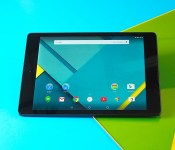
Android 5.0 Lollipop preview: Google’s biggest mobile update in years

There’s something magical about the idea that, in the space of a few minutes, your smartphone or tablet can look dramatically different and do some cool new things, to boot. That’s why operating system updates can be oddly exciting, and Android’s latest upgrade — known as version 5.0 or Lollipop — is the firmware equivalent of opening a stack of presents on your birthday. The upcoming release, which is now available on the Nexus 9 and heading to dozens of mobile devices in the coming months, brings a fresh design and no shortage of new features. Join me as I unwrap Google’s latest gift to the wireless community.
Material Design

If you’ve been using Android over the past few months, you may have noticed that several Google apps have been updated with a fresh design — and they all look the same. This is no coincidence: Google’s putting its three-year-old “Holo” design language out to pasture, moving instead toward a look known as “Material Design.” This new aesthetic is featured prominently in Android 5.0 Lollipop, and soon the rest of Google’s ecosystem — desktops, autos, TV and wearables — will be following suit.
If you ask me, this consistency between apps and OS is a good thing, especially since Material Design is cleaner and more colorful than Holo. Google says this kind of cohesiveness breeds visual harmony, and I have to agree: Whether you’re using Google apps and services or a third-party option, a universal design language can ease your frustration of not knowing where anything. Since most apps look similar to each other and the rest of Lollipop, it should be less difficult for people to understand what to look for and how to find what they need.

All told, the new design language can be split up into three parts: visual, interaction and motion. Let’s start with the first. Material Design isn’t skeuomorphic, but its inception was based on a concept that is: paper and ink. Using a print-like design with surfaces that appear tactile is easy for our brains to understand. Toolbars act like strips of paper along the top of apps, while cards can come together to form seams and move together as one. Meanwhile, Google creates the illusion of depth by allowing cards, buttons and other elements to be raised over the rest of the page, using shadows and spacing, so it looks like some content is closer to the glass. (The closer it is, the more important that content should be.) Slide a panel out from the side and it slips right over the rest of the app as if you were sliding a piece of paper over another.

This use of depth makes it possible to add new elements that help direct the user to critical actions. One such concept is a Floating Action Button, a small circular icon raised above the rest of the app meant to catch your attention. It represents a single hallmark action — compose emails, the play button in a music app, add files to a cloud service — and is meant to stand out to the user as a signpost for what to do next.
Color and typography are also important here. Material Design features a palette of bold and dynamic colors that stick out in the app bar, located on the top of the screen (these bars typically disappear as you scroll down the page). The choices in the palette are designed to give each app a friendly, welcoming vibe that’s pleasing to the eye; users are much more likely to jump out of an ugly app than a beautiful one, so first impressions are critical. Similarly, the designers also tweaked the Roboto font by making it rounder and wider, giving the text a more pleasant look. This, along with the colors, icons and layouts used in Material Design, is meant to be positive and optimistic. Material Design is also minimalistic in nature, favoring open space and simplicity as often as possible. As you’ll see later in the review, one of Google’s main goals in Lollipop was to get rid of unnecessary junk. The stuff you need should be easy to find so you can get in and get out.

(Credit: Google)
The way you interact with the design is just as important as its layouts and colors. Material Design isn’t dull or boring — on the contrary, it feels alive. When you touch something, it reacts; I never had to worry about whether or not I actually tapped on a button, because I’d see a ripple effect every time I touched it. When I touch and drag a “hamburger button” (the stack of three lines used for sidebars and extra menus) out from the corner, it sometimes does a radial turn and morphs into a back arrow; and in cases where I’m rearranging cards or lists, items appear to lift closer to the screen as I move them, as if they’re magnetically attracted to my finger.

(Credit: Google)
The final part of Material Design is motion, which involves the transition from one visual state to another. These animations, Google says, should abide by the laws of physics (scrolling takes a little while to pick up momentum), be well-choreographed (each element in the transition moves in and out of the screen in a coordinated pattern, like top-left to bottom-right) and refrain from hard, jarring cuts back and forth. Each transition should be gradual and subtle, yet not slow down the user experience. Photographs fade in and out of screens like Polaroid pictures and cards and chips open by expanding out from a central point of origin. While many animations can be distracting, most of the ones I used with Material Design are quick and natural enough that I never felt like they were getting in the way or making the process take longer than it normally would.
User interface

Armed with a basic understanding of Material Design, let’s turn to the actual user interface in Lollipop. You’ll certainly see elements of the new design language scattered about the setup process (which I’ll discuss shortly), but your first impression of the home screen likely won’t be too different from what it is now. You still have the same screen of apps and the same status bar, but the Google search bar uses Material Design and is no longer transparent; the soft navigation keys at the bottom now look more like buttons on a PlayStation controller: a sideways triangle for the back button, a circle for home and a square for the new multitasking menu (now known as “Overview”).
Swiping right still takes you to Google Now, which looks almost the same, except the customization options, reminders and settings no longer live on the bottom of the screen, but rather, an overlay menu accessible by another swipe to the right or by pressing the hamburger button on the top-left. This is just one example of Google cleaning up unnecessary clutter and placing it in a location that’s more consistent with the rest of the OS.
The app menu is functionally identical, but has a fresh coat of paint to give it more of a Lollipop look. Icons now sit on top of a sheet of digital paper, rather than a transparent background with the wallpaper underneath.

What was once a vertically scrolling app-switcher menu is now Overview, a carousel-like list that displays not only your recent apps, but also your Chrome tabs. Instead of going into your browser and having to hunt around for a specific tab, you can now go directly to it in Overview. I can see why this could be convenient to a lot of people, but I actually turned it off in the browser settings after a while for two reasons: First, it gets rid of the tab-switcher button normally found in the top-right corner of Chrome, forcing me instead to go to the app switcher every time. Second, when I have more than a dozen or so tabs open (I often have more than 30!), it means my Overview has a lot more clutter for me to sift through; if I have to scroll through endless thumbnails just to find an app I opened two days ago, it’s easier to go into the app launcher and find it the old-fashioned way. But at least Google gives you the ability to choose how you want to use Overview.
Notifications and quick settings have been merged into one big menu. This is a cleaner, easier setup than keeping these things separate. When you pull down the status bar, you first see notifications in dark text on a white, paper-like canvas; keep pulling and you’ll get to quick settings. (The two-finger pull gesture is still there, however, so you can bypass notifications and go straight to your quick settings if you prefer.) Here, you’ll see a slider to adjust brightness, along with toggles for WiFi, Bluetooth, flashlight, rotation preferences, airplane mode and screen casting; date and time show up in their own section along the top, next to battery percentage and buttons for the full settings menu and user modes (more on this soon). And instead of appearing over a black background, the new menus lie over whatever screen you were already working in (that screen dims down bit so it doesn’t become visually distracting). I prefer this design because it no longer feels like I’m leaving my current task just to see who emailed a few minutes ago.

So much of Lollipop is focused on making things more efficient and streamlining apps. I’ll discuss many features that prove this throughout my review, but there’s no better example than the new Gmail app, which now comes with support for non-Gmail and Exchange accounts. I was elated about this because I have a Yahoo account and I’ve always been frustrated that I couldn’t just merge the two of them into one single app. Finally, this Material Design-ified app eliminates the need for a separate “Email” application.
Setup

Lollipop turns what was once a frustrating setup experience into a faster, more pleasant one. If you’ve ever tried to switch from one Android device to another, you’ve likely noticed that the OS wasn’t particularly adept at restoring apps, settings or personal preferences. Now, there’s a setup feature called Tap and Go that lets your old phone tell your new one which apps to install, what wallpaper and screen layout you’d like (provided you’ve been using the Google Now launcher) and other setup information like WiFi, location prefs and more. Every app is still downloaded through the Play Store, so you’ll need to re-enter your logins, but at least everything is exactly where you want it. This transfer is done through Bluetooth, but both devices need to have NFC in order to pair with each other.
Even if you don’t have NFC, not all is lost; you just have to get through a manual restore option. Here, you’ll first sign into your Google account, and then choose which of your previous Android devices you want to restore. Then, you select which apps you want to install from that phone or tablet. Sadly, this option doesn’t include your home screen layout or wallpaper, so you’ll need to rearrange things how you see fit. Either way, both restore options are better than what Android offered before: a hodgepodge process that didn’t allow you to pick and choose which apps to restore. This always meant I had to waste time uninstalling several apps that I’d deleted on my older devices long ago.

A couple of other things take place behind the scenes as you set up your new device. One of the first things the phone or tablet does once it gets connected through WiFi or cellular is search for updates; Lollipop has an OTA function built into the setup process itself, in case it needs to push quick system updates or any other emergency fixes as early as possible.
One of the quietest additions to Android in Lollipop addresses one of the biggest shortcomings in the platform: preloaded carrier bloatware. The feature, called Play Auto Installs, makes it possible to uninstall apps that mobile operators like Verizon and AT&T require on their devices. During setup, when the system detects a carrier SIM has been inserted, it automatically downloads apps from that carrier. (Before, those apps were already preinstalled on the phone.) This move makes those apps part of Google Play, which means they can easily be uninstalled at any time.
Notifications

The notifications menu has mostly changed in design, not function, but that’s only a small part of the story. In reality, Lollipop fundamentally enhances the way we interact with Android notifications entirely. A key goal in Android 5.0 is to eliminate (or at least lessen) distractions to our daily workflow and make multitasking more efficient, and improving notifications goes a long way toward satisfying that goal.
When you receive a call, you no longer have a new screen suddenly popping up in place of what you’re currently doing; now it appears as a heads-up notification (a banner) on the top of the screen with the option of answering or ignoring the call. Messages, alarms and low-battery alerts will also appear the same way, as well as other notifications deemed a priority.
Notifications also now appear on the lock screen. These pop-up alerts have been on iOS for years, and although previous versions of Android made it possible to access the notification panel from the lock screen (if you chose not to lock your device), it was still an extra, unnecessary step. The new notifications are also actionable: When you get a new email, you can delete it without leaving the lock screen or you can hit reply and go directly into an email compose screen. (As an aside, lock screen widgets have disappeared. I rarely use them, but I know a few people who’ll be sad to see them go.)

But a lot of people don’t want sensitive details to just pop up on their lock screen; there’s nothing worse than getting an inappropriate text from a friend when your phone’s sitting on a conference room table for all to see. So Android now comes with an option to shield notification details when your phone’s locked, so you only see that a new message or email is waiting for you. (You can also choose not to have any pop-up notifications at all when the phone is locked.)
And what about those annoying notifications for all of those apps you just don’t care about? (I’m looking at you, Asphalt 8.) Before, you had to go into that app’s settings and opt out of receiving notifications, but now it’s all built into the system settings; you’re presented with a list of apps, and when you open each one, there’s an option to block the notifications entirely. It would be even better to have a checklist in which you could easily check off the apps you wanted to block, but this is a step in the right direction. Besides, the reason you can’t just check off a full list of apps is because blocking is not the only option in that menu: You can also prioritize the app so that its notifications rise to the top of your list, and gets whitelisted so you still receive them when you’re in Do Not Disturb.
Except Google doesn’t call it Do Not Disturb. In Lollipop, it’s known as “Interruptions” and it’s yet another fantastic feature. Nearly every other mobile platform has this feature, so Google is hardly the first to the scene; there have even been plenty of third-party and manufacturer options available on Android as well. Now it’s finally baked into the OS, and comes with a few nice touches.

All the usual Do Not Disturb options are here: You can set a recurring schedule and decide whether to allow calls from everyone, anyone on your contact list or starred contacts. It also gives you the option to silence calls, messages and events/reminders (or any combination of the three). This is a wonderful feature, though I’d like to see Android support multiple schedules; many people go to sleep and wake up at different times on different days, so I should be able to set 10 PM to 7 AM on Sunday and 1 AM to 9 AM on Tuesday if I want to. (Apparently I like to party hard on Monday nights.)
Now, about those nice touches. When you adjust the volume on your device, you’ll notice options for “none,” “priority” and “all.” This indicates the type of interruptions you want to allow: If you’re going into a meeting, for instance, you can select “none” to get absolutely no notifications or “priority” to only get calls or messages from those people of your choosing. And when you select either setting, you’ll be asked how long you want to stay in that mode, so it’ll automatically revert back to normal at a set time.
Performance enhancements

It wasn’t a problem on the Nexus 5, but non-Nexus devices running KitKat (excepting the Moto X, of course) couldn’t use “OK Google” voice activation, which lets you dictate commands to your phone hands-free. Lollipop is taking the feature one step further by letting you do it when the screen is turned off and the phone is locked. Technically, Google says that any phone with a capable digital signal processor should be able to take advantage of the functionality now; unlike the new Moto X, however, you’re still unable to use your own hotwords to activate the device.
There are quite a few other features embedded into the OS that will improve the performance of your Android device. First, Lollipop is optimized to support 64-bit apps and architecture (such as some versions of ARM, x86 and MIPS). While this won’t make much of a difference to you if your phone doesn’t have the hardware to support it — the Nexus 9 comes with a 64-bit chipset, while the Nexus 6 does not — it’s going to become increasingly important as more apps and more phones become compatible with it. Google says the native Android apps (Gmail, Calendar, etc.) now have 64-bit, as well as pure Java language apps.
Not that this is going to mean a whole lot at first; it’s going to take a while for the development community to switch gears and code their apps with this support. And as is widely reported, one benefit of this next-gen computing is the higher ceiling of device memory so you can fit more than 4GB of RAM in phones and tablets; that’s still a ways out, so it seems pointless right now to make a fuss about 64-bit since no mobile device even comes with that much memory, but when they do, Android will be ready for it. However, there’s more to 64-bit support than that. For one, it increases the amount of data that chips can process per cycle, and it’s inspiring chipset makers (like NVIDIA and Qualcomm) to not only upgrade their silicon to the higher capacity, but also find new ways to make these chips more powerful and energy-efficient. In other words, the 64-bit support is great news, but it’s just one piece of the puzzle.
Even if you aren’t enjoying a 64-bit chip, you’ll still see an increase in overall performance through the new Android Runtime (ART). In short, the runtime is what Android uses to convert developer code into an actual running app, and until now, this was done through an older option called Dalvik. ART could be accessed in KitKat in test form, but it’s now the default in Lollipop, and Google says it’s made it even more advanced this time around. By switching to ART, Google promises a four-fold increase in performance: Apps will run faster and more responsively and they’ll conserve more battery, although the programs will take up a little extra space on your mobile device.

The power efficiency of the Android Runtime is just one part of Google’s latest project, known as Volta. Since Jelly Bean, the Android team has done a project on each version of the OS to address specific points of weakness and improve the user experience; Project Butter worked on making the system smoother, while Project Svelte made the OS more pleasant on low-powered devices. Project Volta is Lollipop’s big fix, and focuses on increasing battery life.
The Volta team spent a lot of time analyzing what makes the device’s battery drain (and why) and cleaned up many of the inefficiencies that affect different areas of the system. The solution was to bundle bland, behind-the-scenes activities together, tell the device not to wake up for a routine network task if you’re not actually connected to anything and throw in some new battery stat trackers. It also includes a battery saver feature akin to what’s found on Samsung and HTC devices, in which it cuts off a lot of activities, data and performance when the device gets down to 15 percent. And when you’ve plugged your phone or tablet in, it’ll tell you how much time it will take to reach a full charge.
Lollipop also comes with OpenGL 3.1 and an Android extension pack, both of which bring more functionality for advanced 3D graphics. This means you’ll get games with a new set of visual effects and bring your phones and tablets closer to a console-quality experience.
Security

With each new release of Android, Google adds more security features to its mobile OS. Many of them might seem insignificant because they’re meant to be backend enhancements, which are added to keep the system at least one step ahead of malicious attackers. Lollipop comes with plenty of these behind-the-scenes patches as well; one of them is SELinux Enforcing mode, which continuously monitors the system and apps to ensure nothing’s wrong on your device. Your Lollipop phone or tablet is also automatically encrypted by default. However, these kinds of features are accompanied by a few clever user-facing features that I found incredibly useful.
The first is Smart Lock, which lets a trusted Bluetooth device — smartwatch, earpiece, speaker system and so on — act as a form of authentication. When the phone and accessory are within range of each other (roughly 30 feet, or 10 meters), you won’t need to put in your password or PIN code to unlock your phone. If you’re already on the fence about buying a smartwatch, something like this is certainly a good reason for getting one.
Lollipop also comes with Guest mode for phones and tablets, so if for some reason your friend wants to use your device, they can do so without being able to see your personal information. In addition, phones also have multi-user support, something that, until now, was only available on tablets. As an admin, you can disable phone calls and messages for other users — especially helpful when you’re handing off the device to your kids — and even delete their accounts. (Curiously, you can only have restricted profiles on Lollipop tablets, and there’s no way to manage or delete apps installed by other users.) Although each user can manage their own space, download their own apps and even lock their profile with a password, the settings you change will also affect everyone else; if you connect to a WiFi network, you’ll stay connected to it even when you switch users.

What if you’re not comfortable letting your kids have their own user account on your device (or perhaps they’re too young)? Now you can pin (or lock) apps so that the user can’t get out. This way, you can let them play games and not have to worry about them calling your boss or deleting half of your inbox. Once you’re in the app you want to pin, go to the Overview and you’ll find a pin button floating above your current app. (To get out, you just need to press and hold the back and Overview soft keys at the same time.)
After three years of virtually no improvements, Face Unlock is getting its first major face-lift. It’s also changed its name to Trusted Face and is meant to resolve some of the issues originally brought up when the feature debuted on Ice Cream Sandwich. Previously, you had to wait for the phone to recognize you before you could view anything. With Trusted Face, the camera will look for your face as you read your notifications, so it’s ready to go by the time you swipe up to unlock the device. But how can you tell the feature did its job? It’s difficult to see an indicator of success at first, but look closely enough at the icon at the bottom of the lock screen, which changes as soon as the device recognizes your face. If it doesn’t recognize you, swipe up to type in your PIN code and you’re in.
Miscellaneous

Android 5.0 introduces RAW image support when taking pictures. This format offers the full, uncompressed version of each shot you take, rather than scrunching it down into a bite-sized JPEG. It mainly comes in handy when you want to manipulate the shot in Photoshop or Lightroom. Because of this, it’s more useful for professional photographers or enthusiasts (especially since each image takes up at least 15MB, so you can find yourself quickly running out of storage space on your device). It’s also not available natively, so you’ll need to wait for a developer to create an app that enables this function. No such app is available on the Play Store yet, but I found an open source Android app called L Camera, which can be downloaded via the web.
There’s also built-in USB audio support, so devices running Lollipop should be able to use professional audio equipment like microphones, speakers, amplifiers, mixers and so on. (A few devices already came with this feature, but it wasn’t natively built into KitKat.) This addition doesn’t sound like a critical feature for the average user, but it’s huge news for artists whose best option for recording on mobile devices has been iOS. This may also indicate that we’ll eventually see manufacturers abandon the 3.5mm headphone jack and begin using USB headphones, as Apple is rumored to be considering as well. Another point of contention for many artists and producers is Android’s audio latency, which affects their ability to process music in real time; Lollipop boasts a reduction in latency, so developers can now make apps to take advantage of this enhancement. Finally, there’s support for mixing up to eight channels, including 5.1 and 7.1.
Lastly and certainly least, Google’s latest Android Easter egg is… a Flappy Bird clone. No, really! Hold down the color-changing lollipop and you turn into a small Android robot trying to navigate its way through a series of lollipops. Strangely enough, it’s actually much more difficult than the game that inspired it; my high score was 6, and even that took a few minutes of solid effort to achieve. (Don’t judge me.)
Wrap-up

It’s hard not to be impressed by Google’s efforts in building Android 5.0. It not only introduced a completely new design, but it also managed to squeeze in a boatload of great features that improve the Android experience. Lollipop brings more intuitive notifications, improvements to performance and battery life, clever security features and developer tools for better apps. It’s one of the biggest upgrades Android has seen yet, and it’s definitely worth making the jump when your device eventually gets it.
(Editor’s note: Since we only had access to a final build of Lollipop on the Nexus 9, we won’t publish a full review with performance tests, impressions and a score until we test the official firmware on a phone as well. We’ll update this post when that time comes.)
Chris Velazco contributed to this report. Lead photo by Will Lipman.
Filed under: Cellphones, Tablets, Software, Mobile, Google

‘Call of Duty Advanced Warfare’: The Joystiq Review

You get just a novel snippet of peace in Call of Duty: Advanced Warfare. In this shooter’s future, technology has trumped terrorism, rooted out the last evil masterminds and flexed its bionic muscles in total defiance of lead-footed politicians who’d rather talk than get things done. “The world is running out of bad guys,” your partner says, hopeful but tragically unaware that he’s basically describing a video game glitch. Call of Duty never runs out of bad guys.
This one gets points for honesty, though, in that there is no pretentious cover-up of why the good guys beat the bad guys (or why the plot finds them easily interchangeable). In Call of Duty: Advanced Warfare, you win because you have better guns, stronger sights, super abilities and superior movement. Whether it’s in the rich and varied multiplayer mode, or the frantic, thrill-a-minute single-player campaign, you’re constantly relying on cool weapons and combat data to make taking lives easier. Advanced Warfare front-loads the benefits of power in a franchise that has always made technology the exalted, almost fetishized solution to every problem. And you know what? It’s more fun when it admits as much.
Click here for more
Filed under: Gaming, Software, HD, Sony, Microsoft
Source: Joystiq

Android Lollipop for the Samsung Galaxy S4 confirmed, coming in early 2015
 Now there’s a face we haven’t seen in awhile. The Samsung Galaxy S4 has fallen somewhat out of the limelight some 19 months after its release, but that doesn’t mean Samsung has forgotten about its highest selling device to date (if the Galaxy S5 has broken any records, Samsung is keeping awfully quiet about it). SamMobile has acquired information that confirms that Android Lollipop for the Samsung Galaxy S4 is definitely coming and will be out sometime early next year, we’d expect around the same time Lollipop drops for the Galaxy S5, once all the carrier bloating has already occured.
The TouchWiz experience on the Galaxy S4 should be quite similar to that which you’ll find on the Galaxy S5, of which we’ve already had multiple sneak peeks at. We’re actually pretty impressed that Samsung is going to update the Galaxy S4, mainly because it’s a bit of a stretch of its 18 month update guarantee and given Samsung’s sometimes spotty reputation with device updates. That said, the Galaxy S4 still ranks pretty high on Samsung’s hierachy of devices despite its age, but Galaxy S4 owners should be expecting Android Lollipop to be their last update unless the smartphone giant changes its policies.
What do you think about Android Lollipop for the Samsung Galaxy S4 being confirmed? Let us know your thoughts in the comments below.
Source: SamMobile
//<![CDATA[
ord = window.ord || Math.floor(Math.random()*1E16);
document.write('‘);
//]]>
The post Android Lollipop for the Samsung Galaxy S4 confirmed, coming in early 2015 appeared first on AndroidSPIN.

WWE Network body slams into the UK today

While wrestling fans in 170 countries have been able to enjoy WWE’s standalone streaming service for a number of months, UK addicts have been waiting to be tagged in. The launch of the WWE Network was reportedly delayed due to discussions over TV rights, but those issues have presumably been settled, allowing Brits to get in on the action from 8pm tonight. Users will be able to stream on the web, iOS and Android for free this month, with support for Apple TV, Roku and Amazon Fire TV arriving on November 18th. Once the trial is up, you’ll be charged $9.99 (£6.25) per month — the same amount as US members, suggesting the company will let your bank work out what you pay using the current exchange rate.
Filed under: Home Entertainment, Internet, Software, HD
Via: Digital Spy
Source: WWE

Gmail for Android is ready to handle all your email accounts

The new version of Gmail for Android is slated to make its way to Google Play in the near future, but if you cannot wait to use it, you can download the APK right now and load it up. You’ll notice some major changes the moment you launch it, since it’ll ask what kind of email addresses you’d like to add: version 5 works not only with Gmail addresses, but also with Outlook, Yahoo and any IMAP- or Exchange-based email accounts. To choose the inbox you want to check, simply tap one of your accounts on the left-hand menu. Also, it comes with a Material Design interface makeover (there’s a lot more red now) and a thread email system similar to what you get through Inbox. We can’t say which Android flavors it’s compatible with exactly, but we’ve installed it on an Ice Cream Sandwich tablet, so it’ll likely work with all newer platforms. To find out for yourself, or to take a break from Google’s busy Inbox app, head over to Android Police to download the file.

Filed under: Misc, Internet, Software, Mobile, Google
Source: Android Police
YouTube wants Android apps to use its live-streaming tool

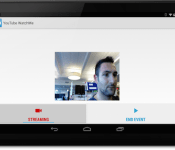
It may seem as if YouTube Live is still a work in progress for Google, and in many ways that continues to be the case. That’s far from being a bad thing, though. Over the course of the past couple of years, YouTube’s live-streaming feature has become available to an increasing number of people on both ends of the camera, by way of different devices and platforms. Soon, with a new open-source project called YouTube WatchMe for Android, the video service is hoping that developers will start integrating its real-time broadcasting capabilities to their apps. Google says the tool is only an experiment right now, but it wouldn’t surprise us to see it become more than that in the not-so-distant future. If you’re interested in digging a little deeper, or contributing your wisdom to the project, be sure to take a gander at the GitHub repository right here.

Filed under: Misc, Home Entertainment, Software, HD, Mobile, Google
Via: TechCrunch
Source: YouTube

Google Fit makes its way to the Play Store [APK Download]
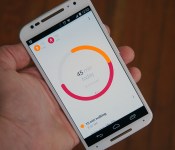
Google did some talking about the upcoming Google Fit service during Google I/O a few months back. Google Fit is your all-inclusive fitness tracking app from Google that gives you access to your running, walking and cycling data quickly and easily. All you need is the app on your phone and your phone in your pocket. Of course the Fit app is also compatible with all Android Wear devices and the Fit API has been finding its way into other wearables and apps as well.

The new Google Fit app is free and can be installed across all your Android devices so you can easily view and track your progress everywhere. There is even a web portal to keep tabs on things and adjust your goal, height, weight ect. Once you start getting your tracking in order and get moving, the Fit app will track it all and display it in easy to understand graphs and images.


//<![CDATA[
ord = window.ord || Math.floor(Math.random()*1E16);
document.write('‘);
//]]>
The post Google Fit makes its way to the Play Store [APK Download] appeared first on AndroidSPIN.
Taco Bell’s new app makes it easy for you to order on the go

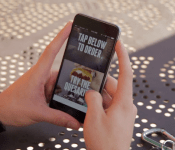
Earlier today, Taco Bell’s site and social networks went completely dark, making some curios people wonder what the fast food chain had up its sleeve. This time, however, it wasn’t a Doritos-infused taco or a fresh breakfast menu of sorts. Instead, Taco Bell introduced an all-new mobile application, which allows iOS and Android users to place orders and pay directly from their smartphone. But in case this wasn’t enough, the app will let you customize various menu items and, by using location services, pick them up whenever you’re close to your location of choice. Taco Bell says it won’t make the food until customers arrive, this way it will taste just as fresh as they had imagined it — simply put, the popular chain wants everyone to “skip the in-store line like you own the place.” Assuming you can handle the aftermath of a Taco Bell meal, the app is a pretty good idea.
Taco Bell goes dark on social media to launch its new app: http://t.co/zhlrirPZKC pic.twitter.com/Zz0V9MsuG4
– Mashable Business (@mashbusiness) October 28, 2014
Filed under: Cellphones, Misc, Software, Mobile
Source: App Store, Google Play
Google Fit for Android is ready to compile all of your fitness stats

Filed under: Software, Mobile, Google
Via: The Next Web
Source: Google Play, Android Official Blog

SnapDonate makes giving to charity as simple as taking a photo on your phone

Everyone likes the warm, fuzzy feeling that comes with donating some of your hard-earned to charity, but sometimes you simply don’t have any change to pop in the bucket. Many of us also have chugger-dodging down to an art form, but now there’s a simple, quick way to give to charity that doesn’t involve a ten-minute lecture. A new app called SnapDonate, available on Android and coming soon to iOS, turns your smartphone’s camera into a “magic lens” capable of identifying the logos of 13,000 UK charities. After you’ve “snapped” a logo, the app then allows you give up to £50 to the charity in question, or save the donation to a to-do list for revisiting when you’ve got some spare dough. The payment can be taken from any PayPal account or bank card, with that part handled by trusted online donations platform JustGiving — a name you’ll recognise all too well if you work in an office full of marathon-loving masochists.
Filed under: Cellphones, Software, Mobile
Via: The Next Web
Source: SnapDonate
 AIVAnet