


The Rapidfire K70 is a gaming keyboard that typists will love
Mechanical keyboards are favored by gamers and programmers for how precise and springy the buttons feel under their fingers. The latter is important not just for improving a player’s reaction time in a heated match, but a shorter key depression is also way kinder to a typist’s hands. So it seems that Corsair’s new Rapidfire K70 RGB would be the ultimate step up thanks to its new “Cherry MX Speed” keys, which only need to be pushed down 1.2mm: the shortest actuation point on the market. I’ve been using it as my work keyboard for the past two months and it’s been a sweet experience, though not without a few bumps.
Unlike other gaming keyboards that might pack in extra features like macro keys or a display screen, there aren’t too many bells and whistles on the Rapidfire K70. In fact, there’s not a whole lot to distinguish it from the standard K70, which was the top pick in our gaming keyboard roundup last year. It has a pretty basic key selection of 107 keys, though there are a few media buttons on the upper right along with a roll bar for adjusting the volume. The K95, also from Corsair, has a selection of 18 macro keys on the left side, but it’s not a Rapidfire model, so you’ll miss out on the benefits of MX Speed buttons.
I appreciated the simplicity of the layout, which made it ideal for mixed-use scenarios, in which you might want to use the same keyboard for gaming and work. Its compact size means its reach is far friendlier to my smaller hands, and the rubberized palm rest feels nice to the touch. I’ve had issues with rests before, as some plastics have a tendency to irritate my skin. I haven’t had that problem with the K70, even after hammering away on a few 1,200-word stories. I’m even typing this review on it, and loving it.

There are other nice touches here. The space bar is textured, and the K70 also came with some extra key caps if you prefer your WASD setup to feel a bit rough as well. It’s extremely easy to remove the caps, too: Corsair thoughtfully packed in a tool to pull them out, though you can also just give the buttons a good yank with your bare hands and the tops will come right off. This makes the whole rig extremely easy to clean, as the keys are housed in an aluminum deck with no nooks and crannies to trap crumbs and dust. This is ideal as I’m a bit of slob; it’s not uncommon for me to eat breakfast or lunch while I work. Indeed, I just noticed something stuck on the side of one of the number keys. It looks like jam? Probably best not to think about it. The important thing is that I was able to pull the key cap off, wipe it down and pop it back onto its switch with no evidence that anything was ever wrong.

The aluminum board also means the Rapidfire feels solid and is heavier than your average keyboard. In fact, It feels like something you’d keep around the office as a melee weapon in case you get caught at work during the zombie apocalypse. It’s that sturdy.
The USB cords alone make it a bit unwieldy; their braided design means they don’t tangle, but they also don’t tuck away easily, so they’re always this looming presence on your desk. It’s especially annoying as one is a USB passthrough, which I don’t need, so it just sits around like a paralyzed snake, making it harder to keep my cables in order.
In use, the Rapidfire K70 is mostly a pleasure. The buttons are smooth and responsive; a little smaller than I’m used to, but it hasn’t been a problem. I love the sound of the keys, too. Mechanical keyboards have a well-earned reputation for being noisier than the membrane and scissor-switch peripherals that populate most offices, and the K70 is definitely louder than my standard decks. But the lighter touch needed to activate the Cherry MX keys means that it’s possible to be whisper-quiet with enough practice.

What’s become more apparent in my time with the Rapidfire K70 is how sloppy a typist I can be. The larger buttons on my usual Comfort Curve Keyboard mean that I don’t need to have a good aim to hit the right one, and I often have to slam my finger to get the membrane keys to register. I don’t need to be delicate or precise: It’s a blunt instrument for typing.
One persistent problem I had with the K70 was that my palm sometimes brushed against the Alt key as I typed. It isn’t an issue on a membrane keyboard or even other mechanical layouts because it’s not enough to register as a deliberate key press. But thanks to the extremely short actuation point on the Rapidfire K70, I was activating hotkeys left and right. No, I don’t need the edit menu right now, thank you very much. Stop that.

In contrast, a mechanical keyboard is more of a scalpel, and the Cherry MX Speed switches on the Rapidfire K70 make it even more so. They’re a bit thin, so I have to be careful about hitting the center of the key cap. I barely have to touch them to register a press; it feels like I could breathe funny on the keyboard and end up typing gibberish. That won’t actually happen, though. I hit the K70 with a can of compressed air and the keys jiggled but didn’t depress enough to register as strokes.

My ham-handed typing aside, it feels and looks great — I’d be remiss in not mentioning the backlit RGB keys, which are bright and bold and pretty distracting. Of course, Corsair provides its own utility engine, so you can tweak the lighting as well as programming macros. It’s pretty robust but also a bit opaque, so if you want anything more complicated than simple keystroke shortcuts you need to put in a serious sit-down with the software to figure out how it works. But it’s easy enough to mess with the default lighting schemes and find one that looks good without being too annoying. And if the lighting does ever become a problem, there’s a button on the keyboard to just turn it off.
But I don’t really want to. The candy-colored lighting makes me happy in a way my conscious brain can’t explain. That visual treat combined with the crisp, light typing makes the Rapidfire K70 RGB a sensory delight that actually gets me excited about typing on it. It makes me want to work. When was the last time you could say that about a keyboard?
Kyocera DuraForce Pro Release Date, Price and Specs – CNET

The handset also has a fingerprint reader, Android Marshmallow and a 5-inch display.
Kyocera
The newly announced DuraForce Pro is unique to Kyocera in one big way: It has three cameras. In addition to the front-facing shooter, the back has a 13- and 5-megapixel camera. And while the former features a standard lens, the 5-megapixel rear camera is an “action camera,” which has a wider 135-degree lens and can record 1,920×1,080-pixel video.
Given that the device also features a durable construction that is dust, shock and waterproof, the camera is especially handy for recording water-friendly activities like swimming, surfing, and boating. Just make sure it’s submerged for less than 30 minutes in up to 6.5 feet (2m) of water. (For other splash-proof phones, check out our roundup of water resistant handsets).
Beyond its cameras and durability, the DuraForce Pro has a power button that doubles as a fingerprint reader for extra user security and Android Pay. Its 5-inch display has a 1,920×1,080-pixel resolution and its left edge houses a programmable push-to-talk button.
The Android Marshmallow handset is powered by a 1.5GHz eight-core Snapdragon processor and a non-removable 3,240mAh battery that features QuickCharge 2.0 technology from Qualcomm. Other features include dual front-facing speakers, 32GB of internal storage (with the option to expand up to 200GB with a microSD card) and 2GB of RAM.
The DuraForce Pro is slated for sometime this fall. Though carrier information and pricing have not been released, Kyocera says it’ll cost considerably less than Samsung’s leading durable handset, the Galaxy S7 Active, which costs $795 on US carrier AT&T (that converts to about £610 and AU$1040).
Rough and tumble: 8 phones for the adventurous
See full gallery


1 – 4 of 9
Next
Prev
Seagate Backup Plus Ultra Slim Portable External Hard Drive review – CNET
The Good The Seagate Backup Plus Ultra Slim is compact, fast and includes helpful backup software.
The Bad There’s no USB-C port, so no future-proofing for you.
The Bottom Line The Backup Plus Ultra Slim is a handy portable drive for those needing to carry additional data or perform backups on the go.
Seagate’s Backup Plus Ultra Slim is a slimmer, faster version of the Backup Plus Slim portable hard drive we first reviewed in 2014 and is ultimately a better buy than its older brother. The Ultra Slim is the Chris Hemsworth to the Slim’s Luke Hemsworth. Who is Luke Hemsworth, you ask? Exactly.
The included Seagate Dashboard software not only lets you back up drive data, but your mobile devices and social media (Facebook, Flickr and YouTube) info as well. I had no issues with the software, but truth be told, I only used the Windows version. There’s a separate version for Mac that I didn’t test. You also get 200GB of online storage (free for two years) with Microsoft Onedrive. If you use Windows 10, though, I’d recommend using the built-in File History utility for local backups, among other things you won’t need to install any extra software on the computer.
CNET USB 3.0 portable drive performance
Seagate Backup Plus Ultra Slim
149.6
169.21
Seagate Backup Plus Slim
118.8
125.35
Buffalo MiniStation Extreme
110.3
118.82
WD My Passport Ultra
110.2
117.34
WD My Password Slim
107.7
107.89
SiliconPower Armor A60
104.3
114.48
WD Elements
95.7
102.15
Legend:
Write
Read
Note:
Longer bars mean better performance
While the micro-USB 3.0 port is fast for transfers, I was disappointed that there’s no USB-C port. So despite being available in gold (and silver) it won’t work with a Macbook — the Macbook has only a single USB-C port and currently comes in gold, silver and a few other colors.
The drive’s handy portability makes it perfect for all laptops not named Macbook (I’m talking solely about the single-port USB-C version here). The drive works out of the box with most computers, thanks to the included USB 3.0 cable. However, if you plan to use it with a non-Macbook Mac laptop or desktop, you’ll need to reformat it first.
GoPro Omni Release Date, Price and Specs – CNET
GoPro’s 360-degree Omni camera rig looks like it could be just another 360 cage for use with GoPro cameras and maybe doesn’t seem as elegant a solution as an all-in-one camera such as Nokia’s Ozo. But, you know, looks can be deceiving.
At the Omni’s core is proprietary hardware so all six of its cameras talk to each other and behave as one. Each camera connects to the Omni via the Hero port on the camera’s back, with one of the six acting as a master control camera. Power up the master camera and all of the others start up and setting changes happen simultaneously across all the cameras, too.
More importantly, though, all of the cameras record at the same moment with the Omni, keeping each video stream synchronized. For those who’ve edited 360 video before, this means you don’t need to rely on a clap once you’ve started all the cameras recording to match up video for stitching. Also, if for some reason one of the six isn’t ready, the Omni lights up to let you know, and the recording won’t start until the issue is fixed.
GoPro’s Omni VR rig has a surprise inside…
See full gallery


1 – 4 of 12
Next
Prev
All video (or photos) are stored to the microSD card in each camera; there is no mass external storage solution available for the rig. You can power the Omni off of an external battery for up to three hours, though, or you can just run it off the camera batteries.
The Omni sync rig alone sells for $1,500 (£1,300, AU$2,300), so if you have six GoPro Hero4 cameras you can update their firmware and take advantage of the synching. However, for the Omni to really pay off, you’ll want to use it with Kolor’s Autopano Video Pro and Autopano Giga software (about $775, £600 or AU$1,015). This includes the Omni Importer software, which uses the Omni rig’s sync data to give you a near real-time preview and calibrated stitching that’s good enough for immediate use.
If you don’t have the cameras and are willing and able to hand over $5,000 (£4,200, AU$7,500) for a complete out-of-the-box solution, GoPro has an Omni all-inclusive package that gets you:
- Kolor stitching software license
- GoPro Omni sync rig
- Six GoPro Hero4 Black cameras
- Six GoPro Hero4 batteries
- Six GoPro Mini USB cables
- Six GoPro lens covers
- Six 32GB microSD cards
- Six microSD USB card readers
- GoPro Smart Remote
- 7-Port USB hub
- Switronix Hypercore-98S battery
- Switronix GP-S V-mount battery
- Plate/clamp
- Switronix GP-LS battery charger
- PowerTap-to-DC 2.5 x 5.5mm cable
- Waterproof shipping case
- Plastic tweezers
- Microfiber bag
- 2.5mm hex key

GoPro Omni all-inclusive package.
Lori Grunin/CNET
That’s no small amount, but not outrageous for professional use, and considerably less than other solutions. In our demo with GoPro, both the rig and software looked easy enough to learn and use that I could see this being the go-to solution for things like travel or real estate. Situations where you need better results than consumer options, but don’t want the headaches of putting a 360-degree setup together on your own.
And that’s just producing the video or photos, too. GoPro also has a free VR player with Oculus support including Adobe Premiere to Oculus direct previewing. There are Premiere plug-ins available for adjusting the horizon, adding 2D elements to spherical content and creating 2D movies out of 360-degree video, so you can basically use your 360 clips as a virtual camera to pan and tilt through a scene.
GoPro made the whole process of capturing, editing, viewing and sharing 360-degree content look pretty seamless with the Omni rig and Kolor software in our demo with the company, as any good demo should. We won’t know for sure of any true operating issues until we test one ourselves.
Omni starts shipping on August 17.
Frigidaire FGDS3065PF review – CNET
The Good This $2,399 Frigidaire is an easy-to-use dual-fuel range that performed well in our cook tests. It’s also the cheapest dual-fuel and slide-in range we’ve ever tested.
The Bad There aren’t many additional features that you’d expect on an oven that costs more than $2,000, such as a fifth burner or cooking accessories. It’s also pretty slow when it comes to broiling.
The Bottom Line The Frigidaire FGDS3065PF might not excite, but it’s a solid pick if you want a slide-in range with a gas cooktop and an electric oven.
Other dual-fuel ranges
- Dacor ER30DSCH
- KitchenAid KDRS407
- KitchenAid KFDD500ESS
When a range costs more than $2,000, you expect a manufacturer to include a few bonus features that can help you try to justify the price: a double oven cavity, a baking drawer, heck, at least a griddle. Frigidaire pummels those expectations of extras in its $2,399 FGDS3065PF, a range that is slim on extra features. The manufacturer opts for a “less is more” approach with this range. There’s only four gas burners on the cooktop, the oven cavity is relatively small and there aren’t any cooking tools included with the appliance.
However, this Frigidaire is the cheapest dual-fuel range (a gas cooktop paired with an electric oven) and cheapest slide-in range (all controls on the front of the unit) we’ve ever tested, which helps justify the lack of extras. And the Frigidaire FGDS3065PF also makes up for its lack of add-ons with a decent cooking performance. The range boils water quickly, roasts a tasty chicken and bakes multiple racks of biscuits evenly. However, none of the resulting food or cook times made this range great enough to be memorable.
The Frigidaire FGDS3065PF is a good option if you want a dual fuel, slide-in range but want to spend less than $2,500. Just don’t expect a wealth of extras.
Frigidaire holds back on the features with…
See full gallery


1 – 5 of 9
Next
Prev
Appearance
You might feel a bit of déjà vu when you see the Frigidaire FGDS3065PF. This 30-inch wide slide-in range looks very similar to comparable products, especially the Electrolux EW30IS80RS induction range (not surprising since the brands share a parent company). The Frigidaire is wrapped in stainless steel with black trim. On the cooktop, continuous cast iron grates cover the four gas burners. Most ranges in this price range throw in a fifth oblong, middle burner that is designed for you to use with the griddle. This Frigidaire, however, forgoes a fifth burner, which leaves some dead space in the middle of the cooktop. I would’ve liked to see Frigidaire make the most of this space by rearranging the burners in a set-up that would let you use bigger pots and pans without crowding the cooktops. Instead, you have a traditional four-burner set-up with a blank space in the middle that feels like a wasted opportunity.

Tyler Lizenby/CNET

A special rack hooks to the oven door so it extends when you open the door.
Chris Monroe/CNET
This Frigidaire comes with a 4.6 cubic-foot electric oven, which is small when you compare it other slide-in, comparably priced models, such as the KitchenAid KSGB900ES (with 6.5 cubic feet of space) or the Samsung NX58H9500WS (5.8 cubic feet). Fortunately, the oven holds large baking sheets without feeling crammed. The oven also comes with a special rack that you hook to the oven door. When you open the door, the rack will extend outward for easier access to your food. It’s a thoughtful feature, but limiting in that you can only use the rack on the first two rack positions.
Performance
The Frigidaire FGDS3065PF performed well in our cook tests. It didn’t break any records for speed, but it didn’t lag too far behind other ranges.
2017 BMW 3 Series review – Roadshow
Aug 2016
The Good With its plug-in hybrid drivetrain, the 2017 BMW 330e achieves far better fuel economy than a standard 3-series. The navigation system communicates with the drive system to improve efficiency. Balanced weight makes for good handling.
The Bad The 330e only goes 14 miles under electric power, less than other plug-in hybrids, and the air conditioning does not feel very effective.
The Bottom Line The 2017 BMW 330e gives a taste of electric driving, with its associated efficiency, in a competent sport sedan, but its multiple combinations of drive modes will really appeal to number nerds.
Range at 14 miles. That’s what the 2017 BMW 330e’s display says after I leave it on the charger overnight. Combine that zero emission driving with the 330e’s gasoline-electric hybrid drivetrain, and you’ve got an EPA-rated 72 miles per gallon equivalent.
The 330e is a very economical BMW.
Then I switch the Driving Dynamics Control to Sport, and also pop the shifter into its Sport position, and suddenly the 330e feels like a BMW. The throttle becomes a sensitive instrument from which to dole out power and the car hangs its tail out in the turns.
It’s no M3, but the 330e holds up its sport sedan heritage.
While cruising down coastal Highway 1, approaching a hill, I feel the 330e’s eight-speed automatic transmission downshift, making a smooth transition on the grade. The navigation system told the transmission about the upcoming hill, so it could prepare with a lower gear.
This communication between navigation and transmission shows the 330e’s smarts.

The 330e only gets 14 miles of electric range, but that can take a chunk out of fuel use for the daily commute.
Wayne Cunningham/Roadshow
Consider the 330e a Jekyll-and-Hyde car, with a little Einstein thrown in. It looks like a typical BMW 3-series, a compact rear-wheel-drive sedan in a premium segment. But amid classic BMW design cues such as the kidney grille and Hofmeister kink, it sports a standard electric vehicle charging port on the left-front fender and e-Drive badges on the C-pillars.
An 87-horsepower electric motor complements a turbocharged two-liter engine, which by itself makes 180 horsepower and 215 pound-feet of torque. The total output from both sources comes to 248 horsepower and 310 pound-feet of torque. A 7.6 kilowatt-hour lithium-ion battery pack stores electricity from the grid and regenerative braking, giving the 330e its modest amount of pure electric range.
BMW
330e
hides
electric
smarts
under…
See full gallery


1 – 6 of 31
Next
Prev
Like other plug-in hybrids I’ve driven, the 330e operates as a fully electric car while its battery level holds up. The electric motor may be low on horsepower, but its 184 pound-feet of torque makes it quick enough for cruising along with traffic. When I floor it, however, the engine kicks in to maximize acceleration. And if I were to get above 75 mph the engine would also fire up to assist the electric drive.
With the 330e’s Driving Dynamics Control, that rocker switch you see in all BMW models these days, set to Eco Pro, I enjoy the quiet of the ride and the easy drivability. However, the climate control struggles against external temperatures of 80 degrees, and the occasional pothole or bump in the road jars the suspension uncomfortably, probably exacerbated by the low-profile run-flat tires.
BMW’s tendency to complicate its driving modes shows up in the 330e with the addition of an eDrive button to the Driving Dynamics Control modes.
BMW’s tendency to complicate its driving modes shows up in the 330e with the addition of an eDrive button to the Driving Dynamics Control modes. eDrive lets me toggle through three modes, which range from saving electric range for later use to maximizing electric drive. I mostly just leave it in automatic, where it decides when best to use the motor and engine.
The most remarkable thing about the 330e is how the navigation system and transmission communicate. I previously saw this technology on the Rolls-Royce Wraith, where it increases ride comfort, but the 330e uses terrain information more extensively to get the most out of its plug-in hybrid drive system.
Intel’s ‘Skull Canyon’ NUC is the future of tiny desktops
What if you could have a desktop that easily slips into a messenger bag or purse? That’s what Intel has been aiming for with its NUC (Next Unit of Computing) devices. Yes, it’s a terrible name, but Intel’s goal is admirable: to deliver powerful machines that are significantly smaller than desktops of yore. Our first look at a NUC back in 2013 showed plenty of promise. And with the new Skull Canyon edition (starting at $609), Intel has come closer than ever to delivering a truly portable desktop replacement that can even play some games. Just be prepared to pay through the nose to actually use it.
Officially called the NUC NUC6i7KYK (yes, Intel is really bad at naming things), this new device isn’t a complete computer. Instead, like all of Intel’s previous tiny desktops, it’s a kit that requires some handiwork. It packs in a 2.6GHz quad-core i7-6770HQ processor with integrated WiFi, Ethernet, Intel HD Audio and Iris Pro 580 graphics. But you’ll have to open it up and add your own SSD in one of the two M.2 slots, along with your own RAM (it supports up to 32GB of laptop-sized DDR4 memory). And of course, you’ll have to supply your own OS as well. In short, don’t expect to buy this box and have it magically start working.
While previous NUCs looked like boring grey mini-PCs, Intel actually infused a bit of style into the Skull Canyon model. It’s a slim and small device, at only 1.1 inches tall, 8.3 inches long and 4.57 inches wide. It feels like a small hardcover book, weighing in at around 1.5 pounds. Its plastic case is all black, with a reflective webbing pattern and large skull imprinted on the top — a not-so-subtle hint that Intel built this thing for PC gamers. Thankfully, the company also includes a plain black replacement cover in the box. Simply put, the Skull Canyon NUC feels like an exotic piece of hardware, rather than just a humdrum PC.

Alongside the power button up front, there’s an SD card slot, headphone jack and two USB 3.0 sockets (one of which is colored yellow, as it’s a “charging port” meant to provide extra voltage for mobile devices). Around back there are ports for power, HDMI, Thunderbolt 3/USB-C, Mini DisplayPort and gigabit Ethernet, along with two more USB 3.0 connections. In addition, there’s another 3.5mm jack for audio output, which also supports minijack to optical cables (useful for connecting the NUC to an A/V receiver). This plethora of ports is another way that the Skull Canyon NUC distinguishes itself from modern laptops.
Getting started involves removing the four Philips screws on the bottom of the NUC and plugging in the RAM and M.2 SSD of your choice. Intel packed our demo model with a 512GB SSD and 16GB of memory, but I nonetheless unplugged and reinstalled those pieces of hardware to get a feel for what it’s like to work with such a tiny case. If you’ve ever installed RAM, a video card or any PCI card in a desktop, you won’t have any trouble here. But even if this is your first time dealing with naked hardware, it shouldn’t be too difficult (just remember to align the pins). With my system complete, I then installed Windows 10 from a USB stick, a process that took around 15 minutes.

Once I got into Windows, I quickly realized that none of the drivers for the NUC were automatically recognized, not even its WiFi radio. I used my Windows desktop to snag those drivers, along with Intel’s Display drivers for the NUC. Once those were installed, I had the NUC run through Windows Update several times to fully upgrade the OS and grab all of the other relevant drivers. It took about an hour to get the NUC fully up and running. All the while, I had flashbacks to the hours I spent mindlessly installing Windows during my IT days.
With everything set up, I used the NUC for my daily workflow, which involves having dozens of browser tabs open across multiple browsers, chatting on Slack, writing on Evernote, listening to music on Spotify and occasionally editing some photos. For the most part, I was surprised by how normal everything felt. Even though it’s running a laptop-grade i7 processor, which produces less heat than its beefy desktop counterparts, the NUC managed to keep up with me every step of the way. Having 16GB of speedy RAM also helps, especially when it comes to multitasking and handling large files. You can definitely hear the system’s fan working when things heat up, but that’s to be expected with such a small device.

In practice the NUC felt almost indistinguishable from my custom-built desktop, which is particularly surprising given just how small it is. This is also the first NUC with decent gaming performance: It had no problem staying at 60 frames per second in 1080p with less demanding games like Transistor and Civilization 5. Quadrilateral Cowboy, with its blocky ’80s aesthetic, ran between 35 fps and 60 fps in 1080p. Even Overwatch was playable, reaching between 60 and 70 fps at 720p with low settings. Even more surprising, it ran at around 50 fps in 1080p with low settings. That’s a testament both to Blizzard’s scaling skills and the amount of power Intel has managed to cram into its Iris Pro 580 graphics.
For some gamers, the Skull Canyon’s NUC’s performance will be just fine for LAN parties and competitions. And if you need even more power, you can connect a full-sized graphics card over Thunderbolt 3, using an enclosure similar to Alienware’s $200 Graphics Amplifier. I didn’t have one of those to test out, unfortunately, but it’s nice to know the capability is there.
| Intel Skull Canyon NUC (2.6GHz Core i7-6770HQ, Intel Iris Pro 580) | 6,130 | 5,634 | E5,105/ P3,085/ X844 | 7,797 | 2.5 GB/s / 1.5 GB/s |
| Microsoft Surface Book (2.4GHz Core i5-6300U, Intel HD 520) | 5,412 | 3,610 |
E2,758 / P1,578 / X429 |
3,623 | 1.6 GB/s / 571 MB/s |
| HP Spectre 13.3 (2.5GHz Intel Core i7-6500U, Intel HD 520) | 5,046 | 3,747 | E2,790 / P1,630 / X375 | 3,810 | 1.61 GB/s / 307 MB/s |
| Lenovo ThinkPad X1 Tablet (1.2 GHz Core M7-6Y75, Intel HD 515) | 4,951 | 3,433 | E1,866 / P1,112 | 2,462 | 545 MB/s / 298 MB/s |
| Dell XPS 13 (2.3GHz Core i5-6200U, Intel Graphics 520) | 4,954 | 3,499 | E2,610 / P1,531 | 3,335 | 1.6GB/s / 307 MB/s |
| Razer Blade Stealth (2.5GHz Intel Core i7-6500U, Intel HD 520) | 5,131 | 3,445 | E2,788 / P1,599 / X426 | 3,442 | 1.5 GB/s / 307 MB/s |
| Toshiba Radius 12 (2.5GHz Intel Core i7-6500U, Intel HD 520) | 5,458 | 3,684 | E2,865 / P1,622 | 3,605 | 552 MB/s / 489 MB/s |
| Microsoft Surface Pro 4 (2.4GHz Core i5-6300U, Intel HD 520) | 5,403 | 3,602 |
E2,697/ P1,556/ X422 |
3,614 | 1.6 GB/s / 529 MB/s |
My experience with the NUC was reflected in its benchmarks. It’s significantly faster than any laptop we’ve reviewed over the past year, especially when it comes to gaming performance. In fact, it even outdoes Microsoft’s Surface Book and its dedicated NVIDIA GPU. We don’t review many high-end gaming laptops these days, so we don’t have any beefier mobile hardware to which we can compare the NUC, unfortunately. And while I’ve been testing a slew of desktop GPUs over the past few months, comparing them to the NUC to one of those just feels unfair.
So Intel has built a mini-computer that’s both portable and capable, but who actually needs it? That’s a good question. It’s much easier to carry around than previous NUCs and other tiny desktop designs, like Gigabyte’s BRIX. Intel is pitching it as something ideal for bringing to LAN parties and other gaming events. You’ll still need to bring along a monitor, keyboard and mouse to actually use it, of course. If you’re simply looking for something smaller than a typical desktop tower to use at home, there are plenty of small options out there that would likely cost less than the Skull Canyon NUC. And even if you’re not worried about the cost, you can still cram in more powerful hardware in other mini-PC cases.
The big takeaway is that this isn’t a device meant for everyone. Most people would be fine with a laptop instead (which is hard for me to admit as a desktop fan). And while it makes for a powerful home theater PC that can actually play some games, you’d be better off with something like Alienware’s Steam Machine. And if you’re just concerned about the media side of HTPCs, earlier NUC models are cheaper alternatives (and only slightly larger).

The biggest issue with the Skull Canyon NUC? It’s too expensive for most uses. While it’s retailing for $609 now (down from around $650 originally), it would likely end up costing closer to $1,000 once you include the cost of a decent SSD, RAM and a Windows 10 license. It’s faster than Apple’s highest end Mac Mini, which goes for $999 with a 2.8GHz dual-core i5 CPU, 8GB of RAM and 1TB of storage, but I’d argue that’s also not the wisest purchase for most. If you want the best tiny desktop replacement, no matter the cost, then the new NUC is for you.
In the end, the Skull Canyon NUC is a statement of intent for PC hardware tinkerers. Behold! A small profile desktop coupled with a surprising amount of power. It might seem impractical today, but in a few years this is what desktops will look like.
No Man’s Sky Release Date, Price and Specs – CNET
When an open-universe game offers more than 18.4 quintillion planets to explore , it’s a safe bet that expectations are high. And that’s why the gaming world has been waiting with bated breath for more than two years for No Man’s Sky, which finally hits the PlayStation 4 today. (The PC version is slated to hit next week; it’s not available for Xbox One.)
The game has had plenty of prerelease drama surrounding it, with early copies hitting the street (and Reddit) before the official release date, and a giant day one patch that rewrites quite a few rules of the game — and effectively resets all those early players back to zero.
Let’s get beyond all that and jump right to the part that matters: what’s it’s like playing for the first few hours. (And, to be clear, I had less than a day with the final code.)
After the shock of having the game crash on me the first time it booted, I finally arrived on my starting planet.
No Man’s Sky doesn’t do much in terms of hand-holding.
A lot of NMS has you exploring, mining and crafting. The resources you collect serve as the currency fueling your journey, allowing you to travel farther away from your origin planet. First, you’ll leave your spawn planet, then the solar system and beyond. Before long, you’re able to access warp speed and can quickly jump from one star system to another.
Most anticipated games of 2016: July to December
See full gallery


1 – 4 of 27
Next
Prev
An unseen hand vaguely guides you along, but there’s really nothing resembling any sort of a tutorial. Because of the procedural design of the game — everything is effectively generated on the fly — the planet attributes that I saw at the start of my game will be different than what you experience.
There’s a lot to unpack in No Man’s Sky, but I’m having a good time scanning new creatures and plant life, crafting tools, upgrading my ship, and battling robots. The menu system is laid out in a familiar fashion that mostly resembles the one in Destiny. You’ll spend a good chunk of time there crafting items and moving them back and forth from your ship to your exosuit. Everything you discover and scan can be uploaded and cashed in for units, so I’m making sure to do that often.
A marketplace resides in the gameworld where you’ll need to buy and sell specific elements and items to progress.
The game runs well for the most part, but you’re guaranteed to see a ton of on-the-fly texture rendering as you make your way around new worlds or when flying over them.
The feeling of leaving a planet for the first time is extraordinary, but there’s so much left to do and uncover. I’ll have a more experienced judgment after I spend time exploring and wrapping my head around everything No Man’s Sky has to offer.
“Barely scratched the surface” doesn’t even begin to cover my initial experience with this vast game. But I hope developer Hello Games keeps the patches coming in at a steady clip: I didn’t play No Man’s Sky before the Day 1 patch (1.03) hit, but unfortunately the game has crashed out on me five times in the six hours I’ve played.
Frigidaire Gallery FGHT1846QF Custom-Flex Top Freezer Refrigerator review – CNET
The Good There’s more to this fridge than meets the eye, with helpful, high-end features hidden inside and a smudge-proof stainless-steel exterior.
The Bad Cooling performance was pretty awful, with sections in the body of the fridge that come in above FDA-approved temperatures even at the coldest setting.
The Bottom Line This refrigerator’s performance disqualifies it from consideration, which is a shame, since the features are so good.
The Frigidaire Gallery FGHT1846QF is a good-looking top-freezer fridge that sells for $1,100 (or $1,000 if you skip the stainless steel). It’s filled with features you don’t often see in top freezer models, it feels sturdy and well-built and it offers a relatively ample 18.3 cubic feet of storage space. On paper, it’s the perfect pick for someone who wants to splurge on a noticeably nicer-than-average top freezer refrigerator.
It’s a splurge I can’t recommend, though. For all it’s got going for it, the Frigidaire Gallery FGHT1846QF is a weak performer — so weak that we found average temperatures up above 40 degrees F in the body of the fridge even at the coldest setting. Even if you dial it all the way down, it’s still too warm. For me, that’s a deal breaker.
Features galore in this Frigidaire top-freezer…
See full gallery


1 – 5 of 11
Next
Prev
A top freezer with panache

This Frigidaire’s top shelf slides in and folds up to make room for large items.
Tyler Lizenby/CNET
Top freezers are the classic freezer-on-top, fridge-down-below refrigerators that most of us probably grew up with, and they’re obviously nothing fancy. Still, the FGHT1846QF might surprise you with just how many features it comes with.
For starters, there’s a the “smudge-proof” stainless-steel exterior. It’s a finely contoured version of the popular finish that’s just as shiny and metallic as you’d expect, but noticeably better at repelling fingerprints. Then there’s the interior, where you’ll find a top shelf that slides in or folds up out of the way, along with a pantry drawer that runs the width of the fridge. Both are rare features for top freezers, and ones that you’d more commonly expect to see in French door models.
On top of that, Frigidaire takes a modular approach with the “Custom-Flex” in-door shelving. Each shelf hangs on a rail, making it easy to rearrange things as you see fit. Even better, you can swap any of those shelves out for different modular accessories, which include things like a water bottle holder and a can dispenser. You’ll have to buy those modular accessories separately, but none of them cost much more than $15.
Top freezer fridges for around $1,000
| 14.2 cubic feet | 13.5 cubic feet | 15.2 cubic feet | 17.6 cubic feet | 17.6 cubic feet |
| 4.1 cubic feet | 4.0 cubic feet | 6.1 cubic feet | 6.2 cubic feet | 6.2 cubic feet |
| 18.3 cubic feet | 17.5 cubic feet | 21.3 cubic feet | 23.8 cubic feet | 23.8 cubic feet |
| Slide-in shelf, Custom-Flex door shelves, full-width pantry drawer, smudge-proof stainless steel | Autofill Pitcher | Flexi-Slide Bin | Full-width pantry drawer, automatic ice maker | Full-width pantry drawer |
| Yes | No | No | Yes | No |
| 363 kWh | 399 kWh | 443 kWh | 501 kWh | 547 kWh |
| $44 | $48 | $53 | $60 | $66 |
| $2.40 | $2.74 | $2.49 | $2.52 | $2.77 |
| 3 | 6.5 | 6.5 | 7 | 9 |
| $1,100 | $1,000 | $1,100 | $1,200 | $1,420 |
| $900 | $800 | $900 | $1,095 | $1,000 |

The fridge features a storage-minded design that does a good job accomodating groceries of different sizes.
Tyler Lizenby/CNET
Those storage-minded features came in handy when it came time to start cramming in the groceries. All of my test goods fit inside just fine, with enough room left over to fit in five of our six large stress-test items, too.
That’s a strong result for an average-sized top freezer, and further evidence that capacity is more than just a number. Design has a role to play, too, and in this fridge, the design does a great job.
ZTE ZMAX Pro Review – is a $100 smartphone worth buying?
Owning a phone doesn’t mean having to endure a costly investment. The times have changed, obviously, since phone makers are making it more affordable than ever to own a smartphone. Take for instance ZTE, who for the longest time placed its attention on making entry-level devices that were easy on the pockets, but is making a significant charge yet again by upping the ante with its latest affordable option.
Related ZTE articles:
- Getting to know the ZTE Axon 7
- ZTE Axon 7 review
- ZTE ZMAX Pro hands on | What is a $100 smartphone like?
Most people agree that sub-$200 is pretty aggressive for brand new phones, however, ZTE thinks that more can be done. Cutting that cost in half, the ZTE ZMAX Pro is undeniably tempting with its hard-to-resist price of $99.00 – and that’s all you’re going to have to pay for it. This threshold might not be anything new for the pre-paid market, but what makes it impressive is the fact that it’s slapped with a handy fingerprint sensor, something you wouldn’t expect in something price like this.
Buy the ZTE ZMax Pro now
Design
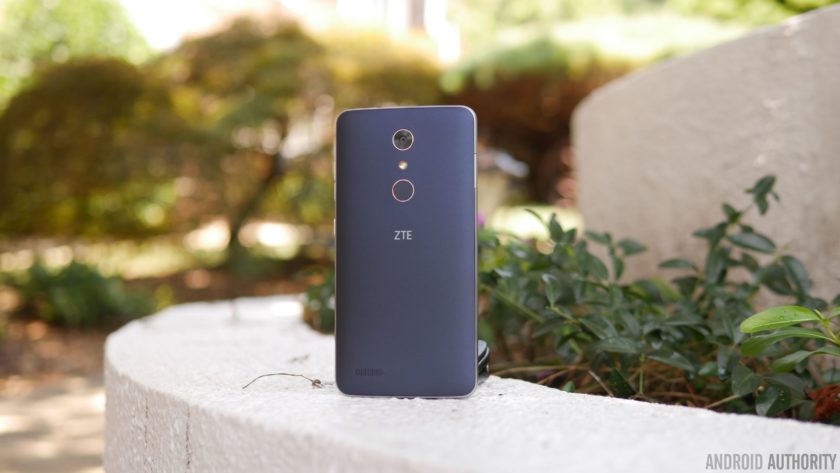
The first order of business with the design is its size, something that’s arguably going be the biggest deal breaker for people. It’s a mighty big phone that pushes it well into the phablet category, so it’s quite honestly a handful to operate. Being so wide and all, two-handed operation is going to be the preferred method with the ZMAX Pro, since one hand operation is nearly impossible unless you have larger-than-average hands.
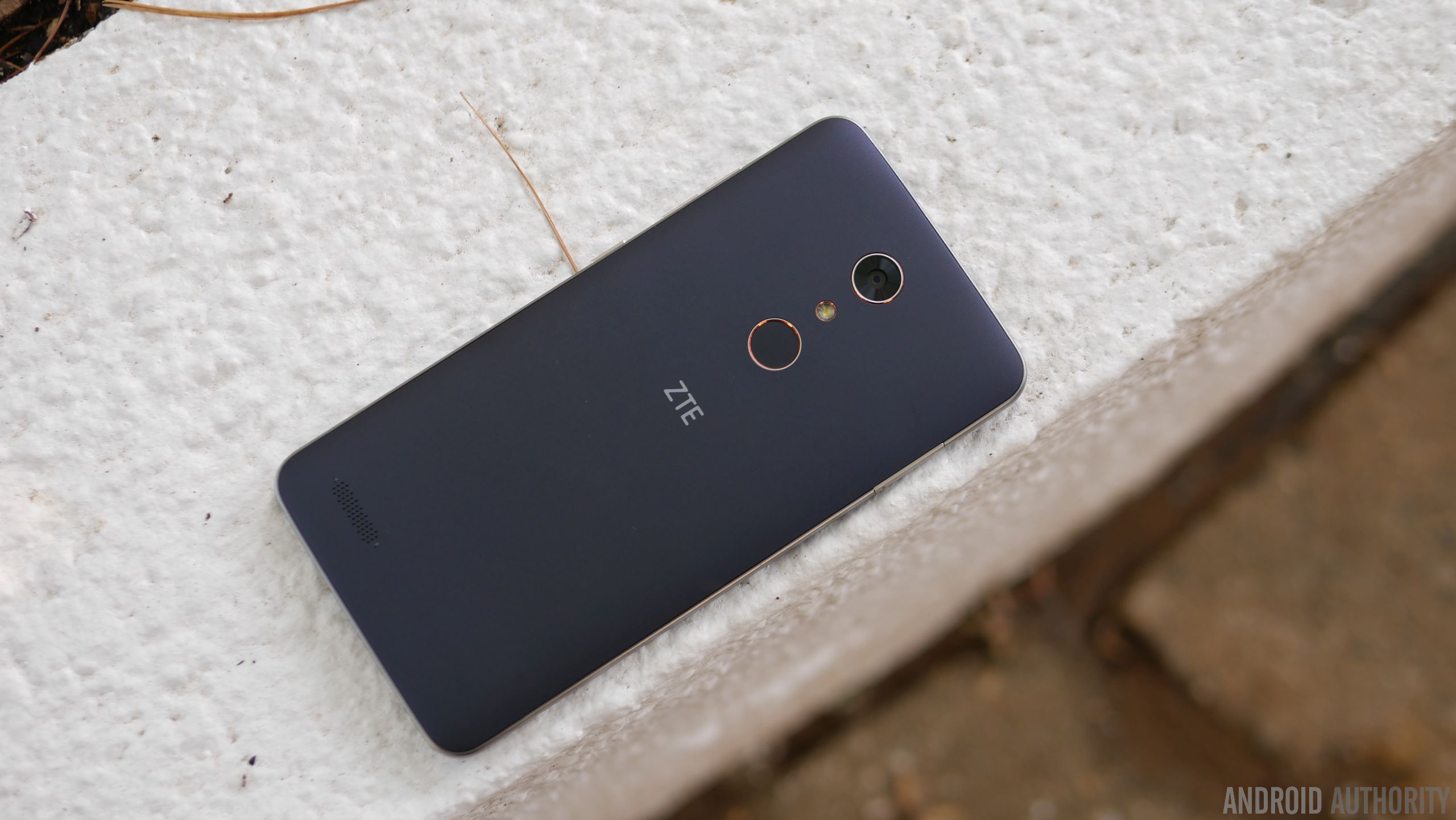
Size aside, ZTE has actually fashioned it with a pleasant design that doesn’t make it feel like a phone in its price range. The soft touch matte finish of the rear combined with the faux-metal bezel are nice touches, pushing it well beyond the context of being “cheaply” made. We really didn’t think that a phone could be this decent looking and constructed, just because phones under the $100 threshold tend to be sub-par in terms of this.

Despite its gargantuan size, they’re mindful about the placement of the power and volume keys – they’re positioned on the right edge, making them accessible to the thumb. Meanwhile, a USB Type-C port is found on the bottom, ensuring that it’s going to be compatible with whatever USB-Type C accessories that are beginning to come out now.
Display
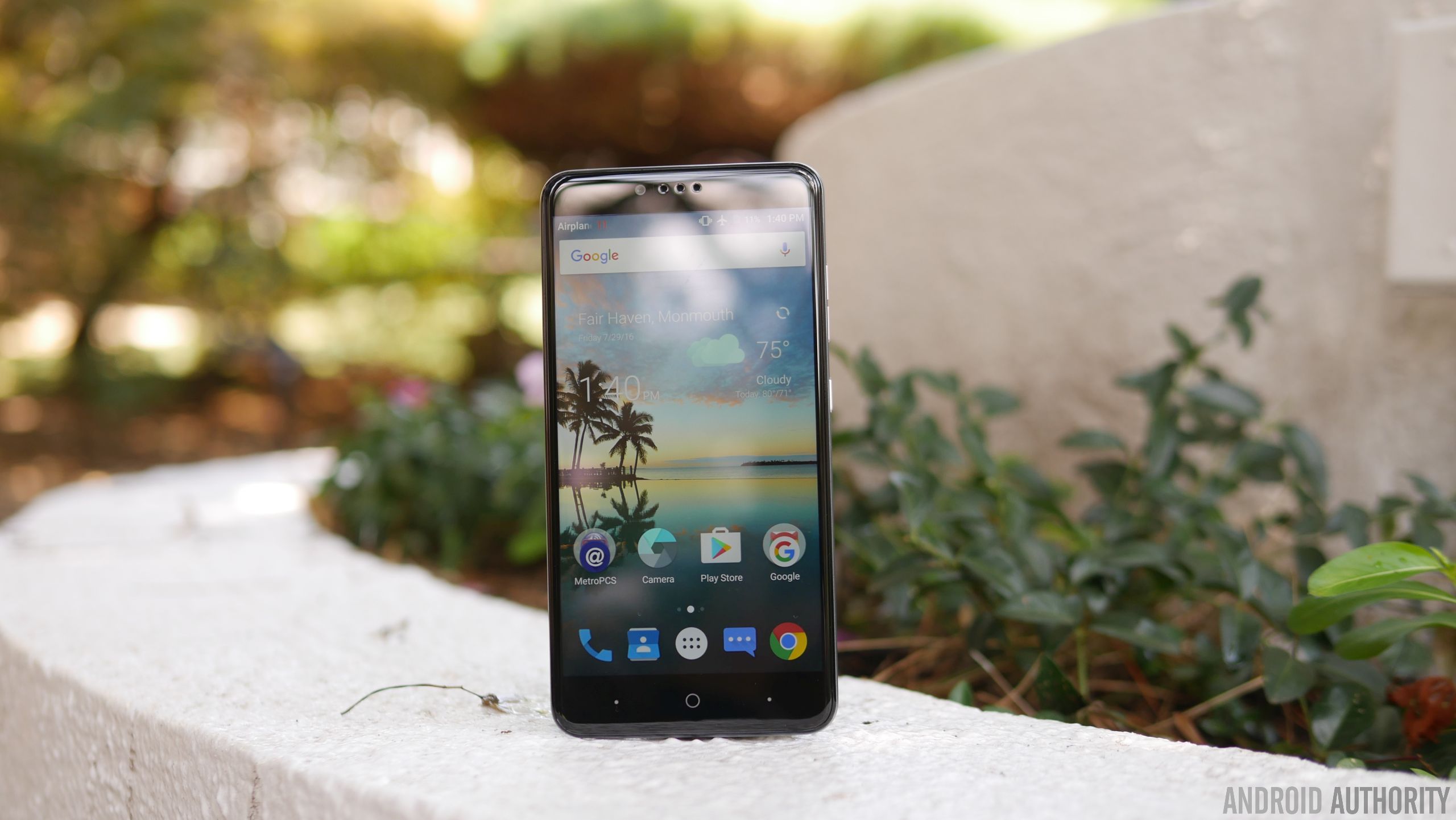
Dominating its façade is a 6-inch 1080p TFT LCD display with Gorilla Glass 3, which is again something you wouldn’t think of getting with a sub-$100 smartphone. Better yet, the fact that they’ve opted to go with 1080p resolution shows that they want to make a statement – implicitly saying that phones of this caliber deserve more. And to that, it’s nice to know that it’s sufficiently detailed enough to make out.
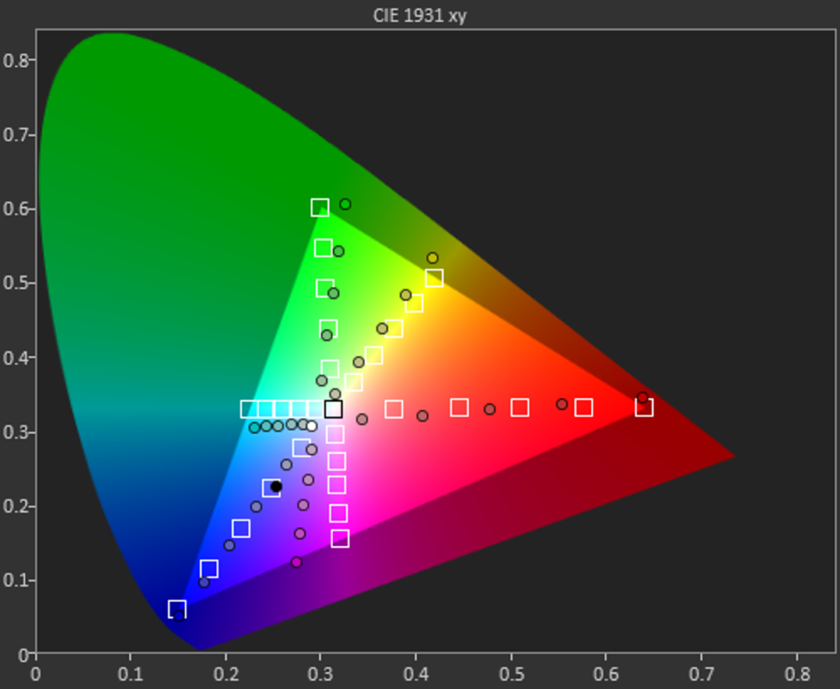
In looking at the other aspects of the display, however, it indicates that it has an extremely colder color temperature than most at roughly 8000K. It’s far from that ideal reference value of 6500K, which makes whites appear bluish in tone. Moving onto color accuracy with this TFT LCD display, it’s a miss on nearly all fronts – including the color teal, which is probably the easiest color to reproduce accurately. All of the values in the sRGB color gamut chart miss their intended target reference marks, where magenta and teal in particular are heavily influenced by blue.
Even though it reaches a peak brightness output of 460 nits, the overall tone of the display seems washed out. Sure, we dig the specs for a phone of this caliber, but our testing reveals that its characteristic aren’t quite up to the levels you’d find in some pricier things. Then again, should we be surprised by this revelation?
Performance & Hardware
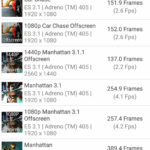
Given its price point, the Snapdragon 617 chip makes perfect sense in powering this affordable smartphone. Paired with 2GB of RAM, it suffices for the basic stuff, but it’s not suited to do more intensive operations – gaming in particular, where it exhibits too much choppiness for it to be a candidate. Okay, it’s not the gaming type, nor is it for power users who demand a lot more, but on a base level, its hardware combination is enough to get by.
For $99.00, we’re actually pretty stoked to know it’s packing 32GB of internal storage. Best of all, too, you can supplement its capacity because there’s a microSD slot on hand. It’s a feature that people probably wouldn’t expect to find in a phone with its price, but it’s a delightful that they opted to offer it.
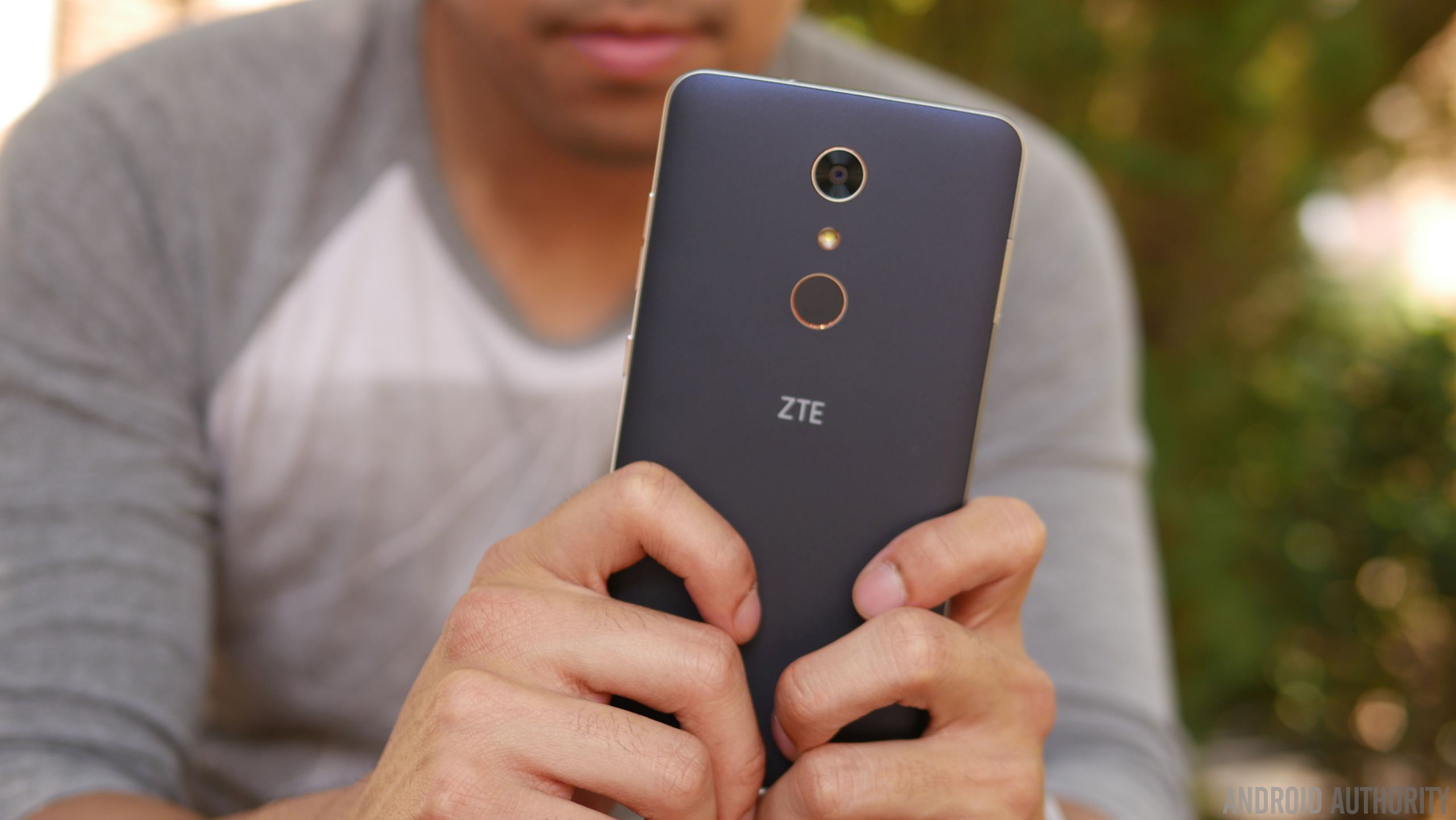
Something that adds a lot more value to the phone is the fingerprint sensor on the back of the phone, it’s an unexpected treat quite honestly. Given that it’s a feature that’s relatively uncommon in entry-level phones, you can say that we feel a teeny bit spoiled to find it. As for the sensor itself, it’s slightly recessed, but works well in adding that extra layer of security. In addition to simply just unlocking the phone, it can also be used to quick open an app, take a photo, or answer a phone call.
Increasingly becoming a standard for ZTE’s phones, the ZMAX Pro features capacitive buttons beneath the display. Unfortunately, the two dots flanking the home button can’t be programmed for anything else besides acting as the back and recent apps functions. In the rear and towards the left corner, we can make out the speaker grill, which emits a decent volume output, but doesn’t pack a whole lot of substance with its quality.





Conducting phones calls is a breeze with this one, thanks in part to the loud volume out of its earpiece and speakerphone – it’s potent enough to use in noisy conditions. Accompanying the strong volumes, we have clear and distinctive voices as well that solidifies its performance in this area. On the other end of the line, too, our callers didn’t have any problems discerning our voice.
Battery
The single most underrated portion about the ZMAX Pro in our opinion is its battery, a modest 3500 mAh cell to be exact. Considering the phone’s gigantic size, you might think it could’ve been larger, but don’t be fooled because when it’s paired with the screen’s 1080p resolution and Snapdragon 617 processor, it delivers longevity like no other. In fact, we’re able to get through a solid 2 days of battery life – and even into the start of a third day.
Using the included USB Type-C charger, it takes approximately 125 minutes to fully recharge its battery. That mark might not be close to some of the fastest recharging phones out there, but it’s not the slowest either at doing it.
Camera
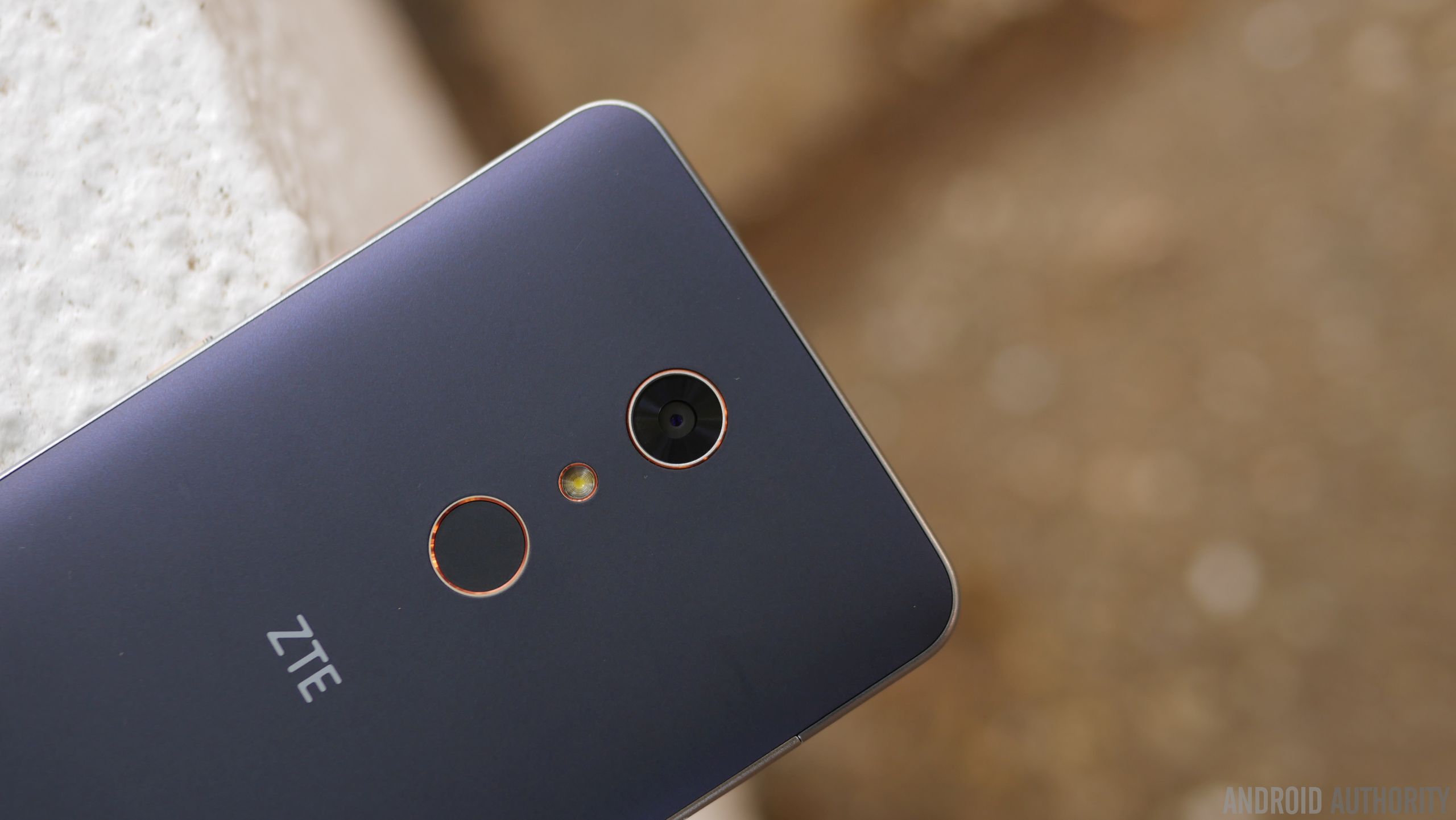
In all fairness, the area where we see the biggest disparity in terms of quality against higher-priced alternatives is the performance in its cameras. For the ZTE ZMAX Pro, it relies on a combination consisting of a 13MP rear camera and a 5MP front-facing one. There’s nothing fanciful about them, nor the accompanying hardware – they’re just as ordinary as any other low priced phone. Running the camera app, there’s a decent mixture of modes and options at our disposal, like its manual mode, which people will probably appreciate having in a phone like this.
Regrettably, the phone’s biggest weakness is exposed here with the cameras – there’s just nothing spectacular about their performances. It’s okay enough to use for outdoor shots when lighting is ample, but there’s a noticeable level of over-sharpening, which seems to try and compensate for the rear camera’s softer details capture. Under low light, however, things take a dip even more as details become more speckled in tone. And finally, the HDR mode seems to just boost the contrast with shadows, making images appear a bit overblown.
ZTE ZMax Pro Camera Samples:

Moving onto video capture, which tops out at 1080p resolution, the results don’t improve much at all, as the general performance is similar to its still shot capture. Over-sharpening again is evident here, but this time, videos tend to have an under-exposed tone to them. And don’t bother using it under low light, just because noise and its muddy results don’t make it flattering to watch.
Software

Purists will love that the ZTE ZMAX Pro is mostly running a stock experience. In particular, it’s running Android 6.0.1 Marshmallow, which has the general look and feel of stock Android. Anyone getting into Android will have an easy time getting acquainted, since it’s pretty streamlined and straightforward. Yes, there’s some bloatware from MetroPCS, but given that it’s at the mercy of the company, it’s something you’d expect.

Power users, though, will probably feel that the experience isn’t up to snuff with their demands. Multi-tasking is generally reserved to just apps switching with the recent apps menu, but you won’t find any other enhanced features that would aid in its productivity. The biggest question with the phone, much like most budget stuff, is whether or not it’ll get upgraded to the next version of Android in a timely manner.
Gallery
Final Thoughts

Owning a cheap phone no longer means you’re getting a cheap phone, that’s just not the case anymore after checking out the ZTE ZMAX Pro. The $99.00 price tag it’s stickered with is without a doubt an aggressive move on its part, especially more given its phablet-esque stature and the inclusion of a fingerprint sensor. These are two things in particular that you wouldn’t expect to find in a phone in its price range, but that’s the beauty about it – you do get them!
Pricing is quite favorable here, but there are some other factors that’ll dictate your decision to buy it. First of all, this is strictly a MetroPCS exclusive, so you’ll have to settle with that reality if you intend to reap the benefits of its incredible pricing. This is arguably a factor that’ll limit its overall reach, as being confined to one carrier means it won’t get as much face time face time from consumers. And secondly, there are still some sub-par qualities with it – such as the inaccuracies with the display and over-sharpening effect with its cameras.
Related ZTE articles:
- Getting to know the ZTE Axon 7
- ZTE Axon 7 review
- ZTE ZMAX Pro hands on | What is a $100 smartphone like?
Then again, these compromises can be overlooked due to its price point, which again is the focal point here with the ZTE ZMAX Pro. At the end of the day, it’s a worthy recommendation if you’re on a tight budget.
Buy the ZTE ZMax Pro now
 AIVAnet