


Review: AyeGear’s J25 Jacket Holds a MacBook, Two iPhones, Two iPads, and More
One of the realities of living in Toronto, Canada, about a two-hour drive from the nearest American city when traffic cooperates, is experiencing a distinctly four-season climate. Winter lives up to the stereotype of being bitterly cold, before giving way to a mild and rainy spring, and eventually a hot and humid summer. The warmth lasts for no more than three to four months, however, before the leaves turn orange in October and Starbucks brings out the Pumpkin Spice Latte.
For the past three months, I have been testing the AyeGear J25 Jacket to see how it holds up to those Canadian extremes, starting with a below-freezing, snowy day in early April to a comparatively sweltering 90º day in mid July. In addition to wearing the jacket around Toronto, I brought it with me on a recent trip to San Francisco, allowing me to test its convenience going through airport security and away from home in general. Ahead, find out if the jacket lived up to the task.
Fashion and Functionality
The jacket has over 25 separate compartments for storing portable devices, valuables, travel essentials, and general items, including six credit card and ID holders, two hand pockets, two chest pockets, two sleeve pockets, two smartphone pockets, two tablet pockets, two pen holders, two coin holders, two memory stick holders, two SD card holders, one back laptop pocket, and one passport holder.
There is also a Velcro-based earphone routing system along the neck of the jacket, an elastic strap that can hold a drink bottle, and an in-pocket retractable reel for securing your keys — or anything with a carabiner clip.

On my trip to San Francisco, I packed a tableful of items into the jacket with ease, including a 15-inch MacBook Pro, Apple Watch, two iPhones, two SD cards, EarPods, Lightning-to-USB cable, wall charger, pack of chewing gum, car keys, sunglasses, passport, boarding pass, charging case, portable battery pack, wallet, and loose change. In addition to all of that, the jacket could hold two iPads.
My immediate reaction after putting on the jacket was that, perhaps as to be expected, it was rather heavy. It almost feels like wearing a lead apron at a dentist office during teeth X-rays. Walking around with all of your electronics and personal belongings strapped to your body obviously hunkers you down somewhat, and wearing this jacket for an extended period of time can become rather uncomfortable.

The weight might be a worthy tradeoff for frequent flyers, however, as the jacket makes airport security a much less frustrating experience. Anyone that has stood in line at the TSA checkpoint knows it can be a tedious, albeit important, process: take your shoes off, take your laptop out of its bag, and place all of your individual belongings in the bins before proceeding through the metal detector.
When wearing the jacket, however, all you have to do is quickly take it off with your shoes, much to the delight of those waiting behind you.

AyeGear’s J25 Jacket is built to last in all weather conditions. It is made from a mixture of cotton (67 percent) and nylon (33 percent) that proved to be waterproof — water drops bead off — and wrinkle free. The jacket also has an adjustable rollaway zipped hood, a breathable lining, and removable sleeves to turn the jacket into a vest, making it useful for hiking trips or similar activities in warmer weather.
In terms of fashion, the AyeGear J25 is not an incredibly stylish jacket — but it’s not ugly either. As a 20-something who typically wears skinny jeans and a slim v-neck crew shirt, I found the jacket to be baggier than ones I normally wear. To be fair, however, the jacket serves a specific purpose that inherently prevents it from being more of a formfitting jacket that I might purchase from a fashion retailer like H&M.

It also looks much nicer as a vest, in my opinion, so give it a go without the sleeves and hood when possible or consider the cheaper V26 Vest instead.
Value
One knock against the AyeGear J25 is its price: £149.99, which is $198.75 in the U.S. or around $260 in Canada and Australia based on current exchange rates — and that’s after the British pound’s recent post-Brexit vote decline. The jacket is certainly convenient, but whether it is worth dropping two bills on is debatable.
As is often the case, a better deal can be found on Amazon, where the jacket sells for between $149.99 and $190. Prices vary depending on the size selected.
Bottom Line
AyeGear’s J25 Jacket is a convenient, multipurpose jacket that fills a niche, particularly for the outdoorsman or frequent flyers, but its drawbacks of being somewhat heavy and expensive should be duly considered. For most people, it may be wiser to save your money and stick with a traditional jacket and backpack combo.
How to Buy
The J25 Jacket can be purchased on AyeGear’s website (~$198) or Amazon ($149.99-$190) in small, medium, large, XL, 2XL, 3XL, 4XL, or 5XL. Free delivery is offered within the U.K., while worldwide shipping is available.
Note: AyeGear provided the J5 Jacket to MacRumors free of charge for the purposes of this review. No other compensation was received.
Discuss this article in our forums
OnePlus 3 Video Review

OnePlus is back this year and stronger than ever with the release of the OnePlus 3, it’s high-end flagship quality phone that ships with all the hardware you need including 64GB of storage for almost half the price of similar ranged phones. After watching, check out our full review from Daniel Treccagnoli here.
Review: Ten One Design’s Clever ‘Blockhead’ Allows MacBook and iPad Chargers to Fit Behind Furniture
Created by Ten One Design, the Blockhead is a simple plug designed to rotate the orientation of the MacBook or iPad Power Adapter so it rests flush against a wall or power strip when it’s plugged in.
There are, occasionally, some products that are so simple and intuitive that you look at them and wonder why they didn’t already exist — the Blockhead is one of those products. Made from blue plastic, the Blockhead replaces the snap-in plug portion of the official chargers for Apple’s lineup of MacBooks and iPads.
There’s not a lot to say about the design of the Blockhead. It’s similar to the official AC wall adapter that can be snapped out of a MacBook or iPad Power Adapter, but its plugs are oriented in a different direction. Made of an attractive blue ABS plastic instead of white plastic, the Blockhead is otherwise functionally identical to Apple’s own power adapter bits.
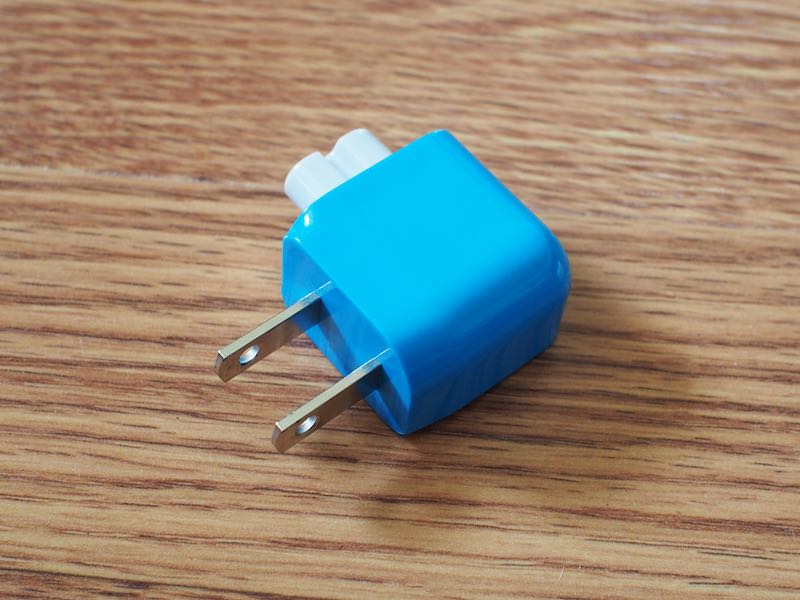
The Blockhead, which is UL-approved, fits flush into the Power Adapter, but the fit isn’t quite as exact as the original adapter it replaces. The Blockhead sticks out slightly on the backside, but this is only noticeable when holding it and it doesn’t affect the functionality of the accessory. It works in the United States and Canada and fits in any socket able to accommodate a NEMA 1-15 plug with two parallel blades.
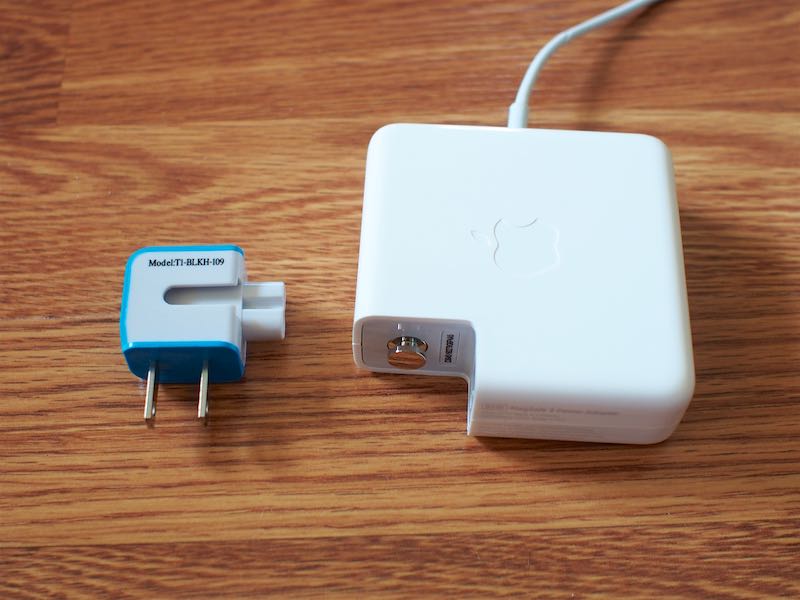
When plugged into an outlet, a Power Adapter with the Blockhead measures in at 1.2 inches thick, compared to the 3.8 inches a Power Adapter takes up with the standard Apple hardware installed. Two Blockheads can also be used side-by-side in a single two-socket outlet, with one positioned upside down and one positioned right side up.
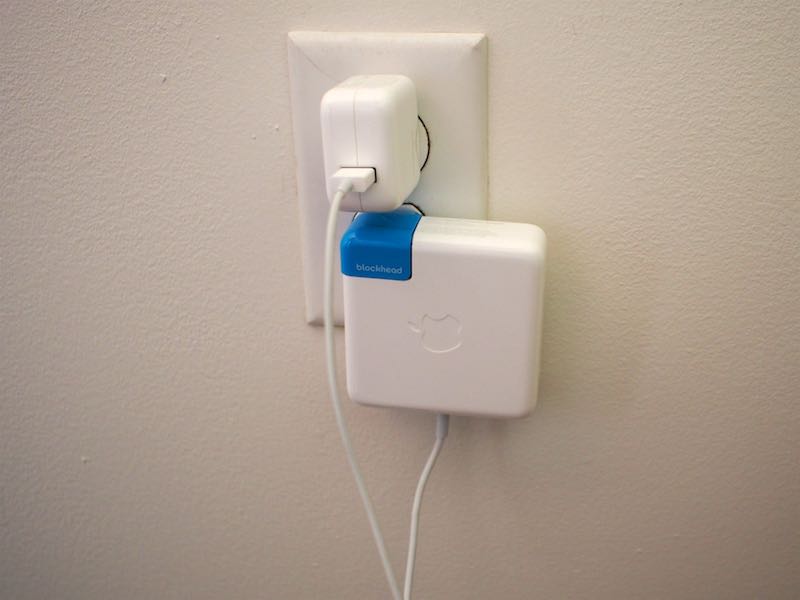
The Blockhead fits into outlets in a more logical way, and something I noticed was a tighter fit in outlets that have become looser over time. Even in an outlet where orientation wasn’t an issue, I was less likely to accidentally pull the Power Adapter out of the wall with the Blockhead attached, and I was also less likely to accidentally bump into it.
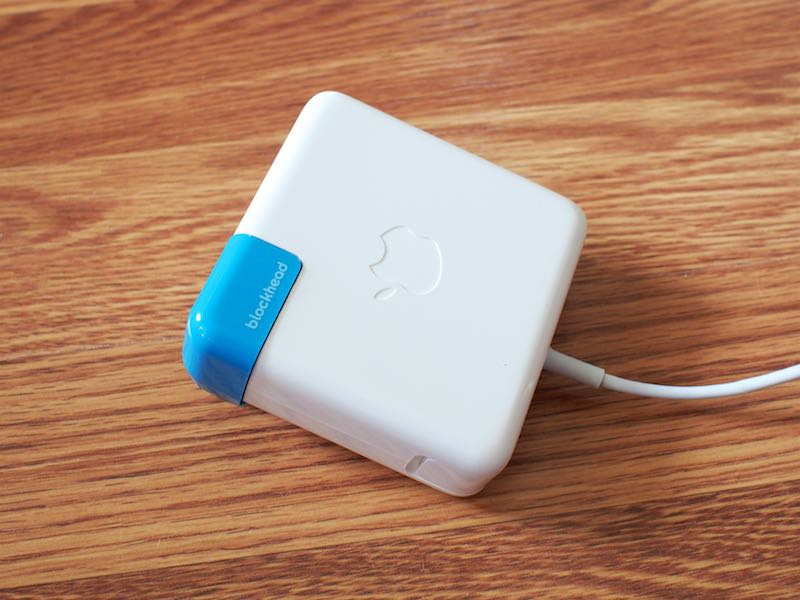
According to Ten One, the design of the Blockhead can protect against cord stress because it puts less tension on the plug, which makes sense because it changes the positioning of the cord to be closer to the ground. I’ve never damaged my cord near the Power Adapter because of stress, but I imagine this has the potential to be useful to some people who have run into trouble.
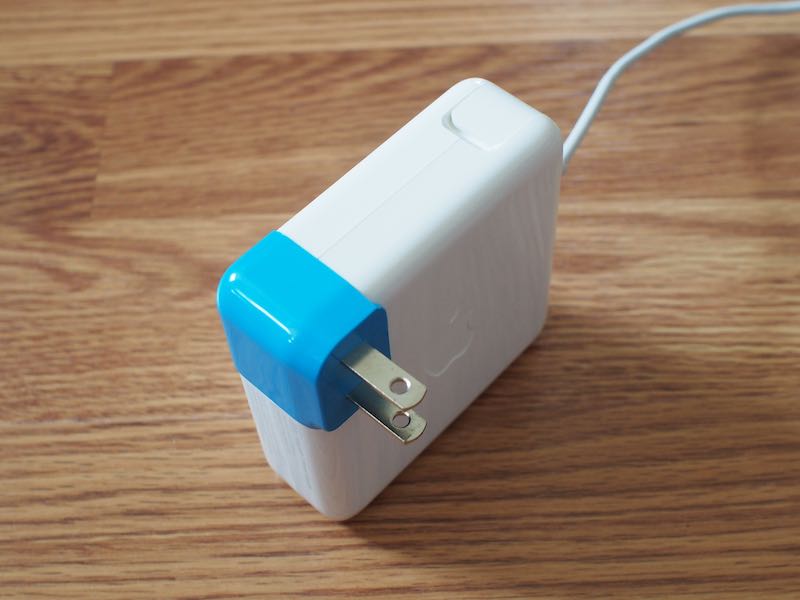
One clear negative to the Blockhead is non-retractable plugs. With the standard Apple adapter, the plugs can be folded inwards to make it more convenient for travel, but the Blockhead doesn’t work that way. It’s a small inconvenience, but an inconvenience nonetheless.
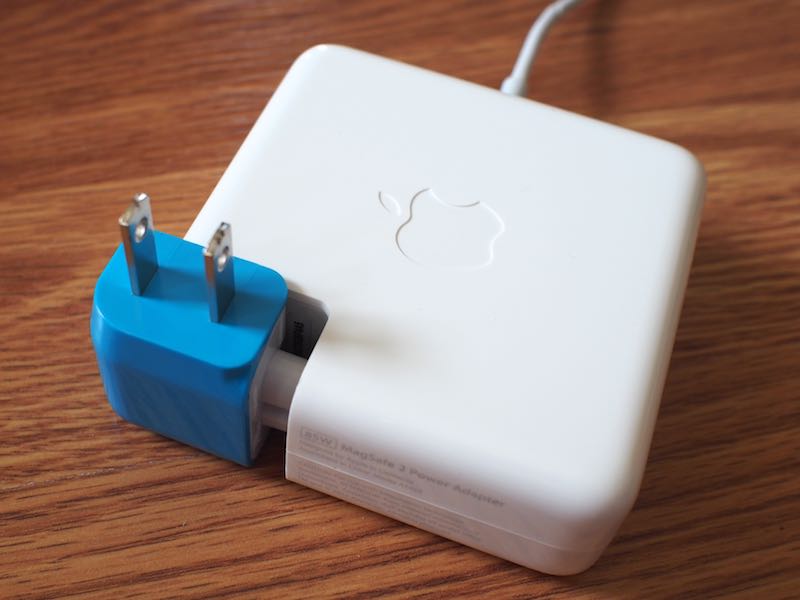
The Blockhead works with all MacBook chargers designed for the Retina MacBook, MacBook Air, and MacBook Pro, along with 10 and 12-watt chargers designed for the iPad. It fit well in each of the 13 and 15-inch Retina MacBook Pro and iPad Pro/iPad Air chargers I tested it with.
During the month and a half that I tested the Blockhead, I had no problems with heat, durability, or design, and ran into no issues that would prevent me from recommending it to anyone who wants to orient their MacBook or iPad charger in another direction when charging.
Bottom Line
If you have an outlet located behind furniture or in an area where a MacBook charger that sticks out of the wall is inconvenient, the Blockhead is well worth the purchase price. It’s $19.99, which sounds expensive for a piece of plastic, but it definitely improves the functionality of Apple’s Power Adapters for those who need it.
After using the Blockhead, I find myself wondering why Apple designs the Power Adapters to stick out from the wall. I prefer the look of a Power Adapter that sits flush with the wall, even in situations where my outlet isn’t blocked by furniture. It’s a cleaner design that makes more sense than a sideways-facing Power Adapter. Of course, it’s not symmetrical with the power outlet, which is one reason why the Apple design is superior, and it may not fit as well into a power strip.
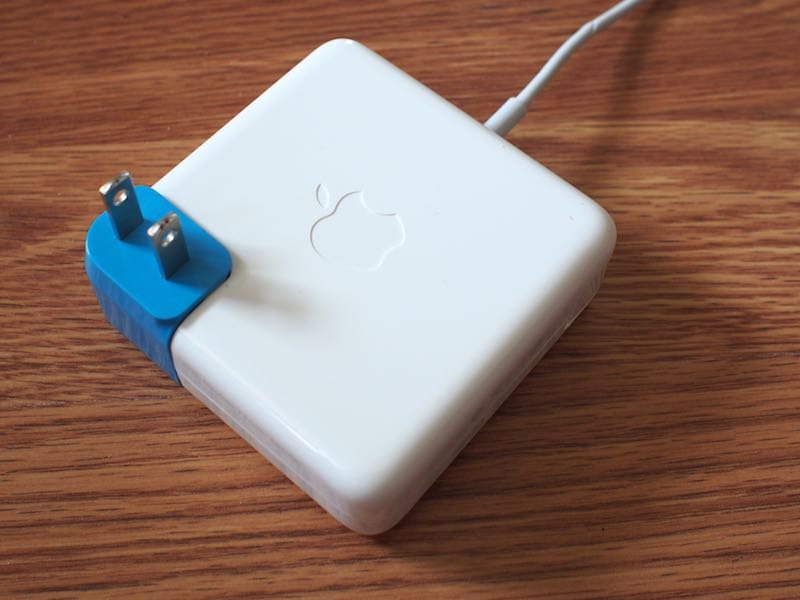
The flat positioning of a Power Adapter equipped with the Blockhead has prevented me from accidentally pulling the adapter out of the wall by tugging on it or knocking it out accidentally when walking by, something that came in handy even when I didn’t need to fit my Power Adapter in a tight space. It was also more stable in outlets that are somewhat loose due to the weight distribution.
Given that most people use their MacBooks and Power Adapters for several years, $19.99 is a small price to pay for additional convenience.
Pros:
- Weight distribution makes it fit better in loose outlets
- Allows the Power Adapter to fit in tighter spaces
- Prevents Power Adapter from being knocked out of an outlet
- Saves space
- Better aesthetic appeal than standard adapter
Cons:
- Prongs are not collapsible for portability
- Fit is not as flush as standard Apple adapter piece
How to Buy
The Blockhead can be purchased from the Ten One Design website for $19.95. Two Blockheads are also available for a discounted price of $34.94 At the current time, the Blockhead is only certified for use in the U.S. and Canada, but Ten One is exploring a potential expansion to additional countries.
Tags: Ten One Design, Blockhead
Discuss this article in our forums
HTC 10 is among the best smartphones to date (Review)
Launched in spring of 2016, the HTC 10 is, at first blush, a simple evolution of the One series introduced a few years back. But, spend some time with the device and you’ll see that it’s not just another trip to the well for HTC. Indeed, this one sprinkles in a bit of revolution, too. The HTC 10 is a surprisingly strong contender for phone of the year.
The target demographic for the HTC 10 is a consumer looking for a powerful experience that offers up some of the latest and greatest in hardware. The specifications for the phone put it right in line with top models such as the Samsung Galaxy S7, LG G5, and Apple’s iPhone 6. If you’re the type who buys based on bullet points and fact tags, the HTC 10 should quickly rise to the top of the heap. In short, the HTC 10 is flagship through and through.

First Impressions
Let’s be honest here. It’s getting harder and harder to create a smartphone that physically stands out or doesn’t resemble every other handset on the market. For some companies that’s not really a problem and coming to market with a lookalike or slight variation on last year’s phone is okay. It seems to work for Apple and Samsung has been guilty of it for a few generations.
The 2016 crop of devices is somewhat different so far in that LG has shaken things up in the G5 and it’s not as similar to the G4 as it could have been. The Galaxy S7, for its part, is a departure from the Galaxy S6. As for HTC, this year’s model looks similar enough to the previous generations that you won’t mistake it for another brand. A few minutes of holding it, though, tells you things are different here, too.
I was pleased to see that the HTC 10 carries over some of the design language of its predecessors. There was nothing wrong with the M7, M7, and M9; they were just a little too close to each other. The HTC 10 brings forth a combination of that line as well as elements introduced in the One A9 last year.

The HTC 10 looks, and feels, like a premium phone. Thanks to a unibody aluminum chassis with chamfered edges, the handset is weighty and durable and has the air of a well thought out design. The brushed finish is a nice touch and plays nicely with any color variation. Pick the phone up and you immediately know that HTC isn’t messing around.
Like the One M models before it, this phone has a tapered design to the rear. It’s comfortable to hold in hand; the pronounced chamfered edges call for attention but also make for an easy grip around the edges. Tossing this into a pocket is fantastic as it simply slides along the curves. A word of caution, though, as it can feel slippery at times.
One of the things I like to do with every new phone is grab it from the ends and sort of twist or apply pressure. It’s here where you’ll sometimes figure out which phone is cheaply built. The HTC 10 did not creak or move, even under moderate pressure.
Design
Again, it’s kind of hard to reinvent yourself each year and there’s only so many ways to design a smartphone before it feels awkward. The HTC 10 doesn’t do anything strange with its button configuration or SIM card placement.

Looking straight on, the right side features the volume rocker about 3/4ths of the way up. Below that is the power button. As is the case with the One A9, the HTC 10’s power button has a textured feel to it. This makes it very easy to feel in the dark as there’s no mistaking it for the volume controls. All three buttons are responsive and let the user know for certain that they’re being pressed.
On the left side of the phone is where you’ll find the memory card and SIM card tray. Located near the top, it pops out to allow for access. Those of you who have a microSD card will be happy to know the HTC 10 supports up to 2 terabytes of external storage.
Down below the display you’ll locate the lone fingerprint reader which doubles as the home button. HTC has opted for capacitive buttons for this year’s model; the “back” is found on the left side while the “multitask” button is on the right. The fingerprint sensor is fast, accurate, and works well even if you’re fingers or the phone is slightly damp. It’s a little cramped down here as the button is ever so closer to the edge of the phone than the display.
At the very top of the front panel is a speaker grille and front-facing camera. There’s no dual-speaker setup this time around. The top is for the BoomSound tweeter while the other speaker is located below the phone next to the charging port.

We appreciate that HTC integrated a USB Type-C charging port for this model as it’s quickly becoming a standard. Moreover, the Quick Charge 3.0 support lets us plug in for fast recharges.
Around back we locate the rear camera with flash and antenna lines. The camera module does jut out from the phone a bit but the sapphire glass keeps things from getting scuffed. Getting back to the unibody design, the rear stays put. You’ll not be able to remove anything here, particularly a battery.
Display
At 5.2-inches, the HTC 10 is a great size for most smartphone users. Sure, we do get spoiled by those models that tread into the 5.5-inch and 5.7-inch space, but those phones are often unwieldy or hard to use with one hand.
The 2,560 x 1,440 pixel display is gorgeous and puts HTC back in the conversation of high resolution screens for a flagship phone. The Super LCD 3 panel is fantastic, represents colors very well, and can be pushed to a really bright image. Indoor, outdoor, it doesn’t really matter where you use it. Taking pictures in broad daylight is no challenge. Thanks to an oleophobic coating, the screen is built to withstand scuffs and scratches.
Call Quality
The model we reviewed was an unlocked variant which supports AT&T and T-Mobile here in the US. We used a T-Mobile SIM for the duration of our testing and found it connected about as good as other phones we’ve used in the same areas. There are spots where we’d see it display less bars on the screen than normal, but calls worked well nonetheless. Unfortunately, there are pockets where T-Mobile doesn’t pick up near the house so we had to rely on WiFi for calls. It seemed we had to use Wi-Fi a little more than other phones as of late but that could also be attributed to more trees and foliage at this time of year.
Sound
Placing a call on speaker phone was a pleasure with sound filling rooms clearly. Inside of an office is one thing, but even outside, with ambient noise and random traffic, worked well.
Whereas BoomSound stereo speakers typically shared the load equally between them, the HTC 10 is different. The top speaker provides the highs while the one below the phone gives the lows. If you’re holding the phone in portrait mode, you may find yourself somewhat covering the a speaker.
Place the phone on a table for music or for watching YouTube videos and you’ll find a loud sound. Playback is clear and crisp and it gets very loud. Speaking of which, you’ll want to keep that in mind when setting alarms. You surely don’t want to wake up to this phone at top levels.
We did find that holding a phone in landscape mode for video can also create a somewhat wonky listening experience. Given we naturally want to hold the edges of our phone, it’s pretty easy to cover half of the sound. Along those lines, it’s sometimes strange to watch longer videos with sound not balancing equally.

Camera
After taking a year off with the M9, HTC is back to using its “UltraPixel” camera for pictures. As some of you know, the number of pixels doesn’t necessarily equate to picture quality. To that end, don’t let the 12-megapixel sensor in the HTC 10 fool you into thinking it’s lesser quality than some other brands and their 16-megapixel, or higher, shooters. The ultra aspect means larger pixels with more light and improved low-light images.
The HTC 10 camera features optical image stabilization and a f/1.8 aperture. What does this mean to you? It means incredible pictures in a whole host of light settings.
We found the HTC 10 camera to be among the absolute best smartphone shooters we’ve ever tested. Time and again we were impressed with the shutter speed, focus, and colors. There are few things that we enjoy more about a handset’s camera than being able to set it on automatic and trust things would work. That’s exactly what we found with the camera in the HTC 10.

Very rarely did we move over to Pro (manual) mode to mess with some of the settings. And, even when we did, the options were clearly presented on the screen and the dials were intuitive. Don’t know what ISO or WB settings are as it pertains to your end result? Play with it a bit and watch how it impacts your picture.
If you’ve used an HTC phone from before, you’ll know that the camera app can be a tad overwhelming. That’s not the case this time around as HTC has trimmed the shooting modes down, rejiggered the layout, and generally simplified the experience. Hopping to and from video is quick; switching to manual mode, panoramic, or Zoe is also in the same place. We especially liked the convenience of toggling on and off the HDR.
The laser assisted focus is lightning fast and we found ourselves capturing the exact moments we wanted. You know that issue with phones where you have to snap the camera a hair sooner than what you really need? That’s not the case here. The HTC 10 grabs the photo you want the moment you take it – even with HDR on.
If we could be picky for a moment, the notifications that pop up for the laser focus can be a tad aggressive. Simply putting your finger up near the lens results in a notification. We get it – we shouldn’t cover it up. Please stop telling us.
Recording video is just as pleasurable; the phone allows for up to 4K capture. We’d recommend sticking to 1080p for your video unless you really wanna show off. Seeing as how not too many of us own 4K televisions yet we don’t see the need for the video. Also, if that’s what you want to do with your phone, make sure you’ve got a sizable external memory source because 4K files are huge.
Battery
At 3,000mAh, the battery is not quite as capacious as it would have been one year ago. We’re now expecting our flagship phones to have this much juice, especially if it’s an internal, non-removable unit.
HTC claims the battery can give users up to two days of normal usage. In our testing we deduced that for most people, this is more than enough capacity to get them through a full day’s use with extra to spare. A more aggressive person who likes to game, or enjoys videos on a regular basis… maybe a day.
As mentioned above, the phone employs support for Quick Charge 3.0. This means you’re going to charge up super quick. We’re talking almost to the point where you’re looking at your phone and watching it tick up.
Get about halfway through your day and need to insure the phone’s going to stay up late with you? Throw it on a charger for a half hour and you’re all set. A typical commute home from work is likely all you need to top off your phone with enough battery to see you through a long night.
You can squeeze more life out of your battery by enabling the Power Saver mode or Ultra Power Saver mode. Each can slow down CPU cycles, reduce screen brightness, adjust vibration settings, and more. One just happens to be way more aggressive than the other. Suffice it to say, we didn’t have to use the Ultra aspect once in the few weeks we’ve tested this device.
Software
Running Android 6.0 Marshmallow, the HTC 10 employs a custom launcher known as Sense UI. Around for the better part of a decade now, it is the handset maker’s way of delivering a user experience that it thinks is right for consumers. In the past it was knocked for being too heavy or bloated. As time went by it didn’t evolve much and became outdated feeling. The idea was right but the execution was not. This is not the case any longer.
 The Sense UI is much lighter than it was in the past and doesn’t come across as some branded agenda. You’ll find there’s still traces of customization and HTC-infused features, but nothing you’ll dread. If you’ve ever used an HTC Android phone in the past, we invite you to revisit the Sense experience. For those who have not, we venture to guess you’ll be hard-pressed to discern where stock Android ends and where HTC’s tweaks begin.
Users will have a variety of lock screen behaviors and settings to choose from, each with a slightly different setup. It’s possible to tailor how much information is present on the lock screen, keeping your important details hidden away if that’s your thing. Also present with the lock screen is the shortcut icons to launch quickly into various functions of the phone.
 As mentioned before, there’s a fingerprint scanner with the phone so there’s that extra layer of security, too. We trained the sensor to recognize multiple fingerprints; the phone is very quick to recognize the presses. It didn’t take long for us to prefer the fingerprint for unlocking the device.
The first time you load up the phone you’ll find two home screens, one of which is the BlinkFeed (social news aggregator). It’s quite easy to start customizing and tweaking the look and feel as HTC puts options in easy-to-discover places. Want to change the fonts, icons, and widgets? That’s no sweat with HTC’s software. Actually, that leads into the next aspect of the software experience: themes.
Like other recent models from the company, the HTC 10 lets users shop for custom themes. And, rather than sticking to your standard rows and columns, the Freestyle themes let you place stuff exactly where you want, without adhering to grids. The selection of themes has continually improved and there’s something for everyone. Minimal, futuristic, cartoon, professional, or another design, you’ll find a look you love.
There’s a new Boost+ app that comes loaded HTC which is designed to keep the phone running smoothly. With the app you’ll be able to perform quick checks on performance, free up RAM and storage, and uninstall unused apps. Additionally, Boost+ lets HTC 10 owners lock individual apps to where they’re only unlocked via a password or fingerprint.
Performance
Let’s just cut to the chase; the HTC 10 is going to handle anything you ask it to do. Not only that, but it’s gonna do it quickly and without hiccups. This is exactly what you’d expect when you pair 4GB RAM with the latest Qualcomm processor, the Snapdragon 820.
As a daily driver for typical users, the HTC 10 doesn’t even come close to tapping into its potential. Gamers and those who like to push their tech will be pleased with the performance of the handset. Whether it’s a first-person shooter, racing game, or something else with flashy graphics, the phone chews it right up.
One reason the HTC 10 might do so well is that it isn’t full of bloatware that runs in the background. Although we tested an unlocked model with nary a carrier app or service, HTC says the network-branded versions are light on clutter. The less there is sipping at the resources, the better. Oh, and let’s not discount the way Android 6.0 Marshmallow handles processes. All of these things provide a perfect storm, of sorts.

Conclusion
It’s very easy for us to recommend the HTC 10 for your flagship smartphone needs. It’s the perfect balance of performance and beauty; the handset is everything we want.
The metal design, chamfered edges, and brushed finish offer up one of the most physically appealing models available today. It’s somewhat ironic, then, that this phone is mostly an evolution of the previous One M line. There’s just enough different here to bring old M8 and M9 users back.
In previous years HTC was applauded for build quality when other companies were going the cheaper, polycarbonate route. Now that other brands seem to have caught on to using premium materials HTC’s effort might be construed as simply keeping pace. Is that the case? Perhaps. Does it stand out that much over some of the other flagships of the day in terms of build quality? Maybe. It’s a solid phone either way and there’s no denying HTC cared about the overall product. It’s certainly no less quality than any other phone.
We’re really impressed with the way HTC has managed to dial down the Sense UI yet still retain the custom experience. Although we love and prefer stock Android, HTC Sense UI is nowhere near as obnoxious or outdated as it was one or two generations ago. In fact, we’re kinda digging the stuff that’s present. Moreover, we’re not in a hurry to install a custom launcher now that the themes are where they are today.
Sure, we’ve come to love and expect the uniform approach of something like Nova Launcher, but we’re not everyone. The customization that comes with HTC’s themes are well-rounded and feature unique flavors to breathe new life into the UI. Best of all, however, is the simplicity in which they can be installed.
In terms of performance, it’s going to be hard to top the Snapdragon 820 processor and 4GB RAM. As of right now you can’t. There’s so much to love about the HTC 10 and its ability to handle tasks and games. Time and again we were throwing as much as we could at the phone and it never stuttered.
If you’re in the market for something powerful and finely crafted, the HTC 10 should be on your short list. Not everybody wants or needs to spend $500+ for a phone, but for those who do, this one certainly deserves your attention.
Review: Promise Technology’s ‘Apollo’ Offers Private Cloud Storage for the Whole Family
Cloud-based services like iCloud and Dropbox are useful because they make documents, photos, and other media easily shareable and accessible anywhere, but there is a downside — that content is stored offsite on an unknown server not under an individual user’s control.
With Apollo, a new personal cloud device launching today, Promise Technology aims to combine the cloud’s ease of use with the security of local storage. The Apollo, Promise Technology’s first consumer-facing product, is also the first network-attached storage option for families and small businesses, designed specifically to allow for multiple individuals to share dedicated storage space.
The Apollo, priced at $299, is being sold exclusively through Apple.com and in Apple retail stores starting on June 7.
Design and Specs
Apollo is a 4TB network-attached storage device, which plugs into a router to connect to a home (or small business) Wi-Fi network. The Apollo is compact and sleek looking, with an aesthetic that easily matches Apple’s own line of devices. Made from a clean white plastic, the Apollo measures in at 5.6 inches by 7.5 inches and it is 2.4 inches thick with a rectangular shape.

As seen in the photo below, it’s not much taller than an iPhone 6s Plus, and it’s similar in size to many home cable modems and routers. It includes a Gigabit Ethernet port, a USB 3.0 port (for plugging into a computer and for attaching an additional hard drive for backing up the Apollo), 1GB RAM, a 1GHz Marvell ARMADA 380 CPU, and the aforementioned 4TB SATA hard drive. In my testing, the Apollo was quiet during operation.

With its small size, the Apollo fits well on a desk, media stand, or shelf, allowing it to be discretely placed wherever a router is located. It is small enough that I was able to stash it behind my TV set where it wasn’t visible.

The Apollo will need to be connected to a router through an included Ethernet cable and plugged into a power source. Setting up the Apollo was straightforward — I plugged in the necessary cables and then followed a setup process through the iOS app that involved creating an account and establishing a connection. The Apollo can be set up using any of the available apps.
Functionality
Apollo is a network-attached storage device, which means the files uploaded to it are available anywhere an Internet connection is available, much like a full cloud-based service like Dropbox. Uploading and streaming content from Apollo is restricted by your home Internet speeds, so file transfer and streaming speeds are not always going to match speeds downloading from a cloud service.
The Apollo works across multiple platforms, with apps available for PCs, Macs, Android, and iOS devices, and it can be used to share, store, and back up any type of file. Video and music files can be streamed from the Apollo directly onto your devices, while photos and other files can be viewed or opened on compatible devices. For example, if I upload a Pages document to Apollo from my Mac, I can then access it on the Apollo app on my iPhone and open it up in the Pages iOS app for editing.

Apollo is perfectly functional for a single user, but it also supports up to 10 users, so it works as a cloud sharing platform for the whole family or for all of the members of a small business. Every person who uses the Apollo gets their own dedicated storage space, which can be set up through the app by the primary user, established as the first person that connects to the Apollo.

Every user is given completely private storage access and no one else can view or touch the files that are uploaded, including the Apollo’s primary user, so it’s just like each person having a personal Dropbox account, but stored locally. Apollo settings and account creation are controlled by the owner, but individual users have full access to everything else — uploading files, downloading files, and sharing files. In my experience, the multi-user setup worked flawlessly.
All Apollo users can share files uploaded to the Apollo, either with other Apollo users through a private link or with any person (even a non-Apollo user) with a public link. When uploading a file and creating a public link, it can be messaged, emailed, or sent via AirDrop to any contact and it will be available for 30 days. Users will see a browser page with a link to a zipped file, and the Apollo supports public link file sizes up to 1GB.

All file transfers to and from the Apollo are fully encrypted, using the same encryption built into Promise’s professional line of storage devices. With shared files and folders, Apollo members can leave comments on files, making it ideal for sharing commentary on photos or collaborating on documents.
As mentioned above, file transfer speeds are limited by your home connection. I have a home connection that probably matches the speeds the average user has access to, with 120MB/s for downloads and 6MB/s for uploads. When sharing a file with someone from the Apollo, their download speed is limited by my upload speed.
With a 1GB test file, it took approximately two minutes to upload to the Apollo from my computer, but when I shared the link with a coworker, it took 40 minutes to download. Comparatively, it took me 30 minutes to upload a 1GB file to Dropbox, and only 90 seconds for my coworker to download. With Dropbox, downloads aren’t hindered by my upload speeds once they’re on the company’s servers. As another speed example, it took just about 15 minutes to upload the entire camera roll from my iPhone, about 2,300 images.
There are a lot of network-attached storage systems out there, each with varying degrees of complexity. Apollo is designed to be as easy to use as Dropbox, with a simple setup process and apps that are straightforward and basic. Getting the Apollo set up and using it was definitely simple, so anyone who’s savvy enough to use Dropbox or iCloud is going to be able to use Apollo.
It’s not so simple that I could buy it for my mom, but it’s not as complex as something like a Synology NAS, and Promise is offering 90 days of phone support, a 2-year warranty, and chat/online support.
Because it’s designed to be simple, the Apollo is lacking in features. It’s basically a place to dump, share, and store files. There’s a feature that supports automatic camera roll backups from iOS devices for each user, but there are no other bells and whistles like tools for automatically backing up files on the Mac (there’s no support for Time Machine), accessing content from a browser, editing files directly on the device, or setting up automatic file downloads or website hosting, all things that are possible with more advanced devices.
Software
The Apollo can do a lot of useful things, but it is hindered by the software Promise has designed to go along with it. I used the Apollo with a dedicated Mac app and an iOS app, both of which I thought were disappointing. Dedicated apps are the only way to access Apollo’s content — there is no web option.
The Apollo Mac app is a simple file viewer, displaying all of the content that’s been uploaded to Apollo. It has four sections: Files, Favorites, Photos, and Videos, and that’s the total extent of the organization on Apollo, aside from the folders you create yourself, and there are no options for sorting based on date, file size, file type, or other metric.

Every photo uploaded to Apollo, for example, is visible through the Photos section and organized in a grid by date, but there are no viewing options beyond that. I can’t sort by file name, I can’t scroll through photos, and I can’t search for specific photos, making it impossible to find anything. Photos are organized on numbered pages and to sort through them, I have to click through each page. It’s tedious, time consuming, and makes browsing through photos unpleasant.

The same is true of the videos tab, and I’m not sure why, but there is no tab for music, so there’s no simple way to aggregate all music files into one place except through user-designated folders.
When uploading content, there’s a pop-up progress window, but it does have a tendency to freeze up when attempting to upload a lot of files at once. When that happens, there’s no way to check syncing progress because once the window is closed, the app doesn’t have another method for keeping tabs on transfers. There’s also no time estimate for uploads on the Mac app. Everything I dragged to the Apollo Mac app uploaded successfully, with the exception of a 50GB folder that completely stalled. There is a 30GB size limit for each individual file uploaded to the Apollo, and folders can support up to 30,000 files.

Apollo’s iOS app is basically the same as the Mac app, with an identical layout. I can scroll through content on iOS, though, so the user experience is better despite the fact that there are still no organizational and sorting options for content. With the iOS app, there’s an option to automatically back up the camera roll, syncing all files to the Apollo whenever they’re taken. Camera roll syncing is one-way only – deleting files from the camera roll won’t delete them from Apollo once uploaded.

Both the iOS and Mac apps support multiple video and audio files, so content can be streamed in the app. I tested .MKV, .MOV, .MP4, and .MP3 files and most of these played well directly on my Mac or iPhone from the Apollo apps. Apollo officially lists .MOV, .MP4, and .M4V as supported on iOS devices.
Video controls are rudimentary, limited to pausing and fast forwarding/rewinding, but videos do play (both at home and when away) as long as you’ve got a decent Wi-Fi connection. This isn’t my preferred method for watching videos when away from home, but it works in a pinch.

Apollo’s Mac app also installs a sync folder accessible through the Finder. Files put into this folder will automatically sync to the Apollo, and all files added to the Apollo (from the iOS app, for example) will sync to the folder. Folders do not sync automatically, but can be set to sync through selective syncing options. Dropbox users will be familiar with the behavior of the syncing folder.
iOS 8 or later, OS X 10.8 or later, and Android 4.4 or later are required to use the various apps. On Windows machines, the Windows app is compatible with Windows 7, 8, Vista, and 10, and while basic at the current time, it is being updated with new features in the future.
Bottom Line
For small businesses and families that want the option to easily share files in a safe, secure way, the Apollo is a useful device. At home, it’s a good way for multiple family members to share photos, music, videos, and other media types so that content is always accessible to everyone wherever they are, and it’s an alternative to cloud services that are ultimately going to be more expensive. At work, it’s useful for collaboration.

The Apollo is priced at $299 for 4TB of storage space, which is cheaper than Dropbox or iCloud after 2-3 years. Dropbox charges $99 per year for 1TB of storage space, while Apple charges $9.99 per month for 1TB. With 4TB of storage, there’s plenty to share among several users.
Apollo is functionally identical to many online cloud storage services, so it’s best to think of it as a private version of Dropbox or Box rather something like a NAS running DiskStation. It’s going to meet the needs of someone looking for a cloud storage replacement or extra backup option, but if you want something beyond what Dropbox can do, the Apollo may be a disappointment.

During my testing, the Apollo worked well. It was easy to use and it did what Promise said it would. Aside from some hiccups when attempting to upload massive folders, file transfers were smooth, it stayed online, and my files were accessible through the Mac and iOS apps.
I was unimpressed with the Apollo apps, mainly due to the lack of search and the inability to sort and view my files in a useful way. Such a simple file system is fine for a small number of files, but when you have a couple of terabytes of content uploaded to the Apollo, it gets a lot more frustrating. Luckily, software is easy to fix, so I’m hopeful the Apollo apps will improve over time to meet customer needs.
Pros:
- No storage fees
- Easy to set up and use
- Data transfers AES256 encrypted
- Multi-user support
- Public and private sharing available
- Can back up Apollo through USB port
Cons:
- Only 4TB capacity available
- Functionality is basic compared to other NAS options
- No search
- Poor file organization
- Software needs improvement in general
How to Buy
Apollo can be purchased from the Apple online store and from Apple retail stores for $299 on June 7.
Note: Promise Technology provided an Apollo to MacRumors free of charge for the purposes of this review. No other compensation was received.
Tags: Promise Technology, Apollo
Discuss this article in our forums
Review: Ultimate Ears’ UE Roll 2 Features Louder Sound and Longer Range
Ultimate Ears today added to its speaker lineup with the launch of the UE Roll 2, a successor to the original UE Roll. The UE Roll 2 looks like the current version of the UE Roll, but it has been upgraded with a longer Bluetooth range and louder sound.
I own an original UE Roll, so Ultimate Ears sent me a UE Roll 2 for a comparison review ahead of the new speaker’s rollout. When it comes to design, the palm-sized UE Roll 2 is physically identical to the original UE Roll. It features the same flat, circular design with a bungee cord in the back and a flap to cover both a microUSB port used for charging and a 3.5mm audio-in jack.
 Original UE Roll on left, UE Roll 2 on right
The UE Roll 2 isn’t the most portable speaker out there due to its size (it’s not going to go in a pocket), but because it’s flat, it fits well in a purse or a backpack. It weighs about a half pound, so it’s not going to add a lot of weight if you need to travel with it, and with the stretchy bungee cord, you can attach it just about anywhere.
 Original UE Roll on left, UE Roll 2 on right
The UE Roll 2, like the original UE Roll, comes in a range of bright colors and it features a “life-resistant” shell that’s waterproof and dust proof. It has an IPX7 rating, so it’s waterproof for up to 30 minutes at a depth of one meter. The UE Roll 2 successfully survived being submerged for an extended period of time and it also made it through several shower trips. Since the UE Roll 2 is essentially weatherproof and impact resistant, it’s ideal for backpacking, hiking trips, the beach, and other outdoor activities.

The UE Roll 2’s build quality is the same as the first UE Roll, and I can vouch for its durability. I’ve had my original UE Roll for about six months and it’s been in the shower most of those days with no ill effect. The UE Roll 2 even ships with a little floatie device in the package, which can be used to float the UE Roll 2 in a pool or a bathtub.

According to Ultimate Ears, the round shape of the UE Roll 2 offers 360-degree sound with deep bass, and it’s definitely loud enough to fill a room or entertain a group of people at a pool or beach party. The UE Roll 2 is supposed to be 15 percent louder than the original UE Roll and I can confirm that there’s a definite difference in loudness. I don’t have a way to measure decibels, but the max volume of the UE Roll 2 far exceeds the max volume of the UE Roll.
As for sound quality, I prefer the UE Roll 2 (and the original UE Roll) to all of the other similarly priced (and similarly sized) speakers I’ve owned like the Jawbone Jambox and mini Jambox, the Boombot Rex, and the Oontz Angle. The sound projection is better, it sounds clear and crisp, and there’s little distortion even at max volume.

The UE Roll 2 has a longer Bluetooth range than the UE Roll, so it doesn’t need to be as close to an iPhone or iPad. While the original UE Roll had a range of 65 feet, the new one has a range of 100 feet. The battery life in the UE Roll 2 is unchanged — it’ll last for nine hours on a full charge which is long enough for a full day’s use or multiple days with occasional use.
Connecting the UE Roll 2 to an iPhone is a simple process that takes just a few seconds, done through the Bluetooth menu in the iPhone’s settings app. Once connected, it’ll play whatever’s playing through the iPhone, and there’s also a UE Roll app that goes along with it.

The UE Roll app is nifty because it allows you to link two UE Roll 2 speakers together with both streaming from the same source (Double Up) or set it up so it’ll play songs from multiple iPhones, so everyone at a party can choose the music (Block Party).
There’s also an option to adjust the equalizer and a feature for using the UE Roll 2 as an alarm clock to play music from an iPhone. The UE Roll app is also used for firmware updates, monitoring battery life, controlling volume, and turning the speaker on and off.

There are few negatives to the UE Roll 2, but it’s worth noting that it doesn’t include speakerphone functionality, and unlike the UE Boom 2, there are no built-in features for pausing music or skipping to the next song.
Bottom Line
As someone who uses a UE Roll on a daily basis, I can recommend the UE Roll 2 to anyone looking for a colorful waterproof speaker that also puts out a lot of sound. I’ve used mine in the shower for several months now and it’s still as good as new.
The UE Roll 2 is ideal for the shower, the pool, or the beach, but it puts out good sound even if you don’t want to take advantage of its water resistance, and in my opinion, it’s a good looking little speaker.

The UE Roll 2 is noticeably louder than the UE Roll, but given that it’s identical to the first version, anyone happy with the original UE Roll probably won’t need to upgrade. For new buyers looking for a waterproof speaker or original UE Roll owners looking for a second speaker to take advantage of the linking function in the app, the UE Roll 2 is worth the price tag.
How to Buy
The UE Roll 2 can be purchased from the Ultimate Ears website for $99.99 starting today.
Note: Ultimate Ears provided a UE Roll 2 to MacRumors free of charge for the purposes of this review. The original UE Roll was purchased by the author. No other compensation was received.
Tag: Ultimate Ears
Discuss this article in our forums
Apple and Other Tech Companies Subject to Security Reviews in China
Products sold by Apple have recently been subjected to security reviews conducted by a committee associated with China’s Cyberspace Administration, reports The New York Times.
The security reviews aim to determine whether the products “pose potential security threats” to China and Chinese consumers and have required Apple employees to answer questions about encryption and data storage in person. Other foreign technology companies who operate in China are also being required to submit to the reviews.
According to The New York Times, the security reviews are notable because they are targeting consumer software and gadgets that are popular in China. In other countries, similar security reviews take place, but are limited to products that are used by the military or government officials. Chinese officials have not explained the reasoning behind the checks, nor have the reviews been formally disclosed, reportedly leading tech companies and the U.S. government to worry they’re being used to obtain vital security info.
Ultimately, the reviews could be used to block products without explanation or to extract trade secrets in exchange for market access. Those secrets could be leaked to Chinese competitors or expose vulnerabilities, which, in turn, Chinese hackers could exploit.
Further, tech companies are concerned that the reviews could set a precedent and that other countries will follow suit, each demanding different checks that would not only be costly but also put the companies at risk of having to hand over further secrets in exchange for market access.
It is not known what specific information Chinese authorities have asked for under the review process, and there is no indication that technology companies have provided sensitive information like source code. In a statement, the Cyberspace Administration of China told The New York Times that many countries carry out security reviews and that its inspections do not target “any particular country or product.”
During a recent congressional hearing, Apple legal chief Bruce Sewell said China had asked Apple to hand over source code within the last two years but the company refused to do so. “I want to be very clear on this,” Sewell said. “We have not provided source code to the Chinese government.”
After the United States, Greater China, including Taiwan and Hong Kong, is Apple’s second largest market by revenue. Apple is eager to grow its business in the country, but Apple has faced regulatory issues in recent weeks, including the forced shutdown of iTunes Movies and iBooks Stores in the country.
In a move that can perhaps be seen as an effort to smooth relations with China, Apple recently announced a $1 billion investment in Chinese ride-sharing company Didi Chuxing and just this afternoon, it announced a major GarageBand update with support for Chinese musical instruments.
Note: Due to the political nature of the discussion regarding this topic, the discussion thread is located in our Politics, Religion, Social Issues forum. All forum members and site visitors are welcome to read and follow the thread, but posting is limited to forum members with at least 100 posts.
Tag: China
Discuss this article in our forums
Apple’s App Review Process Now Takes as Little as Two Days
Apple’s app review process has become significantly faster during the first five months of 2016, according to AppReviewTimes.com, a website that tracks average App Store review times for both the iOS and Mac App Store using data crowdsourced from developers on both platforms.
App Store approval times have dropped to an average of two days, compared to between eight and ten days in May 2015, based on 328 reviews submitted in the last 14 days. The shorter process has been well received by the developer community, which had grown accustomed to weeklong waits.
I’m uncharacteristicly excited about faster review times. Going to be devastated when someone inevitably ruins it.https://t.co/td5QkeUaBb
— Paul Haddad (@tapbot_paul) May 5, 2016
Oh, and yet another fast App Store review time of 2 days. Definitely feels like a (welcome) trend of faster review times #iosreviewtimes
— John Pollard (@yeltzland) May 4, 2016
Wow, the @AppStore approved my update in 2 days. So much faster. I like the new you App Store.
— Aaron Lake (@OrbitalNine) April 4, 2016
“A lot of the way that we build software for iOS is controlled around the fact that you have a one-week release cycle,” Button Inc. founder Chris Maddern, whose team has done work for Uber Technologies Inc. and Foursquare Labs Inc., told Bloomberg. “It can now happen within hours of submitting them, which is really awesome because it speeds up the development cycle.”
Last December, Apple marketing chief Phil Schiller took over App Store leadership responsibilities from iTunes and services chief Eddy Cue. Schiller now leads nearly all developer-related functions at Apple, and WWDC 2016 next month could serve as a good opportunity for him to announce shorter approval times on stage alongside new versions of iOS, OS X, and other developer updates.
Tags: App Store, App Store Review Guidelines
Discuss this article in our forums
 AIVAnet