


Google offering $50 in Play Store credits with purchase of select devices
Google is giving buyers of the Nexus 6, Nexus 9, and Android Wear $50 in Google play credit if purchased between now and March 31, 2015. The credit will be emailed to you once the device ships, and must be added by April 20, 2015. The credit cannot be used towards the purchase of another Android device, but it can be used on apps, movies, music, books and magazines.
Check the deal out here.
The post Google offering $50 in Play Store credits with purchase of select devices appeared first on AndroidGuys.
Nexus 9 International Giveaway!
Welcome to the Sunday Giveaway, the place where we giveaway a new Android phone or tablet each and every Sunday.
A big congratulations to last week’s winner of the Samsung Galaxy S6 Edge giveaway is Luana C. (Brazil).
brightcove.createExperiences();
This week we are giving away a Nexus 9 Android tablet!
Released in November 2014, the Nexus 9 built by HTC is a 8.9″ inch Android tablet that comes loaded with the latest Android 5.0 Lollipop.
See what we think of the Nexus 9 in our review and be sure to checkout our review of the official Nexus 9 cases.
You can earn entry tickets into the giveaway by completing the following tasks in the RaffleCopter widget located below.
- [1 Ticket] Follow AA on Google+.
- [1 Ticket] Follow AA on Twitter.
- [1 Ticket] Tweet about the giveaway on twitter.
- [1 Ticket] Download the AA App.
- [10 Tickets] Refer friends to the giveaway. You will be given a unique URL to share with your friends or social networks. You will receive 1 bonus entry (up to 10 max) for every person who you refer to the giveaway using your unique URL.
Join Now!
Terms & Conditions
- The giveaway is an international giveaway (Except when we can not ship to your Country.)
- If we can not ship to your country, you will be compensated with an online gift card of equal MSRP value to the prize.
- We are not responsible for lost shipments.
- You must be age of majority in your Country of residence.
- We are not responsible for any duties, import taxes that you may incur.
- Only 1 entry per person, do not enter multiple email addresses. We will verify all winners and if we detect multiple email addresses by the same person you will not be eligible to win.
- We reserve all rights to make any changes to this giveaway.
- The prize will ship when it is available to purchase.
Full terms & conditions and FAQ | Past giveaway winners [Gallery]

[Deal] Nexus 9 tablet available through Office Depot at discount

If you have been eyeing the Google Nexus 9 tablet, Office Depot may have a deal that makes it a little easier for you to grab one of the devices. The office supplies retailer has several variants of the Google tablet listed at discounted prices. The best deal is for the white 16GB version which is currently listed for only $320, which is $80 or 20% off the normal $400 price tag.
If you want the black version with 16GB of memory, you can grab one for $350. Meanwhile, the 32Gb versions in black or white are available for $430 which is a $50 savings off the normal $480 price tag.
All of the variants are currently listed as being in stock and with free shipping, should be delivered within three to five days. Hit the source link if you want to grab one of these tablets at a special price.
source: Office Depot
Come comment on this article: [Deal] Nexus 9 tablet available through Office Depot at discount
Deal: Nexus 9 for only $319 with free next day shipping, today only

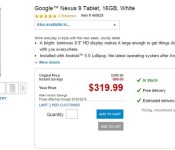
The Nexus 9 has been out for a little bit now, and while not perfect, the latest Nexus tablet is still one of the best options out there on the market, especially for stock Android fans. If you’ve considered the tablet but found yourself turned off by the price, Office Depot has an offer that might be right up your alley. For today only, the retailer is offering an $80 discount over the retail price of the 16GB Nexus 9, giving you the chance to snag the tablet with free next-day shipping for only $319.
.rvs_wrapper
width: 335px;
.rvs_wrapper.align_left
float: left;
.rvs_wrapper.align_right
float: right;
.rvs_wrapper.align_center,
.rvs_wrapper.align_none
width: 100%;
.rvs_wrapper.align_center
text-align: center;
.rvs_wrapper.align_center.cbc-latest-videos ul li
float: none;
display: inline-block;
vertical-align: top;
.rvs_wrapper.cbc-latest-videos:not(.align_none) ul li:nth-child(2n+1)
clear: both;
.rvs_title
font-weight: 600 !important;
margin: 0 !important;
.rvs_wrapper.align_right .rvs_title
padding-left: 20px;
.rvs_title a
font-family: ‘Roboto Condensed’;
color: #3a3a3a;
.rvs_wrapper.cbc-latest-videos ul
padding-top: 10px;
.rvs_wrapper.align_left.cbc-latest-videos ul li,
.rvs_wrapper.align_none.cbc-latest-videos ul li
padding: 0 15px 0 0;
.rvs_wrapper.align_right.cbc-latest-videos ul li
padding: 0 0 0 15px;
float: right;
.rvs_wrapper.align_center.cbc-latest-videos ul li
padding: 0 7px;
.rvs_wrapper.cbc-latest-videos ul li > a
font-weight: 400;
.rvs_wrapper.cbc-latest-videos ul li > a .yt-thumbnail
margin-bottom: 0;
@media only screen and (max-width : 480px)
.rvs_wrapper
width: 100%;
text-align: center;
#page .rvs_wrapper.cbc-latest-videos ul li
padding: 0 7px;
display: inline-block;
float: none;
vertical-align: top;

For those that need a brief refresher, Google’s Nexus 9 features an 8.9-inch with 2048×1536 resolution. It also boasts a dual-core 2.3GHz Nvidia Tegra K1 processor, 2GB of RAM and a 6700mAh battery. Obviously an even bigger draw is the fact that it comes with stock Android 5.0 Lollipop out of the box and should receive timely upgrades to all future Android updates.
Not sure if the Nexus 9 is the right tablet for you? Be sure to check out our full review.

Nexus 9 International Giveaway #5
Welcome to the Sunday Giveaway, the place where we giveaway a new Android phone or tablet each and every Sunday.
A big congratulations to last week’s winner of the LG G3 Nikos P. (Greece).
brightcove.createExperiences();
This week we are giving away a Nexus 9 Android tablet!

Latest winner: Nino shows off his LG G Watch R that he won at Android Authority
Released in November 2014, the Nexus 9 built by HTC is a 8.9″ inch Android tablet that comes loaded with the latest Android 5.0 Lollipop.
You might like: Nexus 9 official cases review | Nexus 9 Tips & Tricks
You can earn entry tickets into the giveaway by completing the following tasks in the RaffleCopter widget located below.
- [1 Ticket] 1 Free entry!
- [1 Ticket] Follow AA on Google+.
- [1 Ticket] Follow AA on Twitter.
- [1 Ticket] Download the AA App.
- [10 Tickets] Refer friends to the giveaway. You will be given a unique URL to share with your friends or social networks. You will receive 1 bonus entry (up to 10 max) for every person who you refer to the giveaway using your unique URL.
Join Now!
a Rafflecopter giveaway
Terms & Conditions
- The giveaway is an international giveaway (Except when we can not ship to your Country.)
- If we can not ship to your country, you will be compensated with an online gift card of equal MSRP value to the prize.
- We are not responsible for lost shipments.
- You must be age of majority in your Country of residence.
- We are not responsible for any duties, import taxes that you may incur.
- Only 1 entry per person, do not enter multiple email addresses. We will verify all winners and if we detect multiple email addresses by the same person you will not be eligible to win.
- We reserve all rights to make any changes to this giveaway.
- The prize will ship when it is available to purchase.
Full terms & conditions and FAQ | Past giveaway winners [Gallery]

HTC is working on its own tablet based on the Nexus 9
According to renowned leaker, @Upleaks, HTC is currently in the throes of developing its own branded tablet, that’s rumored to be based heavily on the design of the Nexus 9 which it developed for Google back in October, 2014.
The slate is expected to have similar dimensions to the Nexus, meaning it will keep its gorgeous 1536 x 2048 9-inch display, probably with the same 4:3 aspect ratio, too. However, it will differ with regards to hardware specifications.
The 1st HTC branded Tablet will be based on the Nexus 9,dimension is almost same。but spec。。。And you won’t see it in Q1 2015。
— @upleaks (@upleaks) February 8, 2015
It doesn’t look like we’ll be seeing HTC’s latest offering anytime soon as it’s not expected to arrive in Q1 of 2015, which means we could be looking at either a Q2 or Q3 launch, seeing as the company tends not to launch new devices in the fourth quarter.
Come comment on this article: HTC is working on its own tablet based on the Nexus 9

Nexus 9 gets official CyanogenMod 12 nightlies

Google’s latest tablet, the HTC built Nexus 9, is proving to be a great device for many users. It comes with Google’s vanilla flavor of Android, now up to Android 5.0.2 Lollipop, but there is now another option out there for you. Cyanogen Inc. has released CyanogenMod 12 nightlies for the Nexus 9.
The official support for the Nexus 9 is a welcome addition to the available custom ROMs out there. Of course, as we’ve discussed a few times in the last couple weeks, CyanogenMod 12 nightlies are the alternative ROM maker’s beta stream, a stable release of CM 12 is still not available. You should expect to see a few hiccups here and there, but we understand things are running fairly well at this point.
CM 12 is based on Android Lollipop as well, meaning that flashing to this new OS should not be a drastic change from your current stock Android 5.0.2 Lollipop experience. Do remember that you’ll need an unlocked bootloader and a custom recovery to continue. Luckily, Nexus devices are well supported for this sort of stuff, if something goes wrong, flashing back to stock is rarely a difficult task.

Cyanogen has been shaking things up lately, they have all but split ways with OnePlus, the manufacturer of the self proclaimed flagship killer OnePlus One handset. Then they go ahead and throw their gloves to the ice to take on Google themselves, seeking to launch a Google apps free Android experience. Microsoft is said to be getting into this mess as well, throwing a bit of cash at Cyanogen.
With all of these changes, we almost wondered if pushing CM 12 to the Nexus 9 is a move to attack Google. But then we remember, Cyanogen has been rocking their OS on most high end devices around the globe already, no need for theatrics, CM 12 on the Nexus 9 is just business as usual.
Head on over to the CyanogenMod 12 nightlies page to grab your copy of the new system image, and get ready for your new daily updates.
Nexus 9 owners, will you be flashing CM 12 nighlties on your tablet?

Cyanogenmod 12 finally released for the Nexus 9
The wait for Cyanogenmod 12 is finally over for HTC’s flagship Nexus 9 tablet. The first nightly build for the tab is available on CM’s download page, and getting it flashed to your device isn’t too much of a hassle, considering this a Nexus tablet.
Cyanogenmod 12 is built from Lollipop’s source code, so you fortunately won’t have to abandon any features here. The first builds are going to be nightly builds, though, so there may be a few bugs here and there.
If you want to get started, hit the link below to grab the download.
source: Cyanogenmod
Come comment on this article: Cyanogenmod 12 finally released for the Nexus 9

Rogers launches the Nexus 9 in Canada

Starting today, residents in Canada can purchase the 4G-enabled model of Google’s latest tablet, the Nexus 9, directly from Roger’s for $699.99. The slate is currently available in either black or white from the carrier, and will leave its warehouse within 3-days of the order being placed.
The Nexus 9, manufactured by HTC, is deemed one of the best tablets on the market, packing a 8.9-inch IPS LCD capacitive touchscreen with a resolution of 1536 x 2048 pixels, a 2.3GHz Tegra K1 dual-core processor, 2GB of RAM, a Kepler DX1 GPU and a 6,700 mAh battery.
If you’re based in Canada, like the sound of the Nexus 9 and want to bag yourself one from Rogers — hit the source link below.
Source: Roger’s
Come comment on this article: Rogers launches the Nexus 9 in Canada

Nexus 9 Tips and Tricks!
Google changed its ideology a bit with the Nexus line last year, with both the latest Nexus smartphone and tablet featuring price tags that weren’t nearly as competitive as previous generations. With the premium price point came a premium device though. The HTC-manufactured Nexus 9 brought with it HTC’s prowess in the design and build quality department, their signature front-facing BoomSound speakers, a beautiful display, and even a decent camera experience, for those looking for one with a tablet.
While not without its flaws, everything the Nexus 9 offers for its price, along with the allure of a stock Android software experience and the promise of timely updates, makes the latest Google tablet a great buy. If you have just picked up a Nexus 9, we’re here to help you get the most out of your device. Today, we’ll be taking a quick look at some of our top tips and tricks for the Nexus 9!
Note: A common theme with these tips and tricks is that they may not be specific just to the Nexus 9, with a lot of the new features related to Android 5.0 Lollipop, and will depend on the hardware capabilities of your device.
Tip #1 – Double Tap to Wake

The Nexus 9, and a few other devices, come with a double tap to wake feature, which is pretty self explanatory. All you have to do is double tap on the screen at any time when the display is off to wake the tablet. Depending on how often you need to wake your device, always having to reach for the power button can get very annoying very quickly.
The power button on the Nexus 9 is difficult to get to if you’re not holding up the device, with its placement to the side, and its relatively small size. Not having to do so is very helpful, and this is easily one of the best features of the Nexus 9, or any device that has it.
Tip #2 – “OK Google”

You have the ability to trigger a voice search from the homescreen, just by saying “OK Google.” If you go to the Voice sub menu in the Google Now settings page, you’ll see that the voice search activation from the Google app or any homescreen of the Google Now launcher is on by default, but you also have the option to turn on “Always On,” allowing the device to respond to your command even when the screen is off.
Tip #3 – Guest Mode

Guest Mode is very useful if you want to keep what is on your device private from anyone else using it. Especially with a tablet that is often used by multiple users, you can also set up various user accounts, instead of just Guest Mode.
To activate Guest Mode, pull down the quick settings menu by swiping down twice from the top, tap on the user profile image at the top right corner, where you will have the option the enable guest mode, or add a new user. This is also accessible from the Settings menu, where you can go the Users sub menu, and select different accounts there.
Tip #4 – Screen Pinning

Screen pinning is a feature introduced with Android 5.0 Lollipop, and is useful if you’re giving your tablet to someone who wants to one specific thing. For example, you can lock the tablet to a specific app or game, with the device requiring your unlock pin or pattern to access anything else on it.
To activate screen pinning, first open the application you want, then tap on the Overview key, scroll to the bottom of the window and tap on the pin icon. You won’t be able to pin an application that you aren’t currently using, so you will have to open the app first. To activate the screen pinning feature itself, go to Settings – Security and scroll till you see Screen Pinning, where you can turn it on. To get out of screen pinning, simply press and hold the overview button, and enter your pin, password, or pattern.
Tip #5 – Smart Lock

Smart Lock is another new feature introduced with Android 5.0 Lollipop. Having a pin or pattern set up to unlock your device is a must, but needing to enter this pin or pattern every time can also be a pain. What Smart Lock lets you do is select between Trusted Device, Trusted Places, and Trusted Face, that will let you unlock the tablet without needing to enter the pin.
The first lets you select a companion device that will be connected to your tablet via Bluetooth or NFC, the second lets you set a location, and the third functions as an automatic face unlock, setting any of which means you won’t need to enter a pin or pattern to unlock your phone.
Tip #6 – Hidden Game

Something that Google does with every major Android release is have some kind of fun easter egg present. In the case of Lollipop, what you have to do is go to Settings – About Phone and tap on the Android version section rapidly a few times. When you see a large lollipop image pop up, tap on the circle five times, with it changing colors, and finally, press and hold on the circle to start the game. The game is basically a Flappy Birds clone, with the Android robot now bouncing in between lollipops. It does require a few steps to get to, but the game can prove to be as addictive as Flappy Birds was.
Tip #7 – Extending Battery Life

Battery life is always a concern, and with the Nexus 9, it isn’t exactly the best, especially with regards to the standby time. The tablet does come with a battery saver mode though, that will help you get just a little bit more juice out of the battery. You can go into the battery settings by tapping on the battery icon in the quick settings drop down, tap on the menu button at the top right corner, and open battery saver. You can turn it on from there, and also set it to automatically activate when the battery is down to either 5% or 15%. It does limit functionality though, so it’s not always the best option.
Tip #8 – Editing Notifications

Another feature is the ability to edit the behavior of notifications directly in the notification drop down. If you get a lot of notifications from a particular app and you want to turn that off, simply long press on that notification, tap on the information button on the right to open the settings, and there you can block any more notifications, set it as a priority, or set it as a sensitive notification. With the last option, you can block the notification from showing any information on your lockscreen.
Tip #9 – Priority Mode

You have the ability to completely silence the tablet or set up priority mode, that will only allow for notifications that are set as a priority from coming through. To set these priority notifications, go to Settings – Sound and Notifications – App Notifications, that will open up a list of applications that send notifications, and individually select each one that you want.
Tip #10 – Quick Settings menu

The quick settings menu can be opened by swiping down from the top of the display twice, that will give you a list of toggles to easily turn features on or off by tapping on the icon. In the case of Wi-Fi and Bluetooth though, you can also go into their respective settings pages by tapping on the name below the icon.

In the quick settings drop down is where you will also see a flashlight toggle, which is there courtesy of the fact that the Nexus 9 is one of the few tablets that comes with an LED flash for the camera.
Tip #11 – Using the Google Search bar

If you use the Google Now launcher on any device, which is the default launcher on the Nexus 9, you will have noticed the Google Search bar at the top of every homescreen. What a lot of users may not know is that other than functioning as a quick way to quickly search for something on the web using Google, you can also use it to easily search for any application on the phone. If you have a lot of apps installed, you won’t have to worry about wading through the app drawer to find what you’re looking for anymore. You can also use the search bar for any other information on your device, such as contacts.
See Also:
- Nexus 9 Review
- Nexus 9 vs Samsung Galaxy Tab S 8.4
- Common problems with the Nexus 9 and how to fix them
- Nexus 9 Magic Cover and Keyboard Folio case review
So, there you have it, some useful tips and tricks to help you get the best experience on your Nexus 9! If there is anything you feel we’ve missed out on, don’t forget to drop us a note in the comments section below.
If you’d like to win yourself this device, don’t forget to participate in our ongoing Nexus 9 International Giveaway!
 AIVAnet