



They have to be kidding: Google admits they can’t keep up with Nexus 6 demand

It’s starting to sound like a broken record with every Nexus phone. Google reported quarterly results today and CFO Patrick Pichette acknowledged that they can’t keep up with Nexus 6 demand.
He said, “While the Nexus 6 was well received as a new phone, we had real issues and were unable to secure sufficient inventory to meet the demand that we had forecasted.”
Why does this always seem to be the case with Google? It all started with the Nexus 4, which was a complete fiasco. The Nexus 5 wasn’t too bad, but things got bad again with the Nexus 6. It’s not like Google doesn’t have deep pockets to buy phones. Do they want people to believe the demand is so high?
Nexus phones are not big sellers no matter what anyone tells you. Just take a look at the latest distribution numbers in which Lollipop didn’t even make the list. That means that less than 0.1% of people are on Lollipop. That includes current and older Nexus devices, not to mention some other Motorola devices. We are talking very small numbers here. How could a company like Google and Motorola miss by that much.
The bottomline is that Google likes to keep the production lower than the demand to create excitement. Even if the demand is not all that high. The Nexus 6 is no iPhone folks. Ask anyone on the street if they ever heard of it and 99 out of 100 people will say “what?”
Come comment on this article: They have to be kidding: Google admits they can’t keep up with Nexus 6 demand
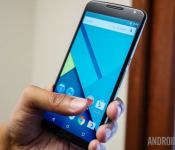
Google admits to not keeping up with Nexus 6 stock

If you’re an owner of Google’s Nexus 6, consider yourself lucky. The handset has been extremely hard to purchase from the Play Store, Motorola.com, and even from Sprint, T-Mobile and AT&T. Not to mention, Verizon hasn’t even launched the handset yet. But during Google’s Q4 earnings call that took place this afternoon, CFO Patrick Pichette elaborated on the Nexus 6’s supply constraints.
Pichette explains:
While the Nexus 7 was very well received as a new phone, we had real issues and were unable to secure sufficient inventory to meet the demand that we had forecasted.
Note: Pichette said ‘Nexus 7′ on the call, but clarified that he meant to say ‘Nexus 6′ later in the talk.
So, there you have it. Google has admitted they should have been keeping up with Nexus 6 demands. It’s tough to tell whether this problem is caused by a certain portion of the hardware or whether it stemmed from multiple components. Either way, we’re sure Google offering carriers the ability to sell the handset doesn’t help the situation at all. Hopefully Google has learned their lesson and won’t run into this problem the next time around.

Deal Alert: Save $48 on a T-Mobile Nexus 6 with this code
T-Mobile is back with another discount deal on the Nexus 6. The carrier is offering a $48 saving on both the 32GB and 64GB storage versions of Motorola’s gargantuan handset.
This means you can grab the 32GB Nexus 6 for $649.92 or the 64GB version for $651.92, either by paying paying the amount upfront or opting for one of the T-Mobile’s payment plans. Although T-Mobile doesn’t offer contracts, you will still need a line in order to purchase a handset from them.
If you’re interested, you will have to settle for the blue Nexus 6, as that’s the only color option that the company stocks.
Just type in the code NEXUS6DEAL at the checkout to make the saving.
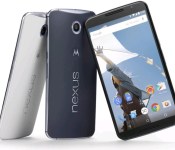
[Deal] Take $48 off a T-Mobile Nexus 6 with promo code
 If you’ve been waiting for a deal on the Nexus 6, T-Mobile is offering a $48 discount on all variants of the phone with a promo code. With the Nexus 6 being so new (and relatively expensive for a Nexus device) you might want to take advantage of this before it goes away.
The promo code NEXUS6DEAL will save you $48 when buying either a 32 GB or 64 GB Nexus 6, but it looks like they’re only offering the blue colored device. Still, for almost a full $50 off, that might be enough to convince you to not worry too much about the color of the phone.
Hit the link below to get started.
source: T-Mobile
Come comment on this article: [Deal] Take $48 off a T-Mobile Nexus 6 with promo code
Grab a Nexus 6 $48 Cheaper Using a T-Mobile Coupon Code
Thinking about getting a Nexus 6 on your T-Mobile plan? Now is the time to do it. T-Mobile wants to save you $48 on a new Nexus 6 by using their special coupon code. This coupon code works for both the 32 and 64 gb variants, so it is a nice little save for phones […]
The post Grab a Nexus 6 $48 Cheaper Using a T-Mobile Coupon Code appeared first on AndroidSPIN.
Apple is the reason for no Fingerprint sensor on Nexus 6
It’s no big deal to expect a fingerprint sensor on a flagship device of this generation given that there are some previous generation devices already rocking one. But to my and many other’s surprise, the Nexus 6 didn’t come with one. On investigation, it was found that Motorola originally had an intent but stepped back at the last instant. The purported location of the fingerprint was inside the Motorola’s trademark dimple.
The plan was disturbed by Apple and was a result of the buyout of AuthenTec in 2012, a pioneer company in fingerprinting technology for use in Apple’s Touch ID sensor. Motorola was working closely with AuthenTec from way back in 2011 to integrate the technology in its smartphone like the one on Motorola Atrix 4G.
Former CEO of Motorola Mobility revealed in an interview with The Telegraph:
The secret behind that is that it was supposed to be fingerprint recognition, and Apple bought the best supplier. So the second best supplier was the only one available to everyone else in the industry and they weren’t there yet.
An in-depth look at the Nexus 6 firmware files suggests that fingerprint support was originally implemented but later removed because of the unintuitive “swipe” scanning type hardware. It was a right thing to do in my opinion. It’s better to leave something than fail badly at it.
Source: Android Central
The post Apple is the reason for no Fingerprint sensor on Nexus 6 appeared first on AndroidGuys.

AMOLED Burn-in Fixer for Nexus 6 and other AMOLED display devices
Burn-ins on your AMOLED screen are the worst. They are just absolutely terrible. There is nothing worse than seeing a ghost on your phone for all eternity. The good news is that you don’t have to site idly by while your OCD goes crazy.
One Brendon Sled has taken it upon himself to fix your devices unfortunate screen. AMOLED Burn-in Fixer is an app designed to be effective and easy to use.
The basic idea behind the app is to invert the colors of your status bar and/or navigation bar (depending on which location is showing signs of burn-in) to reverse the eye sore.
There are three easy steps to fixing these burn-ins. Install, Test and Fix. It is that simple.
1) Install
Step one, install the app from the Google Play Store for free. You can either search “AMOLED Burn-in Fixer” or make use of the widget at the bottom of this post.
![Screenshot_2015-01-26-16-04-54[1]](https://i1.wp.com/www.androidguys.com/wp-content/uploads/2015/01/Screenshot_2015-01-26-16-04-541.png)
![Screenshot_2015-01-26-16-05-00[1]](https://i0.wp.com/www.androidguys.com/wp-content/uploads/2015/01/Screenshot_2015-01-26-16-05-001.png)
2) Test
Step two, test your screen for signs of burn in. You just follow the yellow brick road on this one. Tap the “Test Burn-in” tab, then select “Hide UI”. You will be presented with a solid gray background that will reveal any burn-ins to you. This will most likely be around the status bar and navigation bar areas as previously stated.
![Screenshot_2015-01-26-16-05-28[1]](https://i2.wp.com/www.androidguys.com/wp-content/uploads/2015/01/Screenshot_2015-01-26-16-05-281.png)
![Screenshot_2015-01-26-16-05-32[1]](https://i1.wp.com/www.androidguys.com/wp-content/uploads/2015/01/Screenshot_2015-01-26-16-05-321.png)
3) Fix
Step three, fix all the things! Once you determine the areas that require doctoring, go back to the “Fix Burn-in” tab and select the locations you require. Then, follow the instructions on screen. Enable inverted colors in your system settings and hide the app settings.
![Screenshot_2015-01-26-16-05-51[1]](https://i2.wp.com/www.androidguys.com/wp-content/uploads/2015/01/Screenshot_2015-01-26-16-05-511.png)
![Screenshot_2015-01-26-16-06-04[1]](https://i0.wp.com/www.androidguys.com/wp-content/uploads/2015/01/Screenshot_2015-01-26-16-06-041.png)
Everything is simple and painless. You just have to leave the inverted screen up until the signs of any burn-in are reduced to your satisfaction.
Unfortunately, the app only installs on Lollipop devices.
The post AMOLED Burn-in Fixer for Nexus 6 and other AMOLED display devices appeared first on AndroidGuys.

T-Mobile 700MHz support coming to the Nexus 6, ZTE ZMAX and more

T-Mobile has been planning to roll out low-band 700MHz spectrum on a large scale for quite some time, even though support for the spectrum is scarce in many of the carrier’s flagship devices. That won’t be for long, though, as the carrier is planning to update quite a few devices in the coming months.
T-Mobile has a list of devices that will receive the update with 700MHz support, and it even gives handy timeframes for each device. Samsung’s Galaxy Note 4 and Galaxy Note Edge are currently working on T-Mo’s 700MHz spectrum, as well as the Samsung Galaxy Tab 4 8.0 and the Galaxy Tab S 10.5. Here are the four other Android devices getting the update in the months to come:
- Google Nexus 6 – Software update coming early 2015
- ZTE ZMAX – Software update coming 2015
- Samsung Galaxy Avant – Software update coming May 2015
- Sony Xperia Z3 – Software update coming May 2015
The lower frequency will help the carrier broaden 4G LTE coverage across the nation, as well as boost signal strength while indoors. So far, T-Mobile’s 700MHz support is only available in very select areas, but you can expect the carrier to roll out more support in the coming months.
5 reasons you should root your Nexus 6
I have had my Nexus 6 for just under two months now and one of the main reasons for getting the device was to receive prompt updates. Everyone knows how that goes; Google sends updates to their devices before any other carriers/manufacturers send out their updates. The other main reason for me getting the Nexus 6 was to have a pure Android device. It is something I’ve always wanted; previously having the HTC One M8 with Sense 6.0, multiple Samsung devices with TouchWiz, and the LG G3 with LG’s UI.
Since all of the Google Nexus devices are very popular in the developer community, the possibilities for you to customize your Nexus 6 is endless. The Nexus 6 section on the XDA Forums are always full of great developers and even better, people who will help you out if you ever get stuck while flashing, rooting, etc. It’s a very friendly community, so if you plan to root, flash, or whatever you’d like, you should familiarize yourself with the community!
Now rooting your Nexus 6 isn’t for everyone. It takes some time and some reading, so make sure you understand all that comes along with the process. If you don’t follow instructions carefully, you could end up with a soft-bricked device, or even worse, a totally bricked Nexus 6 that is unusable. I’ll try to link as many resources as I can to make this as easy as possible for everyone.
**DISCLAIMER** ROOTING YOUR DEVICE WILL DISABLE OTAs. ROOT AT YOUR OWN RISK! (This is where custom ROMs come in!) **DISCLAIMER**
Note: If you plan on using the command line method, I recommend familiarizing yourself with Minimal ADB and Fastboot. It saves a lot of time instead of installing and setting up the full Android SDK. On the page it includes detailed instructions. If you have any trouble or any questions, please feel free to email me at matt@androidguys.com. I am not responsible if you destroy device!
Root privileges
When you get a phone, what you are able to do with it is limited. Whether it is customization, adding features that weren’t included in the finally build (thanks Google), or getting more information out of your device by using apps such as Better Battery Stats, Wakelock Detector, and Greenify.
There are a few ways of rooting your Nexus 6, but I have found the two easiest for you. There is a great step-by-step guide thrown together by Gotta Be Mobile, Wug’s Nexus Toolkit over on the XDA forums, or multiple videos on YouTube. I personally would recommend sticking with the first two.
The first one from Gotta Be Mobile uses the CF-Auto-Root (Shamu zip file) method. While it may look intimidating, if you just follow the steps it is quite easy. Chainfire is one of the most known and best developers around. His methods have been hundreds of thousands of times, if not millions; you are in good hands.
The second method is an automated program made by XDA developer WugFresh. His Nexus Root Toolkit has been around for a good while and now is fully compatible with the Nexus 6. His program can automate rooting, unlocking, and decrypting all in one click (essentially). Along with that, it can also un-root your device and flash the stock image if you find yourself in some trouble such as a boot loop/soft-brick.
Not only will rooting get you super user access to your device, it will open up the door for the next things you should do once your device is rooted. You’ll be able to enable tap-to-wake, the LED notification light, and use apps like I stated above that give you extra information about your device.
Tap-to-wake

The Nexus 6 comes with the feature called Ambient Display. When the device receives a text, email. call, etc., the device will “breathe” and the screen will show your notifications in black and white. The reasoning for this is because the Nexus 6 comes with an AMOLED display, which is much easier on battery life when displaying darker colors than an LCD display. The display will “breathe” when it is moved. Sometimes when you pick up your device the display will turn on, sometimes it won’t. This leads to using the lock button to wake the device.
While using the lock button to wake the device isn’t the most inconvenient thing in the world, it would be much easier if the Nexus 6 just came with tap-to-wake enabled. Unfortunately, Google decided to not commit that line of code and it was left out in the final build of the device. The fortunate part is that since it was just hidden in the coding, it can be re-enabled.
Personally, I think all devices should come with tap-to-wake as a default method of waking a smartphone. It is one of the most convenient things to come on a smartphone in a long while, and now that phone screens are consistently eclipsing 5 inches, it is a necessity. When using a device that was dubbed “Shamu” as a codename, you know it is already going to be big, so it needs tap-to-wake.
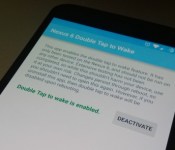
There are two methods of enabling tap-to-wake on your Nexus 6 without flashing a custom ROM or Kernel. Both methods require rooting to make it easy, so it is just up to preference at this point. One method includes downloading an app from the Google Play Store called Nexus 6 Double Tap to Wake. This app costs $.99, so hopefully you have the money to spare because this is the easiest method. Once installed, just press enable and you have tap-to-wake on your Nexus 6.
The second method comes from XDA developer qwerp_. Technically you can do it without root as long as you have a custom recovery and an unlocked bootloader, but we’ll stick with the rooted method. He recompiled the power.shamu.so to re-enable the illusive tap-to-wake feature. You can find the file and instructions on this XDA thread. Essentially you find the file by using an app such as ES File Explorer and replace the default power.shamu.so with his recompiled version. Make sure you back up your old file first!
LED Notification light

Something that took a similar path as the tap-to-wake feature was the notification light. The Nexus 6 does indeed have a notification light, but it was thrown in the can due to Ambient Display. Once you are rooted, it is very simple to enable the LED notification light hidden under your top speaker grille. You can follow this easy tutorial from hutzdani on the XDA Forums. You need to download the Lightflow app, and it cannot be the ‘lite’ version, it will not work.
The Lightflow app also costs money, but is a little more than the Nexus 6 Double Tap to Wake app at $2.49. It is totally worth it if you are going to stick with a stock ROM or something like CyanogenMod 12 (currently CM 12 doesn’t have the notification light built in). If you do not wish to pay for it, some kernels/ROMs come with it enabled.
Decryption
This topic has been debatable on the internet ever since it was found out the scores of the Nexus 6 before and after decryption. I ran a stock Nexus 6 for over a month before I rooted and decrypted it and found no adverse effects. Although, will downloading files, the device seemed to lag a little. I am currently encrypted again since I am running a CyanogenMod 12 nightly, so it is just up to preference.
You technically don’t need root priviledges to do this, but this will break OTAs as well, so if you are going to root your device and delve this far into customizing your Nexus 6, why not do this along the way; especially if you plan to flash new ROMs/kernels.
You can decrypt your Nexus 6 by using the Nexus Root Toolkit as well as using the command line. If you are unfamiliar with using the command line on your PC, then I recommend the latter. I personally prefer using the command line because it is more straight forward if you have the instructions, although it may be difficult to follow.
This thread on the XDA forums gives instructions on how to do it, but previous experience is definitely needed. If you would like a video to you walk through, you can find them on YouTube as well.
Custom ROMs/Kernels

This is personally my favorite part of having a rooting device. Some things are left out of stock Android, and that includes a lot of customization. From the little things such as modifying the status bar, navigation bar, and even the color of the interface. To top it off, custom ROMs usually start using the latest AOSP build a lot sooner than Google will release them. This means you can still get prompt updates along with the customization that stock Android leaves out.
Like I stated earlier, the XDA Forums are full of great development and you can explorer the 40+ threads of Nexus 6 ROMs for days along with a few kernels. ROMs bring along with them the user interface changes that you wish you could do on stock Android. Almost all of them let you enable the circular battery icon (my personal favorite), the reorganization of quick toggles in the notification shade, any many other little things to tinker with.
A few of the ROMs I have used on my Nexus 6 are:
As far as kernels go, they give the user a little more power when it comes to their Nexus 6. Everything is on the table from under-clocking/over-clocking the CPU, custom voltage support, custom haptic feedback settings, tap-to-wake, LED notification, etc. Long story short, they are a really good way for you to maximize the device to your choosing. I don’t particularly mess with my kernels to much, but so far I have found I have liked the franco.Kernel the most.
The franco.Kernel has the easiest installation by far, and it is literally one click. If you download the app from the Google Play Store (Both paid and free versions available), it automatically installs itself to your device. If you have the paid version, you can get a little deeper into the settings over the free version as well as an automatic updater. That way you won’t have to manually flash an update every time.
A few of the kernels I have used on my Nexus 6 are:
- Stock Linux
- franco.Kernel
- LiquidSmooth kernel (before they migrated to fK
- CyanogenMod
Conclusion
The Nexus 6 is a very powerful device and while it does come with stock Android on it, it can be quite limited in how it performs. Some people don’t like rooting because it breaks the OTA system, but the pros definitely outweigh the cons in this situation. With your device rooted you can customize your device to the fullest by enabling tap to wake, LED notification light, and even installing/flashing custom ROMs and kernels. Ever since I rooted my device and moved away from stock Android I have not regretted and I guarantee you won’t either. I find myself exploring new builds daily, even though I have to re-setup my phone. It is worth it to find what you like the most.
Like I stated earlier, do all of these modications at your own risk! I am not responsible with what you do to your device nor is AndroidGuys. Make sure you do your research before attempting anything and know what you’re getting yourself into. If you have any questions, feel free to email me (matt@androidguys.com) or even leave a comment below! I’ll be sure to keep up with this post.
If you enjoy any of these ROMs, Kernels, Apps, etc., please make sure to support the developers! Development takes time and a lot of these developers do this in their free time! The same goes for apps; please don’t Google the apk file, if you enjoy it, purchase it! It keeps Android development going. It’s what makes our community better than iOS 
The post 5 reasons you should root your Nexus 6 appeared first on AndroidGuys.

Nexus 6 international giveaway!
Welcome to the Sunday Giveaway, the place where we giveaway a new Android phone or tablet each and every Sunday.
A big congratulations to last week’s winner of the OnePlus One giveaway: Raymond T. (Phillipines).


Ilay – Winner of our first Nexus 6 giveaway!
This week we are giving away a crowd favorite, the Nexus 6!
Illay from India just received his new Nexus 6 from our very first Nexus 6 giveaway. Maybe this week you will be the lucky winner of a Nexus 6.
You can earn entry tickets into the giveaway by completing the following tasks in the RaffleCopter widget located below.
- [1 Ticket] 1 Free entry!
- [1 Ticket] Follow AA on Google+.
- [1 Ticket] Follow AA on Twitter.
- [1 Ticket] Download the AA App.
- [1 Ticket] Subscribe to the AA weekly newsletter.
- [10 Tickets] Refer friends to the giveaway. You will be given a unique URL to share with your friends or social networks. You will receive 1 bonus entry (up to 10 max) for every person who you refer to the giveaway using your unique URL.
Join Now!
In case you haven’t heard, we have a new Android Authority podcast called the Friday debate. This week Josh talked with Joe, Andrew, and Jonathan about the HTC One M9 design rumours. You can find the AA podcast on iTunes, stitcher, pocket cast and RSS, we hope you tune in.
Related links
- Nexus 6 vs Nexus 5
- Nexus 6 vs iPhone 6 Plus
- Nexus 6 most common problems
- Is the Nexus 6 too large?
- Is the Nexus 6 really too expensive?
- Download Android 5.0 Lollipop wallpapers and sounds
- Nexus 6 vs the competition
- A history of the Nexus smartphone line
Nexus 6 forums | Nexus 9 cases
Terms & Conditions
- The giveaway is an international giveaway (Except when we can not ship to your Country.)
- If we can not ship to your country, you will be compensated with an online gift card of equal MSRP value to the prize.
- We are not responsible for lost shipments.
- You must be age of majority in your Country of residence.
- We are not responsible for any duties, import taxes that you may incur.
- Only 1 entry per person, do not enter multiple email addresses. We will verify all winners and if we detect multiple email addresses by the same person you will not be eligible to win.
- We reserve all rights to make any changes to this giveaway.
- The prize will ship when it is available to purchase.
Full terms & conditions and FAQ | Past giveaway winners [Gallery]
 AIVAnet