


Facebook Begins Testing MSQRD Live Filters in Brazil and Canada
After acquiring live filter app MSQRD back in March, Facebook today has begun officially integrating its capabilities into the main Facebook mobile app, focusing first on a soft rollout in Brazil and Canada (via TechCrunch). The Olympics-themed launch will greet users with an open, front-facing camera window when first jumping into Facebook, letting them swipe between various filters that add animations and graphics onto their face, which they can then take a photo or video of and then post directly to their feed.
For now, Brazilian and Canadian users will only see filters inspired by the Rio Olympics — like Brazilian flags and a “Go Canada!” motto — that attach to the user’s face and move around with them, similar to Snapchat’s popular camera filters. Facebook is also introducing static banners in its rollout, with similar country and team-supported messages that attach to any picture or image.
“The way that people share has changed a lot” Facebook Product Manager Sachin Monga tells me. “12 years ago, most of what was shared was text” so Facebook’s status composer with a big white text box. “Now, mobile changed things a little bit, but we didn’t really change our tools. If you look at what people are sharing, now it’s mostly photos, and soon it will be mostly videos. Our strategy is really simple. We want to make it really easy to share photos and videos” Monga explains.
Facebook has long been pushing its video content, whether created by media companies or everyday users, as a main focus of the social network in the future. Although the company didn’t confirm a wider launch for the new MSQRD features, it seems like the new live filter abilities would be a logical next step for the company to make in the video space. In a different vein, but still edging closer to the popularity of Snapchat, Instagram recently debuted a “Stories” feature with posts that disappear after a day.
Users on iOS and Android within Canada, and iOS in Brazil, will start seeing the new update rolling out to the Facebook mobile app today, and it will “run through the end of the Olympics.” Facebook is available to download from the App Store for free. [Direct Link]
Tag: Facebook
Discuss this article in our forums
Grab a six pack of USB-C cables for just $13
If you are looking to pick up some extra USB-C cables, you won’t want to miss this deal on a six pack of cables for just $13 with coupon code SFZTCYAP. Most deals we’ve seen on cables bring the price of a single cable to around $6, so this deal scores you six times the amount of cables, for just over double the price. The coupon saves you $7 on this pack of Choetech cables that vary in length.

The kit includes the following breakdown of cables:
- (1) 1.6-foot cable
- (4) 3.3-foot cable
- (1) 6.6-foot cable
If you’ve recently picked up a new USB-C phone, or will be (like the Galaxy Note 7), you’ll want to make sure you are stocked up on cables. Remember, you need coupon code SFZTCYAP for the full savings here.
See at Amazon
Should you upgrade to the Galaxy Note 7 from the Galaxy Note 4?
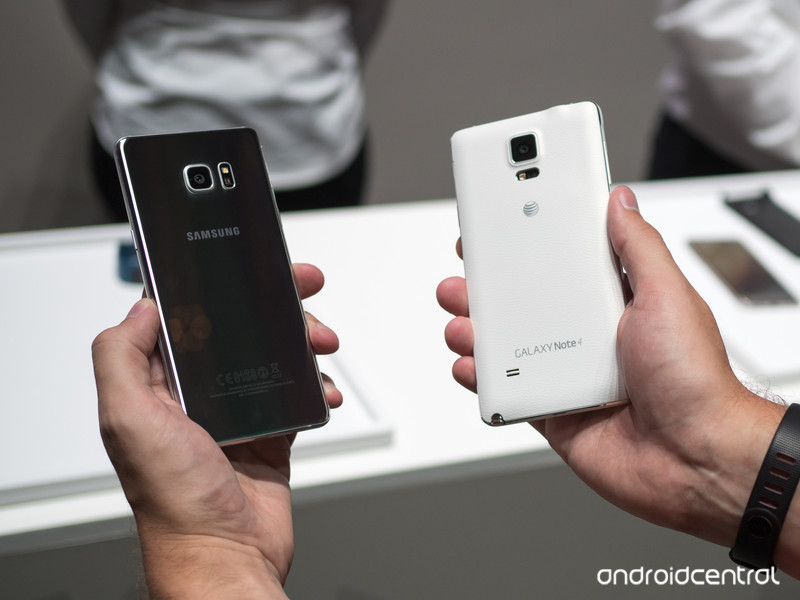
The big question a lot of people are asking.
Though traditional two-year contracts are all but gone now, the 24-month cycle of upgrading to a new phone is still very much in play. So when we see a huge phone release like the Galaxy Note 7, there are millions using a Galaxy Note 4 who perk up and take notice.
With more powerful internals, an improved camera, better screen, new S Pen features and an amazing leap in design, the Galaxy Note 7 definitely has a lot going for it … but is it enough to give up a Note 4, which likely still works very well two years on? We’re going to tell you all you need to know about this upgrade.
Let’s start off by analyzing the most obvious and experience-forming changes: the hardware of these two phones. While the Note 4 was revolutionary at the time for its stark difference in design from the Galaxy S5, it looks downright dated next to the sleek and more compact Note 7. The smooth, curved metal on the Note 7 that perfectly marries up to front and back Gorilla Glass 5 panels feels great and looks fantastic (yes, even with the added fingerprint accumulation), and even though this is an evolution of a design that started with the Galaxy S6 it still looks extremely modern.
The Note 7 shows just how far we’ve come in smartphone design since 2014
Of course the looks are nice and you should be proud of the high-end phone you buy, but how it actually feels and operates as a large-screened phone is just as important. The changes in design all around, with smooth edges and a subtly-curved screen on the sides, have made the Note 7 even easier to handle and manipulate with just one hand. The dimensions alone start telling the story, with the Note 7 being thinner, but also almost 5 millimeters narrower — a big difference when you want to reach across the 5.7-inch display. The curved display is part of that, of course, but the bezels around the screen have also shrunk — and you shouldn’t be immediately worried about the display curve having an effect on how you use your phone.
Then you have waterproofing, which was absent on the Note 4 after being included in the Galaxy S5 but is back on the Note 7. It’s hardly a feature you’ll take advantage of on a regular basis, but the one time you really need your phone to survive contact with water you’ll realize just how important it is. Especially when you pay this much for a phone.
| Operating System | Android 6.0 Marshmallow | Android 6.0 Marshmallow |
| Display | 5.7-inch 2560x1440Super AMOLEDDual edge screenGorilla Glass 5 | 5.7-inch 2560x1440Super AMOLEDGorilla Glass 4 |
| Processor | Quad-core Snapdragon 820 (U.S.)Octa-core Exynos 8890 (international) | Quad-core Snapdragon 805 (U.S.)Octa-core Exynos 5433 |
| Storage | 64GBmicroSD up to 256GB | 32GBmicroSD up to 256GB |
| RAM | 4GB | 3GB |
| Rear Camera | 12MP f/1.71.4-micron pixelsOIS | 16MP f/2.21.12-micron pixelsOIS |
| Front Camera | 5MP f/1.7 | 3.7MP f/1.9 |
| Charging | USB-CFast chargingQi wirelessPowermat wireless | Micro-USBFast charging |
| Input | S Pen stylus4096 pts of pressure sensitivity | S Pen stylus2048 pts of pressure sensitivity |
| Battery | 3500 mAhNon-removable | 3220 mAhRemovable |
| Water resistance | IP68 rating | No |
| Security | One-touch fingerprint sensorIris scanner | Swipe fingerprint scanner |
| Dimensions | 153.5 x 73.9 x 7.9 mm | 153.5 x 78.6 x 8.5 mm |
| Weight | 169 g | 176 g |
You could definitely make arguments about losing features or at least not making many advancements when looking at the Note 4 and the Note 5 together, but the Note 7 has brought back much of what was lost last year to have an overall substantial internal update. In what is often an important fact for power users the Note 7 has brought back an SD card slot, while also bumping up internal storage to 64GB over the Note 4’s 32. And with it the Note 7 has also increased battery capacity to 280 mAh more than the Note 4, which is also aided by a more efficient screen and processor inside. The battery isn’t removable, of course, but you do have built-in wireless charging to help you keep topped up through heavy use days.
A lot of small spec bumps add up to a nice improvement in experience
The rest of the spec bumps aren’t revolutionary, but two years of incremental updates are definitely notable. A faster processor will lead you into the future of more intense apps, as will one more gigabyte of RAM and the new USB-C port on the bottom. And we can’t forget the dramatic improvement in daily usability that comes with a new one-touch fingerprint sensor, which is preferable in every single way to the old swipe-style scanner. Yes the Note 7 includes an iris scanner as well, but until that proves to be useful every day, we can’t say it’s a reason to upgrade from any phone.
The next bit of the experience is in the cameras. The Note 4 had a considerably better camera than the Galaxy S5 with its change of sensor and addition of OIS, but that camera was blown away in every aspect by the Galaxy Note 5’s in 2015. Now in 2016 the camera setup found in the Galaxy S7, S7 edge and Note 7 is even better than the Note 5’s, though not as massively as in previous years. The differences in daylight quality are subtle, but the low-light camera performance on the Note 7 will be a great step up over even the very capable Note 4. You’ll also enjoy faster launch, focus and capture speeds on the latest Note, which can’t be understated.
And we can’t get through this discussion without also talking about the upgrade in the S Pen. Externally it’s effectively the same, but the pen is now faster to track on the display, more accurate, and is waterproof just like the phone — you also can’t overstate how important having double the pressure sensitivity (now 4096 levels) is for all kinds of stylus work. The software suite has been improved as well, with all of the S Pen functions being pulled into just the Samsung Notes app and Air Command. There are new features like being able to translate text with the stylus and also create GIFs out of any content on the screen — if you’re a big S Pen user, this upgrade will be worth considering.
At this point most Note 4 owners have received an update to Android 6.0 Marshmallow, which brings with it a much improved experience that Note 5 and Galaxy S7 owners have been using for months now. There isn’t any individual upgrade in the Note 7’s software that would lead you to be clamoring for yet another update, but a handful of fresh features and a new design ethos in much of the interface is indeed an improvement over previous software builds.
More important to consider is the software upgrade cycle for the Note 4 itself, and how many more major updates it stands to receive. We could definitely see it getting a bump up to a newer version of Marshmallow with the Note 7’s new S Pen features and interface design, but will the Note 4 receive Android 7.0 Nougat over two years after the phone was released? We certainly wouldn’t guarantee it will. As it gets further along in its lifespan the Note 4 will likely fall off in software update priority, we just don’t know where the cutoff will be at this point.
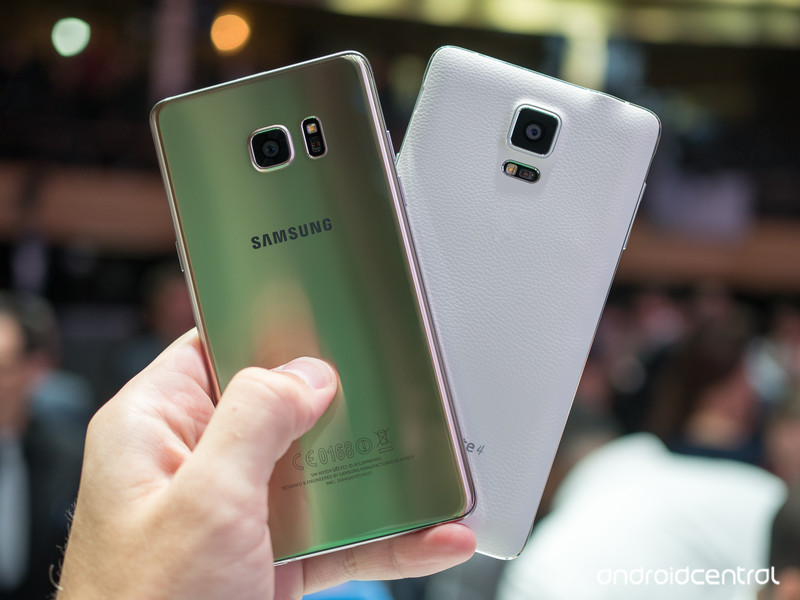
No matter the upgrade potential, thinking about moving from your current phone that cost you several hundred dollars to a new phone that’s going to cost you $800+ once again will always be a decision predicated on the cost. The Note 4 has decent resale value and all of the major carriers offer some sort of financing plan, but it’s still going to be a big outlay of cash to upgrade to the latest Note.
If you’re someone who appreciates the vast improvements in the hardware and design, you’re likely already down the path of being sold on the upgrade. You’ll be able to see other features like a better fingerprint sensor, USB-C port, upgraded internals, new software, better cameras and an improved S Pen to help justify the cost as well.
But if you think the Note 4’s hardware has held up just fine over the last two years, there’s a decent chance you’re also happy with how the internals and software have performed as well. There’s no doubting that even today the Note 4 is a very powerful and capable phone — as it should be considering what it cost — and there’s no shame in holding onto it a while longer to see how the software update story plays out. You can always upgrade to a Note 7 in a few months if you change your tune.
You now have the proper tools to make an informed decision, no matter what your choice is in the end.
Samsung Galaxy Note 7
- Samsung Galaxy Note 7 hands-on preview
- The latest Galaxy Note 7 news!
- Here are all four Note 7 colors
- Complete Galaxy Note 7 specs
- The Galaxy Note 7 uses USB-C
- Join the Note 7 discussion in the forums!
Verizon
AT&T
T-Mobile
Sprint
Pokémon Go developer reveals why it is banning third-parties from accessing its servers

Pokémon Go developer Niantic Labs has offered an explanation on why it has decided to ban third-party apps and services from accessing its servers.

Many developers have tried to access that data ever since the popular augmented reality game launched in July. Some of those apps were made for cheating in Pokémon Go. In a blog post, Niantic says those efforts actually delayed the launch of the game in Central and South America due to too much server resources being used by these outside apps and services. It even showed a chart that revealed just how high server resource usage was before and after the ban on third-party access:

In addition to hampering our ability to bring Pokémon GO to new markets, dealing with this issue also has opportunity cost. Developers have to spend time controlling this problem vs. building new features. It’s worth noting that some of the tools used to access servers to scrape data have also served as platforms for bots and cheating which negatively impact all Trainers. There is a range of motives here from blatant commercial ventures to enthusiastic fans but the negative impact on game resources is the same.
Niantic added that there are also attempts to flat out hack its servers. It also doesn’t expect to see this kind of activity to end. However, it’s very interested to learn that this kind of unwanted access could result in real delays in Pokémon Go’s expansion to other markets.
Pokémon Go
- Join our Pokémon Go forums!
- How to deal with GPS errors in-game
- Which team should you choose?
- How to play without killing your battery
- The Ultimate Pokémon Go Game Guide!
- Listen to the Pokémon Go podcast!
Best microSD cards for the Samsung Galaxy Note 7

What’s the best microSD card to use with the Samsung Note 7?
After abandoning expandable storage for 2015’s flagship releases, Samsung has righted the ship in 2016 by reintroducing of microSD slots on both the Galaxy S7/S7 edge and Galaxy Note 7.
If the 64GB of internal storage on the Note 7 just ain’t going to cut it, you’ll want to invest in a quality microSD card and add up to 200GB of additional storage. That means you’ll have more space for all your music, 4K videos, photos, and animated gifs, and you can save the phone’s internal memory for your favorite apps and games.
SanDisk Ultra 200GB microSDXC Card

If you’re serious about maximizing your storage, you’ll definitely want to consider this 200GB microSDXC card from SanDisk. With write speeds up to 90MB/s, you’ll be able to record in HD or 4K to your heart’s content. And you’ll still have room to spare for all your movies, music and other data. Amazon regularly has this one on sale for under $80, so this is your best value for sure.
See at Amazon
Samsung MicroSD EVO+ 256GB

Since we’re talking about a Samsung phone, we’d be foolish not to mention Samsung’s best option for microSD. With read speeds up to 95MB/s and write speeds up to 90MB/s, this card should be able to handle whatever you throw at it. Better yet, Best Buy is offering a Galaxy Note 7 pre-order deal, where you can get the card for free! It’s a pretty good deal, but if you’ve already got the Note 7 you’ll want to get this card via Samsung’s website.
See at Samsung
SanDisk Extreme PLUS 64GB microSDXC

Looking to double your available storage without breaking the bank? This 64GB card from SanDisk is UHS speed class 3, with write speeds up to 50MB/s — more than enough to handle 4K video. With transfer speeds of up to 95MB/s, you’re able to add your favorite music and media in a flash with the included SD card adapter. This card is designed to withstand anything life throws your way — including x-rays — and comes with a lifetime limited warranty.
See at Amazon
Kingston Digital 64GB microSDXC Card

This Class 10, UHS-I microSDXC card from Kingston features a 64GB capacity and advertises a read speed of 90MB/s and write speed of 45MB/s. Included is an SD adapter which the microSDXC card slides into when using on a computer or other standard SD device. The Kingston Digital 64GB microSDXC card is currently available for $30.
See at Amazon
Will you be expanding your Note 7 with a microSD card?
If you’re considering on upgrading the Note 7’s storage, let us know in the comments how much space you think you’ll need, and how you plan on using that extra storage.
Samsung Galaxy Note 7
- Samsung Galaxy Note 7 hands-on preview
- The latest Galaxy Note 7 news!
- Here are all four Note 7 colors
- Complete Galaxy Note 7 specs
- The Galaxy Note 7 uses USB-C
- Join the Note 7 discussion in the forums!
Verizon
AT&T
T-Mobile
Sprint
You can save $190 on an unlocked LG G5 right now!
Right now you can score an LG G5 for just $410 at eBay, which is a savings of $190. The unlocked phone is available in gold, silver and titan currently, and the listing is for a brand new unit, so you won’t be dealing with refurbs here. Between the 5.3-inch display, the 32GB of internal storage and the ability to swap different modules, this savings makes for a pretty sweet deal.

If you are interested you’ll want to act quickly, as it likely won’t be available at this price for long. Which color will you pick up? Let us know in the comments!
See at eBay
Galaxy Note 7: The 7 new features you need to know about!

Why should you buy the Galaxy Note 7? Here are seven reasons.
The Samsung Galaxy Note 7 is going to be out on August 19, which means that millions of people are mulling whether to sink their hard-earned dollars into what is likely Samsung’s best, and most expensive, phone to date.
While the Korean giant didn’t elaborate on many of the software changes found in the Note 7 during the keynote, we were able to uncover some unique and interesting additions that will take your Note-ing to a new level.
The camera app is all new

Samsung’s camera app has come a long way since the admittedly dreadful experience of the Note 3 era. Things started improving with the Note 4 and S5, but even today there are things that could stand to be improved.
Starting with the Note 7, Samsung has taken a gesture-friendly approach to the camera app, letting you switch between modes like Pro and Video using a vertical swipe, as well as filters and other settings using a horizontal swipe.
The UI has also been cleaned up, with a much clearer delineation between the viewfinder and the buttons, all of which have been simplified, too. I got to use the new app briefly during my time with it, and have to say it’s a big jump from Samsung’s previous efforts, and will at the very least make switching between back and front cameras considerably easier.
Power-saving mode actually lowers your resolution

Like most phones today, the Note 7 has a great power-saving mode. But unlike most phones, turning it on actually lowers the resolution of the phone to make the screen use less power.
That’s right: when you first enable the medium power saving mode on the Note 7, your QHD resolution screen drops to 1080p, in addition to the standard toggles like lowering CPU speed and adjusting background processes. The maximum power saving mode lowers the resolution even further — to 720p.

This is certainly the first time we’ve seen something like this, and it’s unclear how much battery this will save in the long run, but it’s a very interesting idea.
The S Pen doubles as a magnifying glass

There are a lot of very cool new features in the Note 7’s S Pen, but one of the coolest is its Magnifying feature. Yes, it’s mainly for accessibility, but that makes it especially important, since it’s one of the easiest ways for someone with less-than-perfect vision to see the finer details of an on-screen object.
The feature allows for up to 300% magnification, and the great thing is that even at that level the screen doesn’t appear pixelated, thanks to the high-density QHD display.
The S Pen at a glance

Here’s another unique use case for the S Pen: Glance, which generates a small thumbnail of an app that can be maximized when the stylus hovers over it.

Think of the possibilities, especially for apps that don’t support Multi Window: you need to refer to an email or text message but don’t want to constantly switch back and forth between apps, so you minimize the client and hover over it when you need it. Very cool idea, and one that I think I’m going to use a lot.
There’s a blue light filter to save your eyes

Blue light filters are certainly not new to smartphones, but Samsung’s implementation in the Note 7 is not only good, it’s customizable.
It can scheduled to turn on at sunset — or any time you want — to save your eyes the indignity of all that sleep-affecting blue light. It’s also possible to adjust the intensity of the filter, so you can find just the right level to suit your late-night reading needs.
Samsung’s browser has extensions

While many browsers have extensions support, Samsung’s bundled version comes with two pre-loaded ones that hope to entice you away from Chrome. The first is a QR code reader, which is useful in a pinch.

The second is a video assistant, which perfects the color and sound of a web-based video. Not necessarily the most exciting add-ons, but the fact that Samsung has created a single place for all it’s extensions means that it is doubling down on its homegrown browser, which runs counter to the majority of other manufacturers in the industry that have accepted Chrome as their default.
You can turn off those awful icon frames

For some reason, the Note 7 burdens the natural beauty of Android’s app icons with white “frames”, something we’ve bemoaned from the likes of Huawei for years. While many of Samsung’s redesigned icons have been designed to look good encased in white, the vast majority of others do not.

Thankfully, Samsung offers a toggle to return back to the blissful simplicity of the status quo. Because some things shouldn’t be changed.
Your turn
What’s your favorite feature of the Note 7, hardware or software? Does the iris scanner interest you, or is it the updated software experience that is getting your attention? Let us know in the comments below!
Samsung Galaxy Note 7
- Samsung Galaxy Note 7 hands-on preview
- The latest Galaxy Note 7 news!
- Here are all four Note 7 colors
- Complete Galaxy Note 7 specs
- The Galaxy Note 7 uses USB-C
- Join the Note 7 discussion in the forums!
Verizon
AT&T
T-Mobile
Sprint
Ting made its pay-for-what-you-use data rates cheaper yet
Folks looking to save a few bucks on their cellphone bill might want to take a look at Ting. It’s an alternative to the likes of pre-paid offerings from the big carriers and the company’s approach might be enough to sway you. Ting operates on a pay-what-you-use basis, and it recently announced drops in rates ranging from $2 to $10 for its data plans. Specifically, using less than 500 MB per month will run $10 rather than $12, below 1 GB is $16 versus $19 and up to 2 GB will cost $20. Should you need more than that, each additional gigabyte will be $10.
The move brings Ting in line with other contract-free carriers. But, if you aren’t careful, it could end up costing more than you expect if you’re a heavy talker or texter.
Google sneaks Olympic-themed minigames into its mobile app
The 2016 Rio Olympics officially kicks off today with the opening ceremony, and Google’s already got the fever. In addition to peppering search results with easy-access schedules, stats, highlights and other pertinent info, big G wants to indulge our competitive sides, too. The 2016 Doodle FruitGames is a collection of seven colorful tap-and-tilt titles playable within the Google app for Android and iOS until August 21st, when the Olympics draw to a close.
Hiding behind the Doodle in Google’s mobile app, the games all feature simple control schemes typical to the search giant’s previous pick-up-and-play titles. The mixture of endless scrollers, time-sensitive point maximizers and the like are the kinda games you can spend two minutes playing or dump hours into, ensuring you’ve got the best sprinting strawberry time of all your peers. And who knows… being a champion spider-riding, hurdling grape around might well be your calling.
Source: Google
HP Chromebook 13 review: a great laptop that doesn’t come cheap
Just over a year ago, you basically had two options for buying a Chromebook: Spend $999 on Google’s excellent but overpriced Pixel or buy an inexpensive laptop that was inevitably compromised in one way or another. That’s starting to change, however. Dell’s Chromebook 13, which launched last fall, proved you could pack a sharp screen and keyboard into a device with strong performance and battery life. It was a bit pricier than the competition, but a little extra cash was well worth the upgrades.
Now HP is taking the idea of a “premium” Chromebook to the next level with the new Chromebook 13. It starts at $499 and can be configured up to a whopping $1,029. That cash gets you a much thinner and lighter design than Dell’s Chromebook, along with one of the best screens on the market. After spending some time with HP’s latest Chromebook, there’s no doubt it’s an excellent machine. The question is whether it (or any Chromebook, for that matter) is worth HP’s asking price.
Hardware

There’s no question in my mind that HP hit it out of the park with the Chromebook 13’s design. It’s the nicest Chromebook I’ve used outside the Pixel, which still costs significantly more than HP’s offering. Visually, the Chromebook 13 sticks pretty close to the MacBook Air stylings that continue to dominate the industry. However, a few design notes, including its brushed-metal texture, black screen border and shiny chrome accents (including an overly large HP logo on the cover), lend it some unique visual flair. It’s a nice-looking laptop, if a bit plain and derivative — something that’ll probably help it as a machine targeted at business customers. It’s no Spectre 13.3, though.
At 2.85 pounds and half an inch thick, it certainly has a lot in common with the many popular thin-and-light laptops available, and that’s a place where it diverts from the similarly business-targeted Dell Chromebook 13. That computer is as solid as a rock, but it’s a lot thicker and heavier than many other 13-inch laptops. The HP feels much more portable — but it’s not nearly as solid as the Dell. It’s easy to flex the screen and chassis if you’re so inclined. The screen flexing is particularly noticeable; my co-workers were pretty stunned at how easily I was able to bend the display. Obviously, this isn’t normal behavior, but it does make me concerned about the laptop’s long-term durability. Fortunately, the HP Chromebook 13 felt solid and comfortable in normal use. It’s just not the tank that Dell’s Chromebook is.
Indeed, for real-world use, the HP feels great from the moment you open it up. You can easily lift the screen open with one hand; the body of the computer stays put and doesn’t wobble on your lap or desk when you’re adjusting the display. And what a display it is: The 13.3-inch screen has a best-in-class 3,200 x 1,800 resolution. (You can also save some cash by stepping down to a 1080p panel.) By default, it’s scaled to an effective 1,600 x 900 resolution, but thanks to the pixel density, you get super crisp, readable text and wonderfully detailed images. And for me, 1,600 x 900 is a sweet spot in terms of having a large workspace and text that isn’t too tiny. 1080p feels a bit small to me on a display like this, but if you want more space, there are plenty of scaling options in the Chromebook’s display settings.

I have a couple big complaints about the display, though. After using the Pixel, I’ve grown to love having more vertical real estate; HP’s Chromebook 13 feels a little cramped in this regard. It doesn’t help that the bezel at the bottom of the display is particularly thick: It feels like a 16:10 panel could have fit here without an issue. Of course, basically every computer out there has a 16:9 display aspect ratio, so this is hardly HP’s fault.
More damning is the lack of a touchscreen. With Android apps coming to Chromebooks soon, there’s finally a good reason to have a touch panel, and it should be a default feature on an $819 computer. I could understand it being left off cheaper models in the lineup, but it should at least be offered as an optional upgrade. And while the viewing angles on this screen aren’t bad, it’s not an IPS display, so you won’t get the wide field of view that some other notebooks offer. Despite these few complaints, the screen is a high point. It’s about the best I’ve seen on a Chromebook. That should be the case for an $820 machine, but the fact that you can get the same display on a $500 version of this laptop is a big win.
Beyond the screen, the keyboard and trackpad are of utmost importance, and fortunately HP got both of these things right. I’ve been happily typing away on this computer for over a week, and it feels nearly as good as the Chromebook Pixel and equally as comfortable as the Dell Chromebook 13. There’s an adjustable backlight here, which feels appropriate for a computer in this price range, and the keycaps offer decent travel for a computer this thin. As for the trackpad, the only complaint I have is that, similar to the screen, I wish it were a bit taller. Other than that, it works fine. I’m glad to see laptop manufacturers starting to get touchpads consistently right.

HP touts stereo speakers from Bang & Olufsen, and while there’s only so much you can do with speakers in a smallish laptop, these sound pretty good to me. They’re not any louder than your average notebook audio setup, but they’re definitely crisper and less muddy than on most other computers. You’re still probably better off listening with headphones, but in a pinch these will do — just don’t expect any physics-defying sound here.
As for ports, the HP Chromebook 13 keeps things pretty minimal: There’s one USB 3.0 connection, a headphone jack, two USB Type-C sockets (either of which can be used for charging) and a microSD slot. I’m confounded by laptop makers that insist on microSD; a full-sized SD reader would be far more useful for most people. Having two USB Type-C ports is smart, though: You can dedicate one to power if need be and still have options for plugging in more devices, including the HP docking station designed specifically for this laptop.
Performance and battery life

HP’s Chromebook 13 is the first Chromebook I’ve tried that uses Intel’s newest generation of Core M processors. The $819 model I tested has a 1.1GHz Core m5 processor paired with 8GB of RAM and 32GB of storage space. We’ll talk more about whether this computer is worth that kind of cash, but for now, the most important thing to know is that HP is offering this computer in a variety of configurations.
The base $499 model pairs a Pentium 4405Y processor with 4GB of RAM; $599 steps that up to the Core m3-6Y30 processor with the same RAM allotment. If you’re feeling particularly crazy, you can upgrade to a Core m7-6Y75 processor with either 8GB or 16GB of RAM. HP says you can get that top-of-the-line model from “select retailers” for $1,029.
However, I only had the $819 model to test. At that price (more than nearly any other Chromebook on the market), I was expecting a great experience, and fortunately I was not disappointed. Anecdotally, I was able to run all of my usual apps (Inbox, Chrome, Google Play Music, TweetDeck, Slack, Keep, Docs, Wunderlist, Hangouts) plus more than a dozen tabs with few hiccups. Music would occasionally cut out slightly, and typing text in Keep felt a bit laggy while I was simultaneously doing a video call, but by and large I have no complaints about the performance. And from a benchmark perspective, the Chromebook 13 kept pace with the best you can get when running Chrome OS, including the Pixel.
| HP Chromebook 13 (Core-m5 6Y57, 8GB RAM) | 230ms |
27,908 |
1,053ms |
| Dell Chromebook 13 (Celeron 3205U, 4GB RAM) | 371ms |
14,430 |
2,242ms |
| ASUS Chromebook Flip (Rockchip RK3288C, 4GB RAM) | 700ms |
6,748 |
5,527ms |
| Chromebook Pixel (2015, Core i5, 8GB RAM) | 298ms |
23,907 |
1,428ms |
| Toshiba Chromebook 2 (Celeron N2840, 4GB RAM) | 967ms |
7,714 |
4,284ms |
| Samsung Chromebook 2 (11-inch, Celeron N2840, 2GB RAM) | 525ms |
7,223 |
3,936ms |
| Acer Chromebook 13 (NVIDIA Tegra K1, 2GB RAM) | 609ms |
7,051 |
4,816ms |
| Lenovo N20p (Celeron N2830, 2GB RAM) | 567ms |
7,288 |
4,287ms |
| ASUS C200 Chromebook (Celeron N2830, 2GB RAM) | 483ms |
7,198 |
4,291ms |
| Acer C720 Chromebook (Celeron 2955U, 2GB RAM) | 342ms |
11,502 |
2,614ms |
| Dell Chromebook 11 (Celeron 2955U, 4GB RAM) | 340ms |
11,533 |
2,622ms |
|
*SunSpider and Kraken: Lower scores are better. |
I will say that I’ve had one big issue that I can’t overlook, and that’s the battery life. HP claims that the Chromebook 13 gets 11.5 hours of runtime, with a big caveat: You need the model with the 1080p screen to achieve that result. HP doesn’t offer any estimates for the 3,200 x 1,800 screen I’ve been using, but I only got about 6 hours of battery life doing my normal work routine. This is a major disappointment, especially after enjoying incredibly long battery life on Dell’s Chromebook 13. HP’s machine is smaller and has a sharper, more power-hungry screen — but getting significantly less than eight hours of battery life is a serious bummer.
Our battery test (which involves looping an HD video with screen brightness fixed at 65 percent) bore similar results: The HP Chromebook 13 lasted for 6 hours and 33 minutes. And unfortunately, the computer didn’t charge as quickly as I’d hoped, despite HP touting USB Type-C’s quick-charging features. It took about two and a half hours while in use to go from nearly dead to 100 percent and a good 90 minutes to get to 50 percent.
Battery life
HP Chromebook 13
6:33
Surface Book (Core i5, integrated graphics)
13:54 (3:20 tablet only)
MacBook Air (13-inch, 2013)
12:51
HP Spectre x360
11:34
Apple MacBook Pro with Retina display (13-inch, 2015)
11:23
ASUS C200 Chromebook
11:19
ASUS Chromebook Flip
10:49
Dell Chromebook 13
10:25
Acer Chromebook 13
10:07
Chromebook Pixel (2015)
10:01
Microsoft Surface 3
9:11
Apple MacBook (2016)
8:45
Samsung Chromebook 2 (13-inch)
8:22
HP Stream 11
8:17
Dell XPS 13 (2015)
7:36
Lenovo Yoga 3 Pro
7:36
Lenovo LaVie Z
7:32
Microsoft Surface Pro 4
7:15
HP Spectre 13
7:07
Lenovo LaVie Z 360
6:54
Toshiba Chromebook 2
6:34
Acer C720 Chromebook
6:27 (Core i3) / 5:57 (Celeron)

None of this matters if Chrome OS doesn’t have the apps and services you need to get things done. Fortunately, as I wrote last fall, Chrome OS is pretty capable right now. There are tasks like photo and video editing that the platform is still not suited for, but for the majority of consumers, using a Chromebook might increasingly make sense. I rarely felt like I was hamstrung when using HP’s Chromebook 13, and the Android apps coming this fall will make the platform even more capable. It’s still worth making sure what you typically do on a laptop is feasible with a Chromebook, but Google has closed the feature gap in the past few years.
The competition
As I’ve mentioned multiple times by now, Dell’s Chromebook 13 is the computer most worth comparing to the HP Chromebook 13. HP’s model is the clear winner in terms of design and display, but the Dell counters with a much lower price and far better battery life. Dell also has a variety of configurations: You can step up to a full Core i3 processor, increase the RAM to 8GB and add a touchscreen. If you’re interested in HP’s Chromebook 13, I’d encourage you to also check out the Dell before making a final decision. Unless you really love the HP’s more compact design or its super sharp screen, the Dell wins on bang for your buck.
There aren’t a lot of other Chromebooks that have excellent screens, keyboards, performance and design. The Chromebook Pixel is one, of course — but at $1,299, there’s no way we can recommend that computer to most normal humans. Toshiba’s 13-inch Chromebook 2, released in 2015, is still a strong choice. About $340 gets you a 1080p display, decent construction and an Intel Core i3 processor. The battery life on that laptop isn’t outstanding, but performance will not be a problem. Most other Chromebooks beyond these are compromised in one way or another: cheap construction, small or low-resolution screens, or — worst of all — bad processors leading to poor performance.
Wrap-up

Similar to the Chromebook Pixel that appears to have inspired it, HP’s Chromebook 13 occupies an odd spot in the market. As tested, it’s hard to recommend anyone spend $819 on this laptop. It packs a wonderful screen and keyboard into a thin and light package, and it combines that with solid performance. But the battery life isn’t great, and $819 is still too much to spend on a Chromebook. Yes, they’re better than they ever have been, and they’re going to get a lot more useful this fall when they start supporting Android apps. But even as someone who has wanted a “premium” Chromebook option beyond the Pixel for a long time, I can’t justify the cost of this computer.
Fortunately, HP is making two models that are cheaper than this one. You can still get the same great package, just with less RAM and a slower processor, for the much more reasonable price of $499. I haven’t tested that machine yet, so I can’t give it a full-throated recommendation yet. But if you’ve been searching for a Chromebook with premium build quality like I have, it might be worth seeing if the cheaper versions of HP’s Chromebook 13 can meet your needs.
Photos by Edgar Alvarez.

