


Sling TV launches a native Windows 10 app with Cortana support
For the last year and a half, Sling TV has been gradually improving its cord-cutting TV service. Chromcast support, more channels and an updated interface have all made the streaming television solution better — but viewers on Windows have been stuck on the service’s original UI for months. Not anymore: Today the company launched a new, native Windows 10 app to save desktop users from obsolescence.
The new Sling TV app looks a lot like a slightly tweaked version of its Summer redesign. The content-centric UI still features a My TV section, with the ability to resume watching paused shows, and the more convenient browsing interface, but navigation has been moved to the left side feel more natural to Windows users. Live Tiles, Cortana voice search and touch compatibility for tablets are also baked in.
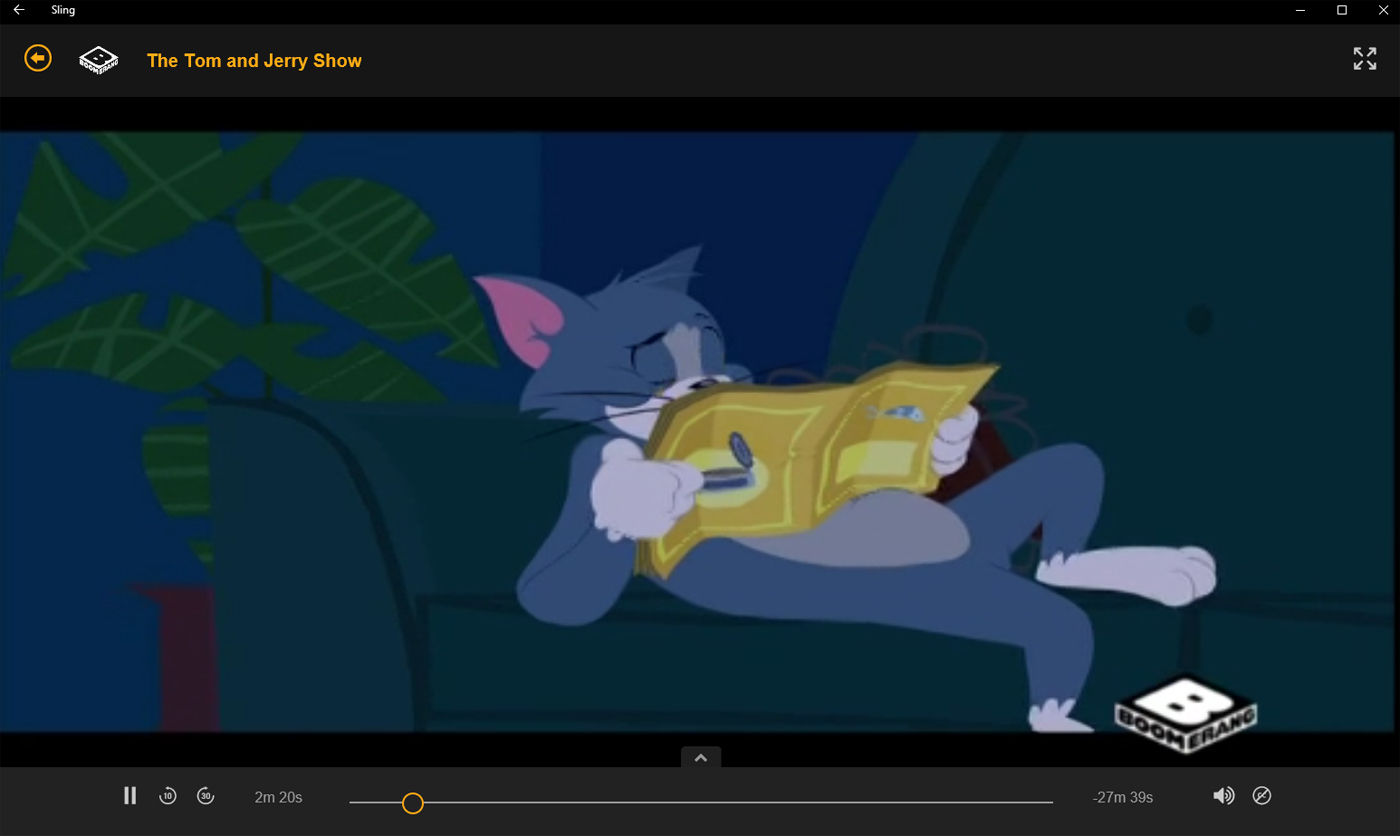
It’s a solid update — but it’s not mandatory. Sling TV says it will continue to support it’s legacy desktop app for users on older platforms and those who simply don’t wish to use the Windows Store. Sadly, that application isn’t getting a visual overhaul: It’s stuck with the same interface the service launched with over a year ago. Still, at least it’s an option.
Source: Sling TV
Google Maps adds Lyft and Gett to its ride hailing options
Users searching for directions from Point A to Point B in Google Maps just got a few more options for getting there. According to the official Google Maps blog, both the iOS and Android versions now include estimated fares and wait times for ridesharing services Lyft and Gett when searching in cities in the United States.
Google Maps actually rolled out the feature for Uber way back in 2014 and other competing ridesharing services were added outside the US earlier this year, alongside Gett in New York City. With today’s addition of Lyft, Google Maps now offers options from nine different ridesharing services in 60 different countries. (Of course, which options are available to you will depend on which city and country you’re in.)
The ride hailing feature works exactly as you might expect: a “ride services” tab with a taxi icon now shows up alongside the driving, transit and walking directions. Switching to the tab brings up a list of available ridesharing services and the various ride types, such as Lyft Line or UberX, offered by each. Lyft estimates should start showing up for users wherever Lyft is available, but Gett is still limited to New York City for now.
Source: Google Maps
Those new AirPods will work with non-Apple devices
Despite listing software requirements to the contrary in yesterday’s press release, The Verge reports that Apple’s new AirPods will work with devices other than its own. By doing so, you’ll forfeit the proximity pairing feature that using the wireless earbuds with an iPhone affords and you won’t be able to use Siri. During yesterday’s announcement, the official PR for the audio accessories listed software requirements of iOS 10, watchOS 3 or macOS Sierra. However, it seems that’s only the case if you want to employ all the tools AirPods have to offer.
Apple says that using the AirPods with a device from another manufacturer is pretty dull. The company explained to The Verge that the in-ears “just lose the magic when not used with an Apple device.” Of course, that “magic” is the quick connection, a virtual assistant and the ability to move easily between devices without having to re-pair them. It sounds like the earbuds will function as basic Bluetooth headphones if you connect them to a non-Apple gadget. The AirPods go on sale next month for $159 so you won’t have to wait long to see how little “magic” there is when you use them with an Android device.
We’ve reached out to Apple for more information on the matter and we’ll update this post when/if we hear back.
Source: The Verge
Google Photos will compensate for your shaky-cam Live Photos
The latest update for Google Photos brings some of the same features introduced in the standalone Motion Stills app into the main product, making it easier to edit, stabilize and share Live Photos taken on an iPhone. Like Motion Stills, Google Photos uses advanced stabilization to create moving images with frozen backgrounds or wide, sweeping pan shots.

Once you’ve edited those wobbly Live Photos into something a little more stable, Google Photos now allows you to export the finished product as a video file to your camera roll — meaning you can actually share them with friends on Android devices. In addition to the new stabilization feature, the latest update also adds some new photo organizational features like the ability to sort photos in albums chronologically and choose new thumbnails for your friends’ faces in People.
The update is available now in the App Store and will be coming next to Google Photos for Android and the web. Google also updated the Motion Stills app today, adding a feature that allows users to superimpose text over videos made from Live Photos.
Via: VentureBeat
Source: Google
FAA officially warns against using Galaxy Note 7 on airplanes
Samsung’s slightly explosive new phone is drawing more critical attention, this time from the FAA. The government agency has apparently heard about the Galaxy Note 7 recall, and after some consideration issued a statement. The FAA “strongly advises passengers not to turn on or charge these devices on board aircraft and not to stow them in any checked baggage.” According to Gizmodo, the FAA will update its statement as more info becomes available, so even this might not be the end of things.
FAA Statement on Samsung Galaxy Note 7 Devices https://t.co/NADpT5Jma4 pic.twitter.com/e9uJvNmUUq
— The FAA (@FAANews) September 8, 2016
Source: FAA
Xbox One S helped Microsoft outsell the PS4 in August
The Xbox One outsold the PlayStation 4 in August, thanks to a boost from Microsoft’s latest console, the Xbox One S. A 2TB model of the Xbox One S hit shelves on August 2nd for $400 and sales of the new console are bundled under the broader “Xbox One” banner. The Xbox One S supports HDR, 4K gaming, streaming and Blu-ray, and it’s 40 percent smaller than the launch model.
Microsoft didn’t include sales figures in today’s announcement, though it did take the opportunity to poke fun at Sony. The PlayStation 4 Pro is Sony’s version of a 4K console, though we discovered yesterday that it doesn’t have an Ultra HD Blu-ray player. This is odd coming from the company that ushered in the gaming console Blu-ray player with the PS3.
With that in mind, Xbox Marketing CVP Mike Nichols offered the following in today’s statement about Xbox One S sales (emphasis added): “Thanks to our fans and their excitement for new Xbox One games and the recently launched Xbox One S, which is the only console available this holiday with built-in UHD 4K Blu-ray, 4K video streaming and HDR for video and gaming, Xbox One was the best-selling console in the U.S. in August, according to NPD Group.”
Sick burn, Nichols.
The 1TB and 500GB versions of the Xbox One S hit the market in late August; the 1TB model is $350 and the 500GB edition is $300. And then there’s Project Scorpio, the VR-ready 4K behemoth that Microsoft plans to drop in late 2017. Sony is also iterating on the current console generation, with plans to release the PS4 Pro on November 10th and a slimmer version of the PS4 on September 15th.
First thoughts and impressions of the Huawei Honor 8
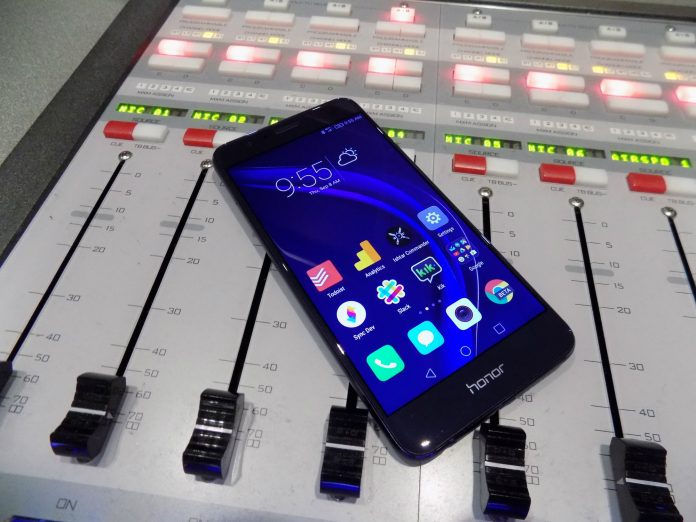
2016 will be known as the year of the budget flagship device with the release of the ZTE Axon 7, OnePlus 3, and the Huawei Honor 8. We recently got our hands on the Honor 8 and while our full review isn’t ready just yet, we do have some initial impressions to pass along.
Huawei is starting its push into the United States and the likes of LG and Sony should be worried. It has shown that it can be a true powerhouse in Asian markets and now Huawei taking what its learned there and bringing it to our shores. With build materials rivaling the Samsung Galaxy S7 and one of the most interesting takes on mobile software, the Honor 8 is unlike anything else on the market right now.
Everything down to the packaging was well thought out by Huawei. The phone slots into the box instead of sitting atop of the books, charger, and cable like every other device on the market. It’s these little things that show Huawei is focused on doing things differently. Not every change is for the better, but it is truly focused on making its own phone, a big departure from the Google-guided Nexus 6P of last year.
Build
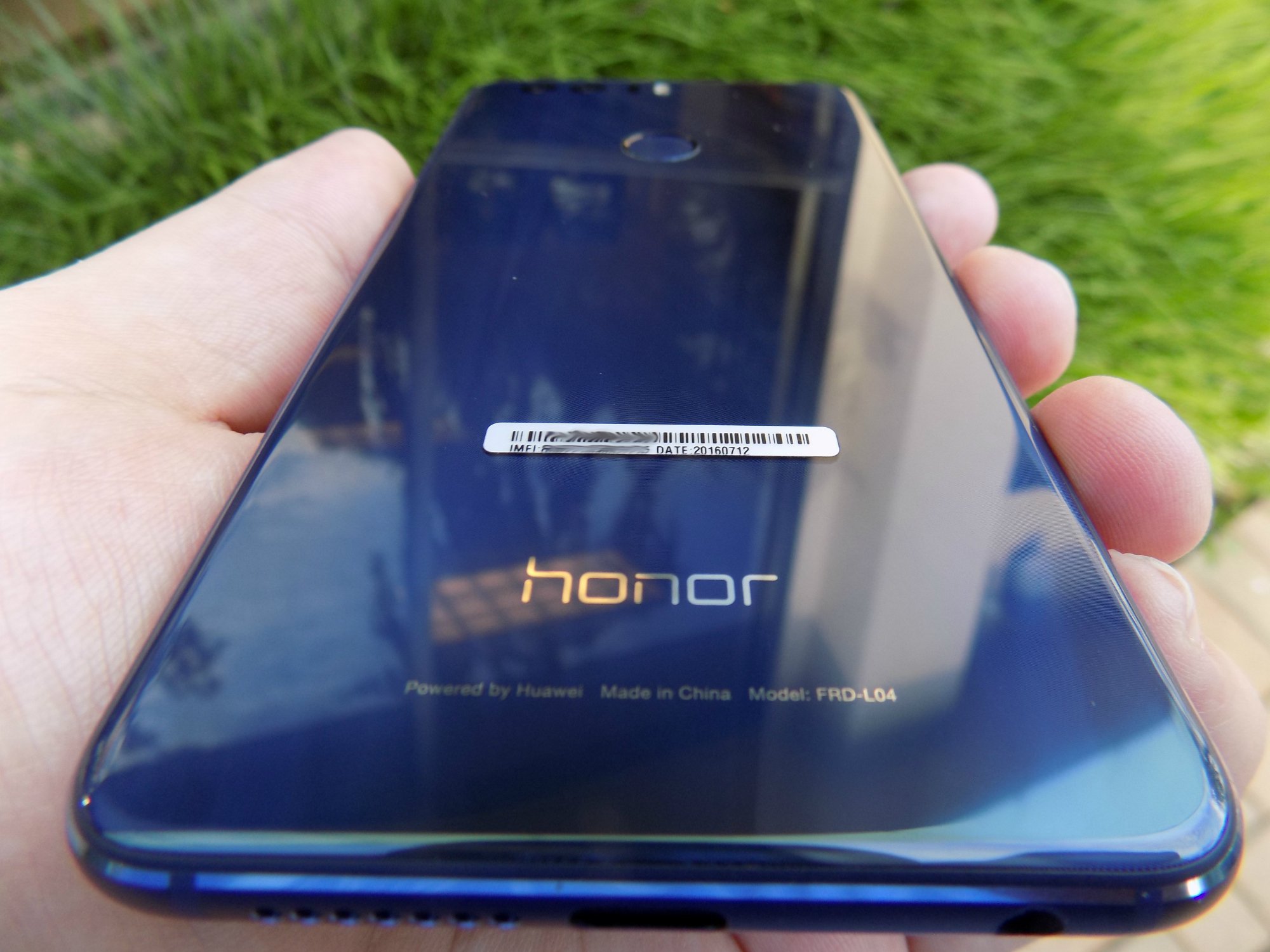
Wow. I knew that the build quality and materials on the Honor 8 were supposed to be good, but I can honestly say that I’m blown away. The Honor 8 falls just short of the Samsung Galaxy S7 in terms of build quality. But, It’s pretty close. The phone definitely channels the S7 with its glass and metal build, while keeping a more rounded edge. Those who handled the phone in our short time with it mentioned how much the sides looked and felt like an iPhone.
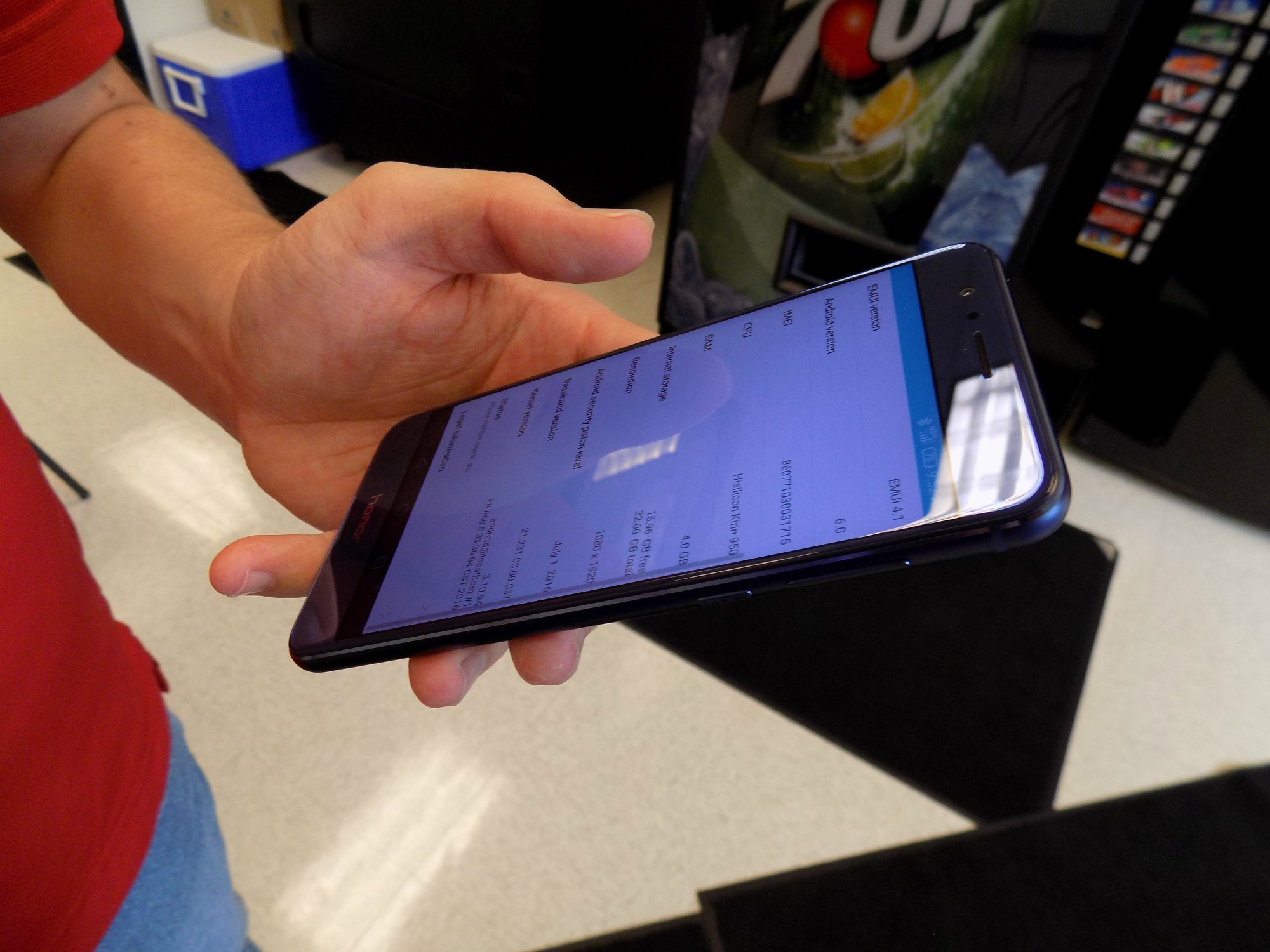
The Honor 8 may not feel as dense or solid as the S7 but it does weigh the almost the exact same, 153 oz for the Honor 8 and 152 oz for the S7. Both phones are also remarkably close in size. The Honor 8 is a few millimeters taller and wider and a half a millimeter thinner. After using a Nexus 6P for a few days, I was blown away how light the Honor 8 felt the first time I picked it up.
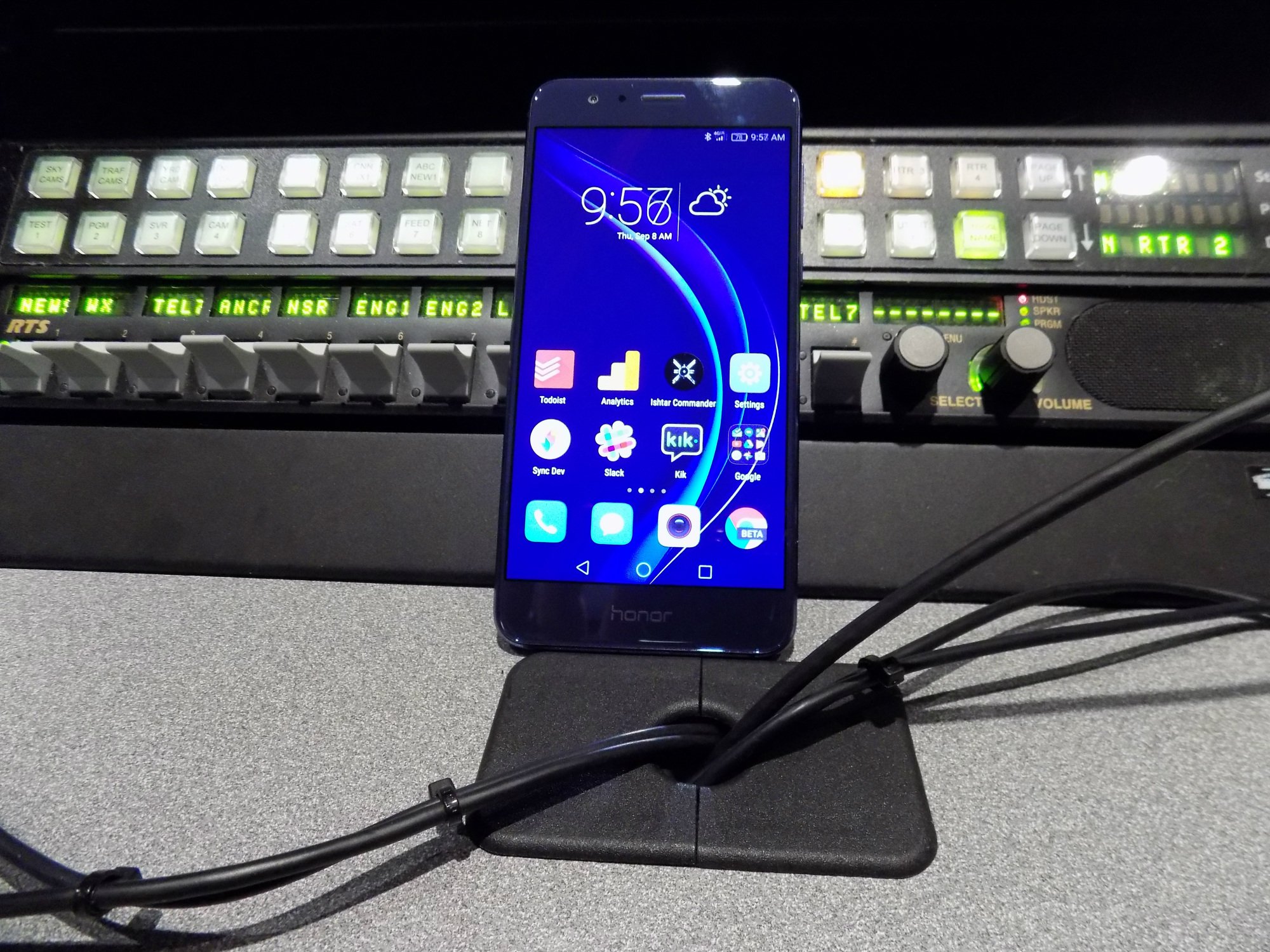
The bezels are slim and the power and volume buttons are clicky. These are two things that can truly ruin the experience with a phone and Huawei did well here. The bottom chin isn’t massive and the top of the phone is just big enough to hold the speaker and sensors. Overall I’d say it’s a pretty compact device that can easily be used in one hand.
Even though the Honor 8 looks excellent and feels great in the hand, I do wonder about how well it will hold up to scratches and falls. Phones like this tend to be fragile and I can tell my behavior changes when I’m using them as a daily driver. Added onto the suspected fragility of the device is how slippery it is. It reminds me a lot of the Samsung Galaxy S6 which is notorious for sliding off level surfaces. You won’t be able to just let this sit on your leg or a pillow because it will slide off as I found out in my first 24 hours with the phone.
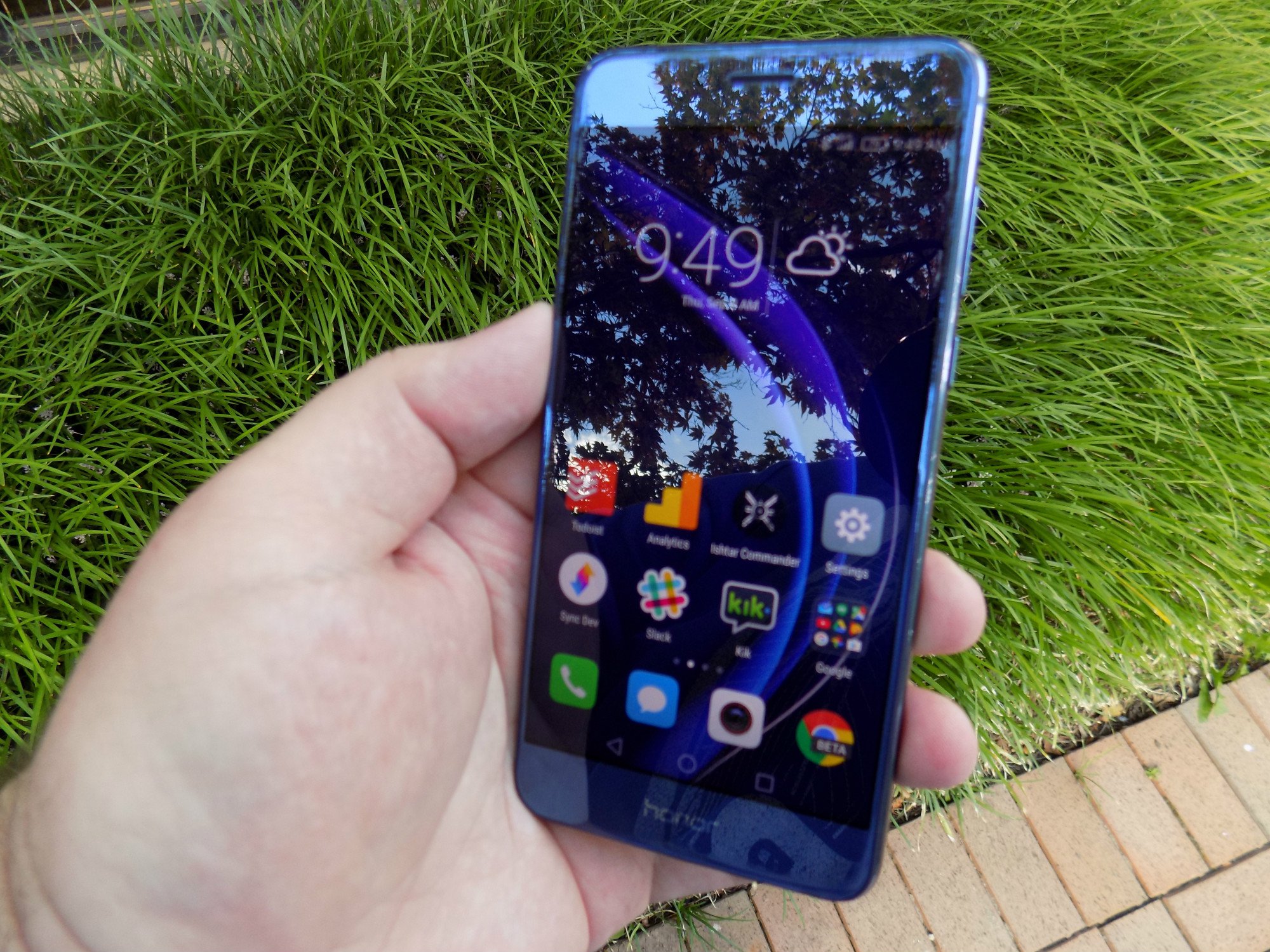
If you’re one of the many people out there that feel Samsung ruins its devices by putting its branding on the front of the phone, you may feel the need to pass on the Honor 8. The Honor name is printed on the bottom chin of the phone and interestingly enough, the exact same logo is in the exact same place on the back of the phone. I know why Huawei is doing this, but it doesn’t look great and I wish they would’ve just stuck to the branding on the rear of the phone.
I find it ridiculous that this is even an issue but yes, there is a 3.5mm jack for your wired headphones.
Software
After only a small amount of time playing with the Honor 8, I feel like I could write entire books about software customizations that Huawei made atop of Android 6.0. The Honor 8 runs EMUI, or Emotion UI 4.1. If you want Android customization with all of the charms of iOS (no app drawer!) then EMUI might be for you.
To be honest, I’ve found myself a little bored with Stock Android as of late so EMUI is a nice change of pace. EMUI touches every part of the OS much like LG’s skin but goes even further with its customization. You will not find settings and options where you normally would in Stock Android. Sometimes that’s for the better, sometimes not.
The notification shade is redesigned to have two panes, one for notification and one for shortcuts that you get to with a swipe to the right. The shortcuts are what you would expect to find nested in the Stock Android notification shade, WifI, Bluetooth, Auto-rotate and the rest. One of the coolest things that Huawei did here, and it does extend to some other places like the messaging app, is give your notifications more of a timeline feel with times and an order to how your notifications show up. It may not be any different in practice to how stock 6.0 shows notifications, but it does make you feel more on top of your day when looked at in this view.

The lack of the app drawer does mean that apps are everywhere and there are plenty preloaded onto the Honor 8. The Tools folder has 9 preloaded apps for everything from the Weather app to the Mirror app. We’re also greeted by a Top Apps folder that has such crapware as Facebook, Twitter, Shazam, Booking.com, News Republic, Lyft, and a few Huawei apps. I know adding these apps in are money-makers for Huawei and if that’s what keeps the cost down, I’m alright with adding these in as long as they can be uninstalled- which these can.
We’ll delve deeper into the software here in our full review, but suffice to say, if you’re looking for something different, EMUI certainly offers a different experience.

So far, I’m impressed. There have been a few little hiccups like some struggles scrolling through long lists but that might be chalked up to the phone breaking in. I’m trying to keep in mind that this is a $400 phone but it feels like it’s punching above its weight. The build quality feels like a device twice the price and will challenge the best from Samsung, LG, Sony, and HTC.
We’re going to spend a few weeks with the Huawei Honor 8 so we can bring you a thorough review. Let us know what you think about the Huawei Honor 8. Is it something you’d consider? Does the software disqualify it for you? Let us know down in the comments.
Amazon’s Alexa may soon butt into your conversations
Amazon’s Alexa may soon be interrupting your conversations with traffic notifications and other important announcements, if you want her to.
Amazon is eyeing spoken push notifications for the Amazon Echo, and it could either be a really great or a really terrible thing depending on how the service is set up. For instance, if Alexa could offer notifications customized by time, place and type, it could perhaps let you know if the email you’ve been waiting for about that event coming up has arrived. It could alert you to terrible traffic conditions in relation to appointments you need to make.
That’s looking on the bright side, however, as Alexa’s spoken notifications could quickly bug users, even though it’s an interesting suggestion for a feature. It would need a large set of customizational tools and permissions to work as flawlessly as it should in theory, but perhaps Amazon could figure it out.
Amazon hasn’t yet offered any comment on the situation, but on a personal front it wouldn’t be too obnoxious to have Alexa cutting in if her interjections are important. There’s always an “off” button, after all.
Here’s what the new S Pen can do on the Galaxy Note 7

Learn what you can do with the S Pen and the Galaxy Note 7
Samsung’s flagship releases for 2016, the Galaxy S7 and Galaxy Note 7, are arguably the top-class smartphones of the year. While there are a number of similarities in terms of design and features between the two phones, the most marked difference is the Note 7’s S Pen, which adds a host of awesome features.
From tools to keep you productive and organized to instant translations and animated gifs, the S Pen will be at the center of your experience with the Note 7 if you embrace it. Here are the core features that use the S Pen and how they work.
Take notes with Always-On Display

If you’ve got Always-On Display enabled, you can start using your S Pen without even unlocking your Note 7. Simply pop out the S Pen and the Always-On Display switches to a white-on-black notepad that lets you scribble and scrawl a note or sketch in seconds. Once you’ve finished your note it will be automatically saved to the Notes app.
Air Command

Air Command is the hub of your S Pen experience. Every time you take out the S Pen when the screen is unlocked, Air Command will automatically pop up with a menu of available options.
If you’ve already got your S Pen in hand, you can quickly access the Air Command menu by either tap the floating Air Command icon, or with a quick press of the side button on the S Pen while hovering the pen tip over the screen.
The Air Command menu lets you access all the special functions available for the S Pen. Let’s take a closer look.
Create Note
Jotting down notes with the S Pen has been the cornerstone for the Galaxy Note line since day one. With the Galaxy Note 7, Samsung has introduced Samsung Notes, the new app that is home to everything you do with the S Pen. When you select Create Note from the Air Command menu, you get sent to the default notepad, where you can quickly jot down your note with the pen.
If you’d prefer to type with the on-screen keyboard, simply tap the Text icon at the top with the S Pen. You’ll get rich text options such as numbered and bulleted lists, checklists, and the options to toggle bold, italics, underline, and text color.


If you’ve got an idea to sketch out, tap the Brush icon to bring up a sketch pad with seven drawing tools and a color wheel. For each drawing tool, you’re able to change the size and opacity of the stroke, which gives you total control over your sketches. If you’re particularly proud of your handiwork, Samsung has included integration with the artistic social media platform PEN.UP. Simply tap the icon in the bottom-right corner and send your sketch off to the world.
There are also Image and Voice icons that let you add extra multimedia touches to add to your note.
Smart Select

Smart Select lets you quickly isolate a portion of your screen and save it for later, or share it immediately via MMS, email, or your preferred social media platform. You can also Screen Select an image or website and then extract any and all text from it. It must be a uniform font — no matter how neat the writing, hand-written text can’t be extracted.
But what really separates Smart Select on the Galaxy Note 7 from previous editions is the ability to turn any video playing on your screen into an animated GIF. To create an animated GIF, simply go to your recorded video, or a video on YouTube and find the part you want to convert. Tap the Screen Select icon with your S Pen from the Air Command menu, then tap the Animated GIF icon in the top-right of the screen. This brings up a crop box showing the portion of the screen that will be recorded. Use the white outline to drag the crop box to where you want, then drag the corners to adjust the size and shape of the gif as you see fit. You also have an option of recording in high quality or standard quality (if you’re planning to send it to a friend via text, you’ll probably want to go with standard).
Once you’ve got your crop box set, simply tap play on the video then tap the record button. You can record up to 15 seconds as an animated gif, or tap Stop when you want to end it. From there, you’re able to draw over the GIF with the S Pen to add a caption and edit it however you please. Once you’re satisfied with the GIF, tap Save. It’s a pretty convenient feature.
If you’re reviewing your GIFs in the Gallery later and realize you recorded for too long (say, you accidentally recorded the play button when you started the video), you can edit the animation’s duration, change the aspect ratio, increase the gif speed, and add decorations like another image, Snapchat-esque stickers or labels — in addition to drawing using the S Pen.
Screen Write
Annotating an image or screenshot has never been easier. Simply launch the Air Command menu and tap screenwrite and your phone will take a screenshot of whatever you’re looking at.
From there, you simply use the S Pen to annotate the screenshot with whatever you want to add. Tap the Pen icon at the top to reveal all the pen tools and color options available. If you’re looking at a longer article that won’t fit on the screen, you can use Scroll Capture to create a longer screengrab. You’re also able to crop, save and share your annotated screenshots all from the same screen.


Translate
Whether you’re travelling in a new country, or simply trying to read something in a foreign language, the Translate tool is a super convenient (though occasionally buggy) S Pen trick.
Grab the S Pen and tap Translate from the Air Command menu to launch the translate menu, which will float at the top of the screen and allow you to navigate around the web or through files on your phone. If you come across a word in a different language, simply choose the language, then hover the S Pen over the desired word.
The S Pen tracking dot will turn into a focus frame as it reads the word. A spinning green circle indicates it’s translating, and in just a second or two the translated word pops up. You’re only able to translate things one word at a time, so it may take some time to translate a large block of text, and sometimes the targeted word is not properly read by the phone, leading to some funky mistranslated words.
Those shortcomings aside, you’re able to translate to and from 37 different languages — mostly European. Korean, Chinese and Japanese are surprisingly absent, which is unfortunate, as the feature is only currently able to translate Latin-based languages.
Add Shortcuts
Because Air Command is so easy to get to, you may want to add your favorite apps so they’ll be instantly accessible as soon as you take out your S Pen. By default, there are four S Pen features in the Air Command menu, with a fifth option to add a shortcut.
Simply tap the “+” icon to browse through all the apps installed on your phone. There seems to be no limits to which app you can add to the Air Command menu, so you can set something for productivity or for fun. You’re able to add two shortcuts for a total of six Air Command launch icons. It’s entirely your call which apps you choose, and it’s also quick to swap apps out — just tap the Air Command settings icon in the bottom left corner.
In the Add Shortcuts menu, you’ll also see the other two Air Command features that aren’t set by default but might come in handy — Magnify and Glance.


Magnify
If you want an easy way to expand smaller text on your screen, but don’t like the idea of enlarging all the text on your phone, the Magnify option is the perfect alternative.
When added to the Air Command menu, it takes just a second to pop up a magnified window that expands text and images wherever you hover the S Pen over the screen. You’re still able to fully navigate around your phone with Magnify turned on, and you’re also able to change the magnification level quickly — from 150% up to 300% magnification.

Glance
Glance is the perfect tool for multitasking — it allows you to keep an app running in the bottom right corner of the screen and lets you quickly glance back at it simply by hovering the S Pen over the minimized window.
With the glance window expanded, you’re able to browse through the app — whether it’s looking at a news article or scanning through your emails. Then take the S Pen away from the screen and the app minimizes back down to the glance window in the corner.
This features is perfect if you’re transferring information from one app to another or otherwise need to bounce between two apps and don’t want to use the multi-window option. It’s a convenient feature that’s exclusively available to the Note 7 thanks to the power of the S Pen.
Note 7 owners, how are you using the S Pen? Let us know down in the comments!
BlackBerry brings whole productivity app suite to more Android phones
Last month, BlackBerry announced they would be bringing their Android apps such as the BlackBerry Hub, Calendar, and Password Keeper to even more Android users through a new subscription offering called Hub+.

Now, they have announced an expansion of that access adding even more of the productivity apps to the mix.
To understand how software is an integral part of BlackBerry’s DNA, look no further than the BlackBerry Hub and its associated productivity apps, which have consistently rated as one of the most popular features of both BlackBerry 10 and Priv. Software like the Hub is at the core of the quintessential BlackBerry experience, and is consistently rated as THE way to get more things done by enterprise users in every industry. Last month, we decided to bring that productivity to other platforms, extending Hub, Calendar, and Password Keeper to one billion people on Android through Hub+, a new subscription service.
We initially launched Hub+ as a free trial on Android Marshmallow, with only the Hub, Calendar, and Password Keeper available. Today, we are happy to announce the remainder of our productivity suite (Contacts, Tasks, Device Search, Notes, and Launcher) is now available to Android users for a free 30-day trial period and for just 99 cents a month.*
The BlackBerry Hub, Calendar, Password Keeper, and Launcher will continue to be available as part of a free, ad-supported offering.
Even better, we’ve officially expanded Hub+ access to smartphones running Android 5.0 Lollipop and lower-resolution smartphones running Android 6.0 Marshmallow! To ensure no technical issues for users, our initial list of Hub+-capable smartphones was limited by screen resolution, but that’s changed. As of today, more than 3,000 smartphone versions can run Hub+, and that number keeps growing. Note: Hub+ requires 2GB of RAM or more, and does not currently support tablets.
As BlackBerry rightfully notes, this opens the doors to a lot more Android users being able to access the fantastic apps that BlackBerry has to offer. To try out BlackBerry Hub+, go to the Google Play Store on your smartphone and search for BlackBerry Hub, then download the BlackBerry Hub+ Services app onto your phone. Once installed, you can click the Hub+ Services icon on your home screen, and tap “Apps by BlackBerry” to install the apps you wish to use.
More: BlackBerry DTEK50 review

