



Motorola refreshes Moto E with LTE connectivity and bigger display

Motorola’s latest unlocked smartphone delivers 4G LTE connectivity for $150
Motorola on Wednesday introduced a slightly larger take on its Moto E smartphone. What’s more, the new version also includes 4G LTE connectivity.
The second-generation Moto E features a 4.5-inch qHD (540×960) display, a 5-megapixel rear camera, and 8GB internal storage. Powered by Android 5.0 Lollipop, other details include a Qualcomm Snapdragon processor, a front-facing VGA camera, and 2390mAh battery.
In terms of software features, the Moto E include Moto Display, Moto Migrate, and Quick Capture (camera). Other than that, it’s pretty much a stock Android experience, which is what you actually want deep down inside – even if you don’t know it.
As for customization, the new model comes in black or white and can be paired with one of six Motorola Bands. Offered in colors such as raspberry or turquoise, they dress up the device. Additionally, Motorola is offering a Grip Shell accessory which helps protect the handset from spills, scratches, and scrapes.
The new Moto E goes on sale starting from today in more than 50 countries, including North America, Latin America, Europe, and Asia. In the United States we’ll have two unlocked options: a $120 3G model and a $150 4G LTE model.
The post Motorola refreshes Moto E with LTE connectivity and bigger display appeared first on AndroidGuys.
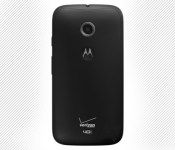
Image of Motorola Moto E (2015) for Verizon leaks

The mystery announcement from Motorola on February 25 could be the Moto E (2015). Today, an alleged image of the Moto E (2015) for Verizon leaked. The device, which initially surfaced in January, looks awfully similar to last year’s model. And here we just have that same device with Big Red’s logo stamped at the bottom of the rear.
The following are the specs listed by Best Buy earlier this month:
- 4.5-inch display (960×540)
- Quad-core processor clocked at 1.2GHz with 1GB of RAM (from Qualcomm)
- 5MP rear camera / VGA front camera
- 8GB internal storage with microSD card slot for an additional 32GB
- Android 5.0 Lollipop
Source: Android Police
Come comment on this article: Image of Motorola Moto E (2015) for Verizon leaks
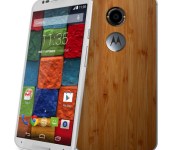
Moto X Soak Test Invites Released to Verizon and AT&T Customers

If you currently own a Moto X 2nd Gen, you may be eligible for a soak test for the new Android update! Just in case you’ve been living under a rock, Lollipop is the latest Android version, and if you’re the adventurous type, it may be coming to you Moto X. All you need to do to participate in the soak test is join the Motorola Feedback Network and promise to not disclose information about the software being tested.
Soak Tests tend to be risky, due to their preliminary nature. There is always a chance that your phone may become bricked or nonfunctional, or just be buggy. However, if that doesn’t defer your pioneer spirit, head over to Motorola’s website and sign yourself up, and as long as you’re on Verizon or AT&T, you can expect to get a notification and a new OS to test.
The Moto G 2nd Gen will be seeing a soak test soon as well, but due to the older chip in the Moto X 1st Gen, it won’t be receiving a test for a while.
Source: Phone Arena
Come comment on this article: Moto X Soak Test Invites Released to Verizon and AT&T Customers

Motorola has mystery announcement scheduled for February 25th

Motorola is sharing plans to make an “exciting announcement” next week on February 25th. No details have been provided, although Motorola has indicated that they will be shipping out some boxes that will include everything recipients will need related to the announcement. Of course, they do not indicate what size the box will be, so there is no telling what could be inside.
Anyone want to take a guess as to what Motorola may be announcing?
Come comment on this article: Motorola has mystery announcement scheduled for February 25th
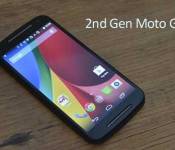
Motorola starts pushing out Lollipop update to second-generation Moto G’s in the UK

Motorola is now pushing out the Lollipop update to all unlocked models of the second-generation Moto G currently located in the United Kingdom. This upgrade carries the latest version of the Android operating system, together with a multitude of new features, bug fixes and stability improvements to your handset.
The full changelog can be seen below:
- Android 5.0 Lollipop update
- Lock screen and Notification: New Lollipop UI style with enhanced privacy features
- Recent apps: Support multiple pages
- Addition of search function within settings
To start the upgrade, make sure you’re connected to a Wi-Fi network. Then, from the home screen, press the Menu key, followed by Settings. Scroll to the bottom and tap ‘About Device’, followed by ‘Software Update and ‘Update Now’.
Come comment on this article: Motorola starts pushing out Lollipop update to second-generation Moto G’s in the UK
Motorola teasing an “Exciting Announcement” for Feb 25th, sending out mystery press boxes too
I am sure many of you are aware that Mobile World Congress, MWC, is less than two weeks away in Barcelona Spain. The annual event is geared specifically towards the mobile aspect of technology and we know HTC and Samsung will definitely be making their next flagship devices known. It will be a very exciting […]
The post Motorola teasing an “Exciting Announcement” for Feb 25th, sending out mystery press boxes too appeared first on AndroidSPIN.
Nexus 6 Tips and Tricks!
brightcove.createExperiences();
Ever since Google’s Nexus 6 was announced last year, it’s become one of the most polarizing smartphones ever to be released. In the past, Nexus smartphones have been modest and (mostly) affordable, but the Motorola-made Nexus 6 takes a different stance. It’s big, powerful, and features one of the best Android experiences on the market today.
Looking past its flaws, the sleek design, crisp screen and the promise of timely updates make the Nexus 6 a great purchase. If you’re a recent adopter of the handset, we’ll help you get the most out of your shiny new device. Today, we’ll be taking a quick look at some of our top tips and tricks for the Nexus 6!
Note: A common theme with these tips and tricks is that they may not be specific just to the Nexus 6, with a lot of the new features related to Android 5.0 Lollipop, and will depend on the hardware capabilities of your device.
Tip #1 – It will work on practically any network in the US

The Nexus 6 comes unlocked directly from Google. While that may a standard for Nexus devices, this one in particular can work on most US mobile carriers. There are only two different SKUs for the Nexus 6: one for North America only and one for the rest of the world. If you managed to pick up the North American model, you’ll get support for GSM bands 850, 900, 1800 and 1900, CDMA bands 0, 1 and 10, WCDMA bands 1, 2, 4, 5 and 8, and support for practically all LTE bands.
This basically means that you can grab an unlocked Nexus 6 straight from Google and pop in a Verizon SIM card (or basically any other mobile carrier’s SIM card) and get full network support right away. And theoretically, if you snagged a device from Verizon and managed to get it unlocked, you could take the device to another carrier and active it, if the carrier permits. One thing to remember, though, is that the Nexus 6 has the capability to move from carrier-to-carrier, but it’s ultimately the carrier’s decision whether or not to allow that.
Tip #2 – Data consumption

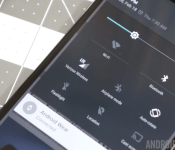
When using a multimedia-centric smartphone with 4G LTE capabilities everyday, it’s very easy to reach your data cap very quickly. The Nexus 6 has a convenient way to easily keep track of data usage. First, head to your notification shade, then pull down once more to get to Quick Settings. Next, tap the Mobile Networks setting icon. It will immediately show you a quick overview of your data consumption. From there, you can access your data settings, set a data limit, and even check out which apps are using the most data.
Tip #3 – Save battery by turning off Ambient Display

The 3,220mAh cell in the Nexus 6 may be larger than your standard smartphone’s battery, but it’s also powering a giant, 5.96-inch display. Despite the proclaimed one-day battery life, many users still struggle to last an entire day on a single charge. Fortunately, there are some ways to combat that problem. One way is by turning off the Ambient Display mode which pulses a dimmed screen as notifications come in, not unlike Motorola’s own Moto Display feature. Personally, I find the Ambient Display feature to be really helpful, but if you turn it off, Google claims your phone will get an extra 80 hours of standby time.
If you’d like to save a considerable amount of battery life on your Nexus 6, you may want to consider turning off this feature.
Tip #4 – Turbo charger

If you’re not one to turn off awesome features to get more stamina out of your device, you might want to keep the charger that comes with the Nexus 6 handy. It’s a Turbo Charger, which is said to get you another six hours of use out of a 15-minute charge. It supplies a whopping 15W and can give you the added boost you need to make it through the day.
The Turbo Charger is definitely worth keeping around, and if you have an extra $35 lying around, it may be worth it to pick up a second one.
Tip #5 – Wireless charging

The Nexus 6 has Qi wireless charging capabilities, though that feature was omitted on its original spec sheet. Despite the omission, it is in fact on the device, and offers an easy way to get a supplementary charge while you’re at a desk or bedside table.
Tip #6 – Water resistance

Another feature not originally listed on the spec sheet is the fact that the Nexus 6 is water resistant. Like the Moto X, it features a nano coating that doesn’t necessarily come with an ingress protection rating, but it is at least somewhat protected against the elements.
Tip #7 – Shoot 4K video

The 13MP rear-facing camera not only means you can take high-resolution images, but also high-resolution video. While it’s not enabled by default, you can enable it by launching the Camera, the choosing Settings>Resolution and quality>Back camera video>UHD 4K.
Tip #8 – Downtime settings

Lollipop’s new notification and sound settings might take some getting used to, but they do come with a really helpful feature called Downtime. It’s basically a ‘Do Not Disturb’ mode that you can put on a set schedule. To set this up, head to Settings>Sound and notification>Interruptions, then head to the bottom of the screen. Here you can schedule Downtime by selecting the days of the week and start and end times.
Tip #9 – Hidden LED notification light

Another lesser-known fact about the Nexus 6? It actually comes with a notification LED. It’s hidden beneath the top earpiece speaker, and is unfortunately turned off by default. But with a little elbow grease and determination, you can get it working. You’ll need to gain root access, then download Light Flow from the Google Play Store. Head to this page for more information on how to go through the steps.
Tip #10 – Numbers row in Google Keyboard

Since the Nexus 6 has such a large display, it makes sense to employ a different keyboard to use some of that extra room. Of course, you can always download a third-party keyboard from Google Play, but there’s also a larger layout built directly into the Google Keyboard.
Long-press the comma key to jump into the keyboard settings, head to ‘Appearance and layouts’, choose ‘Custom input styles’, and add another keyboard. Select ‘PC’ as the keyboard layout, then enable it in the Language settings. The next time your keyboard pops up, tap the globe icon and you will have a keyboard with a dedicated number row. If you aren’t fond of the new number row, switching back to your old keyboard is as simple as pressing the globe key again.
See also:
- Nexus 6 review
- Nexus 6 unboxing and first impressions
- Nexus 6: Camera shootout
- 6 common problems with the Nexus 6 and how to fix them
- Nexus 6 vs iPhone 6 Plus
- Nexus 6 vs Samsung Galaxy Note 4
So, there you have it, some useful tips and tricks to help you get the best experience on your Nexus 6! If there is anything we missed in this video, feel free to let us know in the comment section below!

Flipkart to sell the Motorola Moto Maxx (aka DROID Turbo) in India

Consumers living in India that are in the market for a new smartphone should keep an eye on what Flipkart has coming soon. The online retailer posted the teaser image above, showing that an unspecified Motorola device is nearing a release. Based on the use of the word “turbocharged” and the description below it, we believe that the DROID Turbo is what Flipkart is promoting. It will not be sold as the DROID Turbo in India as that name is utilized only in the United states. Motorola will instead market the handset as the Moto Maxx.
There’s a Moto beast coming your way… exclusively on Flipkart. Stay tuned for more details. #MotoOnFlipkart pic.twitter.com/9FHIoJOEZH
— Flipkart (@Flipkart) February 19, 2015
Source: @Flipkart (Twitter)
Via: Fone Arena
Come comment on this article: Flipkart to sell the Motorola Moto Maxx (aka DROID Turbo) in India

Android Wear 5.0.2 update now being sent out to the Samsung Gear Live and the LG G Watch R

Manufacturers are said to be rolling out the Android Wear 5.0.2 update to a series of smartwatches today. As of now, users of the the LG G Watch R as well as the Samsung Gear Live are reportedly seeing the update notifications on their devices.
The Moto 360 started receiving the update yesterday, so we expect the likes of the ASUS ZenWatch, Sony SmartWatch 3 and the LG G Watch to get the update subsequently.
Android 5.0.2 mostly introduces bug fixes, so don’t expect any visual changes post the update. The update modifies Google Play Services along with bringing performance enhancements to the devices.
It will arrive over the air (OTA) and will require your wearable to have at least 80% of battery before proceeding. Are you seeing the update on your LG G Watch R or the Samsung Gear Live yet? Let us know below.
Via: Phone Arena
Come comment on this article: Android Wear 5.0.2 update now being sent out to the Samsung Gear Live and the LG G Watch R
Moto-a-gogo: the beefy Moto Maxx will launch in India

While nothing is yet official, the Droid MAXX is quickly moving into focus.
In the past few weeks, Motorola has been making some impressive headlines. There’s the decision to release the Nexus 6 in China as the Moto X Pro, CEO Rick Osterloh’s recent Twitter defensive against Apple’s Jony Ive, and now another piece of news: the formerly Verizon-only Droid Turbo smartphone may be set for imminent release in India under the name Moto Maxx.
As per a recent tweet, Indian shopping site Flipkart teased a new “turbocharged” Motorola device, complete with Ballistic Nylon, a hallmark of the Droid Turbo:
There's a Moto beast coming your way… exclusively on Flipkart. Stay tuned for more details. #MotoOnFlipkart pic.twitter.com/9FHIoJOEZH
— Flipkart (@Flipkart) February 19, 2015
The Droid Turbo was one of the three flagship devices Motorola released last year, alongside the Moto X (2014 Edition) and the Nexus 6. It was released internationally under the name “Moto Maxx” and featured a 5.2 inch 2560X1440 AMOLED display, Snapdragon 805 CPU, 64GB of on-board storage, 3GB of RAM, and an impressive 20.7 megapixel rear camera and 3900 mAh battery, not to mention the premium materials used in its construction, one option being the aforementioned ballistic nylon.
Motorola will inevitably be spilling the official beans in the near future, but for now all those readers located in India who are interested in familiarizing themselves with the potential progenitor of the Maxx should make sure to look at our Turbo coverage:
brightcove.createExperiences();
Interested?
 AIVAnet