


Microsoft changes privacy policy to ban accessing users’ email

Several days ago, it was revealed that Microsoft once accessed a blogger’s email account without permission to uncover an employee who leaked source code. MS initially defended its actions, saying it was the quickest way to respond to a case of illegally distributed information, but it’s now responding with a policy change. In a blog post published today, the company’s General Counsel Brad Smith says that this will never happen again. He explains how the company will handle similar issues going forward:
Effective immediately, if we receive information indicating that someone is using our services to traffic in stolen intellectual or physical property from Microsoft, we will not inspect a customer’s private content ourselves. Instead, we will refer the matter to law enforcement if further action is required.
In short, the company will rely on formal legal processes should any leak situation happen in the future. It’s no doubt a good sign of progress, and Microsoft is also partnering with the Electronic Frontier Foundation and The Center for Democracy and Technology to further discuss consumer privacy issues.
Filed under: Internet, Microsoft
Via: TechCrunch
Source: Microsoft on the Issues

New Kinect for Windows drops the Xbox One logo, adds a power cable

Last year, Microsoft said that the next-gen version of Kinect was coming to Windows, but has been relatively quiet since. That changes now, as Redmond has lifted the curtain on the new sensor and it looks… a lot like the Xbox One version. The unit is missing the Xbox logo power-indicator of its console-tethered counterpart, but as the Kinect for Windows Blog points out, that’s about all that’s different between the two. The software giant also says this reveal is a sign that we’re getting “closer and closer” to launch, but didn’t give any other release details. For the nitty gritty specs about power supplies and voltage ratings, check the source.
Filed under: Gaming, Home Entertainment, HD, Microsoft
Source: Kinect for Windows Blog
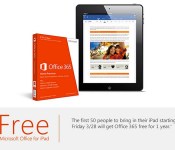
Want a free year of Office 365? Bring your iPad to a Microsoft Store

If you’re enamored with Office for iPad but don’t want to fork over $70-plus per year for the necessary Office 365 subscription, you’ll want to make a beeline to your local Microsoft Store this weekend. Microsoft has launched a promo that will offer a free year of Office 365 to the first 50 people who bring an iPad to a given retail location from March 28th through March 30th. You’ll undoubtedly have to hustle if you want to take advantage of the deal, but the trek could be worthwhile if you like the idea of giving Office an extra-long trial run.
Filed under: Tablets, Internet, Software, Microsoft
Via: ZDNet
Source: Microsoft (Facebook)

Office Mobile is now completely free to use on Android and iPhone

Today’s Office news isn’t all about the iPad. Microsoft now lets you use Office Mobile completely for free on both Android and the iPhone; if you’re a home customer, you can both edit and read documents without paying for an Office 365 subscription. The gratis apps are ultimately meant to encourage use of the desktop and iPad clients, where you do need to pay for full access. Even so, it’s hard to object to having another free tool for tweaking company reports while on the move.
Filed under: Cellphones, Mobile, Microsoft
Via: Android Central, Office Mobility Blog
Source: Google Play

With iPad app, Microsoft begins to move out of the office

Microsoft finally announced a version of its Office productivity suite for the iPad today, and it’s a solid, functional set of apps. As we say in our review, “Office for iPad is elegantly designed, with a robust feature set and intuitive layout.” And it’s free, as long as you’re only interested in reading or viewing docs, that is. Want to edit that spreadsheet, or create your own PowerPoint deck? You’ll need an Office 365 subscription, starting at about $10 a month. That may seem steep compared to the price of some other iPad productivity apps, like Apple’s iWork suite, which is free for some iPad users. But that price includes the full desktop versions of the Office suite, which you can install on up to five computers.
Desktop versions? Computers? Who still uses those things? That’s a question Microsoft has been grappling with for the past few years, and it’s one of the biggest challenges facing new CEO Satya Nadella, who made his first public appearance in his new role as part of today’s event. Office has long been one of Microsoft’s biggest sources of revenue; in the company’s 2013 fiscal year, business software brought in $25 billion. And Office is still used by as many as 90 percent of businesses, according to one recent study. But that doesn’t mean Microsoft isn’t worried about the future of its cash cow.
Office is, despite today’s launch, primarily a product designed to be used on traditional PCs. But PC shipments have been dropping for years, and 2013 saw the steepest plunge ever, with a decline of almost 10 percent. Mobile devices now outsell PCs, and other than the small number of tablets running Windows 8, they don’t support the full version of Microsoft Office. And cloud-based services like Google Apps appeal to users with multiple devices, who know they can access the latest version of their work anywhere, and effortlessly share it with anyone. That’s why today’s Microsoft event, despite being teased and leaked as the Office for iPad launch, was as much about Office 365 and enterprise cloud services as anything else.
Office 365, along with its online components and mobile apps like the new iPad version, is Microsoft’s attempt to hold onto the productivity software business even as the market around it is rapidly changing. Designed to appeal to corporate IT managers who might be tempted to switch to Google Apps, small businesses that want industrial-strength software without the overhead of a support team and consumers who can’t bear to give up those complex Excel macros, Office 365′s subscription plan is a good deal when compared with Office’s traditional pricing model, if you make full use of the entire Office suite on multiple desktop and mobile devices and upgrade to each new version on schedule.
However, for users who rely primarily on mobile devices, or computers like Chromebooks, which now account for 20 percent of laptop sales, Office 365 is a harder sell, and Office for iPad isn’t going to help there, at least not on its own. If you don’t use 365′s desktop components, there’s little incentive to pay for access to the online versions or Office for iPad, especially when other apps, which can read and write Office docs, are available for free. But that dynamic may change, especially as paying for premium versions of other cloud-based services becomes more common. Evernote estimates that as many as 25 percent of its customers convert to its premium service over time, and Google has managed to sign up 5 million businesses for the premium version of Google Apps.

Office 365 isn’t the only piece of Microsoft’s cloud strategy, and Nadella, who ran the company’s cloud business before ascending to the CEO role, spent as much time today talking about enterprise services and developer tools as he did about Office for iPad. But Office has long been the product, even more than Windows, that defined the company for millions of consumers and business customers around the world. Today’s launch shows that Microsoft is making an effort to address the new realities of a productivity software market being driven by mobile devices and cloud storage.
Analysts who follow Microsoft see Office 365 subscription revenues approaching $3 billion a year in the near future. That’s a far cry from Microsoft’s $25 billion business software revenue, and the company is now in the middle of a delicate balancing act, as it tries to transition to the new cloud- and mobile-based world, without cannibalizing its existing, and still highly lucrative, desktop business. The fact that Nadella is now in the driver’s seat seems to indicate that the company knows which direction to take. The only question is, can Nadella get there fast enough?
Microsoft sets Office Mobile free on Android
Microsoft has updated its Office application for Android and iOS making the productivity suite free for home users. Whereas it previously required a subscription to the Office 365 service it is now free for all. As one might expect, Office Mobile lets users create, edit, open, and save documents in Word, Excel, and PowerPoint format. Those on Business accounts still need to subscribe to Office 365 if they wish to access Office on their smartphones.
The post Microsoft sets Office Mobile free on Android appeared first on AndroidGuys.

Microsoft releases Office for iPad, subscription required for editing docs

Rumors have been circulating for years that Microsoft was working on a version of Office for the iPad, with speculation getting so intense at one point that the company went out of its way to categorically deny it. Still, once Microsoft released Office for iPhone, an iPad version seemed more plausible; indeed, credible sources said it would arrive in the first half of this year. Turns out, there was something to all that scuttlebutt: Microsoft today announced Office for iPad, a trio of apps that bring Word, PowerPoint and Excel to tablets. Those should be showing up in the App Store shortly — around 11AM Pacific (2PM Eastern), to be exact.
As with the iPhone version, these apps are free to download, and you can view documents/give presentations without a paid subscription. As ever, you’ll need to sign in with a OneDrive or SharePoint account to retrieve your documents, or else have your stuff stored on the iPad itself. However, if you ever want to edit a doc or create something from scratch, you’ll need an Office 365 subscription (you can even use Microsoft’s cheaper Office 365 Personal plan when it launches later this spring). If you like, you can also sign up for a 30-day trial at Office.com.
Once that expires, though, you’ll need to pony up, at which point Office for iPad will count toward a new five-tablet limit — not your five PC/Mac limit. As you may have gathered by now, this is all par for the course for Microsoft, though it’s worth pointing out that Apple offers its iWork suite for free on iOS devices purchased on or after September 1st, 2013. And it’s a fairly feature-rich suite, too.
What’s especially interesting about Office for iPad is that it’s not just a blown-up version of the iPhone version, which we pooh-poohed for offering a watered-down feature set. Here, Microsoft was careful to take advantage of the iPad’s extra screen real estate: whereas the iPhone version wouldn’t even let you add rows in the middle of a spreadsheet, the iPad edition includes advanced features like Sparklines and author blocking, which only power users might appreciate. Throughout, too, you’ll find an impressive array of formatting options, including custom text colors, dozens of PowerPoint transitions and a full suite of fonts. In PowerPoint, there’s also a presenter mode where you can write off-handed remarks in “white board mode” and use your finger as a laser pointer (though that last feature doesn’t seem that useful, at least not without AirPlay support). Excel, meanwhile, brings a custom numerical keyboard alongside the traditional QWERTY one. And of course, all the apps rock the ol’ Ribbon UI — it wouldn’t be an Office product without the Ribbon.
Update: Our review of Office for iPad is now live. Check it out!
Vote on our poll for Office for iPad is here. Would you use it?!

Office for iPad review: three beautiful apps, each with strong competition

After loads of leaks — and some serious denial from Microsoft — the company has finally released a version of Office for iPad. It’s not surprising, in a way, given that Microsoft already has Office Mobile for iPhone. And yet, this new trio of apps (Word, Excel and PowerPoint) isn’t at all what we expected. In fact, it’s a lot better. You see, rather than simply blow up the current iPhone app to iPad-sized proportions, the company started from scratch, and built a software suite that takes advantage of the iPad’s extra screen real estate. This means a lovely design that looks less like a mobile app, and more like a full version of Office. It also means more features — everything from custom text colors to a “whiteboard” that you can use to write off-the-cuff comments during presentations. But as ever, you’ll need an Office 365 subscription to edit or create documents with it, and meanwhile, there are plenty of free alternatives. That said, could it still be worth it?
Getting started

Though the product is called Office for iPad, it’s actually a trio of individual apps (Word, Excel and PowerPoint) listed separately in the App Store. As with Office Mobile for iPhone, each of these core programs is free to download, and you can use them in read-only mode without a paid subscription. If you wanna edit or create documents, though — and let’s face it: You definitely will — an Office 365 subscription is required. In particular, we’re told it will even work with Microsoft’s upcoming 365 Personal plan, which will cost $7 a month when it launches later this spring. And if you happen to be a student using Office 365 for University ($80 for four years), the monthly cost of ownership drops to just $1.67.
All told, this subscription model isn’t a problem if you already have an Office sub; in fact, your iPad download won’t even count toward the usual five-PC/Mac limit. Unfortunately, too, this is also one of the only mobile office suites that works with Microsoft OneDrive and SharePoint, so if that’s where you store your documents, you’re best off sticking with Office. That said, Apple offers its iWork suite for free, so long as you purchased your device on or after September 1st, 2013. And, it works with popular services like Google Drive, which Office doesn’t, so depending on what ecosystem you use, Office might immediately seem like a weak proposition.
General UI

All told, Office for iPad looks exactly as you’d expect. Which is to say, it features the same Ribbon UI as desktop Office apps, along with a few icons borrowed from Microsoft’s OneDrive service. Regardless of which Office app you’re using, a few things are universal: When you enter the app, you’ll see your Microsoft profile pic in the upper-left corner, with icons just below for creating a new document, opening a file or viewing only the recent ones. By default, you’ll open files from your OneDrive account, though you can search just through your iPad’s local storage as well. You can also add a storage location, but again, your only other options are another OneDrive account (personal or business) and a SharePoint site. No integration with other cloud storage services, sadly.
Once you open a document, whether it be a spreadsheet or a PowerPoint presentation, you’ll see a small file-shaped icon in the upper-left corner, where you can turn off AutoSave (not recommended), create a duplicate, restore a previous version or inspect the file properties (mainly useful if you want to see how much space it takes up). Nearby are self-explanatory undo and redo buttons. Meanwhile, over on the right, there’s a people-inspired icon for sharing. From here, you can email a file as a link or an attachment, or simply copy the link to your clipboard. Basically, any sharing options you already enjoy in Office Online you can use here too. Finally, in Word and Excel there’s a magnifying glass in the upper-right corner that’s for, well, you get the idea. What we’re trying to say is: The UI is simple. And that’s a good thing.
Oh and by the way, because the UI is so straightforward, with so many settings hidden inside the Ribbon menu, the whole thing scales well in both landscape and portrait mode. Even with a vertical orientation, that upper layer of menus and icons never looks busy. In fact, we rather enjoyed using Word in portrait mode, as the keyboard took up less vertical space. If you do find yourself switching, though, you’ll find the accelerometer and A7 chip inside the new iPads do a good job keeping up.
Word

Ah, this looks familiar. If you’ve been using Word, even just the online version, you should instantly feel at home here. Up top, as we said, is the Ribbon menu, where you’ll see options for Home, Insert, Layout, Review and View. Below that are all the super-common formatting options, including fonts, letter size, bold, italics, underlining, strikethrough, subscript, superscript, text effects, text color, background color, text alignment, line spacing, bullets, numbered lists and indentation.
Phew.
Let’s just back up for a minute and say that this is already more than you can do with the iPhone version. Even in cases where the iPhone app does offer a given feature, it’s usually less complete than what you see here. Whereas the iPhone variant only gives you a handful of text color options, for instance, the iPad app has a custom color gradient allowing you to pick from along a wide spectrum. Not too shabby.
Might we add, too, that in addition to being a more full-featured offering, it’s just an all-around easier user experience. With the extra screen real estate, you can actually see how big the font is; you don’t have to press up and down arrows and hope for the best. Comments appear along the right-hand side, just where you’d expect them, and it’s easy to tweak those simply by tapping the comments box.
Adding and adjusting photos is easy as well. Just go to Insert, then “Pictures” and grab a photo from your Camera Roll (that’s the only option right now, unfortunately). Once the photo is in, you can tap it to reveal anchor points in the corners and along the sides, which make it easy to resize the shot and drag it around. What’s nice, too, is that the text automatically wraps around the image — and it all happens smoothly thanks to that fast A7 chip. Really, our only complaint there is that you can’t source photos from other locations, not even OneDrive.
At this point, we think we’ve covered pretty much everything casual users will need to do. If you’re not a casual user, though — and many Engadget readers aren’t — we’ll tell you a bit more about what Word for iPad has to offer. For starters, you can insert tables, shapes, text boxes, footnotes and hyperlinks in addition to plain photos. You can also play with the header and footer, margins, page numbers and page size/orientation.
As for revision tools, you can turn spell check on or off, pull up an onscreen ruler, keep track of your word count, and use “Track Changes” for group editing. What’s more, there are individual icons allowing you to skip forward or backward through comments, and then either delete or respond to them. And if you’re what we’d call a control freak, you can use the “block authors” feature to make sure your co-editors aren’t able to touch certain sections of the text. Speaking of the sort, real-time co-editing works the same way here as it does in the Windows versions of Word and PowerPoint. Which is to say, you’ll see a note saying that someone else is the document, as well as a flag marking the specific portion of text they’re working on.
Excel

It’s a similar story with spreadsheets: Excel for iPad is far more robust than the iPhone version which, if you recall, doesn’t even let you add columns in the middle of spreadsheets. Here you can indeed add columns, as well as tables, pictures, shapes, text boxes and all manner of charts. Oh, the charts. Last time there were six choices; now you have loads of options, which take the form of column, line, pie, bar, area and scatter charts (each category has multiple variations to choose from). And, as with photos in Word, it’s easy not just to add them, but also to change their format on the fly; the A7 chip once again proves it’s fast enough to keep up. If you like, you can even include Sparklines, those micro-charts that take up just a single cell. Unfortunately, though, you can’t add any fancy pivot tables here. Let’s not get ahead of ourselves.
As you’d expect, the app also comes with a long list of various formulas you can use to crunch all your data. Sure, the iPhone version has this too, but the selection here is especially impressive. In addition to the all-important AutoSum button, you get financial, logical text, date/time and math/trigonometry formulas, with a special section for ones you’ve used recently. Just like you’d expect to with Excel, you can hit the “fx” button next to the search bar, at which point you can start typing the name of the formula you want, or find it on a long list. Really, though, the formulas section is organized such that you probably won’t have to type out the word “AVERAGE” anyway.
Speaking of number-crunching, Microsoft elected to tweak the classic iOS keyboard so that in Excel, at least, there’s both the traditional “ABC” option as well as a custom “123″ layout. Hit that one and you’ll see a large, finger-friendly dialpad, along with arrow keys and commonly used symbols, like the dollar sign. As for editing tools, you have a similar comments system as in the Word app, along with the ability to freeze panes and either show or hide the formula bar, sheet tabs, headings and grid lines.
PowerPoint

We’re not sure what it is about PowerPoint, but every time Microsoft releases an app for iOS, it’s the presentations piece that feels the most complete. Maybe that’s because creating a presentation from scratch on a mobile device seems unlikely, or maybe it’s because there really aren’t that many different kinds of edits you could make, besides shuffling slides, adding text and inserting transitions (bada bing, bada boom). Whatever it is, we’re pretty satisfied with the shape of the PowerPoint app here, even in its 1.0 state. Once you load up the app, you’ll see a list of slides along the left-hand side, which you can reorder by pressing and dragging the thumbnails. Most of the screen, of course, is taken up by whatever slide you happen to be working on, which you can magnify using a good ol’ pinch-to-zoom gesture.
As you can imagine, you can add text to slides, as well as insert tables, shapes and pictures (here, too, you’re limited to photos from your iPad’s Camera Roll). And can we talk about the transitions? (Please, let’s talk about the transitions.) For those of you who like having fun with fade-ins — and who doesn’t, really? — you’ve got plenty of options here. Thirty-eight, to be exact. If you like, too, you can apply the transition to all slides with the tap of a button.
Finally, what would a presentations app be without a slideshow mode? Here, as ever, you can play all the slides from the start, as well as your current position. (You can hide certain slides too, if it’s convenient.) You can also press and hold your finger to bring up a laser pointer, which will come in handy if you choose to push the presentation to a bigger screen using either AirPlay or some sort of dongle. Wrapping up, there’s a so-called whiteboard mode — a black screen you can use to scribble comments and diagrams. A neat trick for when you want to go on a tangent mid-presentation and don’t have any slides that match up with whatever it is you’re saying.
The competition

We’ve mentioned the iWork suite a few times already in this review. It’s not that it’s the only option; it’s just the most relevant one. Much like Office, Apple’s suite includes three separate apps: Pages for word docs; Numbers for spreadsheets; and Keynote for presentations. For lots of folks, they’ll all be free; you just have to have activated your iOS device on or after September 1st, 2013. For everyone else, they cost $10 a pop — not bad considering even the cheapest Office 365 subscription will cost $7 for a single month (less if you get Microsoft’s $70-a-year plan). Either way, it’s clear that buying the app outright is more cost-effective than paying a subscription fee month after month.
So what, then? This means iWork is automatically the better choice? Not so fast. For many people, iWork will indeed be a smarter choice, both because it’s free for newer iDevice owners, and because it works with a wider range of cloud services, including Google Drive. That said, one service it doesn’t work with is Microsoft’s OneDrive and Office 365, so if you’re already locked into those services, then Office for iPad is a no-brainer.
Otherwise, there are other iPad-friendly office suites out there, including Documents to Go ($10 and up), Quickoffice (free), Polaris ($13) and Kingsoft (free), just to name some of the more popular titles. Given that iWork is probably robust enough for most people, we wouldn’t suggest paying for an office suite at this point. That leaves a few free options, which we haven’t spent enough time with to either pan or heartily recommend. That being said, iWork is a safe option for iPad users who can get it for free, and who use a cloud service other than OneDrive.
Wrap-up

With few concrete details before today — other than the fact that this was coming — it was easy to imagine Office for iPad would be little more than a blown-up version of the existing iPhone app. That it is most certainly not. Microsoft took its time developing this software (years, perhaps), and the result is a suite that makes excellent use of the iPad’s extra screen real estate. The design here is beautiful, straightforward. What’s more, it masks a delightful selection of customization options, many of which you wouldn’t know were there at first glance.
For people (and businesses) who use OneDrive to store documents, this isn’t just your best choice — it might be your only choice. Fortunately, it’s a fine choice indeed, and you’re lucky that the user experience is so similar to the web and desktop Office apps you’re already using. It’s also a no-brainer for people who already have a 365 subscription; you’re already paying to run Office on five computers, so the iPad app is really just a nice freebie. But let’s be clear: Office for iPad is not for iPad users looking for a productivity suite; it’s for Office customers who happen to own an iPad. Until Microsoft’s apps are free for all, Apple will continue to have the home-court advantage on iOS devices, if only because its apps don’t cost anything. With so many free alternatives (all of which can open Office files), we’re not sure why someone would pay for Office if they weren’t already locked in with Microsoft.

Watch Satya Nadella’s first major appearance as Microsoft CEO live

Rumor has it, Microsoft is getting ready to take the wraps off of Office for iPad. Despite that move potentially signaling a shift away from a Windows-first software strategy, the iOS app won’t be the only star of the show. It’s going to have to share the limelight with yet another, largely untested asset: CEO Satya Nadella. Given his track record at the company and recent statements, we expect to hear plenty about mobile, the cloud and Microsoft as a devices and services company.
Chances are, he won’t come out sweating and screaming like his predecessor, but if you’re curious to see how Nadella stacks up or, you know, have a thing for Redmond’s productivity suite, you can watch it all play out here or at the source link below. And get ready for even more of Nadella and the Microsoft crew when they hit the mean streets of San Francisco for the Build developer conference next week.
Watch Satya Nadella Live @ 1PM ET
Filed under: Software, Mobile, Microsoft
Source: Microsoft

Dell and Microsoft sign mutually helpful Android licensing deal

Microsoft’s patent agreements with Android and Chrome OS device builders are usually one-sided: the manufacturers sign licensing deals, and Microsoft agrees not to sue them into oblivion. However, the crew in Redmond has just broken with that tradition by forging a cross-licensing pact with Dell. While Dell will still have to pay royalties whenever it sells Google-powered hardware, it’s also licensing patents to Microsoft for use in Xbox consoles. Just what the deal means for gamers (if anything) isn’t clear. It’s safe to presume, though, that Dell can continue to sell Android tablets and Chromebooks without fear of a legal firestorm.
Filed under: Cellphones, Tablets, Software, Microsoft, Dell
Via: ZDNet
Source: Microsoft

