


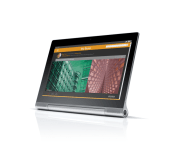
Lenovo Yoga Tablet 2 Pro brings a 13.3-inch Android tablet with a 2k display and embedded pico projector
Lenovo took to the stage today with Ashton Kutcher to announce a refreshed line up of Yoga tablets for the holiday season. We caught some leaked details about the tablets earlier in the week that gave us a pretty good idea as to what they would announce. However, leaks don’t always get everything. Among the new 8 and 10 inch offerings was the new Yoga Tablet 2 Pro.

This Pro version of the Yoga line brings in a 13.3-inch QHD screen with a resolution of 2560 X 1440 quad HD. It uses the Intel Atom Z3745 quad-core processor clocked at 1.86 GHz and offers up 2GB of RAM. Internal storage is 32GB and also offers an SD card slot. There is a 8MP f2.2 rear camera with auto focus and a 1.6MP front facing camera for selfies and video calls. As for connectivity the tablet offers Wi-Fi 802.11b/g/n dual-band (2.4 and 5 GHz). There is an optional 4G variant of the device, but sadly it won’t be in the US. Sticking to the original design the Yoga Tablet 2 Pro offers up a set of front facing speakers with 1.5W output each. Here is where it gets a little cooler though. On the rear is a 5W JBL subwoofer. That totals 8W of audio output. On a tablet. Battery life on the Yoga line has always been a huge focus. They beefed up the battery to support the larger screen-size and resolution to a whopping 9600 mAh battery that is rated for 15 hours of continuous use. Not quite the 18 hours of the smaller variants, but still impressive. Physical size is 13.1 x 808 x 01. – 0.5 inches. The thinness variance accounts for the round battery down to just the screen. All of this only weighs in at 2.09 pounds too.
There is more though. Ashton made mention of something in a YouTube video that Lenovo released a few days ago. He proposed this question: “What if there was a projector that put the screen on the wall?” Yup, Lenovo did that. The Yoga Tablet 2 Pro offers up a pico projector built -in on the side of battery cylinder with an on/off switch. It projects a 50-inch image of the screen to a wall at 2 meters. It won’t be in the same resolution that the screen is, cause that would just be crazy. The resolution is 854 x 480 at 40-50 lumens bright.

 Along with the pico projector, the crazy hi-res screen and the outstanding battery life you will also find the kickstand that lets you use the tablet in more ways than a typical slab. The kickstand lets you place the tablet in stand or tilt mode, but it also has one more trick added to its abilities. It now can rotate a full 180 degrees and has a cut out in the aluminium so you can hang it.
Put all that together with Android 4.4 and you have to be looking at somewhere in the neighborhood of $800, right? Nope, Lenovo has the tablet priced at a very competitive $499.
I am personally really excited about Yoga Tablet 2 Pro. It packs in so much for such an affordable price. Be on the look out for these at Lenovo.com and stay tuned for a review a bit later. I can’t wait to put a big movie on in my sons room with some popcorn and soda. It is going to be awesome.
//<![CDATA[
ord = window.ord || Math.floor(Math.random()*1E16);
document.write('‘);
//]]>
The post Lenovo Yoga Tablet 2 Pro brings a 13.3-inch Android tablet with a 2k display and embedded pico projector appeared first on AndroidSPIN.
.CPlase_panel display:none;

Apple is now the fifth-largest PC maker in the world, if you ask IDC

Apple is historically a small player in the PC world compared to many of its peers, but it may have just entered the big leagues. IDC estimates that the company jumped to 6.3 percent market share in the third quarter of the year, making it the fifth-largest PC builder worldwide — a feat it hasn’t managed in decades. It’s still no major threat to heavy-hitters such as Lenovo (20 percent), HP (18.8 percent) and Dell (13.3 percent), but IDC believes that a combination of slight price cuts and improved demand in “mature” markets like North America have helped it grow in a computer market that’s still shrinking.
With that said, the crew in Cupertino probably isn’t breaking out the party streamers right away. Gartner contends that ASUS claimed the fifth-place spot with 7.3 percent, and that Apple only sits in the top five in its native US. So what gives? In short, it’s a difference in methodology; Gartner and IDC don’t have official shipping numbers from everyone, and there’s enough wiggle room in their estimates that it wouldn’t take much for the rankings to change. As precise as these figures may be, you’ll get a better sense of how Apple fared when it posts its fiscal results (and real shipping numbers) in a couple of weeks.


Filed under: Desktops, Laptops, Apple, ASUS, HP, Dell, Acer, Lenovo
.CPlase_panel display:none;

What is Lenovo up to on October 9th? A slew of new Yoga’s for sure
 Lenovo has an event planned on October 9th in London. We know for sure that they will be announcing a new line of Yoga tablets. We know this because their press invites and live streaming event says so as you can see to the right.
It isn’t a secret that I really love what Lenovo has been doing with their Yoga tablets lately. The 8 and 10 were great for their size, price and battery life. The Yoga 10 HD+ pushed thing up in the screen resolution department and was able to keep the weight low and the battery life long. Now it is time for Lenovo to reinvent their Yoga tablets with a 2nd generation that is even better than before.
A series of leaks, FCC filing details and images have been appearing on the web over the last few days and I have been watching them pretty intently. While there will no doubt be a set of Windows variants, the new Android offerings are what I am after. The first bit of details on what Lenovo would bring surfaced on Mobile Geeks. They nabbed a screen with some device names and minimal descriptions. Liliputing also got a screen grab of the same thing on Lenovos site. Of course the details shown have nice been pulled back down.

You can see three different tablet sizes being listed. A 8-inch, a 10-inch and a whopping 13-inch variant. The mini description mentions 4 way to use the new line of Yoga’s – Stand, Tilt, Hold and Hang. The first three are aspect of the current Yoga tablets that I find quite useful, particularly the stand mode. ‘Hang’ on the other hand, that one is new. How they plan to do that is kind of obvious when you mix in the image below that was posted by comparatif-tablette.

Having used, and still use, the previous Yoga line, I can tell you that the oblong cutout on the stand is new. I am going to assume that the stand rotates all the way around now will let you hang it from that slot on a hook, or thumb tack. The speaker grill looks a bit different too.
The same site also covers the specs that are supposedly also coming with the new line. All three are said to launch with Android 4.4 KitKat. The screens seem to all be upgraded in resolution too. With the 8-inch hitting 1920 x 1200. I am reading specs that include quad-core Intel Atom Bay Trail chipsets, 2GB of RAM and 16GB of on board storage. Along with an 8MP camera on the rear and a 1.6MP camera on the front. I am certain Lenovo has done their due diligence with the batteries meaning we can expect the usual 18 hour all day strong use.

While refreshed Yoga 8’s and 10’s are particularly interesting, it is the listing for a 13-inch one that has me all giddy. Again, relying on the info from comparatif, they state the 13.3-inch tablet will carry a resolution of 2560 x 1440. It is supposedly also packing in a 9,600 mAh battery. I would image that is to give that massive screen enough juice to compete with the 8 and 10 in terms of battery life. The internal storage is also said to be bumped to 32GBs. I am pretty curious about the odd rounded square on the back of it too. That looks like a speaker grill. I can’t be certain though.
All of them will likely have SD card slots, you are sure to find Bluetooth 4.0 and Wi-Fi 802.11n as well.
So far so good. It certainly sounds like Lenovo is continuing to move forward with the Yoga line and improve its hardware. A 13.3-inch variant with that resolution is going to make for a stunning viewing experience. Of course all of this is rumor, speculation and leaked renders over the last few days from various sources.
One more little precarious thought though before I leave you to your day. A recent YouTube video went up with Ashton Kutcher in it. He is the product engineer on the Yoga line and will be live at the event as well. He sat down with some entrepreneurs and talked about the Yoga a little. There is a little comedy mixed in, of course. Ashton asked the group a question though: “What if you could project what was on the screen to a wall?” Seriously, I think that would be pretty cool really. Check out the video for yourself.
And just because, you should check out the group of seniors Ashton talks to also.
Source: Mobile Geeks | Comparatif-tablette Via Liliputing 1 | 2
//<![CDATA[
ord = window.ord || Math.floor(Math.random()*1E16);
document.write('‘);
//]]>
The post What is Lenovo up to on October 9th? A slew of new Yoga’s for sure appeared first on AndroidSPIN.
.CPlase_panel display:none;
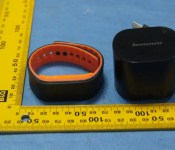
Lenovo’s fitness-minded Smartband shows up unannounced at the FCC

Lenovo doesn’t want to miss out on the wearable device trend, it seems. A couple of months after filings hinted that a Smartband was in the works, the unannounced activity tracker has surfaced at the FCC. Between photos and a user manual, the approval leaves little to the imagination. The Bluetooth-based device will keep tabs on your running, heart rate and sleep habits while syncing up with Android, iOS and Windows 8 devices. It’s not certain that the Smartband will launch in the US any time soon, if at all — it was a no-show at last month’s IFA event despite rumors to the contrary. If this fitness-savvy wristwear does arrive stateside, though, its black-and-orange design could be the perfect complement to your Yoga 2 laptop.
Filed under: Wearables, Lenovo
Source: FCC
.CPlase_panel display:none;
Lenovo N20p Chromebook Multimode touchscreen Chromebook [Review]
Lenovo took a little bit of time to break into the Chromebook space. They initially started off with phones, tablets and a couple of Android powered all-in-ones. We know Acer, Samsung, HP and others have started to really up their game when it comes to the Chrome OS powered laptops, especially the upcoming Acer NVIDIA Tegra K1 powerhouse. Lenovo’s first round of commercially available Chromebooks might be a little late to the game, but they definitely bring some things that the others don’t.

Hardware overview:
Spec wise, the Lenovo N20p offers up many of the same specs that are on par with competitor models on the market.
- 11.6-inch HD (1366 X 768) 10-point multitouch screen
- 11.6 x 8.34 x 0.70 inches
- 2.86 lbs
- Intel Celeron Processor
- 2GB of RAM DDR3L
- 16GB SSD
- Up to 8 hour battery life
- Bluetooth 4.0
- Wi-Fi 802.11 ac
On a physical connection front you have two USB ports, one is a USB 2.0 and one is a USB 3.0. They are found on opposite sides of the Chromebooks base. You can see where the USB 3.0 port is due to the blue colored centered.
On the USB 3.0 side you also have the charging port, which is a proprietary style charger, along with a mini HDMI out and a combo headphone/mic jack.

On the opposite site you find that USB 2.0 port, your power button and the SD card slot.

Above the screen you find your 1.3MP 720p resolution web cam and integrated mic.

Internal connection options offer up a few things that are pretty nice. The N20p does sport the latest Bluetooth 4.0 technology, but probably a bit more surprising, and exciting fro some, is that it also offers up 802.11 a/c WiFi. To the best of my knowledge, and checking out a few of the Chromebooks offered on the Play Store, this is the first Chromebook to offer that newer 802.11 a/c connection.
In the specs above I only mentioned that the Lenovo N20p Chromebook offered an Intel Celeron processor, but I didn’t give you details on the specific processor or clock speed. That is because there are two choices for you to make in that department, and the cost difference is only $20. In one model you get a Intel Celeron N2830 processor (2.16GHz 1333MHz 1MB) and in the more expensive you get an Intel Celeron N2930 processor (1.83GHz 1333MHz 2MB). Looking through a comparison of the two chips at CPUBoss, the lower clocked Celeron N2930 variant of the N20p should be a little quicker, but I don’t have both versions in front of me to compare and test. This review is centered around the N20p that offers up the Intel Celeron N2830 clocked at 2.16GHz.
Currently on the market I am aware of two other Chromebooks, that are made by bigger named companies, that offer a touch screen in conjunction with the track pad. The Acer C720p and the Chrome Pixel. The Chrome Pixel is probably the dream Chromebook for many, but its price tag is pretty up there for most average consumers. That leaves the Acer C720p as the most comparable device to the N20p. The hardware specs are similar with the exception of the 802.11 a/c Wi-Fi connection and the Acer C720p sports an Intel Celeron 2955U (1.4GHz, 2MB L3 cache) processor. However, the Lenovo N20p does something that the C720p can’t, and that is flip into multi-mode.
Lenovo is pretty famous for their design elements in both appearance and functionality. The Yoga, ThinkPad and IdeaPad lines are probably the more famous line of devices that allow users to flip their netbooks, tablets and laptops around in configurations that others just don’t. The N20p is in the IdeaPad line up and offers 3 primary modes that Lenovo advertises, but it also has a 4th that is pretty useful. First you have your traditional laptop mode.

This is the one you usually see when you see people using a laptop. Screen up and keyboard facing you. Nothing all that special, but I will admit, that the space beside the track pad and the edges of the Chromebook are plenty big enough more my wrists to rest without touching the trackpad by accident. I have had issues with that in the past on other laptops.

The second advertised mode is Stand mode. You rotate the screen 300 degrees and face the screen forward with the keyboard as the base of the stand. When you rotate the screen to a certain degree, which seems to be just past the 180 degree mark, or just past it being flush with the keyboard, the N20p disables the keyboard for you automatically. There are also a set of rubber pads positioned in such a way that elevates the keyboard from directly touching the surface.

The third method, and one of my favorites, is what is traditionally called tent mode. This mode potions the device in a tent, or triangle, fashion. Placing the keyboard behind it and the screen facing forward. It takes up less space than stand mode and points the speakers, which are located on the bottom, more towards you than straight up in the air. It Also sits better on your lap if you are looking to play games or cruise around the web ect. and only want to use the touchscreen aspect. While in the tent style mode, you can also go vertical. The screens image will rotate in any direction that it is orientated.


While in any mode that disables the physical keyboard there is a replacement on-screen keyboard that will pop up if needed. It only appears if you tap on a place that you need to type, and easily goes away. It is just like any tablet a keyboard and is responsive to quick typing if you are fast with an on-screen keyboard, which I am not. I feel it is more of a nice idea when in touch only modes for quick messages and searches and things, but if you need to write an email, a post or a lengthy response to something you will just end up flipping it back to the regular laptop mode. Besides, the angles that it sits in stand or tent mode makes it a little awkward to type efficiently.
The Physical Keyboard
While processor, screen, RAM, storage and things are important, the physical keyboard and how it feels when in use are just as important. If the keys feel strange, take more pressure than one would think or are to close together, that can cause a poor user experience as well. The N20p keyboard isn’t quite a softouch, meaning silent when pressed, but the click from pressing it isn’t terrible. I am a heavy typer and my desktop keyboard makes a heck of a lot more noise. Each press of each key is nice, and feels nice. You can feel the action when you press it knowing that you have pressed it without wondering. This is also a big deal for me as I am not very good at typing without looking at my fingers. I still miss some letters here and there, but that is mostly due to my distaste for laptops and feeling cramped. The keys are flat as well, meaning they lack any indentation for your fingers.

There is still something a little off about it though. The insert that surrounds the keys and the keys themselves move. By move, I mean you can see the keyboard flex when you are typing. I don’t know if this is by design because of the stand mode, or if it is just an over sight in the quality of the keyboard. It doesn’t give me a feeling that it will become unresponsive or break, it just isn’t as solid as I would expect.
Battery Life
Battery life is a pretty important aspect of a mobile device. Being stuck to a charger is never really a good thing. I spent one day using the N20p as an average internet user. Spending time surfing the web, cruising around Google+, responding E-Mails and the likes. The expected battery remaining time I gathered compared to the actual time used was pretty good. I started utilizing the N20p at 8:45 in the morning, at 10:15 I was down 10%. That is about a 1.5 hours of battery per 10%. Mathematically that should give 15 hours of battery. Well over the expected 8 hour claim on the spec sheet. Much of that time was spent sitting here writing with the screen brightness at about 60%. However, the remaining on time displayed showed 7.45 hours remaining. Add that to the 1.5 hours I already used and I would expect over 9 hours of use easily.
The first full charge to battery death I did was in tent mode streaming movies. I kept the screen at about the 60% brightness level and streamed movies from Plex to the Chromebook. I started the flick at 3:19 pm and ever hour or so I started a new movie or restarted the one playing. The N20p finally died completely, as in shut off, at 10:26pm. That was 7 hours and 7 minutes of screen-on streaming time. Not bad at all.
If you mix these times for an average day of use between media, and average web usage, the 8 hour claim is pretty easily achievable. I use the Chromebook sparingly. More so it is what I use when I am forced downstairs, on trips or other situation where being at my desktop is not an option. I have yet to ever been disappointed with the N20p in battery life. Even when it sits idle for days at a time.
Overall performance
I spent lots of time forcing myself to use the Lenovo N20p Chromebook. Not because I was disappointed with it, more so because I prefer full size keyboards and desktop PCs. I actually wrote this entire review sitting on my couch, watching Finding Bigfoot and using the N20p. It worked out wonderfully for me and is the first time I have written something on a laptop/Chromebook in a number of years. It is also the first time that I didn’t have to spend as much time fixing my errors as I did writing the review. (I’m sure there are still plenty, I am far from a great writer.)
Like all other Chromebooks I have used, or read reviews of, once you get going beyond 4 or so tabs things start to get a little slow in terms of visual lag. It is dramatically better than the Acer C710 that my daughter has currently for school and with each sequential update to the OS it seems to be running smoother.
Overall thoughts
I have been very pleased with the N20p’s performance and abilities. It expands beyond the traditional Chromebook look and what it can do for you. The touch screen is quick, responsive and I was easily able to not only type with the onscreen keyboard, but I also didn’t have any difficulty with my touches not registering what I was attempting to tap.
There are two things that come to mind that I think would just put this Chromebook over the top for me. I would like Lenovo to swap out the keyboard with one that is backlit. Night usage on Chromebooks is still a bit tricky. However, with the N20p’s on-screen keyboard when in touch only modes, it isn’t the end of the world, but if you need to type a book, the physical keyboard is still a better choice. Second was speaker placement. The speakers are placed on the bottom near the front. When I first saw images of the Chromebook I had expected them to be sitting on either side of the screen where it flips. That would have positioned them facing you in any mode.
Feel free to get one ordered through Amazon for $329.99 right now
.


//<![CDATA[
ord = window.ord || Math.floor(Math.random()*1E16);
document.write('‘);
//]]>
The post Lenovo N20p Chromebook Multimode touchscreen Chromebook [Review] appeared first on AndroidSPIN.
.CPlase_panel display:none;
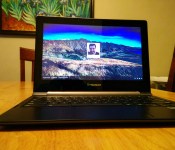
Lenovo N20P Chromebook Review

Tablets and laptops are getting closer with many notebooks now having touchscreens. Lenovo’s new 11.6-inch N20P Chromebook is no exception. The Chromebook offers the best that Google has to offer in a sleek body and allows you to use just touch if that’s what you desire. If you want to find out if the new touchscreen Chromebook from Lenovo is a contender, then read on. First let me say that I won’t be focusing on Chrome OS too much in this review since if you’ve used Chrome OS before or even the Chrome browser on your desktop or mobile device, you’ll know how it works. Moving on to the hardware…
Hardware
The Chromebook sports an 11.6-inch LED backlit display that comes in at 1366×768 resolution, which isn’t bad, but not the best. I noticed that the display looked fairly nice in use, but it did pick up some reflections if there was too much sunlight. One nice thing about the device is the 10-point touchscreen display that you don’t see on too many Chromebooks except for the Pixel and Acer’s C720P. Although Chrome OS isn’t as optimized for a touchscreen as say Android is on a tablet or smartphone, it still works very well and is both intuitive and easy to use. We’ll get to the hinge on the device later in the review, but if you have it rotated to the point where you can’t use the keyboard, there is an on-screen keyboard that’s just as easy to use as the Android keyboard. It almost makes me really want a Chrome OS tablet, but who knows if we’ll ever see one. Moving on to the other specs, one of the downfalls is the processor and it sports a 2.16GHz Intel Celeron N2830 with 2GB of DDR3L/1333 RAM. As you would expect, this dual-core processor isn’t the speediest, but provides more than enough to allow you to do some simple web browsing and running your Chrome OS apps. The Chromebook starts in under 10 seconds and has very fast browser tab/app switching, which could just be because of the OS. I noticed that after a while, the laptop starts to slow down and my solution was to restart, which again was only about 20 seconds total of my time. I still found the Chromebook to be too slow to be a full computer replacement and coming from a Core i7 Macbook Pro, the decreased speed is highly noticeable. The N20P sports a 34.8-watt-hour battery, which brings an impressive 8 hours of battery life. While it gets about 8 hours, depending on your settings you will get at least 6 or more hours and if you only use it slightly as a second computer while on the go, expect it to last a long time in standby mode. I found that in standby mode, it could last a few weeks on a single charge, especially since I would only use it for an hour or two at a time while on the go. One of the most unique features of the N20P besides the touchscreen is the ability to rotate the screen 300 degrees. If you’re familiar with Lenovo’s Yoga laptops, this is no different. Rotating the display to 300 degrees or even a little less, it gives you almost a tablet with a stand. Having never used such a device before, it was a bit awkward at first, but then you get used to it. It makes the browsing experience all the better. It also has 16 GB eMMC storage, a USB 3.0 port, USB 2.0 port, HDMI-out and a 2-in-1 (SD / MMC) card reader. Lastly, as far as the hardware, the Chromebook is fairly thin and starting at 3.08 pounds, it’s easy to carry around with you.
Software
As with all Chromebooks, the N20P is running the latest and greatest version of Chrome OS and updates automatically. It’s the same OS as on all other Chrome OS devices and you should be familiar how to use it if you ever used a Chrome browser. As I mentioned above, one noticeable difference is that it has a touchscreen and therefore an onscreen keyboard, which works extremely well. One of the latest additions to Chrome OS, not specific to the N20P is that it the OS can now run Android app, although only four at the time of writing this. I got to try Evernote and Vine and both work just as you would expect on an Android device.
Price
One of the other downfalls I see with this Chromebook is that it’s a bit steeper than its competition, starting at $329, when most sell for under $200 and Acer’s touchscreen Chromebook can be had for $279. You’ll have to decide for yourself whether the touchscreen and 300 degree rotating display is enough to justify the price.
Overall
At its latest attempt at a Chrome OS device, Lenovo did an admiral job with the about 3 pound N20P. The viewing angles and display are more than adequate, it offers a great touchscreen experience and enough speed to run all of your Chrome apps, but at $329, it’s a bit expensive. At $50 over the Acer touchscreen Chromebook, I would have expected a bit more speed. You can however get a little bit more speed if you buy the $349 model, which I didn’t have the opportunity to test. The premium model comes with a Intel Celeron N2930 processor clocked at 1.83GHz. If you have the money to spare and really want a Yoga-like Chromebook with a touchscreen display, look no further.


Deals, Discounts, Freebies, and More! Click here to save today!
The post Lenovo N20P Chromebook Review appeared first on AndroidGuys.
.CPlase_panel display:none;
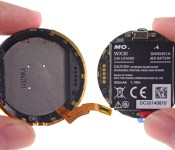
Moto 360 teardown reveals ancient chips, clever tech and a small battery

Motorola has been willing to offer a quick peek at the Moto 360’s inner workings, but let’s face it: that doesn’t really go deep enough to sate your curiosity, does it? You don’t have to worry, though, as iFixit has torn apart the circular smartwatch to examine every last detail. In the end, the hardware is an odd mix of the latest technology with surprisingly old components. While that round LCD and inductive charger are pretty forward-thinking, the teardown also confirms the presence of TI’s OMAP3630 processor — a chip that hasn’t been cutting edge since that Droid 2 you rocked back in 2010.
There’s also a bit of a rude surprise in iFixit’s unit. The DIY repair shop spotted a 300mAh battery, which is decidedly smaller than the officially claimed 320mAh. What gives? Motorola tells Computerworld that 320mAh is only the “typical” figure, and that 300mAh is the “minimum” you’ll get. That’s bound to rub a lot of would-be owners the wrong way, although the company says it’s thinking of showing both the minimum and typical figures in the future. However you feel about that discrepancy, you probably won’t want to double-check yourself given the tricky disassembly process; this teardown will likely be the closest you get to seeing what’s under the hood.
Filed under: Wearables, Google, Lenovo
Source: iFixit
.CPlase_panel display:none;
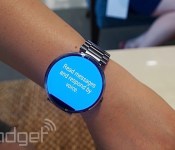
Verizon will sell the Moto 360 with a metal band on November 11th

If you refuse to wear a Moto 360 smartwatch until it’s equipped with a metal wristband, you now have a firmer date than “fall” to mark on your calendar. Verizon says that it will ship this slightly ritzier version of Motorola’s wearable in both black and silver on November 11th for the expected $300. It’s not certain that Verizon will be the first out of the gate with the extra-shiny 360, but its timing should serve as a good yardstick even if you don’t plan to buy your watch at Big Red. And don’t forget: if two months is simply too long to wait, you can always buy the leather edition now and upgrade to metal later for $80.
Filed under: Wearables, Google, Verizon, Lenovo
Via: 9to5Google, BGR
Source: Verizon
.CPlase_panel display:none;
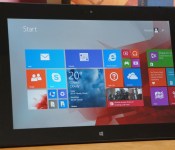
Lenovo ThinkPad 10 review: a good Windows tablet hurt by poor battery life

There isn’t a very large middle ground in the Windows tablet world right now. You frequently have to choose between a budget-oriented, low-spec model and an expensive portable powerhouse. And that’s a shame, really. There are no doubt people who want high-resolution screens or lots of options, but don’t want to pay for fast processors that may go to waste. That’s what makes Lenovo’s ThinkPad 10 so appealing at first glance — it’s a well-equipped 10-inch Windows slate that won’t hit your wallet too hard. The question is whether or not it strikes that price-to-performance balance as well as it should. It does in some ways, but there are some big sacrifices involved. Read on to see if they’ll be worth your while.
Hardware

The ThinkPad 10 is no radical departure in design; it mostly looks like the ThinkPad 8 writ large, and it’s not even a big deviation from its ThinkPad Tablet 2 ancestor. Not that there’s much reason to complain. You’re still getting an aluminum-clad machine that’s both thin and light (0.35 inch and 1.3 pounds, respectively) and feels every bit as comfortable and well-made as you’d expect for the $599-plus that you’ll pay. While that thinness doesn’t do any wonders for the battery life, this is definitely the large Windows tablet you want if you regularly compute while standing. It may not be as much of a featherweight as mobile OS-based tablets like the Galaxy Tab S or iPad Air, but it puts noticeably less strain on my wrists than the hefty 1.8 pounds of the larger Surface Pro 3 and Dell’s 1.6-pound Venue 11 Pro.
Not that everything is hunky-dory with that metal body. This is the same material and finish you’ll find on the ThinkPad 8, so you should expect scuffs and scratches if you forego a case. I was fortunate enough to avoid them during my test run, but I’m notoriously protective of my hardware. And you may never keep it completely pristine. The dark-hued aluminum shows virtually every grimy fingerprint for at least a little while, and there were only so many times that I was willing to wipe them off.
You won’t catch me griping much about the layout, which is designed to be used in landscape mode. That’s rather wise, given that the ThinkPad may frequently double as a laptop. On the left side, you’ll see a covered, full-size USB 2.0 port sitting near both the power connector and a fabric loop that holds the pen (more on that later). Flip over to the right and you’ll see micro-HDMI video output, a microSD storage slot, a headphone jack and (if you’re in an area where Lenovo sells cellular models) a micro-SIM slot. You’ll see both stereo speakers and an 8-megapixel camera with flash on the back, and there’s a 2-megapixel shooter on the front. About the only quibbles are the slightly small power button and volume rocker in the upper-right corner, but they’re still easy to press. Even the docking connector at the bottom clicks into peripherals with little fuss.
Display, pen and sound

You’re more likely to see higher-resolution displays on big tablets, but the ThinkPad 10’s LCD still manages to stand out in a pretty crowded space. It’s using a taller 1,920 x 1,200 resolution instead of the 1080p screen you’re more likely to find at this price point; those extra vertical pixels may not seem like much, but they help when browsing the web or writing a report. The 224 ppi density is also just about right for Windows 8.1, which is finicky about scaling high resolutions to just the right size. The display is sharp enough that content looks good, but it’s not so sharp that you’re forced to squint or tap lots of tiny buttons when you switch to the traditional desktop.
Crispness isn’t the only thing that matters, of course, and the ThinkPad is a bit of a mixed bag in some other areas. I like the IPS-based panel’s overall color reproduction, but it’s not supremely accurate — Laptop Mag found that it covers just under 72 percent of the sRGB color gamut, which rules it out for professional photo editing. Viewing angles are very good, however, and I didn’t notice color shifts or dimming when looking at the tablet from less-than-natural positions. Just don’t plan on taking this device outside on a sunny day. The ThinkPad’s LCD is officially rated at 400 nits of brightness and cuts out enough glare to be easily visible in most situations, but it won’t overcome direct sunlight.
You may be willing to forgive those foibles given the pen input, which was sadly missing on the ThinkPad 8. You can draw with varying degrees of pressure, or hover above the screen. There aren’t any tricks on the level of the Surface Pro 3’s OneNote shortcut, but you’ll get both a right-click button and an eraser. I found myself liking the pen more than I thought I would — it’s light and comfortable, and I had no trouble with handwriting recognition or doodling. With that said, this is really more of a productivity tool than an artistic instrument. It’s hard to apply the exact amount of force you want in a drawing, so you probably won’t be producing masterpieces.

The speakers certainly aren’t anything to write home about. They’re clear-sounding and reasonably loud even with their rear-facing orientation, so you can listen in a room with moderate background noise. However, they don’t carry a lot of punch — watch a dance music video and you’ll wonder where all the bass went. That lack of oomph is acceptable given the ThinkPad’s emphasis on pro users, but it would be nice if Lenovo kicked up the quality a notch. Pointing the speakers toward the user’s face would help, too.
Software
Just like its smaller sibling, the ThinkPad 10 doesn’t carry much in the way of non-standard software, and what’s there is (mostly) useful. AccuWeather, Evernote Touch, Hightail (formerly YouSendIt), Norton Internet Security and Zinio’s magazine reader are all third-party apps that you can easily use every day. I was most fond of AccuWeather and Evernote, but I could do without Norton’s occasional nagging. Don’t assume that this is just a carbon copy of the layout from before, though. Lenovo clearly sees its 10-incher as a content-creation station, and has ditched media apps like Kindle and Rara in favor of more serious tools like its self-branded photo and video editors. My one real gripe is the trial-only copy of Office. Unless you prefer alternatives like Google’s cloud apps, you’ll have to fork out additional cash if you’re going to churn out a lot of reports and spreadsheets while on the road.
Performance and battery life
| Tablet | PCMark7 | 3DMark06 | 3DMark11 | ATTO (top disk speeds) |
|---|---|---|---|---|
| Lenovo ThinkPad 10 (1.59GHz Intel Atom Z3795, Intel HD graphics) | 2,328 | 1,168 | E235 / P155 | 129 MB/s (reads); 52 MB/s (writes) |
| Lenovo ThinkPad 8 (1.46GHz Intel Atom Z3770, Intel HD graphics) | 2,567 | 1,598 | E312 / P198 | 128 MB/s (reads); 57 MB/s (writes) |
| Acer Iconia W4 (1.33GHz Intel Atom Z3740, Intel HD graphics) | 2,538 | 2,089 | E340 / P211 | 173 MB/s (reads); 48 MB/s (writes) |
| ASUS Transformer Book T100 (1.33GHz Intel Atom Z3740, Intel HD graphics) | 2,461 | 2,113 |
E338 / P209 |
123 MB/s (reads); 58 MB/s (writes) |
| Dell Venue 8 Pro (1.33GHz Intel Atom Z3740D, Intel HD graphics) | 2,343 | 1,986 |
E299 / P164 |
86 MB/s (reads); 45 MB/s (writes) |
The ThinkPad 10’s performance is a real head-scratcher. On paper, its quad-core 1.6GHz Atom processor should make it one of the fastest Windows tablets in its class. In practice, however, it’s relatively pokey; its average benchmark scores were the lowest among the Windows slates we’ve tried, even when stacked up against older devices with 1.33GHz chips. You can’t blame this on the high-resolution display, either, since the equally sharp-looking ThinkPad 8 is still faster. Synthetic tests aren’t the be-all and end-all of a device, but it’s apparent that the higher clock speed won’t grant you any additional bragging rights.
That’s true in the real world, too. Like every other recent Atom tablet, this bigger ThinkPad has no trouble whipping through the Windows 8.1 interface and typical apps like browsers or Evernote, but it won’t replace a desktop or a good laptop; it’s not up to handling serious creative work or high-end games. It’s also slow to boot at about 14 seconds (versus eight for Acer’s Iconia W4), and the back can get noticeably hot when you’re playing action-heavy games like Halo: Spartan Assault. Lenovo isn’t pitching the ThinkPad 10 as a speed demon in the first place, but it would be nice to see some tangible improvements for the money, you know? The 2GB of RAM is good enough for common tasks, although I’d strongly recommend buying the top-tier 4GB variant if you’re going to juggle many apps at once.
| Tablet | Battery Life |
|---|---|
| Lenovo ThinkPad 10 | 6:44 |
| Microsoft Surface 2 | 14:22 |
| iPad Air | 13:45 (LTE) |
| Apple iPad mini | 12:43 (WiFi) |
| Samsung Galaxy Tab S (10-inch) | 12:30 |
| Samsung Galaxy Tab S (8-inch) | 12:22 |
| Apple iPad mini with Retina display | 11:55 (LTE) |
| Apple iPad (late 2012) | 11:08 (WiFi) |
| ASUS Transformer Book T100 | 10:40 |
| Apple iPad 2 | 10:26 |
| Samsung Galaxy Note Pro 12.2 | 10:04 |
| Apple iPad (2012) | 9:52 (HSPA) / 9:37 (LTE) |
| Acer Iconia W4 | 9:50 |
| Nexus 7 (2012) | 9:49 |
| Microsoft Surface RT | 9:36 |
| Toshiba Encore | 8:45 |
| Sony Xperia Tablet Z | 8:40 |
| ASUS Transformer Pad TF103C | 8:26 |
| Sony Xperia Z2 Tablet | 7:57 |
| Nexus 10 | 7:26 |
| Dell Venue 8 Pro | 7:19 |
| Samsung Galaxy Note 8.0 | 7:18 |
| Nexus 7 (2013) | 7:15 |
| Samsung Galaxy Tab Pro 8.4 | 7:13 |
| Microsoft Surface Pro 3 | 7:08 |
| Samsung Galaxy Tab 3 10.1 | 6:55 |
| Lenovo ThinkPad 8 | 6:11 |
The real dealbreaker may be the dismal battery life I hinted at earlier. When looping a 1080p video at half brightness, the ThinkPad 10 musters just six hours and 44 minutes on a charge. That result is better than the bottom-ranked ThinkPad 8, but I’d hardly call that a rousing success. Even when playing a less taxing standard-definition clip, the running time was subpar at seven hours and 38 minutes. No, you won’t mind the short lifespan if you’re curling up on the couch or taking notes at the occasional meeting, but it’s not at all what I’d expect from a business-class tablet that may have to run on battery all day. Frankly, you’re better off scooping up something like ASUS’ Transformer Book T100 (as old as it is) if every hour counts. What good is a sharper display when you have no power left?
Camera

We didn’t touch on the cameras when looking at the ThinkPad 8, but it’s worth exploring them now — especially when you’re theoretically spending such a hefty sum. The 8-megapixel rear camera is solid, but not spectacular. It’s capable of some sharp, colorful pictures in good lighting, including close-ups, but it tends to blow out images in bright lighting, hide detail in shadows and produce plenty of visible noise in darker conditions. The 2-megapixel front cam, meanwhile, is merely adequate for video chat, with noisy, soft pictures. Lenovo does have an ace in the hole, mind you. Its Quickshot Cover will automatically launch the camera app by prying it open, which I found supremely handy for capturing spur-of-the-moment pictures. I wish other tablet makers would follow suit.
Configuration options and the competition

In the US, you have just two ThinkPad models to choose from: the entry-level $599 version with 2GB of RAM and 64GB of storage, and a $699 edition that jumps to 4GB and 128GB, respectively. You’ll usually be fine with the starter device if it’s just a companion to your main PC, but you’ll want to seriously consider the pricier of the two if this is going to be a primary machine. And like many tablets, you’ll probably want at least one or two accessories to complete the experience. I would buy the $45 Quickshot Cover without hesitation; besides that camera trick, it’s good for protecting the screen or propping the tablet up to watch a movie. If you type often (which is likely if you’re already a ThinkPad fan), you should consider spending $90 for the Touch Case or $120 for the Ultrabook Keyboard. I sadly haven’t had a chance to try either, but they should serve you better than a third-party Bluetooth keyboard.
The $55 Protector rugged case and $130 Tablet Dock (which adds HDMI, USB 3.0 and Ethernet) are tougher calls. I wouldn’t get the Protector unless you’re working out in the field and need a drop-resistant shell. Also, the dock partly defeats the point of a tablet. If you’re stationary enough to want a larger display, mouse and keyboard, it’s likely wiser to get a convertible touchscreen laptop like the Yoga 2 Pro than to go through the hassle of adding all those components after the fact.
It’s tricky to find out where the ThinkPad 10 stands among its rivals. As I mentioned earlier, it occupies a rare middle ground in a field that’s largely split between affordable Windows slates and high-powered laptop replacements. The most obvious parallel is the Venue 11 Pro, although whether or not it represents a better deal depends on the discounts you get. As of this writing, giving Dell $500 will get you comparable hardware and a full copy of Office; Lenovo’s $100 premium does get you a slightly higher pixel count, pen input and a lighter chassis, but those are usually bonuses rather than must-haves. And if you’re looking at the $699 ThinkPad, it’s hard to resist spending another $100 to get either a high-end Venue 11 Pro or the basic Surface Pro 3. Both have speedier Core i3 processors, and the Surface compensates for its reduced storage with both a 12-inch screen and a more sophisticated pen. If you’re going to splurge on a really nice Windows tablet in the first place, doesn’t it make sense to get something truly powerful?
Wrap-up

That last point sums up the ThinkPad 10’s dilemma, really. You’ll undoubtedly get a lot, including that nice display, pen input and top-flight industrial design. However, I can’t help but see this as an awkward, in-between product. For the ThinkPad to fit into your world, you need a healthy budget that’s not quite so healthy that the highest-end tablets are within reach. This wouldn’t be as much of a problem if the device had a long-lasting battery to give it an edge, but it doesn’t — it’s actually worse than more powerful hardware where short battery life is expected, like the Surface Pro 3. While I really enjoyed using the ThinkPad, it’s more of a specialist’s tool than a Swiss Army knife. It’s delightful if it fulfills your needs, but you’re probably best off either saving money with lower-end tech or investing in something more capable.
Dana Wollman contributed to this review.
.CPlase_panel display:none;
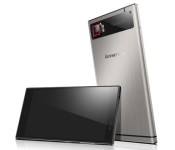
Lenovo reveals the Vibe Z2, its very first 64-bit smartphone

It seems that Lenovo are the latest company to jump on the 64-bit bandwagon with their new Vibe Z2 smartphone, a device that sees the company keeping up with the latest architecture.
The 64-bit device sports a 1.4-GHz quad-core processor, 5.2-inch screen at 720p, 32GB of internal storage, dual SIM, a 13-Megapixel camera, and a 3000mAh battery.
The Vibe Z2 will cost $429 when it launches in October beginning in China first, and then Asia, Europe, and Latin America shortly after.
The post Lenovo reveals the Vibe Z2, its very first 64-bit smartphone appeared first on AndroidGuys.
.CPlase_panel display:none;
 AIVAnet