



Facebook Messenger gets a native iPad version

Facebook Messenger makes the most sense on a phone, but plenty of people still want to chat on their tablets — and apparently, Facebook knows it. The social network has just updated Messenger for iOS to support the iPad, letting you carry on a conversation without having to either dig through chats in the main Facebook app or rely on third-party titles. The iPad interface mostly behaves like a super-sized version of what you see on an iPhone, although you miss out on a handful of recent feature additions, like tap-and-hold video capture and the split-screen selfie mode. There’s no corresponding native interface for Android tablets just yet, although the iPad refresh suggests that one might be on the horizon.
Filed under: Tablets, Internet, Facebook
Via: TechCrunch
Source: App Store
Apple Updating iTunes U With New Course Creation and Discussion Features for iPad
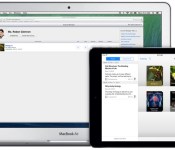
Apple today announced it is updating its iTunes U app with new iPad-related features that’ll make it easier for teachers and students to use the tablet device for their online courses. These new features will be available starting July 8th.
“Education is at the core of Apple’s DNA and iTunes U is an incredibly valuable resource for teachers and students,” said Eddy Cue, Apple’s senior vice president of Internet Software and Services. “iTunes U features an amazing selection of academic materials for everyone around the world. Now, with the ability to better manage and discuss educational content, learning becomes even more personalized on iPad.”
The new app updates will allow teachers to create full courses completely on their iPad by importing content from iWork, iBooks Author or educational apps in the iOS App Store. Teachers also can use the camera on the device to incorporate photos and videos into the course material.

iPad-owning students enrolled in an iTunes U course will benefit from the update with a new discussion feature that allows them to collaborate with both teachers and other students in the class. Students can follow discussions and receive push notifications when new topics are created or new comments are added to an existing discussions.
The iTunes U app is a free download for the iPhone and iPad. [Direct Link: iTunes U] 

LA school officials shift from free iPads to laptops and hybrids

An iPad for every student was the plan. Then, some students were too smart for their own good, quickly enabling their for-learnin’ iPads to access to anything on the web, including Twitter, Facebook and all that other fun stuff. LA’s school district now plans to differentiate what it offers its students, authorizing purchases for one of six different devices, including laptops and hybrids such as Chromebooks, Microsoft’s Surface Pro 2 and Lenovo’s Yoga Touch. This fall, teachers and students will test these laptops to see if they fit. “The benefit of the new approach is clear,” said Los Angeles school board member Monica Ratliff, talking to the LA Times. “Why would we treat all our students – whether they are a first-grader or a high school freshman – as if they all had the same technology needs? They don’t.”
Last year’s iPad scheme rolled out to 47 schools, but alongside those aforementioned security filter woes, distribution of the tablets soon fell behind schedule. Worse still, educational materials were apparently often incomplete. (In the new scheme, materials from three different publishers are also being trialled) Given the touchscreen keyboards, iPads were apparently difficult to use while sometimes exam problems were often obscured due to the screen size. iPad distribution across LA’s school district remains on hold, although some school are still scheduled to receive them later this year.
Filed under: Laptops, Tablets, Apple, Microsoft
Source: LA Times

Google drops Quickoffice now that its own apps can handle your work

Google bought Quickoffice to boost the productivity of its Apps suite, and it clearly accomplished that mission when it released a slew of mobile editing tools that merge Quickoffice’s file tech with Google Drive. Accordingly, the search firm is pulling the plug on the earlier software; it’s going to remove Quickoffice from both Apple’s App Store and Google Play “in the coming weeks.” You can still download it after that if you’re an existing fan, but newcomers will have no choice but to use either Google’s apps or their rough equivalents.
The move isn’t surprising, since there’s no need for Google to keep a redundant app hanging around. However, it marks the end to a long, long chapter in cellphone history. Quickoffice was a mainstay of mobile workers before smartphones took off, and it has run on most major (and not-so-major) platforms over the span of roughly 12 years — it’s sad to see the name go, even if the technology will live on.
Filed under: Cellphones, Mobile, Google
Source: Google Apps
MakerBot’s iPad app lets you sculpt 3D-printed objects from your couch

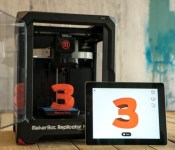
As a rule, serious 3D printers need equally serious design skills if you’re building objects from scratch. That’s no longer true for MakerBot’s Replicators, though; the company has just trotted out PrintShop, an iPad app that takes the hard work out of making simple objects. You can build your own bracelets, rings and signs without knowing a lick about modelling software. If you’d like to craft something a little more sophisticated, you can browse a collection of ready-made items from the Thingiverse. We’d still suggest a rookie-friendly device like Printeer if you’re primarily interested in basic designs, but this could be an easy way to let your kids in on the action — or just to make something without leaving your sofa.
Filed under: Peripherals, Tablets
Costco is now selling iPads and iPhones, with a patchy selection

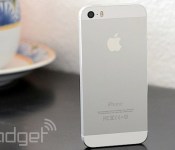
Costco has a rough history with Apple products; the big-box chain sold Apple goods for a while, but pulled them in a huff after it was denied a chance to sell the original iPad. Time must have healed those wounds, then, since the retailer is now selling iPads and iPhones. There are some solid bargains, depending on what you’re looking for. The iPhone 5s for AT&T, Sprint and Verizon is selling for $78 on contract, a full $120 lower than the regular sticker; you can also lop $100 off the price of Verizon-ready editions of the iPad Air (now $520) and iPad mini with Retina display ($420).
Good luck tracking down exactly what you want, however. T-Mobile gear is only available through some Costco kiosks, and the only iPhone 5c on tap is a 16GB blue model for AT&T (which, strangely, sells for more than the higher-end 5s). Likewise, you’ll have to shop elsewhere if you want a cellular-equipped iPad for AT&T or Sprint. But hey, it’s a start — and if you don’t mind getting Apple gear when updated models are likely just a few months away, you’ll save some change.
Filed under: Cellphones, Tablets, Mobile, Apple
Via: 9to5 Mac
Source: Costco (iPhones), (iPads)

Demo of iPad Passcode Theft via Google Glass Highlights Benefits of Touch ID [iOS Blog]
Looking over a nearby person’s shoulder is a common technique used to steal a PIN code for a device that is targeted for imminent theft. But as reported by Wired, a research team from the University of Massachusetts Lowell has taken this shoulder surfing trick to a whole new level by increasing the working distance and automating the process using Google Glass and other similar camera-equipped, mobile products.
The UMass Lowell researchers improved passcode theft by analyzing video captured from wearable and mobile devices such as Google Glass, the Samsung Gear smartwatch and the iPhone. The system anlyzes the incoming video using a custom video recognition algorithm that detects the shadows from finger taps and uses that information to predict PINs codes. Unlike the standard over-the-shoulder method that requires a direct view of the target device’s display, the UMass method also can be employed at an indirect angle, allowing someone to steal a password while standing at your side.

(Image from Cyber Forensics Laboratory at University of Massachusetts Lowell)
The system is surprisingly accurate — allowing a malicious user to capture PIN codes inconspicuously with at least 83 percent accuracy from a distance as far as three meters. This accuracy was improved to more than 90 percent when a sharper camera such as the iPhone was used or manual error correction by the researchers was added to the video analysis.
“I think of this as a kind of alert about Google Glass, smartwatches, all these devices,” says Xinwen Fu, a computer science professor at UMass Lowell who plans to present the findings with his students at the Black Hat security conference in August. “If someone can take a video of you typing on the screen, you lose everything.”
The researchers didn’t test longer passwords, but believe they could reach an accuracy rate of 78 percent when stealing an 8-digit password from a device such as the iPad. If you are concerned about password hacking, your best line of defense is to cover your display as you type or when possible do away with a PIN code entirely such as by using the Touch ID fingerprint in the iPhone 5s.
With the results of this study, the researchers hope to convince mobile operating system companies to improve the security of their PIN input screens by taking steps such as randomizing the layout of the keypad.
Apple’s Touch ID fingerprint authentication is of course another alternative to traditional passcodes. The feature launched on the iPhone 5s last year and is expected to make its way to the iPad and iPad mini later this year. Aside from increased security compared to passcodes, Touch ID has also increased usage of security features, with Apple noting during its WWDC presentation earlier this month that passcode/Touch ID usage has risen to 83% on the iPhone 5s, up from just 49% passcode usage previously.
Researchers crack iPad PINs by tracking the fingers that enter them

What’s the easiest way to find out someone’s password? Watch them enter it, of course, using the simple hacking technique known as shoulder surfing. Cameras and software have successfully been used by researchers to automate and improve the accuracy of snooping on smartphone users with such observational methods, but they require a direct line-of-sight to work. Now, as Wired reports, a group at the University of Massachusetts Lowell has developed a way to capture iPad passcodes without needing any kind of on-screen cue. A camera is still required, but because the position of the lockscreen keypad is static, their software references finger movement against tablet orientation to estimate the PIN by the way it’s entered.
Using Google Glass to emphasize how this could done quite inconspicuously, researchers found video from the wearable could capture a four-digit PIN from three meters away (nearly ten feet) 83 percent of the time (or over 90 percent with a little human help). Figures were similar using one of Samsung’s camera-equipped smartwatches, and at the same distance, video from an iPhone 5 increased the success rate to 100 percent. Better cameras unsurprisingly produced better results, and at 44 meters (around 144 feet), a $700 camcorder and a little elevation also scored 100 percent on the test. Understanding that some might be genuinely worried about this kind of carry on, the same researchers are currently developing an Android app that randomizes the layout of the PIN-entry keypad, which they plan to release at the same time they present their work at the Black Hat USA conference in August.
Filed under: Cellphones, Cameras, Tablets, Wearables, Software, Mobile
Source: Wired
Retina iPad Mini as Low as $300 With Best Buy EDU Discounts [iOS Blog]
Best Buy is currently offering a $50 discount Apple’s Retina iPad mini as part of a Grad sale, dropping the price of the entry-level tablet to $349. Combined with a student deal that offers an additional $50 off, it’s possible to get a Retina iPad mini for as little as $300.

The combined $100 discount is good on any Retina iPad mini, cellular and WiFi and with all storage capacities. To take advantage of the full deal, a valid .EDU email address is required, but prospective buyers without an .EDU email address can still get a $50 discount on any Retina iPad mini.
The $50 grad sale will last from June 19 to June 21, while the $50 student discount will last until July 12.
Best Buy’s deep student discounts on 2014 MacBook Air models are still ongoing as well, dropping the price of the entry-level MacBook Air down to $649 with an .EDU email address. Students can also get $150 off any Mac by taking advantage of Best Buy’s student deals.
MacRumors is an affiliate partner of Best Buy.

Adobe Ink and Slide review: A software giant tries its hand at hardware

As big as Adobe is in the software space, the company only announced last spring that it planned to dive into hardware, starting with a cloud-connected stylus and a drafting ruler. The Ink and Slide, as they’re called, are accessories that allow the company’s creative-pro customers access to Adobe’s Creative Cloud service on mobile devices. Now, the final versions are available in the US, and as you might expect, Adobe has a smattering of companion apps in tow for making the most out of what could otherwise be a dear $199 purchase. With hoards of more affordable styli to choose from, are Adobe’s efforts really worth the premium? As is often the case, the answer’s a bit more nuanced than a simple “yes” or “no.”
Hardware

When Adobe first pulled the wraps off its stylus and ruler, then code-named Project Mighty and Napoleon, the two devices already had near-final hardware. They’re still wrapped in aluminum with white plastic accents where the tools come in contact with your tablet screen. This means the add-ons match white variants of the iPad Air, iPad mini and fourth-gen iPad well. It also gives the two a premium look, especially compared to other stylii, most of which are fashioned entirely out of plastic. Unfortunately, the metal surfaces here scuff about as easily as Apple’s devices, too. Indeed, something as simple as transporting the Ink and Slide in the same backpack compartment could produce some wear and tear.
Thankfully, there’s a lipstick-style plastic tube for the Ink stylus, an accessory that allows for both recharging and safekeeping. The end snaps magnetically into the cap where there’s a micro-USB port for charging. Ink takes about an hour to fully juice up and is rated for around eight hours, allowing you to get through a full workday before plugging in again. Unfortunately, since the ruler doesn’t need to be charged, it doesn’t get its own storage accessory; you’ll have to find your own way of protecting it from scratches, I’m afraid. Getting back to Ink, though, the same end that plugs into the cap for recharging also sports a multi-color LED, serving as an indicator for when the stylus is on and has been connected to an iPad. When charging, that light becomes a colored ring that indicates the charge status on the case itself. The same indicator can even be customized for a particular user so that in an office full of mobile sketch artists, you aren’t picking up someone else’s device.

Ink’s overall triangular shape twists as you move down from the top to the tip and, to me, this design cue allows for a nicer feel in the hand than a straight, wedge-like design would have offered. Not only does it handle nicely, but it also allows you to comfortably rest an index finger on the topside button while working. That button — a single, circular concave spot — allows quick access to tools inside the companion apps without the need to swipe through a menu mid-doodle (more on that in a bit). All told, the pen is a little larger than a regular Sharpie (read: more like a marker than an ink pen) and, as you can tell, its thick shape actually makes it more comfortable to use.
Ink also features a much smaller tip than other styli I’ve used in the past. You know the ones: rounded, rubber-tip affairs that feel more like a marker than a pencil or fine-point pen. That’s not the case here. Ink’s point is a hair larger than a ballpoint pen’s or graphite pencil’s tip, but it allows for more accurate control thanks to its diminutive stature. Those who need to wrangle fine line work when sketching on an iPad should be quite happy with the hardware here. Sure, most drawing apps allow you to select a thin line from the options menu, but fine strokes with a stubby rubber stylus never felt comfortable to me, and it’s the main reason I haven’t really dove into tablet sketching. Additionally, Ink packs Adonit’s Pixelpoint tech that allows for a skinnier tip with “thousands” of levels of pressure sensitivity. It also does a better job recreating the feel of a pen on paper as you’re gliding across your tablet screen, but you’ll still notice how slick the glass is.

When Adobe offered the first look at Slide, the short ruler had a collection of buttons on its top for each bank of shapes for straight-line drawing. Those controls have been reduced to a single concave button like on the Ink, only a bit larger to fit the extra space comfortably. You can select several libraries of shapes from within Adobe’s mobile apps, and you can use the surface toggle to sort through the options before placing the desired shape or drawing those clean lines manually. Those collections include Herman Miller furniture, gadgets, UI elements and more, which should come in handy for tasks ranging from interior design to mobile-app planning. Though I thought the Slide’s glossy feet would slide around, making it difficult to hold steady while sketching, I was pleasantly surprised to find that’s not the case. Slide can be moved around with ease, yet it doesn’t budge when you apply pressure. It’s also just a bit longer than a USB thumb drive, so it’ll be easy to pack away in the pocket of your backpack.
Setup and use

Once you turn Bluetooth on, you can pair Ink with the iPad from Adobe’s own Sketch and Line apps (more on those in the software section). It’s here that you can also choose from three palm-rejection settings, toggle Slide detection and configure the LED color. Connect your Ink device by pressing down on an on-screen circle for about five to seven seconds. Once the unit has been paired, you can use it in any of the supported apps, and it will remain active until you connect another Adobe pen. The whole process is quick and I never encountered any snags when trying to get the stylus and tablet ready for work. What’s more, because they stay connected, I was able to pick up both devices in the morning and immediately resume where I had left off the night before.
While you can certainly use Ink and Slide without a Creative Cloud account, signing into one brings stored color palettes, Cloud Clipboard, access to saved files and the ability to share via Behance from your tablet. I found this particularly handy when working on projects that already had established color schemes. I was able to keep things color-coordinated from the start, and could grab existing assets for more accurate previews. Ink’s onboard button offers access to Kuler swatches, drawing tools, Cloud Clipboard, palm rejection and sharing with a single click right on the pen. It handles copy/paste functions too, and that clipboard can be accessed across devices. For example, you can copy a sketch on your iPad mini, then connect Ink to a pal’s iPad Air and drop the scribble inside Sketch there. As with any new hardware/software tandem, there’s a slight learning curve, but Adobe has kept the controls simple and straightforward, so that even novice illustrators should be able to pick them up quickly.
Software

By now, you’ve surely noticed that we mentioned the iPad in the headline of this review. No, that’s not an indication of our bias for all things Cupertino; it’s a heads-up that these devices and their apps are iPad-only… for now, anyway. Adobe has always favored Apple with its mobile apps, on account of the fact that a large portion of its customers prefer Macs and iDevices. However, I was told that depending on consumer demand once Ink and Slide launch, companion apps for other platforms could eventually follow. There’s no indication that these bits of software are already in the works, so once the decision is made, it could take some time before you get to use these tools on an Android or Windows slate. Actually, if we’re getting technical, the Ink stylus will work with other OSes now, but just as a regular ol’ capacitive stylus.
In any case, enough with that — let’s dive into the apps, shall we? Alongside these two devices, Adobe is introducing three new iPad apps that are “Ink and Slide aware”: Photoshop Mix, Sketch and Line. First, Adobe Sketch will be the option for free-form drawing with Ink and Slide. The app pipes in access to color palettes via Kuler, stored images, copy/paste clipboard (labeled Cloud Clipboard) and the ability to both browse for inspiration and publish to Behance — all with the help of Creative Cloud. The drawing toolkit here includes graphite pencil, pen, markers and an eraser. If you’re not into splurging for the Ink and Slide, a feature labeled Touch Slide is built in for getting those straight lines without the hardware. You could use your finger, for example, or benefit from neater marks when you’re only toting Ink along on your commute.
Adobe Line, meanwhile, enables precise drafting-style drawing for those looking to keep things tidy. There’s also a grid view for creating sketches with accurate perspective — something perhaps a package designer would fancy. Another useful example would be interior designers using the app to plan a space by applying the built-in Herman Miller furniture packs. In that scenario, you could also trace the inside of a room on top of an existing photo for a more accurate representation. Once again, Creative Cloud is baked in here for Kuler themes, file access and sharing work as you go.
Lastly, Photoshop Mix packs in key features from the full-on desktop version into an iPad app for the first time. Here, tools like Content Aware Fill and Camera Shake Reduction should make compositing and masking images on a slate a breeze. What’s more, you’ll be able to open and save PSD files from a tablet for later use in Photoshop CC when you’re back in the office. Unfortunately, we weren’t able to test that app, so we can’t offer any initial impressions on it. The software maker is also opening up its mobile SDK that allows access to CC settings, so we should see the app selection grow before year’s end.

Adobe’s Sketch and Line make it much easier to get tablet sketches into desktop apps like Photoshop and Illustrator quickly. Once there, though, you’ll have to contend with a PNG file — at least for now. This means that you’ll still have to convert drawings vector artwork manually just like you have scanned in a sketch on paper. It’s an even bigger bummer when you get your clean lines just right in Line only to have to retrace them again to make a workable vector graphic. If my work in that app could be beamed straight to Illustrator as vector art, Ink and Slide would instantly have a place in my mobile workflow, especially for things like branding projects with loads of iterations. However, it’s really nice to be able to send a file from my iPad to my desktop in a matter of seconds with two taps of my finger, no matter how much I’ll have to clean it up once it arrives.
My qualms with file handling aside, both Sketch and Line perform quite well for tablet drawing apps. If you’ve encountered similar software in the past, you can expect a comparable UI arrangement here. Menus are tucked away up top or down below giving you the maximum amount of real estate in the middle to work with. Heck, you can even go full-screen and hide nearly all of the tools if you really need to get at the edges. To make the most of the iPad’s touchscreen, both apps also feature handy gestures for things like undo, a history scrubber and both pan and zoom. This handful of touch gestures allows you to pick up the pace when drawing, without the need to switch to an eraser to correct a misplaced mark or navigate the canvas with a separate side-rail control.
The competition

Aside from the Ink, there’s a plethora of Bluetooth styli on the market, and at a wide range of prices. For creative professionals, specifically, only a few stick out as true competitors. Wacom’s Intuos Creative Stylus is another iOS-only tablet pen that touts palm rejection and 2,048 levels of pressure sensitivity (the Ink recognizes “thousands”). It also has clickable buttons, similar to what Wacom builds into its separate Pro Pen product. The Pro Pen, by the way, is meant to pair with Wacom’s pricey, professional-grade pen displays, pen tablets and hybrid devices from the outfit, but here, the precise nib tip is replaced with a larger rubber end that I’m not too fond of. The larger contact area makes the Creative Stylus feel like just that, a stylus, instead of a more realistic pen-to-paper experience when sketching inside the Bamboo Paper app. However, it only costs $100 — half the price of Adobe’s new Ink and Slide.
Thanks to its partnership with Adobe, Adonit has a Creative Cloud-connected stylus of its own, the Jot Touch with Pixelpoint. As the name suggests, it packs the same tech and skinny tip as Ink in the first third-party stylus to access CC settings. While it’s also iOS-exclusive, it will only hit your wallet for $120 and could be useful for those who don’t also need the Slide ruler.
Lastly, FiftyThree’s Pencil ($60 and up) has become a popular choice for those looking to create on the go. This, too, offers palm rejection, an eraser tip and fingertip blending. It also works only with iPads and is fine-tuned for the company’s Paper (no, not that Paper) app that was recently retooled for iOS 7. This particular piece of software, along with Wacom’s Bamboo Paper (both free), are the closest options to Adobe’s Sketch, but the accompanying styli pack a much beefier tip, so you’ll need to take that into account in addition to the monetary savings.
If you aren’t looking to futz with replacing batteries, FiftyThree’s Pencil, Adonit’s new Jot Touch and Adobe’s Ink are the internally rechargeable options here, while Wacom’s device relies on AAA batteries for power. Another detail that may factor into your decision is availability. Adobe’s Ink and Slide are only available in the US for now, though Adobe says they’ll ship globally later this year.
Wrap-up

I’ll admit I had to keep my excitement in check when Adobe outed Mighty and Napoleon last year. I knew that the company could crank out stellar software, but I wasn’t sure how compelling the hardware portion would be — especially compared to other styli. In terms of functionality and ease of use, the company has created the first set of tools that allows me to start a project on a mobile device and finish it when I get back to the office, now that I have access to assets while in transit. The mobile software plays nice with the Creative Cloud apps that I need to finalize my work, and I can make the transition from slate sketch to full-blown apps on my MacBook Air quickly and easily.
There are two cons that ultimately hamper the experience: durability and price. I can’t justify spending the $200 on Ink and Slide until I can create and send vector graphics from my iPad for use in Illustrator on the desktop. Some creative types may get a lot of use out of the duo in their current state, but I’ll have to wait for those other apps and expanded file support to arrive. For double the price of competing devices (more in some cases), I expect my accessories not to get scuffed so easily when they’re resting in the same pocket of my bag. Don’t get me wrong; I prefer the metal to a plastic shell, but if these are devices I’ll carry with me nearly everywhere, I should be able to haul them around without producing wear so easily. In the end, though, Adobe has built a somewhat tempting window into Creative Cloud for those eager to start projects on an iPad. The only question is whether the company has priced itself out of attracting the curious.
Filed under: Peripherals, Mobile
 AIVAnet