


Samsung starts pushing out Lollipop OTA for the Note 4 in Belgium

Samsung has just started pushing out the much-anticipated, eagerly-awaited Lollipop update to all unlocked models of the Note 4 located in Belgium. This 1.3GB upgrade transports the latest build of the Android operating system to the handset, together with a handful of bug fixes, stability improvements and speed optimizations.
Hit the break for the full changelog.
- Material Design: You will quickly notice a whole new colorful look and feel to your device – from fluid animations to new application and system themes, colors and widgets.
- Notifications UI & Priorities: In order to alert you to the most timely and relevant information, the format and behavior of notifications have evolved:
- notifications will appear on the lock screen and are intelligently ranked by type and who sent them.
- you double-tap to open one, swipe left or right to clear one, or clear all notifications from the bottom of the list.
- you can set the priority and privacy of notifications for each application.
- very high priority notifications will pop up briefly over other applications so that you can take action.
- when you dismiss a notification on one device it will be dismissed on your other Android devices, if they are connected to the Internet.
- you can further tailor how notifications behave with the new Downtime and Ambient Display settings (see below).
- New Interruptions & Downtime Settings: You can tailor how interruptions behave, choosing to allow all, none, or only priority interruptions. You can personalize what counts as a priority interruption (reminders, events, calls, messages) and even tailor them to be from only contacts you specify. The Downtime setting will allow only priority interruptions during the times and days that you specify. e.g. allow only priority interruptions on the weekend.
- Recent Apps (Multi-tasking): The redesigned Overview space (formerly called Recents) will include both applications and separate activities within those applications. For instance, each open tab in Chrome will also appear here along with recent applications; both your Gmail Inbox and a draft email message will appear as separate cards. This provides a consistent way to switch amongst tasks.
- Flashlight: Lollipop includes a new flashlight option as part of Quick settings (swipe down with two fingers from the status bar to see it).
- Pin a view/app: Screen pinning allows you to keep a specific app or screen in view. For example, you can ‘pin’ a game and your child will not be able to navigate anywhere else on your phone.
- Battery: The Battery settings panel now shows an estimated projection for how much time you have left while discharging or charging. You can also enable a new battery saver mode that will save power by reducing performance and most background data operations to extend your battery life.
- Smarter Internet Connections: With Android Lollipop, your phone will not connect to a Wi-Fi access point unless there is a verified Internet connection. This feature improves hand-offs between Wi-Fi and cellular connections, helping to maintain your video chat or voice-over-IP (VoIP) call as you switch.
- Performance: Your phone now uses the new Android Runtime to help optimize application performance. After upgrading to Lollipop, your applications will undergo a one-time optimization process. Note that the optimization for ART requires more space.
- Security: Encryption can now use a stronger 256-bit key to help protect your data. Note that the stronger key willonly be used after you perform a factory reset on Android Lollipop. Otherwise encryption will continue to use 128-bit key. You can turn on encryption in the Security settings menu.
To start the update, make sure you’re connected to a Wi-Fi network. Then, from the home screen, press the Menu key, followed by Settings. Scroll to the bottom and tap ‘About Device’, followed by ‘Software Update and ‘Update Now’.
Come comment on this article: Samsung starts pushing out Lollipop OTA for the Note 4 in Belgium
AT&T Samsung Galaxy Note 4 finally getting Android 5.0 Lollipop
Weighing in at 1.16GB, the update to bring Android 5.0 Lollipop to your Note 4 on AT&T is now rolling out.
It may take a few days for it to trickle out to all devices, but be patient and keep spamming that ‘check for update’ button to see if you can join the Lollipop group.
I’ve had Lollipop on my Note 4 for a while now and it’s absolutely amazing – let us know what you think about it in the comments section below.
The post AT&T Samsung Galaxy Note 4 finally getting Android 5.0 Lollipop appeared first on AndroidGuys.
Samsung’s new TouchWiz UI for Galaxy S6 may have a touch of Tizen present

Over the years, one complaint that surfaced about Samsung smartphones was the TouchWiz UI that Samsung deployed. While Samsung was always adding in lots of interesting and unique features, critics also felt the interface was becoming too bloated and busy. Samsung took that input and started to trim things back some for the Galaxy Note 4. However, for the upcoming Samsung Galaxy S6 and Galaxy S6 edge, it was clear that Samsung was being more aggressive in trimming things down. Many believed a lot of this was due to the influence of Google’s Material Design framework. However, it appears that Samsung also leaned heavily on their work with the Tizen OS, recently employed on the Samsung Galaxy Z1 released in India.
Comparing Tizen OS with the new TouchWiz, some similarities jump out. For instance, the Contacts app is quite different from previous TouchWiz iterations, but it looks very much like the Tizen Contacts app. Colors are more prominent, icons and avatars are round instead of square, and the menus are trimmed down quite a bit. Coincidentally, these changes are similar to what Google calls for with Material Design.
One area that definitely seems to be a crossover from Tizen is the ability to personalize themes, most notably applying a universal color scheme to the interface and even within apps.
Samsung’s UX design team had previously said that their goal with Tizen on the Galaxy Z1 was to create an interface that focused on simplicity, ease and speed. These same buzzwords are popping up from Samsung with regard to TouchWiz now as well.
To get an idea of how similar Samsung’s take on Tizen is, check out the video below that was recently released by Samsung’s developers.
Click here to view the embedded video.
source: Tizen ID
via: G for Games
Come comment on this article: Samsung’s new TouchWiz UI for Galaxy S6 may have a touch of Tizen present
Samsung starts pushing out Lollipop OTA in France

The South Korean multinational conglomerate company that is Samsung has just started pushing out the much-anticipated, eagerly-awaited Lollipop update to all unlocked models of the Note 4 located in France. This 1.3GB upgrade transports the latest build of the Android operating system to the handset, in addition to a handful of bug fixes, stability improvements and speed optimizations.
Hit the break for the full changelog.
- Material Design: You will quickly notice a whole new colorful look and feel to your device – from fluid animations to new application and system themes, colors and widgets.
- Notifications UI & Priorities: In order to alert you to the most timely and relevant information, the format and behavior of notifications have evolved:
- notifications will appear on the lock screen and are intelligently ranked by type and who sent them.
- you double-tap to open one, swipe left or right to clear one, or clear all notifications from the bottom of the list.
- you can set the priority and privacy of notifications for each application.
- very high priority notifications will pop up briefly over other applications so that you can take action.
- when you dismiss a notification on one device it will be dismissed on your other Android devices, if they are connected to the Internet.
- you can further tailor how notifications behave with the new Downtime and Ambient Display settings (see below).
- New Interruptions & Downtime Settings: You can tailor how interruptions behave, choosing to allow all, none, or only priority interruptions. You can personalize what counts as a priority interruption (reminders, events, calls, messages) and even tailor them to be from only contacts you specify. The Downtime setting will allow only priority interruptions during the times and days that you specify. e.g. allow only priority interruptions on the weekend.
- Recent Apps (Multi-tasking): The redesigned Overview space (formerly called Recents) will include both applications and separate activities within those applications. For instance, each open tab in Chrome will also appear here along with recent applications; both your Gmail Inbox and a draft email message will appear as separate cards. This provides a consistent way to switch amongst tasks.
- Flashlight: Lollipop includes a new flashlight option as part of Quick settings (swipe down with two fingers from the status bar to see it).
- Pin a view/app: Screen pinning allows you to keep a specific app or screen in view. For example, you can ‘pin’ a game and your child will not be able to navigate anywhere else on your phone.
- Battery: The Battery settings panel now shows an estimated projection for how much time you have left while discharging or charging. You can also enable a new battery saver mode that will save power by reducing performance and most background data operations to extend your battery life.
- Smarter Internet Connections: With Android Lollipop, your phone will not connect to a Wi-Fi access point unless there is a verified Internet connection. This feature improves hand-offs between Wi-Fi and cellular connections, helping to maintain your video chat or voice-over-IP (VoIP) call as you switch.
- Performance: Your phone now uses the new Android Runtime to help optimize application performance. After upgrading to Lollipop, your applications will undergo a one-time optimization process. Note that the optimization for ART requires more space.
- Security: Encryption can now use a stronger 256-bit key to help protect your data. Note that the stronger key willonly be used after you perform a factory reset on Android Lollipop. Otherwise encryption will continue to use 128-bit key. You can turn on encryption in the Security settings menu.
To start the update, make sure you’re connected to a Wi-Fi network. Then, from the home screen, press the Menu key, followed by Settings. Scroll to the bottom and tap ‘About Device’, followed by ‘Software Update and ‘Update Now’.
Thanks, Sean!
Come comment on this article: Samsung starts pushing out Lollipop OTA in France
Samsung starts pushing out Lollipop OTA for the Note 4 in the UK
Samsung is now pushing out the long-awaited Lollipop update to all unlocked models of the Note 4 located in the UK. The 729.59MB upgrade transports the latest build of the Android operating system to the handset, in addition to a handful of bug fixes, stability improvements and speed optimizations.
For those in need of a refresh, the Lollipop upgrade brings support for multiple accounts, improved notifications, a smoother multitasking experience, Ambient Display, smarter internet connections and the recently-announced Material Design guidelines.
To start the update, make sure you’re connected to a Wi-Fi network. Then, from the home screen, press the Menu key, followed by Settings. Scroll to the bottom and tap ‘About Device’, followed by ‘Software Update and ‘Update Now’.
Come comment on this article: Samsung starts pushing out Lollipop OTA for the Note 4 in the UK
Samsung and Lamborghini team up to bring Gear VR experience to the Huracan

At the Geneva Motor Show 2015, Lamborghini is present and showing off their new Huracan automobile. To help give potential customers a feel for what the car is like, the automaker partnered with Samsung to create a virtual reality experience using Samsung Gear VR devices. Paired with Samsung Galaxy Note 4 phones, Lamborghini is giving attendees the chance to strap on Gear VR, some headphones, and plunk down in a Huracan that is on display to experience how it feels to drive the supercar.
The experiences made available through the Gear VR include driving along a cliff edge on the coast of Italy, through the town of Amalfi, or taking in a lap or two on the Imola race track. In the video below, Samsung and Lamborghini capture the impressions of the experience by participants. They seem to be quite impressed with the ability of Gear VR to put them in the middle of the action and when combined with the sounds, they truly felt immersed in the experience.
Click here to view the embedded video.
source: SamMobile
Come comment on this article: Samsung and Lamborghini team up to bring Gear VR experience to the Huracan

Sprint Galaxy Note 4 now getting Android 5.0 Lollipop
Listen up Sprint Galaxy Note 4 owners…..You are about to get Lollipop. Sprint started pushing the update over-the-air, but you know the drill……It could take literally 2 weeks or more until you get yours since it rolls out in stages. Yes, you can keep tapping, Check for Updates, but trust me when I say that it won’t do a thing other than make you feel like you think you are speeding things up.
You might not want the update so fast anyway because a lot of people are reporting bugs after Lollipop updates on various other phones. Let us know if you received the update and if you’re having any issues.
Thanks to the many of you that sent this in.
source: Sprint
Come comment on this article: Sprint Galaxy Note 4 now getting Android 5.0 Lollipop

Samsung starts pushing out Lollipop update to Galaxy Note 3 (LTE) & Snapdragon Galaxy Note 4 in Germany
Hot on the heels of the Exynos variants, Samsung has today started pushing out the much-anticipated Lollipop update to all Snapdragon-powered models of the Galaxy Note 3 (LTE) and Galaxy Note 4 located in Germany. In terms of added functionality, this upgrade brings the latest build of the Android operating system, together with a multitude of bug fixes and stability improvements.
Hit the break for the full changelog.
System Improvements:
- Radio stability improvement
- Transition improvements
Eye Experience Implementation:
- Split Capture
- Crop-Me-In
- Photo Booth
- Auto Selfie
- Voice Selfie
- Swipe-To-Switch
- Video Face Tracking
- Live Makeup
- Video Screen Sharing
- Application Improvements:
Material Design: You will quickly notice a whole new colorful look and feel to your device – from fluid animations to new application and system themes, colors and widgets.
Notifications UI & Priorities: In order to alert you to the most timely and relevant information, the format and behavior of notifications have evolved:
- notifications will appear on the lock screen and are intelligently ranked by type and who sent them.
- you double-tap to open one, swipe left or right to clear one, or clear all notifications from the bottom of the list.
- you can set the priority and privacy of notifications for each application.
- very high priority notifications will pop up briefly over other applications so that you can take action.
- when you dismiss a notification on one device it will be dismissed on your other Android devices, if they are connected to the Internet.
- you can further tailor how notifications behave with the new Downtime and Ambient Display settings (see below).
New Interruptions & Downtime Settings: You can tailor how interruptions behave, choosing to allow all, none, or only priority interruptions. You can personalize what counts as a priority interruption (reminders, events, calls, messages) and even tailor them to be from only contacts you specify. The Downtime setting will allow only priority interruptions during the times and days that you specify. e.g. allow only priority interruptions on the weekend.
Recent Apps (Multi-tasking): The redesigned Overview space (formerly called Recents) will include both applications and separate activities within those applications. For instance, each open tab in Chrome will also appear here along with recent applications; both your Gmail Inbox and a draft email message will appear as separate cards. This provides a consistent way to switch amongst tasks.
Flashlight: Lollipop includes a new flashlight option as part of Quick settings (swipe down with two fingers from the status bar to see it).
Pin a view/app: Screen pinning allows you to keep a specific app or screen in view. For example, you can ‘pin’ a game and your child will not be able to navigate anywhere else on your phone.
Battery: The Battery settings panel now shows an estimated projection for how much time you have left while discharging or charging. You can also enable a new battery saver mode that will save power by reducing performance and most background data operations to extend your battery life.
Smarter Internet Connections: With Android Lollipop, your phone will not connect to a Wi-Fi access point unless there is a verified Internet connection. This feature improves hand-offs between Wi-Fi and cellular connections, helping to maintain your video chat or voice-over-IP (VoIP) call as you switch.
Performance: Your phone now uses the new Android Runtime to help optimize application performance. After upgrading to Lollipop, your applications will undergo a one-time optimization process. Note that the optimization for ART requires more space.
Security: Encryption can now use a stronger 256-bit key to help protect your data. Note that the stronger key willonly be used after you perform a factory reset on Android Lollipop. Otherwise encryption will continue to use 128-bit key. You can turn on encryption in the Security settings menu.
To see if the update is ready for your device, head into ‘Settings’, ‘About Device’, then tap ‘Check for Updates’.
Come comment on this article: Samsung starts pushing out Lollipop update to Galaxy Note 3 (LTE) & Snapdragon Galaxy Note 4 in Germany
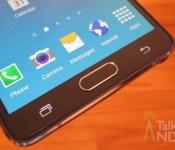
Samsung starts pushing out Lollipop update for the Note 4 in South Korea

Samsung has today begun pushing out the much-anticipated Lollipop update to all unlocked models of its flagship phablet, the Note 4, located in South Korea.
For those in need of a refresh, the Lollipop upgrade brings support for multiple accounts, improved notifications, a smoother multitasking experience, Ambient Display, smarter internet connections and the recently-announced Material Design guidelines.
To start the update, make sure you’re connected to a Wi-Fi network. Then, from the home screen, press the Menu key, followed by Settings. Scroll to the bottom and tap ‘About Device’, followed by ‘Software Update and ‘Update Now’.
Come comment on this article: Samsung starts pushing out Lollipop update for the Note 4 in South Korea
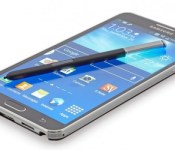
Galaxy Note 4 in Russia now receiving Lollipop update
As promised, Samsung has finally started pushing out the long-awaited and much-anticipated Lollipop update to all unlocked models of its flagship phablet, the Note 4, in Russia. This upgrade transports the latest version of the Android operating system, together with a multitude of new features, bug fixes and stability improvements.
The full changelog can be seen below:
- Android 5.0 Lollipop update
- Lock screen and Notification: New Lollipop UI style with enhanced privacy features
- Recent apps: Support multiple pages
- Addition of search function within settings
To start the upgrade, make sure you’re connected to a Wi-Fi network. Then, from the home screen, press the Menu key, followed by Settings. Scroll to the bottom and tap ‘About Device’, followed by ‘Software Update and ‘Update Now’.
Come comment on this article: Galaxy Note 4 in Russia now receiving Lollipop update
 AIVAnet