


Google unveils four new budget-friendly Chromebooks for under $250
Alongside the announcement of its Chrome OS-powered Chromebit, Google has announced four new Chromebooks aimed at folks who are on a budget. To start off the list, the Haier Chromebook 11 and the Hisense Chromebook are the cheapest of the four, available now for pre-order for just $149. Since these Chrome devices are so inexpensive, both the Haier and Hisense laptops are made of a black plastic material that seem very resilient to scratches and bumps. Both laptops have 11.6-inch screens with 1366×768 resolution and 200 nits of brightness, though the Hisense is slightly heavier and bigger overall. In addition, Haier has also launched another Chromebook aimed at the education field, called the Haier Chromebook 11E. The 11E is just like the Haier 11, though it has a water and spill-resistant chassis, a built-in handle and a removable battery.
#gallery-1
margin: auto;
#gallery-1 .gallery-item
float: left;
margin-top: 10px;
text-align: center;
width: 33%;
#gallery-1 img
border: 2px solid #cfcfcf;
#gallery-1 .gallery-caption
margin-left: 0;
/* see gallery_shortcode() in wp-includes/media.php */


Arguably the most interesting Chromebook launched today is made by ASUS. It’s called the ASUS Chromebook Flip, and it boasts a thickness of only 15mm and a 10.1-inch display that be flipped around 360 degrees. The IPS display is a touch screen as well, and will automatically pull up the proper on-screen touch controls when the laptop is in a different orientation. So, if the screen is turned all the way around (like in the press photo above), the Chromebook will recognize that and bring up the proper controls automatically. The Chromebook Flip will be available for $249. Last but not least is the ASUS Chromebook C201. It has an 11.6-inch display and will be available for $169 later this Spring on Amazon.
All of the Chromebooks listed above come with a Rockchip 3288 processor, a Mali 760 GPU, 2GB of RAM, 16GB of internal storage and a 720p front-facing camera. Additionally, all Chromebooks come with two USB 2.0 ports, Wi-Fi 802.11ac and Bluetooth 4.0. The Hisense and Haier Chromebooks will be available from Amazon and Walmart in mid-April, though you can pre-order both of them now. Both ASUS Chromebooks will be available from Amazon sometime this Spring.
Google launches four new budget Chromebooks ranging up t $250

Google has partnered with ASUS, Haier and Hisense to bring four new budget priced Chromebooks to the market. Prominent among these is the ASUS Chromebook Flip, which is a convertible device that can transform into a tablet or a fully functioning notebook on your call.
The Chromebook Flip comes with a 10.1 inch touchscreen display and can be rotated 360 degrees, hence the name. We must note that this tablet cannot detach itself from the keyboard, but merely flip backwards. But it’s a neat feature to have nevertheless.
ASUS Chromebook C201, the Hisense Chromebook and the Haier Chromebook 11 are pretty basic in their approach and don’t come with the bells and whistles of the Chromebook Flip. But the pricing of these devices make them very attractive propositions.
As for the hardware, all the aforementioned Chromebooks sport 16GB of internal storage with a microSD card slot, 2GB of RAM and a Rockchip 3288 SoC. Other features include a front facing 720p camera and a total of two USB 2.0 ports.
The Chromebook Flip has been priced at $249, while the ASUS Chromebook C201 costs $169. The two Chromebooks from Haier and Hisense have been priced at $149, making them the cheapest of the lot.
Via: Engadget
Come comment on this article: Google launches four new budget Chromebooks ranging up t $250
Google reveals budget Chromebooks including a $249 ASUS convertible

Ladies and gentlemen, get ready for some new Chromebooks. Yep, Google has just announced four new Chrome OS laptops, all of which lean toward the budget-friendly end of the spectrum. They are the ASUS Chromebook Flip, the ASUS Chromebook C201, the Hisense Chromebook and the Haier Chromebook 11 (This also comes in an educational version dubbed the 11e). Though it’s the priciest model at $249, the most notable one by far is ASUS’ Chromebook Flip. Not only is it the slimmest of the bunch with a thickness of only 15mm, it has a 10.1-inch touchscreen IPS display that can be flipped (hence the name) 360 degrees around.
I didn’t have much time to get a real feel for the Flip, but it does remind me a lot of ASUS’ other flipping laptop, the ASUS Transformer Book Flip. The Chromebook flip is very lightweight at less than two pounds and I was able to hold it with one hand quite easily. Thanks to an internal accelerometer, the screen orientation changes depending on how the laptop is positioned — as you can see in the image here, it’s rotated 180-degrees when in the upside-down teepee formation. In this converted state, the software in the Chromebook Flip is smart enough to bring up touch-centric controls like a virtual keyboard and handwriting recognition whenever you tap an empty text field. Flip it around to regular laptop mode, however, and these extra modes will disappear, as it recognizes that you now have a full keyboard at your disposal.
The Haier and the Hisense laptops, on the other hand, are decidedly less glamorous. Instead of a sleek all-metal frame, the Haier and the Hisense models are clad in utilitarian black plastic. Still, that isn’t necessarily a bad thing. The Hisense in particular has a pleasant pebbled texture that contributes to a firmer grip and I quite like the feel of the metal palm rest. They both have almost the same dimensions — the Hisense is 11.7 by 8.8 by 0.6 inches and weighs about 3.3 pounds while the Haier is a touch smaller at 11.4 by 8.1 by 0.71 inches and 2.54 pounds. Both have 11.6-inch screens with 1366×768 resolution and 200 nits of brightness. I wasn’t too impressed with what I saw of the displays — the colors seem washed out and rather lackluster — but for low-end budget models, they’re perfectly functional.
I was also a fan of the Haier 11e educational Chromebook. It’s a lot more durable against everyday wear and tear and is water- and spill-resistant due to tiny drainage holes in the chassis. Unlike the regular Haier Chromebook 11, the 11e has a removable battery along with a built-in handle, presumably so kids can easily carry it from class to class. ASUS’ Chromebook C201 is a bit of a mystery as I wasn’t able to handle it myself, but Google tells us it has a 11.6-inch display and the internals are about the same as the rest.

ASUS Chromebook C201
As for those internals, well, all of the above Chromebooks come equipped with a Rockchip 3288 SoC with 2GB of RAM and 16GB flash memory (eMMC). They all also have 802.11 ac WiFi, a 720p HD front-facing camera, two USB 2.0 ports, a microSD card reader, Bluetooth 4.0 and an ARM Mali 760 quad core GPU. Battery life fluctuates from model to model — the Flip promises up to 10 hours, the Hisense has 8.5, the Haier has 10 while the Chromebook C201 promises 13.
The main draw with all of these, of course, is price. The Flip will be available for $249, the C201 starts at $169, while both the Haier and the Hisense models will cost $149 each. The Flip should be out later this Spring, the C201 will be on Amazon in May, and both the Haier and Hisense models are avaiable for pre-order today. The Haier is available through Amazon while the Hisense can be purchased through Walmart.
ASUS is preparing an ultra-affordable Chromebook with a Rockchip processor
 Chromebooks are already incredibly affordable, but ASUS looks like they’re preparing to undercut the competition even further with a cheaper model. The ASUS C201 is listed in an education ordering brochure and mentions specs like a Rockchip processor and an 11.6″ inch screen with 4 GB of RAM, and the catalog mentions that it’s the “cheapest Chromebook ever.”
While the brochure divulged the hardware, it didn’t give a clear cut price, so there’s no telling exactly where ASUS wants to try to land this thing in terms of price points. Chromebooks routinely launch for about $199 right now, so anywhere around the $149 – $189 range would probably be a safe bet.
Maybe we’ll see it dip below $100? Not likely, but we can hope. Keep an eye out for some official news from ASUS in the coming weeks.
source: OMG Chrome
Come comment on this article: ASUS is preparing an ultra-affordable Chromebook with a Rockchip processor
Rockchip toting ASUS C201 Chromebook could bring more affordable Chrome OS computing to work and school
Looks like a new ASUS Chromebook offering is on the horizon sporting a more cost-effective quad-core 1.8 GHZ Rockchip processor. The new device is being labeled as the “most affordable Chromebook to date.” A catalog listing outs some of the devices specs with an expected 1366×768 resolution 11.6-inch display, 16 GB eMMC and a VGA […]
The post Rockchip toting ASUS C201 Chromebook could bring more affordable Chrome OS computing to work and school appeared first on AndroidSPIN.
Refreshed Chromebook Pixel goes on sale for $999
When Google first launched their premier Chromebook in 2013, the Chromebook Pixel, the price tag left the average consumer out of the mix at $1299. We didn’t see a refresh come from Google in 2014, but they have brought us a new one to lust after in 2015. The new Chromebook Pixel actually comes in […]
The post Refreshed Chromebook Pixel goes on sale for $999 appeared first on AndroidSPIN.
Google goes all-in with USB Type-C
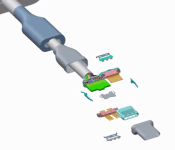
Earlier today, Google made some changes to the Play Store, moving its “Devices” category to a whole new website. Along with this change came an all-new Chromebook Pixel, which features either an Intel Core i5 or i7 processor, 8 or 16GB of RAM, 32 or 64GB of on-board storage, and a price tag starting at only $999. Another addition to the new Chromebook Pixel is the inclusion of two USB Type-C connectors.

The addition of the Type-C connectors is all thanks to Google joining the USB Implementers Forum, helping to create these new connectors over the past few years. Google is pushing to add them to the new Chromebook mainly because laptops have no common charging standard, unlike smartphones that mostly use Micro-USB. Type-C combines fast charging capabilities with quick data transfer speeds, all while being large enough for laptops and small enough for smartphones. Also, USB Type-C is completely reversible, so you won’t need to struggle with plugging in your device. Google explains:
USB Type-C can deliver up to 100W of power, which is more than even the largest laptops typically need. When a USB Type-C enabled device is plugged in, the charger negotiates the right power for that device. That way, phones, laptops and tablets can all be powered from the same charger.
But Google seems to have bigger plans with USB Type-C. The company has open sourced its work on Type-C adapters so there will be an abundance of compatible accessories in the future. That’s great news. But what’s even more exciting is this quote from Adam Rodriguez, a Product Manager at Google:
We at Google are very committed to the USB Type-C spec. Expect to see this in a lot of Chromebooks and Android phones in the near future.
This is basically Google saying that Android phones, at least the ones made by Google at the start, will have USB Type-C connectors in the future. Just think: one universal USB cord to use with your laptop, tablet and smartphone.
Are you excited to get rid of that annoying Micro-USB cable, or are you indifferent?
Chromebook Pixel review (2015): less expensive, still impractical

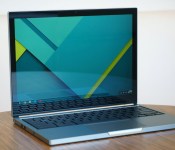
The Chromebook Pixel was the most beautiful laptop that we told people not to buy. With a machined aluminum chassis, pixel-dense screen and a spacious keyboard, it had a design that in some ways outmatched even the Retina display MacBook Pro. The problem: It ran Chrome OS for an operating system, with no support for the sort of desktop apps you’d expect to use on a $1,299 machine. Speaking of the sort, it cost $1,299. Oh, and the battery life was short too — barely four hours on a charge. So much for having a portable machine you could take anywhere. It was, as we said at the time, “a lovely thing that everyone should try to experience, but few should seriously consider buying.”
As far as Google was concerned, though, the Pixel was just ahead of its time. That, and maybe it needed a little refining. Not to be deterred, the company just released a second-generation model, also called the Pixel. The idea, as Google explains it, is that it keeps everything people loved about the original, while correcting everything that made it a tough sell. That means the design is virtually identical, with an all-metal shell, 12.85-inch, 2,560 x 1,700 touchscreen and a well-spaced keyboard. This time, though, the battery is rated for 12 hours, partly thanks to Intel’s latest Core processors, and there are two reversible USB Type-C ports like the kind used on the new MacBook announced earlier this week (except in this case, there are some regular USB connections too). Meanwhile, Chrome OS is more polished than it was two years ago, and can now run a few Android apps. Most importantly, perhaps, Google dropped the Pixel’s starting price to $999. A 23 percent price cut isn’t exactly a trivial difference, but is it enough to turn the Pixel into a practical purchase? Not quite. But almost.
Hardware

As I said, with the exception of those new USB Type-C ports (and a slightly slimmer profile), the new Pixel looks just like the old one. So, I probably shouldn’t spend too much time fawning over the design, as if it were brand-new. That said, I want you to understand how well crafted, how delightful to use this thing is. The aluminum chassis here isn’t just reminiscent of a MacBook, but actually better made in some ways, with a softer finish and a denser body that feels weightier in-hand. (In fact, it weighs less than the 13-inch Retina MBP: 3.3 pounds versus 3.48.)
As before, there’s a thin LED strip on the lid, except now, you can double tap it to see roughly how much battery life you have left (up to four bars will light up). It’s a handy feature, though I haven’t used it much, mostly because the battery life is so good I never worry about having enough juice for the day. Meanwhile, a few other details — a low-rise hinge, black rubber feet and a skinny bumper around the touchscreen — also lend the impression that someone at Google put a lot of thought into the design.
So does the display. I’m simply not used to seeing this nice a screen on a Chromebook. In fact, I don’t think I’ve seen one this nice since the first Pixel came out two years ago. As before, the Pixel has an oddly shaped 12.85-inch panel, with an equally uncommon resolution of 2,560 x 1,700. That’s a 3:2 aspect ratio, by the way, meaning it’s noticeably taller than your typical 13-inch laptop screen. Indeed, thanks to those extra vertical pixels, the screen density comes out to an impressive 239 ppi, making it ever so slightly sharper than the 13-inch Retina display MacBook Pro (227 ppi). Not that you can spot the difference.

In addition to being sharp, the Pixel’s display boasts rich colors and wide viewing angles.
As it turns out, too, that Retina MBP comparison is an apt one, and not just because of their similar screen resolution; the quality is on par, too. In addition to being sharp, the Pixel’s display boasts rich colors and wide viewing angles, even despite the touchscreen’s glossy finish. The visibility is so good, in fact, that when my seatmate on a recent flight asked me to open the window shade, I could make out the contents of the screen, even with sunlight streaming in next to me. My only concern is that the tall display could be a problem for travelers stuck in coach. As it happens, I was seated in Economy Plus on a newer plane, and the person in front of me was kind enough not to recline, but I bet that on a smaller aircraft (and with less considerate neighbors), things would have gone differently. Heck, even with the 13-inch Air, which has a lower-slung screen, I’ve had problems using it in coach.
Google’s “if it ain’t broke, don’t fix it” philosophy applies to the keyboard as well. For all intents and purposes, this is the same tactile, well-spaced keyboard as last time, with one exception: Whereas the row of function keys used to have a stiff feel, they now have the same shape as all the other buttons on the keyboard. And that’s a good thing. With the exception of my Google password, which has a lot of special characters and is easy to mess up — I was able to type at a fast clip with very few typos. The buttons don’t even have that much travel, per se, but the keys are large and easy to hit, and they’re springy enough that I didn’t have to mash the keys in order for my button presses to register. The touchpad is also a joy to use: spacious with smooth, controlled tracking.

That leaves one of the few things that’s actually different about the design, and that’s the ports. As I mentioned, the new Pixel has two reversible USB Type-C ports — the same sort used on the new MacBook announced earlier this week. But whereas Apple caused a controversy by including just one port on its new flagship laptop, Google mercifully built in two Type-C connections — along with two “regular” Standard A USB ports for good measure. In particular, I like that there’s one Type-C port on either side — it means I have some flexibility in terms of where I plug in the charging cable. As I type this, for example, I’m sitting in a middle seat on a plane, with a power outlet on either side of me. The lady on my left indicated she might need an outlet at some point. Good thing there’s another one on my right, with a nearby power plug to match.
Finishing up our tour, there’s also a headphone jack and full-sized SD card; kind of a crucial detail on a Chromebook with only 32GB of built-in storage. Basically, then, you have all the ports you’d likely want, unless you were holding out for an HDMI socket. (And if you were, you’ve heard of Chromecast, right?) Truly, it seems that as long as there are still standard USB 3.0 ports there, you get the best of both worlds. On the one hand, you can charge gadgets faster over USB Type-C than a regular micro-USB port. You also can get away with carrying just one power brick for all your gadgets, including your Pixel and whatever phones or tablets you own. At the same time, you don’t need an adapter to use your existing peripherals (Ethernet adapters, USB headsets, etc.). Apple might be right that people will one day require fewer ports, and that USB Type-C, in particular, will be ubiquitous. But we’re not there yet. For now, then, this mix of old and new USB sockets feels like a sensible compromise.
Software

Chrome OS has come a long way since we reviewed the original Pixel, back in February 2013. First off, most every Google app has offline access, including Gmail, Drive, Music and Google Play Movies & TV. Many third-party apps, such as Pocket and Amazon Kindle Cloud Reader, now work offline, too. In fact, the selection is big enough that there’s even a section of the Chrome Web Store dedicated to offline-capable apps. In short, then, the idea that Chromebooks are crippled without an internet connection is a big fat myth. I will say this, though, there is nothing more infuriating than being locked out of a Chromebook during a flight because you have two-factor authentication and can’t receive your six-digit code over SMS. That happened to me while testing another Chrome OS laptop recently and, well, let’s just say I won’t be making that mistake again. Always have backup codes handy, kids.
The idea that Chromebooks are crippled without an internet connection is a big fat myth.
What else has changed in the last two years? It’s now easier to juggle multiple accounts. As of late last year, Chromebooks have always-on, “OK Google” voice search. The Pixel’s touchscreen now supports pinch-to-zoom. You can remotely lock your machine if it gets lost or stolen. The file manager is better organized. Chrome OS sends photos to Google+ in the background, even if you don’t have the app open. And hey, if Chrome OS isn’t enough, you can load a new operating system through a USB drive (or you could just run it in its own window). Speaking of different platforms, you can now run a handful of Android apps, including Vine, Evernote and Flipboard. The selection is still small, but it’s a nice-to-have feature nonetheless.
But it’s not just Chrome OS that has matured; the rest of the web has caught up too. Though I still can’t do everything I need to on a Chromebook, most of the services I use, or could possibly want, are now in the cloud. Skype, one of the biggest apps I used to miss on Chromebooks, is now accessible from a browser. So is HipChat, the messaging client Engadget staffers use to communicate with each other. (Ditto for Slack, which many other workplaces use.) Like most people, I also make good use of music-streaming services like Spotify, Slacker and Pandora, all of which have a cloud player. Netflix works fine here too, even though there were some compatibility issues years back. The same goes for Amazon Prime Video, Hulu Plus and the like. I can do almost anything I want on a Chromebook.
If you think there’s a chance you’ll miss one of your usual desktop apps, you might just want to buy yourself a similarly priced Mac or Windows machine.
The keyword is “almost.” There are still some gaps. The software updater for my Garmin running watch won’t install on a Chromebook. I can’t install iTunes on the Pixel, though I can upload my collection to Google Play Music. I happen not to be a gamer, but if I were, I wouldn’t be able to download Steam, or play any truly native games — beyond the mobile-style titles found in the Chrome Web Store. There’s no web-based video editor that matches the ones I might use on a desktop. Meanwhile, most of Adobe’s Creative Cloud apps aren’t available on Chromebooks. Technically, Photoshop is compatible, but for now it’s only available in beta to education customers. I could use Chrome’s Remote Desktop feature, I suppose, but that’s a clumsy solution compared to simply loading an app on my local machine.
Depending on who you are and what you do with a computer, it’s possible that none of these will be dealbreakers for you. But if you think there’s a chance you’ll miss one of your usual desktop apps, you might just want to buy yourself a similarly priced Mac or Windows machine — and then install the Chrome browser for when you need it. Because when a laptop costs $999, you should be able to use it exactly how you want; you shouldn’t have to resort to workarounds.
Performance and battery life
| SunSpider v.1.0.2* | Google Octane | Mozilla Kraken* | |
|---|---|---|---|
| Chromebook Pixel (2015) | 298ms |
23,907 |
1,428ms |
| Toshiba Chromebook 2 (Celeron N2840, 4GB RAM) | 967ms |
7,714 |
4,284ms |
| Samsung Chromebook 2 (11-inch, Celeron N2840, 2GB RAM) | 525ms |
7,223 |
3,936ms |
| Acer Chromebook 13 (NVIDIA Tegra K1, 2GB RAM) | 609ms |
7,051 |
4,816ms |
| Lenovo N20p (Celeron N2830, 2GB RAM) | 567ms |
7,288 |
4,287ms |
| ASUS C200 Chromebook (Celeron N2830, 2GB RAM) | 483ms |
7,198 |
4,291ms |
| Acer C720 Chromebook (Celeron 2955U, 2GB RAM) | 342ms |
11,502 |
2,614ms |
| Dell Chromebook 11 (Celeron 2955U, 4GB RAM) | 340ms |
11,533 |
2,622ms |
|
*SunSpider and Kraken: Lower scores are better. |
|||
Of course the Pixel is faster than other Chromebooks: It has a fifth-generation Core i5 processor, Intel HD 5500 graphics and 8GB of RAM, compared with a Celeron CPU and 2GB to 4GB of RAM on most competing models. It’s no surprise, then, that the Pixel swept its rivals in every web-rendering test, including SunSpider, Mozilla Kraken and Google’s own “Octane” benchmark. Now, I’ve always contended — and still contend — that even those lower-powered Chromebooks are still sufficient for basic tasks like email, web surfing and chatting. Still, the Pixel is noticeably brisker. And really, who’s going to argue with faster performance? In addition to booting in a swift five seconds, the Pixel is quick to load new windows, as well as toggle between open tabs. Additionally, the built-in 802.11ac WiFi radio was quick to reconnect to known networks after the machine had been asleep.
|
Battery life |
|
|---|---|
| Chromebook Pixel (2015) | 10:01 |
| MacBook Air (13-inch 2013) | 12:51 |
| HP Spectre x360 | 11:34 |
| ASUS C200 | 11:19 |
| Apple MacBook Pro with Retina display (13-inch, late 2013) | 11:18 |
| Acer Chromebook 13 | 10:07 |
| Samsung ATIV Book 9 Plus | 8:44 |
| Samsung Chromebook 2 (13-inch) | 8:22 |
| Dell XPS 13 (2015) | 7:36 |
| Lenovo Yoga 3 Pro | 7:36 |
| Acer Aspire S7-392 | 7:33 |
| Microsoft Surface Pro 3 | 7:08 |
| Acer C720 Chromebook) | 6:27 (Core i3) / 5:57 (Celeron) |
| Toshiba Chromebook 2 | 6:34 |
| Chromebook Pixel (2013) | 4:08 |
Google rates the new Pixel for 12 hours of battery life — a marked improvement over the original, which only promised five hours of runtime. Though I never quite made it to the 12-hour mark, it’s clear the battery life is a markedly better here: I got 10 hours of continuous video playback — not far off Google’s own estimate. Also, as an experiment, I packed the Pixel’s charger in my checked luggage, so that I would have to rely solely on the Pixel’s built-in battery to get me through a cross-country flight. After three and a half hours of consistent web surfing, chatting and word processing, I still had 66 percent, or six hours, left according to the battery icon in the system tray. I’m no mathematician, but I think that means I would have achieved nearly 10 hours of use.
Additionally, the Pixel touts some fast charging — two hours in 15 minutes, or a full charge in two hours, according to Google. I actually believe that’s a conservative estimate. After just 17 minutes, I had a 29 percent charge, or around 3.5 hours of juice. All told, it took me an hour and 41 minutes to return to a full charge, which was even faster than I was expecting.
Configuration options and the competition

The Pixel starts at $999 with a fifth-generation Core i5 processor, 8GB of RAM and 32GB of internal storage. If money is no object there’s also a $1,299 “LS” (ludicrous speed) model with a Core i7 CPU and 16GB of RAM. Either way, you get 1TB of Google Drive storage, free for three years. And, like every other Chromebook, you’re automatically entitled to 12 free Gogo in-flight WiFi passes.
A nice perk, that, but is it worth the $999 asking price? Not for most people. For a hundred dollars less, you can get the HP Spectre x360, which also has a machined aluminum chassis and a roughly three-pound build, except it also runs traditional desktop programs. For a little more money, you can find plenty of machines that more closely match the Pixel on the spec front, especially screen resolution. Lenovo’s Yoga 3 Pro convertible is currently going for $1,200 with a 3,200 x 1,800 display and a 2.6-pound build. The 2.6-pound Dell XPS 13 also has a 3,200 x 1,800 display for $1,300, though you could also get a lesser configuration for as little as $800. Meanwhile, the 13-inch Retina display MacBook Pro starts at $1,299 with an aluminum chassis and a display that matches the Pixel in both quality and pixel count. To be fair, not all of the machines here can beat the Pixel on battery life, but some do: both the Spectre x360 and 13-inch Retina display MBP last roughly 11.5 hours.
Wrap-up

Four years after the first Chromebook came out, the idea of a laptop running the Chrome browser as an OS is still a niche proposition. These things aren’t for everyone, and probably never will be. That said, the idea doesn’t seem as silly as it once did. Personally speaking, I wouldn’t buy one — but that’s mostly because it won’t run Photoshop, and it doesn’t play nice with certain peripherals like my running watch. Barring that, though, I love the Pixel. Between the design, display, keyboard and battery life, it’s among the finest notebooks I’ve had the pleasure of using. I’m sad to have to give my review unit back.
Even so, I’m running out of excuses. More and more apps now run in the browser, including big holdouts like Skype. Although I personally require certain desktop apps, there are surely others out there who would have no problem living in Chrome. If that’s you, you’re getting hardware that stands up to the Retina display MacBook Pro as well as many Windows flagships, and you’ll probably pay slightly less than you would for a machine with similar specs. That said, if you think you’ll need certain desktop programs from time to time, a Mac or Windows Ultrabook is still the more practical choice.
Acer planned event set for April 23rd, will it bring more Chromebooks, tablets or a high-end phone?
Many of you know that Mobile World Congress has come and gone. During the event a number of device manufacturers announced their line of phones and other goodies. We know Samsung has the Galaxy S6 and Galaxy S6 Edge. HTC showed off the new One M9. While those are certainly the two that took top […]
The post Acer planned event set for April 23rd, will it bring more Chromebooks, tablets or a high-end phone? appeared first on AndroidSPIN.

Acer adds new Intel Core i3-powered Chromebox to its CXI lineup
 Acer has announced some brand new Chromeboxes in its CXI lineup, including a relatively powerful box with an Intel Core i3 processor inside. The CXI-i34GKM sports a 4th generation i3 4030u CPU, which is a dual-core processor that’s specialized in low-power consumption and speedy performance.
It’s rare to see powerful chips inside of Chromebooks or Chromeboxes, and while this i3 isn’t top of the line, it’s one of the better performing processors you’ll find in a Chrome device. It’s capable of pushing both 2k and 4k displays and is equipped with 4 GB of RAM and a 16 GB solid state drive, plus all the typical radios and connections that you’re used to.
This box was designed primarily for small business and educational use where you don’t need a ton of horsepower to do daily tasks. Basic web browsing and document editing will be no problem for the set of specs this thing comes with, and since it’ll launch at around the sub-400 dollar price point, it’s perfect for the market it’s aimed at.
source: Acer


Come comment on this article: Acer adds new Intel Core i3-powered Chromebox to its CXI lineup
 AIVAnet