


Photoshop for Chromebook starts off as a streaming option for US Adobe education customers
Just yesterday I was cruising through G+ and saw a short comment from Ben Schoon with a great GIF to accompany it.
It was pretty comical at the time and even funnier now, since Google just announced that Adobe Photoshop is coming to the Chromebooks via the Adobe Creative Cloud. Initial access will be a streaming version of Photoshop that is available for Adobe education customers with paid Creative Cloud memberships.

Since this will be a streaming version of Photoshop that is being delivered to your screen you will never have to worry about updates, download or installs. It is also fully integrated with Google Docs allowing you to work directly in the cloud when ever and where ever you find it convenient.
Project Photoshop Streaming includes:
- Creative tools: Streaming access to Photoshop with other products coming soon
- Access from any Windows device with a Chrome browser or from a Chromebook
- Learning tools: Access to Adobe Education Exchange learning content and an in-app Learning panel called ‘Learn Now’
- Project Photoshop Streaming Feedback and Forum support
As I mentioned earlier, this is an exclusive streaming ability that does force your hand to meet eligibility requirements and be accepted through an application process. To see if your educational needs meet the requirements, direct yourself over to the Project Photoshop Streaming Adobe page and get to checking.
Source: Google via Android Authority
//<![CDATA[
ord = window.ord || Math.floor(Math.random()*1E16);
document.write('‘);
//]]>
The post Photoshop for Chromebook starts off as a streaming option for US Adobe education customers appeared first on AndroidSPIN.
.CPlase_panel display:none;
Photoshop for Chromebooks begins long-awaited beta test

If you’ve been eyeing a Chromebook to replace that Windows or Mac machine, Google’s OS is about to get a massive boost in productivity. Starting today, Photoshop is headed to the machines thanks to a partnership with Adobe — if you meet certain criteria. A cloud-based streaming version of the creative software will be available for Adobe Creative Cloud education customers in beta form, and for now, there’s no word on when regular folk will be able to opt in. This version of Photoshop is designed to run on Chromebooks straight from the cloud and packs in Google Drive integration for easy file management. The rest of Creative Cloud is said to follow, however this trial run only includes the popular photo-editing app. As is usually the case with testing phases, there’s no clear indication as to when this version of Photoshop will see its widespread release.
Filed under: Laptops, Software, Google
Source: Google Chrome Blog, Adobe
.CPlase_panel display:none;
Samsung plans to stop selling laptops in Europe

Is the PC dead? Well, that depends on who you ask. Still, no one can deny that people’s habits have changed drastically over the past few years, namely due to the rise of smartphones and tablets. Samsung, for example, has found huge success selling mobile devices worldwide, but it doesn’t look like the company is having the same luck with laptops, at least not in Europe. PC Advisor first broke the news earlier that Samsung was planning to exit the laptop market (Chromebooks included) in The Old Continent, and the South Korean electronics giant has since corroborated this report. “We quickly adapt to market needs and demands,” Samsung said in a statement. The Galaxy brand maker did say “this is specific to the region,” adding that it isn’t “necessarily reflective” of the state of its distribution strategy elsewhere. You can read Samsung’s official comment in full after the break.
We quickly adapt to market needs and demands. In Europe, we will be discontinuing sales of laptops including Chromebooks for now. This is specific to the region – and is not necessarily reflective of conditions in other markets. We will continue to thoroughly evaluate market conditions and will make further adjustments to maintain our competitiveness in emerging PC categories.
Via: Engadget (Spanish), Gigaom
Source: PC Advisor
.CPlase_panel display:none;
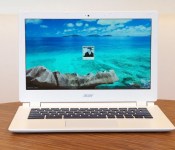
Acer Chromebook 13 review: long battery life, but performance falls short

After years of getting little respect, Chromebooks are finally on the rise (at least in schools), which means every major PC maker is trying to get in on the action. That includes chip makers too, like NVIDIA. Though the company previously shied away from Chrome OS devices, it’s now pledging to power a whole range of different Chromebooks with its Tegra K1 chip, each of them promising long battery life and more graphics muscle. The Acer Chromebook 13 is the first of the bunch, and while some of you might be Chromebook’d out, we were actually excited. Here was a $300 laptop boasting at least 11 hours of battery life, a 1080p display option and enough horsepower to clobber Intel at things like gaming and rich websites. As it turns out, it was all just a little too good to be true.
Hardware

Looking at the Chromebook 13’s spec sheet, you’d assume design was the main place where Acer cut corners. And you wouldn’t exactly be wrong. The machine is fashioned entirely out of plastic, with certain parts, like the bezels and bottom side, actually feeling a bit rough to the touch. Next to the Samsung Chromebook 2, which sports a fake-leather lid, this is clearly the cheaper of the two. Acer’s model is also about a quarter-pound heavier, at 3.31 pounds and 0.71 inch thick, versus 3.06 pounds/0.65 inch for the Chromebook 2. If you want something as light as a 13-inch Ultrabook, you better be prepared to pay an extra $100 for the Samsung.
Still, compared to Acer’s older Chromebook, the C720, this is a marked improvement. Whereas the 11-inch C720 is small and cramped, like a netbook, this 13-incher is broader, with a more spacious keyboard and a wide touchpad to match. The design is simpler, too. Yes, it’s plastic, but the all-white look is at least clean and modern-looking. Also, not that the lid and palm rest pick up scratches easily, but if they did, they’d be all but invisible thanks to the white paint job.
Even if Acer’s design here is on the plain side, it’s all worth it when you see the display. For all the scaling-back Acer did with the rest of the chassis, the screen here is quite nice for a Chromebook, especially one this size. What we have here is a bright, 1,920 x 1,080 display with a matte finish that allows for some relatively wide viewing angles, especially from the sides. Even so, there’s only so much you can dip the lid forward before the panel starts to wash out. This, I’m afraid, is a problem across all Chromebooks — even on models with sharper, 1080p screens, I’ve yet to see one with truly good viewing angles. Chalk it up to PC makers trying to keep hardware costs down, I guess.

As I hinted earlier, the keyboard here is nice and big — a perk of choosing a 13-inch Chromebook over an 11-inch one. That means all of the major keys (Shift, etc.) are amply sized and easy to strike without looking. That said, the keys don’t seem to have much more travel than they did on the C720, which means I once again found myself having to re-type things after my key presses didn’t register the first time. Even so, I found it usable, and I think you will too. On a brighter note, the touchpad is nice and big, and responds well to both single-finger tracking as well as multi-touch gestures like pinch-to-zoom.
Around the edges, the Chromebook 13 has all the same ports as competing devices, which is to say it sports two USB ports, an HDMI socket, a full-sized SD card slot and a headphone jack. You might not know it at first glance, though: Whereas most machines stack all the ports along the right and left sides, the Chromebook 13 has a USB and HDMI port tucked around on the back, out of sight. So, it might seem at first like Acer was stingy — that it could only be bothered to include one USB port, a memory card slot and an audio port. But that’s just the extent of what you can see when the machine is in front of you.
Performance and battery life
| SunSpider v.1.0.2* | Google Octane | Mozilla Kraken* | |
|---|---|---|---|
| Acer Chromebook 13 (NVIDIA Tegra K1, 2GB RAM) | 609ms |
7,051 |
4,816ms |
| Lenovo N20p (Celeron N2830, 2GB RAM) | 567ms |
7,288 |
4,287ms |
| ASUS C200 Chromebook (Celeron N2830, 2GB RAM) | 483ms |
7,198 |
4,291ms |
| Acer C720 Chromebook (Core i3-4005U, 4GB RAM) | 289ms |
14,530 |
2,113ms |
| Acer C720 Chromebook (Celeron 2955U, 2GB RAM) | 342ms |
11,502 |
2,614ms |
| Dell Chromebook 11 (Celeron 2955U, 4GB RAM) | 340ms |
11,533 |
2,622ms |
| Toshiba Chromebook (Celeron 2955U, 2GB RAM) | 324ms |
11,307 |
2,626ms |
|
*SunSpider and Kraken: Lower scores are better. |
|||
To recap what I said in the very first paragraph of this review, the Acer Chromebook 13 is the first Chrome OS device to make use of an NVIDIA Tegra chip — specifically, the quad-core K1 processor already used in some tablets. To hear NVIDIA tell it, the chip is better than Intel’s Bay Trail processors (the ones inside most Chromebooks) in every way possible. That’s not quite true. In single-thread JavaScript tests like SunSpider, Mozilla Kraken and Google Octane, the Chromebook 13 performs in line, if not slightly worse than, Bay Trail Chromebooks like the Lenovo N20p. In daily use, it cold-boots in nine seconds and can sign off in about four — not bad for a Chromebook, but not exceptional, either.
NVIDIA, for its part, doesn’t deny the less-than-impressive JavaScript results, though it’s quick to suggest some WebGL tests instead that are more likely to showcase Tegra’s graphics muscle. Indeed, in an animated Gangnam Style video (don’t ask), Acer Chromebook 13 runs between 50 and 60 fps, while the Lenovo N20p’s Bay Trail processor could barely crack 24 fps. (I used Google Chrome’s built-in frame-rate counter.) In the benchmark Oort Online, the Chromebook 13 scored an average of 4,007, compared with 1,300 for the N20p. In this 3D Earth model, Acer peaked in the high 50s, with frame rates mostly hovering in the 30s and 40s; with the N20p, frame rates stayed in the 20s and 30s, depending on how fast I spun the globe around. Finally, in NVIDIA’s own multitasking test, which involves running a Google Sheets macro with music streaming in a different tab, I saw a 21 percent improvement in speed on the Acer Chromebook 13: 46 seconds, down from 58 on the Lenovo N20p.
This would be a good time for me to back up and put all that in plain English. What it comes down to is this: The Acer Chromebook 13 does well on some tests, particularly the ones that NVIDIA itself recommends. Otherwise, its performance falls in line with the very Bay Trail-powered machines that NVIDIA claims to beat. Either way, the Chromebook 13 doesn’t feel faster than other Chrome OS devices in real-world use. It doesn’t feel slower either, but that’s not saying much, given that Chromebooks generally aren’t known for their stellar performance. On the plus side, the machine stays nice and quiet, and it runs cool. Ultimately, if you buy the Chromebook 13, it should be because of the price, the 1080p screen, the long battery life — not because you’re expecting superior computing power.
|
Battery life |
|
|---|---|
| Acer Chromebook 13 | 10:07 |
| ASUS C200 | 11:19 |
| Dell Chromebook 11 | 8:37 |
| Samsung Chromebook 2 (13-inch) | 8:22 |
| Toshiba Chromebook | 8:15 |
| Acer C720 Chromebook (Intel Core i3) | 7:53 |
| Acer C720 Chromebook (Intel Celeron) | 7:49 |
| Samsung Chromebook (2012) | 6:33 |
| HP Chromebook 11 | 5:08 |
| Chromebook Pixel | 4:08 (WiFi)/3:34 (LTE) |
| HP Pavilion 14 Chromebook | 3:35 |
| Samsung Chromebook Series 5 550 | 3:23 |
| Acer C7 Chromebook | 3:16 |
NVIDIA’s performance claims may have fallen short, but the battery life here is just about as long as promised. On the 1080p model, which is rated for up to 11 hours, we got 10 hours and seven minutes of continuous video playback. That’s admittedly a grueling test, too, so I have no doubt that with a lighter workload and more conservative brightness settings, the machine could’ve made it to the 11-hour mark and then some. If you go with the lower-end Chromebook 13, which has a 1,366 x 768 display, you can expect up to 13 hours of runtime, according to Acer. I unfortunately didn’t get to benchmark one of those, so I can’t vouch for that particular performance claim. If it’s true, though, that would make it the longest-lasting Chromebook on the market.
Software
Though we’ve been reviewing quite a few Chromebooks over the past few months, the software experience hasn’t changed much in that time. If you’re just tuning in, though, here’s a quick primer on what to expect. Chrome OS has slowly gotten better at letting you do things offline — users have long been able to use Gmail and Google Drive without an internet connection. Recently, too, Google made it so that you can watch Google Play movies and TV shows offline — a useful feature if ever you find yourself on a long plane ride. Other recent improvements include pinch-to-zoom, better file management and the ability to upload photos to Google+ in the background. Speaking of G+, the Acer Chromebook 13 comes with 100GB of free Google Drive storage — a standard perk for Chromebook users.
Configuration options and the competition

The Chromebook 13 starts at $280 and is available in four configurations. The lowest-end edition has a 1,366 x 768 display, 2GB of RAM and a 13-hour battery. Step up to the $300 mark, and you actually have two options at that price: a 1080p screen with 2GB of RAM, or a 1,366 x 768 display with 4GB of RAM. If you want it all — a full HD screen with four gigs of memory — you can have it, for $380. Oh, and by the way, in case you’re wondering, almost all of these configurations have 16GB of built-in storage (the high-end one has 32GB).
As for everything else on the market, well, I’m not really helping you if I list off every single option. But I can recommend a few notables. First of all, if you’re looking for something on par with the Chromebook 13, its most obvious competitor would be the 13-inch Samsung Chromebook 2, which also has an ARM-based chip and a 1080p display. With its sharp screen, comfortable keyboard and relatively premium-looking design, it still ranks as one of my favorites.
The problem is that it costs $400, which is getting into “cheap Windows laptop” territory. And at that price, the performance isn’t quite as robust as some competing models. If, like me, you think even an ARM chip is good enough for basic tasks, you might actually like the Acer Chromebook 13 I’ve been reviewing here: It offers similar performance, with an equally sharp screen, except it costs $100 less. It’s not quite as polished-looking, but again, it’s not ugly, either.

Soon enough, though, Samsung and Acer won’t be the only ones selling full HD Chromebooks. Toshiba, for one, is about to ship its own Chromebook 2, which will start at $250 ($330 if you want the 1080p resolution). That will include an Intel Bay Trail chip, which means performance is likely to be slightly better than Acer’s or Samsung’s offerings, but battery life could be shorter (or not — we’ll see). It looks promising, but I haven’t tested this one, so I unfortunately can’t confirm how well it performs.
If performance is a concern — meaning, you’re worried an ARM chip won’t cut it — all roads lead back to Acer. The company’s C720 Chromebook is one of our favorites. For one thing, it’s among the only ones offered with a Core i3 chip, which delivers noticeable (albeit fairly modest) performance gains. At the same time, it’s one of the best-value machines we’ve seen: For $199, you can get it with an Intel Haswell-series Celeron CPU that still delivers decent performance. The only thing to keep in mind with either model is that the battery life will be several hours shorter than on the Chromebook 13. So, it depends a lot on what your priorities are: maximum performance or top-notch battery life? Acer earns both of those honors — just not with the same machine, unfortunately.
What about Windows machines?
Finally, you might be wondering what kind of Windows PCs you’ll find at this price — $300 is technically “cheap Windows laptop” territory, too. By and large, the machines you’ll find at this price will have larger, 15-inch screens with either an Intel Celeron processor or an AMD E-series chip. In other words, the performance should be on par with many similarly priced Chromebooks. That said, there are a few systems at this price that are just as small and portable as the Acer Chromebook 13, if not more so. These include the 11-inch Lenovo S215 ($349), the 11-inch Acer Aspire ES1 ($250-plus) and the HP Pavilion 10z Touch ($250). For the money, you get a 1,366 x 768 screen and around 500GB of built-in storage.
In a similar vein, HP is about to start shipping the first laptop from its “Stream” series, which aims to take on Chromebooks in the form of a cheap notebook that runs Windows, but has very little local storage. The first model is a 14-incher priced at $300. This, too, has a 1,366 x 768 display and makes use of an AMD chip. I’m not saying I recommend it, especially for three hundred bucks, but it could be tempting for someone who wants a budget machine that can still run desktop Windows apps.
Wrap-up

The Chromebook 13 isn’t everything Acer and NVIDIA promised it would be, but somehow, it’s still a worthwhile product. Though its performance isn’t much better than the Intel Bay Trail machines it claims to beat, the battery life is nearly best in class, reaching 10 hours even with a full HD screen. Speaking of the sort, this remains one of the few Chromebooks out there with screen resolution greater than 1,366 x 768. Yes, the viewing angles could be better, but then again, that’s true of every Chrome OS laptop, so it’s hard to really fault Acer for that. Most importantly, though, with a price starting at $280 (or $300 for the full HD version), it’s easy to forgive many of the machine’s flaws. Even with merely average performance, this feels like a fair price for what it is: a Chromebook with a sharp screen, long battery life and a spacious, comfortable keyboard.
Filed under: Laptops, Acer, NVIDIA
.CPlase_panel display:none;
Wireless charging for Chromebooks? It could be on its way
Wireless charging for out tablets and smartphones is always a topic that people love to explore. You have the more standard Qi and Rezence platforms that have been implemented and used on a variety of devices. Some have the compatibility built-in, while others have become wireless charging compatible with cases and small adapter strips that go behind your devices back plate. Some companies, like Patriot with the Fuel iON, are even building out their own wireless charging systems for devices. Not all charging systems give you the same charge rate as directly plugging in your device, but it is certainly a bit more convenient when you are at your desk and are constantly up and down. Not to mention it saves unnecessary wear and tear on your charging port. Now it would seem that Chromebooks could one day be on the list for wireless charging compatible devices.

Redditor basmith7‘s keen eye to details found a code commit that offers up a simple description that even us non coders can understand, “Enable inductive charging on Ryu.” Don’t go grabbing the credit card just yet though. Ryu isn’t the code name for a super fancy Chromebook, it is the code name of a development board used inside and is being worked on by Google/Chromium developers.
In my mind I can see a few various options that would be pretty beneficial to consumers. One would be a laptop stand system the you plug directly into the wall and place your Chromebook on top. Another would be a rubberized type pad that is plugged in and you simply place your Chromebook on top of it. That would be the better option for portability and universal use. I wouldn’t mind seeing a wireless battery brick or sorts as well.
This is all very early information and may not ever make it out of testing. However, it is nice to see that it is being tested in some capacity.
In addition to the inductive charging commit, the Ryu board is also offering up additional references that features a light bar, Tegra chipset and reversible USB-C. Sounds like thee could be some backlit keyboards and a Tegra K1 mixed in there somewhere. At least that is where my mind wonders too.
What do you guys think? Would a wireless charging Chromebook be the bees knees or just another data point to add to your conversation?
Source: Reddit Via OMG! Chrome
//<![CDATA[
ord = window.ord || Math.floor(Math.random()*1E16);
document.write('‘);
//]]>
The post Wireless charging for Chromebooks? It could be on its way appeared first on AndroidSPIN.
.CPlase_panel display:none;
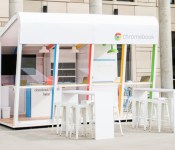
Google lets college students borrow a Chromebook

If you brought a big, conventional laptop with you to college, you’re probably regretting it right about now. It’s not fun to lug a heavy machine and your textbooks around campus. You may have an easy way to try out something a little kinder to your back, though. Google has unveiled the Chromebook Lending Library, a demo program that lets students borrow a featherweight Chrome OS machine for a few days. So long as Google is on the school grounds, the system is yours; you can take notes in class or just catch up on Netflix in your dorm room. The Library arrives at both Syracuse at Walnut Park and Texas State University next week, and it’ll swing by other institutions in the weeks ahead. The big catch? You can’t actually buy a Chromebook from the Library if you’re enamored with the experience — you’ll likely have to venture into town to pick one up.
Filed under: Laptops, Internet, Google
Source: Google for Education, Chromebook Lending Library
.CPlase_panel display:none;
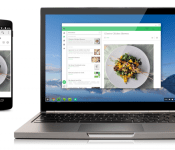
Google brings Android apps to Chrome OS, starts off slow
At Google I/O the Android and Google community were in awe at Google’s plans for the future. We saw Android L, Material Design, screen mirroring for Chromecast, Android TV and Android Auto. Something else that came out of the Google I/O conference was the long-awaited hope and dream of Android apps on Chrome OS, Chromebooks to be more precise.

After just a few months, Google has started to make that a public reality. The flood gates aren’t opening just yet, but Google is making a select number of apps available. Those apps are Duolingo, Evernote, Sight Words, and Vine. Oddly enough Flipboard was mentioned during Google I/O but didn’t make the initial cut. Moving forward Google will be working with a handful of developers to start moving their apps over and making sure they work as they are supposed too.
“Over the coming months, we’ll be working with a select group of Android developers to add more of your favorite apps so you’ll have a more seamless experience across your Android phone and Chromebook.”
So, does this mean you need some sort of new install, or a special emulator of sorts installed? Nope. Ars Technica plugged Google for a little more detail in terms of how it all runs.
The app code is all running on top of the Chrome platform, specifically inside of Native Client. In this way the ARC (Android Runtime for Chrome) apps run in the same environment as other apps you can download from the Chrome Web Store, even though they are written on top of standard Android APIs. The developers do not need to port or modify their code, though they often choose to improve it to work well with the Chromebook form factor (keyboard, touchpad, optional touchscreen, etc).
Quick and simple. You don’t need anything nor do you need to do anything. All you need to do is grab the app from the Chrome Web Store and use it. You do need to be on Chrome OS version 37 though. Hit up the links below to go grab each of the specific apps from the Chrome Web Store mentioned and let us know what you think.
Duolingo | Evernote | Sight Words | Vine
Source: Chrome Blog Via: Ars Technica
//<![CDATA[
ord = window.ord || Math.floor(Math.random()*1E16);
document.write('‘);
//]]>
The post Google brings Android apps to Chrome OS, starts off slow appeared first on AndroidSPIN.
.CPlase_panel display:none;
The first four Android apps for Chrome OS are here

Google promised that Android apps would eventually make their way to Chrome OS, and, well, here they are – the search giant announced that the first batch has just gone live in the Chrome Web Store. We knew that Vine and Evernote were on the short list of Android apps to make the leap, but there’s no sign of Flipboard yet. Instead, we also got startup Duolingo’s excellent language learning app and something called Sight Words, a tool to help little ones identify and recognize words (aww). Four apps may not seem like much to get worked up over, (especially since Duolingo and Evernote work just fine in a web browser) but it’s just a start. Google says it’ll work on getting more developers to use its App Runtime for Chrome “over the coming months,” so don’t go expecting a full-on Android invasion of Chrome OS any time soon.
Source: Official Chrome Blog
.CPlase_panel display:none;
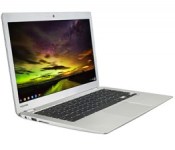
Toshiba tosses out their Chromebook 2 with 11.5 hour battery on a 13.3-inch HD screen
The Chromebook battles are finally starting to get a little interesting. Over the last few months there have been some pretty interesting Chromebook devices to come from a variety of OEM’s. Lenovo pushed out the N20p convertible and Acer announced the ChromeBook 13 with the NVIDIA Tegra K1. Toshiba is stepping back into the ring with their aptly named Chromebook 2.
 Spec wise you are looking at:
- 13.3-inch 16:9 display in either a 1366 x 768p offering or a 1920 x 1080p offering
- Intel Celeron Processor
- 16GB internal storage
- 100GB free Google Drive storage
- 4GB DDR3L or 2GB DDR3 RAM (model dependent)
- 1 HDMI out
- 1 USB 2.0
- 1 YUSB 3.0
- SD/SDHC card slot
- Headphone/mic combo jack
- 802.11ac+agn
- Bluetooth 4.0
- HD Webcam with dual mics
- Skullcandy stero speakers
- 11.5 hours battery life on the 768p version and 9 hours battery life on the 1080p version
Toshiba has the new Chromebook 2 pegged for an October 5th release here in the states with a price tag of $249.99 on the 2GB of RAM 768p version and $329.99 for the 4GB of RAM 1080p version.
Source: Toshiba Press
//<![CDATA[
ord = window.ord || Math.floor(Math.random()*1E16);
document.write('‘);
//]]>
The post Toshiba tosses out their Chromebook 2 with 11.5 hour battery on a 13.3-inch HD screen appeared first on AndroidSPIN.
.CPlase_panel display:none;

Toshiba intros a slimmer Chromebook, budget Windows convertible

Toshiba isn’t showing off a whole lot here at IFA, Europe’s biggest trade show. That said, the stuff it has announced at least manages to run the gamut. Today, for instance, the company unveiled both a slimmed-down Chromebook 2 and the Satellite Radius 11, a small-screened Windows convertible. Starting with the former, the Chromebook 2 has the same 13-inch screen size as its predecessor, along with the same textured plastic design. This time, though, it’s thinner and lighter, at 2.95 pounds, with the sort of compact dimensions you’d expect to find on a 12-inch system. Toshiba bumped up the resolution too, so that you can now get it with a 340-nit, 1,920 x 1080 IPS panel (the base model still has a 1,366 x 768 display). Depending on the resolution, you can expect either 11.5 hours of battery life on the lower-res version, or nine hours with full HD. In addition, Toshiba added Skullcandy audio. The firm seems proud of it, but after a few minutes of hands-on time, I actually found the sound to be rather tinny (it is loud, though).
Other changes include faster 802.11ac WiFi and dual array mics, though the port selection is otherwise the same (USB 3.0 and 2.0, HDMI and a full-sized SD slot). All told, it seems like an improvement, except for one thing: Toshiba downgraded the processor from a Haswell-series Celeron CPU to a Bay Trail one (the N2840, to be exact). If our review of the ASUS C200 Chromebook is any indication, using a chip like this would seem to be a step down in speed, but who knows? Maybe Toshiba found a way to better optimize performance, especially on the 1080p edition, which has four gigs of RAM instead of two. Really, though, it seems like the company had to cut corners to squeeze in a full HD display and still keep the price down. This would seem to be the place where Toshiba chose to make some sacrifices.

The Satellite Radius 11, meanwhile, is a follow-on to the 15.6-inch Satellite Radius, which came out earlier this year. Both have a Lenovo Yoga-like design, with a 360-degree hinge allowing the screen to fold back into tablet mode, tabletop mode (with the screen flat), stand mode (with the screen facing away from the keyboard) and tent mode (with the laptop balanced upside down). Similar to the Yoga, too, the keyboard locks up when you’re not in clamshell mode, to avoid accidental button presses.
But while the Radius 11 mimics the design of some full-fledged laptops, it has the guts of a netbook: Bay Trail-series Celeron and Pentium CPUs, and either a spinning HDD or a small flash drive, similar to what you’d find in a Chromebook. Aside from what’s sure to be a low price, the benefit to having a low-powered processor like this is long battery life. The chassis has a smooth, fanless look too, if that matters to you. No word yet on how much this will cost, but if Toshiba is smart, it’ll price this against other 11-inch convertibles like the Dell Inspiron 11 3000 and HP Pavilion 360, both of which start at $400. (Just sayin’, Toshiba!)
The Chromebook 2 will go on sale in the US on October 5th starting at $250 for the base model and $330 for the full HD version. It’ll be available in Europe as well, but later on in Q4. You’ll also be able to buy optional two-piece plastic cases in a variety of colors, as you can see in the shot above. The Radius 11, meanwhile, will arrive in late October or early November. Again, no word on price just yet. In the meantime, we’ve got hands-on shots aplenty. Check ‘em out.
Filed under: Laptops
.CPlase_panel display:none;
 AIVAnet