


Acer expands its student Chromebook line with new C740 and C910
Acer has announced two new Chromebook offerings geared towards students today. The new line sticks to the ‘C’ titles and include the C740 and the C910. One being a 11.6-inch screen model and the other being a 15.6-inch screen model. The Acer C740 is the lower priced and spec’d variant and carriers the more traditional […]
The post Acer expands its student Chromebook line with new C740 and C910 appeared first on AndroidSPIN.
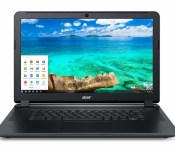
Acer announces two new Chromebooks for students

If you are looking for a new laptop for next term, you may be interested to note that Acer has just unveiled two new Chromebook models specifically designed for students, the C910 and C740.
The Acer C740 Chromebook is the smaller of the two, coming in with a screen sized at just 11.6 inches and a resolution of 1366×768. The C740 also comes with a 16GB solid-state hard drive, battery life that will last around 8.5 hours of use, and comes with the choice of Intel Celeron or Core i3 processors and 2GB or 4GB of RAM.
The C910 is the larger and slightly more high-end model, featuring a 15.6 inch screen with the choice of either a Full HD (1920×1080) display or a more budget friendly 1366×768 option. Again you will find choices for either a Celeron or i3 processor, but the C910 comes with 4GB RAM as standard and larger 16GB or 32GB internal memory options.

Acer has designed both Chromebooks to withstand the trials of the school-yard. They can each withstand up to 132 pounds (around 60kg) of force, the corners won’t buckle from accidental drops up to 18 inches in height, and the hinges have been reinforced so that they won’t easily snap.
The C740 Chromebook stats at $259.99, while the basic C910 model costs a little more at $299.99. Both will be available in the US come February.
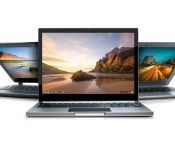
[Chrome Dev Channel] Share your Chromebook or PC via Chrome Remote Desktop

In the newest iteration of Chrome’s Dev channel, you can now share remote access to your Chromebook or PC by using the new Share feature in the Chrome Remote Desktop app. This news was published by François Beaufort, a Google Chrome developer, on Google+ yesterday.
There’s no need to enable anything in chrome://flags, the feature is automatically available inside of the Chrome Remote Desktop app by clicking a large, green Share button. Easy enough!
You’ll need a few things to take advantage of this newest feature, though:

First, you’ll need to be on the Dev channel with your Chromebook or using the Chrome Dev Channel browser. If you’re not sure how to get on the Dev channel on your Chromebook, I’ve previously written a guide on how to do so in 3 simple steps.
Second, you need to have the Chrome Remote Desktop app installed from the Chrome Web Store. If you feel like you’re going to be using a mobile device to control your Chromebook/PC, then you’re going to need the associated Android app from the Google Play Store.
Third, you need to set up Chrome Remote Desktop. Don’t worry, it’s very simple and your Chrome app will walk you through it.
After set up, you should be ready to go! I have only tested this newest feature on my Chromebook and PC, and I have no idea if this will work on Mac because they’re not allowed on my premises. (I’m like those cultures where certain things must be left at the door. Except instead of it being shoes, it’s Apple products. Joking of course…or am I?)
Just remember, though, that sharing access to your Chromebook/PC to someone else could be a huge security risk. You should absolutely only share with someone you trust and on a secure network connection. Not public WiFi, basically.
Chrome Web Store: Chrome Remote Desktop
Google Play Store: Chrome Remote Desktop
Source: François Beaufort
Come comment on this article: [Chrome Dev Channel] Share your Chromebook or PC via Chrome Remote Desktop
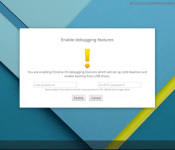
You can install custom code on Chrome OS with a USB drive

Currently, it is possible possible to install and work with custom code (such as Linux) on a Chrome OS device. The entire process of installing custom code is possible but it is not necessarily easy. That all changes because Google is adding Debugging Features for Chrome OS devices in Developer Mode. It means that Chrome OS users will be able to take a USB drive, connect it to the device, and install the custom code.
The following are what will be possible with the new feature:
- Remove rootfs verification² so you can modify OS files
- Enable SSH access to the device using the standard test keys so you can use tools such as cros flash³
- Enable booting from USB so you can install an OS image from a USB drive
- Set both the dev and the system root login password to a custom value so you can manually SSH into the device
You can access it right now by heading to the Dev Channel and selecting “Enable debugging features.” From there, follow these directions.
Source: +François Beaufort
Come comment on this article: You can install custom code on Chrome OS with a USB drive
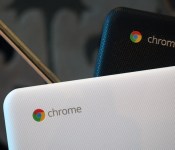
Acer has a 15-inch Chromebook, but it’s unclear why you’d want one

I initially wasn’t going to bother writing a longer piece about Acer’s new 15-inch Chromebook. I figured the last thing you wanted from me during the busiest week in tech news were hands-on photos of yet another laptop, especially when we already review so many same-y Chrome OS devices. Then it occurred to me: Although this is the first-ever 15-inch Chromebook, not to mention the largest, Acer never actually made a case for why it should exist, and it’s a question that many of my peers at other tech publications don’t seem to be asking. Does anyone need a notebook this big that basically just runs the Chrome browser? I belatedly spent some time with one to try and find out.

It might go without saying, but if you were to buy a 15-inch Chromebook, you’d do it for the screen real estate. Extra inches means you can read that much more email on one screen. It makes an even nicer canvas for streaming Netflix. If you spend a lot of time working in Google Docs — and many people do — it could be nice to not be limited to a smaller 11- or even 13-inch screen. Same argument behind having an external display, really. So far, so good: I get it.
Though the base model will be offered with 1,366 x 768 resolution, I strongly suggest you find the extra cash to get one of the higher-end versions with a 1080p display. During my hands-on testing, I could tell immediately I was looking at the full HD model; everything like app icons and text was sharper than it would have been otherwise, though not to the point where it was ludicrously tiny. All told, Acer will actually have two 1,920 x 1,080 versions, one with a regular ol’ TN screen and one with an IPS panel for wider viewing angles. Considering how many tradeoffs you might be making in terms of weight and overall heft (more on that in a second), you may as well go with the IPS and make the most out of that screen as you can. If not, what’s the point, really?

Speaking of the sort, this isn’t a heavy machine, all things considered; there are clunkier 15-inch laptops out there. Still, at 4.85 pounds, it’s impossible to ignore how much bigger and heavier it is compared to a smaller-screened Chromebook. If you were willing to put up with that weight, you could also get a Windows laptop that runs desktop programs, in addition to just the Chrome browser. All that said, the build quality is solid for a $250 machine, and the design is pleasing, if a little basic. The all-plastic laptop comes in both white and black, with a textured lid that both looks nice and probably does a good job of masking fingerprints. I’m not privy to Acer’s future plans, but they’d be smart to consider using a similar design on their low-end Windows laptops too.
As you take a tour of the machine, one of the first things you’ll notice are the two big speaker grilles, which sit on either side of the keyboard, kind of like a 2007-era MacBook Pro. I think in general it’s reasonable to expect more robust sound on a larger machine, but particularly when the speakers start eating into the keyboard space, they’d better be worth it, ya know? And eat into the keyboard deck they do. Despite the fact that this 15-inch Chromebook has a wider footprint than any of its competitors, it still suffers from some shrunken buttons, especially around the arrow keys. If I’m going to carry a larger machine, I expect the keys to be the cushiest, the most spacious, the most pleasant to type on. That doesn’t appear to be the case here, but I’m of course willing to revisit that in a full review.

The last unknown seems to be performance: I’m worried it won’t be enough for some people. And I’m talking from experience here. I remember years ago, when netbooks were a thing, and companies started introducing slightly larger models — ones that had 11- or 12-inch screens, as opposed to the usual 10.1. What ended up happening was, people saw these bigger machines, and expected bigger performance. While poky performance may have been acceptable on a 10-inch system, it was hard to believe a larger system, something closer in size to a “real” laptop, could be quite that slow.
I’m concerned the same is true of 15-inch Chromebooks. The model Acer is showing off today has Intel’s Broadwell-series processors, with your choice of Celeron or Core i3. I’ve yet to benchmark a Broadwell CPU, but so far, Celeron in Chromebooks has been… okay. Good enough for basic use, but not what I’d call powerful. Interestingly, Core i3 hasn’t fared much better, at least not on Chrome OS machines. What’s more the battery life might take a hit too. Speaking of which, Acer is rating this for up to eight hours of runtime — about what you can expect on Acer’s own 11-inch C720 Chromebook. If you thought you might get longer battery life in exchange for a heftier machine, you’re going to be disappointed.

All of this is to say: I think Acer has created some big expectations here. When you agree to buy a heavier machine, you expect stronger performance, better audio, a bigger battery and the comfiest of keyboards. After spending some time with the Chromebook 15 in person, I’m not sure these are promises Acer can keep.
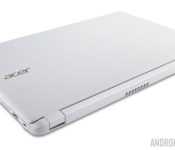
Acer unveils 1080p Chromebook 15 ahead of CES

Acer has been doing very well for themselves with their line of Chrome OS powered Chromebook devices, and they are continuing to expand their offerings with their new Chromebook 15.
The Acer Chromebook 15, as the name implies, is a 15-inch class laptop with a 15.6-inch display, making it the first Chromebook of this size to hit the market.
Chromebooks have been doing very well in the market, with most sales going to education centers. However, the web-centric computing needs of the average consumer make the Chrome browser focused Chrome OS offerings very appealing, especially when you can put a solid unit in hand for under $200.

Acer’s new Chromebook 15 is a bit of a step up for those accustomed to seeing 11 inch devices. Not that there are not larger Chromebooks out there, in-fact, this very article is being written on a 14-inch Chromebook, built by HP. Where the new Acer Chromebook 15 truly differs is in the use of an Intel Core i3 processor.
Getting down to it then, there will be multiple variants of the Acer Chromebook 15. A base model will start around $250, offering a 1366 x 768 resolution display, an Intel Celeron processor, 2GB of RAM and a 16GB SSD for storage. Prices are not given for the high end of things, but a fully decked out Chromebook 15 will score you full 1080p resolution, that Intel Core i3 processor, 4GB of RAM and a 32GB SSD for storage.

All options come with the standard set of USB 2.0 and 3.0 ports, HDMI port, SD card reader and a battery that Acer says provides “impressive” performance, whatever that is supposed to mean.
If this size of display is more than you are looking for, be sure to also check out the Tegra K1 powered 13-inch Acer offering, aptly named the Chromebook 13. Hidden in this press release, Acer says that touchscreen versions of the 13-inch Chromebook are coming soon as well.
What do you think, is a 15.6-inch Chromebook the right way to go, or does this blur the lines with normal laptops more than it should?
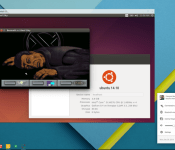
Chromebooks can now run Linux in a window

Chromebooks are great for day to day computing needs, but Google’s Chrome OS still falls a little short of a fully fleshed out operating system. Installing Linux is one solution available to the tech savy, but switching back and forth is not particularly convenient. However, a tweaked version of David Schneider’s Crouton extension now allows Chromebook owners to run Linux in a window with a simple terminal command.
The extension currently works with Debian and Ubuntu, so far, giving users with their Chromebook in Developer Mode full Linux functionality in a simple Chrome OS window. If you are interested in giving it a go, and already have Linux installed, here are the instructions, courtesy of François Beaufort:
- make sure your Chrome Device is in Developer Mode (not Dev Channel).
- Install the Crouton Integration Chrome Extension
- Download crouton
- Open a shell with <Ctrl>+<Alt>+T, type shell and hit <Enter>
- Run sudo sh ~/Downloads/crouton
You will still have to go through the process of installing Linux on your Chromebook first, but this definitely seems like a superior solution for those who need a little more from their Chromebook.
If you have tried this method out, let us know your thoughts and experiences in the comments below.
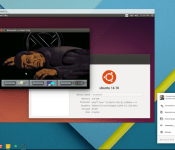
Chromebooks can now run Linux in a separate window

Although the Chromebook functions on a Linux based operating system, it cannot run Linux and Chrome OS at the same time with users required to implement a dual-boot mechanism. However, the new Crouton extension for Chrome can help users run Linux in a dedicated window within Chrome OS without having to reboot and switch the OS altogether.
Linux will be fully operable in the said window and will allow users to perform functions as they would on a full blown Linux computer. In theory, it was possible to run Chrome OS and Linux simultaneously using Crouton before, but this new extension makes the lives of users a lot easier.
In his Google+ post, Francois Beaufort mentioned that users will need to enable developer mode to make use of this nifty feature on Chrome OS. So if you ever wanted to run Linux side-by-side on a Chrome OS machine, your lives just got easier thanks to the Crouton extension.
Source: +FrancoisBeaufort – Google+
Come comment on this article: Chromebooks can now run Linux in a separate window
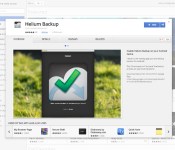
Backup and restore your Android apps via Chrome with Helium

Koushik Dutta is known quite well around the Android community. From the ClockworkMod ROM Manager, to AllCast (which is making it’s way to iOS), and Helium. Formerly known as Carbon, Helium is an application that is designed to help you back up and restore all of your Android apps without needing to root your device. There are some “complicated” steps, such as plugging your device into your computer, but that’s about the extent of it.
Well, Koush has released an accompanying Chrome web app by the same name, Helium, and this is to help those ChromeOS users with backing their apps and information up on the go. Now you will still need to have the Android application installed on your device of choice, in order for Helium to work properly. From there, all you will need to do is plug your device into your computer and things should be working.
Helium will work on any desktop running Chrome, including ChromeOS and Linux. Now you will need to enable ADB before you can use Helium with Linux computers, but after that is finished, everything should be smooth sailing. We must note that if you are planning to update your devices to Lollipop, that Helium MAY not work completely. It’s a little too early to tell, but if you rely on Helium a lot, then it’s probably better to hold off until compatibility can be thoroughly checked.
There are two versions of the Helium app available. There is a lite version, which only allows you to backup and restore to your SD card or to your PC is available for free. The premium version of Helium is $4.99, but has the following features:
- No ads
- Automatic Backup schedules
- Android to Android sync
- Cloud backup and restore via DropBox, Box, and Google Drive
Personally, when it comes backups, I don’t like to play around with that, and happily paid for the $4.99 premium version. What do you use to backup all of your Android apps and data? Helium could definitely make a run at being the perfect replacement, especially with this new app for Chrome.
Chrome Web Store For Helium

The post Backup and restore your Android apps via Chrome with Helium appeared first on AndroidGuys.
Skype now available in a web browser without downloading any apps
 Skype has announced that they’re finally detangling the video chat service from its traditional Windows or OS X desktop program and offering it in beta through a web browser.
Skype for Web will let you quickly sign into the service on Skype’s web page and immediately begin making video calls without having to download any apps or programs. According to the Skype page, you can get the service started on any modern web browser, but it specifically mentions Chrome for Windows. That’s good news for Chrome users, but the wording of the support page makes it sound like Chromebooks are going to be excluded.
Skype isn’t currently officially available for Chromebooks, but it looks like this might be the first step towards bringing the service to Google’s laptop lineup. Of course, with Skype being owned by Microsoft, that might not happen in the immediate future. Fortunately, Google Hangouts makes an excellent cross-platform alternative.
source: Skype
Come comment on this article: Skype now available in a web browser without downloading any apps
 AIVAnet