


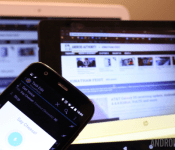
Android customization – voice activated camera control using Tasker and an Android Wear smartwatch

Last week on our Android customization series we rounded up a handful of apps that not only push your SMS from your Android device over to your PC or tablet, but allow you to respond to messages as well. Sending and receiving SMS without having to pull your phone out of your pocket is pretty slick, let’s see what else can be done remotely.
Today, we would like to begin a multi-week project, the goal is to learn more about using Tasker, Pushbullet, a new app called Tasker Now for Android Wear and more, and we will be doing so by creating voice controlled and remote camera controls between two Android devices, between your Android device and Android Wear device and between your Android device and a PC. It sounds like a lot, but it will be worth it, if only to learn more about using the services.
We’ll start with some of the ground work today, let’s look at building the Tasker Task to fire the camera, another Task to accept voice command, then we’ll look at the new app Tasker Now that runs on your Android Wear smartwatch.
Before we begin
 To follow along today you will require a copy of both Tasker and Tasker Now installed on your devices. Tasker is $2.99 in the Google Play Store, but if you’ve been following along previous Android customization posts, you already know that.
Tasker Now is an Android Wear app, it is free in the Google Play Store, but has a $1.19 in-app upgrade to a pro version that unlocks more than just the most basic of functionality. Sorry to say, you are probably going to need the pro version to follow along today.
Use Tasker to take a photo
We took a look at using Tasker to take a photo in a previous tutorial, at that time we focused on discreetly using the front camera to capture an image of any person accessing your device without your permission. To take a full quality photo from the rear camera is very similar in procedure, just a few differing settings.
Create your new Tasker Task to take a photo, I called mine “QualityPhoto.”

Tap the “+” button to add an action.
Select Media.
Select Take Photo.
Leave it set to Rear.
Add a base Filename, I’ll put “TaskerPhoto.”
I like to change Naming Sequence to Chronological, but you can choose another option if you wish.
The above two settings will result in a file name in the format “TaskerPhotoFeb4_2015_160255.jpg.” It will be a little different than that, but it will take your base Filename and append the date and time down to the second.
It is up to you if you would like to leave Insert in Gallery turned on, I will.
I will leave Discreet turned off, meaning the screen will display the photo as it is being taken.
Change Resolution to the quality you desire, I want mine as high quality as possible. Tap the magnifying glass icon on the right hand side, choose your photo resolution. My camera is only capable of 3280×2460, but that should be good enough for most needs.
I recommend leaving the remaining settings on Auto. We can always come back here later to edit the settings if the photos just are not working out.
Tap the system Back button to save and exit. That is all for this Task, feel free to hit the play button to see how things work, or just tap that system Back button again to save and close the Task.
Create voice command input
We are going to do a few things in this Tasker Task. First, we will collect voice input, next we will validate the input and either halt the Task or proceed if the right words are spoken. Finally, we’ll need to trigger the “QualityPhoto” Task created above. Let’s do it.
Start a new Task, name it concisely and uniquely, I’ll call mine “VoicePhoto.”

Tap the “+” button to add your first action.
Choose Input.
Choose Get Voice.
The default settings are just fine, tap that system Back button to save and exit.

Tap “+” for the next action.
Choose Task.
Choose Stop.
Tap the + button beside If.
Enter %VOICE in the first field, or tap the label icon to find Voice Results from the long list of available variables.
Tap the center comparison button and choose Doesn’t Match. It will change the text on the button itself to “!~”.
In the right hand text field, enter the word or phrase that you would use to trigger the photo capture. I’ll keep it simple, I am entering the word “cheese“.
Tap the system Back button to save and exit.

Tap the “+” button one last time.
Choose Task.
Choose Perform Task.
Tap the magnifying glass icon to the right of the Name field.
Choose your photo capture Task, mine was called “QualityPhoto.”
Tap the system Back button to save and exit.
One last thing before we call this Task complete, tap the icon button in the very bottom right of the screen to add an icon to this Task. You can skip this if you wish, it will ask you to input one later if you try to use the Task as a widget.

That’s it for the creation process. I highly recommend testing things out before you move on, just in case. If things don’t seem to be working, try adding an Alert->Flash after the initial Get Voice above, put %VOICE as the popup message. This will show you what the microphone is picking up. Chances are, it will be a collecting the word “cheese” in lower case, and failing to match if you entered the Task->Stop validation as a capitalized “Cheese”.
You could now consider placing the VoicePhoto Task as a Widget on your Homescreen. This gives you one tap access to the voice command controlled photo capture. If you are thinking that this is a little silly aside from testing purposes, don’t worry, our next step is to create realistic and functional triggers.
Tasker Now
Tasker Now is a newer Android app designed for your Android Wear powered devices. Specifically, you’ll do best to run it on a smartwatch. The app serves just one purpose, to collect your voice input from your Android Wear device and fire it over to your connected Android phone or tablet to be interpreted by Tasker, which will fire off an action on your device.

As you might imagine, this gives you the power to perform any Tasker command on your device all by a quick tap and talk into your smartwatch.
I don’t know about you, but if you’ve ever tried to use your Android device to take a group photo, and be in the photo yourself, having to tap the camera button and try to run to your position in frame within the 10 seconds it gives as a delay time, can be tough. Wouldn’t a remote shutter control be awesome? Of course it would.
Start a Tasker Profile to accept the Tasker Now input, call it something appropriate, like “TaskNowCamReceiver.”

Choose Event.
Choose Plugin.
Choose Tasker Now.
Tap the pencil icon to configure the input.
Enter your statement to be matched. In the free version you will only be able to enter a 4 character phrase, and it will be locked to requiring an Exact Match. Pro users can input a full text string, more important, they can choose from a handful of Matching rules, including searching the collected voice input for one specific word, an exact match, starting words, ending words and more.
I have entered “take the picture” and stuck with the Exact match rule.
Tap the Done button in the top right to save and exit.
Tap the system Back button to save and exit out of the Profile editor.
Now, you do not want to choose your voice input Task created above, that would just make you have to talk again. Instead, choose your “QualityPhoto” Task.
Go ahead and give it a try now.

What’s next
We created a Task to take a picture, it should work pretty good by default, but I do urge you to head back into the Task itself and play with the settings, you can control the flash, scene mode and more. Find the right combination for your device and environment.
From there, if you find that the photos are not in focus, try heading into Tasker’s main Preferences settings menu, in the Action tab you’ll find a Camera Delay setting. The value is set in seconds. Newer devices work just fine at as low as 1 second, but older devices may need 3 or 4 to gain focus before the photo snaps.

We also created a Task that accepts voice input, validates it, and fires off the above picture taking Task. This was a great exercise, but I will fully admit that it serves little purpose when run on the same device as the photo taking Task. I am hoping you can think of other things, besides a Christmas count down timer, to use this voice input procedure.
Finally, we needed an effective way to trigger the camera taking Task from a distance, so we used the Android Wear app called Tasker Now. But what if you do not have an Android powered smartwatch? No worries folks, we’ll get you hooked up next week.
Next week
Android Wear users may be all ready to roll after today’s Android customization post. Next week we’ll explore methods to fire off the camera remotely without the need for a smartwatch. I’ll give you a little hint, Pushbullet will be on the list.
Aside from selfies and group photos, how will you use a remote trigger to take photos on your Android device?
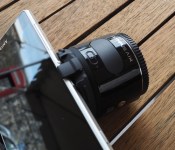
Olympus Air wireless lens camera pairs with your smartphone

Remember Sony’s attachable camera lenses for smartphones – the QX1 and QX30 – from last year? Well, Olympus, which is partially owned by Sony, has its own take on the wireless camera attachment formula, with its newly announced Olympus Air A01.
As far as camera specs go, the Olympus Air features a 16-megapixel Live MOS sensor and can be used with any Micro Four Third lens. The Air can capture fast moving subjects with its 1/16000 ultra-high-speed shutter, allows for continuous shooting of up to 10 frames per second, and there is a three times digital zoom thrown in for extra flexibility. The camera is also capable of taking up to 320 pictures on a single charge of its battery and weighs a reasonable 147g. But the real talking point is that you can partner the lens up with your smartphone to frame, edit and store your shots.

The camera supports both Bluetooth and WiFi connectivity when pairing up with a smartphone, and comes with an app to help setup communications and transfer pictures between the two.
The Olympus Air already works with a series of apps, such as one designed to replicate a physical camera mode dial, capture shots using 14 art filters or 9 different effects, or simply trimming down your snaps. The company is also keeping the Air as an open-platform, allowing third-party developers to come up with their own apps for the device.
The Olympus Air has only been announced for release in Japan so far and will go on sale on March 6th. The retail price is around ¥33,800 ($290) and can also be grabbed with a 14-42mm f/3.5-5.6 lens bundle for ¥49,800 ($425).

Samsung’s NX500 camera gives last year’s model a stylish, compact makeover

If you liked the sound of Samsung’s NX1 camera last year, which delivered 28-megapixel stills alongside 4K video, how about its stylish new sibling, the NX500? Looking a whole lot more desirable, the specifications inside haven’t actually changed all that much: you’ll find the same APS-C sensor, flippable AMOLED display, an ISO range up to 51,200 and a heavy serving of connectivity options including WiFi, NFC and Bluetooth. Inside the NX500, you’ll also find a new DRIMeV imaging processor, which Samsung reckons is much faster than the predecessor — and should result in better images in a lot of ways.
Thanks to the new chip, we’re also promised better color reproduction, better noise reduction and heck, better image quality. However, barring the quality of the images themselves, the NX500 delivers and all-round more attractive look compared to the NX1. Better ergonomically shaped (and sized), the design steers at least slightly closer to something you might see from Fujifilm, and less like the nondescript DSLR body that Samsung’s NX1 was housed inside. The camera will land in brown, black and white color options starting mid-March 2015. You’ll need $799 to pick up the camera, which will also come with optical image-stabilizing 16-50, f3.5-f5.6 power-zoom lens — which sounds good to us.
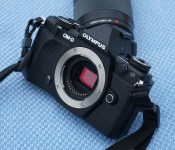
With video in mind, Olympus introduces the E-M5 Mark II

The original OM-D E-M5 has had a great run since being announced roughly two years ago, but it’s time for an upgrade. Accordingly, Olympus is taking the wraps off of the E-M5 Mark II, a Micro Four Thirds camera that aims to go head to head with the likes of Sony’s recently released A7 II and other similar mirrorless shooters. Olympus says that the second-generation E-M5 isn’t here to replace its flagship OM-D camera, the E-M1 — though it very well could, at least on paper. And even though it is very similar in looks to its predecessor, the E-M5 Mark II brings enough internal changes to make it a worthy successor. For starters, it packs a redesigned 16-megapixel Live MOS sensor, coupled with a TruePic VII image processor, an upgraded 81-point autofocus system, a 40-megapixel high-res shot mode, a 3-inch (articulating) touchscreen and WiFi.
Where the E-M5 shines, however, and how it differentiates itself from the first model, is with the video-focused specs it features. This time around, Olympus has added support for 1080p shooting at 24/25/30/50/60 fps; it can handle up to 77 Mbps bit rate at 30 fps, which is great news for those of you who are into that sort of thing. Naturally, the company betting big on its in-body five-axis image stabilization system to help with video — this is similar to what’s found on the Sony A7 II, with Olympus emphasizing that it was the one to pioneer such technology. What’s more, photography-wise, the E-M5 Mark II, which is dustproof and splashproof, has a max ISO of 25,600, a 9 fps sequential-shooting mode (with focus locked) and a battery rating of 470 shots.
The OM-D E-M5 Mark II will be available, in black and silver, later this month for $1,100 (body-only).
Meanwhile, if you already own the top-of-the-line E-M1, you should expect to get a firmware update over the next few days, which Olympus says is due to enhance the camera’s overall performance and bump its sequential shooting support from 6.5 to 9 fps.
Accessory of the Day: Bluetooth-equipped selfie stick, $19.99
While they might not be the hippest looking things on the market, you can’t deny the effectiveness of a selfie stick. This one, from Mpow, features a Bluetooth controlled shutter button so you can easily snap that wide-angle shot of you and your friends for Instagram. At only $19.99 (Prime), this makes a perfect gift!
Join Prime and get this deal with FREE two-day shipping!
Also worth checking out:
The post Accessory of the Day: Bluetooth-equipped selfie stick, $19.99 appeared first on AndroidGuys.
Further growth expected in dual camera and OIS modules

Camera technology is an integral part of the smartphone package these days, with OEMs racing to include the latest and greatest photography hardware and features. As a result, the market for high resolution image sensors, Optical Image Stabilization (OIS) modules and dual-camera compatible components is becoming increasingly big business.
From 2013 to 2014, the CMOS Camera Module market grew by 13.4 percent to a value of $16.4 billion. The industry is anticipating further growth of another 15.9 percent to $19 billion come the end of 2015. OIS technology and higher resolution sensors are expected to spur on much of this growth.
Given that high-end smartphones, such as the Galaxy Note 4, Nexus 6 and LG G3, have already adopted OIS modules, the expectation is that the vast majority of flagship smartphones will include the technology in 2015, with the potential for the technology to reach mid-range handsets too. Estimates put shipments of OIS equipped handsets at around 178 million in 2015, surging by 145% against 2014, and could reach 361 million by 2017.

Optical Image Stabilization is quickly becoming the norm in high-end smartphones
Although Sony’s high-end image sensors continue to lead the competition by quite a margin, other companies have managed to benefit from improvements in other camera components. Largan controls almost 90 percent of the profit generated from camera module lenses and has pushed many South Korean competitors to their margins. Sharp has benefited greatly from OIS developments and Sunny Optical Technology has seen its revenue rise due to demand from growing OEMS, including Xiaomi, Lenovo and OPPO.
Dual image sensors are another growing technology, but industry insiders don’t expect this idea to catch on in flagship handsets in the same way as OIS has. Hardware isn’t the problem, as such, as both Qualcomm and MediaTek have taken strides to support multi-sensor camera setups and software functions into their chips.
Instead, the cost of implementing dual 8 megapixel or high image sensors is not worth the small feature set obtained from a dual setup, especially as it does not go towards increasing image capture quality. This could be the reason why HTC has chosen to stick with its lower resolution Ultrapixel sensors in its dual-camera smartphones and has marketed them as more reasonably price mid-range smartphones.
Further down the line, optical zoom technology could also made an appearance in smartphone cameras, although this isn’t expected until 2016 or later. What smartphone camera features do you think are the most important when choosing your next smartphone?

Manual Camera gives you manual control over your picture, and it’s great

After Google opened up the APIs that allowed certain Android devices to snap full RAW photos, many have been looking for the right app to control the functions. Along came Manual Camera, which, as advertised, provides full manual control of the camera on your Android phone.
The fine art of photography has been somewhat diluted as the capabilities and automatic nature of mobile cameras have increased. We are, admittedly, at the point where a high-end Android phone can capture impressive images, I’d even venture to say photos of professional quality, but the ability to take these stunning photos is usually not a credit to the photographer’s ability to manipulate the settings. For those that are accustomed to taking manual control of their cameras, a fully automatic camera app can be a major headache and let down.

The introduction of RAW image support on Android has been very welcome for professionals looking to play with their Android devices a little bit, and Manual Camera offers the software that you can use to take it to the next level.
For our time testing Manual Camera, we found that almost every aspect of your camera, from shutter speed, ISO, white balance and more can be manually controlled. Each available setting defaults to automatic, eliminating the barrier to entry for new users, which also makes this great for those wanting to self-educate on how these typical (D)SLR caliber tools operate. Now all we need is optical zoom.
Manual Camera will run you $1.99 in the Google Play Store and will install on your Android 5.0 Lollipop and up devices.
Do you think that full manual control of your Android camera will make a huge difference in your mobile photography efforts?

“RE” Camera app updated with live YouTube streaming

The strange periscope shaped “RE” camera from HTC now has an update to its android app counterpart that adds a significant new feature, live YouTube streaming. The update was released today after it’s recent announcement at CES 2015.
The RE doesn’t actually have any connection to the internet itself, so you’ll have to depend on your smartphone paired with the RE camera app to stream any content. With a 16 megapixel sensor, the RE should be able to get some decent video, though, the process of a video stream going through the RE, then through a smartphone and finally to YouTube can’t be good for quality or latency.
If you own the RE and want to start live-streaming, head over to the play store for the free update.


The post “RE” Camera app updated with live YouTube streaming appeared first on AndroidGuys.

Kodak and Polaroid square off again, this time with smartphones

Kodak and Polaroid are both still fighting for relevance in a world that’s mostly left them behind, and this year they’ve got a new kind of weapon in their arsenals: the smartphone. Both of these companies have basically lent the power of their brands — the history, the force of nostalgia — to third-party players who make devices on their behalf. It’s a little too early to make a call on which company’s definitively doing it better, but we took a look to see how they stack up at this point.
The first up was Kodak, which telegraphed its intentions far in advance. The end result? A nondescript little thing called the IM5 that caters less to Instagrammers than it does to older folks who had an emotional connection to the Kodak brand. Need more proof? Just take a peek at its home screen: It’s festooned with giant icons that lead you into frequently used apps like the phone dialer, Gmail and, erm, the magnifier. Meanwhile, just about the only bit of visual flair you’ll find is a tiny Kodak logo smack in the middle of the IM5’s back. Fashion statement this thing ain’t.
If we’re being honest, what’s inside the phone isn’t that much more exciting — there’s an octa-core MediaTek processor running the show, along with 2GB of RAM to help keep things snappy. I didn’t notice much in the way of performance gaffes but, you know, it’s not like the intended market is on the lookout for visual stutters or slowdown. The real kicker is the 13-megapixel camera ’round the back, and the photos they produced weren’t all that impressive (though the relatively low-res 5-inch, 720p display didn’t help matters). One of the perks of attending the world’s largest conflagration of tech nerds is everyone, everyone is clamoring to play with the same things, but during our limited time together, the Kodak IM5 felt like little more than a money grab, another desperate attempt by Kodak to hang on in our lives.
Polaroid, surprisingly, fared quite a bit better. The company (or rather, the Brooklyn-based distributor that basically tweaks existing white-label Chinese devices) brought a trio of low-cost smartphones into the gaping maw that is Central Hall.
I found myself gravitating toward two in particular. The slim, slab-like Flip packs an unknown quad-core chip and 1GB of RAM, and seemed plenty responsive while I tried to suss out what its deal was. It, like the IM5, is pretty low-key in terms of design, but a pair of speaker grilles machined into the top and bottom of the phone’s plastic shell added just a touch of life to the mix. The other — called the Selfie, ugh — tickled my fancy because it uses the exact same swiveling-camera gimmick we loved when Oppo tried it. Being the more premium gadget, the Selfie has an octa-core chip and 2GB of RAM thrumming away inside, and the 5.5-inch, 720p display seemed brighter and more pleasant that the Kodak’s panel.
Polaroid logos and wallpapers aside, both devices also come preloaded with a Polaroid photo app — it’s a ridiculous and somehow charming thing that tries to replicate the act of peering through a retro Polaroid’s viewfinder. Once you snap your shot, you’ve even got the option to shake or blow on the “photo” to coax it into developing. Sure, it’s basically paying lip service to Polaroid’s retro roots, but there’s something to be said for even small amounts of effort and ingenuity.
The signs strewn around the booth claimed that the devices ran stock versions of Android 5.0 Lollipop, and they were wrong on both counts. The phones, in fact, ran lightly skinned builds of Android 4.4.2, but at least the spokesperson was quick with assurances that the final units would come laden with Google’s latest and greatest software. Not a single one of these phones will elevate the company that made them into anything more than a mobile also-ran. With all that said though, round 1 goes to Polaroid — its phones still aren’t out-and-out great, but the companies involved haven’t completely failed capturing a once-great camera company’s legacy.
Filed under: Mobile
You can make a 143-megapixel camera using a scanner

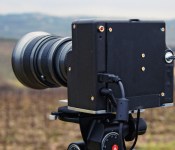
Scanners are really extra-large image sensors at heart, so it stands to reason that you could make a decent camera out of one. Right? Well, Dario Morelli just proved it… and then some. His homebrew medium format camera uses parts from an Epson V30-series scanner to take enormous 143-megapixel photos whose resolution puts even the better professional cameras to shame. Morelli went so far as to repackage everything in a custom enclosure, so the device is relatively portable and will sit on a tripod.
The catch, as you might suspect, is that this camera still behaves like a document reader while you’re shooting. You need to connect to a computer and a big external battery to get anything done, and there’s no live viewfinder to help you frame the shot. An exposure typically takes minutes rather than seconds, and the limited light sensitivity (Morelli believes it can manage ISO 50 and eight dynamic range stops) largely rules out nighttime photography. But hey, it works — and it’s proof that do-it-yourself cameras can sometimes best their professionally-made counterparts.
[Image credit: Dario Morelli, Flickr]
Filed under: Cameras
Via: PetaPixel
Source: Dario Morelli (Flickr)
 AIVAnet