


Microsoft releases Office for iPad, subscription required for editing docs

Rumors have been circulating for years that Microsoft was working on a version of Office for the iPad, with speculation getting so intense at one point that the company went out of its way to categorically deny it. Still, once Microsoft released Office for iPhone, an iPad version seemed more plausible; indeed, credible sources said it would arrive in the first half of this year. Turns out, there was something to all that scuttlebutt: Microsoft today announced Office for iPad, a trio of apps that bring Word, PowerPoint and Excel to tablets. Those should be showing up in the App Store shortly — around 11AM Pacific (2PM Eastern), to be exact.
As with the iPhone version, these apps are free to download, and you can view documents/give presentations without a paid subscription. As ever, you’ll need to sign in with a OneDrive or SharePoint account to retrieve your documents, or else have your stuff stored on the iPad itself. However, if you ever want to edit a doc or create something from scratch, you’ll need an Office 365 subscription (you can even use Microsoft’s cheaper Office 365 Personal plan when it launches later this spring). If you like, you can also sign up for a 30-day trial at Office.com.
Once that expires, though, you’ll need to pony up, at which point Office for iPad will count toward a new five-tablet limit — not your five PC/Mac limit. As you may have gathered by now, this is all par for the course for Microsoft, though it’s worth pointing out that Apple offers its iWork suite for free on iOS devices purchased on or after September 1st, 2013. And it’s a fairly feature-rich suite, too.
What’s especially interesting about Office for iPad is that it’s not just a blown-up version of the iPhone version, which we pooh-poohed for offering a watered-down feature set. Here, Microsoft was careful to take advantage of the iPad’s extra screen real estate: whereas the iPhone version wouldn’t even let you add rows in the middle of a spreadsheet, the iPad edition includes advanced features like Sparklines and author blocking, which only power users might appreciate. Throughout, too, you’ll find an impressive array of formatting options, including custom text colors, dozens of PowerPoint transitions and a full suite of fonts. In PowerPoint, there’s also a presenter mode where you can write off-handed remarks in “white board mode” and use your finger as a laser pointer (though that last feature doesn’t seem that useful, at least not without AirPlay support). Excel, meanwhile, brings a custom numerical keyboard alongside the traditional QWERTY one. And of course, all the apps rock the ol’ Ribbon UI — it wouldn’t be an Office product without the Ribbon.
Update: Our review of Office for iPad is now live. Check it out!
Vote on our poll for Office for iPad is here. Would you use it?!

Office for iPad review: three beautiful apps, each with strong competition

After loads of leaks — and some serious denial from Microsoft — the company has finally released a version of Office for iPad. It’s not surprising, in a way, given that Microsoft already has Office Mobile for iPhone. And yet, this new trio of apps (Word, Excel and PowerPoint) isn’t at all what we expected. In fact, it’s a lot better. You see, rather than simply blow up the current iPhone app to iPad-sized proportions, the company started from scratch, and built a software suite that takes advantage of the iPad’s extra screen real estate. This means a lovely design that looks less like a mobile app, and more like a full version of Office. It also means more features — everything from custom text colors to a “whiteboard” that you can use to write off-the-cuff comments during presentations. But as ever, you’ll need an Office 365 subscription to edit or create documents with it, and meanwhile, there are plenty of free alternatives. That said, could it still be worth it?
Getting started

Though the product is called Office for iPad, it’s actually a trio of individual apps (Word, Excel and PowerPoint) listed separately in the App Store. As with Office Mobile for iPhone, each of these core programs is free to download, and you can use them in read-only mode without a paid subscription. If you wanna edit or create documents, though — and let’s face it: You definitely will — an Office 365 subscription is required. In particular, we’re told it will even work with Microsoft’s upcoming 365 Personal plan, which will cost $7 a month when it launches later this spring. And if you happen to be a student using Office 365 for University ($80 for four years), the monthly cost of ownership drops to just $1.67.
All told, this subscription model isn’t a problem if you already have an Office sub; in fact, your iPad download won’t even count toward the usual five-PC/Mac limit. Unfortunately, too, this is also one of the only mobile office suites that works with Microsoft OneDrive and SharePoint, so if that’s where you store your documents, you’re best off sticking with Office. That said, Apple offers its iWork suite for free, so long as you purchased your device on or after September 1st, 2013. And, it works with popular services like Google Drive, which Office doesn’t, so depending on what ecosystem you use, Office might immediately seem like a weak proposition.
General UI

All told, Office for iPad looks exactly as you’d expect. Which is to say, it features the same Ribbon UI as desktop Office apps, along with a few icons borrowed from Microsoft’s OneDrive service. Regardless of which Office app you’re using, a few things are universal: When you enter the app, you’ll see your Microsoft profile pic in the upper-left corner, with icons just below for creating a new document, opening a file or viewing only the recent ones. By default, you’ll open files from your OneDrive account, though you can search just through your iPad’s local storage as well. You can also add a storage location, but again, your only other options are another OneDrive account (personal or business) and a SharePoint site. No integration with other cloud storage services, sadly.
Once you open a document, whether it be a spreadsheet or a PowerPoint presentation, you’ll see a small file-shaped icon in the upper-left corner, where you can turn off AutoSave (not recommended), create a duplicate, restore a previous version or inspect the file properties (mainly useful if you want to see how much space it takes up). Nearby are self-explanatory undo and redo buttons. Meanwhile, over on the right, there’s a people-inspired icon for sharing. From here, you can email a file as a link or an attachment, or simply copy the link to your clipboard. Basically, any sharing options you already enjoy in Office Online you can use here too. Finally, in Word and Excel there’s a magnifying glass in the upper-right corner that’s for, well, you get the idea. What we’re trying to say is: The UI is simple. And that’s a good thing.
Oh and by the way, because the UI is so straightforward, with so many settings hidden inside the Ribbon menu, the whole thing scales well in both landscape and portrait mode. Even with a vertical orientation, that upper layer of menus and icons never looks busy. In fact, we rather enjoyed using Word in portrait mode, as the keyboard took up less vertical space. If you do find yourself switching, though, you’ll find the accelerometer and A7 chip inside the new iPads do a good job keeping up.
Word

Ah, this looks familiar. If you’ve been using Word, even just the online version, you should instantly feel at home here. Up top, as we said, is the Ribbon menu, where you’ll see options for Home, Insert, Layout, Review and View. Below that are all the super-common formatting options, including fonts, letter size, bold, italics, underlining, strikethrough, subscript, superscript, text effects, text color, background color, text alignment, line spacing, bullets, numbered lists and indentation.
Phew.
Let’s just back up for a minute and say that this is already more than you can do with the iPhone version. Even in cases where the iPhone app does offer a given feature, it’s usually less complete than what you see here. Whereas the iPhone variant only gives you a handful of text color options, for instance, the iPad app has a custom color gradient allowing you to pick from along a wide spectrum. Not too shabby.
Might we add, too, that in addition to being a more full-featured offering, it’s just an all-around easier user experience. With the extra screen real estate, you can actually see how big the font is; you don’t have to press up and down arrows and hope for the best. Comments appear along the right-hand side, just where you’d expect them, and it’s easy to tweak those simply by tapping the comments box.
Adding and adjusting photos is easy as well. Just go to Insert, then “Pictures” and grab a photo from your Camera Roll (that’s the only option right now, unfortunately). Once the photo is in, you can tap it to reveal anchor points in the corners and along the sides, which make it easy to resize the shot and drag it around. What’s nice, too, is that the text automatically wraps around the image — and it all happens smoothly thanks to that fast A7 chip. Really, our only complaint there is that you can’t source photos from other locations, not even OneDrive.
At this point, we think we’ve covered pretty much everything casual users will need to do. If you’re not a casual user, though — and many Engadget readers aren’t — we’ll tell you a bit more about what Word for iPad has to offer. For starters, you can insert tables, shapes, text boxes, footnotes and hyperlinks in addition to plain photos. You can also play with the header and footer, margins, page numbers and page size/orientation.
As for revision tools, you can turn spell check on or off, pull up an onscreen ruler, keep track of your word count, and use “Track Changes” for group editing. What’s more, there are individual icons allowing you to skip forward or backward through comments, and then either delete or respond to them. And if you’re what we’d call a control freak, you can use the “block authors” feature to make sure your co-editors aren’t able to touch certain sections of the text. Speaking of the sort, real-time co-editing works the same way here as it does in the Windows versions of Word and PowerPoint. Which is to say, you’ll see a note saying that someone else is the document, as well as a flag marking the specific portion of text they’re working on.
Excel

It’s a similar story with spreadsheets: Excel for iPad is far more robust than the iPhone version which, if you recall, doesn’t even let you add columns in the middle of spreadsheets. Here you can indeed add columns, as well as tables, pictures, shapes, text boxes and all manner of charts. Oh, the charts. Last time there were six choices; now you have loads of options, which take the form of column, line, pie, bar, area and scatter charts (each category has multiple variations to choose from). And, as with photos in Word, it’s easy not just to add them, but also to change their format on the fly; the A7 chip once again proves it’s fast enough to keep up. If you like, you can even include Sparklines, those micro-charts that take up just a single cell. Unfortunately, though, you can’t add any fancy pivot tables here. Let’s not get ahead of ourselves.
As you’d expect, the app also comes with a long list of various formulas you can use to crunch all your data. Sure, the iPhone version has this too, but the selection here is especially impressive. In addition to the all-important AutoSum button, you get financial, logical text, date/time and math/trigonometry formulas, with a special section for ones you’ve used recently. Just like you’d expect to with Excel, you can hit the “fx” button next to the search bar, at which point you can start typing the name of the formula you want, or find it on a long list. Really, though, the formulas section is organized such that you probably won’t have to type out the word “AVERAGE” anyway.
Speaking of number-crunching, Microsoft elected to tweak the classic iOS keyboard so that in Excel, at least, there’s both the traditional “ABC” option as well as a custom “123″ layout. Hit that one and you’ll see a large, finger-friendly dialpad, along with arrow keys and commonly used symbols, like the dollar sign. As for editing tools, you have a similar comments system as in the Word app, along with the ability to freeze panes and either show or hide the formula bar, sheet tabs, headings and grid lines.
PowerPoint

We’re not sure what it is about PowerPoint, but every time Microsoft releases an app for iOS, it’s the presentations piece that feels the most complete. Maybe that’s because creating a presentation from scratch on a mobile device seems unlikely, or maybe it’s because there really aren’t that many different kinds of edits you could make, besides shuffling slides, adding text and inserting transitions (bada bing, bada boom). Whatever it is, we’re pretty satisfied with the shape of the PowerPoint app here, even in its 1.0 state. Once you load up the app, you’ll see a list of slides along the left-hand side, which you can reorder by pressing and dragging the thumbnails. Most of the screen, of course, is taken up by whatever slide you happen to be working on, which you can magnify using a good ol’ pinch-to-zoom gesture.
As you can imagine, you can add text to slides, as well as insert tables, shapes and pictures (here, too, you’re limited to photos from your iPad’s Camera Roll). And can we talk about the transitions? (Please, let’s talk about the transitions.) For those of you who like having fun with fade-ins — and who doesn’t, really? — you’ve got plenty of options here. Thirty-eight, to be exact. If you like, too, you can apply the transition to all slides with the tap of a button.
Finally, what would a presentations app be without a slideshow mode? Here, as ever, you can play all the slides from the start, as well as your current position. (You can hide certain slides too, if it’s convenient.) You can also press and hold your finger to bring up a laser pointer, which will come in handy if you choose to push the presentation to a bigger screen using either AirPlay or some sort of dongle. Wrapping up, there’s a so-called whiteboard mode — a black screen you can use to scribble comments and diagrams. A neat trick for when you want to go on a tangent mid-presentation and don’t have any slides that match up with whatever it is you’re saying.
The competition

We’ve mentioned the iWork suite a few times already in this review. It’s not that it’s the only option; it’s just the most relevant one. Much like Office, Apple’s suite includes three separate apps: Pages for word docs; Numbers for spreadsheets; and Keynote for presentations. For lots of folks, they’ll all be free; you just have to have activated your iOS device on or after September 1st, 2013. For everyone else, they cost $10 a pop — not bad considering even the cheapest Office 365 subscription will cost $7 for a single month (less if you get Microsoft’s $70-a-year plan). Either way, it’s clear that buying the app outright is more cost-effective than paying a subscription fee month after month.
So what, then? This means iWork is automatically the better choice? Not so fast. For many people, iWork will indeed be a smarter choice, both because it’s free for newer iDevice owners, and because it works with a wider range of cloud services, including Google Drive. That said, one service it doesn’t work with is Microsoft’s OneDrive and Office 365, so if you’re already locked into those services, then Office for iPad is a no-brainer.
Otherwise, there are other iPad-friendly office suites out there, including Documents to Go ($10 and up), Quickoffice (free), Polaris ($13) and Kingsoft (free), just to name some of the more popular titles. Given that iWork is probably robust enough for most people, we wouldn’t suggest paying for an office suite at this point. That leaves a few free options, which we haven’t spent enough time with to either pan or heartily recommend. That being said, iWork is a safe option for iPad users who can get it for free, and who use a cloud service other than OneDrive.
Wrap-up

With few concrete details before today — other than the fact that this was coming — it was easy to imagine Office for iPad would be little more than a blown-up version of the existing iPhone app. That it is most certainly not. Microsoft took its time developing this software (years, perhaps), and the result is a suite that makes excellent use of the iPad’s extra screen real estate. The design here is beautiful, straightforward. What’s more, it masks a delightful selection of customization options, many of which you wouldn’t know were there at first glance.
For people (and businesses) who use OneDrive to store documents, this isn’t just your best choice — it might be your only choice. Fortunately, it’s a fine choice indeed, and you’re lucky that the user experience is so similar to the web and desktop Office apps you’re already using. It’s also a no-brainer for people who already have a 365 subscription; you’re already paying to run Office on five computers, so the iPad app is really just a nice freebie. But let’s be clear: Office for iPad is not for iPad users looking for a productivity suite; it’s for Office customers who happen to own an iPad. Until Microsoft’s apps are free for all, Apple will continue to have the home-court advantage on iOS devices, if only because its apps don’t cost anything. With so many free alternatives (all of which can open Office files), we’re not sure why someone would pay for Office if they weren’t already locked in with Microsoft.

Amazon’s Apple TV Competitor Expected to Debut at April 2 Media Event
Following rumors of a March launch, it looks like April 2 will be the day Amazon introduces its Apple TV competitor, as Re/code notes that the company has sent out invitations to a “video business” media event for that date. The invitations feature a photo of a couch and popcorn, strongly suggesting that the event will indeed involve the rumored streaming video device, and Re/code‘s sources indicate that this will indeed be the topic for the event.

The e-commerce giant has invited reporters to gather for an “update for our video business” in New York next Wednesday, April 2.
The popcorn and couch in the image give you a pretty good idea of what to expect, as does our previous reporting, which explained that Amazon has been preparing a Web-to-TV gadget for many months.
A recent report from TechCrunch indicated that Amazon’s device is expected to be a dongle similar to Google’s Chromecast, which plugs directly into an HDMI port on the back of the user’s television and then connects to either a USB port or outlet for power.
Amazon’s launch comes as Apple users continue to await the introduction of a revamped Apple TV. Rumblings had suggested Apple was considering a launch late last year, but nothing materialized. Newer rumors have suggested that Apple might make a March or April announcement ahead of a launch later in the year, but there have been no specific signs of an imminent event from Apple.
     |
Microsoft Launching Word, Excel, and PowerPoint for iPad Today
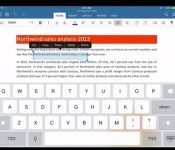
In his first major public event as Microsoft CEO, Satya Nadella today headlined a media event to introduce Office for iPad, in line with earlier rumors. Word, Excel, and PowerPoint for iPad will go live today at 11:00 AM Pacific Time. Microsoft’s press conference is ongoing, and we will update this post with additional details as they are revealed.
 Word for iPad
Microsoft acknowledged soon after the introduction of the original iPad back in 2010 that it was looking at the possibility of bringing its Office suite to the tablet, and by early 2012 a reported prototype shown by The Daily. Microsoft’s plans remained in flux, however, with the company reportedly reluctant to embrace the iPad as it sought to push forward with its own Windows tablet initiative with Surface.
With Nadella now running Microsoft, the company has finally committed to releasing Office for iPad, although some argue that it is too late given that an entire generation of users have already moved on to embrace other mobile-friendly productivity solutions.
| |

iPhone 6 Reportedly Launching ‘As Early As September’ in 4.7- and 5.5-Inch Sizes
Apple’s iPhone 6 is expected to launch “as early as September”, according to a new report from Japanese business newspaper Nikkei. The paper claims that the device is “expected” to be called the iPhone 6 and is “likely” to be offered in 4.7-inch and 5.5-inch display sizes, in line with circulating rumors.
Manufacturers have apparently begun making such components as fingerprint sensors and chips for liquid-crystal drivers.
Mass production of LCD panels will start as early as the April-June quarter at Sharp’s Kameyama factory, Japan Display’s Mobara plant, and at other facilities, according to sources. LG Electronics will supply panels as well. The new handset’s display resolution is expected to be significantly higher than that of current models.

Earlier this week, UBS analyst Steve Milunovich claimed that the 4.7-inch version might be the only model to launch later this year, with a timeframe for the larger 5.5-inch version unclear.
| |
OS X Mavericks Adoption Pushing Toward 50%
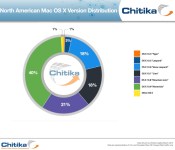
Just five months after its release, OS X Mavericks is seeing adoption rates in the range of 40 percent to almost 50 percent depending on the tracking source. The significant growth in Mavericks users demonstrates the benefits of Apple’s move to drop the price of its latest OS X update to zero in an effort to encourage users to upgrade.
Analytics firm Chitika is out with a new report today showing Mavericks usage at 40 percent of page impressions in the United States and Canada over the week of March 17-23. Apple’s three previous operating system versions split almost all of the remaining 60 percent of the Mac user base nearly evenly.

Almost exactly five months following Mavericks’ release, the operating system’s users are generating 40% of U.S and Canadian Mac OS X-based Web traffic, a figure that dramatically outpaces Mavericks’ predecessor, OS X Mountain Lion. At 40%, the share of OS X Web traffic generated by Mavericks users is approximately six percentage points higher than what OS X Mountain Lion achieved nearly 14 months following its public debut, and 13 percentage points higher [than] what was recorded at the seven-month mark.
The report notes that while Mavericks is seeing strong upgrade rates relatively to previous versions of OS X, Mac adoption rates are much slower than seen for iOS, where 85 percent of devices are now running iOS 7. This disparity is likely due to a number of factors, including longer lifespans for Macs that may leave a higher percentage of machines ineligible for the latest OS version, as well as a more varied user base than may not be as tech savvy as mobile users and thus less likely to upgrade.
Chitika is not the only analytics company tracking OS X usage, as GoSquared continues to maintain its tracker offering a real-time look at the distribution of OS X versions appearing on its network of sites. GoSquared is seeing an even higher rate of adoption for Mavericks of around 48 percent, with a similar even split of the three previous versions all around 15-16 percent.
Net Applications is yet another analytics firm with a significant user base to measure data from, and that firm saw Mavericks with a 45 percent share of the OS X base in its February data.
| |

Apple Patent Application Describes Use of Oleophobic Coatings on Sapphire Displays
Tim Cook confirmed in a recent interview with ABC News’ David Muir that Apple was manufacturing sapphire in its Arizona plant, but deflected any questions about how the company planned to use the material. Recent reports suggest the sapphire could land in the iPhone 6 or the iWatch as a display substrate, and a recent patent application lends some credibility to these rumors.

As noted by AppleInsider, the United States Patent and Trademark Office published an Apple patent application titled “Oleophobic coating on sapphire” that describes a method of applying an oil-repelling coating to a sapphire display for use in a mobile or portable electronic device.

The patent details a multi-layer display material with a base sapphire layer, a transition layer that serves to bond the surface layer to the base layer and finally a surface layer with an oleophobic coating.
Various embodiments described herein encompass a component with a substrate having an alumina base layer, a transition layer comprising alumina and silica, and a surface coating that preferentially bonds to the silica. The base layer may comprise a single-crystal sapphire. The transition layer may transition substantially continuously from about 100% alumina at the base layer to include substantial silica content at the surface coating, or to about 100% silica or silica glass at the surface coating.
A surface layer may be formed on the transition layer, with a substantially silica content, for example substantially 100% silica or silica glass, and the surface coating may be oleophobic. A portable electronic device may comprise the coated component, the portable device may include a window, the oleophobic coating may be provided on an exterior surface of the window, and the window may also include a touch screen.
Apple first used an oleophobic coating when it introduced the fingerprint-resistant material with the iPhone 3GS. The material has been used in subsequent products, including the current iPhone 5s, iPhone 5c, iPod touch, iPad Air and Retina iPad mini.
Apple last year signed a $578 million deal with materials manufacturer GT Advanced to produce sapphire in a new Mesa, Arizona plant currently under construction. Recent photos of the facility reveal significant building progress as the company moves closer to the plant’s target full operational date of June 2014.
| |

Western Digital Announces Thunderbolt-Powered My Passport Pro RAID Drive [Mac Blog]
Western Digital today announced the new My Passport Pro, the company’s first thunderbolt-powered, dual-drive storage solution. With user-selectable RAID functionality, the drive is suitable for graphics professionals looking for high performance or consumers who need reliable mirroring.

The aluminum enclosure accommodates two 2.5-inch drives, providing a total of 2 TB or 4 TB of storage space. Because it connects via Thunderbolt, the drive is powered by the bus itself and requires no extra cables and no external power source. It also delivers transfer speeds of up to 233 MB/s.
Superior to both FireWire 800 and USB 3.0, the integrated Thunderbolt technology of My Passport Pro makes video manipulation quick and easy—with the ability to copy a 22 GB high-definition video file in half the time typically required by a USB 3.0 drive working in RAID 0 format.
The My Passport Pro is available now at other major electronics retailers, including Apple, and online from Western Digital. The 2 TB My Passport Pro costs $299.99, while the 4 TB model is priced at $429.99.
| |

Work at Apple’s Arizona Sapphire Plant Continuing, Possible Expansion in Works [Mac Blog]
Work at Apple’s new sapphire production plant in Mesa, Arizona is progressing, with contractors working “around the clock and even on weekends”, according to a new report by AppleInsider. It also says Apple may be expanding into another building already existing on the site.
The site says Apple planned to have the facility up and running by February and it may be partially active as work continues. It also published a series of images showing the exterior of the building, though they are not particularly revealing. The building was built by a solar panel manufacturer but never saw production.

Rumors floating around the local electrical industry in Arizona claim Apple may be mulling a project expansion into a building on the site that was previously owned by photovoltaic panel maker First Solar. The purpose of the support structure is unknown.
Apple originally announced the 700-employee manufacturing facility, in partnership with sapphire-maker GT Advanced, back in November. Tim Cook said in an interview that the facility would be making sapphire for a “secret project” with other reports saying the plant will see full production beginning in the second half of 2014.
| |

Sonnet Announces Mac Pro 4U Rackmount Enclosure and Expansion Chassis
Sonnet has announced a 4U rackmount enclosure and expansion chassis for the new Mac Pro, allowing users to horizontally mount their Mac Pro in a standard data center rack with PCIe expansion capabilities.
The xMac Pro Server includes three PCIe single-width expansion slots, with room for one double-width and one single-width card, Thunderbolt 2 compatibility, and a mounting kit for additional storage or optical drives. On the back, the rack includes three USB 3.0 ports, two Gigabit Ethernet ports, and an HDMI port, with a single USB 3.0 port on the front. It includes a 300W power supply and a 75W PCIe power connector for supplemental power to certain power-hungry PCIe cards.

The new Mac Pro has become the object of desire, but a lustrous finish hides its true beauty—the massive power within. If you’re a pro user in the video or audio industries, the Mac Pro offers the power you need, but lacks the built-in expandability you count on. In order to achieve this engineering feat, Apple® designers stripped away components and space to a minimum, taking out PCIe slots and drive bays, and packed the remaining components into a small cylinder. Its compact size makes the new Mac Pro more transportable and rackable, but prevents onboard installation of PCIe expansion cards. In addition, the computer still requires an enclosure to make it road- or rack-ready and provide convenient cable management. Sonnet’s xMac Pro Server PCIe expansion system/4U rackmount enclosure addresses these issues and increases a Mac Pro’s potential in a big way.
Sonnet claims the xMac Pro Server will ship in June, offering a sign-up sheet for interested customers on its website. Pricing has not been announced.
The company announced Thunderbolt docking stations nearly a year ago but the company has delayed shipment several times.
| |

