


iPhone 6 and 6 Plus review: bigger and better, but with stiffer competition

To say that Apple’s doing things differently would be an understatement. With the 4.7-inch iPhone 6 and the 5.5-inch iPhone 6 Plus, the company introduced two new high-end phones at the same time, both with a complete redesign and a much larger screen size than any iPhone that came before. Gone are the days of 3.5-inch and 4-inch phones that, at one time, seemed to provide more than ample amounts of screen space. Now, the new iPhones make their predecessors look like the tiny handset Ben Stiller used in Zoolander. The market has changed, and it was high time Apple did the same.
Even though this is Apple’s first attempt at building large phones, it’s not breaking new ground — in fact, it feels more like the company is catching up than innovating. To be fair, finding a fresh take is a difficult thing to do in this crowded space: Samsung’s Galaxy Note series, which started out at 5.3 inches and is now up to 5.7, is selling by the millions, and most competing flagships aren’t much smaller. Basically, Apple would be leaving money on the table if it didn’t address this segment of the market. So how did the company do on its first try at large phones? Pretty well — mostly.
Hardware
Aside from the screen size and a few minor hardware differences, the iPhone 6 and 6 Plus are identical. Unlike Apple’s last four flagships (the 4 to the 5s), which sported a squarish, blocky shape, the 6 series features soft, rounded sides. Not counting the glass screen, the entire frame is constructed of aluminum, similar to the material Apple uses on its MacBooks.
As you’ll see in my iOS 8 review, Apple’s following a design approach centered on “continuity” — the idea that its products should work seamlessly with each other. This is evident in the iPhone 6’s hardware as well. The 5 and 5s had straight sides that met the front and back via chamfered edges. On the 6, Apple opted for a unibody build; the bubbled-out sides and flat back are constructed from one continuous piece of material. Meanwhile, the front glass panel tapers down ever so slightly at the edge, producing an uninterrupted look. I’ll always have a soft spot for the chamfered edges on the 5 and 5s, but the 6 and 6 Plus feel fresh, especially after years of only modest design tweaks.
Both iPhones are thinner than their predecessor. Whereas the 5s was 7.6mm thick, the 6 comes in at 6.9mm, with the 6 Plus measuring a hair thicker at 7.1mm. I don’t always subscribe to the “thinner is better” mantra, but it’s a benefit in this case because larger iPhones wouldn’t feel as comfortable if they had the same shape as the 5s. If I had to choose based on in-hand feel alone, I’d pick the 6 over the Plus. I can still wrap my fingers around the 6 just as easily as I could with the 5s (and its curved sides don’t cut as sharply as the edges on the 5s), but the large-screened 6 Plus is… well, it’s manageable.
There’s no avoiding it: The Plus is even bigger than it looks. It’s easier to acclimate to the Plus if you’re already used to large phones, but even then, this is a massive piece of kit. Let’s do a close comparison with the 5.7-inch Samsung Galaxy Note 3, for instance (I have a review unit handy, and the unreleased Note 4 has similar dimensions). The Plus is nearly 7mm taller, 1.4mm narrower and 1.2mm thinner than the Note. Both are huge, and their width can fatigue even the biggest of hands if you hold on long enough. When you have a big handset, your fingers need to secure a firm grip; the Note’s straight, ridged sides and textured back make for a relatively easy grip. With the 6 Plus, though, those narrow, rounded edges feel sharper when the tips of your fingers are grasping on for dear life, and the aluminum is slipperier. I got used to the design, but it takes time.
But a phone’s screen size doesn’t have to dictate how large the device itself is. Take the LG G3, a 5.5-inch phone with the exact opposite in-hand feel. Compared with the LG G3, the Plus is nearly 12mm taller, 3.2mm wider and 1.8mm thinner; LG’s large-screened option has a smaller bezel and arched back that fit the natural contours of my hand extremely well. It feels much more comfortable to hold for long periods of time, and I never worry about it slipping out of my hands.
Both the 6 and 6 Plus use an IPS Retina HD display, but the Plus is even more high-def than the 6. It has a screen resolution of 1,920 x 1,080, which means you’ll get a pixel density of 401 pixels per inch. On the flipside, the 6 maxes out at 1,334 x 750, which translates into 326 ppi. (That’s the same screen density as the 5s.) Both displays are sharp, but I do see some minor differences between the two when I look at them side by side. Specifically, the Plus’ text and images are sharper, with no jagged lines whatsoever. That said, I don’t think it’s enough to steer you from one device to the other; they both look fantastic from a few inches away. Additionally, the color representation on both phones is less saturated than the Super AMOLED panel on the Note 3, and is extremely close to the colors on a Retina display MacBook Pro.

With the Retina HD display, Apple is also introducing what it’s calling “dual-domain pixels,” which arrange the display’s subpixels into a chevron-like pattern designed to compensate for the contrast that normally shows up when you look at the screen from oblique angles. It also helps produce deeper darks and sharper text; both new iPhones have brighter whites than the 5s, but the Plus has the warmest tint of the three. The viewing angles are indeed among the best I’ve seen, and it’s great to see Apple incorporate this technology into its latest products. All that said, it’s worth noting that while Apple makes this screen technology sound brand-new, it’s actually been used before on phones like the HTC One M7 and the One X.
Over the years, Apple’s continued to fine-tune its reputation for building devices that combine solid build quality with a premium design. While these new iPhones generally continue that tradition, there are a couple quirks that are difficult to un-see. The first is the excessive use of antenna lines on the back. The two stripes stretching across the top and bottom sections enhance the look of the phone’s rear — much like the HTC One series — but there are two unsightly lines that follow the upper and lower perimeter, and they stick out like a sore thumb. Secondly, though the phones got thinner, the camera module did not; the result is a lens that sticks out from the rest of the chassis, which increases the likelihood of the casing and lens getting scratched.

I am, of course, nitpicking. After all, an aluminum phone needs to have openings for antennas to get a signal, and that’s precisely what the stripes on the sides and back do. Unfortunately, though, they do detract from the device’s beauty, not enhance it. As for the camera, many flagship phones come with tiny humps around the camera module to compensate for the extra depth they require, but I would’ve rather seen Apple go with a design that’s less severe — and less likely to scratch.
One final concern: The phones are prone to scratches if you’re not careful. After just a day of use, I started noticing a few small marks on the backs of both devices. The most extreme thing I did to the phones during this time was slide them around on an office table. Granted, a case will resolve all of these issues, but unfortunately, cases also add a fair amount of bulk, and I’ve always preferred showing off my phones in all their beauty.
NFC
Apple’s coming out with a mobile payment service in October called Apple Pay. I haven’t been able to test it out yet, so I’ll revisit that when it becomes available. Once it’s up and running, it’ll use a wireless standard known as Near-Field Communications (NFC) that comes built into the iPhone 6 and 6 Plus. In short, a transmitter on your device can communicate with a receiver located just a few millimeters away; this is incredibly useful for mobile payment transactions because the short distance makes it more secure than any other wireless connection, so you don’t have to worry about a third party getting unauthorized access to your sensitive information.
Since NFC is a standard, the iPhone is theoretically capable of doing a lot more than just mobile payments — tap-to-pair for Bluetooth devices, unlocking doors and hotel rooms, mobile tickets for public transit, Foursquare check-ins, et cetera. For now, though, the iPhone’s NFC radio will be limited just to Apple Pay; developers can’t do anything with it right now. Apple hasn’t said if this will change in the future, but I suspect the company is approaching it with the same timidity as it did with Touch ID; Apple initially used it just to unlock the iPhone and approve iTunes purchases, and now, a year later, it’s finally opening up the sensor for developer support.
Software

Both iPhones come preloaded with iOS 8. You can find my in-depth review of the update here, so I won’t go into much detail in this review. But there are a few specific software features on the 6 and 6 Plus worth revisiting. Apple is treating the Plus as a small iPad mini (mini iPad mini?) of sorts: The springboard now can switch into landscape mode, and a few of the native apps (Mail, Calendar and Messages) come with dual-pane windows. This is a great use of the extra screen space, and it gives the Plus a clear productivity advantage over the 6.
While I’m on the subject of landscape mode, the keyboard also looks rather different. The standard keyboard shows up directly in the middle and is flanked by heaps of symbols and other options. Arrows and many of the popular punctuation marks are on the right, while options like copy and paste, undo and voice dictation are on the left.

Both iPhones also feature Display Zoom, which magnifies the screen and makes your icons, text and other materials larger. There’s one-handed mode, which Apple refers to as “Reachability.” This is technically available on both the iPhone 6 and 6 Plus, but it makes the most sense on the larger model. Since it’s tough to stretch your tiny fingers all the way to the top of the screen, Apple’s solution is to bring the screen down to you. When you double-tap on the Touch ID button, the entire UI slides down so the top half of the app is located on the bottom half of the screen. You can scroll and interact with it just like you normally could in full-screen mode, but in case you need to get to a link at the bottom of a website, or you’re trying to get down to the end of an email, you’ll have to go back out to see the entire screen. It’s better than having no one-handed mode at all, but it still feels cumbersome and I only really used it when I wasn’t able to use two hands (e.g., when I’m walking down the street while holding a bag).
It may sound like the Plus isn’t ideal, and indeed, it’s not for everyone. But for many, the additional screen real estate is worth sacrificing some one-handed comfort. Not only do you get more rows of icons on each screen (the 5s is 6 x 4, while the 6 is 7 x 4 and the 6 Plus is 7 x 4 with slightly larger icons and more space in between), but you’re also going to be able to see more emails, tweets, Google search results, Engadget posts, calendar appointments and, well… more of everything. More screen space equates to more room for consuming, creating and manipulating content, and since it’s still small enough to fit in most jeans pockets (provided they’re not too tight), it’s still more portable than any iPad.
Camera

While the megapixel war rages on among manufacturers like Sony, Samsung, LG and Microsoft Devices (Nokia), Apple doesn’t seem to feel compelled to join the fray. Instead, it’s sticking with a modest 8MP iSight camera similar to the one found n the 5s. Although the aperture and pixel size haven’t changed, Apple’s added “Focus Pixels,” which is the company’s fancy term for Phase Detection Autofocus (PDAF). The tech is used in many DSLRs and phones like the Galaxy S5, and the idea is to lock autofocus faster. Fortunately, Focus Pixels doesn’t disappoint; in several side-by-side shots in which my goal was to snap a photo as quickly as possible, the 6 and 6 Plus did considerably better at producing focused images.
In case you need extra perks for going with the larger device, the Plus comes with Optical Image Stabilization (OIS). This feature is designed to reduce the amount of blur that can come from the natural shaking of your hand, and it produces better low-light performance and less shaky video as a result. I took several nighttime shots with the 6 and 6 Plus side by side, and although there was no difference in how much light the cameras took in, the images from the Plus consistently came out sharper — both when viewing at standard size and especially when zoomed in.
I also pitted the Plus head to head against several other flagships. It bested the HTC One M8 in sharpness and white balance, though it didn’t get quite as much light; it had more natural colors and less noise than the LG G3; it got more light, better colors and clearer focus than the Galaxy S5; and although the Lumia 1020 brought in the most light, it also did so at the expense of unnatural colors and noise.
So the iPhone 6 Plus held its own against nearly every major flagship in terms of low-light images, but how did it (and its 4.7-inch twin) fare in the daylight? Shots taken by the Lumia 1020 were far more detailed and had a slightly more accurate white balance and color representation outside; but while it did a fantastic job capturing the shadows, the highlights were typically more blown out than they were on the iPhone. The GS5 is a respectable contender in the daylight as well, offering more detail, but the iPhone generally produced more accurate colors. The G3 appears to be overexposed by default and the dynamic range is not as wide, so shadows are incredibly dark and whites are slightly blown out. Finally, the iPhone bested the HTC One in dynamic range, detail and color.
The iPhone camera may not always be the best in every circumstance, but it’s consistently near the top in almost every scenario. The autofocus locks quickly; each shot contains all of the detail you’ll need (unless you have to zoom in incredibly far); dynamic range is great; and color representation is sound. And although there weren’t a lot of drastic improvements to the new iPhone cameras over the 5s, I know that if I need to snap a quick picture, it’s going to turn out well.
(Note: I will have full-res images available shortly.)
Performance and battery life

Last year, Apple rocked the boat by announcing that the iPhone 5s would be the first phone with 64-bit support, thanks to its A7 chip. This year’s bump to an A8 chipset isn’t quite as dramatic, but the company is claiming that the chip comes with a 25 percent uptick in CPU performance and 50 percent in GPU output. It packs 2 billion transistors, which is a number that few other companies boast in product launches; by comparison, Intel’s Haswell desktop processor has around 1.4 billion. Apple seldom dives into more specifics, but benchmarks reveal that we’re looking at a 1.4GHz dual-core processor.
I get why Apple would rather discuss the experience than the actual numbers — it’s because a 1.4GHz dual-core chipset doesn’t sound as good as a 2.5GHz quad-core Snapdragon or an octa-core MediaTek. But I’ve never had any problems getting iPhones to handle heavy loads, and the 6 and 6 Plus are no different. Games load and run smoothly and multitasking works great.
When it comes to benchmarking, it can be difficult to compare Apples to Androids. There are a few cross-platform tests, however, so I decided to take a look and see how the iPhone 6 holds up to a pair of Snapdragon 801-powered flagships, the Galaxy S5 and the HTC One M8. As you can see below, the iPhone does better in some areas and worse in others. On SunSpider, it produced the best scores I’ve seen on any smartphone. It does well on single-threaded activities in Geekbench and keeps up with the Snapdragon in multi-threaded tests. It does significantly better in Basemark X, but not in 3DMark. The long and short of it is that you shouldn’t feel like switching from one flagship phone to another simply because it has more cores; Apple holds its own against the strongest competition, and it still has the advantage of having 64-bit support on both hardware and firmware for at least a short period of time — at least, until Android L comes out and more chipsets integrate 64-bit support.
| iPhone 5s | iPhone 6 | iPhone 6 Plus | |
|---|---|---|---|
| 3Dmark Unlimited IS | 14,899 | 16,689 | 17,902 |
| Geekbench 3 (multi-thread) | 2477 | 2885 | 2803 |
| Basemark X | 14,404 | 15,572 | 16,538 |
| SunSpider 1.0 (ms) | 449 | 351 | 388 |
| SunSpider: lower scores are better | |||
The iPhone 6 series also comes with an upgraded motion coprocessor called the M8, which adds barometer support in addition to the accelerometer, gyroscope and compass. Since barometers can sense the variance in air pressure, this means you can now measure changes in elevation. Those measurements, in turn, will get added to the new iOS Health app.
Another interesting side effect of the size difference is how they manage thermal heat dissipation. Since it’s the smaller of the two, the iPhone 6 got noticeably toastier than the Plus when playing games — in fact, I rarely had any problem with the Plus getting warm.
If you’re having trouble choosing between the 6 and its extra-large twin, battery life may be the ultimate deciding factor. It’s no secret that the Plus comes with a larger battery and therefore longer runtime than the 6, but how much of a difference will it make? Turns out, a noticeable one. In our video-playback tests, the 6 lasted 10 hours and 19 minutes; that’s actually worse than the 5s results from last year, which managed to go for 10:50. The iPhone 6 Plus, on the other hand, still had 14 percent battery left when the 6 died. All told, it lasted almost 12 hours. Both of these results are lower than Apple’s claims, but likely are the outcomes of different testing methods.

But tests are tests: Real-world performance is where it’s at. And this is where the Plus truly shines. In my usage tests, I do a little bit of everything on the phone: calls, games, email, social networking, e-book reading, the works. After all that, I got through a full 17-hour workday with just 3 or 4 percent battery life remaining. On the 6, I managed to squeak out around 13 hours. With moderate to light usage, you should expect to see the Plus get roughly a day and a half, if not more.
Both iPhones come in two versions with different sets of wireless frequencies, so you’ll want to be aware of the differences. The first option comes with support for 16 LTE bands, while the second takes the same 16 and adds four more bands for a total of 20. This is the most I’ve ever seen included in one specific model. I usually list out which bands are covered on which devices, but let’s face it: If the 20-band option doesn’t include your specific needs, very few other phones likely will. The latter will ensure the most coverage globally, and will be sold in more places; in the US, however, you’ll only find this version on Sprint and US Cellular. Every model will come with penta-band HSPA+ and quad-band GSM/EDGE, and there’s also a CDMA variant that comes with those frequencies as well.
The new iPhones also support WiFi calling with 802.11ac compatibility (in addition to the usual a/b/g/n), both of which have been a long time coming. WiFi calling, which offers high-quality phone calls over your wireless router, is a carrier-dependent feature. T-Mobile is the only network that currently supports it in the US, though AT&T plans to support it sometime next year. Meanwhile, 802.11ac compatibility ensures that your iPhone isn’t a network bottleneck like it once was; its theoretical max speed is now 433 Mbps. Most customers don’t get speeds this fast from their ISPs, but at least the speed limit is no longer low enough to have a negative impact on your internet experience.
The competition

At 4.7 inches, the iPhone 6 is still technically smaller than most modern-day flagships. Samsung’s Galaxy S5 is 5.1 inches; the HTC One M8 is 5.0; the new Moto X is 5.2; and the LG G3 is 5.5, just to name a few. So if you pine for a top-of-the-line phone that’s larger than the iPhone 5s, but smaller than any of the aforementioned heroes, the iPhone 6 will be a great fit. From a
If you’re looking at the 5.5-inch iPhone 6 Plus, however, the competition is fiercer — at least, if you care less about the OS and more about what you can do with the screen size. The Samsung Galaxy Note 4 is coming early next month, and since it’ll have a 5.7-inch Quad HD display, it’ll be a tad shorter, wider and thicker; however, it’ll also have straight sides, which provide a firmer grip than the rounded edges on the 6 Plus. You can also get the LG G3, which has a higher-resolution 5.5-inch Quad HD display. Heck, if you’re extremely adventurous, you could get a Lumia 1520, which is a 6-inch Windows Phone with even sharper edges than the Plus.
Eventually, both iPhones will be available globally, but it’s only coming to a handful of countries at launch. Each one will come in three color choices (space gray, silver and gold) and three storage sizes: 16GB, 64GB and 128GB. The latter storage option is the most I’ve seen built into a smartphone (internally, at least) though the mid-tier should be plenty for most users — especially now that it’s doubled in size. The iPhone 6 will start at $199 on-contract ($649 retail) for 16GB, and go up to $299 ($749) and $399 ($849) for the 64GB and 128GB models, respectively. The iPhone 6 Plus is $100 more than its smaller sibling, so prices start at $299 ($749) and go up to $499 ($949).
Wrap-up

For the first time, iPhone fans can enjoy something Android users have taken for granted: choice. Until this year, buying a high-end iPhone wasn’t a tough decision. You either bought it or you didn’t. Now there are two to choose from, and while they look identical, each has its own set of trade-offs that you need to weigh: The 4.7-inch iPhone 6 features a respectable display size and a comfortable in-hand fit; it’s also my personal favorite after using both for several days. The 5.5-inch iPhone 6 Plus, on the flipside, isn’t as easy to hold in one hand, but you’ll want it if you’re hoping to get an iPad-like phone with great battery life and a lot more screen real estate.
This year’s iPhones aren’t groundbreaking, nor are they perfect. But they demonstrate something far more important to Apple’s success in the long run: freshness. Apple ditched the tried-and-true square design (which I’ve always been fond of) for a more rounded, modern look; it added features that should’ve been there ages ago (NFC, anyone?); and it made the phones large enough to start competing in a hotly contested space. No doubt about it, the iPhone needed to grow in size and function, and it did just that. Fortunately, it made the leap before it was too late.
Photos by Will Lipman.
Filed under: Cellphones, Mobile, Apple
.CPlase_panel display:none;
iOS 8 review: Some overdue updates, but well worth the wait

Out with the old, in with the new. That was the theme of last year’s iOS update, known as iOS 7, which ushered in a flat new design. Although Apple threw in some new functionality as well, it was clear the company was mainly focused on giving its mobile OS a face-lift and setting the stage for future updates — the first of which is coming out tomorrow. iOS 8 builds on last year’s software with a plethora of new features, including third-party keyboards, camera controls, widgets, home automation, health and fitness tools and the ability to interact with other apps. (Yes, it’s hard to believe these are just arriving on iOS.) Here’s what to expect.
Compatibility
With each new iOS release, there’s an aging device or two that doesn’t receive the update. All told, iOS 8 is compatible with the iPhone 4s and later, the iPad 2 and up, both iPad minis and the fifth-generation iPod touch. It’ll be available as a free download starting tomorrow, September 17th.
As usual, there are some devices that will iOS 8, but won’t enjoy the full feature list. The new Health app, for example, will only come to the iPhones (4s and later) and fifth-gen iPod touch. Meaning, no iPad support. Additionally, the Continuity feature, which makes it possible to hand off content from mobile to desktop (and vice versa), is only available to the iPhone 5 and later, latest iPod touch, fourth-gen iPad and later and both iPad minis.
User interface/layout
Last year’s iOS 7 release marked the operating system’s first major redesign since Apple introduced the original iPhone. And it was a welcome change: After six years, the OS was starting to feel stale. Even so, the new look also came with a learning curve. The flat design of iOS 7 is prettier and more colorful, but the cartoonish appearance and confusing layout were tough to get used to — heck, there’s no shortage of Tumblrs that go into painstaking detail on the system’s flaws.
To be fair, much of the focus on iOS 7 was on getting developers up to speed on the design overhaul; iOS 8, on the other hand, is all about adding functionality to the iPhone and iPad. As a result, you’re not going to see many significant changes to the layout or design of iOS this time around. In fact, you may not even be able to tell the difference between iOS 7 and 8 unless you’re looking closely. But don’t let looks deceive you: There’s a lot of new stuff under the hood.
Major features
Continuity

There’s a functionality gap between Mac and mobile, and Apple has been trying to bridge it for years. With iOS 8 and OS X Yosemite, the company introduced Continuity, which gives the two operating systems the ability to talk to each other — provided they’re connected to the same network and signed in with the same Apple ID. Continuity makes it possible for you to start something on one device and finish it on another. It allows you to send and receive calls on your MacBook if your iPhone is in the other room. Finally, it lets you use Airdrop to share files among multiple devices.
Say you’re reading a long article on the train as you head into work, but can’t finish it in time. When you get into the office and turn on your Mac, you’ll see an icon on the left side of the dock that wasn’t there before. Click on it and that same article is now on your Safari browser on Yosemite. This is what Apple is calling “Handoffs,” which can be used on many of the company’s native apps: Mail, Calendar, Contacts, Safari, Reminders/Notes, iWorks and even Maps. (Yes, developers can also add Handoffs into their own applications.) But what if you’re on the opposite end of your commute — heading home from a long day at the office? Before you close your laptop, look at your iDevice’s lock screen and you’ll notice a light icon on the bottom left. Slide up from there and, upon unlocking the device, you’re taken straight into the piece you were reading on the MacBook.

You can do this on multiple devices — you could hand off Maps from your iPhone and a Safari page from your iPad — but they compete with each other for attention. If you have Maps open on your iPhone and Safari open on your iPad, only one icon will show up on the OS X dock at a time. This means that it will also show the one with the most recent activity — it may show your iPad’s Safari icon until you touch Maps on your iPhone. What’s more, this only works when the devices are powered on; if you close your MacBook, that magical icon on your iPhone’s lock screen will disappear.
Handoffs is just a part of the Continuity feature. As mentioned earlier, Apple’s also made AirDrop a universal service so you can wirelessly transfer files between Macs and iOS devices. Your MacBook now shows up on your iOS’ share menu and vice versa. A couple seconds is all it takes to push a web page, contact, photo or other info from one device to another.

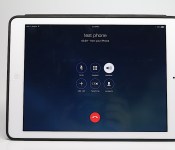
Voice calls are also included here. If your phone is in the other room, you can make and receive calls on your Mac or iPad instead — as long as all devices involved are using the same Apple ID and WiFi network, and you’ve activated FaceTime. When you’re in the call, you can mute it or transfer it back to your iPhone. The problem is, there’s no way to transfer it the opposite direction; calls started on the iPhone cannot be transferred to the Mac or iPad.
Lastly, what about those green bubbles from folks who don’t happen to use iMessage? Continuity, my friend. Starting in October, all texts and MMS messages will begin showing up on your Mac and iPad, so you’ll be able to carry on conversations regardless of which Apple device you and your friends are using.
Naturally, none of this matters if you only have one Apple device — this is really for folks who own Macs, iPads, the iPod touch or all of the above. It’s a smart way for Apple to keep you locked into its ecosystem; once you get used to having all of your communications tied into every gadget you use, it’s even tougher to move to Windows, Android or any other competing OS.
Extensibility

iOS 8 may not look much different than iOS 7 on the outside, but what takes place behind the scenes matters the most. A new set of features called Extensibility allows developers to create apps that can interact with other apps (and even iOS itself). Up until now, any interaction developers had with other programs was severely limited; if one app wanted to recruit the services of another app, you wouldn’t be able to do so without hopping completely out of one and jumping into the other. By adding extensions, iOS 8 opens the platform up significantly.
When it comes to interacting directly with iOS 8 itself, Extensibility makes it possible for developers to create custom keyboards that replace the stock option. You can now add widgets to the Today screen and actions to notifications, which finally make the Notification Center worth visiting. Developers can now also add their services to the iOS Share Sheets (the panel that comes up when you press the share button in apps). Before, you could only share content on Facebook, Twitter, Messages and Mail; now, the sky’s the limit. Just like on Android, you should be able to save articles on Pocket without having to copy the URL, jump out of the browser, enter the Pocket app and finally add the URL. With Extensibility, sharing on any third-party app now takes one or two steps, as opposed to around five.
In the same Share Sheets, Extensibility gives devs access to the bottom row of icons, known as action items; this is normally where options like print, save and copy are, but now third-party apps can add their own stuff here. Transmit, a file-management service, will offer the ability to save any file type directly to an FTP server. Bing Translate is another example; Microsoft no longer needs a special partnership to integrate this service into Safari’s Share Sheet — it can just make its very own extension to an existing app (in this case, Bing). You’d just need to hit the share button, find Bing Translate and the German website you’re reading suddenly turns into English (if that’s your language preference). 1Password will be updated so all you have to do to autofill a password in Safari is hit the share button, find the 1Password option and authenticate with Touch ID; previously, you had to exit the browser, find and copy the password and then hop back into Safari and paste it.

Extensibility also helps when editing photos. Now you can take a picture with the stock camera, go into Photos and edit your shot using the Camera+ tools — all without having to exit the Photos app. The sad news is that developers still don’t have free rein to add extensions wherever they want. Control Center (the shortcut panel accessed by swiping up from the bottom), which seems like an obvious location to add custom third-party features, is still off-limits; widgets aren’t allowed on the springboard, either. But this is a solid start, and I wouldn’t be surprised to see Apple continue to open up more areas for customization when it feels the time is right.
Keyboards

When it debuted on the original iPhone, the stock iOS keyboard was among the best I’d ever used — and it retained that status for a few years. But Apple’s been pretty stubborn since then: Aside from a visual redesign (and “shiftkeygate“), not much has changed over the years. Fortunately, iOS 8 is not only breathing life back into the keyboard; it’s also finally giving you the option to ditch it for something else. First, though, let’s discuss what’s improved on Apple’s homegrown version.
Apple has added a new predictive-typing engine called QuickType, which adapts to your various writing styles and figure out what you’re going to say based on whom you’re talking to and which app you’re using. You might use different words around your spouse that you would never dream of saying to your boss; you likely also write differently in a long-form email than you do in a quick text. As it gets to know you, the prediction bar (which contains up to three word choices) is supposed to improve in accuracy. For the sake of privacy, however, the context it learns stays on the device and isn’t uploaded to iCloud; it’s only available through native apps, so QuickType won’t learn from you if you’re constantly using apps like WhatsApp, Gmail or Mailbox. Personally, I rarely use iMessage and Mail.app, so my experience with the predictive typing has been hit-or-miss so far.

My favorite trick: When you get an email or message asking you to make a quick decision (Dinner or movie? Country or pop? Nick Fury or Justin Bieber? Bob, Bobby or Bobbarino?), QuickType figures you’ll answer the question and displays only those choices, with “not sure” sometimes added in as the third option. It works about nine times out of 10; on the 10th time, it just reverts back to the standard predictions.
QuickType should improve the stock keyboard experience, but I was much more interested in the fact that Apple is finally allowing third-party keyboards. It’s something Android has had for years, and it’s arguably been one of the most-requested features among iOS users. Developers like SwiftKey, Swype, TouchPal and Fleksy all have keyboards in the works, and they could hit the App Store as early as tomorrow when iOS 8 goes live. There’s even a GIF keyboard called PopKey that does… well, exactly what it sounds like.
I’ve had the opportunity to use TouchPal, as well as SwiftKey, which has already confirmed that its keyboard will go on sale tomorrow. Each one takes the form of an individual app, just like on Android; to enable them, head into the general settings menu and add them in the keyboards section. Both of the keyboards I tried use swipe gestures in addition to their own predictive-typing engines. (I anticipate others will work the same way.) If you’ve used either keyboard on Android, expect a similar experience on iOS.

The timing here is impeccable (and perhaps not at all coincidental): Using the swipe gestures on these keyboards has greatly improved my experience on the large-screened iPhone 6 Plus. As with Samsung’s Galaxy Note series and other big handsets, it’s nearly impossible to type one-handed on Apple’s 5.5-inch phone, but being able to swipe from one key to the next makes it much more bearable. You’ll definitely want to try a few keyboards to see which one’s the best fit.
Manual camera controls

Another huge win for developers and users alike is the inclusion of manual camera controls in third-party apps. While the majority of iOS users will be content with the stock camera (more on that in a moment), apps like Camera+, Aviary and Spark Camera will now offer more options. White balance, ISO, exposure, manual focus and even shutter speed are included as part of the package. And thanks to that Extensibility feature, these apps can also tie in directly with the Photo app, so you can take advantage of their editing tools without even having to exit.
Health

It’s as if staying fit is the trendy thing to do these days — at least, if you’re a technology company. Quite a few phone makers are trying to add fitness-related apps and services into their latest products. Apple is no different: iOS 8 introduced HealthKit and a stand-alone Health app, which comes preloaded and can’t be deleted. Think of HealthKit as the tool developers need to use to make apps and fitness products compatible with your iPhone or iPad, and think of the Health app as a central hub of sorts where all of the collected data comes together in a sensible way.
The app itself seems rather boring until you start actually exercising or walking around, at which point it begins logging all of your daily stats. There’s a place to add emergency information (in the form of a Medical ID); a list of sources (gadgets or apps that are collecting some of this data); a dashboard for you to keep track of your target goals; and health data, which splits information into a plethora of different categories, such as vitals, nutrition, fitness and body measurements. Here you can add your own personal health details, track your calories burned and flights climbed, monitor heart rate, set proper goals and more.
The iPhone’s built-in motion coprocessors make it possible to collect some of this data, including how far you’ve walked or run. The iPhone 6’s new M8 chip also lets you track how many flights of stairs you’ve climbed. Still, you’ll need to get accessories like fitness bands and heart rate monitors to fully take advantage of what the Health app has to offer. It shouldn’t be long before we see more devices with HealthKit support, though, which might be a good time for us to revisit the Health app in iOS 8.
iCloud Drive

iCloud Drive is likely about as close as we’re going to get to an official file manager on iOS, and even then, it’s not a perfect solution. Available on both iOS 8 and OS X Yosemite, iCloud Drive is a way to store any file of any kind and access it from your phone, tablet or computer. You can also grab it from any compatible app, edit and manipulate the file and save it back in the cloud.
Sounds great, but there are a couple catches. First, it’s more accessible on Mac than iOS; it’s easily found on the left sidebar in Finder, whereas there’s no way to access it on iOS unless you have an app that supports the service. The iWorks suite offers it, so you can create and edit Pages, Numbers and other documents and have it upload onto your Mac, and I wouldn’t be surprised to see most cloud services and content-creation tools add support for it as well. But since there’s no specific app to let you view your files on iOS, it’s more difficult to take advantage of the service for now.
Just like every new Apple feature, its capabilities may expand over time. And since this is a potential moneymaker for the company, this should happen sooner rather than later. In the meantime, Apple has tried to make the pricing more accessible: You can now buy 20GB for a dollar per month, 200GB for $4, 500GB for $10 and 1TB for $20. Unfortunately, you still only get 5GB for free, whereas Google and Microsoft both give away 15GB. Other than that, Google’s pricing is similar, although Google offers 1TB for $10 (half the price of Apple’s plan), as well as higher storage tiers.
HomeKit

iOS 8 also marks Apple’s first major sojourn into the world of home automation, thanks to a new framework called HomeKit. Look at HomeKit as a way for iOS to communicate with the Internet of Things: appliances, thermostats, lightbulbs, garage door openers and virtually any other type of connected-home product already capable of connecting to your iOS device. Until now, there’s been no central place for them to talk or interact with each other. HomeKit lets you name products, rooms, houses and functions, so Siri can recognize them and respond to requests. You’ll also be able to group together certain actions into a specific profile, so if you’re leaving the house, you can tell Siri something like, “Going to work,” and it can shut off all the lights, turn off the air conditioner and whatever else you want it to do.
Apple has a lot of competition in this field. Nest, which recently was acquired by Google, just released a program called Works with Nest. This gives manufacturers the proper sets of code to link their products with Nest, Google and other accessories. On top of that, Samsung recently bought SmartThings, an open home-automation platform that connects your devices through a hardware hub and associated stand-alone app. The startup is supposedly still acting as an independent entity, and Samsung is continuing to expand its own branded platform known as Smart Home.
Family Sharing
This is another feature that’s infinitely more useful when your entire family is among the Apple faithful. If you’ve shared the same Apple ID with your spouse or kids just so you don’t have to purchase the same games multiple times, Family Sharing eliminates that need altogether. With iOS 8, you can have up to six Apple IDs sharing the same apps, music, photos, purchases and iBooks. You’re also able to put together a family calendar (though my family’s done this through Google Calendar for a long time), as well as a pooled photo album. In case you want to keep track of where everyone is, you can see the location of each member of your family.
For parents whose kids like to download games with reckless abandon, parental controls have been around for ages. But in case you don’t mind them buying something occasionally as long as you give permission, Family Sharing’s “Ask to Buy” option should be a solid feature. Any time your child wants to purchase an app, iOS has to go through you first; you’ll see a pop-up notification asking if you want to let little Timmy play Monument Valley.
Enhanced features
Notifications

I’ll confess: Ever since Apple launched the Notification Center in iOS 5, I haven’t found much use for it. Despite the fact that it uses the same pull-down gesture from the top of the screen as Android, this feature just hasn’t held my interest the way it has on Google (or even Windows Phone, for that matter). I’ve preferred Google’s way of subtly showing you what types of notifications await you in the status bar; on iOS, I need to routinely check the menu because no visible reminder shows up. Second, it’s difficult to get rid of notifications, thanks to the tiny “X” button you have to double-press. There’s also no option to swipe away individual messages or appointments. Third, the only action I can take is to press the notification and jump into the proper app. I could go on, but these are the biggest problems.
Fortunately, iOS 8 addresses some (but not all) of these issues. Notifications are now actionable; you can respond to each one without having to exit the app or game you’re currently using. When a text notification drops down from the top of the screen as a banner, swipe down on it to reveal a text box. Virtually any type of notification could become actionable if the developer chooses to add support for it; I can envision the ability to like or reply to a Facebook comment, or retweet or respond to a Twitter mention. When you arrive at a restaurant, you could theoretically check in via a Foursquare notification.
The banner goes away if you wait too long to act on it, at which time you have to pull down the Notification Center and swipe left on the item you want to act upon. Slightly less convenient, but still better than having to leave your current app. The problem is, if you aren’t looking at your screen when the banner appears, you’ll have no way of even knowing a notification is waiting for you.
The infamous ‘X’ is still hanging around if you want to clear out all notifications from a given app, but now you can get rid of individual ones, at least; swipe left on each one to reveal a small X.
Widgets

Another aspect of the Notification Center that I’ve found somewhat pointless is the “Today” screen. I can see how it can be useful to some, since it shows the weather, upcoming appointments and a few other things. But I’ve been disappointed that developers haven’t been able to do anything with this screen. Fortunately, iOS 8 lets third parties add widgets of their own here. These widgets aren’t exactly the same as what you’d find hanging out on Android home screens — they’re pieces of glanceable information, and it doesn’t get much more complicated than that.
This feels like Apple is killing two birds with one stone: It can appease users who’ve been wanting widget support ever since it showed up on Android years ago, and it can do so without significant changes to the springboard. Meanwhile, it adds a splash of sorely needed customization to the Notification Center, which could make it more tempting to use.
Spotlight

If you have dozens of apps, hundreds of songs or a plethora of messages and emails on your device, you’ve likely used Spotlight search to retrieve something hiding away in a hard-to-find place. Spotlight has been great for hunting down stuff that’s already on your device — a mini-Finder of sorts — but what if you’re shopping, searching for an answer online, locating a nearby business or finding out when the next movie is playing? Spotlight has been upgraded with some new capabilities in iOS 8 that allow it to search beyond just locally stored files. You can now do Bing searches (yeah, Bing), find a Wikipedia entry, view movie times, get maps, look at trending news and even search for new apps, iBooks or iTunes songs. The same functionality can also be found in OS X Yosemite, which means Spotlight is now universal across all Apple devices. If you know exactly what you’re looking for, Spotlight is now much more useful.
Siri

With each passing year, Siri continues to add more features. With iOS 8, Apple’s digital assistant has received three crucial updates. The first is integration with Shazam. You can now ask Siri, “What am I listening to?” and it’ll hook you up with artist and song info along with places you can buy it. It also now supports continuous talk-and-type, which means it can listen and write down what you’re saying in real time, rather than having to wait until you take a breath in order to catch up.
The final improvement to Siri is at once the most important and most disappointing. At last, the program is capable of actively listening and waiting for you to say its key words. Much like “Okay, Google Now” or “Hey, Cortana” on competing platforms, Siri comes to life when you say, “Hey, Siri.” The problem is, this is only available when the device is plugged in, which severely limits its usefulness. The new feature comes in handy when I’m on the other side of the room and I want to pull up some information or dictate a message hands-free, but I most need this feature when I’m walking or traveling and I’m nowhere near a charging station.
Apple has enforced this restriction because it’s concerned an always-on Siri would have a negative effect on battery life; the company also says it’s partly because the feature is optimized for hands-free situations, such as when you’re driving and you just need to make quick requests without being distracted. In-car use makes a lot of sense — just make sure you’ve got your car charger handy. I’m hopeful that this is merely a test run and that the limitation will be lifted eventually.
Native apps

Nearly every major iOS release packs in a litany of improvements to Apple’s native apps. I won’t go over every minor detail, like whatever’s been improved on the calculator, but there are plenty of items worth discussing.
Let’s start with the camera. I’ve already mentioned you’ll be able to download apps that let you tinker with settings that were previously untouchable on iOS, such as ISO, white balance, shutter speed and exposure. That’s great, but the basic stock app got an upgrade as well. Keeping to its minimalistic roots, the camera app can now lock focus and exposure separately by letting you touch the area you want to focus on and sliding up and down on the viewfinder to adjust the exposure. You also get a time-lapse video mode, and there’s now a way to recover recently deleted photos up to 30 days old.
Although I haven’t been a fan of Mail.app in the past, iOS 8 includes a few updates that make me want to give it another shot. You’ll have more stuff to choose from when you swipe from right to left, with three buttons instead of two. The “More” button isn’t new, but it includes some new features, such as “Notify me,” which, when turned on, will ping you when someone responds to that particular email thread. You can also swipe from left to right; in fact, both swipe gestures are customizable so you can change the options around.
Whenever you view an email that contains phone numbers, addresses or event times, you’ll now be presented with a banner that shows this information and lets you add those details to a contact in your address book or an event in the calendar. This feature has been more useful than I expected: My inbox is full of emails from new people who I need to add to my digital Rolodex. This makes that much easier.
The other fancy new feature in the Mail app is minimizing drafts. Often, I will begin writing an email, only to forget some of the points that I need to address from earlier correspondence. Previously, I would have to save the draft, exit out of the thread, hunt down the info I needed and then return to the thread. Now, I just swipe down from the title, which minimizes the draft into a small bar at the bottom of the screen. Then, I can locate what I need, and touch the bar to pull the draft back up again. It trims down my workflow by a few steps.

Now on to the Messages app, which also got some clever new additions. If you’re part of an annoying group-messaging thread, you can now set up a Do Not Disturb mode and mute the conversation. You can change the name of the thread to whatever topic you want, and even add more people to an existing group. It’s also possible to share your location with friends by sending them a map directly in the app itself — and you can actively disclose your current location to those friends for an hour, a day or indefinitely, if you want them to know where you are at all times. It appears these maps will only show up on other iOS devices, since multiple attempts to share my whereabouts with Android phones ultimately failed.
If you’re an iMessage user, you get one more perk: Slide up on the microphone icon in the bottom-right corner, and you can record an audio or video message for your friends, which gets embedded directly into the Messages app for quick access. The only time I felt tempted to use it was when I was away from home for work and wanted to hear my children’s voices, but I imagine there are other scenarios in which a short-and-sweet audio clip makes sense; Apple explained that this is particularly handy for languages that have a lot of unique characters.
Finally, there’s Safari, Apple’s own web browser. This time, it comes with support for DuckDuckGo, a search engine that doesn’t track your every move or figure out what you like to search for. Additionally, any time you need to input credit card information, Safari will give you the option to scan your card, reducing the time it takes to enter the numbers yourself.
Miscellaneous
Just like in every major OS update, there are a lot of new features in iOS 8 — so many, in fact, that I simply can’t cover them all in this review. I’ve gone into detail on all of the major improvements, but part of the fun is digging through the new OS and uncovering the small stuff.
First off, iOS 8 introduces WiFi calling capability. Again, this isn’t a new smartphone concept, but it’s one Apple’s been sorely lacking. The feature makes it possible to send and receive phone calls over WiFi, which won’t take away any minutes or messages from your plan and should improve the quality of your call. In the US, T-Mobile is leading the charge on this feature, and the iPhone is one of the last smartphones lacking this ability. By next year, T-Mo will be joined by AT&T, which has also promised to add WiFi calling.
Apple has also opened Touch ID to developers, which means the iPhone’s fingerprint scanner can now do a lot more than simply unlock your device and verify iTunes purchases. Now, apps can use Touch ID to authenticate their own services add support for Touch ID as another layer of security, much like 1Password will be able to do with its autofill feature.
The new update also includes the ability to record your iOS screen when your device is connected to a Mac — as long as it’s running OS X Yosemite. This feature is much more important for developers who want an easy way to film app demos than it is for the end user, but it’s still a good addition nonetheless.
Another handy option is the ability to see which individual apps are draining your battery. Go into general settings and find usage. Near the bottom of the screen, you’ll see a list of apps that have been using a lot of power in the past 24 hours or seven days. For all of us who’ve witnessed our iPhone batteries draining faster than usual, this feature may help us single out the offending apps.
Speaking of which, there may be a time or two when your phone gets lost and the battery dies before you can find it. iOS 8 makes it possible for the device to send its last location to Apple just before it powers off, so you should be able to get in touch with customer support and figure out where your iPhone or iPad disappeared.
Wrap-up

Last year’s iOS 7 update was the largest redesign in the platform’s seven-year history, but it didn’t add much in the way of functionality. Which is a shame, because although the ecosystem has been robust, it was still missing a lot of stuff that Android users already enjoy. Now that developers have had time to tweak their app designs to fit Apple’s vision, iOS 8 is here with features that iPhone and iPad users have long been begging for. Custom keyboards, manual camera controls, extensions that let apps interact with each other, widgets (albeit limited) and actionable notifications are features that Android users have enjoyed for a long time — and they work well on iOS, too.
That said, the new software isn’t perfect. iCloud Drive, Apple’s alternative to a proper iOS file manager, is in the early stages. For now, at least, it’s easier to access on OS X than iOS, which doesn’t currently have its own app. Very little was done to improve the struggling Apple Maps, and while “Hey Siri” is a welcome addition to the digital assistant, I only found it useful in the car, and even then, only as long as I have it plugged in. Finally, while I find myself using Notification Center more than ever, I’m frustrated that I have no way of knowing if anything’s in there until I actually take a peek.
Nitpicks aside, the strengths of iOS 8 clearly outnumber the flaws. During my time with the new OS, I couldn’t help but wonder where many of these new features have been the last few years. Apple’s working hard to stay competitive, matching its rivals feature for feature. iOS 8 isn’t a ground-breaking update, then, but for Apple loyalists, this improved user experience is nonetheless great news.
Photos by Will Lipman.
Filed under: Software, Mobile, Apple
.CPlase_panel display:none;

Both Parts of Tim Cook’s Interview with Charlie Rose Available Online [Mac Blog]
The second half of Tim Cook’s extensive interview with Charlie Rose has been released online, which means that both parts are now viewable for those who haven’t seen it. Both interviews are available on Hulu and Charlie Rose’s website (via Daring Fireball). However, Hulu limits the interviews to those in the United States.

The first half of the interview, has Cook speaking about Steve Jobs, the acquisition of Beats as well as Apple’s interest in television alongside some thoughts on management from the Apple CEO. The second half of the interview, has Cook talking about privacy and how the Cupertino company does not try to collect data on its users.
The second interview, below, also features a segment with notable designer Yves Behar, who has designed numerous iPhone-connected products like the Jawbone and Vessyl Smart Cup.
Those who cannot watch the interview on Hulu can watch both parts on Charlie Rose’s website.
.CPlase_panel display:none;

Apple to Require App-Specific Passwords For Third-Party Apps Accessing iCloud
Apple is now offering app-specific passwords for third-party apps that access iCloud, allowing users to generate unique one-time use passwords to sign into iCloud securely. In a support document, Apple describes app-specific passwords as a feature of two-step verification and states that app-specific passwords will be required to sign into iCloud when using a third-party app beginning on October 1, 2014.

If you use iCloud with any third party apps, such as Microsoft Outlook, Mozilla Thunderbird, or BusyCal, you can generate app-specific passwords that allow you to sign in securely, even if the app you’re using doesn’t support two-step verification. Using an app-specific password also ensures that your primary Apple ID password isn’t collected or stored by any third party apps you might use.
App-specific passwords, which have long been used by other sites like Google, are a function of two-step verification. Typically, two-step verification requires a user to enter a verification code, but oftentimes, the codes will not work properly in third-party apps, so app-specific passwords are substituted instead.
As outlined in the support document, app-specific passwords can be generated by accessing My Apple ID, where the option to generate an app-specific password is listed under Password and Security. According to Apple, users can have up to 25 active app-specific passwords at a time, which are listed in the Password and Security section of My Apple ID.
 Generating an app-specific password is limited to accounts with two-factor authentication turned on, and for security reasons, Apple sends an email whenever an app-specific password is generated. App-specific passwords will be revoked whenever a user’s primary Apple ID password is changed, requiring new app-specific passwords to be generated.
Apple’s new app-specific passwords follow the launch of two-factor verification for accessing iCloud.com and come after a hacking incident that saw the iCloud accounts of several celebrities compromised due to weak passwords.
Apple CEO Tim Cook has promised to improve iCloud security by increasing awareness about two-factor verification, as well as sending out security emails whenever a device is restored, iCloud is accessed, or a password change is attempted.
.CPlase_panel display:none;

Apple iCloud backups are finally protected by two-factor authentication

Need another reason to activate two-factor authentication on your Apple device? Ars Technica and Apple Insider report that the security check now extends to cover iCloud device backups too, something it didn’t do before. That means if someone gets your password, or is able to reset it, they could pull down the data with a tool like Elcomsoft Phone Password Breaker and have access to anything stored there — it’s thought that many of the stolen personal photographs of celebrities recently posted online were obtained by this method. With two-factor authentication, they’d need access to your trusted device to generate a four digit code to get in. Another security tweak Apple just turned on is a notification that lets users know when their account has been accessed, to make sure it’s for legit reasons. Before your new iPhone and Watch show up to handle your selfies, payments and anything else better kept private — hit Apple’s website and turn the extra level of security on.
Filed under: Storage, Internet, Mobile, Apple
Source: Ars Technica, Apple Insider
.CPlase_panel display:none;
Apple Launches Guide for Android Users Switching to iPhone
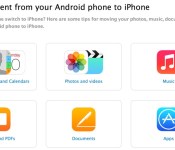
Ahead of the launch of the large-screened iPhone 6 and iPhone 6 Plus, Apple has released a detailed support document that walks Android users through moving data from their Android devices to the iPhone.
The document includes information on moving email accounts to the iPhone, giving Android users instructions on how to add email accounts to the Mail app. It suggests using a third-party app (Copy My Data [Direct Link]) to transfer data like contacts, calendars, and photos.

Apple suggests Android users can transfer photos, videos, books, and music from Android devices to iPhones using iTunes on a Mac or PC, giving step-by-step instructions. The document also walks users through transferring various documents to iCloud, which can then be opened in Pages, Keynote, and Numbers via iCloud and on iOS devices using the three apps.
Ahead of the launch of the iPhone 6 and 6 Plus, analysts suggested that the introduction of a larger-screened device could trigger a massive spike in upgrades and lure Android users who were using the Android platform due to the availability of devices with big screens.
Last week, Apple CEO Tim Cook made similar statements, suggesting the iPhone 6 and 6 Plus would trigger “the mother of all upgrades” with Android users also looking to switch to the iPhone due to the fact that the phones are “appreciably better in every single way.”
On Monday, Apple announced that it had processed more than four million iPhone 6 and 6 Plus pre-orders on the first day of pre-launch dales, doubling the previous iPhone 5 pre-order record set in 2012. Pre-order supplies of the iPhone 6 and 6 Plus dwindled quickly, with iPhone 6 Plus shipping estimates slipping to 3 to 4 weeks early Friday morning and iPhone 6 shipping estimates slipping to 7 to 10 days on Friday evening.
Apple’s iPhone 6 and iPhone 6 Plus will be available in stores beginning on Friday, September 19. Early pre-orders will also begin arriving to customers on that date.
.CPlase_panel display:none;

iPhone 6 and 6 Plus Shown Off in Early Hands-On Videos
Apple’s iPhone 6 and iPhone 6 Plus won’t be available to consumers until Friday, September 19, but some devices have been trickling out early ahead of the phone’s launch. Korean site UNDERkg has managed to get both an iPhone 6 and an iPhone 6 Plus, sharing hands-on videos and photos.
The first video focuses on the 4.7-inch gold iPhone 6, walking through all of the features including the display, the Touch ID home button, the protruding lens, and the power button, which has been relocated to the right side of the device for easier one-handed access.
In the video, the iPhone 6 is also compared to earlier models of the iPhone, like the iPhone 5s and the iPhone 3G, as well as Samsung devices like the Galaxy S5 and Alpha. The device is shown running iOS 8, with several of the apps demonstrated in the video. Authenticity is of the iPhone 6 in the video is confirmed via a FaceTime call.
UNDERkg‘s second video shows off the larger 5.5-inch iPhone 6 Plus, again running through all of the newly introduced design features, including the wraparound screen, relocated power button, and redesigned pill-shaped volume buttons.
As with the iPhone 6, the 6 Plus is shown powered on, with the reviewer showing off a few apps on the phone as well as the larger available home screen space. The iPad-style landscape mode is also demonstrated, showing how the device uses its additional real estate.
Apple’s iPhone 6 and 6 Plus will be available to consumers beginning on Friday, September 19. The devices will be available in stores on that date, and that is also the date that early pre-orders will begin arriving. Official iPhone 6 and 6 Plus reviews should be available tonight.
.CPlase_panel display:none;

iCloud.com Now Utilizing Two-Factor Authentication
Apple’s two-factor authentication system is now enabled for iCloud.com, with the site asking for a verification code before allowing users with two-factor authentication enabled to access various iCloud.com apps.
Access to iCloud.com apps like Mail, Contacts, Calendar, Reminders, Pages, Numbers, and Keynote is restricted until the verification code is entered on the website, but Find My iPhone remains accessible.

Users also receive an email when their Apple ID is used to sign into iCloud via the web browser, a feature that was implemented following the recent hacking of celebrity iCloud accounts that led to hundreds of photos being shared on the Internet.

Following the hacking incident, Apple CEO Tim Cook pledged to improve iCloud security by expanding two-factor authentication to iCloud and sending out security emails when a device is restored, iCloud is accessed, or a password change is attempted. Cook also said that Apple will aim to increase awareness about two-factor verification.
Originally implemented back in March of 2013, two-factor verification is an opt-in system designed to increase Apple ID account security by requiring identity verification before allowing users to make account changes or purchase content on new devices. It replaces standard security questions with a security code delivered to a trusted device.
Apple first tested two-factor authentication for iCloud.com back in June, well ahead of the iCloud breach, but the feature was not implemented until today.
.CPlase_panel display:none;
Official iPhone 6 and 6 Plus Cases Arriving Ahead of Friday’s iPhone Launch
While shipping vendors have been instructed to hold deliveries of the iPhone 6 and 6 Plus until Friday’s official launch date, there is no such restriction on the official Apple cases designed for the new devices. As a result, several MacRumors readers and others who placed orders for cases when iPhone pre-orders went live last Friday have already begun receiving their case orders.
iLounge has shared some good photos of the brown leather iPhone 6 Plus case. The cases are very similar to the leather iPhone 5s cases with a microfiber interior to protect the iPhone itself, although the iPhone 6 and 6 Plus cases have an open bottom edge where as the iPhone 5s cases are enclosed with distinct holes for the various physical features.

At least one MacRumors reader has received his black leather case for the iPhone 6 Plus, while others are receiving iPhone 6 cases as well.

A Reddit poster has received one of each size of case, allowing for a comparison between the two sizes. The poster has also shared some photos showing how the two cases fit in the hand.

Apple’s leather cases are priced at $45 for the iPhone 6 and $49 for the iPhone 6 Plus, while silicone cases are also available priced at $35 for the iPhone 6 and $39 for the iPhone 6 Plus. The leather cases are currently shipping with delays of a few business days, while silicone cases are listed as shipping in October.
.CPlase_panel display:none;
iPhone 6 Plus Might Be Limited to 1 GB of RAM
Part leaks have previously suggested that the iPhone 6 has just 1 GB of RAM, much like its predecessor the iPhone 5s, but the memory status of the iPhone 6 Plus has thus far remained a mystery, leading many to hope that the larger device has been upgraded to 2 GB of RAM.
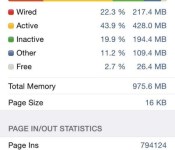
New information suggests that the iPhone 6 Plus may not be getting a memory upgrade, and will continue to offer 1GB of RAM like the iPhone 6. A screenshot allegedly from an iPhone 6 Plus depicting what appears to be iPhone monitoring app System Status has surfaced on a Korean message board (via Phone Arena), showing the device’s memory maxing out at close to 1 GB.

Despite the size difference, the appearance of 1 GB of RAM in the iPhone 6 Plus seems to suggest that the two phones have nearly identical internal specifications, both offering the same A8 chip and memory. The larger iPhone 6 Plus does, however, have a larger battery due to its larger size and it also offers optical image stabilization, while the iPhone 6 is limited to electronic image stabilization features.
While the apparent lack of 2 GB of RAM in the iPhone 6 Plus will undoubtedly come as a disappointment to those who were hoping for a memory increase, Apple has to work carefully to balance performance with battery life. Competing devices from companies like Samsung do offer more RAM, but at the cost of performance. Samsung’s Galaxy S5, for example, offers impressive battery life at up to 10 hours of Internet browsing and 12 hours of HD movie watching, but it appears the iPhone 6 Plus may exceed that, based on battery information unveiled during the keynote.
Apple’s iPhone 6 Plus is rumored to include a 2,915 mAh battery that offers up to 12 hours of Internet browsing and 14 hours of HD movie watching. Apple’s iPhone 6 and 6 Plus will be arriving in stores and in the hands of customers on Friday, September 19, which will unveil more concrete information about the device’s internals.
.CPlase_panel display:none;


