


The iOS Portrait Mode update is live in public beta
Apple just launched iOS 10 last week, but it’s already working full throttle on the next update. Today, Apple made iOS 10.1 available in its public beta program, just one day after launching it for developers. The latest update adds Portrait Mode to the iPhone 7 Plus, allowing owners to take professional-looking photos that artfully blur out the background to better focus on the main object. Portrait Mode requires two photos to create a depth map, which is one reason it’s limited to the iPhone 7 Plus — only the Plus has a dual-camera system.
With iOS 10, Apple opened up the iPhone ecosystem, allowing third-party developers to create programs that work in iMessage and other previously closed apps. This is at odds with the hardware side of things: Apple removed the headphone jack from the iPhone 7 and 7 Plus, effectively walling off the devices from the broader tech world.
Source: MacRumors
Facebook Messenger calls look like regular calls on iOS 10
It won’t be long before mobile networks become just another dumb pipe through which services are handed down from internet companies. Don’t believe us? Then receive a call via the updated Facebook Messenger on iOS 10 and notice that they behave exactly the same as one made over the cellular network. The only difference between the two is that the VoIP call will be labeled as such in tiny text below the caller’s name.
As reported by 9to5Mac, the app now harnesses a new feature that Apple included in iOS 10: Callkit. The offering enables third-parties to make their communications behave like standard phone behaviors. We’ve already seen this available to Android users, back in the days when Google merged Hangouts and SMS on Android.
Should other providers take advantage of Callkit, it’s likely that people will gradually get used to VoIP calls behaving the same as their cellular equivalents. That, at least, will make it much easier for firms like Apple, Google and Facebook to gently elbow-out mobile networks’ own products.
Source: 9to5Mac
Apple’s iOS 10.1 Beta Includes Promised Portrait Mode for iPhone 7 Plus Users
Today’s new iOS 10.1 beta, available now to developers, includes a new “Portrait” camera mode for iPhone 7 Plus users, which was shown off at the iPhone’s debut event but wasn’t quite ready for release.
Portrait mode is designed to mimic the kind of shallow depth of field images that can be taken with a high-end DSLR, with a front subject that stands out over a blurred background.
To achieve this look, Apple’s built-in image signal processor scans a scene, using machine learning techniques to recognize the people in the image. From there, it creates a depth map of the image from both of the two cameras included in the device, keeping the people in focus while applying an artful blur or “bokeh” to the background.
According to TechCrunch, Apple’s Portrait option was built on technology acquired from camera company LinX. Portrait mode is using the 56mm lens to capture the image while the wide-angle lens gathers perspective data to build the depth map and divide the image into layers.

Once it has this 9-layer slice, it can then pick and choose which layers are sharp and which get a gaussian (randomish) blur effect applied to them.
Once the telephoto lens detects the subject, using autofocus and other stuff we’ll talk about in a second, the image processor inside the iPhone 7 will then apply blur in greater and greater amounts to the layers that are further away from that subject.
It’s in beta, so there are some quirks Apple will need to work out. Apple has said that Portrait won’t be used all the time, and it does appear to require good lightning and the right focusing distance between objects to function properly. It will take some experimentation to get good shots with Portrait.
Portrait mode is a new feature in the camera app that can be found alongside other video and photo taking options like “Video” and “Panorama.” It even includes a Live Preview effect that lets you see what the image will look like before you take it, something that’s unique to the iPhone.
Discuss this article in our forums
Would Apple really buy supercar maker McLaren?
Apple’s automotive plans might not be as grand as they used to be, but that isn’t ruling out some bold moves. Financial Times sources claim that Apple is considering a major stake in supercar maker McLaren, whether it’s a “strategic investment” or a full-blown acquisition. It’s not certain what Apple’s exact strategy would be with this deal, but it’s reportedly eyeing McLaren for its engineering talent, technology and patents. And while there’s no guarantee that the talks will lead anywhere, the tipsters say they started several months ago — this isn’t just a casual fling, if true.
Neither Apple nor McLaren is commenting on the rumor.
A McLaren acquisition would seem odd at first blush. This is a company focused almost exclusively on high-end cars and the automotive tech to match, such as Formula 1. An ‘entry level’ ride like the 570GT you see above starts at $201,450, which doesn’t really dovetail with Apple’s premium-mass-market strategy. However, it makes sense for a tech company looking for a partner with extensive technical know-how. McLaren is one of the pioneers of advanced material uses in cars (the F1 was the first road car to use a carbon fiber monocoque chassis), and it embraces everything from touchscreen controls to hybrid electric powertrains (like that in the P1). Even if Apple doesn’t make a complete car, McLaren could help it nail the fundamentals of in-car tech.
A complete buyout would raise questions, though. What would happen to McLaren’s car range? Would it follow in Porsche’s footsteps and diversify beyond pure sports cars, or even drop self-made cars entirely? And would Apple’s Jony Ive have to give up his Aston Martins and Bentleys? Tim Cook and company can certainly afford to buy McLaren (its estimated worth tops out at $1.9 billion), but they’d have to make some difficult decisions about their involvement in the car industry.
Via: Business Insider
Source: Financial Times
Tumblr on desktop plays nicely with Apple’s Live Photos
Tumblr’s website is now almost as Live Photo-friendly as its iOS app. The microblogging social network has finally added support for Apple’s animated image format on desktop, nine months after introducing the capability on iOS. When you see the Live Photo icon — check out those concentric circles on the top left in the picture above — simply click and hold the image to play it. And yes, it comes with sound! Only reason we say the website is “almost” as Live Photo-friendly is because if you’re using an iPhone, you can also turn the moving images into GIFs using the iOS app’s GIF maker.
According to TechCrunch, Tumblr gets both the image (JPEG) and the video (MOV) components of Live Photos from the iPhones that took them. If you’ll recall, Apple launched the feature with the 6s and the 6s Plus. To make Live Photos work in all browsers, Tumblr converts the MOV file into an MP4 and merges it with the JPEG component using a JavaScript solution it built. The company has open sourced and released the solution on GitHub and NPM, as well.
Tumblr also hasn’t forgotten all the Android users out there. In its announcement post, the website’s staff mentioned that they’re also working to add Live Photo support to its Android app.
Source: Tumblr
Apple’s macOS Sierra is now available for download
If you skipped the beta releases, today’s the day you can put Siri to work on a Mac. Apple’s latest desktop operating system, macOS Sierra, is now available for download. While the new version debuted back at WWDC and followed with a public beta, this is the first time the finished product will be available to the masses via the App Store on a Mac.
In addition to the aforementioned virtual assistant hitting the desktop, the free update includes features like a universal clipboard, revamped Messages, a storage optimization tool, Apple Pay on the web and more tabs… lots of tabs. For a full rundown of the new features and our detailed impressions, consult out full review right here.
macOS Sierra review: Mac users get a modest update this year
This is almost like part two of my macOS Sierra review. I had a chance to test Apple’s newest desktop operating system at the beginning of the summer, just before it was released in a public beta. The software hasn’t changed much since, but a few of the headline features were missing from that earlier build; Apple said they wouldn’t be available until the final version shipped in the fall. As it happens, Sierra arrives today as a free upgrade, so I’m picking up right where I left off. What follows is my full review of Sierra, though if you read my earlier preview, or have been using the software yourself, you won’t find many big surprises here.
Getting started
Sierra will work on Macs up to seven years old. (If your computer is older than that, it’s probably time to replace it anyway.) To be precise, it’ll run on MacBooks and iMacs from as far back as late 2009. If it’s any other kind of Mac — an Air, Pro, Mini or Pro desktop — your machine needs to be from 2010 or later. As you’ll see too, there are some features that simply won’t work without an iOS device. Think: an Apple Pay device for Apple Pay, a Touch ID–enabled device for Auto Unlock, and an iOS 10 device to use Universal Clipboard, Memories or the new Messages on the go.
As for setup times, downloading Sierra onto a recent iMac over my office’s usually fast WiFi network took about 20 minutes, while installing it took a little more than half an hour. As always, your mileage may vary. Suffice to say, though, if this is the only computer available to you, I suggest not upgrading in the middle of a workday — you’re going to be without a desktop for a while.
Features that are finally ready to use
Auto Unlock
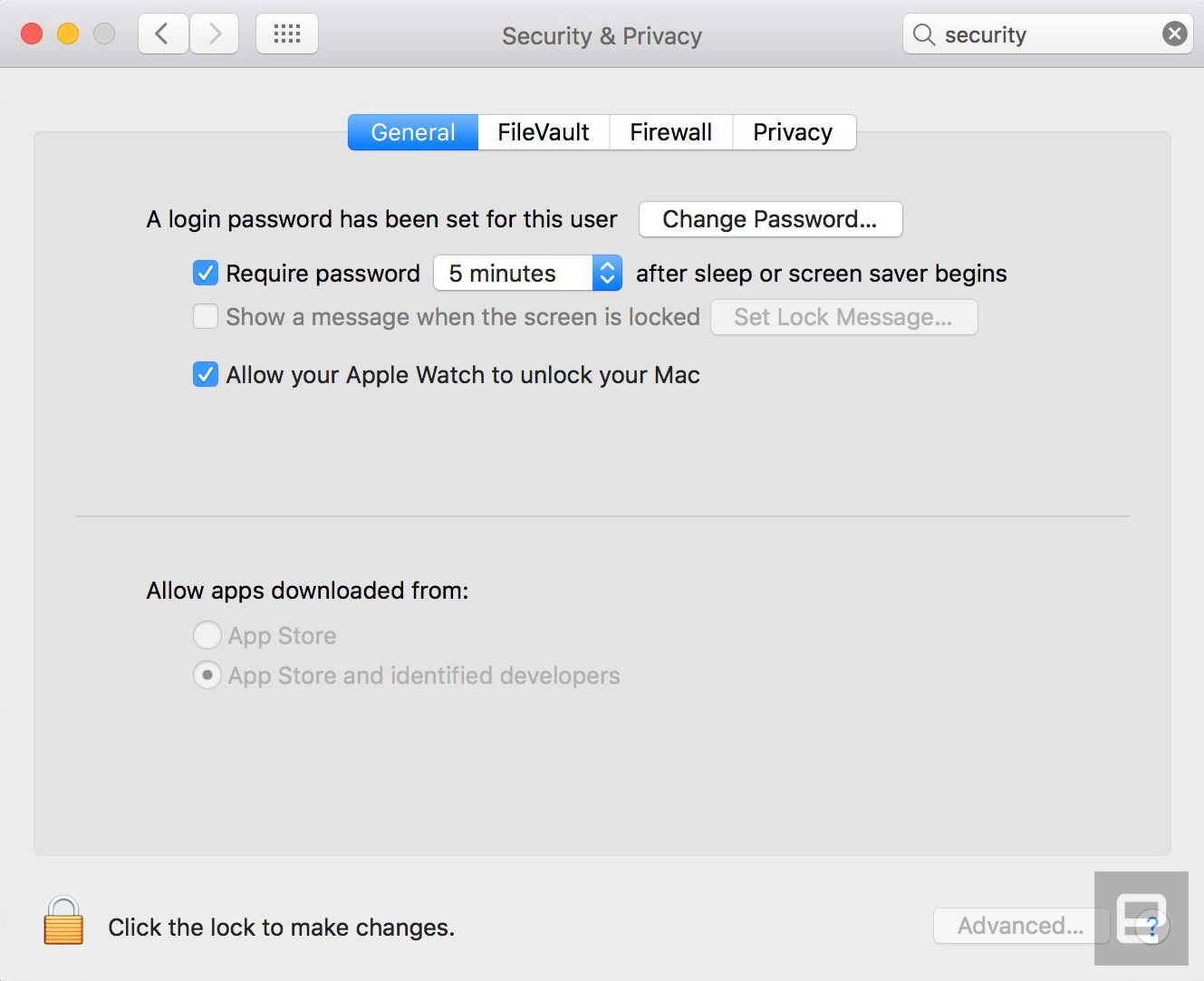
Until now, iPhones and iPads have had Touch ID; Macs have had passwords. Which is fine, but certainly not as convenient. There’s still no fingerprint sensor on the MacBook or Magic Trackpad, but a new feature promises to be similarly convenient: using your Apple Watch to unlock your Mac when you’re in close proximity. To turn on Auto Unlock, as the feature is called, go into your Mac’s Security & Privacy settings and check off the box that says “Allow your Apple Watch to unlock your Mac.” It’d be pretty troubling if this feature were enabled by default.
So it’s easy to set up — or so you’d think. When I first tried to use this feature, I would wake my sleeping Mac and see the message “Unlocking with Apple Watch,” only to be forced to enter my password anyway. Apple says you need two-factor authorization enabled on your iCloud account in order for Auto Unlock to work. But I already had that in place. What could be the problem, then? I still am not sure. What I do know is that after I signed into appleid.apple.com and reset my iCloud password, I was able to log into my machine using Auto Unlock.
Apple Pay on the web

If you already use Apple Pay on your iPhone or Apple Watch, now you can do it from your Mac too. Starting today, some 300,000 websites are expected to add an Apple Pay button, according to a company spokesperson. To actually use it, you’ll need to have the site open in Safari specifically (because of course), and you’ll also need a mobile device that supports Apple Pay — either an Apple Watch or a recent iPhone. The reason for this is that although you’ll hit “pay” from the Safari page, you’ll need to either use Touch ID or a passcode on your iPhone or double-click your (authenticated) Apple Watch to complete the transaction.
Aside from being convenient, this has security benefits, according to Apple. For starters, not having to type in your address or credit card number could feel like a blessing should the retailer ever suffer a data breach. Additionally, all transactions are encrypted, and your credit or debit card number won’t be stored on your device or Apple’s servers, or be shared with retailers. Instead, you’re assigned a unique Device Account Number that’s stored on the so-called Secure Element of your device. Lastly, Apple Pay doesn’t keep a history of your transactions, though you can choose to keep your most recent purchase details in Wallet if you prefer.

During my pre-launch testing, five sites had already added the Apple Pay button: Indiegogo, Lululemon, Spring, Warby Parker and Instacart. To test it out, I found the least expensive thing in Lululemon’s (very expensive) lineup, added it to my cart, and then had my choice of two buttons: “Add to Bag” or “Apple Pay.” Because Apple Pay already had my credit card and address stored, clicking that button meant I jumped straight to a summary box, where all I would have had to do was click another button to confirm the purchase on my watch. It was super-easy, but it also scares me how quickly I could have purchased a $12 headband I didn’t need. In real life, you’d have but one chance to reconsider that impulse purchase before pulling the trigger.
All the stuff we covered earlier
Siri

Among all the new features in Sierra, this ranks as one of the most notable: Siri finally has a home on the desktop. And it’s hard to miss: There’s a Siri button both in the system tray in the upper-right corner and in the app dock at the bottom of the screen. Additionally, there’s a keyboard shortcut you can use: command-space-hold. As it happens, this is actually one of the few things that’s changed since I tested that pre-beta build. The command used to be Fn-spacebar. Now it’s command-spacebar and hold, which is similar to the existing Spotlight search shortcut (command-spacebar). That’s good, I think; may as well tap into Mac users’ muscle memory.
Just like on iOS, you can use Apple’s virtual assistant to search the web, draft emails and texts, create calendar events, set reminders, search the web and check things like the weather, stocks and sports scores. Siri has some Mac-specific tricks too, including searching your files, adjusting your system settings and giving you information about your computer, like how much local storage you have available. Throughout, you can pin Siri’s search results, as well as copy or drag and drop them into other parts of the OS.
Ultimately, Siri on the Mac is no smarter than it is on mobile. Which is to say, Siri can handle a diverse range of requests, and understands natural language, to a point (e.g., “Show me Snowden movie times”). Over time, though, Siri’s limitations become more obvious, and you learn not to bother asking it certain things. Siri might be able to show me local Snowden showtimes, for instance, but forget about narrowing the results to evening shows, or locations in a particular neighborhood.
Universal Clipboard
Apple already has a lot of so-called Continuity features that allow you to jump between apps on iOS and macOS, picking up on one platform where you left off on the other. Now, in addition to, say, having your notes and web history synced across devices, you can copy and paste between them too. So if you spot something on your Sierra Mac, you can copy and paste into iOS 10, and vice versa. (This also works from Mac to Mac, and from one iOS device to another.)
It’s really, really easy to use too. You just have to be signed into the same iCloud account on both devices, which need to be running Sierra and/or iOS 10 specifically. Then, just copy something and it’ll appear on the clipboard across all your connected devices. To use an oft-repeated Appleism: It just works.
So far I haven’t needed this feature often, but when I do, it’s handy. In one case, for instance, I had a lengthy App Store download code waiting for me in my email, which I had access to on my iPhone but not on my test machine. (I was logged out at the time.) Obviously, without Universal Clipboard I would have had other options, including logging into my email on the laptop or dropping the code into the Notes app, which I use on both platforms. But being able to copy and paste directly is far more efficient.
Picture in Picture

New to both iTunes and Safari is a Picture in Picture view that lets you pop out video into a floating stay-on-top window, which you can then resize and drag around the screen. Apple has a developer API for this, so over time you should see the little pop-out icon appear on more websites. For now, it works on iTunes and a select few sites, including Vimeo. (I successfully tried Picture in Picture on ESPN during my earlier round of testing, but didn’t see the pop-out button there while testing the final build.)
When the pop-out button is available, the feature works well, and I particularly like that the floating window closes automatically once the video is finished. Still, it’s a shame that when viewing in Picture in Picture mode, you can’t jump forward or a back to a different point in the video.
Apple Music makeover
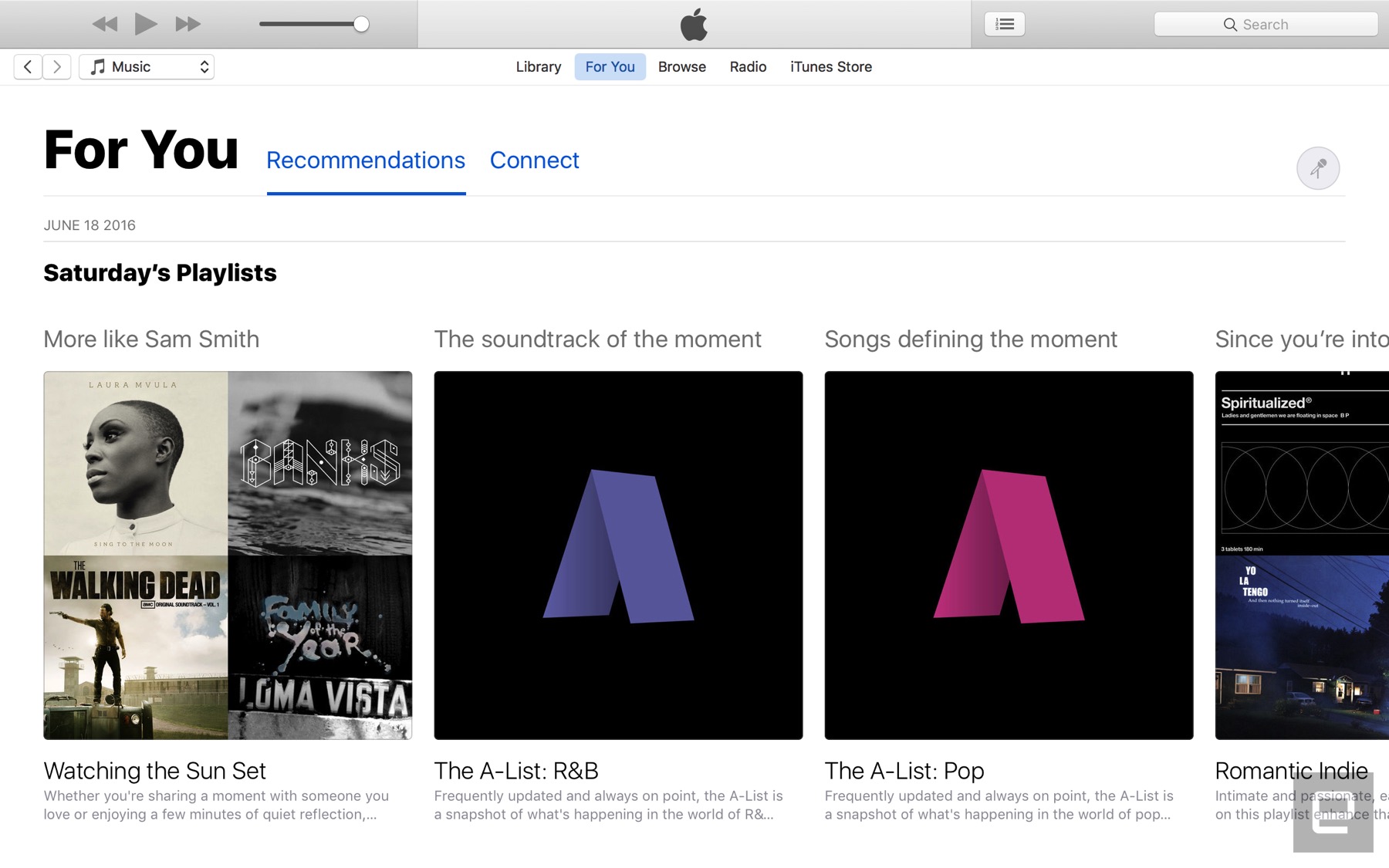
Speaking of iTunes, Apple Music has received a major redesign on both mobile and desktop. In the case of desktop (that would be the iTunes app), you’ll see three major sections: “For You,” “Browse” and “Radio.” Those last two need no explanation, but in the case of “For You,” it includes a mix of personalized recommendations and playlists, as well as updates from whatever artists you might be following. Throughout, the look is much cleaner, with large headers and oversize album art. Make no mistake: iTunes itself still feels like a bloated mess, but at least Apple Music now feels streamlined.
iCloud Desktop and Documents

If you like, you can now have your entire Desktop and your Documents folder sync directly to iCloud so that you don’t have to cherry-pick specific files for upload. Basically, then, Sierra works a lot more like Dropbox (or OneDrive, Google Drive or any other cloud storage service that allows you to automatically back up folders wholesale). As ever, you’ll find Desktop and Documents in Finder’s left-hand pane; now, though, they’re listed under “iCloud.”
Obviously, it’s up to you whether you want to take advantage of this feature (it’s not turned on by default), but personally I’ve found it very useful. Because I have an iMac on my office desk and a MacBook that I take home and into conference rooms, it’s nice to be able to quickly retrieve things like TextEdit files and know my progress was saved across devices.
Optimized Storage

While we’re on the subject of iCloud, Sierra does a bunch of things to help you better manage your large iCloud library. If you head into iCloud settings, you’ll see an option for “Optimize Mac Storage” that enables not just one feature, but a whole series of background processes that help free up space on your local drive.
By default, your whole iCloud library will be available on your machine if you have the space, but if you don’t, older files will automatically be uploaded to the cloud. Optimized Storage also moves seldom-used files and already watched iTunes videos off your local disk. You can also store Mail attachments on the server until you choose to download them. Ditto for things like dictionaries, instructional videos and special fonts, which are now available on demand instead of on the system itself.
Other low-hanging fruit include items that have been in the trash 30 days — Sierra can automatically erase that, as well as clear your cache and logs. Additionally, it flags duplicate downloads in Safari and reminds you of used application installers. Lastly, the macOS installer itself is smaller than in years past, meaning you have slightly more free space after upgrading than you might have had otherwise.
Photos

If you’re an iPhone or iPad owner, you’ve presumably updated to iOS 10, which, among other things, brings a redesigned Photos app. The new Photos makes an appearance here on Sierra too, albeit with a more sprawling, desktop-friendly design. As on iOS, Photos now uses artificial intelligence to analyze your pictures, identifying places, faces and various objects, like dogs and beaches. The app then takes all that information and puts together so-called Memories — automatically generated albums showcasing what Apple’s AI thinks are the highlights.
Though you might not always agree with the particulars (surely there was a better version of a shot Apple could have chosen?), this is a convenient way to look back on good times without having to go take on the chore of sorting and curating your photos. Scroll down and you’ll see that Apple includes “Related Memories” below the Memory you’re looking at. Be warned: This can be addictive.
Aside from Memories, you’ll also find dedicated People and Places albums. When it comes to people, Apple’s AI gets smarter over time as you tag more and more faces. To make this easier, Photos surfaces faces with a prompt to fill in that person’s name. Once you get a good backlog, you’ll notice that the People album sorts faces in descending order according to how frequently they appear in photos. That said, if you add someone as a favorite, they’ll always float to the top regardless of their ranking.
There are some UI changes here as well. There’s a search bar that can bring up pictures based on keywords — say, “cats,” “snow” or whatever else might be in the shot. As mentioned, Siri can find your photos too (try asking for photos from a certain year, or with a certain person taken at a certain place). The Albums view looks a little different as well, with rounded tiles and a view counter on videos. Also, if you’re viewing one big photo on the screen, you’ll notice that the scrubber on the bottom looks a lot like the one on iOS. (Pick “Show Thumbnails” from the View menu to make the scrubber appear in the 1-up layout.)
Lastly, Photos on Sierra ushers in some new editing tools. Among them: “Brilliance,” which applies region-specific adjustments to brighten dark areas, and “Markup” for adding text, shapes and signatures to images. You can also edit Live Photos (both stills and video), and Apple has released an API allowing third-party developers to incorporate this feature into their own image-editing apps.
Messages

Messages is yet another app that received updates on both Sierra and iOS 10. New features include larger emoji (three times bigger than before), inline previews of videos and websites, and so-called Tapbacks, which let you respond to a message by adding a thumbs-up, heart or other pictorial reaction by tapping rather than hit ‘reply.’ The fact that your reaction appears on top of the message bubble means less clutter as you scroll through a message thread.
Unfortunately, some of the most addictive new features in Messages for iOS didn’t make it into the desktop version. On mobile, for instance, you can send messages with stickers, handwriting, flashy screen backgrounds and animated text effects (think: “slam” for emphasis). Not on Sierra, though. If it’s any comfort, you can at least view these effects on the desktop when your friends send wacky messages from their iOS 10 devices. You just won’t be able to respond in kind.
Tabs

It’s not just Safari anymore — many Mac apps, including Mail, TextEdit, Maps and the iWork suite also now support tabs. So if you open a new window in Maps, you’ll see not a new window, exactly, but a neat little tab. This will automatically work across many third-party document-based apps too, without any tweaks required on the part of developers. The only apps where this won’t work are ones that didn’t already have a multi-window option. That’s why you’ll see tabs in Maps, for instance, but not FaceTime.
If you really love this feature, you can choose to always turn new windows in these apps into tabs. (That’s what I opted to do.) There are other options, though. You can elect instead to have this happen in full-screen mode only.
Odds and ends
And finally, some other miscellaneous changes that might (or might not) be of interest:
- The ability to share notes from the Notes app.
- You can now find Safari browser extensions in the Mac App Store.
- Safari automatically plays HTML5 video if the website you’re looking at supports it. If a plug-in is required to view video, you can opt to enable it just once or on an ongoing basis.
- A filter button in Mail allows you to see just unread or flagged emails, messages that are addressed to you or ones you’re copied on, or messages sent with attachments. It’s also possible to apply more than one of these criteria at a time.
- Push email support and calendar updates for Exchange accounts.
- Send read receipts for individual conversations in Messages.
- “Coordinated alerts” mean that notifications make a sound only on the device you happen to be using.
- Spotlight Search now finds files you’ve created, printed, shared, emailed, messaged and sent via AirDrop, or posted to Twitter or Facebook.
- The keyboard settings menu now has an “auto-capitalization” option.
- A new keyboard shortcut (not enabled by default) allows you to add a period by hitting the spacebar twice.
- Apple says Sierra’s autocorrect algorithm is generally smarter than it was in last year’s OS.
- Sierra adds a few new dictionaries, including Traditional Chinese and Danish. There are also two new bilingual dictionaries: Italian-English and Dutch-English.
- Japanese users are getting transit directions in Apple Maps. This includes major train, subway, ferry and national and local bus lines in Tokyo, Osaka and Nagoya.
- Right-to-left support for Arabic and Hebrew.
- Time Machine now supports the SMB protocol, making it compatible with third-party network-attached storage devices.
Wrap-up
There’s little reason to ever skip a macOS update (in fact, there are lots of reasons that’s a bad idea). But as far as annual releases go, Sierra is a fairly minor one. You probably won’t appreciate Siri on the desktop unless you already use it on mobile, and even then, Apple’s virtual assistant isn’t always as smart as we’d like. Auto Unlock is useful, but difficult to set up, and you need an Apple Watch, which many folks don’t have. Apple Pay is convenient but also conducive to impulse purchases, which is probably better news for retailers than shoppers.
Take all that away and some of the most useful features are actually the least showy. Think: Optimized Storage and the ability to automatically back up your Desktop and Documents folder to iCloud. Many people will use these features, myself included. Are these updates exciting, though? I think even the most loyal of Mac users would have to say no.
Apple Joins Global Renewable Energy Initiative RE100
Apple’s vice president of Environment, Policy, and Social Initiatives Lisa Jackson today announced that Apple has joined global renewable energy initiative RE100, a campaign that’s dedicated to getting the world’s most influential companies committed to 100 percent renewable power.
Jackson shared the news at Climate Week in New York City, where she also shared some details on Apple’s recent environmental progress. In 2015, 93 percent of Apple’s worldwide operations were powered with renewable energy, and in the U.S., China, and 21 other countries, Apple uses renewable energy for 100 percent of its operations.
According to Jackson, Apple just completed work on its 50-megawatt solar farm in Arizona, which will power Apple’s global data command center in Mesa, Arizona, the former location of Apple sapphire partner GT Advanced.
Jackson also gave an update on Apple’s commitment to helping its suppliers use renewable energy, announcing that Apple supplier Solvay Specialty Polymers, which makes the antenna bands used in the iPhone, has pledged to use 100 percent renewable energy for all Apple production.
Catcher Technology, a supplier that provides aluminum enclosures for iOS and Mac devices, is also aiming to reach 100 percent renewable energy by the end of 2018.
“Apple is committed to running on 100 percent renewable energy, and we’re happy to stand beside other companies that are working toward the same effort,” said Jackson. “We’re excited to share the industry-leading work we’ve been doing to drive renewable energy into the manufacturing supply chain, and look forward to partnering with RE100 to advocate for clean-energy policies around the world.”
Other major companies who are members of RE100 include IKEA, Adobe, BMW, Coca Cola, GM, Google, HP, Microsoft, Nike, Philips, Starbucks, and Walmart.
Discuss this article in our forums
Photos, Videos, GIFs, and More No Longer Count Towards Twitter’s 140-Character Limit
Twitter today announced that its long-awaited changes to the Tweet character limit have been implemented, giving Twitter users more room for text when sharing media.
Photos, videos, GIFs, polls, and Quote Tweets no longer count towards the 140-character limit, freeing up character space. Previously, media content took up approximately 24 of the 140 available characters.
Twitter originally said that all @names, such as @MacRumors, would also no longer count towards the 140-character limit, but that change does not appear to have been implemented. There is no mention of it in Twitter’s announcement and @names are still counting in the character limit.
Say more about what’s happening! Rolling out now: photos, videos, GIFs, polls, and Quote Tweets no longer count toward your 140 characters. pic.twitter.com/I9pUC0NdZC
— Twitter (@twitter) September 19, 2016
It is not clear if Twitter plans to eliminate @names from character count in the future, but the company has said it is exploring additional ways to allow people to better express themselves, so more changes could be in the works.
Discuss this article in our forums
The bottom line: Our quick verdict on Apple’s AirPods
The fact that they look like Q-tips sticking out of your ears is just the beginning: There are other reasons you might want to think twice about buying Apple’s wireless, weird-looking AirPods. For the money — $159 — these earbuds offer audio quality that isn’t any better than what you’d get with the iPhone’s pack-in EarPods. We’d also like it if Apple allowed more flexibility with the controls. Right now, for instance, you need to use Siri or take out your phone if you want to do basic things like change tracks or adjust the volume. On the plus side, the earbuds are dead-simple to set up, and work well for voice calls and Siri requests, even if they’re nothing special for music playback. Unless you’re an early adopter, you’re better off waiting for Apple to release a next-gen version and/or drop the price.
 AIVAnet