


Soccer Player Manager Android app Review
Being from the UK, I’m a big fan of soccer (or football as we call it), which means I have a particular liking for soccer manager simulation games and I was recently given the opportunity to review Soccer Player Manager by MobTwo.
Soccer Player Manager is your typical soccer management simulation type game, with the developer comparing akin to the popular Championship Manager type of games you’re probably familiar with. What sets this app apart is that you can play as the manager or as a player manager (of which the mode is coming soon).
With that said, Soccer Player Manager is in Beta, so certain features (like the player manager mode) is not yet active, but it does give a good indication of where the app is heading.


All the features you’d expect to find in a soccer management app are there – you can arrange your squad, transfer players in and out, manage finances, sign up sponsors, and assign team training. The game is fast-paced as well, with 3 league matches per day to give 19 matches total; 1 week is equal to 1 league season.
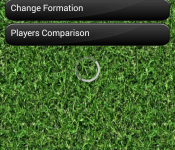
The graphics of Soccer Player Manager are very basic, but the underlying mechanics of the game are there. With some refinement to the graphics and presentation of some of the features, Soccer Player Manager stands a real chance of becoming a go-to app for soccer management simulation.


The app is supported by in-app purchases which can be used to refill your energy that gets depleted when playing games, but otherwise the app is easily free to play.
With that said, the game is still in development and is clearly in Beta; I was constantly reminded of this in the app with timeout errors and, as mentioned, features being unavailable. Soccer Player Manager is a good start, but definitely needs some work.
The post Soccer Player Manager Android app Review appeared first on AndroidGuys.

Twitter’s ads are headed to other apps

Well, that didn’t take long. A few weeks after reports circulated about Twitter placing ads outside of its app, the 140-character social network officially announced its plans to do just that. Today, the company outed the “first partnerships to syndicate Promoted Tweets outside of Twitter,” and those deals are in place with Flipboard and Yahoo Japan. ESPN was also mentioned in early rumblings, but there’s no indication that the sports broadcaster has signed on just yet. For now, the ads… er, Promoted Tweets will take on the appearance of other Flipboard content, and if you’re itchin’ for an early look, there’s an example on the other side of the break.

Filed under: Internet, Software
Source: Twitter
Casio’s new iOS app turns your whistling into full-length tunes

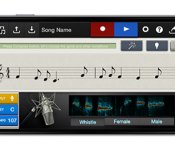
Apps have done wonders for music creation, and now there’s mobile software from Casio that aims to make it even easier. The Chordana Composer app for iPhone creates a track basked on a melody that you create by singing or whistling two bars of a tune. Casio’s handiwork records you, and then automatically builds the rest of the song based on your input. This means that anyone can construct a hit without in-depth music knowledge or the ability to play an instrument. After the base of the song is captured, there’s five genres and three melodic settings for the tweaking before hitting the Auto Compose button and putting the app to work.
In addition to the vocal input, Chordana Composer also has a keyboard interface, notation option and MIDI compatibility, so once the song is complete, that score can be fine-tuned. Don’t just take my word for it, though, have a listen at the track I composed down below. The results aren’t awesome by any means, at least on my first few attempts, but the process is certainly interesting. If you’re ready to give it your best Katy Perry impression, the $3 app is available now over at iTunes.
Source: Casio (PRNewswire), iTunes
RunKeeper powers training sessions with Spotify playlists

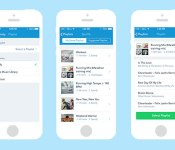
Most of us like to blast a collection of inspirational tunes during a workout, and with its latest iOS update, RunKeeper is making that a bit easier. Runners who also have a Spotify premium subscription can now access saved playlists inside the fitness app. You’ll need to connect the two services first, but once you do, swiping over to your fine-tuned collections and suggested workout playlists is pretty straightforward. Unfortunately, there’s no mention of Android users getting the integration as part of future updates. However, RunKeeper says this is the beginning of its foray into music, so perhaps those upcoming tools will cross over.
Source: RunKeeper
Download and install the HTC One M8’s Gallery app on any Android device [APK Download]
If you’re a fan of the HTC One M8’s Gallery app but aren’t fortunate enough to own the device itself, then good news since you’re now able to download and install the APK file on any device.
“Turkbey06″ over at XDA has modified the One M8’s Gallery app to enable it to work on other Android devices. It was tested on the LG G3, but users of other devices are saying it works just fine.
To download the HTC One M8’s Gallery app, simply head on over to the XDA thread. No root access is required so you should fine it just works.
The post Download and install the HTC One M8’s Gallery app on any Android device [APK Download] appeared first on AndroidGuys.

AMOLED Burn-in Fixer for Nexus 6 and other AMOLED display devices
Burn-ins on your AMOLED screen are the worst. They are just absolutely terrible. There is nothing worse than seeing a ghost on your phone for all eternity. The good news is that you don’t have to site idly by while your OCD goes crazy.
One Brendon Sled has taken it upon himself to fix your devices unfortunate screen. AMOLED Burn-in Fixer is an app designed to be effective and easy to use.
The basic idea behind the app is to invert the colors of your status bar and/or navigation bar (depending on which location is showing signs of burn-in) to reverse the eye sore.
There are three easy steps to fixing these burn-ins. Install, Test and Fix. It is that simple.
1) Install
Step one, install the app from the Google Play Store for free. You can either search “AMOLED Burn-in Fixer” or make use of the widget at the bottom of this post.
![Screenshot_2015-01-26-16-04-54[1]](https://i1.wp.com/www.androidguys.com/wp-content/uploads/2015/01/Screenshot_2015-01-26-16-04-541.png)
![Screenshot_2015-01-26-16-05-00[1]](https://i0.wp.com/www.androidguys.com/wp-content/uploads/2015/01/Screenshot_2015-01-26-16-05-001.png)
2) Test
Step two, test your screen for signs of burn in. You just follow the yellow brick road on this one. Tap the “Test Burn-in” tab, then select “Hide UI”. You will be presented with a solid gray background that will reveal any burn-ins to you. This will most likely be around the status bar and navigation bar areas as previously stated.
![Screenshot_2015-01-26-16-05-28[1]](https://i2.wp.com/www.androidguys.com/wp-content/uploads/2015/01/Screenshot_2015-01-26-16-05-281.png)
![Screenshot_2015-01-26-16-05-32[1]](https://i1.wp.com/www.androidguys.com/wp-content/uploads/2015/01/Screenshot_2015-01-26-16-05-321.png)
3) Fix
Step three, fix all the things! Once you determine the areas that require doctoring, go back to the “Fix Burn-in” tab and select the locations you require. Then, follow the instructions on screen. Enable inverted colors in your system settings and hide the app settings.
![Screenshot_2015-01-26-16-05-51[1]](https://i2.wp.com/www.androidguys.com/wp-content/uploads/2015/01/Screenshot_2015-01-26-16-05-511.png)
![Screenshot_2015-01-26-16-06-04[1]](https://i0.wp.com/www.androidguys.com/wp-content/uploads/2015/01/Screenshot_2015-01-26-16-06-041.png)
Everything is simple and painless. You just have to leave the inverted screen up until the signs of any burn-in are reduced to your satisfaction.
Unfortunately, the app only installs on Lollipop devices.
The post AMOLED Burn-in Fixer for Nexus 6 and other AMOLED display devices appeared first on AndroidGuys.

Google adds screen reader support to Docs, Sheets and Slides apps

Google’s Docs, Sheets and Slides apps aren’t easy to use on a phone’s small screen at all, but this set of updates could make things just a bit more convenient for both iOS and Android users. Documents now come with real-time spell check, spreadsheets are now able to hide rows and columns, and presentations can lump similar shapes together. Even better, they all now work with Android TalkBack and iOS VoiceOver — screen readers that will make the apps friendlier to the visually impaired — though those who only need just a bit of help reading on a small screen can use the magnification tool instead. Finally, if you’re using an iPhone or an iPad, you can start using your fingerprint to unlock the apps if you want to make sure no nosy workmate can get into your files. The updates are now rolling out for both mobile platforms and are now available on Google Play and iTunes.
[image credit: shutterstock]


Filed under: Misc, Mobile, Google
Via: Google Drive, Google Play, iTunes (Docs), iTunes (Sheets), iTunes (Slides)
Source: Google Docs Blog

Khan Academy brings its online course catalog to the iPad

Despite having an iOS app for some time now, Khan Academy hasn’t offered the full range of course material on those mobile devices. With an update today, though, eager learners can access the company’s full range of courses on an iPad. The new version brings 150,000 exercises to the mobile device, with the opportunity to get instant feedback. Khan Academy’s iOS software got some slate-specific tools too, including handwriting recognition and a “friendly guide” that observes your response time to suggest activities that’ll help you get better at the tough questions. There aren’t any plans to bring the app to Android or Windows yet, as the e-learning provider says iPad is it’s most popular platform behind the desktop experience. However, folks with one of Apple’s tablets can nab the update from iTunes now.
[Photo credit: Neilson Barnard/Getty Images for The New York Times]

Screen Mode app takes new angle on accessing your smartphone screen

One of the bigger annoyances all smartphone users deal with is getting access to the screen as quickly and easily as possible. Possibly in a perfect world, we might all leave our screens on all the time so a mere glance would reveal all we expect to see. In the real world though, that would lead to some very short periods of time in between battery charging. So, a variety of measures have been enacted to turn our screens off and only show limited notifications in an effort conserve battery life. However, that also means going through the trouble of turning a device back on to use it. The new Screen Mode app from XDA Senior Member Meko07 hopes to address this situation.
To help ease the process of turning a smartphone screen back on, device manufacturers have looked for a variety of innovative methods. LG has their Knock On system that just requires a couple taps of the screen and Motorola implemented methods so a wave of the hand will turn on a screen. Meko07 decided to use a different tactic though, relying on a smartphone’s sensors to detect the angle of the device and turning the screen on based on that. In addition to unlocking and locking the screen based on the angle, the app also adjusts the screen’s brightness.
This could be a good solution for owners of devices that do not have a quick way to unlock their screen or just want an easier way to adjust the brightness. The Screen Mode app is free, so if you want to give it a try, just hit the Play Store links below.


Come comment on this article: Screen Mode app takes new angle on accessing your smartphone screen
Google adds a snooze button to Inbox emails

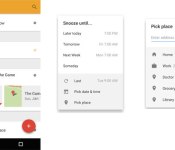
No, you don’t need to reply to that email immediately in the middle of dinner. Now Google’s trying to help that happen, with Snooze. A new addition to its Gmail Inbox app, users can “snooze” emails with automatic quick settings or their own customized reminders. You can delay a message for later the same day, tomorrow or even a week from now. There’s also the hilarious someday option — we’re going to assume it’ll reappear later in the week, but don’t hold us to that. You can even “geo-snooze” a message to remind you when you’re at a place, rather than a prescribed time. You can still access any reminders or snoozed messages if you manage to make time and adjust reminders if needed. Inbox zero could be within in your grasp in 2015. Well, kind of.
Source: Gmail blog
 AIVAnet