


Next stop for Ouya Everywhere: China

Now that everyone from Google to Amazon is getting into the Android gaming set-top box business, Ouya is going to have to get creative. It’s already announced plans for “Ouya Everywhere” to extend its sizable library of 900+ TV and game controller-ready games to other platforms, and now the company tells Reuters it’s working out a deal with China’s Xiaomi. CEO Julie Uhrmann says the arrangement will see an Ouya channel added to devices like the Mi TV and MiBox, where users can shop for and download games, and with Xiaomi “likely” committing to marketing the games. On the backend, Xiaomi, Ouya and the game’s developers split the money. The $99 console has gone through a number of changes (both hardware and software) since it arrived on the scene as a Kickstarter hit, now we’ll see if Asia can help provide a second wind for the platform.
Source: Reuters
.CPlase_panel display:none;

HP SlateBook 14 review: Android? On a laptop?

There’s mounting evidence that HP, once the leading PC maker, does not know what it’s doing. After announcing plans to cut up to 5 percent of its work force, the company is basically throwing stuff at the wall and seeing what sticks. Recent experiments include a luxury smartwatch, Chromebooks, a $199 Window notebook and now, a laptop running Android. Here’s the sales pitch, and bear with me if this doesn’t make sense: The SlateBook 14, according to HP, is for students and teens who already use Android on their mobile devices. In other words, they already own a Galaxy S5 or what have you, and they should have an Android laptop to match. The idea is that they might choose this over a Chromebook because it has more apps, and because it’s more familiar. Ditto for Windows laptops — except, you know, Windows actually has lots of apps too. Setting aside HP’s flawed logic (they never said Windows users should stick to Windows Phone): Why would you pay $430 for a laptop running an OS that was primarily meant to be used with the fingers?
Hardware

Take what I say here with a grain of salt: The same way Vogue editor Anna Wintour is allowed to like a dress covered in futuristic space-snails, I’m allowed to like a laptop decked out in Lamborghini yellow. Personally, I kinda dig how the black lid and keyboard deck contrast with the bright hinge and sides. The only place where HP goes too far is the bottom side of the machine. It’s all yellow — right in your face. Ditto for the prominent Beats Audio logo, located on the right side of the hinge, right in your line of sight whenever you’re looking at the screen. In any case, whether you love or hate the yellow accents, I think we can agree on this: It’s insane that in addition to releasing an Android laptop in the first place — a niche product if ever there was one — HP chose the most polarizing design possible, and didn’t even offer any color options. Want that yellow to be cyan instead? Tough noogies, kiddos. You can have a yellow laptop running Android or… something else entirely.
It’s a shame, because this is otherwise a fairly well-made laptop, especially for $430. The lid is made of aluminum, and while the rest is constructed from plastic, those bits still feel solid; the thing never bends when you grab it by the palm rest. The 1080p touchscreen is sharper than almost everything else I’ve seen in this price range, and while the LED-backlit panel doesn’t provide the best viewing angles, the quality is still a big step up over every Chromebook I’ve tested. The keyboard is sturdy too, with well-spaced buttons that provide a decent amount of travel. And of course, Beats Audio offers better sound than what you’ll get on other budget notebooks. Still, I can see where someone might overlook all of that if they couldn’t get past the screaming yellow.

At 3.71 pounds, the laptop is on the heavy side. Not for a 14-inch laptop, mind you, but it’s still much weightier than a smaller Android tablet with a detachable case or keyboard dock. It’s also heavier than most Chromebooks, as well as some budget Windows laptops (I’m talking about the netbook-sized 11-inch models here). Considering Android isn’t that useful on a laptop, I have to question whether owning a relatively heavy notebook is worth it when you could just buy a tablet or Chromebook and call it a day.
It’s also not like you get that many more ports on a machine this big. As on some Chromebooks, there’s a full-sized HDMI socket, a headphone jack and a memory card reader to help offset the rather paltry 16GB of built-in storage. Incidentally, that slot actually takes microSD, not SD, cards — a normal spec for phones and tablets, but an oddity on a 14-inch laptop. All told, the main difference in I/O between this and a Chromebook is that you get three USB ports here instead of two, but I’d hardly call that a selling point.
Performance and battery life

Excuse me while I point out the obvious: Android was not designed to be used with a mouse. Personally, I use the Moto X as my daily driver. I spend more hours a day staring at KitKat than I’d like to admit. And yet, when I opened the SlateBook for the first time, I paused for a moment, unsure of what to do next. After a couple seconds, of course, I came to my senses and did what any reasonable person would do: I reached up and touched the screen. And so it went. Several days into using the SlateBook, and I’ve rarely touched the trackpad. It happens to be a very nice trackpad, and it comes in handy when I’m reading a website and would rather not reach across the keyboard to scroll down the page. Otherwise, though, I use my fingers, just as I would on my phone.
| HP SlateBook 14 | NVIDIA Shield Tablet | Tegra Note 7 | Samsung Galaxy Tab S | ||
|---|---|---|---|---|---|
| Quadrant 2.0 | 16,482 | 20,556 | 16,066 | 18,597 | |
| Vellamo | 2,458 | 3,055 | 3,314 | 1,672 | |
| 3DMark IS Unlimited | 16,040 | 30,970 | 16,473 | 12,431 | |
| SunSpider 1.0 (ms) | 685 | 463 | 586 | 1,109 | |
| CF-Bench | 34,655 | 43,033 | 34,386 | 31,695 | |
| SunSpider: Lower scores are better. | |||||
The same way there’s only one color option for the SlateBook, there’s just one spec configuration. That would be the $430 model I tested here, which has 2GB of RAM, 16GB of built-in storage and an NVIDIA Tegra 4 chip — the same one used in the Note 7 tablet. But in a way, the performance is moot. I mean, of course you want the device to run smoothly. And it does. Apps launch quickly. The OS is quick to respond if I want to see a list of my open programs; closing and switching applications is a breeze. Web pages load quickly, albeit not as fast as most Chromebooks. The thing is, the SlateBook’s quad-core Tegra 4 processor can handle even more than that. You know, like games. But on a device like this, why would you even bother? Who wants to cradle a 14-inch, 3.7-pound laptop, all so that they can tilt their way through Need For Speed? Who wants to reach across the keyboard when you could rest a tablet in your lap? And if you’re content to only play browser games, why don’t you use your $430 to buy a proper laptop?
The more I use the SlateBook, the more I think Android users would be better served by a tablet that can pair with either a keyboard case or detachable keyboard dock; you’d get more portability, similar battery life (more on that in a minute) and greater versatility when it comes to gaming. And yet you’d still have that keyboard when you needed it. If you’re the sort of person who does a ton of typing — email, web surfing, office docs — you’d be better off with either a Chromebook or a Windows machine. At least those operating systems were meant to be used with a mouse.
|
Battery life |
|
|---|---|
| HP SlateBook 14 | 9:03 |
| ASUS C200 | 11:19 |
| ASUS Transformer Book T100 | 10:40 |
| Dell Chromebook 11 | 8:37 |
| ASUS Transformer Pad TF103C | 8:26 |
| NVIDIA Shield Tablet | 8:23 |
| Samsung Chromebook 2 (13-inch) | 8:22 |
| Toshiba Chromebook | 8:15 |
| Acer C720 Chromebook (Intel Core i3) | 7:53 |
| Acer C720 Chromebook (Intel Celeron) | 7:49 |
| HP Chromebook 11 | 5:08 |
| Chromebook Pixel | 4:08 (WiFi)/3:34 (LTE) |
The SlateBook 14′s 32Wh battery is rated for nine hours of runtime and indeed, I got exactly nine hours and three minutes of continuous video playback (that’s with WiFi on, fixed brightness and Facebook and Twitter set to poll periodically). On the one hand, that’s great for a laptop; it’s the sort of longevity you’d expect from a $1,000 Ultrabook, but not necessarily a bargain-basement notebook, especially not one like this with a bigger screen.
On the other hand, nine-hour battery life is only marginally better than what most Chromebooks are capable of, and again, those tend to be more portable than the machine we have here. It’s also on par with Android tablets, like the new NVIDIA Shield tablet or the ASUS Transformer Pad TF103C, which costs $299 with a keyboard dock. Even if you wanted a Windows system, you could find a low-powered laptop or hybrid that delivers long battery life. (There are plenty of options in the 11-inch range.) Have I made my point clearly enough? Long battery life is not a good enough reason to buy this.
Software

Not that it matters — I’m recommending you don’t buy this — but the SlateBook runs Jelly Bean (version 4.3), with an upgrade to KitKat expected to arrive sometime in Q4. Thankfully, HP left Android as is; there are no skins here, no home screen panels that are impossible to remove. Nope, this is Android as Google meant it to be experienced. Really, the only mark HP left on the device is a handful of pre-installed apps. These include ones for Box.com, Evernote, Skitch, Skype, Hulu Plus, Splashtop, NVIDIA TegraZone, Kingsoft Office and CyberLink PowerDirector Mobile. You’ll also find some apps from HP itself, including Connected Drive, Connected Music, Connected Photo, ePrint, Media Player and File Manager. There’s also a “Games” app, which is really just a store for WildTangent titles. In any case, if none of this strikes your fancy, you can always uninstall them in the settings and free up a little bit of space.
Wrap-up

The SlateBook is an interesting specimen. That’s why I wanted to review it: because I was curious about the idea of an Android laptop, and thought you might be too. And it is interesting. But by no means should you actually buy one. The SlateBook takes Android, an otherwise intuitive operating system, and manages to make it… cumbersome. It’s a pain to use with a mouse, and yet if you want to use your fingers, you have to reach across the keyboard. Because that keyboard doesn’t detach, the device is far heavier than a standalone tablet, and the battery life isn’t even that much better.
If you love the Android experience, just buy a tablet with a keyboard case. If the typing experience is paramount, there are Windows laptops that are less expensive and more portable. Even a Chromebook would make more sense than the SlateBook; at least Chrome OS was designed to be used with a mouse. Samsung’s 13-inch Chromebook 2, for instance, has just as sharp a display and costs $30 less, and there are loads of options that are even cheaper. Frankly, I’m not sure I’d recommend an Android laptop at any price, but for $430 the answer’s easy: Just don’t do it.
Filed under: Laptops, Mobile, HP
.CPlase_panel display:none;

Google Glass’ new features let you switch chat methods on a whim

Some of Google’s rapid-fire Glass updates have been more useful than others, but its latest is something you’re likely to appreciate — especially if you’re a socialite. The wearable’s 20.1 upgrade gives you a much better contact system (shown below) that gives you quicker access to your friends. You can reach 20 of your favorited and recent contacts through voice, and your phone’s entire address book is easily accessible. It’s also much easier to switch communication methods. If you want to jump from email to Hangouts to deal with a heated conversation, you only have to swipe to make it happen.
There are a few more tricks up Glass’ sleeve. It can now show you nearby events, like concerts; you’ll also see a currency converter in Google Now when you’re traveling, and a wider range of voice commands should keep you from reaching for the touchpad for simple tasks like changing the volume or sending a photo. Android users should get all the new features as soon as they update Glass, while iOS users will have to wait roughly a week to get the needed MyGlass app.

Filed under: Wearables, Google
Via: Google Glass (G+)
Source: Google Glass Support, Glass Community
.CPlase_panel display:none;

Verizon wants a global, carrier-friendly Android app store

You may think that the Play Store is a fine place to get Android apps, but Verizon apparently isn’t very happy with Google’s dominance — it wants carriers to have some control. Sources for The Information claim that Verizon is in early talks with both other providers and hardware makers to create a global Android store that lets developers make full use of the “specific features” of a given network. Developers would be encouraged to hop aboard by getting the freedom to advertise, and there would be dynamic app recommendations that not only suggest downloads based on where you are (like iOS), but also the time of day and friend activity. Think of it as an adaptive interface for apps you don’t own yet.
The company isn’t commenting on the rumor, and there’s no guarantee that the discussions will bear fruit. However, the motivations behind launching such a storefront are clear. Verizon would potentially reduce Google’s say over the Android app world, and could offer more apps that convince people to subscribe. It might even get a cut of each paid app, although it’s not clear that Verizon is insisting on sharing revenue.
Whether or not Big Red would succeed is another matter, and history suggests that the odds aren’t in its favor. Stores from platform creators, such as the Play Store and Apple’s App Store, succeeded precisely because they avoided the pitfalls of the carrier portals they replaced — they targeted broader audiences and weren’t afraid to host software that competes with network services, like internet calling apps. Verizon’s most recent attempt at a store shut down in 2013, in part because it was only ever offering a fraction of the content you could find elsewhere.
Also, attempts at creating app stores by committee have traditionally fallen flat. Remember the Wholesale Apps Community? It was supposed to provide a more universal app store, but a carrier-by-carrier negotiation process, reluctant phone makers and watered-down features (it was originally based on web tech) doomed it to failure just two years after it got started. Unless Verizon and crew can offer you at least as strong an app selection as what you’re already getting, you might not have much incentive to change your shopping habits.
Filed under: Cellphones, Wireless, Mobile, Verizon
Source: The Information
.CPlase_panel display:none;

Brazilian judge tells Apple and Google to pull Secret from people’s devices

Secret’s app is ostensibly meant for office gossip and getting transgressions out of your system, but it has also been abused by bullies wanting to intimidate and shame others. Well, one Brazilian judge is fed up with that misuse — enough so that he’s ordering Apple and Google to remove Secret not just from their respective local app stores, but from people’s devices. Microsoft also has to yank Cryptic, an equivalent Windows Phone app. If the companies don’t take action within 10 days, they face fines of 20,000 Reals ($8,876) per day. That’s a drop in the bucket given their massive revenue streams, but it’s reasonable to say that they’d rather not pay that much just to keep one title available in one country.
The request is certainly feasible. All three companies have removed apps from their stores, and they can technically pull or block software installed on gadgets. However, that last measure is primarily used as a last resort, such as in the event of a malware outbreak; Apple, Google and Microsoft might be reluctant to act unless they have no choice. Whether or not they’re stuck isn’t clear. Brazil’s Constitution bars anonymous attacks that don’t let you defend yourself, but there are arguments both that the data isn’t truly anonymous (Secret knows the culprits) and that the ban hurts freedom of expression. Don’t be shocked if one or more tech firms contest the ruling.
Filed under: Cellphones, Tablets, Internet, Mobile, Apple, Microsoft, Google
Via: 9to5Mac
Source: Estadao (translated)
.CPlase_panel display:none;

‘Ignore No More’ app makes sure your kids can’t dodge your calls

Once you tiptoe past a certain age, ignoring calls from mom and dad sort of becomes de rigueur as you go about your day. That sort of filial nonsense doesn’t fly when you’re younger though, and now there’s an app to make sure you return you young’uns return your parents’ calls – it’s called Ignore No More, and it essentially works by locking down your smartphone until you call them to verbally check in.
For better or worse, the setup process takes just a bit of doing. Parental units need to create an account and make sure the app is installed on all the phones in question (at a cost of $2 a head). Once that’s done though, all it takes is a few taps to lock down access to nearly everything else on the device — the only way to regain access is for the phone’s owner to place a call to someone on a preset list of contacts. Voilà: parents have a surefire way to get junior on the phone whenever they’d like. Fortunately for the Apple faithful, this app is Android-only for now; feel free to dodge your folks with impunity until the iOS version is released.
Filed under: Cellphones, Software, Mobile
Via: Digital Trends
Source: Ignore No More
.CPlase_panel display:none;
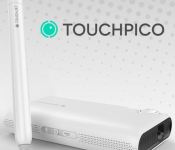
Android Powered TouchPico pocket projector puts an 80-inch screen in your Pocket
Portable projectors aren’t a new thing. There have been a number of them over years that have popped up, the Brookstone Pocket Projector is one that we looked at a while back. Samsung even gave it a run with a pico projector of sorts built right into a phone. Sprint even has the LivePro . While I have seen a number of pico projectors that range in price tags, abilities and brightness, there are very few that can offer up an interactive touchscreen to the projection.  The TouchPico uses an infrared stylus that allows you to touch the surface of where the image is projected, allowing you to play games and control applications like you would with your finger on your touchscreen. This alone gives the TOuchPico a pretty unique ability and a totally different set of use case scenarios. The TouchPico goes beyond just being an independent device though. It also offers up the ability, via its own Wi-Fi creation, the ability to mirror your Android devices screen through the TouchPico without the need for wires. The device also offers up your traditional HDMI in port, AV/VGA in port and USB OTG port as well. That expands the conectability to your laptop, digital camera and a plethora of other devices. It also offers a micro SD card slot along with an audio out port.
The TouchPico is an interesting enough device to take a look at. I can see a use for it with my wife and kids as a fun way to play a few games together on the wall and for watching movies in a more theater style experience without the higher price tag of a more traditional projector. As the video depicts, the TouchPico would be a pretty cool teaching tool that gets kids up and interacting digitally.
The IndieGoGo campaign started out on July 27th and was looking to raise a small $55,000 to get these off the ground. It didn’t take long for that goal to be met and exceeded. They are sitting at nearly 1000% of their goal, that’s $527,838. The first round of deliver devices is already sold out at the $349 early bird price tag. The second round of $150 is up for grabs at $379 now with about 114 units remaining. When the device launches it will retail for an expected $499, so getting in now does save you a little cash. They also still have a number of ‘pay later’ backing options where you pay $99 now and the remaining later. The company has also just launched a new Thank You Program too. You can find the link on the page, but basically if you share out the campaign with your referral link and people come fund the campaign you can earn some credit towards your own purchase. A good way to get an even steeper discount. Near as I can tell, the referral program will refund you all the way up to the cost of the TouchPico or $349 in cash. Not a bad incentive. You will need to make your pledge first though.
TouchJet is also very interested in bringing developers on board. If you are a developer and make a pledge to the program they will coordinate immediately with you offline and can have a TOuchPico in your hands in 2-3 weeks. If you create something special for the device they will be pre-install it to every TouchPico sold this year.
To get more details and to make your pledge, direct yourself over to the TouchPico IndieGoGo campaign page.
//<![CDATA[
ord = window.ord || Math.floor(Math.random()*1E16);
document.write('‘);
//]]>
The post Android Powered TouchPico pocket projector puts an 80-inch screen in your Pocket appeared first on AndroidSPIN.
.CPlase_panel display:none;

Mailbox for Mac begins rolling out in beta to a handful of lucky testers

The transition from mobile to desktop seems like a natural evolution for Mailbox, which began as a clever time-saving email app for iOS. Four months ago, the Dropbox-owned venture excited fans by announcing that it would soon have an option on Mac as a limited beta. Today’s the day: Mailbox is ready to roll out the app to the first batch of early adopters. The service will begin rolling out to those who’ve signed up for the beta online, as well as a handful of current Mailbox users. If you’re not one of the lucky winners tomorrow, be patient — the rollout will come in batches, and the company assures us that you’ll still get your hands on it before the final version is ready. Each beta tester will be issued a betacoin (not to be confused with other forms of digital currency), and you’ll even receive additional betacoins to share with friends as soon as you download the app.
The app, which is compatible with OS X Mavericks and later (sorry, Mountain Lion users), is double-paned with a rail on the left side. The latter lists your folders, drafts and archives, while the former handles your inbox (or whatever folder you open) and the body of individual messages. It tries to maintain a minimal look, much like what you’d see on the mobile version, and it even comes with the same swipe gestures (both regular and long swipes are supported). There are plenty of hotkeys, and Mailbox makes it easy to remember which shortcut takes you to which feature: As soon as you hit the command key, each icon on the screen transforms into a letter or two that serves as a hint at what you’re supposed to press.

Mailbox has also integrated a feature that lets you hit snooze on an email on your phone and it’ll reappear when you get back to your computer (and vice versa). This makes it easy to push off a message until you have the time and ability — and faster typing with the keyboard — to take care of it efficiently.
A desktop email client also needs support for writing drafts, and Mailbox made sure to include it not only in the Mac beta, but in the mobile apps as well (on iOS right away, with Android coming “very soon”); company reps said that they wanted to keep the experience as consistent across platforms as possible. The only catch is that you’ll need to be signed into your Dropbox account to save your drafts, since it’ll use up your cloud storage space.
Mailbox reps didn’t want to nail down a specific timeline for when the final version will be ready to ship, though they felt confident that it won’t be too long. But since the beta is all about getting feedback from early users and fine-tuning the app, the company’s more focused on making sure it’s done correctly, rather than quickly.
Filed under: Desktops, Laptops, Mobile, Apple
.CPlase_panel display:none;

Microsoft optimizes OneNote for Android tablets, adds handwriting support

Microsoft’s OneNote has long been available for Android (among many other platforms), but this latest update makes it easier to use specifically on tablets. The note-taking app now comes with handwriting support that takes advantage of the devices’ relatively bigger screens, as well as with better options for formatting your notes. If you’re going back to school soon and have a Windows device, though, OneNote for Windows sounds like the better choice with its new ink highlighter, printing support and ability to insert files and PDFs. Finally, the latest Livescribe+ update lets you set up a OneNote notebook where the Livescribe 3 pen can automatically upload what you’re writing down on paper. All these changes are rolling out right now, so expect to get pinged for an update soon if it hasn’t appeared yet.
Filed under: Tablets, Mobile, Microsoft
Source: Google Play, Office Blogs, Livescribe+
.CPlase_panel display:none;
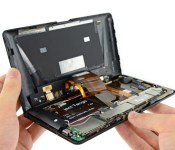
Project Tango tablet teardown reveals its custom 3D mapping gear

If you’ve been wondering just what parts let Google’s Project Tango tablet work its 3D mapping magic, iFixit is more than happy to show you. The DIY repair outlet has torn down the experimental Android slate to reveal a truly unique sensor array. While it resembles a Kinect at first, Google notes that it had Mantis Vision build a custom infrared projector (which bathes the world in a light grid) that works in tandem with the 4-megapixel IR camera; there’s no way you’d replace either with off-the-shelf parts. The big, dual-cell 2,480mAh battery was also made to order, since the ATAP team wanted to let developers draw as much power as necessary for their 3D-savvy apps. The Tango tablet is undoubtedly a very clever design, then, but you’ll have to handle it with kid gloves if you ever try it — you probably won’t get another one if it breaks.
Source: iFixit
.CPlase_panel display:none;

