


How to delete messages in Facebook Messenger
Further reading
How to maintain your privacy on Facebook
Best text messaging apps
How to use Facebook
Let’s face it, we’ve all sent things online that we wish we could just erase from our minds and online history, whether it be embarrassing photos or not-so-nice gossip we told in our younger years. Thankfully, there is a way to delete them forever, should you decide you no longer wish to look at them. Deleting Facebook messages on your desktop or mobile device takes mere seconds, however, keep in mind that deleting the aforementioned messages does not delete them from your friend’s inbox.
Assuming you want to continue, read on for all the details.
Deleting messages on your desktop
Step 1: Log into Facebook like you normally would.
Step 2: Click the chat bubble in the upper-right corner, followed by See All in Messenger. The latter option is located in the bottom left.
Step 3: To delete an entire message thread, hover over the conversation and click the cog icon in the bottom-right corner. Afterward, hit Delete.
Step 4: You will then be presented with three options: Cancel, Delete, or Archive. Click Delete to continue.
Step 5: To delete a part of your conversation, click into the conversation and hover over the message you would like to delete. Then, click the three horizontal dots and hit Delete.
Deleting messages on your mobile device
Step 1: If you haven’t already, download the Messenger app for either iOS or Android, and log in as you normally would.
Step 2: If you want to delete an entire conversation, hold down the thread and select Delete Conversation from the resulting menu.
Step 3: If you just want to delete a single message, go into the conversation, hold down the message you want to delete, and select Delete at the bottom.
If you aren’t ready to part with those embarrassing messages or conversations quite yet, you can always archive them, which will hide them from your inbox until the next time you chat with the person in question. Here’s how.
How to archive messages in iOS
Step 1: Open Messenger.
Step 2: Navigate to the Home tab on the left.
Step 3: Scroll through the conversation list and find the one you want to delete.
Step 4: Lightly tap and hold the conversation. Note: Do not use Force Touch.
Step 5: Select More on the resulting screen.
Step 6: Tap Archive.
How to archive messages in Android
Step 1: Open Messenger.
Step 2: Tap the Home icon to see a list of your conversations.
Step 3: Press and hold the conversation you want to archive.
Step 4: Tap Archive.
Editors’ Recommendations
- Having regrets? Snapchat adds a tool to delete messages
- How to delete your Uber account
- How to install fonts in Windows 10
- How to delete and reinstall games on your PS4
- How to save text messages in Android and iOS
Cat got your wallet? CryptoKitties virtual feline fetches $170K in crypto cash
CryptoKitties, an Ethereum blockchain-based game that allows users to breed, trade, and sell digital cats, may have scored the most expensive in-app purchase to date with the sale of a CryptoKitty named Dragon for approximately $170,000, or the equivalent of 600 ETH in cryptocurrency.
“I bit Rebecca Black when I was younger, but those days are gone,” her description reads. “Believe it or not, spying on the neighbors is seriously exhilarating. You should try it some time. Let’s connect on ICQ.” She is described as having chestnut eyes and a cotton-candy-colored coat.
As a game, CryptoKitties was one of the earliest attempts to leverage blockchain technology for leisure. Like real cats, each virtual cat carries a unique DNA, and their traits, called cattributes, can be passed down to offspring. Each virtual cat is unique and cannot be replicated or transferred without the owner’s permission, according to Axiom Zen, the studio behind the game.
Generally, earlier generations of the virtual cats are deemed more valuable, making Dragon a rarity in the game — she’s a ninth-generation CryptoKitty. Newer virtual cats have an average selling price of around $60, according to CNET, and a median price of $9.
The previous sales record for the game was held by CryptoKitty Founder Cat #18, which sold for 253 ETH in December, or approximately $110,000 CryptoKitty #4 sold for $107,000. Both Founder Cat #18 and #4 are both Gen 0 cats, making them more valuable. Dragon is CryptoKitty #896775.
It’s unclear why Dragon fetched such a high price, but Rabona is now her new proud owner. Although Axiom Zen generally doesn’t comment on sales, the studio speculated that “maybe there was a personal connection the buyer had to the cat or the seller.” Other theories range from the whimsical (she bit Rebecca Black) to the more cynical (it was a way to launder money), according to The Next Web.
The sale of Dragon may lead to a new resurgence for the game and the app. Since its height in December, the total transactions on the app has dropped by 98.4 percent in January, and volume has remained slow since. Over the past day, Dragon’s sale has elevated the game’s trading volume to the highest level since February. Another milestone is also coming up: CryptoKitties is about to celebrate its millionth virtual cat.
Editors’ Recommendations
- Jon Favreau’s live-action Star Wars series gets one of TV’s biggest budgets
- The most expensive cars in the world
- The most valuable vinyl records on Earth
- ‘The Big Bang Theory’ is ending, but we’ll never forget these 15 guest appearances
- Samsung Galaxy S10: Here’s everything we know
These are the best smart LED light bulbs that work with Google Home
Google has done a great job building out it’s smart home ecosystem by working with a growing number of smart bulb manufacturers. With so many options, it can be overwhelming to decide which brand to invest in, but we’ve broken down the best options that work seamlessly with Google Home.
Add some funky colors to your home
Philips Hue Smart Bulb Starter Kit (3-pack w/Hub)
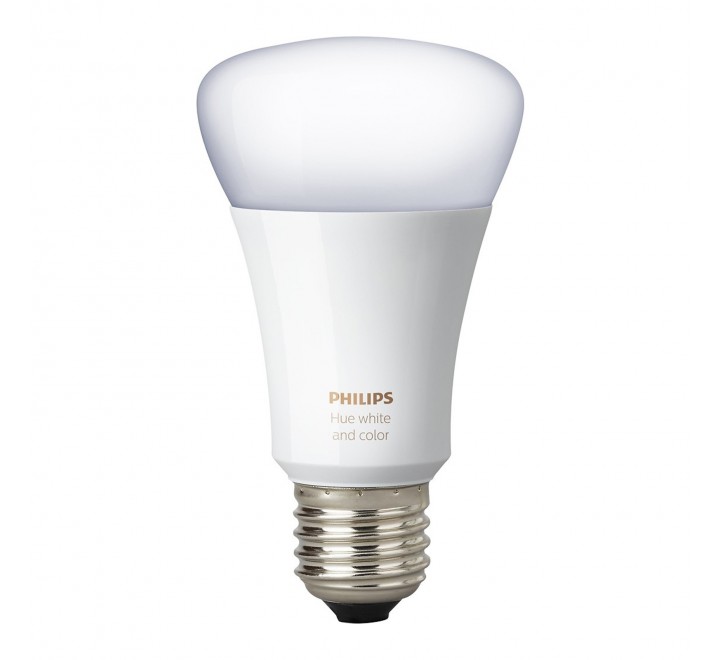
Philips is the the leading manufacturers of wireless LED smart bulbs. The Philips Hue lineup features a multitude of different lighting options for around your home, which must be configured through the Philips Hue Bridge. Your best bet is this starter kit that includes the necessary Hue Hub and three color A19 LED smart bulbs to get you started.
$160 at Amazon
No hub required
LIFX Wi-Fi Smart LED Light Bulb (4-pack)

LIFX offers its third generation of smart bulbs for both indoors and outdoors. Both offer 1100 lumens of brightness, with options to customize the look with 16 million colors and 1000 shades of warm to cool whites. No additional hardware is required to get things set up with Google Assistant as each bulb connects directly to your Wi-Fi network. Get a 4-pack of multicolor A19 bulbs for $196.
$196 at Amazon
Best smart bulbs on a budget
TP-Link Kasa LED Bulbs (3-pack)
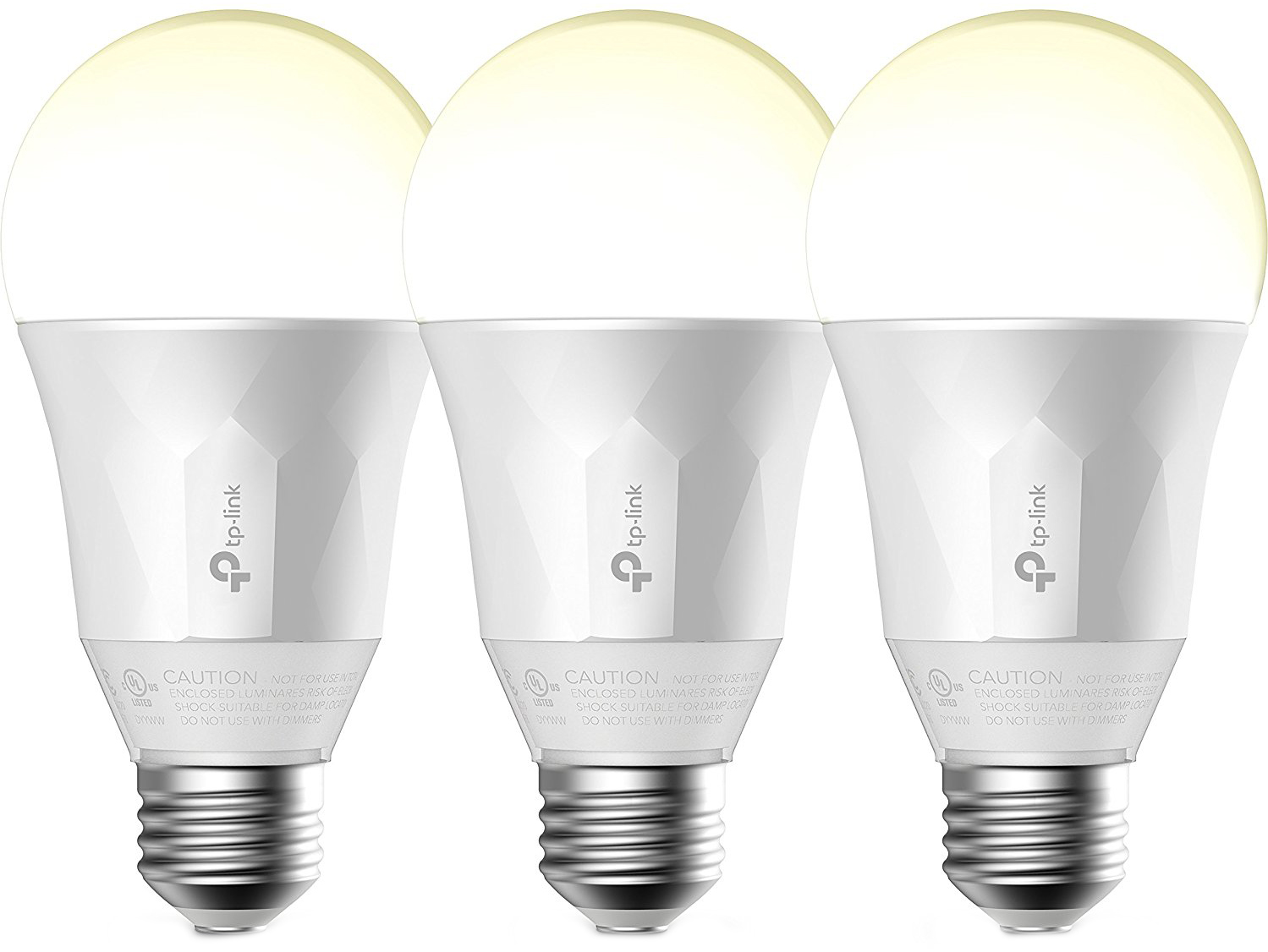
If you’re fine with standard white, dimmable smart bulbs and don’t want to spend a fortune, TP-Link offers an insane value. You can get a three-pack of smart bulbs right now for just $40 bucks. No hub is required and everything can be controlled through the Kasa app or configured through the Google Home app to be controlled using just your voice.
$44 at Amazon
Budget bulbs that require a hub
Sengled Element Classic Smart LED bulbs (2-pack w/Hub)

Sengled technically offer the best value for budget-conscious consumers looking to invest in smart bulbs — but you’re going to need to buy a hub. The two-bulb starter pack is a good deal to start, but the value really starts to roll in if you then get an 8-pack of Classic Smart LED Bulbs ($77). Together, these deals allow you to set up 10 smart bulbs throughout your home for just over $100.
$32 at Amazon
If we had to pick one…
While there are some great options available at lower price points, its hard not to pick the Philips Hue as the best smart light ecosystem to invest in. Sure, it requires a hub to connect with Google Home, but once you’ve started investing, you’re able to manage up to 50 different lights and it’s the variety of lighting options that Philips offers that lets them shine brighter than the competition. From the stylish LightStrip Plus ($72) to Flood Light bulbs for use outside, your home will look amazing with Philips Hue bulbs lighting everything up. You can group lights together to create rooms or program scenes that you can activate with your voice.
Our pick
Philips Hue Smart Bulb Starter Kit (3-pack w/Hub)
A great way to illuminate your home with fancy colors.
Philips is the the leading manufacturers of wireless LED smart bulbs. The Philips Hue lineup features a multitude of different lighting options for around your home, which must be configured through the Philips Hue Bridge. Your best bet is this starter kit that includes the necessary Hue Hub and three color A19 LED smart bulbs to get you started
$170 at Amazon
Update September 5, 2018: Revamped article with updated pricing and formatting.
Google Hardware

- Google Wifi review
- Google Home review
- Chromecast Ultra: all you need to know
- Which Chromecast should you buy?
Google Wifi: Google
Amazon
Google Home: Google
Best Buy
Chromecast Ultra: Google
Best Buy
Android Enterprise adds rugged phones to its lineup
Google’s collection of the most secure, up-to-date Android phones around.

Android’s open source nature means that just about any OEM can use the operating system to power its hardware, and while this is great for a large amount of consumer choice, it also results in the market feeling a bit flooded and overwhelming at times.
If you’re buying a phone for work/business purposes, you want to make sure you get something that’s going to stay up-to-date with the latest software, have the most recent security patches, and isn’t tied down by a heap of carrier bloatware.
To aid you in your quest for finding these phones, Google created Android Enterprise Recommended. Here’s everything you need to know about it!
The latest Android Enterprise Recommend news
September 5, 2018 — Google’s adding rugged Android phones to its Enterprise Recommended program

Today, Google announced the latest devices that are joining its Enterprise Recommended program — this time focusing on rugged devices. With this expansion, the following phones are joining the lineup:
- Zebra TC20, TC 25, TC51, TC56, TC70X, and TC75X
- Honeywell Dolphin CT40, Dolphin CT60, and Dolphin CN80
- Sonim XP8
- Point Mobile PM45
- Datalogic Memor 10
Google also notes that rugged Panasonic phones will be joining the lineup in the next few weeks and months. Furthermore, these rugged phones are guarnateed to receive 5 years of security updates instead of 3 like other Enterprise Recommended devices.
All the big details
What is Android Enterprise Recommended?
Android Enterprise Recommended was first announced on February 21, 2018, and as the name of the program suggests, it was created with enterprise buyers in mind — not the average, everyday consumer
Buying smartphones for your business/organization is a critical task to ensure that everyone can stay connected with safe, up-to-date hardware, and unless you regularly keep your finger on the pulse of all things Android, knowing which phones/OEMs are generally good about following these guidelines is no easy task.
Android Enterprise Recommended was created with the main goal of curating the best Android phones from manufacturers that are committed to keeping them secure and easy to deploy to a large workforce.
To hear an explanation about the program from the horse’s mouth, check out the short video above.
Google has a list of strict requirements each phone must follow
Not any phone can get into Android Enterprise Recommended, and that’s a good thing. Before a device can enter the program, it needs to check off a list of requirements created by Google so businesses are 100% sure that it’ll work exactly the way they need it to.
Those requirements are as follows:
- Minimum hardware specifications for Android 7.0+ devices.
- Support for bulk deployment of Android devices including zero-touch enrollment.
- Delivery of Android security updates within 90 days of release from Google, for a minimum of three years.
- Availability of unlocked devices, direct from manufacturer or reseller.
- Consistent application experience in managed profiles and on managed devices.
For more specifics on the requirements, such as the minimum specifications for 7.0+ devices, check the link below.
Android Enterprise Recommended requirements
Speaking of phones, which ones are included?

Once a phone meets all of the above criteria, it’s officially added to the list of Android Enterprise Recommended products. Google initially launched the program with just 22 devices, but it’s steadily growing all the time as new hardware is released.
As it stands right now, here are the 39 phones/tablets supported by Android Enterprise Recommended.
- BlackBerry KEYone
- BlackBerry KEY2
- BlackBerry Motion
- Datalogic Memor 10
- Google Pixel
- Google Pixel XL
- Google Pixel 2
- Google Pixel 2 XL
- Honeywell Dolphin CT40
- Honeywell Dolphin CT60
- Honeywell Dolphin CN80
- Huawei Mate 10
- Huawei Mate 10 Pro
- Huawei MediaPad M5 8.4
- Huawei MediaPad M5 10.8
- Huawei P Smart
- Huawei P10
- Huawei P10 Plus
- Huawei P10 Lite
- Huawei P20
- Huawei P20 Pro
- LG G6
- LG V30
- Moto X4
- Moto Z2 Force Edition
- Moto Z3 Play
- Moto G6
- Moto G6 Plus
- Nokia 3.1
- Nokia 5.1
- Nokia 6.1
- Nokia 7 Plus
- Nokia 8
- Nokia 8 Sirocco
- Point Mobile PM45
- Sharp Aquos SH 10-K
- Sonim XP8
- Sony Xperia XA2
- Sony Xperia XA2 Ultra
- Sony Xperia XZ Premium
- Sony Xperia XZ1
- Sony Xperia XZ1 Compact
- Sony Xperia XZ2
- Sony Xperia XZ2 Compact
- Zebra TC25
- Zebra TC51
- Zebra TC56
- Zebra TC70x
- Zebra TC75x
Android P: Everything you need to know
Destiny 2 is free with PlayStation Plus now!
These are the free games you can get right now with your PlayStation Plus membership.

One of the biggest perks of having a PlayStation Plus membership is the free games you get every month. I’ve got a list of the games PlayStation is offering this month, and it includes some popular AAA titles. Start downloading these games, and enjoy your free games for the month of September!
PlayStation 4 free games this month
- Destiny 2
- God of War III Remastered
PlayStation 3 free games this month
- Another World – 20th Anniversary Edition
- QUBE Director’s Cut
PlayStation Vita free games this month
- Sparkle 2
- Foul Play
PlayStation VR free games this month
- Here They Lie
Full game line-up
Read on below to see some quick previews of the games you get for free this month!
Destiny 2

The universe needs saving once again, and your Guardian will play an integral role in the outcome. Jump into Bungie’s shared-world shooter that took the world by storm and get a taste of its upcoming expansion, Forsaken.
See on PlayStation Store.
God of War III Remastered

Before Kratos journeyed through the lands of Norse mythology, he scaled Mount Olympus to take on the Greek gods. Now you can enjoy his earlier outings in glorious 1080p resolution at 60FPS.
See on PlayStation Store.
Another World – 20th Anniversary Edition

This action/platformer first released in 1991 and has since been remastered with full definition graphics. Follow a young scientist as he’s thrust through the boundaries of space and time after a nuclear experiment goes wrong.
See on PlayStation Store.
QUBE Director’s Cut

What better way to spend your first month back to school than with a game that’ll test your mind rather than your reflexes. Use your powers to manipulate the environment and solve puzzles to stop a giant cube hurdling toward Earth.
See on PlayStation Store.
Sparkle 2

Another puzzle game that may be more your speed if you aren’t looking for something quite so challenging. Test your orb matching skills in over 90 different levels.
See on PlayStation Store.
Foul Play

Theatre kids may want to take note of this one. Live out your demon-hunting dreams in Foul Play, a sidescrolling co-op brawling that takes place on the stage. After all, what’s the theatre without a little theatrics?
See on PlayStation Store.
Here They Lie

Take on a creepy and terrifying role of investigating an abandoned home for the mystery that lies beneath. Nothing screams a better horror game than playing literally any of them in VR. If you’re a thrill seeker, you should totally download this game. There are only a rare few horror games I’ve regretted when using my VR.
See on PlayStation Store.
Which is your favorite game you’ve gotten for free with PlayStation Plus?
Let us know which game you’ve loved and which one you’re excited about this month! Drop a comment below or shoot me a Tweet and tell me all about it!
Updated September 2018: We’ve added the free games for this month!
PlayStation 4

- PS4 vs. PS4 Slim vs. PS4 Pro: Which should you buy?
- PlayStation VR Review
- Playing PS4 games through your phone is awesome
Amazon
Wireless routers, Xbox controllers, and more are discounted today
Whether you’re looking for new tech gear or household items, we’ve got you covered.
We found plenty of great deals today that include big discounts on the Airmega smart air purifiers, a Nighthawk wireless router, Xbox One wireless controllers, and more!
View the rest of the deals
If you want to know about the deals as soon as they are happening, you’ll want to follow Thrifter on Twitter, and sign up for the newsletter, because missing out on a great deal stinks!
A second Razer Phone is in the works
Can the Razer Phone 2 make more impact than the original?
Gaming gear go-to Razer makes top-notch gaming gear for desktop and PC, including the hot, hot, hot Razer Blade laptop line and cross-platform controllers, but their initial foray into mobile hardware was a bit rocky. The Razer Phone sported great specs for gaming and a butter-smooth 120hz screen, but the camera fell flat and that super-smooth display was a creature of the night, unable to stand up to the shine of the sun. Well, it seems that Razer is looking to try again, as they’ve confirmed to stockholders that another Razer Phone is in development in this week’s earnings report.

The Razer Phone came out last winter, and while it may not have been a total success, the phone hasn’t been a dud, either. Sporting a battery that won’t quit and a high-refresh touchscreen that was made to play, the Razer Phone was a great phone for gaming and for theming, as it was the first phone to officially ship with Nova Launcher as the system launcher.
Razer said their next-generation products saw over 400% year-on-year growth spurred by Razer Phone sales, with this little nugget at the bottom of the Others section:
Razer is now focusing its resources into the development of the second generation Razer Phone and accompanying software releases which will extend its software and services from PC into the mobile market.
There’s no release window or date given for the next Razer Phone, nor many hints as to what the new model may be sporting in its next incarnation, but one can only hope they improve the camera and the brightness issues so that you can game with a Razer Phone in brightest day or blackest night. With the Razer Phone’s battery and high-refresh screen, a successor with a good camera could be the ultimate Pokemon Go and AR gaming phone.
What would you like to see in the next Razer Phone?
Best Android Phone for Gamers in 2018
Charge your phone easily with iOttie’s new iON Wireless Fast Charging Stand
No wires, no problem.

iOttie just released its new iON Wireless Fast Charging Stand. It is currently available from Amazon for $44.95, but as of press time, the stock is dwindling. You may still be able to purchase it by the time you read this, though, so definitely check it out if you’re interested.
This device, unlike some charging pads and stands, looks as good as it performs. The base is built to stay balanced and features anti-slip material for extra stability. There are three fabric colors, available in Ash, Ivory, and Ruby, which are similar to the iOttie iON Wireless Mini Chargers. Currently only the Ash color is listed on Amazon but more should be available soon. The charging stand has two Qi coils so you can charge your phone in both portrait and landscape mode, which is a very nice touch.
These would make a great gift for any tech junkie, or, you know, live your best life and Treat Yo Self. Having a wireless charging stand near your workspace or on your nightstand is a huge game-changer, and once you start using one, you won’t ever go back. This will work with all Qi-enabled devices, but just in case you’re unsure, these Android phones support wireless charging.
See at Amazon
The new Mohu Striker HDTV antenna has a 75-mile range
Catch all the signals.
Mohu has released a new HDTV antenna called the Mohu Striker, and it’s one of the largest antennas around. The Striker has a 75 mile radius and is designed to be used outdoors. The size, the included mounting kit, and the 30-foot coaxial cable, means you’ll have a lot of options on where you want to place it. The way it screws to the side of wherever you live will make it seem like just another part of the home.

Like other modern HDTV antennas, it is multi-directional and doesn’t require you to point it in any particular direction. However, if you don’t live in a very urban area you might want to check out this site to make sure it’s worth the investment. The 75 mile range is pretty extreme, so chances are even if it’s not perfect you will still get at least a few channels from local towers. Ideally, you’ll be able to pick up free HD versions of all the major networks, including ABC, NBC, CBS, FOX, The CW, and more.
Mohu is no stranger to the world of HDTV antennas, either. The Mohu Leaf 50 used to be one of CordCutter’s top picks for best over-the-air antennas, and right now the Mohu Blade gets the nod for most stylish.
You could also pair an antenna like this with something like the HDHomeRun Connect tuner. You’re just forgetting all about cable subscriptions with a setup like this, since the HDHomeRun Connect devices let you take all the channels your antenna is picking up and broadcast them to your favorite mobile devices.
The Striker is currently going for $129.99 on Mohu’s website, and it will be available on Amazon soon enough as well. There isn’t a lot of competition in the 75-mile antenna range, but if you’re working on a budget the ClearStream 2MAX has a 60-mile range and is only $50. And if budget is a bigger issue than range, try the AmazonBasics 50-mile antenna for just $28.
See at Mohu
YouTube for Android’s dark mode is FINALLY here
Rejoice, my friends; now we can binge YouTube all night without getting blinded by the bland white interface!

YouTube brought a dark theme to its desktop website last year and back at the beginning of the year, the same glorious dark theme was announced for its iOS and Android apps. Apple users got that dark theme just a few brief weeks after the announcement, but Android users were left waiting, and waiting, and waiting for theirs.
Our wait is finally over!
The feature has been in testing for the last few weeks, but is finally rolling out to users right now! It didn’t come with an app update for me; I just rebooted my phone, re-opened the YouTube app, and the setting was finally there. Here’s where you can turn on YouTube’s dark theme.
Open YouTube.
Tap your avatar in the top-right corner.
Tap Settings.


Tap General.
Tap Dark theme to enable it. It’ll be near the top of the list, right above Limit mobile data usage.


This has been a long time coming, and I intend to take full advantage of it tonight with an late-night binge in bed. How will you celebrate YouTube for Android FINALLY getting a dark theme?
Updated September 5th: YouTube for Android’s dark theme has gone from a limited test to a full roll-out!

