


Best theming widgets for Android
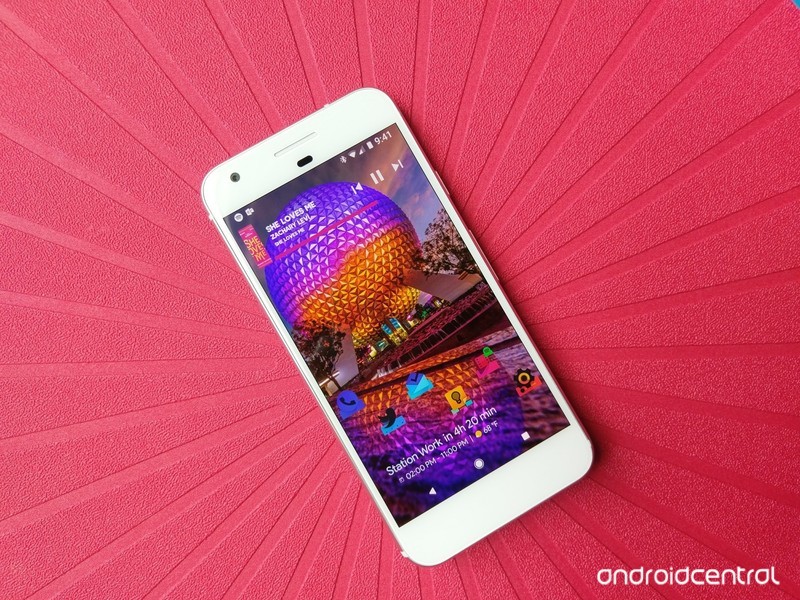
Finding widgets that work with one theme can be hard. Finding widgets that work with many is like a diamond in the rough, and here they are, ready to shine.
Android has hundreds of thousands of home screen widgets out there for you to try out, from advanced widget creators to those that come with your favorite apps. Some are beautiful, some are extravagant, and some are refined, but above all, they have to work. Widgets have to earn their keep on my home screen, or they’ll be deleted and replaced with something I actually use.
Not all apps have customizable widgets, and no matter how good some of those widgets are — like Google Keep — if they don’t play well with themes, then I can’t count on them when I’m building my home screen.
Another Widget

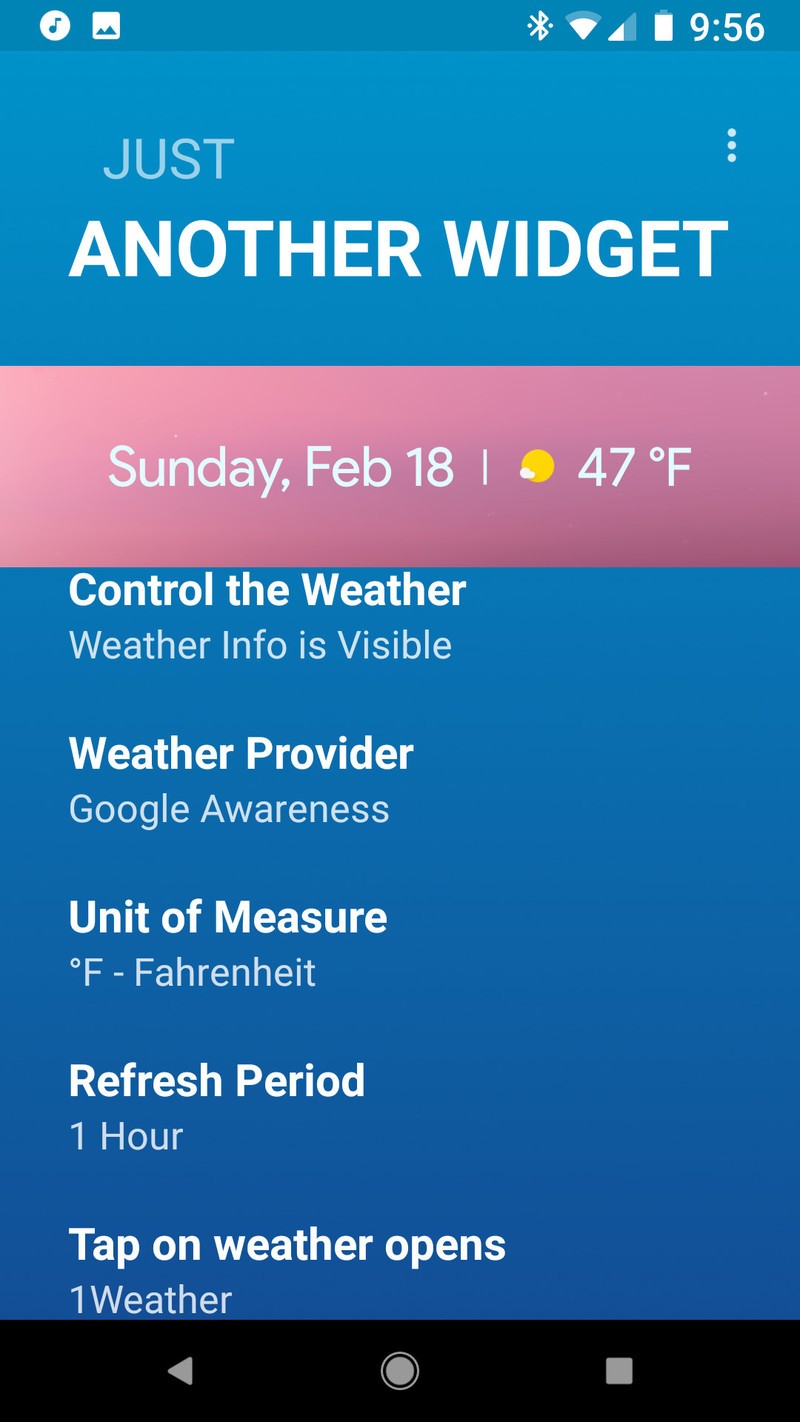

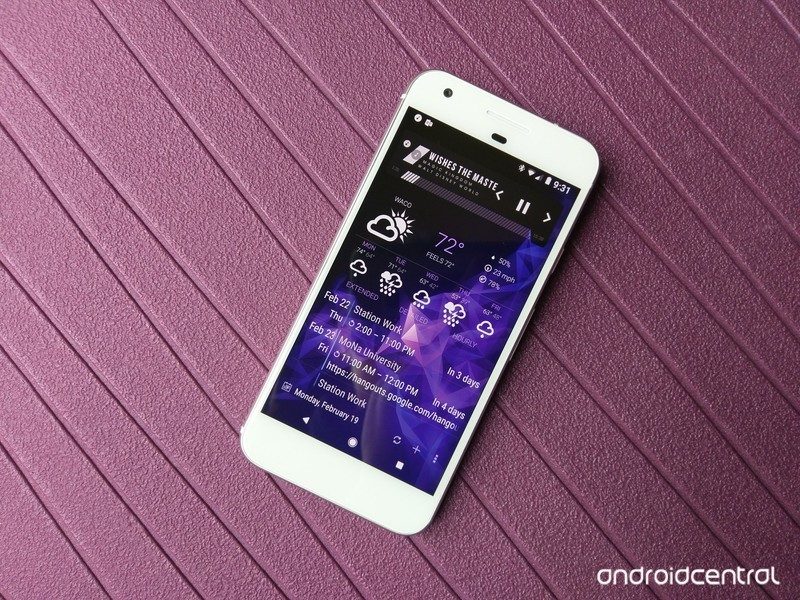
The Google Pixel 2 brought a few new tricks to its home screen this year, but none have been as popular as the At A Glance widget. This refined, easy-to-see and easy-to-use widget is only available on the Google Pixel, but enterprising developers have begun to mimic it in apps like KWGT and launchers like Action Launcher. The best interpretation of the At A Glance widget so far is hands-down Another Widget.
Despite the pedestrian name, Another Widget is not just another imitator. Another Widget goes beyond the original by allowing users to customize the text size, text colors, shadows, data shown, and the apps triggered by tapping the calendar and weather portions of the widget. In short, Another Widget is more flexible than the original and available to everyone, not just those who could blow $650 on a new Pixel.
Whether you’re trying to make your phone look as Pixel-y as possible or just want an informative widget that doesn’t get in the way of a good theme, give Another Widget a try. The app itself is free, but you can support the developer by buying them a coffee, breakfast, or dinner should you appreciate their work.
Download: Another Widget (free, in-app purchases)
Calendar Widget Month + Agenda
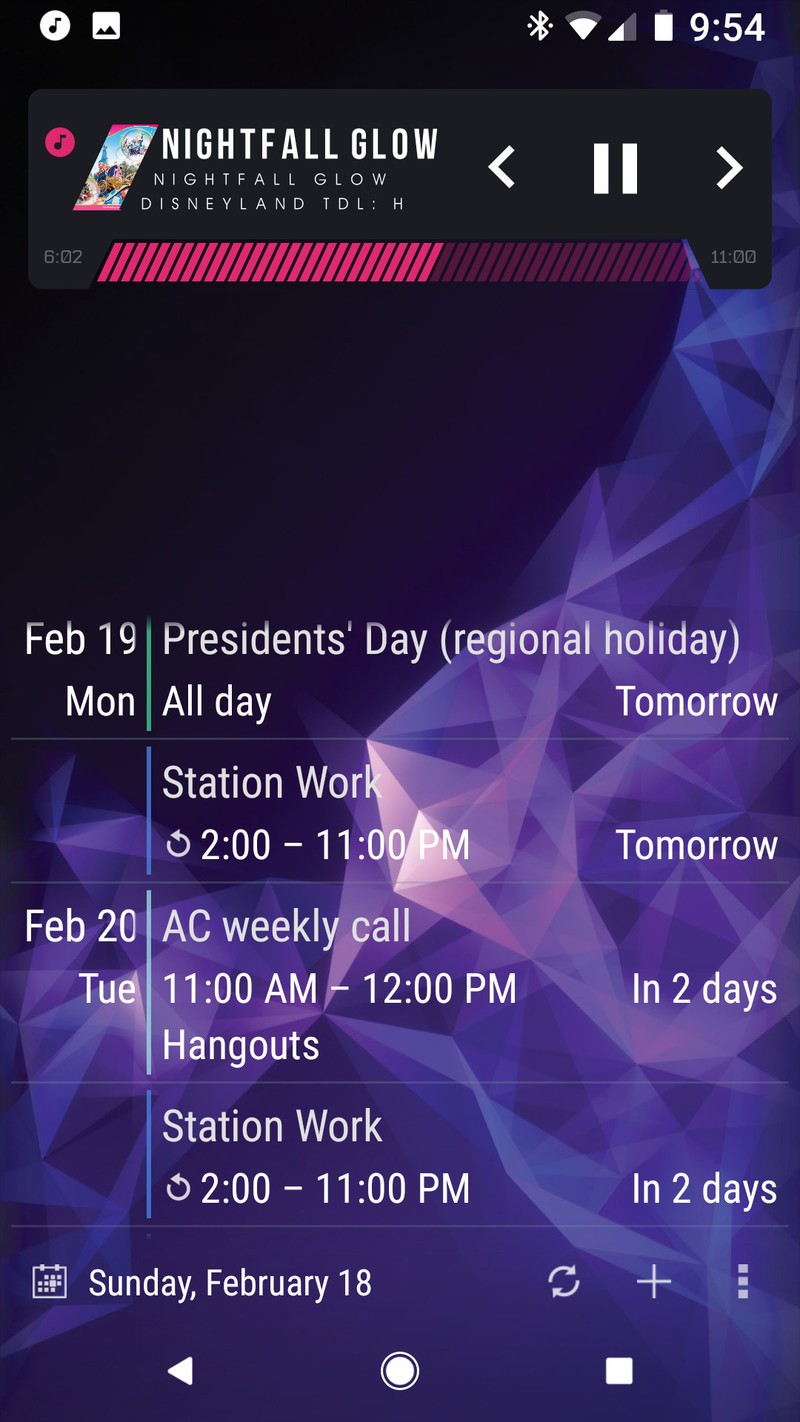
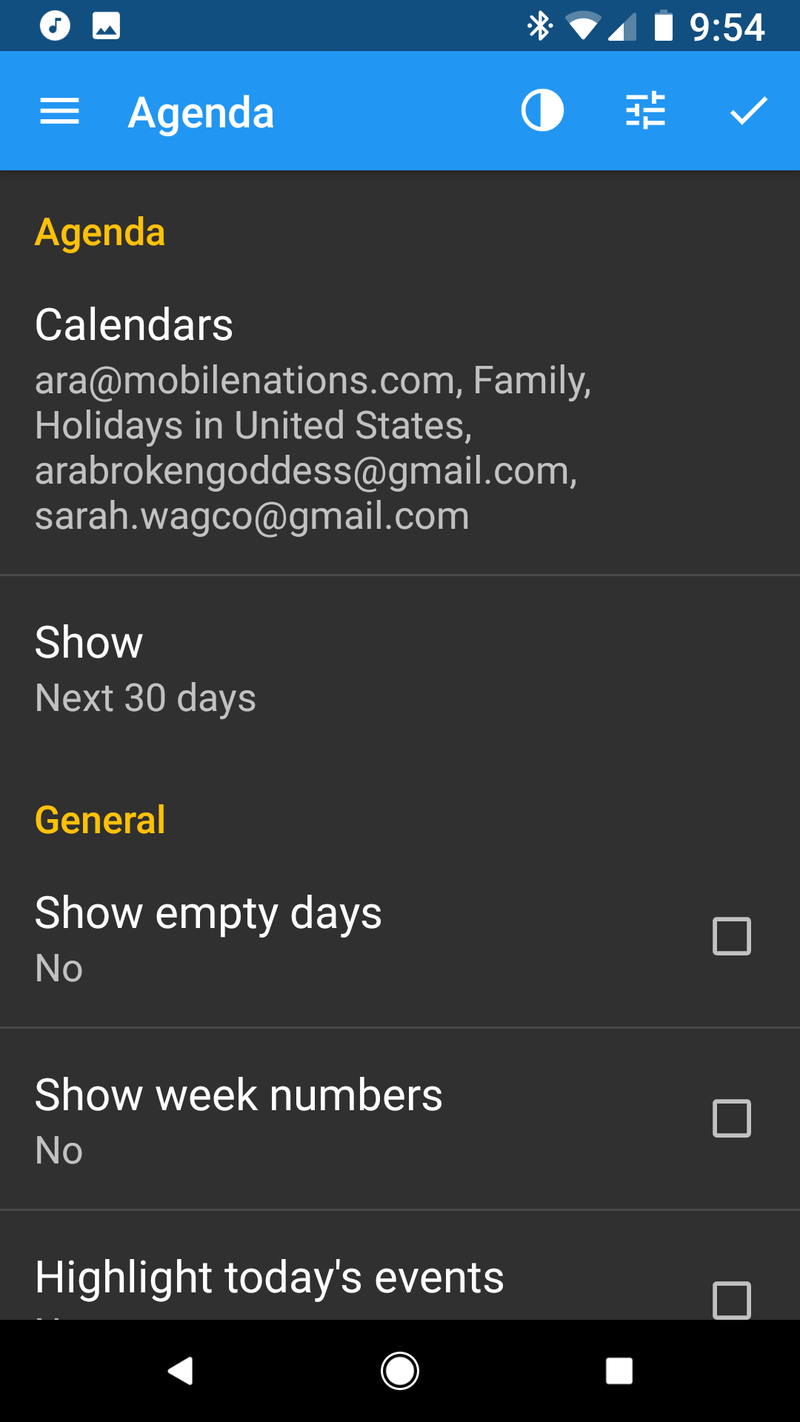
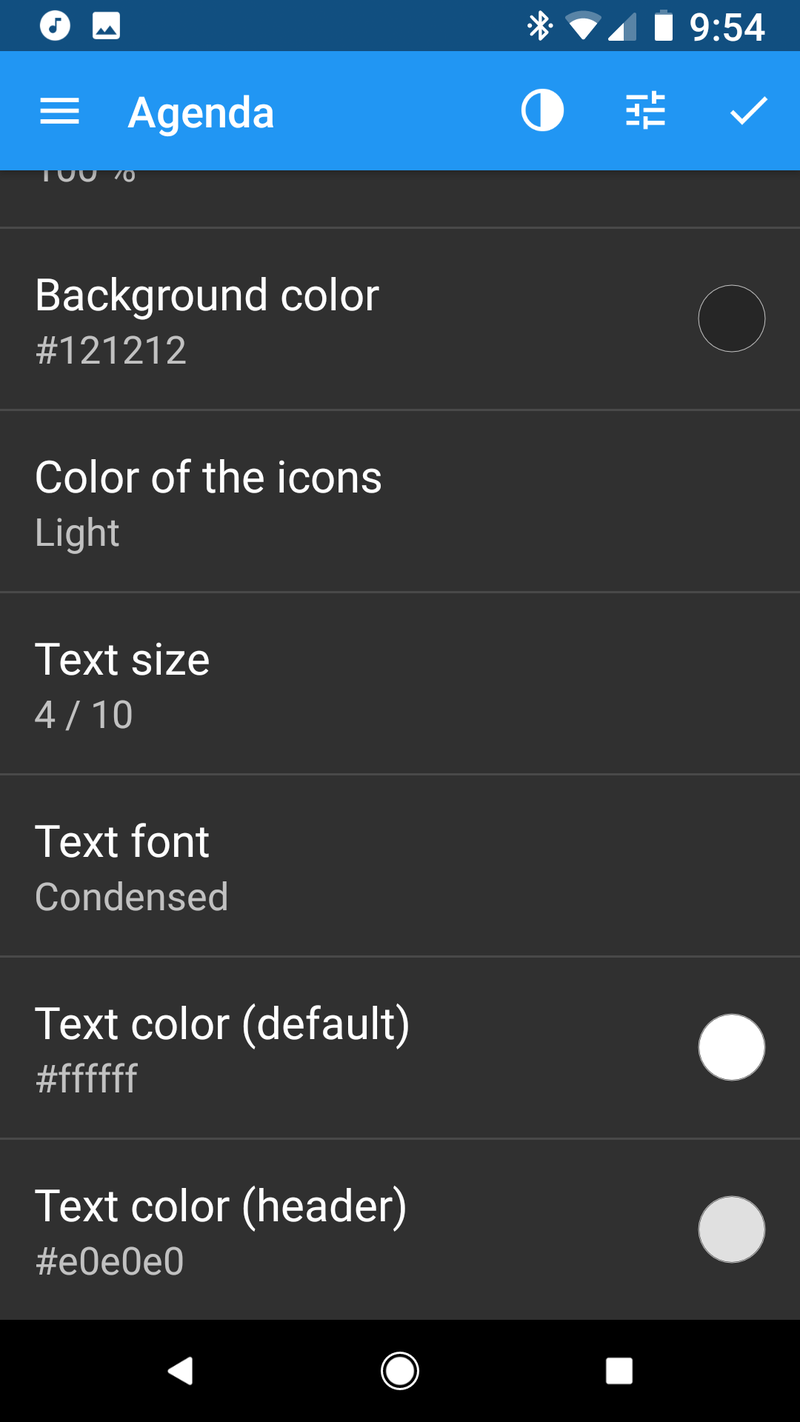
I’m not going to sugarcoat it: Most calendar widgets are ugly and don’t theme particularly well. That said, if you have to have a calendar widget on your home screen beyond a next appointment widget like Another Widget, then Calendar Widget Month + Agenda by Milan Sillik is probably going to be your best bet. The widget is easily resizable and adaptable, you can recolor it and change the transparencies to your liking, and you can try it out for free with all features enabled. Free users have a bar at the top of the Agenda advertising the PRO version license, but it’s easy to scroll past while you’re testing it out.
Using it with 100% transparency allows your calendar events to scroll in and out of your wallpaper seamlessly, and it’s easy to turn the transparency back up when using a busier wallpaper. Just don’t set the bottom toolbar to Minimalistic, or you won’t be able to get back into the widget’s settings without clearing the app data.
Download Calendar Widget Month + Agenda (free, $1.99)
1Weather


Weather widgets are the most popular widgets on the block, and no matter what weather app you have installed, there’s bound to be a widget or two with it, but no weather app has quite the diversity or flexibility of the widgets included with 1Weather. 1Weather is a weather app designed by OneLouder, the development team behind popular Reddit app BaconReader and Twitter client TweetCaster, and 1Weather’s layout is as easy to use as it is easy to customize.
1Weather’s widgets come in all shapes and sizes, and while the icon sets are either black or white, you can set accents for each widget to help the widgets blend or pop against your current themes. 1Weather’s widgets are highly adaptable, and I’ve used them in dozens of themes.
Download 1Weather (Free, in-app purchases)
KWGT, king of the widget-makers

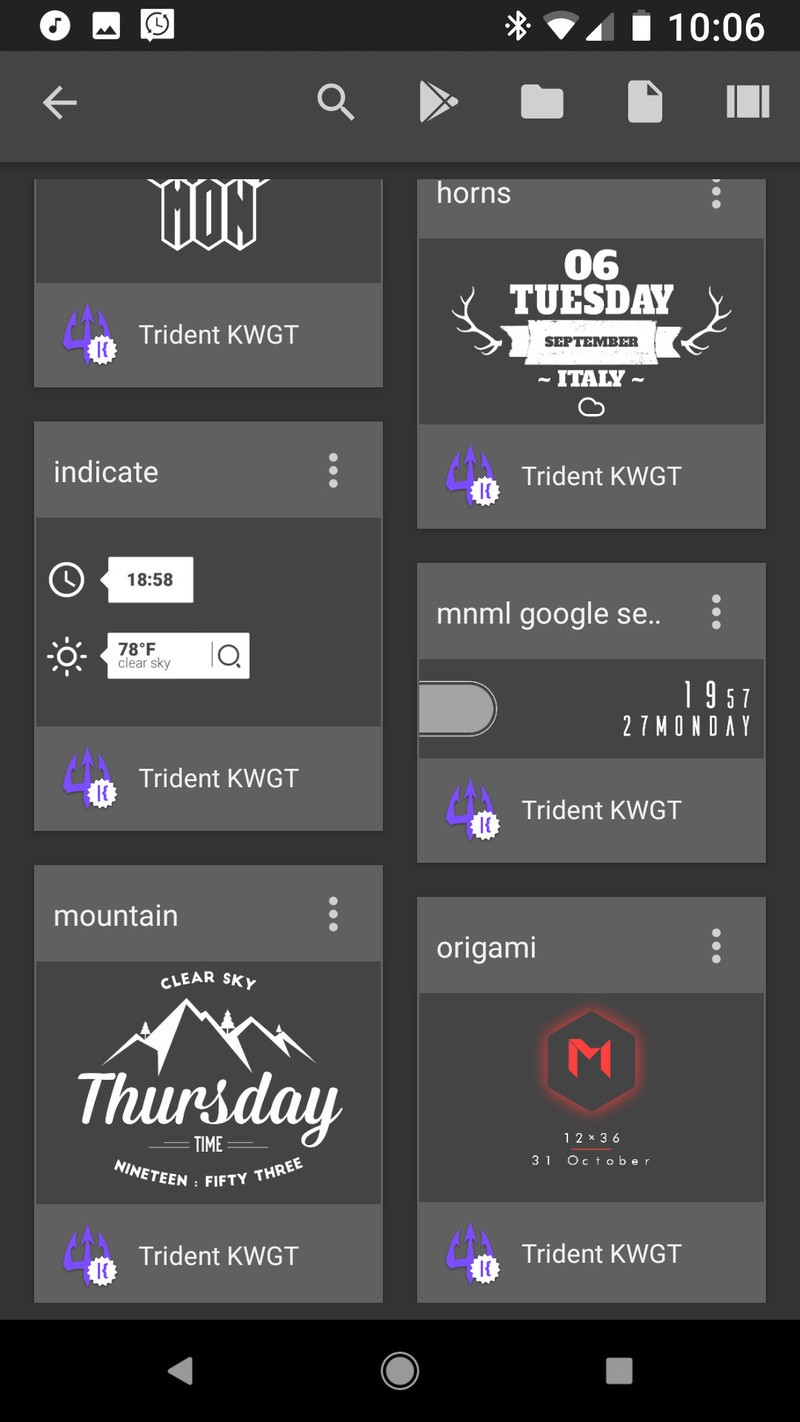

When it comes to widgets that fit your theme, sometimes you can’t rely on an app to have a widget that fits. Sometimes, you have to make your perfect widget, and when it comes to making your own widget, KWGT is king. KWGT — short for Kustom Widget — is a WYSIWYG widget creator, and its basis is quite simple: what you see is what you get. KWGT allows users of all skill levels to build and modify widgets layer by layer, piece by piece so that they get a widget that fits and performs exactly as desired.
Read more: Why KWGT is an essential tool for Android themers
Don’t worry, you don’t have to build each and every widget from scratch. KWGT Pro enables you to pull in presets — pre-built widgets — from other users and from Kustom packs, packaged KWGT presets and komponents. This means that KWGT widgets are easier the share than they are to build, and themers often share their KWGT presets while showing off their themes in communities like r/androidthemes/.
KWGT is also a good way to introduce yourself to WYSIWYG editors and Kustom’s framework before you dive into KLWP — Kustom Live Wallpaper — KWGT’s beefier big brother.
Download: KWGT (Free, $4.49)
Why Zooper isn’t here

Once upon a time, Zooper was the WYSIWYG widget maker that diehard themers turned to. The UI was a hair easier to pick up on Zooper, but unfortunately, Zooper hasn’t been updated since 2015, and it was even briefly removed from Google Play in December. In short, it’s outdated, unreliable, and not worth your effort today.
Your turn
If you have widgets that are team players when you theme, sing out in the comments below! We’re always on the lookout for a few good widgets.
Read more: the best music widgets for Android
Updated February 2018: This article has been completely overhauled and rewritten to reflect developments and discontinuations in the Android widget space.
Apex Construct review: A great experience held back by PlayStation VR

Interesting puzzles and beautiful world interspersed with moments of screaming frustration.
The PlayStation VR community has been spending a lot of time in Sprint Vector lately, and while it isn’t a new virtual sport, Apex Construct will no doubt soon be hogging some of the spotlight.
Developed by Fast Travel Games, it has been created from the start with story-driven VR content in mind. You play as someone called into a dystopian future world by Fathr, an AI created before “The Shift.” It seems that — no surprise — humans turned everything upside down with their experiments, and the world is now stalked by robotic spiders, dogs, and more.
A narrator fills you in on what’s going on here, and you soon learn that the voice is that of Fathr. There’s another AI on the loose here named Mothr, created by a competing tech company before the world was rearranged. They seem to be at odds, and you immediately feel like you’re caught between the two, used as some sort of tool. Whoever came up with the plot might have had a rough childhood.
After a quick tutorial, you’re let into your safehouse, where you can buy upgrades for your bow, shield, and arrows, as well as choose which section of the city to venture out into to either progress the storyline or repeat to find all the secrets. As soon as you get into a real mission, it’s evident that the game is going to be a treat.
See at PlayStation Store
About this review
I did a playthrough of Apex Construct using a standard PS4, though PS4 Pro is recommended. Released February 20 for PSVR, Apex Construct is also expected to be released March 20, 2018 for HTC Vive, Oculus Rift, and Windows Mixed Reality.
Apex Construct gameplay and mechanics

During the initial setup you’re asked if you’d like to play seated or standing (you can also change this from the main menu). I chose the latter and didn’t look back, as you’re often required to make quick turns and often can’t get quite get close enough with the teleport mechanic to properly reach out and grab something on a shelf or table.
I imagine seated play would be a bit frustrating, but at least there is standard locomotion available that lets you sidle right up to the edges without having to carefully point your controller and click to move. I suggest enabling smooth movement, as you can still teleport with it enabled. The combination is much better than just teleporting.
In the brief tutorial you’re given a bow and arrows that will follow you through the rest of the game. This is your main weapon, equipped with an energy shield that can be deployed when you aren’t firing arrows. While you can send it back into your artificial hand, I found that keeping it out beside me was easier.
There is usually an audio cue that heralds enemies in the area, but you will be surprised once in awhile. Entering the inventory screen above your left hand, choosing the bow, and drawing an arrow before you’re attacked is often too slow when using the clunky Move controllers.

The inventory is laid out well, and you have six slots into which you can insert objects you find in the world. This makes for some interesting inventory management issues in the later game. Within this hand menu is also where you can choose which arrows to use based on the task at hand (some deliver different damage and some are required to complete puzzles), a health bar, and a currency counter.
A lot of the time you’ll be walking around, discovering the world and solving puzzles, and this is for the most part the best part of the game. There is some seriously frustrating typing you have to do to gain access to doors and to read files — a must for anyone who wants to get the whole story — that will have you screaming when, for the eighth time in a row, your virtual finger mashes three keys at once and you’re hitting the Del key once again. Hacking terminals with a keyboard in VR is certainly a good idea in theory, but the PS Move controllers don’t seem up to the task.
The big keyboard on the left isn’t a problem, but the one on the right will give you a hard time.
The Move controller problem carries over to combat. There are already a few archery VR games on the market that get the mechanics right, and I think Apex Construct can sit among them. But that’s only when your bow isn’t ghosting around on its own because you’ve put the controllers close together to draw the bow and the camera has lost tracking. Again, this is an issue with PSVR rather than the game itself. When your bow works as it should — which is about 75 percent of the time — downing an enemy is satisfying, especially when you can nail them before they get close.
Playing Apex Construct with a 360-degree trackable environemnt would make a lot more sense.
You can choose from either a click-and-flick method of snap turning or smooth rotation with a button press, but can’t use both though they use different buttons on the Move controller. When you’re under pressure, the former method often fails. If you don’t flick your wrist quite far enough, you’ll turn 180 degrees rather than about 45, and turning your physical body doesn’t work either because the camera is only in front of you.
Smooth turning is a bit better, but playing Apex Construct with a 360-degree trackable environemnt would make a lot more sense and would no doubt result in far fewer deaths at the hands of an enemy who probably recounted the tale to his pals later about how I was spinning around with a flailing bow while he/she shot me undisturbed.

Luckily, when you do die, you’re able to continue from just before the moment combat was initiated. You don’t get by without a penalty though, and the in-game currency, Radiance Points (RP), are removed from your person. RP is only safely banked when you make it back to your safehouse at mission’s end, and from there can be used to buy upgrades.
Apex Construct immersion and world

The world after The Shift is one that I didn’t at all mind exploring. Right down to bus numbers inside of the wind shelters, it is beautiful and full of detail. Buildings sit every which way, and water trickles out of enormous rock formations, gurgling and sparkling. It’s easy to run through the game at top speed, hitting the bare minimum of requirements to complete puzzles, but once you slow down, you begin to notice the small stuff.
Inside, where there’s a bit less to look at, there are notes and charts and storerooms full of tidbits that tell just a bit more of the story, enticing you to go back and search through the level again when you see that you’re still missing a secret or two. The first few times I returned to the safehouse, I went straight back to the mission screen to continue. I finally decided to explore a bit at home and discovered that even here there were a few things that contributed to the overall feel of the game.

It takes about five hours to get through the story, but you can no doubt spend a lot more time here getting to 100 percent completion. Some areas are not accessible the first time through, so all you can do is make a mental note to come back later. Other than the frustrations here and there brought on by the hardware limitations, I left feeling satisfied. The voice of Fathr has a bit of a cheesy whisper sound to it — my significant other asked if I was playing a Batman game — but even that kind of adds to the mystical feeling once you listen to it for awhile.
If you’re running PSVR with a standard PS4, don’t fret. Graphics are impressive, even on the older console, and I imagine running the game on PS4 Pro will take it even further. I saw a couple of minor bugs I think had to do with objects clipping with others, but nothing at all close to game-breaking.
Apex Construct review: Conclusion

Apex Construct is a game clearly created with love, and it shows in the beautifully shifted world and its many secrets. The story is intriguing and once completed, the list of secrets pulls you back for just one more foray into the city. The puzzles are varied enough that they don’t get stale, and you’ll only be screaming in frustration at the virtual keyboard part of the time.
The combat has you dodging and alternating between shield and bow, and it changes things up by forcing you to choose the right arrow for the enemy at hand, but the PSVR’s Move controllers often bug out and have you shooting anywhere but at the robotic foe. Likewise, in tense moments, snap turning in the game and really turning in your VR space get mixed up, and once the controllers are out of sight of the PS camera, it’s time to restart from a checkpoint without the RP you gained.

Bottom line here is that Apex Construct is a great game (especially at about $30), but the overall experience is held back by the hardware. Any game with a bow should make you feel like you’re a dead-eye shooter, but you’ll almost feel yourself dreading the next encounter, and not because the enemy is too skilled or strong.
When it all works as it should — which, I should say, is still the majority of the time — I can see that the developers really cared about their project, and I can see that it’s going to be a memorable experience for a lot of people.
See at PlayStation Store
Pros:
- Detailed, beautiful world.
- Interesting story.
- Lots of secrets to find.
- Varied puzzles to solve.
Cons:
- Typing is a nightmare.
- Combat often feels like a coin toss.
- Overall held back by hardware.
Incredible
4/5


PlayStation 4

- PS4 vs. PS4 Slim vs. PS4 Pro: Which should you buy?
- PlayStation VR Review
- Playing PS4 games through your phone is awesome
Amazon
Best Cases for the Honor 7X

The Honor 7X is a great phone, so why not protect it with a great case?
The Honor 7X is one of the latest phones in the Huawei subsidiary’s lineup, and we’ve called it one of the best budget phones you can buy. It’s fast, it’s long-lasting, and its display and cameras both outperform most similarly priced options.
If you’re the proud owner of a 7X, you probably want to keep it safe. That’s why we’ve rounded up some of the best cases we could find.
- Spigen Rugged Armor
- KuGi Flexible Soft
- TopACE Silicone Cover
- Nillkin Sim Thin
- Yiakeng Dual Layer
Spigen Rugged Armor

Spigen is one of the most recognizable and reputable case brands around, so naturally it’s the first choice on our list. The Rugged Armor provides full coverage protection for the Honor 7X without adding much bulk.
Its TPU material is flexible and easy to apply, and uses a webbed inner lining to absorb shock from drops. The cutouts give full access to all of the Honor 7X’s ports, and the carbon fiber styling up top and bottom adds a nice aesthetic touch.
The Spigen Rugged Armor case is available on Amazon for just $11.99.
See at Amazon
KuGi Flexible Soft

If you prefer the look of leather to carbon fiber, KuGi’s case may be more to your liking. This case offers similar protection to the Spigen Rugged Armor, wrapping around the Honor 7X to protect the sides and back from damage.
This case is made of TPU, with a ribbed texture along the sides to make it easier to grip. Though the leather on the back isn’t real, it adds some nice texture of its own, and maintains a clean look that’s mostly free of branding, with just a small logo in the upper right corner.
The KuGi Flexible Soft case is even cheaper than the Spigen case, at just $8.50 on Amazon.
See at Amazon
TopACE Silicone Cover

This clear silicone cover from TopACE is perfect for shoppers who still want to be able to see the premium design of the Honor 7X through a case. Like the others before it, this case is made of a flexible TPU, offering enough protection to save the phone from most drops.
The TopACE case offers large cutouts for its ports — unlike the clear case included in the box with the Honor 7X — as well as for the cameras, ports, and fingerprint sensor.
You can snag one a TopACE case for just $7.55 at Amazon.
See at Amazon
Nillkin Slim Thin

Though full coverage cases offer the most protection, some users simply want the lightest case possible to keep the back from getting scratched up. The Nillkin Slim Thin is a simple shell-style case that clips onto the sides of the Honor 7X while leaving the top and bottom of the phone exposed.
This case’s polycarbonate material is harder and more durable than TPU, and comes with a grippy non-slip finish. The open bottom makes it easy to plug in cables of all sizes, and the buttons are exposed for easy access as well.
The Nillkin Slim Thin is just $9.99 on Amazon.
See at Amazon
Yiakeng Dual Layer

Slim cases are great, but sometimes you need a bit more protection — that’s where Yiakeng comes in with its dual layer case. This case combines soft TPU with a hard polycarbonate outer shell, offering superior drop protection.
In addition, the textured backing adds some grip to the phone, and the case even features a pop-out kickstand for watching movies.
The Yiakeng dual layer case is available on Amazon for $7.98.
See at Amazon
Which one should you buy?
There are plenty of good cases to choose from, but no matter which you use, the important thing is that you’re protecting your phone. Let us know what case you’re using (or thinking about ordering) in the comments below!
If you’re not using night mode on Google Home, you’re doing it wrong
Don’t let dumb AI kill the mood.
When you think of “night mode” on a device, you think of a dimmed screen and muted notifications. I’d never really thought about it on something that doesn’t have a display.
 That is, until I stashed the Google Home Max in my bedroom.
Because there’s nothing quite like enjoying a day full of Norwegian death metal in the comfort of one’s own chambers, only to retire to bed in the evening and command Google Assistant to turn off all the lights and OK TURNING OFF NINE LIGHTS — IT LOOKS LIKE FOUR LIGHTS AREN’T AVAILABLE RIGHT NOW GOODNIGHT PHIL SORRY ABOUT WAKING THE KIDS AND FOR TOTALLY KILLING THE MOOD BUT DON’T WORRY I’M SURE THIS SORT OF THING HAPPENS ALL THE TIME.
Google Home — and especially Google Home Max when kept where the magic happens — badly need a night mode.
Turns out Google Home has a night mode.
Head into the Google Home app and hit that awful little devices icon to get to the list of all your Googles Home. (Or is it Google Homes? Whatever.) Then find the device you want to enable night mode on. Hit the three-button overflow menu and choose settings. Then choose Night Mode.
From there, you can set the Night Mode schedule (mine is now at a depressingly early 9 p.m.), adjust the LED brightness (less of a big deal) and maximum volume (a very big deal).
What you can’t do is set this from the Google Home itself — you’ll have to go into the app to do the deed. So much for smart assistants, eh?
How to add custom ringtones and sounds to your Android phone

Android is all about customization.
Don’t like your launcher? Get a new one. Don’t like your gray keyboard? Change it up! Got the same ringtone as that annoying co-worker at the other end of the room? Just don’t like the lame, old sounds that came with your sweet, new phone? No problem — we have options. Once you get the hang of it, the world is your ringtone.
Let awesome ring.
- How to find and set ringtones through the Zedge app
- How to add your own ringtone to Android
- How to apply your custom ringtone in Settings
- How to apply a custom ringtone to a contact
- How to apply a custom notification tone
How to find and set ringtones through the Zedge app
There’s a lot of places to find ringtones, but far and away the easiest is Zedge. Zedge is a customization app that looks to personalize two of the most basic aspects of your phone: your sounds and wallpapers. Zedge even streamlines the process, letting you download and set your ringtone from the same screen!
Once you find a ringtone in the app you like (browsing or searching), here’s how to set it:
Tap the white download button in the middle of the screen.
Tap Set ringtone.
Tap Allow to allow Zedge to download the ringtone.


Tap Settings to be taken to the page where you can allow Zedge to modify system settings, like your ringtone.
Tap Allow modify system settings.
Tap the back button to return to Zedge. You’ll see a toast notification at the bottom of the screen telling you the ringtone has been applied.


How to add your own ringtone to Android
If you find your ringtones other places — or have one you just need to add to the phone — then you’ll need to get it into the proper folder in the Android file system, and that requires a file manager app. Now, some phones have file managers on them out of the box, but if not, you’ll need to download one from the Google Play Store, like Solid Explorer. Once you’ve installed a file manager and downloaded the ringtone you want to your device, we need to move it to the proper folder:
Find and long-press your desired ringtone in the Downloads folder. After long-pressing the first ringtone, you can tap more ringtones if you wish to copy multiple sounds at once.
Tap Copy. The icon may vary from file explorer to file explorer, but on Solid Explorer, it’s the icon with two documents stacked on top of each other.
Swipe in the menu from the left side of the screen.
Tap Internal Memory.


Tap the Ringtones folder. If you want to set the sound you’re moving as a text tone or an alarm, you would tap the Notifications folder or Alarms folder.
Tap Paste.


Some phones’ Settings app will see the new ringtones immediately, but just in case yours doesn’t go ahead and reboot the phone. Upon reboot, the new ringtones will appear in the list of available ringtones. Now all that’s left to do is set the ringtone.
How to apply your custom ringtone in Settings
Open Settings.
Tap Sound. This menu may be named differently depending on your phone, with possible names being Sound and Display, Personalization, etc.
Tap Phone ringtone.


Tap the custom ringtone you added to the ringtones folder.
Tap Save or OK.


How to apply a custom ringtone to a contact
Open Contacts.
Tap the contact you wish to set a custom ringtone for.
Tap the three-dot menu icon in the top right corner.


Tap Set ringtone.
Select the custom ringtone you added to the ringtones folder.
Tap Save or OK.


How to set a custom notification sound in Settings
Open Settings.
Tap Sound. This menu may be named differently depending on your phone, with possible names being Sound and Display, Personalization, etc.
Tap Default notification sound.

Select the custom notification sound you added to the Notifications folder.
Tap Save or OK.


Your turn
So what awesome ringtones are you setting on your phone? Share your most outrageous and hilarious ringtones in the comments below!
Updated February 2018: This article has been rewritten and condensed for your reading pleasure. Enjoy!
‘Rocket League’ DLC adds DC superhero flair on March 5th
When car-soccer game Rocket League arrived last November, it included two DC Comics-inspired customization options like The Flash wheels and player banner. On March 5th, the game will get an entire roster of Justice League cars from Warner Bros., including two different Batmobiles — one from the 1989 film and the other from Christopher Nolan’s The Dark Knight Rises.
This isn’t the first time we’ve seen the ’89 version of Batman’s sweet ride in a video game. Both it and the Batsuit from the film appeared in Batman: Arkham Knight a few years ago. Still, this is the whole group of top tier DC heroes. In addition to the custom Batman cars, Rocket League players will be able to kit out their soccer cars with decals and player banners representing Aquaman, Cyborg, Flash, Green Arrow, Green Lantern, Superman and Wonder Woman. The Flash and Wonder Woman get their own set of wheels, while the former also receives a special Speed Force Boost for getting to the soccer ball fast. The entire set of comic book customizations will run $4 as a DLC for the full game.
Via: PlayStation Blog
Source: Psyonix
South Korea won’t ban cryptocurrency trading after all
South Korea has been flirting with banning cryptocurrency trading for some time now. However, now it appears the country is backtracking. Bloomberg reports that South Korea’s regulators have indicated that they will continue to support “normal” trading of the cryptocurrency.
In late 2017, South Korea, which is the third largest market for cryptocurrency, began cracking down on Bitcoin traders. It banned initial coin offerings and stopped allowing anonymous cryptocurrency accounts. At the beginning of this year, South Korean officials announced an outright ban on cryptocurrency trading was in the works. Many cryptocurrencies were priced higher on South Korea’s exchanges than in the rest of the world, and officials in the country thought of it as gambling. There was also the fear that cryptocurrency trading could lead to tax evasion.
Apparently, South Korean regulators have worked out their concerns, because Choe Heungsik, the governor of South Korea’s Financial Supervisory Service, has said that his organization is trying to normalize cryptocurrency trading. This is a big shift in rhetoric against digital currencies.
Bitcoin has undergone quite the drama over the past few weeks, as the value of the cryptocurrency plunged. According to Bloomberg, much of the loss in value was due to speculation that countries would begin banning cryptocurrency trading. Since these indications of support began to surface, however, Bitcoin has begun rebounding.
Source: Bloomberg
Lyft offers more rides to non-urgent medical appointments
Lyft is continuing its bid to become the go-to choice for non-emergency medical trips. It’s launching a new partnership with Hitch Health that will offer Lyft rides to health care appointments across the US. The basic concept is familiar, but there’s a personalized twist: Hitch offers technology that can identify the patients most likely to need a ride. In a 6-month trial run, the partnership focused on low-income, uninsured and vulnerable patients that couldn’t realistically consider driving, taking the bus or asking a friend.
As with some of Lyft’s other team-ups, patients don’t need a smartphone or even a credit card. In Hitch’s case, riders get a text message offering a pickup.
The deal helps bolster Lyft’s role in medical transportation. It also repeats a familiar competitive strategy for Lyft: matching Uber on key fronts as quickly as possible, and looking for opportunities to one-up its rival in the same space. It’s not necessarily original, but it’s hard to complain when it leads to improved health care for those who need it most.
Source: Lyft
Modders turn Nintendo Switch into a full-fledged Linux tablet
For all of its Nintendo customizations, the Switch is ultimately a tablet running a garden variety NVIDIA Tegra processor — and that means it can potentially handle the same software as other mobile devices. To prove that point, the fail0verflow team has shown a Switch running an honest-to-goodness Linux distribution. The touchscreen, networking and accelerated 3D graphics are all functioning, as evidenced by the modders tweeting from the Switch and running a benchmark. You’re not about to run Steam games on it (many Linux apps aren’t built for ARM-based chips), but you could theoretically use the Switch as a basic computer.
Fail0verflow hasn’t explained exactly how the necessary exploit works, but it may be easier than you think. The team previously noted that it’s taking advantage of a bug in the Switch’s bootrom (the fixed low-level code that runs the moment you turn the device on), which prevents Nintendo from patching it on current consoles. You don’t need a mod chip, either. The only way for Nintendo to thwart this is to release updated hardware, and that might not happen for a while.
There’s no word yet on whether or not the exploit and techniques involved will be made widely accessible. Don’t expect to try this at home, then, even if you’re willing to throw caution (and your warranty) to the wind. As it stands, this is more of a because-we-can hack than something many Switch owners would find practical. You’d probably get better value out of running homebrew games, and that’s a tougher challenge given that Nintendo can easily update its operating system to block unauthorized software.
Code execution is all the rage these days, but can your Switch do *this*? 😉 #switchnix pic.twitter.com/NMnBq61tOM
— fail0verflow (@fail0verflow) February 17, 2018
Via: The Verge
Source: fail0verflow (Twitter 1), (2)
Toyota’s next EV motor could use 50 percent less rare earth metals
Toyota has designed a magnet that halves the amount of rare earths needed in its electric cars, which could help mitigate the fall out of a looming materials shortage. Like other electric carmakers, Toyota has traditionally used neodymium, terbium and dysprosium in its electric vehicles, but it believes demand for these materials will outstrip supply come 2025. The new magnet uses the rare earths lanthanum and cerium instead, which are more plentiful and cost 20 times less than neodymium.
A neodymium shortage would be serious news for the electric vehicle market as it stands, and we’ve already seen the consequences. Last year a clampdown on illegal mining in China (which supplies 80 percent of the planet’s rare earth materials) caused neodymium prices to skyrocket by more than 30 percent in just one month. Toyota’s plans will help protect the company and keep it on track to sell 5.5 million electrified vehicles by 2030, which will certainly be achievable if its cars are also cheaper as a result of this switch.
Source: Bloomberg

