


Today’s best deals you won’t want to miss
Whether you’re looking for new tech gear or household items, we’ve got you covered.
Today you can get big discounts on the DJI Phantom 3 quadcopter, the HP ProBook x360, the Garmin Fenix 5X fitness watch, and more! Don’t pass these up.
View the rest of the deals
If you want to know about the deals as soon as they are happening, you’ll want to follow Thrifter on Twitter, and sign up for the newsletter, because missing out on a great deal stinks!
Google News for Android: Everything you need to know
From national publications to local stories, Google News has you covered.
Way back in 2002, Google launched the very first version of Google News — a news aggregator that was designed to make it easy to find the stories you care about. Google News got a huge redesign at Google’s 2018 I/O developer conference, with the majority of the company’s efforts put into an all-new Android app.
There’s a lot going on with the latest Google News app, and to help make sense of all the goodies you’ll find in it, here’s everything you need to know.
For You is a collection of articles Google thinks you’re interested in

Every time you open Google News, you’ll be taken to the For You page. This is your central hub for Google News, highlighting the top 5 stories the app thinks you’ll be the most interested in, a collection of other local/national stories, and a simple 6-day weather forecast.
The articles that appear in For You are personalized to your interests, with Google using machine learning and AI to tailor them specifically to you as best as possible. The more you use the app and interact with certain articles, the better Google News will get at showing you content you care about.
Headlines houses the world’s biggest stories

Next to For You is a page called Headlines. Here, you’ll see everything that’s happening in the world. The latest stories are shown at first, but you can filter these by U.S., World, Business, Technology, Entertainment, Sports, Science, and Health.
Many of these stories feature videos as well as Newscasts — a collection of articles and tweets about an event/story to give you a quick insight into what’s going on if you’re short on time.
Specify the topics and sources you like the most in the Favorites tab

If you’re looking to catch up on a specific topic or source you’re particularly interested in, you’ll want to make sure you check out the Favorites tab.
After adding a few topics/sources you like the most, you’ll slowly start to help Google News give you better recommendations in the For You section. Additionally, you can just tap on a topic or source to browse through content that’s related only to it.
Newsstand is where you can subscribe to newspapers and magazines

The last section in Google News is titled Newsstand, and as the name suggests, this is where you can find newspapers and magazines to subscribe to.
You can browse through items in Newsstand by Featured and Popular, and scrolling down far enough in the Popular section will allow you to filter through publications by category, including Entertainment, Food & Drink, Health & Fitness, Home & Garden, News & Politics, and Science & Technology.
After finding a newspaper or magazine you like, you can choose to purchase just one issue, sign up for a monthly subscription, or go all the way with a yearly one. Additionally, if you’re already a paying customer for a certain title, you can enter your account details to start digitally reading it in the Google News app.
Dive deeper into the settings

Google News offers a pretty great experience out of the box, but there are a few controls you can take advantage of to fine-tune it to your exact liking.
If you look hard enough, you’ll find settings for changing the appearance of stories to see more on your screen at once, tools for conserving your mobile data, and much more.
Check out our 5 favorite tips/tricks for getting the most out of Google News
Google News replaces the Play Newsstand and News & Weather apps
Now that we’ve got Google News, Google’s axing two of its older apps — Play Newsstand and News & Weather. The Play Newsstand listing on the Play Store is gradually being replaced with Google News (similar to how Google Pay replaced Android Pay) while News & Weather is simply nowhere to be found anymore.
Play Newsstand and News & Weather had quite a few overlapping features, so getting rid of them in favor of one, simplified app is a welcome change.
Download: Google News (free)
What do you like?
Have you upgraded to Google News yet? What do you think? Let us know in the comments!
Around 200 million people had their real-time location exposed by LocationSmart
A bug allowed you to track someone’s location without obtaining their consent.
Earlier this week, it was reported that a company called LocationSmart partners with U.S. carriers to sell people’s real-time location to all sorts of third parties. This news came as a rather unpleasant surprise on its own, but it’s now been discovered that a bug on LocationSmart’s website exposed the real-time location for around 200 million individuals.

According to ZDNet, LocationSmart used to feature a tool on its website that allowed you to try its tracking service before you bought it. With the consent of a friend or colleague, you could use LocationSmart’s system to track their location for free. After entering your friend’s number, they’d receive a text to confirm it was okay for their location to be tracked, and you’d be able to see where in the world they’re at.
However, as noted by Robert Xiao, a Ph.D. student at Carnegie Mellon University —
Due to a very elementary bug in the website, you can just skip that consent part and go straight to the location. The implication of this is that LocationSmart never required consent in the first place.
What sort of bug are we talking about? Per ZDNet —
Xiao said one of the APIs used in the “try” page that allowed users to try the location feature out was not validating the consent response properly. Xiao said it was “trivially easy” to skip the part where the API sends the text message to the user to obtain their consent.
That “try” page has since been removed from LocationSmart’s site, and according to a spokesperson from the company, “the vulnerability was not exploited prior to May 16, and did not result in any customer information being obtained without their permission.”
Even so, this exploit potentially exposed the real-time location for around 200 million people in the United States and Canada and LocationSmart hasn’t provided any evidence to back up its claim that no info was stolen.
All major U.S. carriers give your real-time location info to third parties
Shop Amazon’s Thule sale for low prices on everything from bike racks to jogging strollers
This stylish travel gear can save you from so much hassle.
Amazon has hundreds of Thule products on sale right now. Think of Thule gear as designed to carry anything you need to transport safely and easily. That includes backpacks for camping, bike racks for your car, and strollers for your children.
 The Thule EnRoute Backpack is down to $78.95 right now from an average price around $100. Every color is available at this price, too. This backpack can hold a 15.6-inch laptop and 10-inch tablet in dedicated pockets. It can also keep your phone, sunglasses, and other smaller accessories safe in a hard shell compartment.
If you’re a parent looking to go jogging with your kid, the Thule Glide 2.0 jogging stroller is $358.95 during this sale, which is a huge drop from its regular $450 price. It has never gone this low before, either. The stroller is designed to fold easily with just one hand. It’s ergonomic with an adjustable handlebar for comfort for the parent and a multi-position canopy with side windows for your child.
You can also get the Thule Raceway Pro Trunk Mount Bike Rack for $278.95 from $350. This is its lowest price since last year. The bike rack is designed to fit securely to any vehicle. It has a system to prevent multiple bikes from swinging into each other, and you can lock your bikes securely to the vehicle.
These are just some of the products on sale, so check out everything else you can get right now.
See at Amazon
Chromecast Buyer’s Guide

Chromecasts are cheap enough to get them all, but we can guide you to make sure you get the one you need.
Streaming media isn’t a new idea. Internet radio and video sharing sites have been around for over a decade, and smartphones might not have become as popular (some say necessary) as they are today had Apple and Google not worked together in 2007 to bring H.264 YouTube streaming to the first iPhone. We want to watch and listen to the things we like on our own schedule, and we all want it to be easy to do while still looking and sounding great.
While there are dozens of different ways to stream media from the internet to your TV or stereo, Chromecast remains one of the most popular options because of the way you initiate things. Clunky and slow user interfaces are replaced by your phone or your web browser with the ability to handoff control between devices and to allow multiple people to get in on the fun. You are comfortable with the way your phone works, and you know how to use the tools it has. Adding in one button to send media streams to the television is just better than most anything else. Add in a low cost of entry and you have a recipe for success.
If you’re thinking of buying a Chromecast, the first thing you’ll want to do is make sure you pick the right one. That’s where the Chromecast buyer’s guide comes in. In five minutes you’ll be able to make the right choice and get the device that suits your needs the best.
May 18, 2018 — You can now skip Netflix intros when using Chromecast
Ever since last year, Netflix has allowed you to easily skip the intros of TV shows when watching content on your computer, phone, or via an app on your smart TV. Now, as spotted by Android Police, that functionality is rolling out to Chromecast.
While casting Netflix to your TV, you’ll see a button on the cast screen on your phone titled “skip intro.” Upon pressing it, the intro will be skipped and you’ll be taken to the next part of the show. This is currently only available when casting from an Android phone, but it should roll out to iOS handsets at some point soon.
Chromecast Audio

If you are looking for a way to get music from the internet — whether it be a subscription service like Spotify or Google Play Music or audio from YouTube or even music stored on your phone — the Chromecast Audio is a great way to do it.
It’s an audio-only device, so if you want to send video or images you’ll need to look at other options in our guide. But it’s a dedicated audio streamer done right. With a 24-bit audio decoder and both 3.5 mm and optical audio output through the mini toslink jack, you’ll be able to send high-quality audio to just about any speaker setup available. Setup is easy — provide power and plug an audio cable from the Chromecast output to the input jack on your receiver or powered speakers and you’re done. You can even run the output through a small bookshelf amplifier to create a complete stand-alone audio system that sounds a lot better than the price tag would suggest.
Best cheap Chromecast Audio speakers
The Chromecast Audio is small and lightweight, uses very little power and delivers premium sound to almost any speaker or stereo system. If you’re looking for a way to play music from the internet on the system you have now or just plugging into the back of a small stand-alone speaker the Chromecast Audio is the best way to do it.
See at Google
See at Best Buy
Chromecast

The Chromecast is the device that started Google down the path of streaming media. We’re currently at version two of the hardware, and there isn’t another way to get online video onto your TV screen that’s this easy or this inexpensive.
Setup is simple. Plug the Chromecast into an available HDMI port on your TV or receiver, provide USB input for power (either directly from the TV or through the included power adapter) and use the Google Home app to get your Chromecast onto your Wi-Fi and able to be seen from your phone or laptop. Speedy and robust 5GHz ac Wi-Fi means you’ll be able to stream HD content (up to 1080p) smoothly and easily. Fallback to 2.4GHz Wi-Fi is available if you have a lot of interference on your network so you won’t miss a thing. And as mentioned, watching a movie or show on the best screen in your house is as easy as tapping a button on your phone screen.
More: Chromecast vs. Chromecast Ultra. Which should you buy?
Unless you have a 4K TV and a fast connection to the internet to stream UHD HDR content, the Chromecast is the right tool to get the job done cheaply and easily.
See at Google
See at Best Buy
Chromecast Ultra

The premium offering in Google’s Chromecast lineup, the Chromecast Ultra can deliver full UHD (4K) content in HDR to your high-end television, and it’s as easy to set up and use as the rest of the Chromecast family.
The Ultra costs a little more, but everything about it is an improvement over the regular Chromecast. You’ll need a better processor and more power to deliver demanding UHD HDR content and the Chromecast Ultra has that covered. The standard 5GHz/2.4GHz Wi-Fi option is available, but the Ultra also has a Gigabit Ethernet port built into the power supply (which you’ll need to use because your TV can’t deliver enough power for the Ultra) if you want the backhaul and speed a wire can offer. You’ll also need to have a fast connection — 20Mbs sustained not peak — and have a service like Netflix that can deliver UHD content. Using the Ultra is the same as the regular Chromecast — as easy as tapping a button.
Everything you need to know about 4K streaming on Chromecast Ultra
The Chromecast Ultra is for people who have high-end equipment and the internet speed to bring 4K streams to their television. But it’s also a great way to be “future-proof” because your next TV will be 4K.
See at Google
See at Best Buy
No matter what your needs are, there’s a Chromecast that can fill them and is in your budget!
Update August 2017: This post was updated with the latest information about Chromecast devices.
Chromecast

- Chromecast vs. Chromecast Ultra: Which should you buy?
- Chromecast and Chromecast Audio review
- Chromecast Ultra vs. Roku
- Join the discussion in our forums
Chromecast:
Google Store
Best Buy
Chromecast Audio:
Google Store
Best Buy
Chromecast Ultra:
Google Store
Best Buy
MacRumors Giveaway: Win an Apple Watch Band From Southern Straps
For this week’s giveaway, we’ve teamed up with Southern Straps to offer MacRumors readers a chance to win a high-quality leather or nylon watch band for the Apple Watch.
Southern Straps has a wide selection of nylon Apple Watch bands, which are similar in style and design to the Woven Nylon bands that Apple sells, but in unique color combinations. Bands are available in one, two, or three colors, and each comes equipped with lugs to match gold, silver, and black Apple Watch models.
All of the nylon bands from Southern Straps are made from a single piece of nylon that’s been carefully doubled over, sealed, and stitched for an ultra durable construction that’s still comfortable on the wrist. A buckle that matches the lugs is included with each band to keep it tight on the wrist.

The nylon bands, which are all priced at $35, are available in both 38mm and 42mm sizes and are able to fit nearly all wrist sizes, from 14 to 25cm.

Southern Strap’s leather bands are a bit more expensive at $75, but each one is made from a single piece of full-grain Italian leather that’s been vegetable dyed for a rich color that will gain a unique patina with wear.

The leather straps, available in black or brown, are hand stitched with a durable wax cord in San Francisco. Like the woven bands, the leather bands are available for 38 and 42mm Apple Watch models to fit wrists sized 14cm to 25cm, with several lug colors available.

Each Southern Strap leather and nylon band is equipped with pegged spring bars to make it easier to swap out your watch band or clean it. Using this system, bands can be taken apart and rebuilt in just a few seconds. Woven bands have a lifetime warranty, while leather bands have a two-year warranty.

We have 10 Apple Watch bands to give away to MacRumors readers, with winners able to choose the band, band size, color, and lug color to match their Apple Watches. To enter to win, use the Rafflecopter widget below and enter an email address. Email addresses will be used solely for contact purposes to reach the winners and send the prizes. You can earn additional entries by subscribing to our weekly newsletter, subscribing to our YouTube channel, following us on Twitter, or visiting the MacRumors Facebook page.
Due to the complexities of international laws regarding giveaways, only U.S. residents who are 18 years or older and Canadian residents (excluding Quebec) who have reached the age of majority in their province or territory are eligible to enter. To offer feedback or get more information on the giveaway restrictions, please refer to our Site Feedback section, as that is where discussion of the rules will be redirected.
a Rafflecopter giveawayThe contest will run from today (May 18) at 11:00 a.m. Pacific Time through 11:00 a.m. Pacific Time on May 25. The winners will be chosen randomly on May 25 and will be contacted by email. The winners will have 48 hours to respond and provide a shipping address before new winners are chosen.
Tag: giveaway
Discuss this article in our forums
Apple Reintroduces Financing Options in the United Kingdom
Apple has resumed offering financing options in the United Kingdom after eliminating the option earlier this year. Apple has a new financing page on its UK website, outlining its Barclays financing plan.
While the financing page specifically focuses on the Barclays financing options, when checking out, customers can choose installment payments through Barclays or PayPal Credit.
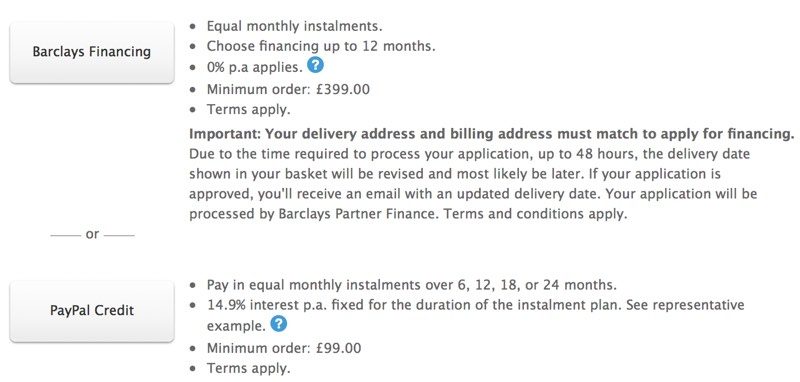
To use the Barclays financing option, customers in the UK must make a purchase over £399. There is no interest for the first 12 months, with purchases split into reasonable monthly payments. PayPal Credit is available for purchases over £99, but there is no interest free option.
It is not clear why Apple temporarily stopped offering financing in the United Kingdom, but full financing is now available once again. The company made the same change to financing in Canada in June of 2017, but has not yet reimplemented the financing options in that country.
Tags: United Kingdom, Apple retail, financing
Discuss this article in our forums
Grab a 4K LG Ultrafine IPS monitor for just $350 with limited-time deal
While 4K monitors may be cheaper today than they’ve ever been, they’re still normally not this cheap. At just $350, the certified refurbished UltraFine 4K monitor is one of the most affordable out there, and with a USB-C port, it makes it a great option for those wanting additional detail for a MacBook.
Typically when buying some of the best 4K monitors, you need to spend upward of $400, or even $500 to get something good. That’s not the case with this new Amazon deal, where the $450 price tag of the LG Ultrafine 4K has been reduced significantly. Unfortunately, we’re coming to this deal a little late, as there were a handful of refurbished monitors going at $200 earlier on, but $350 is still a great price for this ultra-high-definition display.
It is important to highlight, however, that this is a refurbished model, which means that it’s not brand new. As a certified refurbishment though, it is sold with a 90-day manufacturer warranty, so if there are any immediate problems, you can get your money back or a replacement model.
With that caveat out of the way though, the LG Ultrafine is an intriguing 4K display, in that it’s not the typical 4K resolution of 3840 x 2160, nor the projectionist 4K that’s sometimes touted — 4096 × 2160. The LG display is instead 4096 x 2305, which gives it a pixel density of 219 per inch.
That’s on the high-end of most 4K displays, but that’s because this is actually a relatively small monitor by modern standards, at just 21.5 inches diagonally. That’s not to say it’s antiquated. Alongside its impressive resolution, this Ultrafine display also sports a USB-C port, which makes it capable of acting as an external monitor for modern MacBooks, as KnowTechnie highlights. Its bigger brother, the Ultrafine 5K was listed as one of our favorite monitors for MacBooks in our guide, so it’s in good company.
Other notable features of this display include its impressive brightness of 500cd/m², a versatile display stand that can be adjusted to give you the best viewing angle and height for your everyday use, and good color support with 99 percent of the DCI-P3 gamut supported.
Buy it
Editors’ Recommendations
- The best 4K monitors
- The beefy Denon AVR-X4300H 9.2-channel AV receiver is now $499 off on Amazon
- Time to upgrade! Here are the best 4K TV deals for May 2018
- The top 10 budget-friendly GoPro alternatives that won’t leave you broke
- Everything You Need to Know About Ultra HD 4K TVs
Best Smart Light Switches That Don’t Require A Neutral Wire

No neutral wire in your switch box? We have you covered.
Smart light bulbs are awesome, but they aren’t always an option. That’s when you look to the next link in the chain and consider a smart switch. You can control everything on the switched circuit at once, and most are even dimmable with the right lamps. Connecting them is also fairly easy, too — just shut the power down and move the wires from one switch to the other. Unless your switch box doesn’t have a neutral wire.
A lot of switch boxes won’t have a neutral wire because of how the wiring inside the walls was done. A switch doesn’t need a neutral wire — it simply breaks the connection on the line that supplies power to a light or whatever else it controls. But most smart switches, like the ones from Wemo or GE, do require a neutral wire. This is because they need to be powered on all of the time for the Bluetooth or Wi-Fi radio to operate. This can be a problem if you want to build out a smart lighting system.
Never think you know what a wire’s function is based on its color! It’s common for a switch box without a neutral wire to use a white and black wire as the switched “hot” lead because house wire comes in a roll with a black, white, and bare copper lead encased in its shell. In this case, the white wire could have current and should be treated as such. Contact a licensed electrician if you have any doubts about what you see or are uncertain of anything.
If you’re faced with this issue there are several things you can do.
- Bite the bullet and use smart lamps instead of a smart switch. Smart bulbs can be expensive if you need to outfit some lighting fixtures, especially if they use a non-standard base for the individual sockets. But having an electrician rewire the circuit is expensive, too.
- Make sure there isn’t a neutral wire in the switch box. If you see other wires connected by a wire nut in the back of the junction box, there’s a good chance one of them is a neutral circuit. If this is the case, an electrician can tell you if you can tap into it and supply power to a smart switch. Don’t go poking in there unless you know what you’re doing, though!
- Contact an electrician to rewire the switch.
None of those solutions are great, but as of April 2018 all Z-Wave switches require a neutral wire to operate. If you find an older model that works without one, it’s not going to be compatible with any newer parts — and there are a lot of older models still floating around shopping websites and home improvement stores. Thankfully, there are two other solid options.
Lutron Caseta dimmable switches

Lutron makes a complete smart lighting system that will work without a neutral wire. The switches are rated for 150 watts of LED or 600 watts of incandescent/halogen lamps and are fully dimmable.
Each switch comes with its own remote, but you can also use a Lutron bridge to add them to an existing Wink network or control them from your phone with the Lutron app or Google Assistant, an Amazon Echo, Google Home, or through HomeKit. They also come with a designer Claro wall plate and are ready to go out of the box.
Lutron’s smart switches are very highly rated and are high-quality electrical components. You might already have Lutron “dumb” switches in your house. The only drawback to using them is the price. A Caseta starter kit including one switch, one remote, and a Lutron Smart Bridge runs between $90 and $100, and an individual switch with a remote will set you back about $50. You can connect up to 50 Lutron devices to the bridge so you’ll probably only need one. There’s even a starter kit if you don’t know where to… start.
All in all, these are great switches from a company that’s been making electrical since the 1950s and well worth the initial price. They’re also the best option that doesn’t involve calling an electrician for most of us.
See at Amazon
Ecolink Automated Switch Module

Ecolink makes a much cheaper but less elegant option called an Automated Switch Module. It’s a cover that attaches to your existing switch and is controlled via a Z-Wave smart hub like the one from SmartThings. When activated, it physically moves the switch from one position to the other. That’s pretty genius.
It’s also not especially attractive and mechanically moving parts tend to stop moving eventually. But still, this is a novel approach to a difficult problem. We love those! An Ecolink Automated Switch Module costs about $40 and you can still use the switch by hand.
See at Amazon
What’s your solution?
How do you fix smart home issues? Stubbornly? Let us know in the comments!
How to watch the Royal Wedding online

You don’t have to look any farther than YouTube.

Prince Harry and Meghan Markle will wed at 11 a.m. BST on May 19. That’s somewhere in the neighborhood of 6 a.m. on the east coast of the U.S., and 3 a.m. out west.
And we’re told that a few people are interested in the royal ceremonies. And hats. Something to do with hats.
The question, then, is what’s the easiest way to watch — especially in 2018, when a good number of us have gotten rid of cable TV and have moved to streaming. The answer is simple and complex at the same time. For there is more than one way in which one can watch a Royal be wed.
Watch the Royal Wedding on YouTube
See that video up top there? (Or, erm, here.) That’s the easiest way to watch Harry and Meghan get married. For every single streaming platform and every single mobile device has quick access to YouTube. (Or you could just park yourself on this page until the show starts, which is fine by us.)
Why watch this way? For one, YouTube has some real experience when it comes to streaming live events. It also has more bandwidth than just about anyone on the planet (we’re just guessing here, Mr. Bezos), so things should hold up just fine.
Plus, YouTube doesn’t require you to sign up for anything. OK, it’ll push you for a Google account, but even that’s optional.
Watch the Royal Wedding on an over-the-air antenna
Every broadcast network on Planet Earth is all over this thing. Or at least it seems that way. And if you’ve been looking for an excuse to rig up a decent over-the-air antenna, now’s a fine time to do so.
So, first: Find an antenna. We’ve got a great list of the best ones right here. Then you either plug it straight into your TV, or do something much better (and way more nerdy), like plugging it into a HDHomerun or Tablo box. That’ll let you spit the Royal Wedding goodness onto pretty much any connected device in your home, including phones and tablets, set-top boxes — and even just a plain ol’ web browser.
Or watch on a streaming service
Look, the streaming services aren’t ignoring this thing, either. And when it comes to finding a channel that it’s going to be on — say, BBC News, or E!, or Fox News, or whatever — all of the major streaming services will have something showing the royal couple getting hitched.
The question then is which service you should start with. We’ve got a great guide for that . Or if you just want to see which service has which channels, we’ve got a great grid for that.
The point is, there’s absolutely no excuse for not showing up at o-dark-thirty to see if Harry’s shaved his beard. You’ve got options.
Introducing CordCutters.com
- The hardware you need
- All about streaming services
- What channels are on which service
- FREE over-the-air TV
- How to watch sports
- Join the discussion
Get the latest deals

