


Best Sony Xperia XZ2 Cases
Keep that shiny glass back looking fresh and new for months to come.

Sony’s Xperia XZ2 is a pretty-looking phone, but it’s also big and has a curved piece of glass on the back that you’d hate to scratch or break. If you’re tough on your phones, you’ll want to consider a case for your Xperia XZ2 — if not for every day, then at least for those times when you expect the phone will get roughed up.
Here are the best cases we’ve found for the Sony Xperia XZ2. We’ll be updating this article as more awesome options become available.
- Spigen Rugged Armor
- Avidet Crystal Clear
- Nillkin Ultra Slim
- Sony Style Cover Stand
Spigen Rugged Armor

Spigen’s Rugged Armor series is available for just about every phone and is a known quantity at this point.
The faux carbon fiber style may be a little polarizing, but you can’t argue with the quality of the build of these cases or the thickness that will save your phone from unfortunate bumps and drops. There’s a good amount of shock absorption around the sides, and plenty of thickness to keep that back glass safe.
You’ll pay just $11 for the case, which is a great value for a big name brand.
See at Amazon
Avidet Crystal Clear

Sony makes some beautiful phones and offers the Xperia XZ2 in standout colors, so why cover it up with a big solid case? If you want to continue to show off the style of your phone while you protect it, check out this inexpensive clear case from Avidet.
This is a typical clear TPU case that’s flexible but rigid enough to stay put on the frame. There’s a subtle texture to the back to hold onto your phone and also give your hand grip on the back. This isn’t going to give you great drop protection, but it’ll keep the phone from getting scratched and offers a good balance between protection and preservation of the design.
For less than $8, it’s tough to go wrong here. Even if you may get a nicer case down the road, this is a good one to pick up for cheap and use in the meantime.
See at Amazon
Nillkin Ultra Slim

For a nice middle-ground, check out the Nillkin Ultra Slim case. It’s a typical hard-shelled case, meaning it holds onto the phone better than the more flexible TPU-style cases because it can snap around the sides and corners. Because of that rigidity, it can be very thin — this case won’t add much bulk to the already hefty Xperia XZ2.
For an added bonus, there are well-sized cutouts for all of the buttons, and both the top and bottom are left exposed so there won’t be any blockages for microphones or ports. There’s a nice texture on the back for added grip, and you can get it in black, tan or red.
Prices for the three colors top out at just $9. What a deal.
See at Amazon
Sony Style Cover Stand

Sony’s own Style Cover Stand offers both great protection and extra functionality if you want to sit down and watch long videos on your phone. The flip-cover style case wraps around and covers the entire front of the phone, with a cutout for the earpiece for phone calls, so whether you toss it on a table or stuff it in a bag the screen will stay scratch-free.
But when you fold it back, it makes a sturdy triangle stand so you can prop up your Xperia XZ2 and watch a TV show or some YouTube videos when you have downtime. A lightly textured exterior means the case is easy to grip in your hand and also won’t slide off a table.
Considering this is an official Sony product it’ll set you back far more than the rest of this list — it retails for $40.
See at Amazon
These are all the Moto phones Motorola is releasing in 2018

2018 is shaping up to be a big year for Motorola.
Ever since its acquisition by Lenovo, Motorola’s turned into a company that’s not shy about releasing a lot of different phones each year. This allows for a lot of choices, but it can also make trying to pick the perfect phone a bit headache-inducing. No matter your opinion on Motorola’s release cycle, however, there’s no denying that 2018 is already shaping up to be an exciting year for the company.
We’ve seen a ton of leaks, rumors, renders and more for Motorola’s lineup of phones for 2018 ever since the beginning of the year, and this is everything we know so far.
The phones that are still on their way
Motorola One Power

The wildcard on this list easily goes to the Motorola One Power. We didn’t have any idea such a phone existed until late May, and based on what we know so far, it looks quite a bit different from the rest of Motorola’s 2018 handsets.
First off, the overall design language isn’t anything like the rest of this year’s Moto phones. There’s a giant notch at the top of the screen, vertical dual cameras on the back, and what appears to be a metal unibody.
Android One branding suggests that this phone will be among the first Motorola phones to get software updates and new security patches, and the full-on “Motorola” branding is unique from the short-hand “Moto” tag on the rest of the company’s products.

Shortly after the phone broke cover for the first time, even more press renders and a hands-on photo surfaced along with alleged specs. According to Andri Yatim on Twitter, the One Power will come equipped with the Snapdragon 636 processor, 6GB RAM, 64GB of storage, a large 3,780 mAh battery, and NFC for Google Pay support.
As for the camera situation, the two sensors on the back include a primary 16MP shooter with f/1.5 aperture and a seondary 5MP f/1.9 one. As for the front-facing camera, its 16MP with f/1.9.
Moto Z3
Next, let’s talk about Motorola’s highest-end and most premium phone for 2018 – the Moto Z3.

Just like last year, we’re expecting Motorola to release two entries in its Z-series in 2018. The regular Moto Z3 will be the most powerful of the two, and it’s expected to come with a 6-inch FHD+ display. Like we saw through a lot of 2017, bezels surrounding the screen should be cut down considerably. The Z3 is said to have the slimmest bezels of the two, but the Z3 Play still looks a lot more modern when compared to the Z2 Play.
Along with showing off the phone itself, the image of the Z3 also reveals a new Moto Mod. It may not look like anything at first glance, but the “5G” branding near the bottom suggests that this Mod will allow the Z3 to get 5G data speeds. Furthermore, the monthly data allotment page is taken right from the Project Fi app and could be a hint that more Moto phones will find their way to Google’s MVNO.
Moto X5
If you’re not about the Moto Mod life but still want a quality phone from Motorola, the X series has proven to be the way to go. Our first look at the Moto X5 shows a very similar design compared to the X4, but there are a couple key differences.

Just like the Z3/Z3 Play, we’re looking at a tall display with slim bezels on all sides. However, unlike those two phones, the X5 appears to have a notch near the top just like another phone with an X in its name. This is one trend I was really hoping wouldn’t catch on, but if it has to make its way into one Moto phone, so be it.
The screen on the X5 is said to measure in at 5.9-inches with a FHD+ resolution, there are dual cameras on the front and back, and there’s also mention of “Moto’s Smart AI.”
Unfortunately, it’s possible none of this will mean anything. A report surfaced in early March suggesting that Motorola had canceled the Moto X5, meaning it won’t be released at all. As a big fan of the X4, this would be incredibly disappointing if it turns out to be true.
The phones that have been released
Moto Z3 Play

Following up last year’s Moto Z2 Play, Motorola’s released the Moto Z3 Play. The overall design is mostly the same due to the phone supporting all existing Moto Mods, but the bezels surrounding the 6.01-inch 2160 x 1080 AMOLED screen are considerably smaller.
Inside the Z3 Play is the Snapdragon 636 processor, 4GB RAM, 32 or 64GB of storage, and a 3,000 mAh battery.
Motorola’s introducing dual cameras to the Z Play line this year, with the Z3 Play featuring a 12MP + 5MP sensors. The front-facing camera captures pictures at 8MP, a fingerprint sensor can be found on the right below the volume buttons, and Motorola’s has a new on-screen gesture system not unlike what Google’s messing with in Android P.
Despite all these improvements, the Moto Z3 Play will be faced with a lot of stiff competition — especially with a starting price of $499 in the U.S.
Moto Z3 Play hands-on preview: Three’s company
Moto G6/G6 Plus/G6 Play

Motorola’s Moto G series has been its most popular (and profitable) since the very first Moto G that came out in 2013, and this year’s entries have proven to be some of the best so far.
For 2018, Motorola released three G phones — the Moto G6, G6 Play, and G6 Plus. The Play is the most affordable of the bunch, with the G6 Plus being the flagship entry and the regular G6 finding home in between the two.
While the G6 Play is made out of a shiny plastic, the G6 and G6 Plus both have glass bodies that look and feel much nicer than their asking prices. Add that together with dual cameras, 18:9 screens, and Snapdragon processors, and there’s a lot to like here.
Moto G6, G6 Play, and G6 Plus: Everything you need to know!
Moto E5/E5 Plus/E5 Play

Similar to the G series, Motorola released three entries in its E5 series this year in the forms of the Moto E5, Moto E5 Plus, and Moto E5 Play.
The E5 Play is the cheapest phone in Motorola’s 2018 portfolio, touting a plastic body, 16:9 display, removable battery, and pretty low specs.
The E5 and E5 Plus still won’t blow your socks off, but they’re a bit more modern with glass designs, big, 18:9 screens, and respectable specs across the board. Oh, and did we mention the E5 Plus has a gigantic 5,000 mAh battery? 😳
If this year’s G6 phones are too rich for your blood, the E5 models are absolutely worth a look.
Moto E5, E5 Plus and E5 Play: Everything you need to know!
Updated June 6, 2018: Added new details about the Moto Z3 Play now that it’s been announced.
6 reasons I’m excited for the BlackBerry KEY2

The BlackBerry KEY2 should give me everything I love about the KEYone and more; and it’ll be here before you know it!
I’ve always had an on-again off-again relationship with BlackBerry phones. When I heard the company was going to partner with Google and use Android as the basis for its new phone operating system I was pretty excited and I think i was one of the few people out there who really liked the Priv, despite all its shortcomings. As things often do, it got a little weird when BlackBerry decided to stop making hardware and instead focus on the software side, but the KEYone came and erased any doubts I may have had there.
A handful of reviewers got a KEYone early, and I’ve been using it ever since. I like Google’s Pixel and sometimes get phone envy (I have no idea why, but I want that Republic of Gamers phone from ASUS) but the KEYone really jibes with me and I really have no desire to stop using it. Or didn’t, until I heard about the KEY2 anyways.
Having seen all the leaks and heard all the rumors, there are a couple things that I’m really looking forward to about the KEY2 and am ready for one to find its way into my hands.
More: Why I’m still using a BlackBerry KEYone in Spring 2018
It’s still wide and notchless


Phone makers have turned to tall and skinny phones to both have a bigger number on the screen size section of a specs list and to save money, and phones with longer and more narrow aspect ratios have become the norm. I see the benefit for users here — a narrow phone is easier to reach across with your thumb. But that benefit is also a detriment if you didn’t need things to be more narrow to reach across and hit that “M” key on the keyboard. It means more of my hand is in constant contact with the edges of the phone’s display and even with really good palm rejection, I face false touches when trying to use a phone like the Galaxy S9.
Companies that make phones should build them to favor the majority of users. I get that. But it’s also really nice to know that there will be at least one phone in 2018 that won’t be narrow and more difficult for me to use.
It’s also nice that there won’t be a notch in the display just to have a notch because oftentimes app developers can’t be counted on to do the right thing. Google is almost certainly building a notch into at least one of its next Pixel phones and we already know that Android P has new tools that help manage a notched display. I expect that we’ll see broad software support for them in full screen apps somewhere around 2024 (the Motorola XOOM was going to get every developer to build app layouts for tablets, remember?) at the earliest. I’m good until then.
All day+ battery

One of the greatest things about the KEYone is its battery life. It’s possible to stretch most modern phones to multi-day battery life if you pay attention to how you use them or enable any smart battery tools, but for the KEYone it just works. And works.
I probably don’t use my phone the same way a lot of folks do, but it is always on, always syncing, and always gets charged every two days. I can stretch it to every third day if I try, but I’ll admit it’s a stretch. And while charging your phone every night isn’t a big deal, it’s nice to have that extra battery power when you need something like turn-by-turn directions in the middle of the day and can’t be near an outlet until late in the day.
I expect the KEY2 to have newer silicon inside which should mean even better power management. I don’t need better battery life than the KEYone gives me, but it’s great knowing I probably won’t have to go back to carrying around a battery pack.
Shortcuts

Not just that extra convenience key on the side we see in the latest leak, either. BlackBerry’s software and physical keys mean I can have 52 different different shortcuts to apps, contacts, directions, web pages and more at the ready at all times.
There are a few things I do a lot with my phone. Things like pop open my family’s shared grocery list, or send a message to my wife advising her about something that may have happened, wasn’t really my fault, and to not be mad at me OK? Love you so much honey. You get used to this sort of thing and anytime I am using a different phone I instinctively reach into my pocket ready to long press T as I pull out my phone to send a message.
I don’t want to stop getting used to it because this is the sort of feature I find useful and the kind that makes a phone worth buying. These keyboard shortcuts are as important to me (and others) as a good camera might be to someone else and I’m positive that they won;t be going away with the KEY2.
More: How to set up keyboard shortcuts on the BlackBerry KEYone
Better specs
I don’t chase specs on a phone. Because I do like to chase specs on a desktop PC (and watch money disappear like magic), I understand those who do and why, but I never got bitten by the bug when it comes to mobile. But I’d by lying if I said I wasn’t excited about the KEY2 having better specs.
The KEYone can get laggy. No more than most any other phone and not very often, but if you have it doing many things at once — especially if you’re using the BlackBerry Hub software — you’ll see it stutter from time to time. I’m hoping that further refinement to the software paired with a stronger CPU and 3 (or 4?) GB of RAM standard will mean those times are fewer and further between.
I have no idea what better specs on the KEY2 really mean when it comes to usability because numbers never tell the story. But I’m looking forward to finding out.
A secure work and play phone

First things first — I really prefer the open source way Google does security on the Pixel phones. I like peer review and wide-open bug bounty programs, and think that open-source software is always the best way to go when a security flaw is found. But a Pixel isn’t going to give me any of these other features listed here and BlackBerry takes mobile and IoT security just as seriously as Google does.
On an unlocked model, you can expect to see a security patch every month that one is needed on a BlackBerry. It’s important to realize that it’s not always needed because BlackBerry also adds in their own low-level security features that have mitigated an exploit before it happens to “standard” Android. Samsung can do something similar with Knox, and has done so in the past. I can still wish the code was available for others to review, but I’ll also know that BlackBerry can’t afford not to be on top of any security issue because that’s the company’s entire mobile draw.
I do need to say that as someone who is security-conscious it does bother me that BlackBerry has handed encryption keys to governments when ordered by a court to do so. Then again I never really expected the BlackBerry board to give a stiff middle finger to a court order so I’m not surprised.
The KEYboard

Finally, the biggest thing I’m excited about is another year with an awesome keyboard to use. When it comes right down to it, the keyboard is why i was interested in the KEYone to begin with.
A mobile with a keyboard means cramped typing on tiny keys. I won’t try to claim anything different or say that it’s as good as something like a Chromebook. But physical keys give real feedback and that means you can train yourself to use them just like you can any other keyboard.
I can literally type a message without ever once looking at the phone, and nine times out of ten any typos are corrected on the fly. I type better (when it comes to spelling) on my KEYone than I do on my desktop, thanks to autocorrect. You can’t do this nearly as well with a touchscreen keyboard. At least I can’t.
I’m also a fan of the capacitive strip between the keys and the screen, because it’s a great place for text correction or special characters to live. I know that’s not a very popular opinion, but I tend to favor function over form that way.
I know I’m not the only person looking forward to the KEY2 (sorry, Russell, it’s KEY2 — silly capitalization and all) when it launches. And that should be very soon, which is awesome for all of us.
Take a minute in the comments and let me know why you’re looking forward to it, and what you hope to see.
BlackBerry KEYone
- BlackBerry KEYone review
- KEYone vs. Priv: Battle of the BlackBerry keyboards
- BlackBerry KEYone specs
- The latest KEYone news
- Join the discussion in the forums
Amazon
Best Buy
BlackBerry Mobile
The Oculus Go is down to just $159 at eBay

Using the coupon code PICKDADSGIFT at eBay you can pick up the all-new Oculus Go for just $159.20. This beats previous deals by $10. The standalone headset normally sells for $200, but this limited time eBay sale offers you a way to pick one up for a little less. This 32GB gadget is designed to sit between a Gear VR headset and the Oculus Rift, giving you an awesome experience without the need to dock your phone or strap to a computer.
This listing is via Newegg’s official eBay storefront, so you don’t have to worry about it being a sketchy retailer that you are buying from. Getting the Oculus Go set up can be a bit tricky, but we have a great guide to get you started.
YouTube Music vs. Google Play Music: Which should you use?

You pay for one, you get both, but which one should you actually use right now?
When we compare music services, we’re usually trying to help you figure out which one you should give your money to. After all, it’s somewhat rare for a company to offer two completely different music services with completely different feature sets and catalogs, but Google has always been somewhat rare when it comes to music.
If you pay for Google Play Music, you get a Premium subscription to YouTube Music with YouTube Red. If you pay for YouTube Red, you get a premium subscription to Google Play Music. Because you get both of these services when you subscribe to one, this comparison is going to be a little bit different.
Google also keeps slipping out details of plans for YouTube Music eventually replacing Google Play Music, and while that is a long, long ways off, it is definitely something to keep in mind as you consider both platforms and which one it worth your time right now.
Old-school versus bleeding edge

It’s old, but it’s familiar and predictable.
Google Play Music has been around since 2011, and its last big overhaul was five years ago, at Google I/O 2013, when it announced All Access, the name of their streaming subscription, and a complete app overhaul. As you can imagine, an app that hasn’t seen any real UI changes in five years feels long in the tooth, but at the very least, everyone knows where everything is and we’re all very familiar with Google Play Music’s bugs and quirks.
YouTube Music has technically been around since 2015, but the app received a major overhaul with the announcement of YouTube Premium, YouTube Music Premium, and “a new music streaming service” YouTube Music. The app’s UI was almost completely redone, especially in how albums and songs from labels were presented. While stations reigned supreme in the old YouTube Music, Playlists have taken over the Home tab and many of its recommendations.

YouTube Music is “brand new” and currently in “Early Access”, which is a very nice of way of saying it’s still a beta. It’s really buggy and there are a lot of basic things like library management and audio quality settings that are currently sub-par or outright missing in YouTube Music.
Read more: YouTube Music review: a mixtape full of promise
Google Play Music is the beat-up, old pickup that needed body work three years ago and YouTube Music is a kit car that is going to be really cool and unique once Google finishes building. It’s got four wheels, a chassis, and a motor, but the gear-shift is sticking out of a hole in the floor and it needs lights and doors before it’s ready to drive on more than a driveway.
Pasty, white, and bloated versus Tall, dark, and basic
YouTube Music has much of the UI I’ve wished Google Play Music would bring us after five years of orange/white Material Design 1.0 and hamburger menus. YouTube Music’s app is wonderfully dark — the same dark theme I’ve begged YouTube and Google Play Music to get for years — and it uses the same bottom tab format that YouTube, Spotify, and many, many apps have switched to in the age of the extra-tall smartphone display.

Google Play Music has felt bloated for years, with a hamburger drawer stuffed full of menus and features, but at least it has features. YouTube Music is rather lacking in that department right now. YouTube’s algorithm-based Your Mixtape beats the pants off Google Play Music’s I’m Feeling Lucky — wow, that name is a throwback — but otherwise, Play Music has everything YouTube Music needs:
- Robust library management (especially on desktop)
- Proper queue management and queue saving
- Larger official, label-based catalog
- Music locker for filling gaps in the available catalog
- Gapless playback
- Genre browsing
- Station/radio browsing
- Top charts by album, song, and genre
- New releases by album, genre
- Android Auto support
- Wear OS support
YouTube Music has three tabs on its app: Home, Hotlist, and Library, and Hotlist is for the most part useless, since it shows trending and popular music videos and only music videos. A “New releases” carousel can appear for users in the Home tab, but it shows less than a dozen albums and the albums shown are based on what YouTube thinks you like.

Also, say what you will about casting personal music or lengthy tracks from Google Play Music — and I can say plenty — but at least when you cast from Google Play Music it doesn’t rearrange your play order or disable shuffle and repeat. Chromecast audio is also reserved for YouTube Music Premium users only, which is just weird for a music service, even if it is built around video.
The biggest collection of music videos on the planet versus the golden key
We asked YouTube Music about the size of its music catalog and some of the gaps users have been finding in the official album/songs it offers compared to their predecessor, such as all Beatles albums and most Disney Records albums from the last two years. Their response sums the selection differences up quite nicely:
YouTube Music has a different, and significantly larger catalog, than Google Play Music, including a vast catalog of remixes, live performances, covers and music videos that you can’t find anywhere else. That being said, we don’t share specific track counts. Regarding the catalog gaps you mention, we have a team that is constantly seeking out catalog additions and omissions.
They’re right about having content you won’t find anywhere else. YouTube is the most-used video platform in the world, and as such is a treasure trove of remixes, mashups, and covers. YouTube is also one of the easiest places to find illegal music, so if you can’t find an album you like in the Albums search results, start digging in the video results and you’ll usually find it.
 If I can’t fly to Japan and buy the CD, at least I can listen to it on YouTube.
YouTube Music has a larger total selection of music, and Google Play Music has a larger selection of official albums and singles, but in the rare instance that you can’t find a piece of music on either platform, that’s when Google Play Music’s premiere feature comes in: its music locker.
Google Play Music offers a free, 50,000-song personal music locker, letting you upload songs from your private collection to listen to anywhere you stream Play Music. The songs can be as long as you want — I have two-hour concerts uploaded as a single song — so long as each one is under 300MB in size, though you have to upload them from a computer rather than directly from your Android phone.

Google Play Music’s music locker was their original feature, and remains one of their best assets. Now that Amazon Music has pulled their music locker function, Play Music is the only service left that will lets you mix uploaded and subscription music on all devices and platforms. For someone who has a collection of music that can’t be found on any legal platform — except maybe YouTube — Google Play Music was the only music streaming choice for me.
This is why the news that Google Play Music’s locker feature migrating to YouTube Music fills me with such hope. YouTube is already the biggest collection of music content in the world — legal and not-so-much — and with a personal locker, there will literally be nothing that you can’t listen to there. If you can’t find it, you can add it yourself.
Good artists copy; great artists steal
Google Play Music’s long-term future is unclear, but its short-term future is assured by YouTube Music’s current, half-finished state and very limited availability. YouTube Music might replace Google Play Music one day, but only after it has achieved feature parity, stability, and wide availability. YouTube Music is currently an “Early Access” beta that’s available in five countries — Australia, South Korea, New Zealand, Mexico, and the United States — and has more bugs than a Texas garden.

Google Play Music may be old, and it may be a little bit boring, but you can depend on it for a while longer, and when it comes time for it to finally fade into the sunset, your library will migrate to YouTube Music, which will have to have taken on most if not all of Google Play Music features. So I’m playing with YouTube Music because it’s new, shiny, and comes with my Google Play Music subscription, but Google Play Music is the music I come back to every morning when I wake up and every night when I wind down. Google Play Music still has my music locker and it has my back; I can trust it to behave the same way it has for the last six years that I’ve used it.
Everything you need to know about Google Play Music
Sign up for Google Play Music ($9.99/month individual, $14.99/month family)
Sonos Beam is a smart TV soundbar launching July 17 for $399
Pre-orders are available now!
During an event in San Francisco on June 6, Sonos announced a new product called the Sonos Beam. Sonos Beam doubles as both a smart speaker and soundbar for your TV, and it’s packing a lot of features for its $399 asking price.

First off, the Beam takes up much less space than Sonos’ last soundbar, measuring in at 60% smaller and 28% shorter than the Playbase.
Sonos Beam connects to your TV using an HDMI cable, and thanks to a technology called “Audio Return Channel” that was added to the HDMI standard in 2009, the Beam instantly picks up all the audio coming from your TV and outputs without any special setup required on your end. Beam doesn’t even come with its own remote because the one you use for your TV will automatically control the Beam’s volume levels and not your TV’s built-in ones.
Another benefit you get with the Beam using HDMI is that it can harness HDMI-CEC so you can turn your television on and off with your voice. Simply say “Alexa, turn the TV off (or on)” and it’ll just work.


Speaking of assistants, Sonos Beam has Alexa built-in by default and will get AirPlay 2/Siri this summer and Google Assistant “when the time is right.”
As for the sound quality, the Beam has four subwoofers, two tweeters in the front, one in the middle, and a total of three passive radiators. In other words, all of your music, movies, and TV shows should sound excellent. Also, since this is a Sonos speaker after all, you can pair the Beam with Sonos’ other speakers to create a true surround-sound setup.
Sonos Beam is available for pre-order now and costs $399. That’s not cheap, but it’s a heck of a lot more affordable than the $699 Playbase. Shipments are expected to go out July 17.
See at Sonos
This is the absolute best deal we’ve seen on the Google Wifi 3-pack
Better speeds everywhere.

If you want to blanket your house with Wi-Fi, the Google Wifi 3-pack is the way to go. Right now, you can grab one for yourself for only $207.19 when you enter coupon code PICKDADSGIFT during checkout. This set normally sells for between $260 and $300 and has only dropped this low before during other eBay deals similar to today’s 20% off sale. Setting it up is a breeze, and the added controls over individual devices on your network brings you a peace of mind that other systems just can’t match.
You can add onto that system with a single Google Wifi for $91.19 using the same code above (if you buy both at the same time).
A nice way to integrate Google Wifi into your home is by mounting them, as they look as nondescript as a smoke alarm. You can get a three-pack of mounts from Amazon for only $24 right now.
Not interested in a Google Wifi 3-pack? eBay is offering 20% off any single item over $50 when you use the coupon PICKDADSGIFT today only.
See at eBay
Google releases Android P Developer Preview 3
Factory images and OTA files are available now.
It’s been a little less than a month since Google launched Android P’s Developer Preview 2, and right on schedule, the company’s now pushing out Developer Preview 3.

Both the factory images and OTA files for DP3 were recently added to the Android Developer website, and one of the highlights for this update includes the ability for developers to publish apps to Google Play’s alpha and beta channels as they continue to test their software with Android P.
As for user-facing changes, don’t expect as big of a difference compared to what saw from Developer Preview 1 to Developer Preview 2. There will likely be some performance enhancements and general bug fixes, but most of the features introduced with the last version should stay the same.
You can manually load Developer Preview 3 onto your device right now, and if you’re enrolled in the Android Beta Program, an over-the-air update should be made available soon.
Android P Beta hands-on: The best and worst features
Android P
- Android P: Everything you need to know
- Android P Beta hands-on: The best and worst features
- All the big Android announcements from Google I/O 2018
- Will my phone get Android P?
- How to manually update your Pixel to Android P
- Join the Discussion
How to install Android P on your Pixel right now (or roll back to Oreo)
Get the Android P Developer Preview on your phone right away.

The Android P beta is here, and its first proper update brings it up to Developer Preview 3.
The main way to load the Android P preview is to enrol in the Android Beta Program, which makes it super easy to opt in and out of the program. If you’re more hardcore, or want to manually flash the Android P developer preview, we have those instructions, too.
- The easy way
- The harder way
The easy way — Android Beta Program
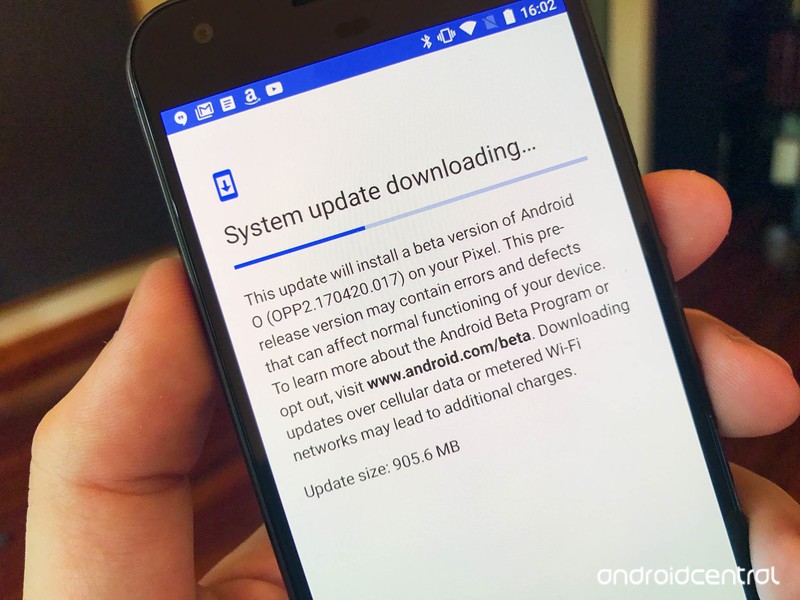
If you don’t want to mess with unlocking your bootloader or the command line, you will get an update to the Android P if you’re part of the Android Beta program. That means that if you have one of the eligible devices, you can simply visit the Android Beta portal and opt-in to the beta, which will then prompt Google to send your phone or tablet an over-the-air update.
Head to Android Beta program portal on your Pixel phone.
Sign into the Google account associated with that phone.
Scroll down to Your eligible devices.
Find the device you want to enrol in the Beta program and tap Opt in.
Follow the prompts to accept the over-the-air download.
Note: To leave the beta program, simply tap the Opt out button on the Android Beta program page to unenroll. Your phone will receive an over-the-air update to return to the latest stable version of Android, but your phone will be wiped clean upon rebooting, so back up your stuff.
Which devices are eligible for the Android beta program?
The preview is supported on the following phones and tablets:
- Pixel 2
- Pixel 2 XL
- Pixel
- Pixel XL
The following phones will also soon be eligible to download the Android P beta:
- Nokia 7 Plus
- OnePlus 6
- Xiaomi Mi Mix 2S
- Essential PH‑1
- Sony Xperia XZ2
- OPPO R15 Pro
- Vivo X21
The harder way — Flashing through bootloader
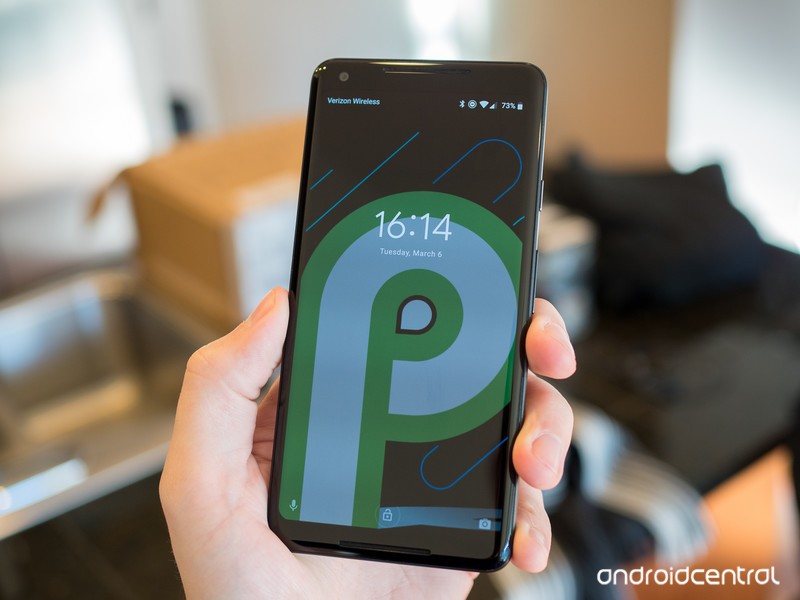
Before we go through the steps of sideloading Android updates, it is strongly recommended that you have previous knowledge of working with the Android SDK (software development kit) and the Terminal (OS X or Linux) or Command Prompt (Windows), as it is possible to harm your device if something were to go wrong in the following process.
If you need to download the Android SDK you can grab it from the Android Development website and follow their instructions on how to install it correctly. For the following process, all you will need is the adb and fastboot files which are located in the Platform Tools folder, so make sure to read the description at the dev site and grab the right download.
Additionally, all the following commands are written as they would be in Terminal on a Linux or OS X platform. If you are following this guide and using a Windows machine, you will not need to use the “./” seen in the guide. Just type the rest of the command line by line in the order they are listed and you’ll be good.
Enable developer settings and USB debugging
Go to your Settings and scroll down to About Phone/Tablet.
Tap on the Build number seven times until the dialog box says you are now a developer.
Go back to the Settings menu and you should find a new option called Developer options. Tap into the Developer options.
Make sure that the developer options are turned on and that USB debugging is checked on.
Plug your device into your computer and tap “OK” on the dialog box asking you to Allow USB debugging while connected to the computer. You can also select to always allow access on that computer.
If done correctly, this will be everything you will need to do on your phone or tablet for the moment.
Unlocking your bootloader
Pixel phones bought from Google directly have a bootloader you can unlock. If you want to manually flash software, you’ll need to do this.
To do this you must first boot into your bootloader. You can either manually turn off your phone or tablet and hold down the power button and the volume down button to enter your device’s Bootloader Menu or you can enter the following commands into your terminal or command prompt.
Run the following command to make sure your device is properly connected to your computer. If it returns a string of characters it means that you are all set to start updating your device.
./adb devices
Now to enter into the Bootloader menu just run the following command.
./adb reboot bootloader
At the bottom of the screen, there will be several things listed including the lock state of the device. This should say locked unless you have unlocked your bootloader in the past and never went back and locked it again.
To unlock your bootloader, which is required only when flashing a stock firmware image (not sideloading an update), you must enter the following commands. Remember that when unlocking your phone’s bootloader it will factory reset your device, so you will lose everything stored on it. If you have not yet backed up anything important on your device you can hit the power button while Start is highlighted in the Bootloader menu and this will boot you back into your device like normal. Now back to unlocking your bootloader.
Now type:
./fastboot flashing unlock
A dialog will appear on the device asking if you are sure about unlocking. Again this will factory reset your device, so if you want to back out of the process you just need to select no with the power button. If you are ready to unlock your bootloader you press the volume up button and then the power button to confirm that you wish to unlock your bootloader.
./fastboot reboot-bootloader
It is recommended to reboot the bootloader just to give itself a check to make sure everything is working correctly before moving on to the next step.
Flashing the stock firmware image
Now that your bootloader is unlocked, it’s time to flash the new firmware. To find the images for the developer preview, head on over to the Developer Preview download page, find your device, and download the latest factory image available. It is easiest to then uncompress the file in the Platform Tools folder you downloaded (where the adb and fastboot files are) so that you don’t have to type the path to the different files when flashing the firmware. (Or if you know that you can drag a file into a terminal window to copy the path, just do that.)
To begin, make sure you are still in the bootloader menu on your device and double check that your bootloader is in fact unlocked.
First, make sure that your computer is communicating correctly with your phone or tablet. As long as your device’s serial number comes back as a connected device you are ready to begin updating your device.
./fastboot devices
Now it is time to flash the updated bootloader with the following command.
./fastboot flash bootloader [bootloader file].img
You will not see anything on the screen of your device but there should be a dialog in your terminal or command prompt. When it is done flashing the bootloader you should reboot back into the bootloader to make sure everything is still working correctly.
./fastboot reboot-bootloader
Next, you flash the updated radios. This step is only necessary if you are updating the firmware of a phone or tablet that has cellular radios built into it.
./fastboot flash radio [radio file].img
./fastboot reboot-bootloader
Finally, it’s time to flash the actual system image to your phone or tablet.
Warning: The following line of code will wipe your device. Normally, you can remove the “-w” from the command but when moving to a beta version of Android it’s not guaranteed to work.
./fastboot -w update [image file].zip
When this is done, your phone will restart itself and boot up normally. As this process clears all data from your device, it will take slightly longer for your device to boot up for the first time. Once you have been greeted with the device setup walkthrough process, you know you have successfully flashed a new version of the firmware.
If you do not want to enter the commands manually there are scripts included in the compressed folder containing the system image that will do most but not all of the heavy lifting for you. The flash-all script files will automate the flashing of the bootloader, radios (if needed), and the system image. The problem with this process is that you must first make sure that your phone is in the bootloader menu and its bootloader must be unlocked before starting the script. Of course, if these are not already done the script will fail to run and nothing will happen.
Going back to Oreo
When you’ve had your fun using the Android P Beta, and you’ve figured out that it’s not stable enough to use as a daily driver, it’s time to go back to Oreo. Thankfully the process is simple, and you just learned how to do it! Simply go back through the same steps above, except for two changes: you don’t need to unlock your bootloader again, and you’ll want to download the Oreo factory image from Google instead. Get back to stock, and maybe you’ll check out a future Developer Preview build.
This sounds worse than it is, so don’t worry. But we also understand it can seem like an impossibly difficult thing the first time you’re trying it. That’s OK, we all felt the same way when we first tried it, too. Just take the time to read through everything before you start clicking and tapping things and you’ll do just fine.
If you have any trouble along the way, be sure to hop into the forums and ask for help!
Updated June 6, 2018: Updated this guide to reflect Developer Preview 3 being available.
Android P
- Android P: Everything you need to know
- Android P Beta hands-on: The best and worst features
- All the big Android announcements from Google I/O 2018
- Will my phone get Android P?
- How to manually update your Pixel to Android P
- Join the Discussion
Apple Releases Safari Technology Preview 58 With New Version for macOS Mojave
Apple today released a new update for Safari Technology Preview, the experimental browser Apple first introduced over two years ago in March of 2016. Apple designed the Safari Technology Preview to test features that may be introduced into future release versions of Safari.
Safari Technology Preview release 58 includes the same WebKit revisions that were present in Safari Technology Preview 57, but with Safari and WebKit features that will be coming to Safari 12 when it is released later this year.
Icons in tabs, improved Intelligent Tracking Prevention, and Automatic Strong Password functionality for automatically generating unique, strong passwords when signing up for accounts or changing passwords on websites.
Today’s Safari Technology Preview update is available for both macOS High Sierra and macOS Mojave, the newest version of the Mac operating system that’s currently being beta tested by developers.
The Safari Technology Preview update is available through the Software Update mechanism in the Mac App Store to anyone who has downloaded the browser. Full release notes for the update are available on the Safari Technology Preview website.
Apple’s aim with Safari Technology Preview is to gather feedback from developers and users on its browser development process. Safari Technology Preview can run side-by-side with the existing Safari browser and while designed for developers, it does not require a developer account to download.
Discuss this article in our forums

