


How to Access Controls for USB Restricted Mode in iOS 12
iOS 12 includes a new feature called USB Restricted Mode, which is designed to make your iPhone and iPad immune to certain hacking techniques used by law enforcement and other potentially malicious entities to gain access to an iOS device.
There are some iPhone access methods that use a USB connection, downloading data from your iPhone (or iPad) through the Lightning connector to crack the passcode.
iOS 12 prevents this by disabling data access to the Lightning port if it’s been more than an hour since your iOS device was last unlocked.
This feature is enabled by default, but there are some situations where you might want to turn it off, such as when using CarPlay to drive long distances when you might not be able to unlock your iPhone for a few hours. Here’s how to access the setting:
Open the Settings app.
Choose Touch ID & Passcode or Face ID & Passcode, depending on the device.
Enter your passcode to access the settings. 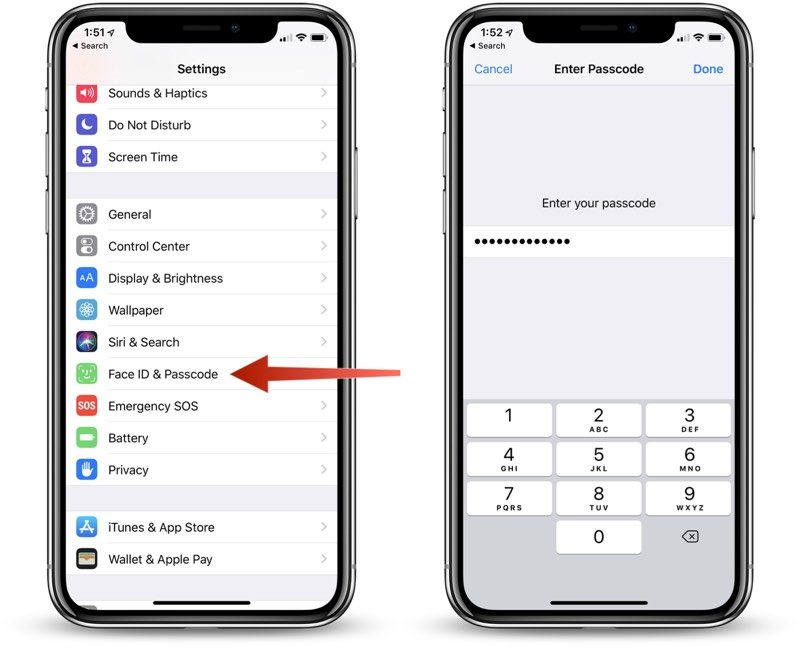
Scroll down to the bottom of the app where it says “USB Accessories.”
Leave it toggled off to disable access to your iOS device if you want it to refuse USB connections if it’s been more than an hour since the iPhone or iPad was unlocked.
Toggle it on if you want USB accessories to be able to connect even if it’s been more than an hour since the iPhone or iPad was unlocked. 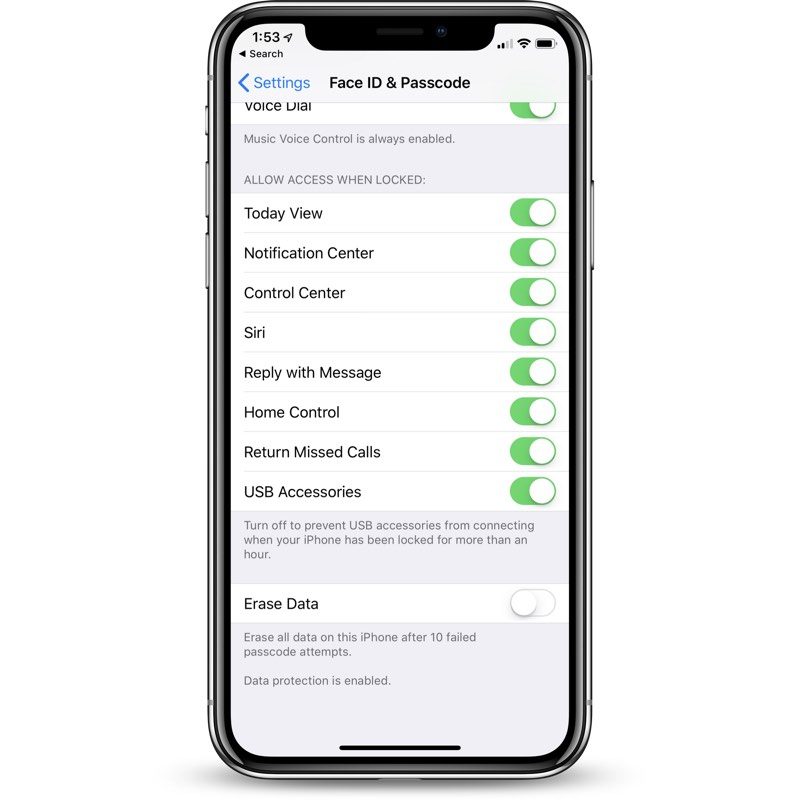 Most people are going to want to leave this toggle in its default off position for extra protection.
In normal usage, most of us unlock our iPhones every hour or two, and if you do need to plug your iPhone or iPad into a computer to access it, you can just enter your passcode to allow data access if it’s been over an hour since the iPhone was last unlocked.
Right now, in the iOS 12 beta, these USB restrictions do appear to shut down access to a wired CarPlay interface after an hour, so that’s one exception where people might want to turn this setting on to disable the restrictions on the USB port. From the iOS 12 beta notes:
“If you use iPod Accessory Protocol (iAP) USB accessories over the Lightning connector (such as CarPlay, assistive devices, charging accessories, or storage carts) or you connect to a Mac or PC you might need to unlock your device to recognize the accessory.”
Note: Even if data access to USB port has been disabled because it’s been over an hour since an iPhone was last unlocked, it continues to be able to charge through a standard Lightning cable because the power connection is not disabled.
Related Roundup: iOS 12
Discuss this article in our forums
Tesla Powerwalls keep Vermonters comfortable and safe during heat wave
As the summer heat wave drags on, nearly 500 Vermont homes with Tesla Powerwall batteries are staying cool, reports VermontBiz. The state’s Green Mountain Power (GMP) electric company stored-solar-power project is paying off for the utility company and its customers.
GMP launched the Powerwall program in 2015. The goal is to install the energy storage devices in 2,000 homes, according to Electrek. Residential Powerwall installations started slowly, with approximately 220 installed by April, GMP told Electrek at the time. GMP also noted in April that the demand for Powerwalls was building, with 1,200 homeowners interested in the heavily subsidized units.
Additional home energy storage examples
Tesla home battery packs in Canada
Tesla home Powerwalls sell out quickly
Tesla announced Home Powerwall energy storage
Normally it costs about $7,000 for a residential Powerwall installation. GMP subsidizes the program with two options. Customers can pay $15 a month or a $1,500 one-time charge. The huge discounts work for GMP, however. Part of the deal is that customers allow GMP to treat the Powerwall units as “virtual power plants” to access stored energy for the grid.
The current installed base also means GMP has potential 5,000 kWh of stored energy to access during periods of peak demand.
The residential Powerwalls are charged by homeowners’ on solar panel arrays or by conventional power loaded when demand is low. According to Green Mountain Power, the utilities conventional power sources are 90 percent carbon-free — so any argument that the company burns dirty fuel to charge the batteries is not valid.
GMP’s “green power” sources include solar farms, wind power, hydroelectric plants, and cow manure. The Cow Power program currently consists of 14 farms with approximately 13,500 cows. By burning the methane waste from cows, GMP cuts carbon emissions and produces power. The program powers 3,200 Vermont homes with the equivalent of 8.2 million gallons of gasoline by burning 73,000 tons of methane each year.
With almost 500 Powerwalls in Vermont homes, the comfort and safety factors of backup power during the prolonged summer heat, it’s a good bet GMP customers will sign up for the remaining units.
“We know our customers are environmentally conscious and make smart choices about their energy use every day. In this heat wave, our customers’ safety and comfort is key. We are so glad to be able to leverage innovation like battery storage to bring down costs for customers and keep them comfortable and safe,” Josh Castonguay, vice president and chief innovation officer at GMP, said in a statement. “Our growing network of stored energy is allowing us to use technology, in partnership with our customers, to deliver innovative solutions today.”
Editors’ Recommendations
- Samsung has made a very big promise for 2020, and it’s not for the Galaxy S12
- California prepares to lead the nation in solar-equipped housing
- World’s largest battery on a desert solar farm would triple Tesla’s record
- Google Assistant grows hookup list to over 5K smart home devices, appliances
- PG&E applies to build Tesla’s largest battery farm yet in Silicon Valley
A.I. players master ‘Quake III Arena,’ manage to outperform humans
Those among us who fear that we’ve already passed the point of no return when it comes to artificial intelligence becoming self-aware and plotting to murder the human race will likely cite A.I. research company DeepMind’s latest experiment as further proof of that notion. Using Id Software’s Quake III Arena, DeepMind has managed to train artificial players to be even more effective than their human counterparts.
The challenge for DeepMind was not to see if its A.I. agents could defeat human players in battle, but rather if they could work together on procedurally generated levels to complete an objective — in this case, capture the flag.
Because the levels’ structure changes each time they play, the agents are unable to simply memorize locations in order to make it to the flag. This forced them to actually learn the strategies needed to win in a similar manner to how human players might improve at the game. The agents even used an emulated game controller to control their characters in Quake III Arena.
“The agents are never told anything about the rules of the game, yet learn about fundamental game concepts and effectively develop an intuition for capture the flag,” DeepMind said in a blog post. “In fact, we can find particular neurons that code directly for some of the most important game states, such as a neuron that activates when the agent’s flag is taken, or a neuron that activates when an agent’s team is holding the flag.”
As the A.I. agents won matches, the behavior they used to do so was reinforced and these agents were paired up with human players to impressive results. Eventually, DeepMind held a Quake III Arena tournament, and not only did these A.I. agents have a higher success rate than humans, they were also rated as “more collaborative” in a post-tournament survey. Unfortunately, just like with so many children on Xbox Live, the A.I. agents also learned to “camp.” Maybe it is a legitimate strategy.
You can watch a full deep-dive video on the Quake III Arena project above. Visual settings have been greatly reduced, as the A.I. don’t actually care how their game looks.
Editors’ Recommendations
- Can’t get enough of ‘Doom’? A.I. can generate an infinite number of new levels
- Machine learning? Neural networks? Here’s your guide to the many flavors of A.I.
- Microsoft wants artificial intelligence to catch cheaters on Xbox Live
- What is an artificial neural network? Here’s everything you need to know
- This chessboard isn’t haunted, it just moves the pieces on its own
How to use BlackBerry’s Privacy Shade
Andy Boxall/DigitalTrends.com
Whether you think it’s important or not, there has been more attention drawn to online privacy recently than ever before. But what about keeping activity on your phone private? We’re talking about the prying eyes of the guy sitting next to you on the train, or another with a long-lens camera sneaking on your emails. The most secure password in the world can’t stop that.
What you need is BlackBerry’s Privacy Shade, a feature that comes pre-installed on its BlackBerry KeyOne and BlackBerry KeyTwo Android smartphones, and is also available as a stand-alone app for other Android phones.
Here’s how to find Privacy Shade on your BlackBerry, or use it on a different Android phone.
Find Privacy Shade on the BlackBerry KeyOne, and Key2
Andy Boxall/DigitalTrends.com
Privacy Shade is found in the Android Notification Shade. Drop it down with a swipe to expose all the shortcuts at the top of the screen. If it’s not there, hit the Edit button that looks like a pencil and see if the Privacy Shade tile is waiting there. If so, tap and drag it into the shade.
If you still can’t see it, you may have to activate the feature from the app. Either using the Google search bar on the home screen or the search bar in the app menu, find Privacy Shade and follow the on-screen instructions to set it up.
How to use Privacy Shade on the BlackBerry KeyOne, and Key2
Andy Boxall/DigitalTrends.com
Tap the Privacy Shade icon in the notification shade. A bar will appear over the screen, obscuring everything around it and leaving only the section it hovers over visible. This means only that area can be viewed, keeping surrounding information completely hidden.
It’s best suited to reading emails, Facebook, Twitter, or other written content, as navigating the phone is a chore like this. Tap and hold the Eye icon under the shade to move the exposed area up and down the screen. Double tap the Eye icon to increase the size of the window, or to shrink it down again.
Andy Boxall/DigitalTrends.com
At the top right of the screen are two buttons. The square with the arrow inside exits Privacy Shade, while the three dots opens a menu to customize the Shade. Five different options appear when you tap this menu. The first, which is a rectangle, changes the shade to a circular view, or turns off the shade entirely, for a blank screen.
Andy Boxall/DigitalTrends.com
The button below, a circle with a line through it, is like a light switch. Tap it and the shade will darken until you tap and hold the Eye icon. Remove your finger, and it darkens again. Under this is a button to change the size of the Shade area, and the button shaped like a water droplet is for changing the opacity of the screen around the Shade. This goes from completely black, like the screen is off, to still slightly visible.
Privacy Shade on other Android phones
Andy Boxall/DigitalTrends.com
BlackBerry offers the Privacy Shade as a stand-alone app from Google Play for other Android phones. When you open it for the first time it will prompt you to also install the BlackBerry Hub+ app. This is also used by other BlackBerry apps including BlackBerry Calendar and various third-party apps, as a general notification platform.
Andy Boxall/DigitalTrends.com
However, if you only want to use Privacy Shade, you don’t have to add any other services or grant the extensive permissions that the Hub+ demands. Privacy Shade on any other Android phone operates in exactly the same way as it does on the KeyOne or Key2, and all the instructions above apply. We used the app on the OnePlus 6, and it worked faultlessly.
There is one major difference between the Google Play app and the version on a BlackBerry phone. Privacy Shade is a BlackBerry feature and therefore free on its own Android phones; but because it’s part of BlackBerry Hub+ for other phones, a $1 monthly subscription charge is applicable. You can try Privacy Shade for 30 days without charge to see if it’s worth the money.
Now you can browse the web and read those secret emails in peace, almost anywhere, without worrying about your privacy.
Editors’ Recommendations
- Blackberry Key2 tips and tricks
- BlackBerry Key2 vs. BlackBerry KeyOne: A stunning successor
- BlackBerry Key2 review
- BlackBerry Key2 vs. OnePlus 6: Which fan-favorite will win?
- Blackberry Key2 vs. Samsung Galaxy S9 and S9 Plus: Is it a contender?
Outlook.com to get Dark Mode for reading email at night
The Outlook.com feedback hub reveals that a dark mode is coming to Microsoft’s online email client. The company revealed a sneak peek in October 2017, but a representative says it was merely a prototype that needed lots of work to be worthy of mainstream use, hence current the delay. The final ready-to-use version should appear on Outlook.com “soon.”
“One reason for the delay is our insistence that we deliver the best Dark Mode of any leading email client (you’ll understand when you see it, I guarantee),” the representative says in a post response. “We’ve redesigned the colors and code multiple times and are proud to enter the final stretch.”
The news arrives by way of a post on Microsoft’s Outlook.com forum where one user said a dark/night mode is essential and “a necessary feature.” So far, the post received 1,013 votes and falls behind other complaints including problems with the new layout (1,038 votes), an issue with automatically opening emails (1,065 votes), the difficulty in distinguishing read and unread messages (2,623 votes), and more.
Currently you can change themes on Outlook.com, but that simply alters the colors of the toolbar, category highlight bar, and a few text headers. Overall the web client is a brilliant white, which could be somewhat blinding if you’re working in a low-light environment. That’s where a dark mode would come in handy as seen in Windows 10. Unfortunately, changing your browser’s theme won’t change the overall look of Outlook.com.
“Like you, we eagerly await the day this is finally available to the public. I am elated to announce that that day is very soon,” the representative adds.
Although Outlook.com is free to use for anyone with a Microsoft account, the company introduced “premium” features for Office 365 subscribers in October 2017. The benefits include an ad-free experience, real-time link checking to prevent malware, real-time attachment scanning, 50GB of storage, and premium support provided by the Outlook team.
Microsoft updated the back end of Outlook.com in October 2017 to determine your physical location and move your data to the nearest datacenter. That doesn’t mean Microsoft will move your data if you’re a Virginian on vacation in Paris, France. Instead, if you move to Paris, your data will eventually shift over to the closest data center as well.
Editors’ Recommendations
- Get your pickaxe ready: The next MineCon Earth show streams in September
- Windows 10’s Mail app may display an Office 365 ad for some users
- You’ll never read Facebook’s new data policy, so we did it for you
- Google wants to let you vote from your Android phone
- MacOS Mojave brings Dark Mode, stacking, and a redesigned App Store to Macs
Your body heat can help attackers steal your password in new attack
If you’re typing your password on a computer keyboard, you’re leaving heat traces behind that could be picked up by hackers. By using a thermal imaging camera and scanning your computer keyboard after you typed your password, researchers at the University of California, Irvine discovered that key presses can be recovered as late as 30 seconds after the first key was pressed with off-the-shelf solutions from FLIR. The researchers published their findings on attacks by thermal imaging in a paper titled “Thermanator.”
“Although thermal residue dissipates over time, there is always a certain time window during which thermal energy readings can be harvested from input devices to recover recently entered, and potentially sensitive, information,” the researchers wrote.
This style of attack was tested on four keyboards, and researchers found that a full password can be obtained by scanning thermal residues on keyboards within 30 seconds of the first key being entered. And after one minute, partial passwords can be obtained from the thermal scans. For their experiment, researchers set the infrared heat-detecting FLIR cameras on a tripod 24 inches away from the keyboard.
FLIR makes several models of its infrared cameras that capture heat. The basic model, called the FLIR One Pro, is a $400 accessory that is available as a smartphone attachment. Some phones, like the CAT S61, also ships with the FLIR camera module embedded.
Thirty non-expert users tried to guess the password based on the infrared thermal imaging scans. When “hunt and peck” typists entered their passwords, researchers found that the participants were able to guess secure passwords between 19.5 and 31 seconds after initial entry by examining the infrared thermal scans. Weak passwords, such as “football” and “12341234” can be obtained an average of 25.5 seconds and 45.25 seconds, respectively. Conversely, for touch typists, the “12341234” password was deemed the best of the tested combination in the study, requiring non-experts 47.6 seconds on average to guess, TechRepublic reported.
UC Irvine researchers concluded that hunt and peck typists were the most susceptible to Thermantor-style. By using just their forefingers to type, they leave a larger fingerprint on each key, leaving behind more heat trace. Because touch typists rest their fingers on the row of home key on a keyboard, they generate more thermal noise, making it difficult to analyze heat traces using the FLIR camera. However, those with acrylic fingernails are more immune to Thermanator attacks, because they type with the tip of their fingernails, leaving no heat traces behind on the keycaps.
“The main takeaway of this work is three-fold: (1) using external keyboards to enter (already much-maligned) passwords is even less secure than previously recognized, (2) post factum (planned or impromptu) thermal imaging attacks are realistic, and finally (3) perhaps it is time to either stop using keyboards for password entry, or abandon passwords altogether,” researchers said.
Additionally, if you have to enter your password in a public environment, one method to keep your information secure is to use two-factor authentication.
Editors’ Recommendations
- Ransomware shifts focus from holding passwords hostage to hijacking your PC
- How to change your Gmail password
- Amazon Key program expands to put your junk in your trunk
- The sound of destruction: Malicious video, audio files could attack laptops
- An all-in-one botnet is on the rise, packing a scary buffet of attacks
Apple registers 10 unannounced MacBook and iPad devices overseas
French website Consomac discovered that Apple registered unannounced MacBooks and iPads with the Eurasian Economic Commission. The filings are a requirement for encrypted devices that will be sold in Armenia, Belarus, Kazakhstan, Kyrgyzstan and Russia. Apple listed five MacBook models and five iPad models.
For starters, the five MacBook products list as A1931, A1932, A1988, A1989 and A1990 with MacOS 10.13 as the operating system. The last three numbers may consist of a new 13-inch MacBook Pro (A1988), a 13-inch MacBook Pro with Touch Bar (A1989), and a 15-inch MacBook Pro with Touch Bar (A1990). The first two may refer to a refreshed 12-inch MacBook (A1931) and a MacBook Air replacement (A1932).
Unnamed sources said earlier this year that Apple would introduce an entry-level 13-inch MacBook in the second half of 2018, killing off the “Air” brand. Right now, the 13-inch MacBook Pro without the Touch Bar serves as an alternative to the MacBook Air, but the Pro device has a starting price that’s $300 more than the current lightweight Air. Even the 12-inch MacBook can’t match the MacBook Air’s $999 starting price.
But Apple analyst Ming-Chi Kuo of TF International indicated otherwise in June. He expects the entry-level 13-inch MacBook to keep the “Air” brand and sell for an even cheaper starting price than the current $999 model. The series launched in 2008 with a single 13-inch model and experienced yearly hardware updates until 2015. Apple added an 11-inch model in 2011 until 2015 as well. Apple refreshed the 13-inch version in 2017, leading to speculation that perhaps the “Air” family was coming to a close.
As for the five iPad models, they consist of the A1876, A1934, A1979, A2013, and A2014. The models aren’t quite as easy to determine in this case although a guess would put the A1876 as the iPad Mini 5, the A1934 serving as the “vanilla” iPad, the A1979 for the 10.5-inch iPad Pro, and possibly two 12.9-inch iPad Pro variants. All five are listed with the iOS 11 operating system.
Reports surfaced at the end of 2017 that the iPad Pro models launching by the end of 2018 would incorporate a few designs pulled from the iPhone X. For instance, Apple will supposedly remove the Home button and extend the screen out to the edges in every direction. They will also supposedly support Face ID for unlocking the device, logging into apps, and making payments.
Why Apple lists iOS 11 and MacOS 10.13 with its upcoming devices is unknown, but the company may be required to list a non-beta compatible platform that’s part of the encryption process. MacOS 10.14 and iOS 12 are currently in beta and slated for a release later this year. Apple may wait until both the new software and new hardware are complete to better highlight their union during the expected official reveal slated for the end of 2018.
Editors’ Recommendations
- A new MacBook Air likely won’t be revealed until later in 2018
- The latest version of MacOS now supports storing your messages in Apple’s cloud
- MacBook Pro 13-inch with Touch Bar review
- A cheaper MacBook Air could still arrive in late 2018
- Apple Store hints you shouldn’t buy a new MacBook Pro until after WWDC
Apple registers 10 unannounced MacBook and iPad devices overseas
French website Consomac discovered that Apple registered unannounced MacBooks and iPads with the Eurasian Economic Commission. The filings are a requirement for encrypted devices that will be sold in Armenia, Belarus, Kazakhstan, Kyrgyzstan and Russia. Apple listed five MacBook models and five iPad models.
For starters, the five MacBook products list as A1931, A1932, A1988, A1989 and A1990 with MacOS 10.13 as the operating system. The last three numbers may consist of a new 13-inch MacBook Pro (A1988), a 13-inch MacBook Pro with Touch Bar (A1989), and a 15-inch MacBook Pro with Touch Bar (A1990). The first two may refer to a refreshed 12-inch MacBook (A1931) and a MacBook Air replacement (A1932).
Unnamed sources said earlier this year that Apple would introduce an entry-level 13-inch MacBook in the second half of 2018, killing off the “Air” brand. Right now, the 13-inch MacBook Pro without the Touch Bar serves as an alternative to the MacBook Air, but the Pro device has a starting price that’s $300 more than the current lightweight Air. Even the 12-inch MacBook can’t match the MacBook Air’s $999 starting price.
But Apple analyst Ming-Chi Kuo of TF International indicated otherwise in June. He expects the entry-level 13-inch MacBook to keep the “Air” brand and sell for an even cheaper starting price than the current $999 model. The series launched in 2008 with a single 13-inch model and experienced yearly hardware updates until 2015. Apple added an 11-inch model in 2011 until 2015 as well. Apple refreshed the 13-inch version in 2017, leading to speculation that perhaps the “Air” family was coming to a close.
As for the five iPad models, they consist of the A1876, A1934, A1979, A2013, and A2014. The models aren’t quite as easy to determine in this case although a guess would put the A1876 as the iPad Mini 5, the A1934 serving as the “vanilla” iPad, the A1979 for the 10.5-inch iPad Pro, and possibly two 12.9-inch iPad Pro variants. All five are listed with the iOS 11 operating system.
Reports surfaced at the end of 2017 that the iPad Pro models launching by the end of 2018 would incorporate a few designs pulled from the iPhone X. For instance, Apple will supposedly remove the Home button and extend the screen out to the edges in every direction. They will also supposedly support Face ID for unlocking the device, logging into apps, and making payments.
Why Apple lists iOS 11 and MacOS 10.13 with its upcoming devices is unknown, but the company may be required to list a non-beta compatible platform that’s part of the encryption process. MacOS 10.14 and iOS 12 are currently in beta and slated for a release later this year. Apple may wait until both the new software and new hardware are complete to better highlight their union during the expected official reveal slated for the end of 2018.
Editors’ Recommendations
- A new MacBook Air likely won’t be revealed until later in 2018
- The latest version of MacOS now supports storing your messages in Apple’s cloud
- MacBook Pro 13-inch with Touch Bar review
- A cheaper MacBook Air could still arrive in late 2018
- Apple Store hints you shouldn’t buy a new MacBook Pro until after WWDC
Five generations of Intel HD Graphics tested
ShutterstockUpdate 3/13/2016: We’ve updated the article with results from Inte HD 540, the IGP in the Dell XPS 13 with Core i7 processor
Update 2/3/2016: We’ve updated this article with results for the Intel HD 520, which is the IGP in the Surface Book and Surface Pro 4.
Intel’s introduction of the first modern Core processor in 2008 was a major change in direction, and not just because of its break away from the Netburst architecture which powered Pentium 4. The company also made a pledge to take graphics performance seriously, and it made good on that promise. When the first Intel HD Graphics showed up in 2010 alongside the new Core mobile chips, it more than doubled performance over the preceding Intel Graphics Media Accelerator in some games.
Today, six years later, Intel’s crusade for improved integrated graphics continues. Each new generation of Core brings a much bigger boost in graphics performance than per-core processor performance. Nowhere was this more apparent than with the fifth-generation Core launch, as Intel’s own slides claimed a mere four percent boost to productivity, but a 22 percent surge in gaming.
But these impressive gains have occurred in the face of more demanding games and ever increasing display resolution. Over the past five years, laptops have leaped from a typical resolution of 1,024 x 768 to 1080p, and premium models push 4K.
To find out what this means for real-world performance, we rounded up eight different models of Intel HD graphics spanning four generations; HD 4000, 4200, 4600, 5500, 6000, as well as the HD 520, 530, and 540 which, despite the name, are actually a generation newer than the 6000 series.
The hardware
We used a variety of hardware to perform this test. An Apple Macbook Air running Boot Camp with fully updated Intel graphics drivers served as our stand-in for third-generation Core processors with Intel HD 4000.
Next up we have the fourth-generation chips, represented by the Acer Aspire Switch 11 and Zotac Zbox Oi520, which offer Intel HD 4200 and 4400, respectively. The latter is particularly important, as it’s the most common IGP from the outgoing family. Most Intel-powered notebooks sold over the last year have an HD 4400 inside.
Bill Roberson/Digital Trends
Bill Roberson/Digital Trends
Dell’s XPS 13 (2015) and Intel’s NUC with Core i5 processor, with HD 5500 and HD 6000, respectively, carry the banner for the fifth generation. Aside from the Iris 6100, which is not a common choice, HD 6000 is the quickest graphics solution currently available with Core processors.
HD 520 was tested in an i7 Surface Book with the dedicated GPU turned off. There’s also Intel HD 530, which we tested in the Core i7-6700K desktop processor. Despite the removal of a numerical from the name, HD 530 is meant to be a new mid-tier integrated graphics option for desktop chips. Finally, we have the HD 540. We tested it with a newer version of the Dell XPS 13 with a Core i7-6560U processor.
We’ve also thrown in AMD’s A10-7870K to provide some additional context. That processor is a quad-core that sells for $140 and packs AMD’s most impressive integrated graphics to date. You can find out more by reading our full review.
Obviously, it’s impossible to conduct an absolute apples-to-apples test. The Veriton’s Core i5-3337U is not as quick as the NUC’s Core i5-5250U, so processor performance will be in play here, as well. It’d be ideal to test each IGP with the same processor, but ultimately the point is moot, as Intel HD Graphics can’t be used independently of the processor it’s paired with.
3DMark
Futuremark’s 3DMark is essentially the industry standard among graphics benchmarks, and it provides a generalized look at performance that usually translates well to real-world games. Let’s dive right in and see how Intel has matured over the years.
These results are not difficult to interpret. Intel’s HD 4200, the low-power IGP for the thinnest and lightest fourth-generation Core systems, is the obvious loser. Second-worst is Intel’s HD 4000, the headliner of third-generation mobile graphics, which is just slightly beaten by HD 4400, the most common fourth-generation IGP.
HD 5500 and HD 6000 quite easily defeat HD 4400, but the difference between them is less than expected. It’d be reasonable to think doubling execution units would lead to a major performance bump, but that’s not what’s happening here. Instead we see HD 6000 offer an extremely modest gain of just under five percent.
The newcomer HD 520 doesn’t fare much better, with only a four percent gain in Cloud Gate.
Fortunately, HD 530 arrives to save the day, and it pretty well stomps on every other IGP. Its score of 7,621 represents almost exactly a 100 percent improvement over HD 4000, and a nearly 50 percent increase over HD 6000. That actually exceeds the 40 percent improvement that Intel claimed to the press.
Intel’s HD 540 is also strong, though it doesn’t beat the HD 530. That may seem odd. But remember, the HD 530 is in a desktop processor, while the HD 540 is a mobile IGP. That may mean that in spite of its lower model number, the HD 530 is quicker. We’ll have to see how it shakes out in real games.
World of Warcraft
Blizzard Entertainment
Blizzard Entertainment
Blizzard’s famous massively multiplayer game is over 10 years old, but it’s not a cinch for modern hardware to handle. The game has been updated significantly over the years with new areas, new textures and, most recently, new character models. There’s also been a general increase of stuff in the game, from foliage to particle effects to larger areas. Can today’s Intel HD hardware handle this evolving title?
World of Warcraft doesn’t fair so well on older Intel HD graphics. Intel HD 4400 and HD 5500, two very common solutions in ultrabooks from the prior generation, struggle to provide an enjoyable experience when detail is increased beyond low. The least powerful version of Intel HD we’ve tested, the HD 4200, can only handle the game at 1,366 x 768 resolution and low detail.
The latest generation, however, does better. Intel HD 520 can play the game at 1,366 x 768 and high detail. HD 530 and 540 tack a few extra frames on to that performance, and come close to — but don’t quite manage to — reach an average of 30 FPS at 1080p and high detail. HD 530 and HD 540 are neck-and-neck here, while the desktop HD 530 IGP had an edge over the mobile HD 540 in 3DMark.
You might notice that all the HD 500 generation hardware performs similarly at low detail, at both 1,366 x 768 resolution. This indicates there’s another obstacle aside from the GPU holding back the framerate. That’s not uncommon to see when a game achieves very high framerates, and in any case, there’s little reason why a gamer would want to play World of Warcraft at over 100 FPS.
Despite reasonable performance, even HD 540 falls short of AMD’s A10-7870K APU, which exceeds 30 frames per second at 1080p and high detail. Clearly, the AMD option is the better choice if, for whatever reason, you’re restricted to playing the game without a discrete GPU.
Battlefield 4
DICE/Electronic Arts
DICE/Electronic Arts
The latest game in DICE’s famous shooter franchise is no longer at the absolute cutting edge of graphics, but it’s still quite demanding, particularly at high detail. Even low-end desktop video cards choke on it at 1080p resolution. Does that mean it’s absolutely too much for Intel HD to handle?
The difference between generations in this game is incredible. A few years ago, in the HD 4000 and HD 4400 generation, Battlefield 4 was utterly hopeless. It would not play even at 1,366 x 768 resolution with detail wound all the way down.
The Intel HD 5500 and 6000 series changed that, to an extent. It at least improved performance to a level that was vaguely playable, albeit at a low resolution. Most gamers would not be happy with the experience. But if you didn’t have anything else to play Battlefield 4 on, you could manage it. Kinda.
Intel HD 500 takes the game a step further. HD 530 and HD 540, in particular, raise the bar. The HD 530 comes close to 30 FPS at 1080p resolution and low detail. HD 540 exceeds that, and also makes 1,366 x 768 at High detail playable, if only just.
But Intel HD graphics isn’t out of the woods. While Battlefield 4 ran at excellent framerates, we noticed graphical glitches with both the HD 530 and HD 540. They were particularly bad in the latter case, and seemed to become more severe as detail increased. At 1080p and High, entire textures were missing from surfaces (which may even have contributed to improved performance).
Even at its best, Intel HD is far behind AMD’s APU. It exceeds the performance of HD 540 by a notable margin, and just as importantly, rendered the game without a glitch in sight.
Conclusion
These tests produced interesting results.
Our first surprise came from the competition between HD 4000 and HD 4400. We expected that the latter would provide a marginal boost over its predecessor, but in fact the two are virtually tied. While it’s true that HD 4400 was not the quickest fourth-generation mobile graphics chip, it’s also true that HD 4400 was by far the most commonly encountered, as it shipped with the widely used Core i5-4200U (and its close siblings). It appears the fourth generation’s graphics performance was, in practice, more of a side-step than a leap forward.
Intel’s fifth generation is a definite leap forward, even in HD 5500, which appears to be the new mainstream graphics champion. The boost in speed over HD 4400 approaches 40 percent in select Battlefield 4 test loops, and exceeds 20 percent general. Those figures are enough to make a noticeable different in games. Beyond Earth can be enjoyed at 1080p and minimum detail on the HD 5500, for example, while HD 4400 struggles to handle the same load.
Intel’s HD Graphics remain the solution of last resort.
We’re more suspect of HD 6000. The version we tested was in Intel’s NUC; we haven’t encountered it in a notebook yet. We have no reason to think the NUC would perform worse than a mobile system, though, and the latest drivers were installed. Given the rise in execution units from 24 to 48 we expected to see major boosts in speed, but instead HD 6000 offered gains of around 10 percent over HD 5500.
The HD 520 marks a significant jump in real-world gaming performance. It beats out the HD 6000 by a noticeable margin in almost every one of our gaming tests, although it suffers as resolution and settings climb, just like all of the other integrated chips. It sneaks past 30 FPS in Battlefield 4 on low and 768p, which may even satisfy users coming from the console side of things, where 30 FPS is the standard.
At the top end of the tested GPUs, HD 530 and HD 540 by far offer the best overall performance. In most tests it substantially outran its predecessors, including the 15 percent slower HD 520. The HD 530 and HD 540 are fast enough to play many 3D titles from the last five years at low detail, and can handle anything from a decade ago. But driver-level stability is still an issue, as evidenced by the graphical gremlins that plagued Battlefield 4.
Ultimately, Intel HD graphics still hasn’t moved beyond its reputation as the solution of last resort. An Intel HD 500 series IGP can handle many games, but can’t handle the newest titles, and there’s no particular reason to choose it if a discrete GPU is an option.
Editors’ Recommendations
- The best budget laptops
- Intel’s next mainstream compact PCs won’t have discrete Radeon graphics
- Intel’s 10nm CPU finally makes it to retail in a refreshed Lenovo IdeaPad laptop
- Acer Nitro 5 Spin review
- Lenovo’s new IdeaPad laptops tickle your gaming fancy without breaking the bank
Best Wireless Charging Pads for Samsung Galaxy S9

Keep your Galaxy S9 charged without the charging cables.
If you’re upgrading to the Samsung Galaxy S9 in 2018, you’re going to want to try out the wireless charging functionality. There’s a large number of options out there for wireless charging, but not all are made equal.
If you want a reliable wireless charging pad that won’t let you down, check out these great products!
- iOttie iON Wireless Qi Wireless Charging Pad
- Samsung Fast Charge Convertible Wireless Charging Pad
- Samsung Wireless Charging Pad w/ 2A wall adapter
- Anker Wireless Charger
- Spigen Qi Wireless Charging Stand
iOttie iON Wireless Qi Charging Pad
Top Pick

This updated wireless charger from iOttie might seem like a slightly bulkier option compared to the sleek Samsung chargers, but it’s packed with smart features. It’s Qi-compatible with charging zone that’s capable of 5V/1~2.4A output with a non-slip ring to hold your phone in place on top while it charges.
It supports Wireless Fast Charging up to 10W for Samsung Galaxy S9, and with an 18W USB-C input you’ll be able to wirelessly charge one phone and then charge a second device with the included USB-A port.
It’s all packaged in a beautiful and soft fabric that’s so trendy these days, and proper heat ventilation to maximize charging efficiency. Get yours for just $50.
See at Amazon
Samsung Fast Charge Convertible Wireless Charging Pad
Best Design

Samsung’s wireless charging pad combines the best wireless charging technologies packed into a really sleek design. Launched alongside the Galaxy S8, it features a premium leather-like appearance and ingenious design which allows you to easily convert this pad into an angled charging stand.
The charger also comes with a spare Samsung Fast Charge wall adapter, which is another accessory that ensures your phone charges safely, and allows you to fast charge your Galaxy S9 wirelessly at your home or office. You can snag one of your own from Amazon now in black for $42.
See at Amazon
Samsung Wireless Charging Pad
Most to Offer

If functionality and cost are your two biggest buying factors, you’ll want to consider Samsung’s old style of wireless charging pad.
These charging pads look like mini-UFOs and are Fast Charge-compatible for devices that support it such as the Galaxy S9. It also comes with a Samsung 2A wall charger — always great — and a standard one-year warranty.
This is a great option if you’re looking to set up wireless charging at your home and at work because they’re so cheap right now — only $35. You can also get the older style as a charging stand for as low as $30 if you prefer that look instead.
You may also want to consider this bundle which includes Samsung’s car charger along with two cables (Micro-USB and USB-C) for just $36.
See at Amazon
Anker Qi-Certified Wireless Charger Budget Pick
Budget Pick

Our cheapest choice on the list spares no quality or features. Anker, a well-known brand, offers a 7.5W Qi wireless charger that is extremely thin and low-profile but charges your Galaxy S9 quickly.
At $13, the Anker Qi-Certified wireless charger has overheating protection with its larger coil that spreads the heat over a wide surface area, and a low-profile 5mm thickness that will practically disappear on any desk or bedside table.
For even faster charging, Anker offers a 10W wireless charger for $18, too.
See at Amazon
Spigen Qi Wireless Charging Stand
Best for Office

Spigen’s charging stand is angled, making this a great option for your office desk so you can easily see your display while your phone is charging. If you need a way to quickly top off your phone on your desk or a new place to keep it safe on your nightstand, this may be the choice for you. Spigen’s option comes with three charging coils so your Galaxy S9 will charge whether in vertical or horizontal orientation.
Pick yours up for $25 on Amazon.
See at Amazon
Update July 2018: Removed the Aukey charging pad because it’s no longer available. Added the Anker charger and updated pricing for all other products.
Samsung Galaxy S9 and S9+
- Galaxy S9 and S9+: Everything you need to know!
- Galaxy S9 review: A great phone for the masses
- Complete Galaxy S9 and S9+ specs
- Galaxy S9 vs. Galaxy S8: Should you upgrade?
- Join our Galaxy S9 forums
Verizon
AT&T
T-Mobile
Sprint

